

Opening a Word document only to see the message "This file is corrupted and cannot be opened" interrupts workflow and threatens access to important content. This error can result from file corruption, incorrect security settings, or issues with Microsoft Office itself. Below you’ll find detailed instructions for resolving this error, starting with the most effective approaches.
Repairing Corrupted Word Files Using Dedicated Software
Specialized file repair tools can restore access to corrupted Word documents by analyzing and fixing damaged file structures. These solutions are designed to address a wide range of corruption scenarios, including unreadable files, missing content, and formatting errors.
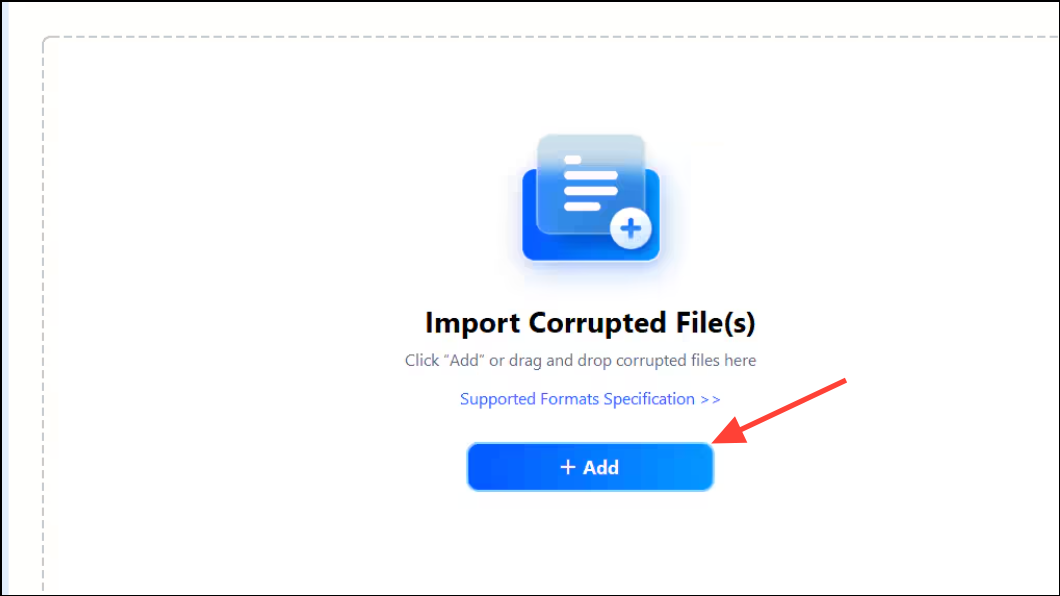
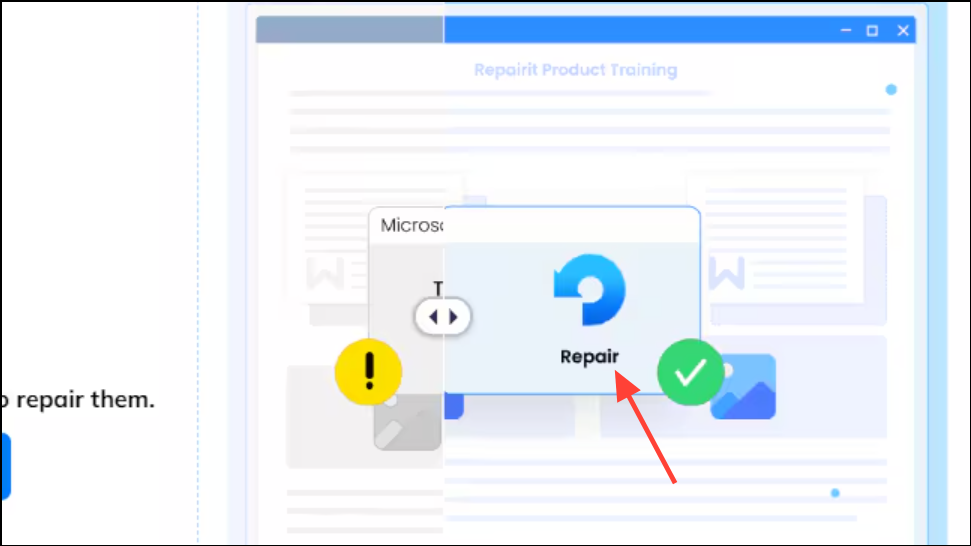
Using a dedicated repair tool streamlines the process and often recovers text, images, tables, and formatting that manual methods cannot. These applications are especially useful when the file is severely corrupted or when manual fixes fail.
Disabling Protected View Settings in Word
Protected View is a Microsoft Office security feature that restricts editing for files originating from potentially unsafe locations, such as email attachments or downloads. Sometimes, Protected View incorrectly flags legitimate files as unsafe, resulting in the corruption error.
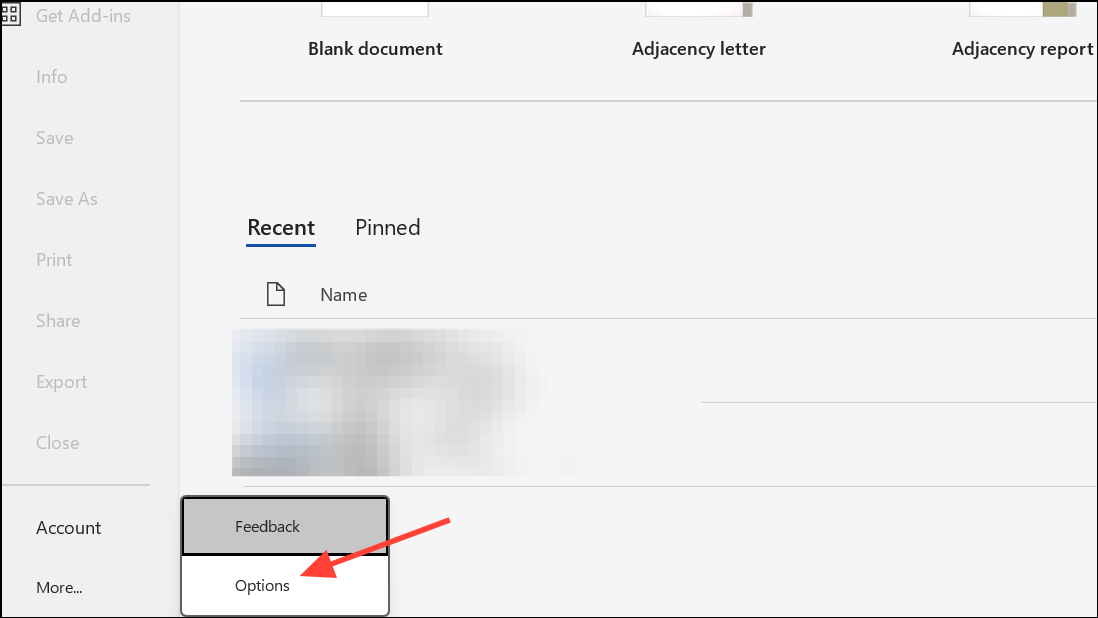
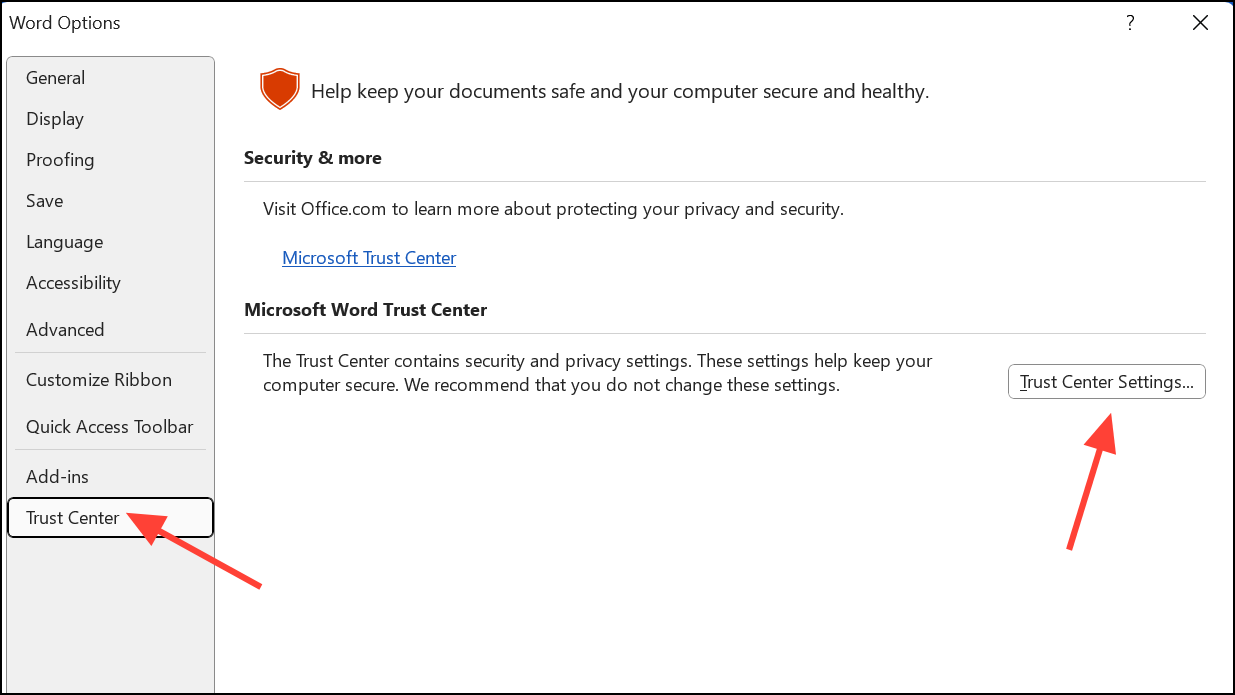
- Enable Protected View for files originating from the Internet.
- Enable Protected View for files located in potentially unsafe locations.
- Enable Protected View for Outlook attachments.
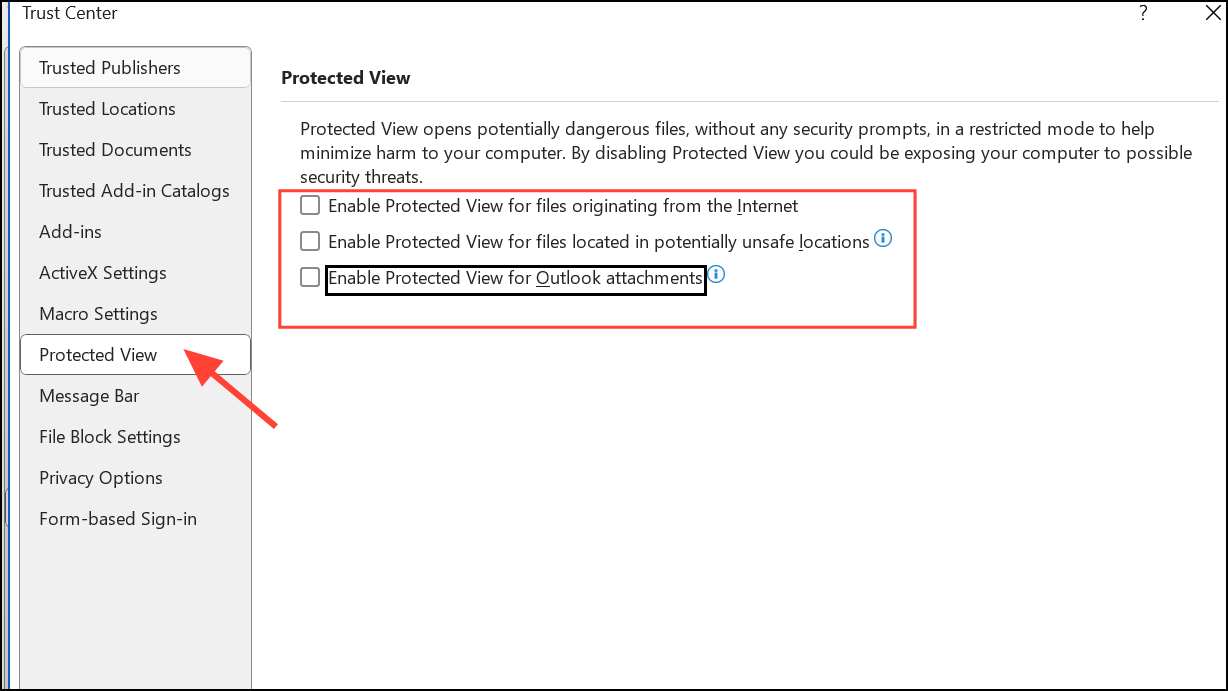

Disabling Protected View removes certain security checks, so only do this for files you trust. Remember to re-enable these settings after recovering your document if you regularly open files from unknown sources.
Resetting Component Services Security Settings
Incorrect system security settings can block Word from opening certain documents, triggering the corruption error even if the file is not actually damaged. Restoring default component services values can resolve this issue.
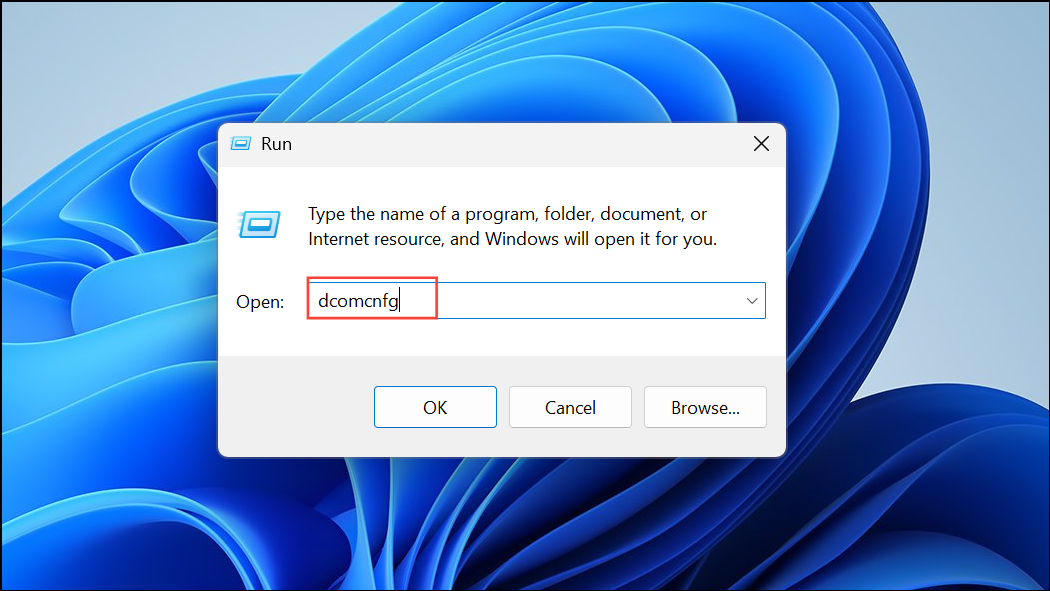
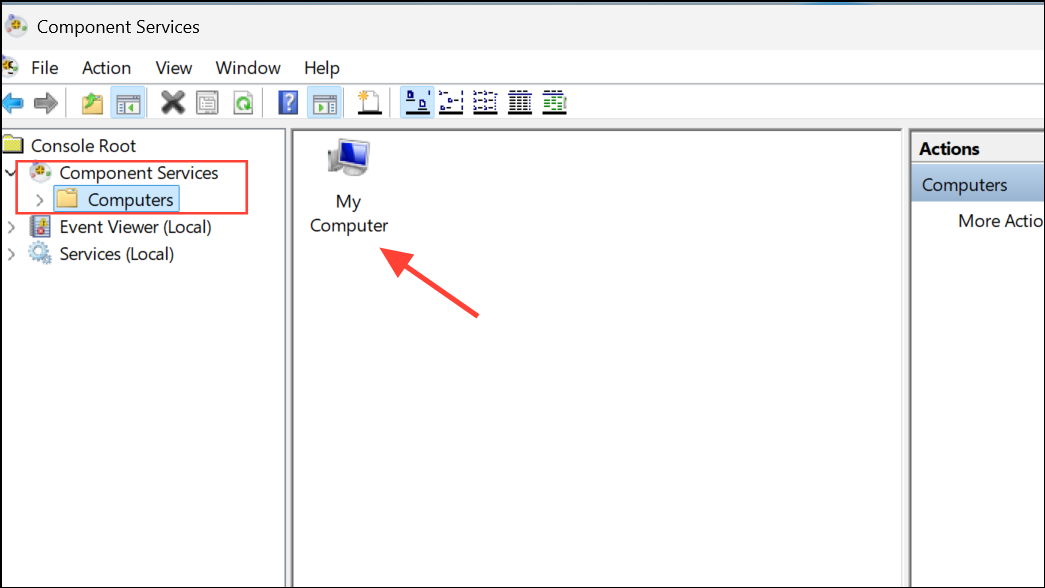
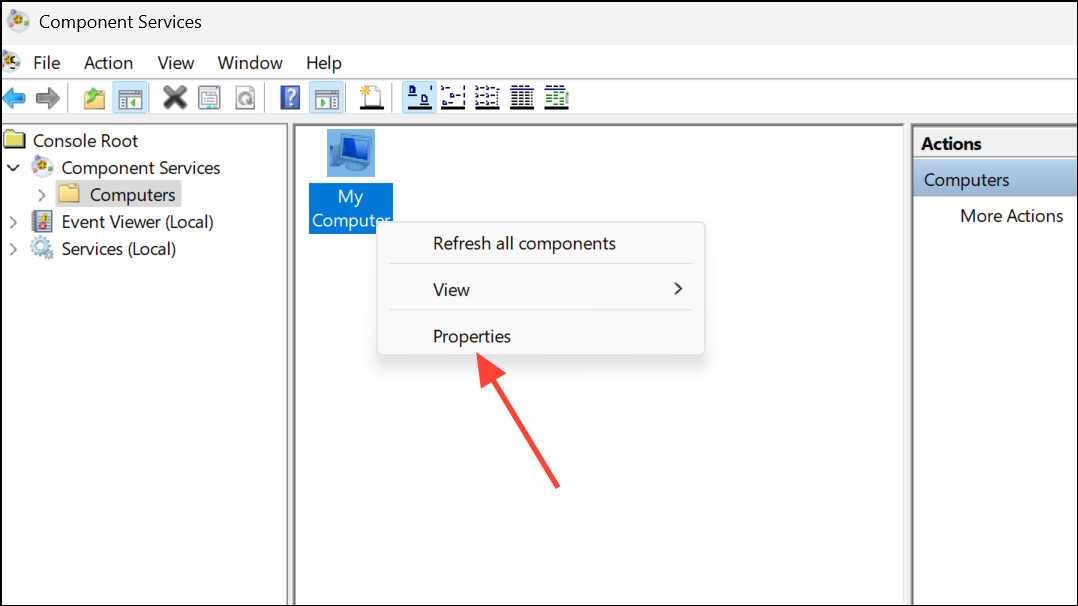
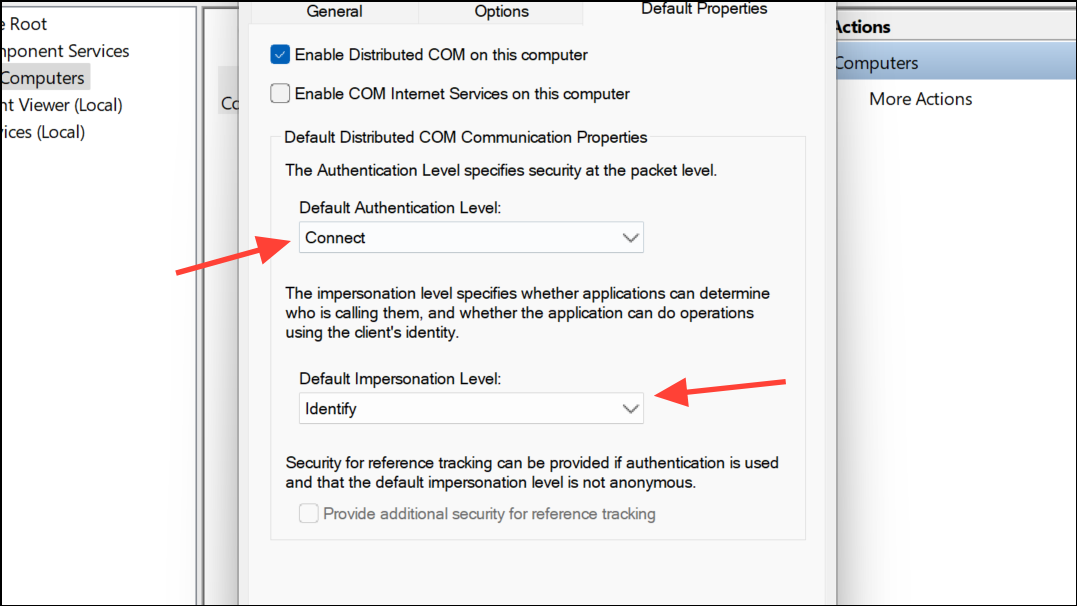
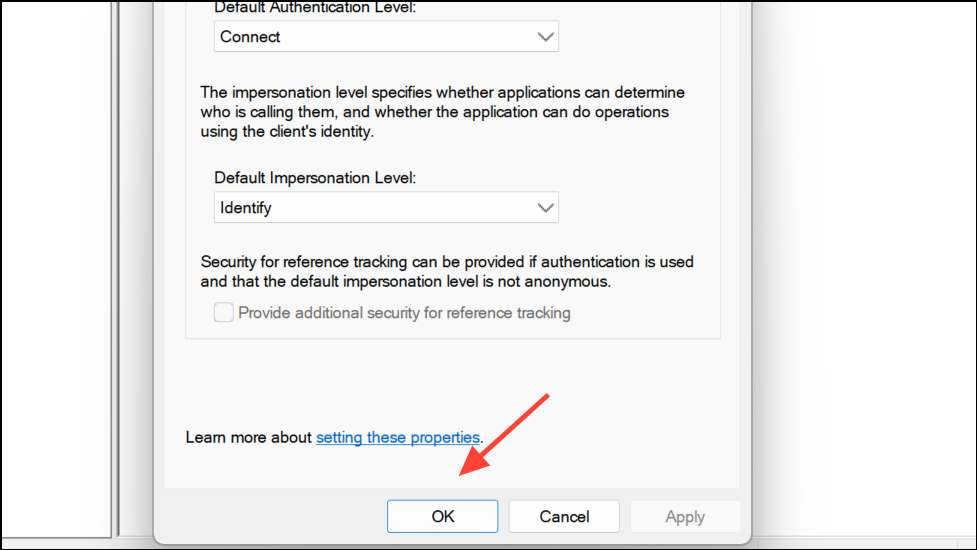
Once your system restarts, try opening the Word document again. This method is especially effective if the error appeared after a Windows or Office update, or if you have recently changed security policies on your computer.
Using the “Open and Repair” Feature in Microsoft Word
Microsoft Word includes a built-in recovery tool called “Open and Repair” that attempts to fix minor file corruption issues automatically. This feature is helpful for documents that are only partially damaged.
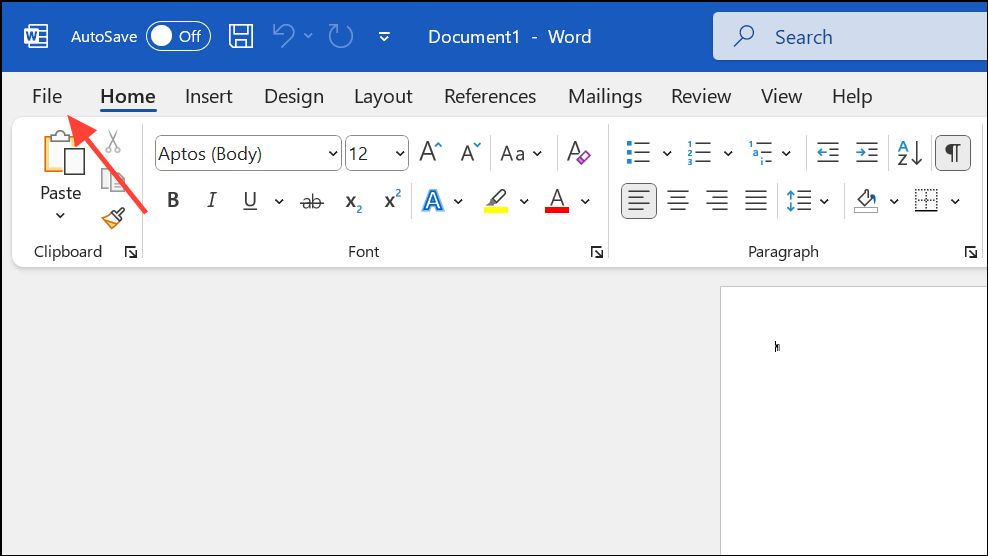
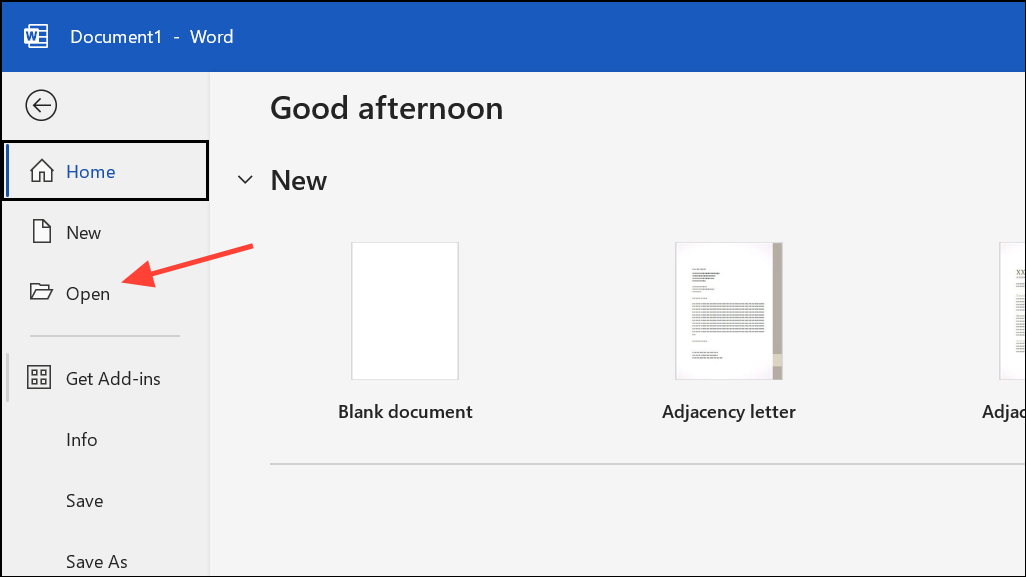
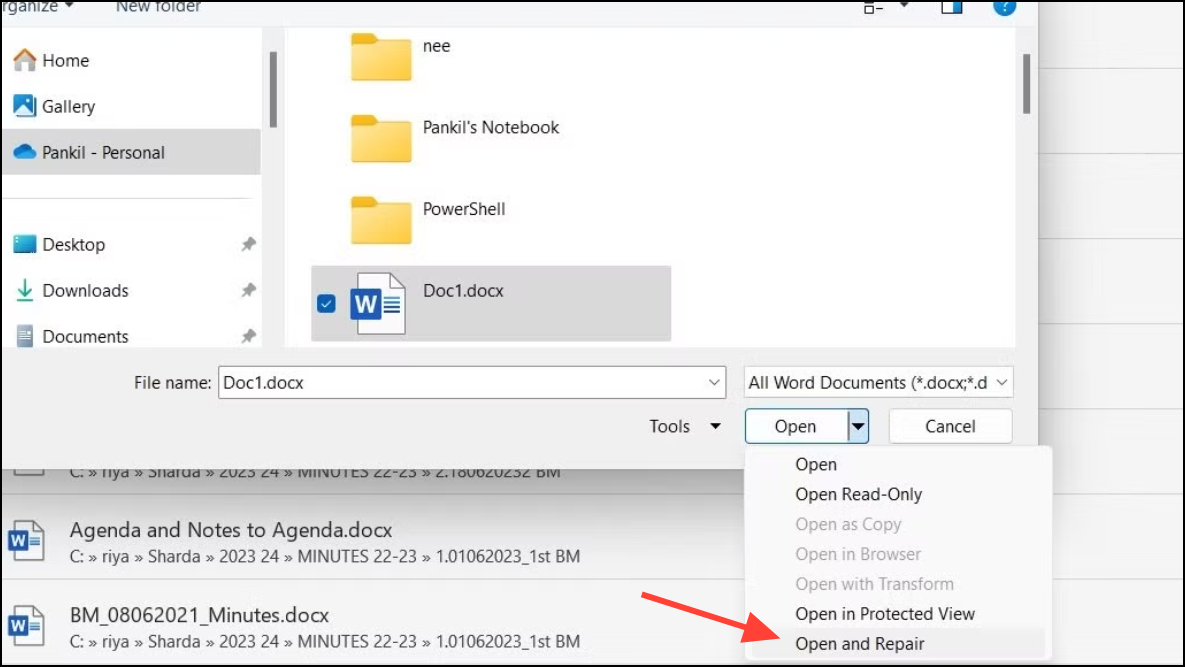
If the repair is only partially successful or if some content is missing, try the “Recover Text from Any File” option in the Open dialog’s file type dropdown. This may extract text, although formatting and images may be lost.
Repairing the Microsoft Office Installation
Problems within the Office application itself, such as incomplete updates or corrupted program files, can also cause the “file is corrupted and cannot be opened” error. Repairing the Office suite can resolve these underlying issues.
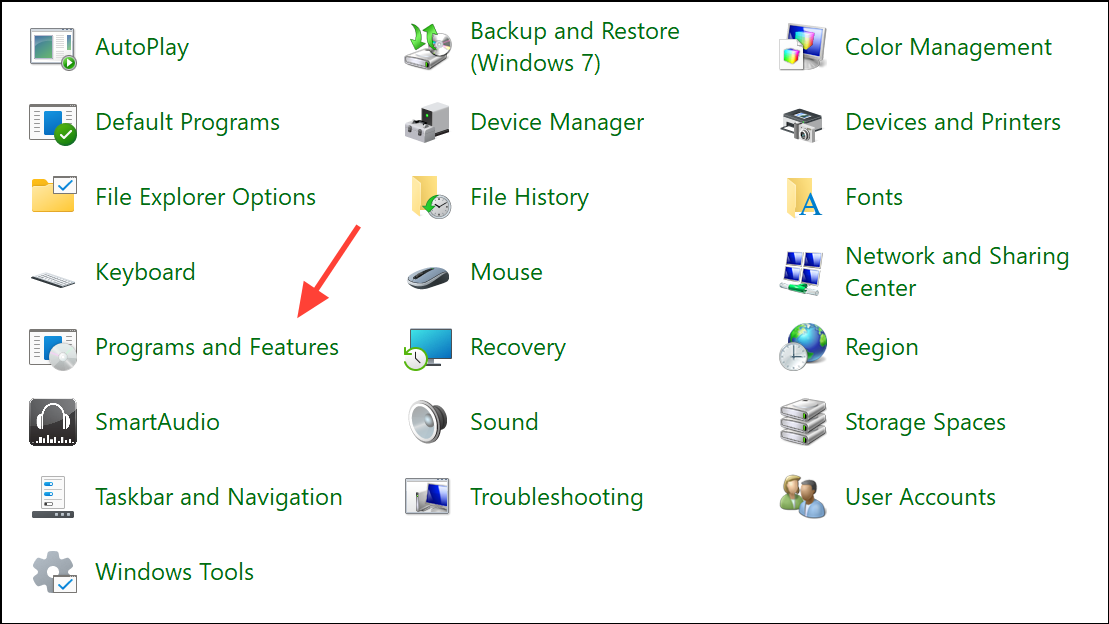
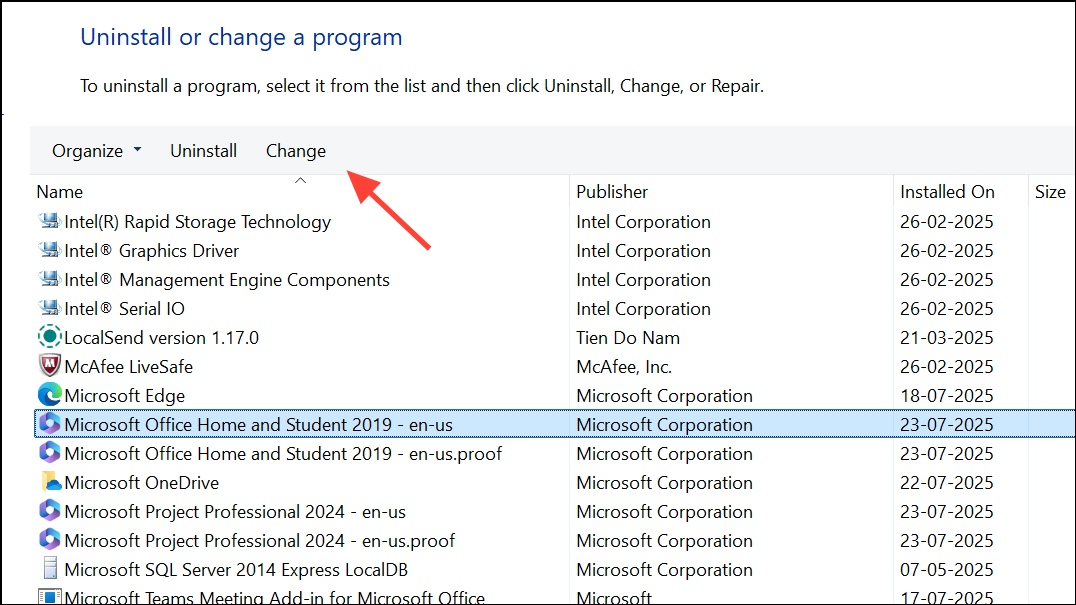
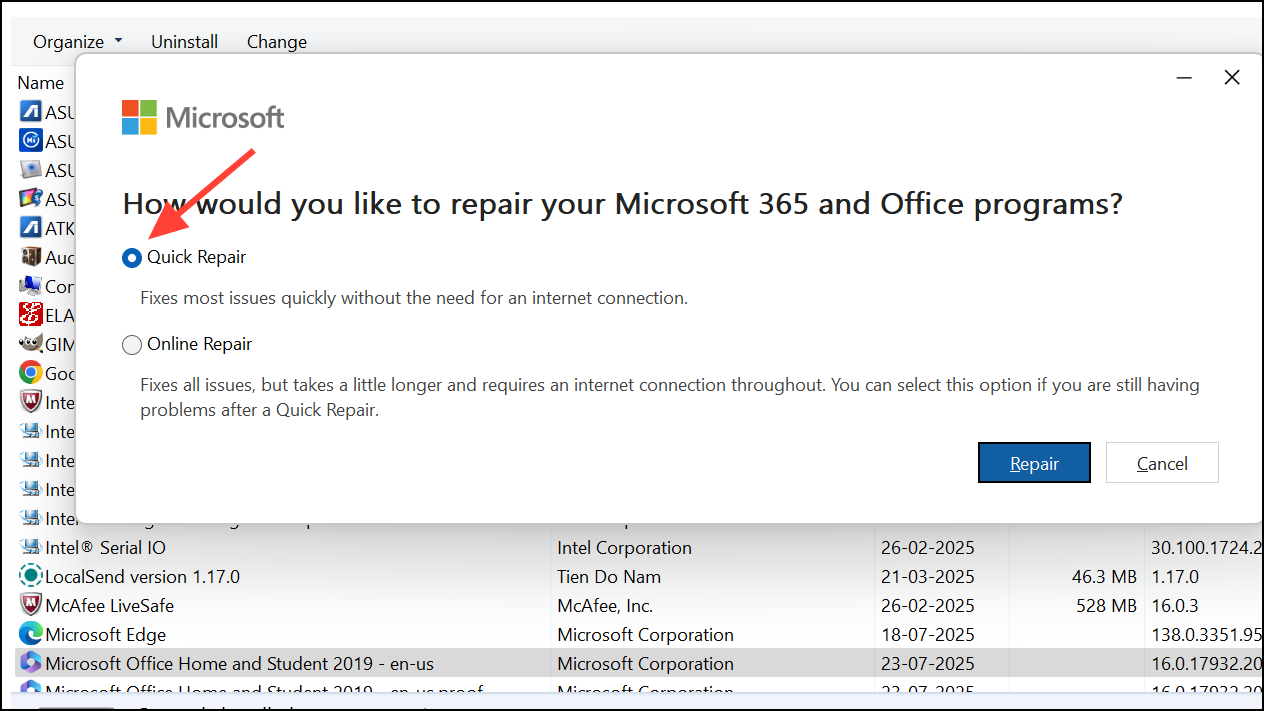
If issues persist, consider running the Online Repair option, which is more thorough but requires an internet connection and may take longer.
Unlocking the Word Document File
Sometimes, Word files become locked by the operating system, preventing them from opening and causing error messages.
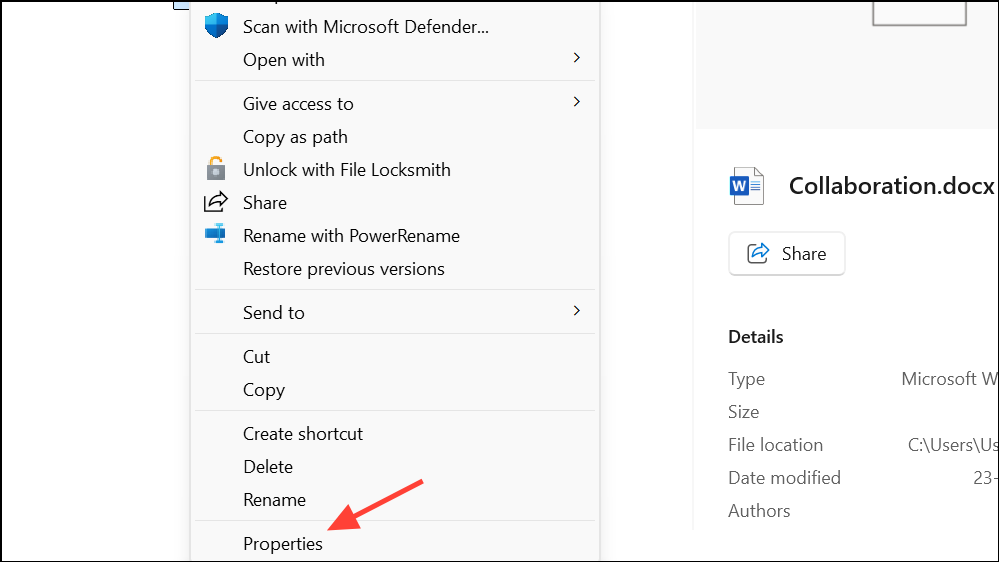
After unlocking, attempt to open the file in Word again. This step is especially relevant for files downloaded from the internet or received as email attachments.
General Tips for Preventing Future File Corruption
- Save work frequently and use multiple backup copies stored in different locations.
- Keep antivirus software updated to prevent malware from damaging files.
- Close Word and shut down your computer properly to avoid abrupt interruptions.
- Be cautious with third-party add-ins, which can sometimes interfere with file operations.
- Stick to standard file formats (DOCX, DOC) and avoid editing files over unreliable network connections.
Fixing the “This file is corrupted and cannot be opened” error in Word usually comes down to adjusting security settings, repairing the Office suite, or using a dedicated recovery tool. With these methods, you can regain access to your important documents and reduce the risk of future file corruption.





