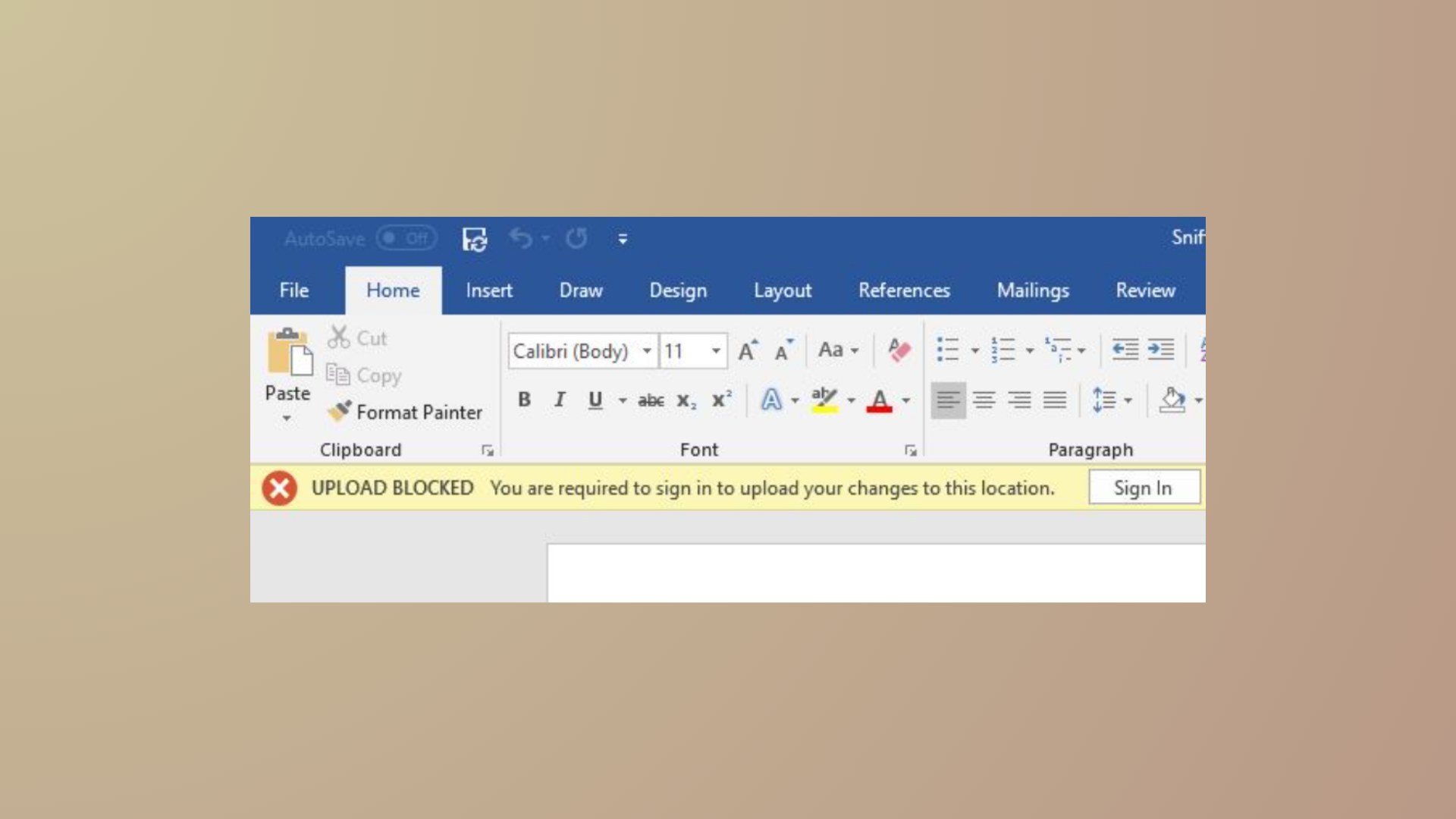
File operations in OneDrive can stall when the system displays a “The file is in use” error. This message appears when attempting to open, delete, move, or sync files that Windows or another application believes are still active. Such interruptions can block document editing, disrupt automated backups, and prevent successful file synchronization between devices.
Identify Which Program Is Using the File
Pinpointing the process that has locked your file is the most direct way to resolve the issue. Windows PowerToys now includes a feature called File Locksmith, which lists all processes currently using a file.
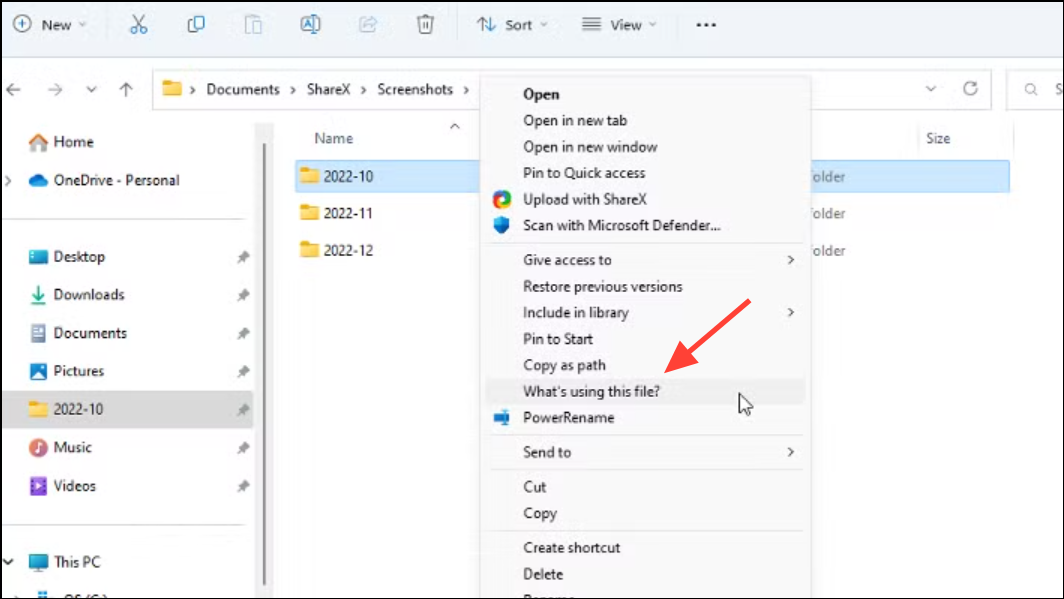
Once the process is terminated, try your original action again—such as opening, deleting, or syncing the file. This method directly addresses the cause of the lock and often resolves the error immediately.
Close Background Processes with Task Manager
Files may remain locked by background applications or system processes, especially after a crash or incomplete shutdown. Task Manager allows you to view and close these processes.
Ctrl + Shift + Esc to open Task Manager. Alternatively, use Ctrl + Alt + Del and select Task Manager from the menu.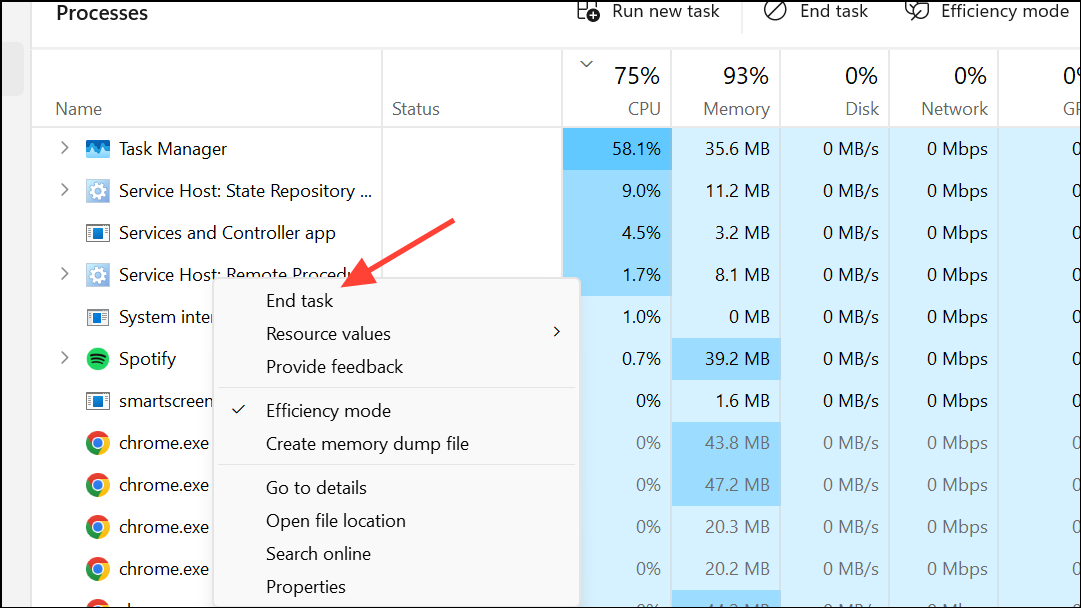
This approach is effective for files that remain locked after applications appear to have closed, and it also addresses cases where OneDrive itself is syncing or processing files in the background.
Restart Windows Explorer
Windows Explorer manages the desktop, taskbar, and file browsing. Occasionally, it can keep file handles open after file operations, leading to persistent “file in use” errors.
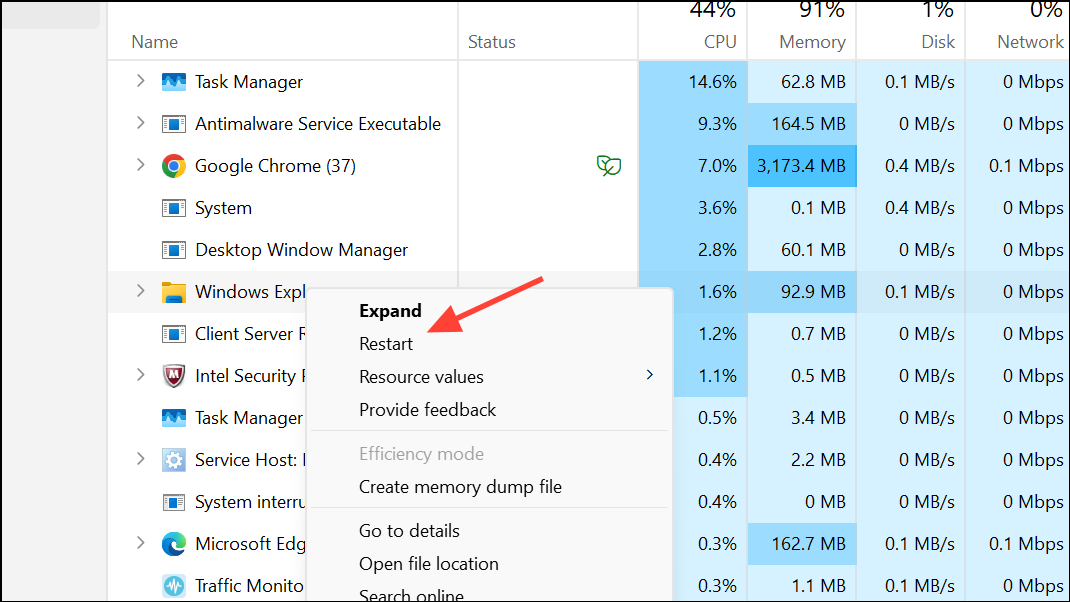
Restarting Windows Explorer can resolve hidden locks and refresh file state across the system, clearing up errors that do not respond to closing individual applications.
Check for File Sync Conflicts in OneDrive and SharePoint
When files are stored in OneDrive or SharePoint and accessed by multiple users or devices, sync conflicts can trigger “file in use” errors. These conflicts often occur if a document is open in more than one location or if changes are made before the previous session has closed.
Managing sync conflicts directly reduces the risk of versioning problems and ensures that file locks are released promptly after edits.
Shorten File Paths and File Names
Windows has a maximum file path length of 260 characters by default. Files with long paths may fail to open, move, or sync, and can generate misleading “file in use” errors.
Shortening file paths is a quick fix that can resolve errors unrelated to actual file locking, especially in environments with deep folder structures.
Delete Temporary Files
Temporary files created by Windows or Office applications can sometimes lock files or interfere with OneDrive sync.
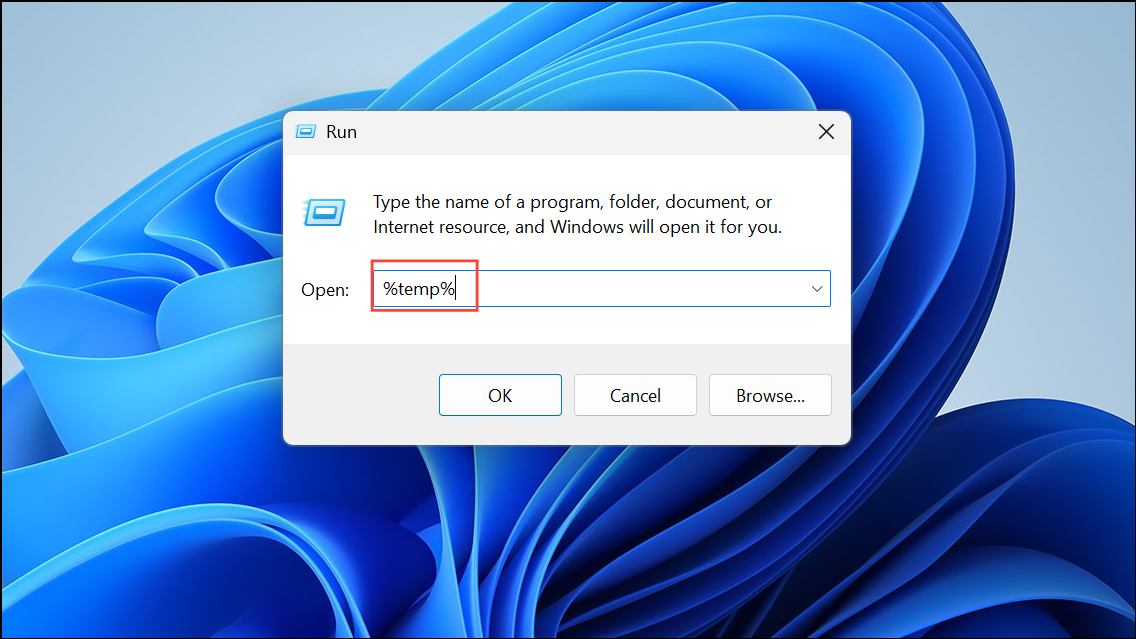
Ctrl + A to select all files, then press Shift + Del to permanently delete them.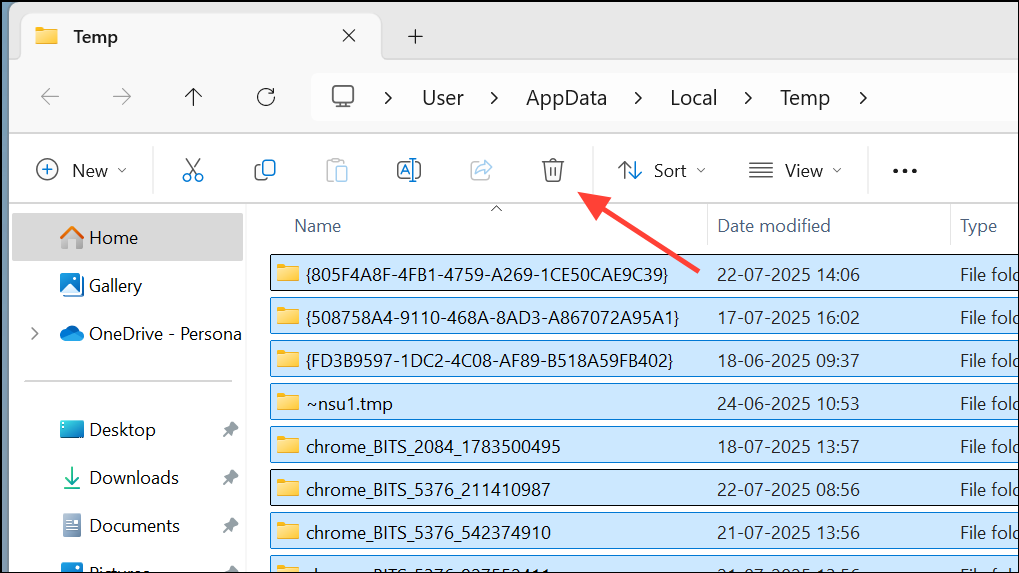
Cleaning up temp files can prevent accidental locks and free up system resources, which in turn helps OneDrive operate more smoothly.
Use Resource Monitor to Identify Locked Files
Resource Monitor is a built-in Windows tool that allows you to search for processes holding specific files open.
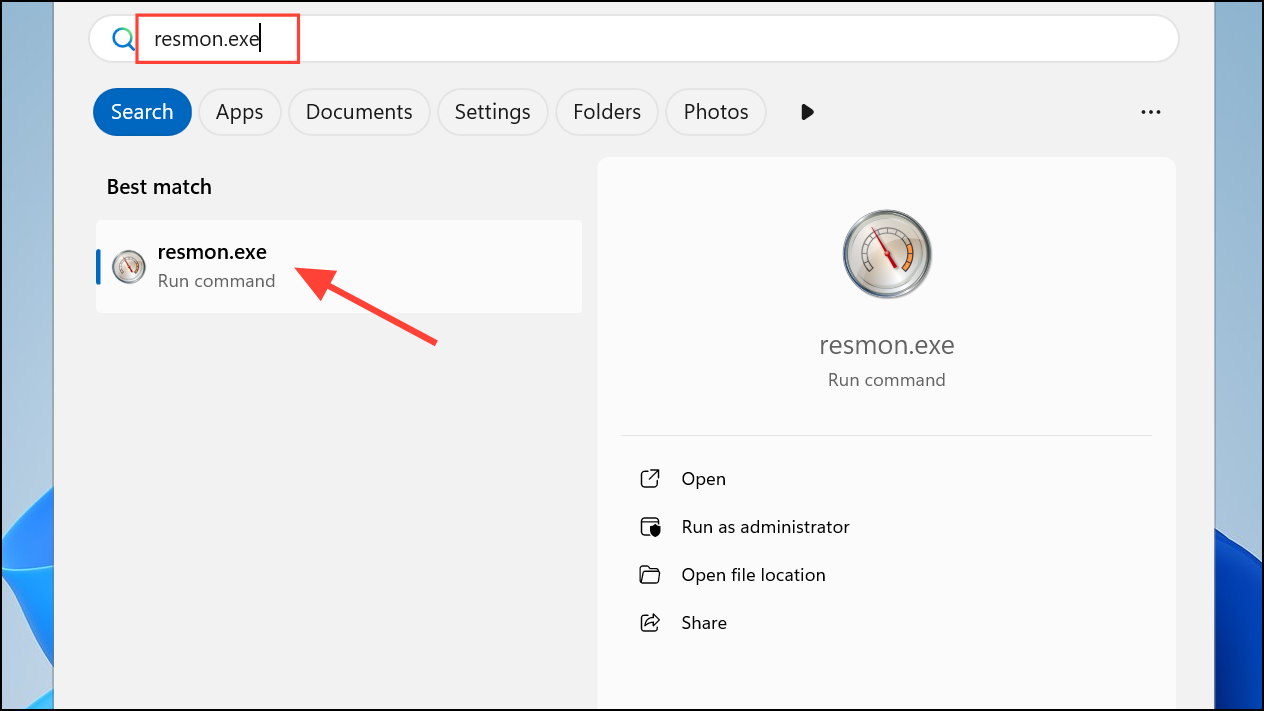
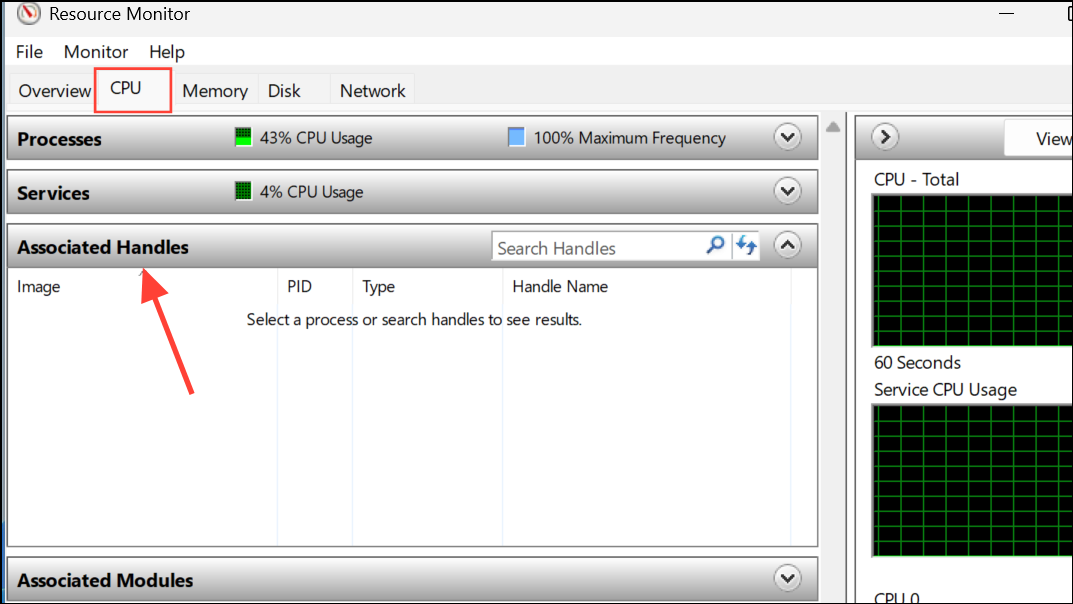
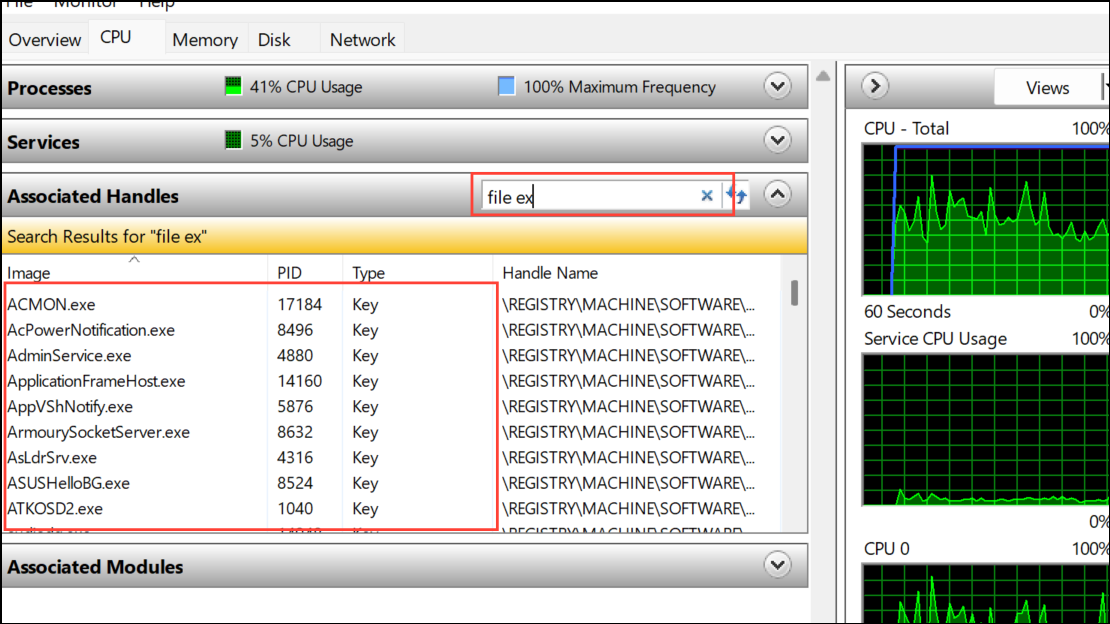
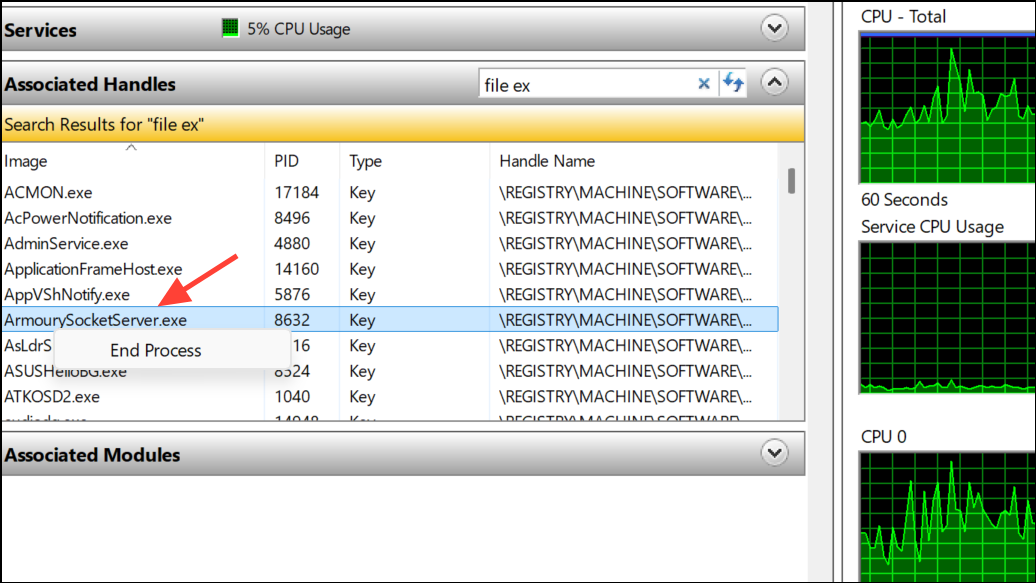
This method is especially useful when you cannot identify which background process is causing the lock via Task Manager.
Restart Your Computer
Rebooting is a reliable way to clear persistent file locks, especially if background processes or system services are holding files open without your knowledge.
This step resets the state of all running processes and releases most file locks that do not respond to other methods.
Resolving “The file is in use” errors in OneDrive involves pinpointing the locking process, managing sync conflicts, and clearing temporary or background file locks. Most issues are resolved by identifying the responsible application or process and closing it, but system restarts and file path adjustments can address more stubborn cases.