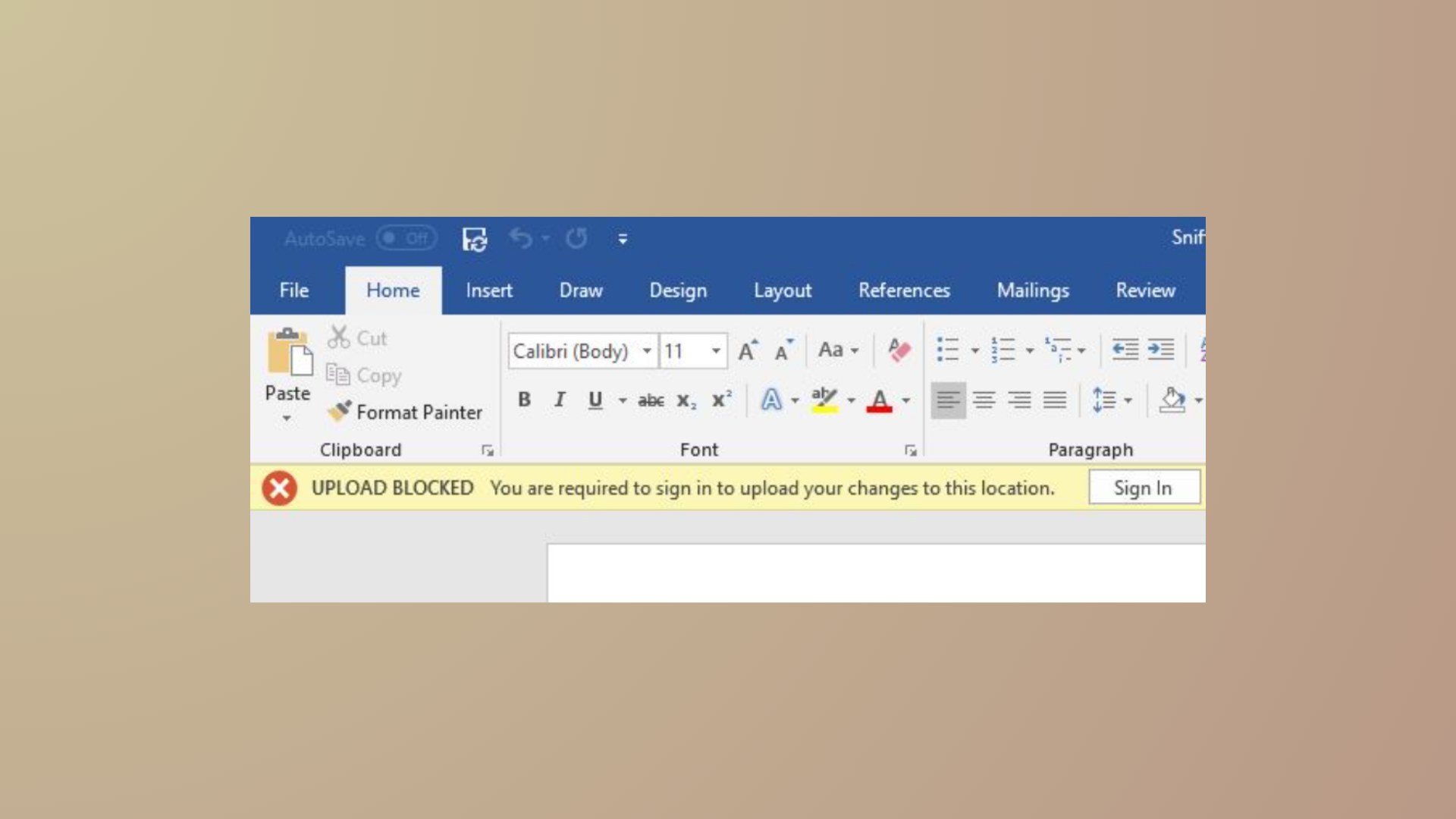
“Upload Blocked. We ran into a problem with this file and can’t save any new changes. Please save a copy to avoid losing your work.” This error stops Microsoft 365 apps like Word and Excel from saving files directly to OneDrive. The problem often surfaces when the account signed into OneDrive differs from the one used in Office, or when credential issues prevent file uploads. The following methods provide clear, actionable steps to resolve this issue and restore seamless file saving and syncing.
Method 1: Match Your Microsoft 365 App and OneDrive Accounts
Using different accounts in Office and OneDrive can trigger upload errors. Ensuring both apps use the same account streamlines authentication and file permissions, allowing files to sync and save without interruption.
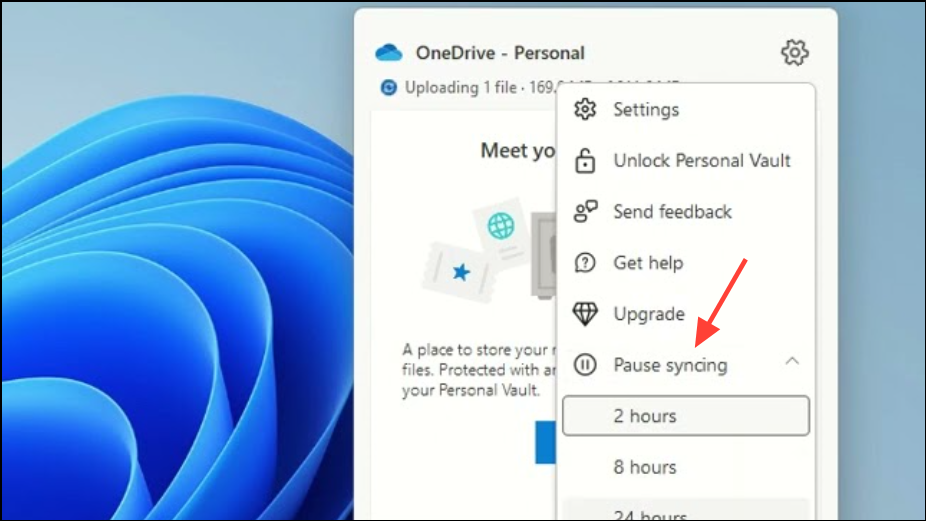
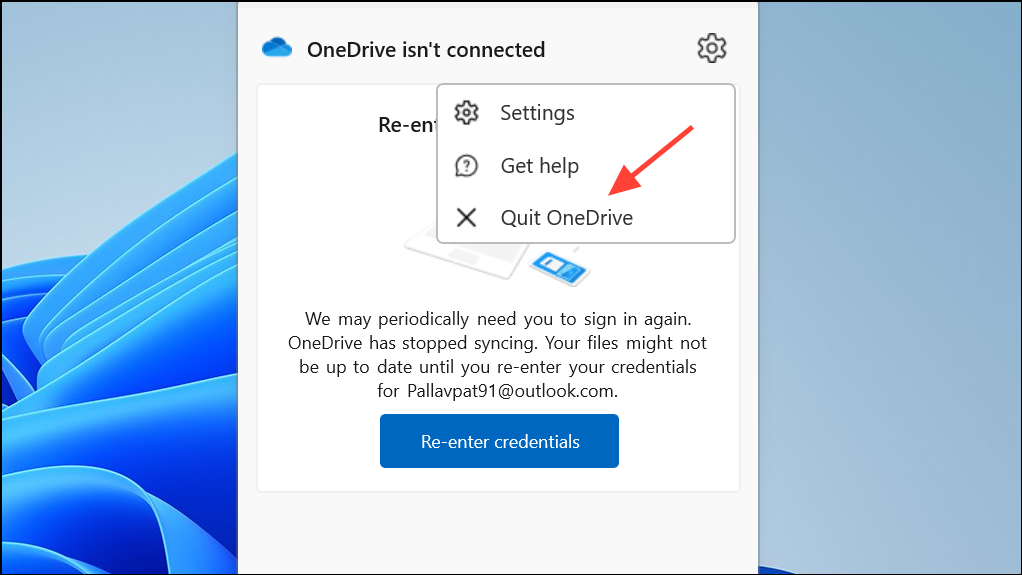
Help & Settings, then choose Settings. On the Account tab, note the signed-in account.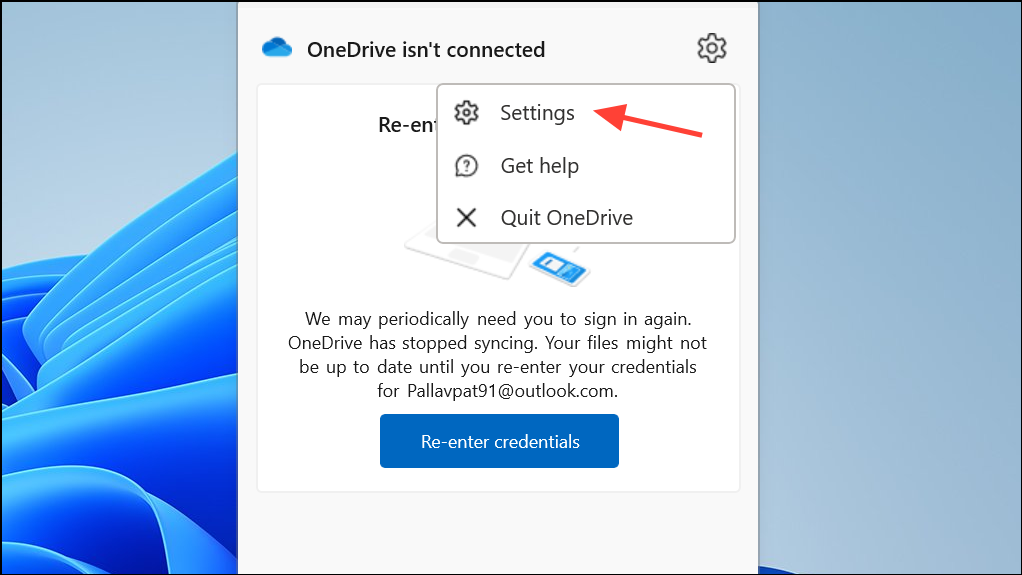
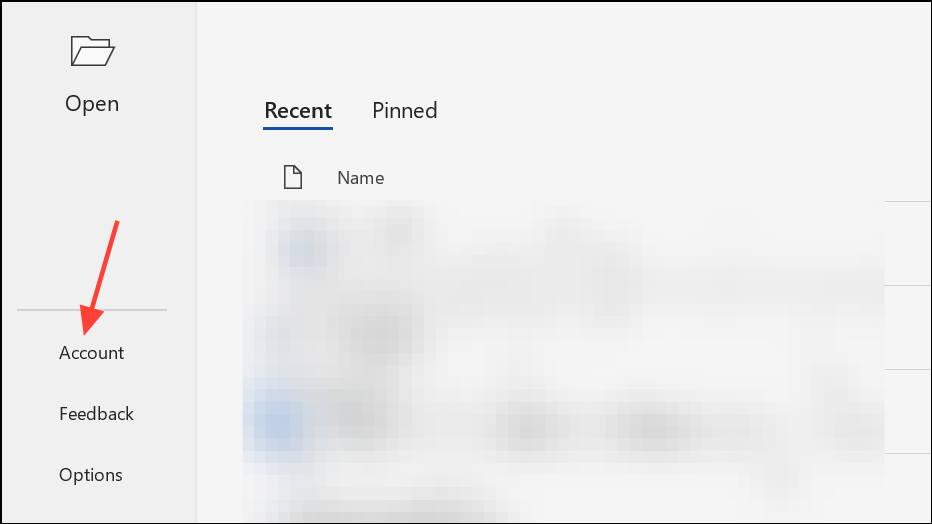
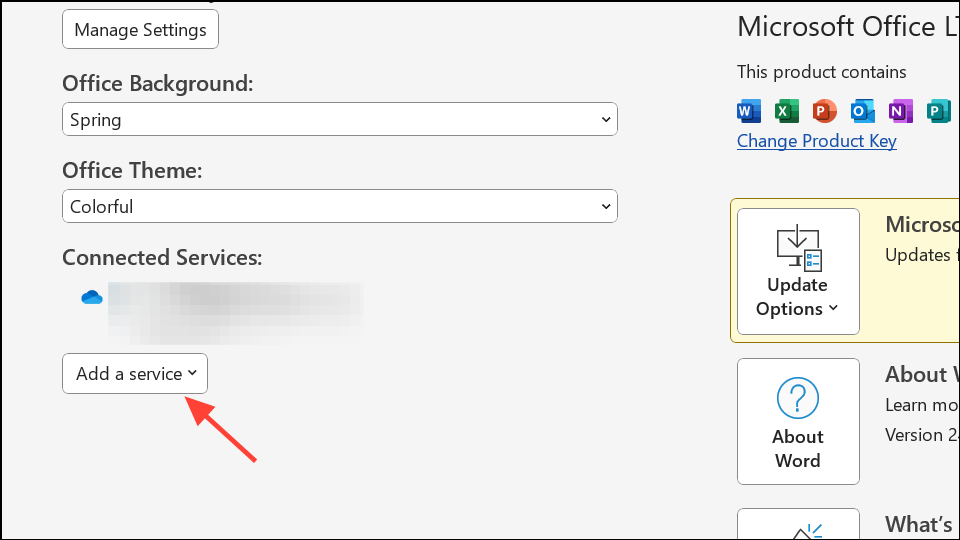
Connected Services, remove all accounts except the one noted in Step 1. This ensures the same account is active in both OneDrive and Office.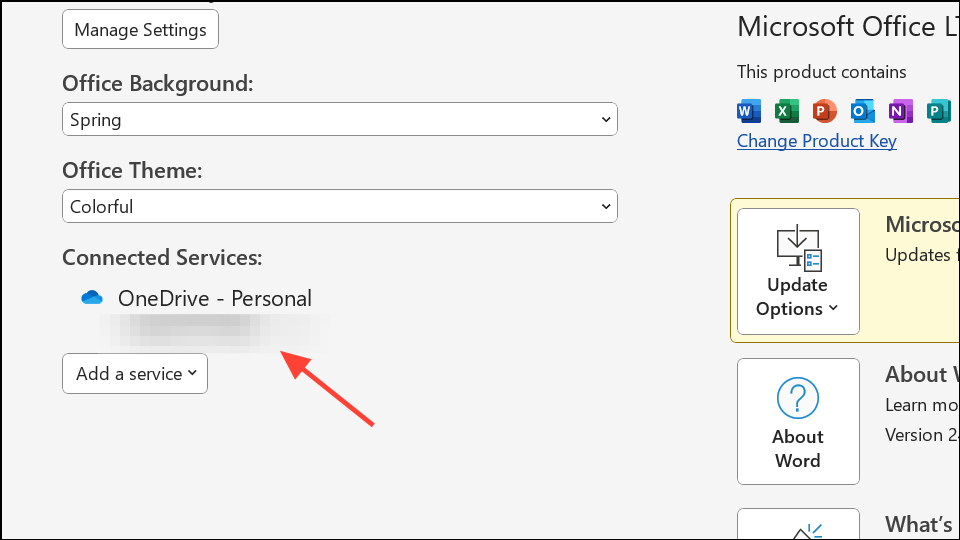
Method 2: Remove and Re-add OneDrive Connected Services in Office
Authentication glitches between Office and OneDrive can cause persistent upload errors. Removing and reconnecting OneDrive within Office resets the connection and resolves many credential-based issues.
Method 3: Clear Cached Credentials for OneDrive and Office
Cached credentials in Windows can become outdated or corrupted, resulting in repeated sign-in prompts and upload blocks. Removing these entries forces Office and OneDrive to request fresh authentication, resolving conflicts.
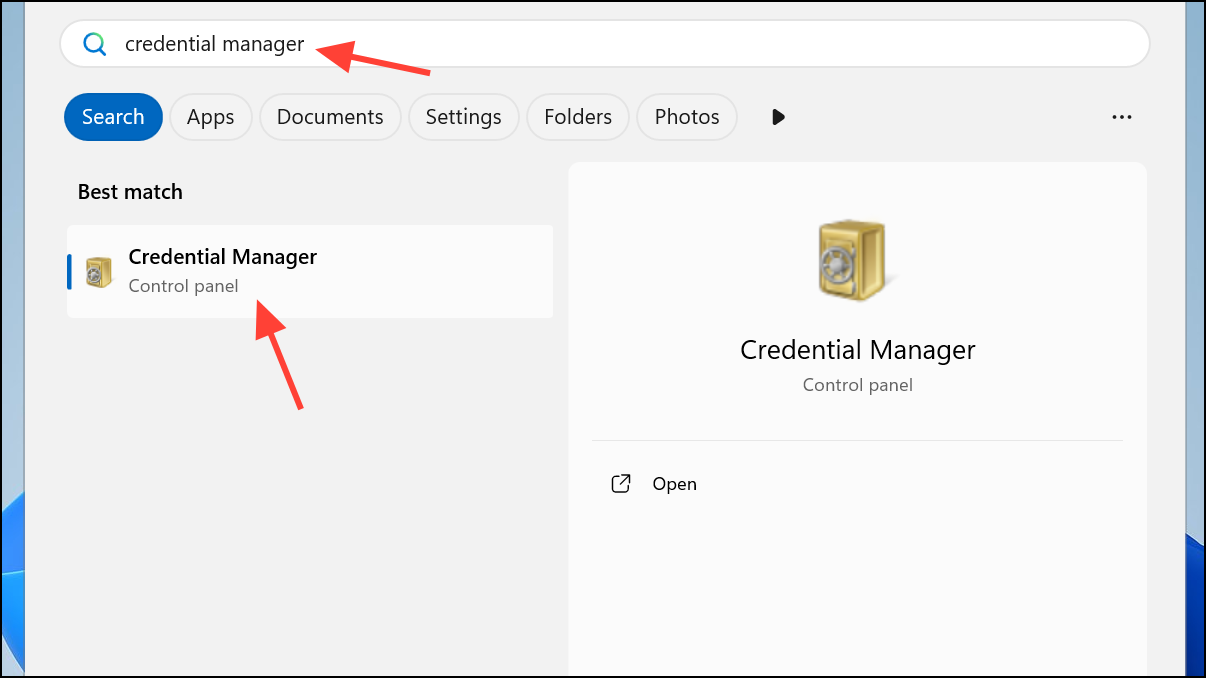
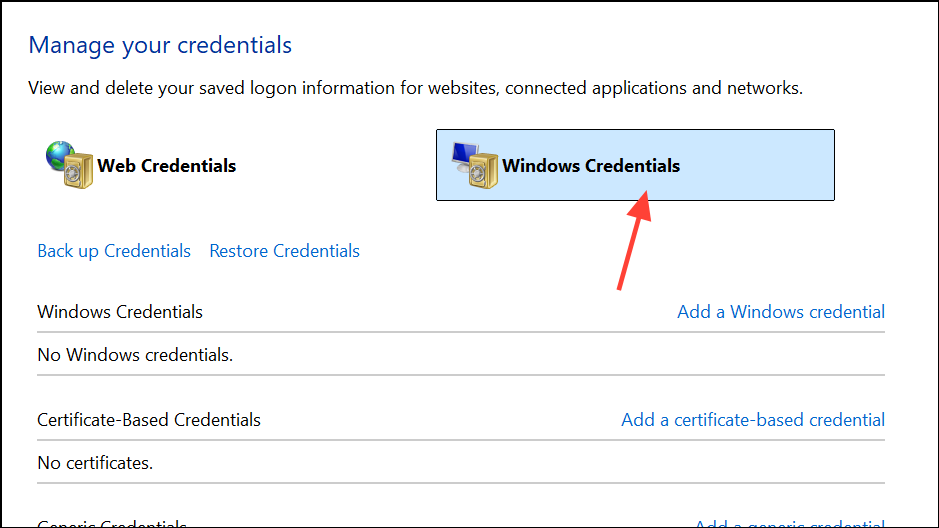
Generic Credentials, find and remove entries related to OneDrive Cached Credentials, MicrosoftOffice16, and MicrosoftOffice15.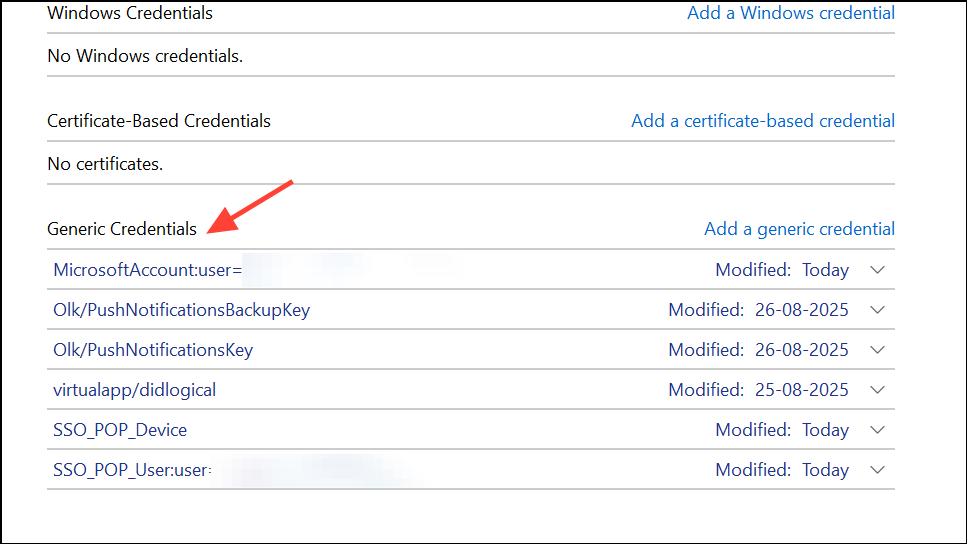
Method 4: Reset OneDrive Application
OneDrive app errors or sync failures can persist if the app’s configuration is corrupted. Resetting OneDrive restores its default settings and can clear up unresolved upload blocks.
%localappdata%\Microsoft\OneDrive\onedrive.exe /reset and press Enter. This command resets the OneDrive app.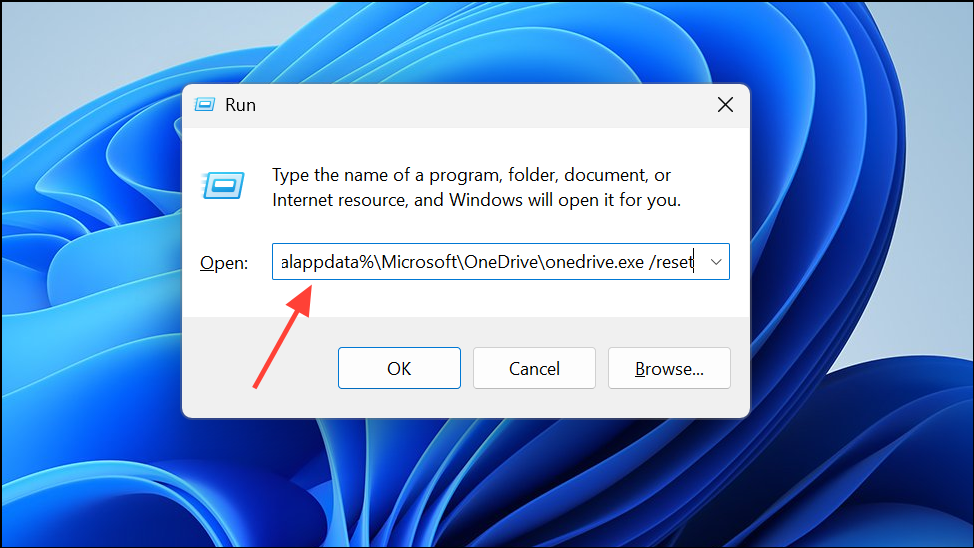
Method 5: Check File Permissions and Sharing Settings
Incorrect file or folder permissions in OneDrive can block uploads and edits, especially if files were shared or transferred between accounts or tenants.
onedrive.live.com and sign in.
Edit permissions or is listed as the owner. Adjust permissions if necessary.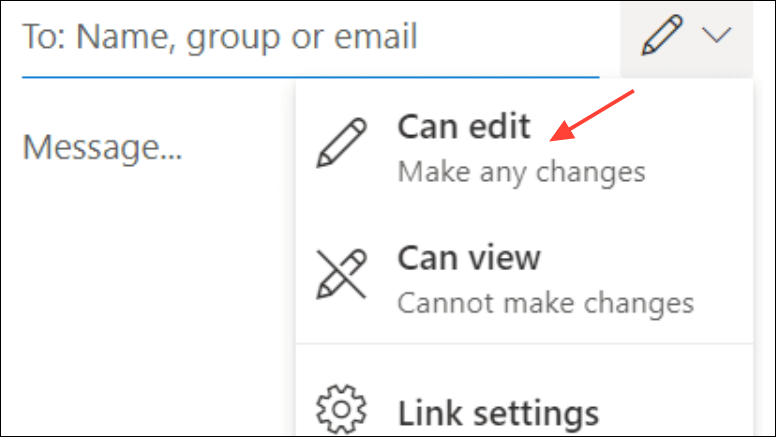
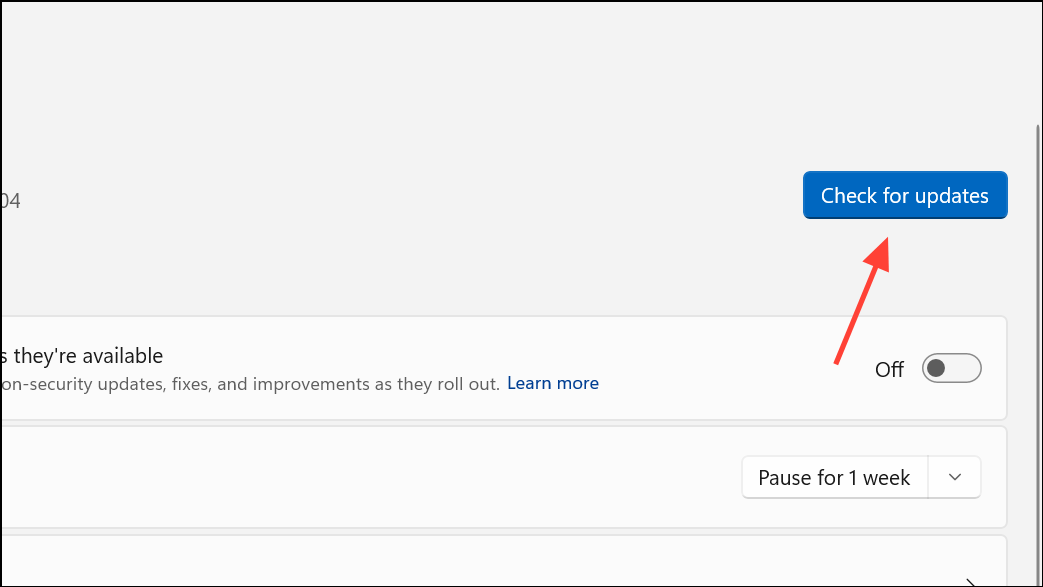
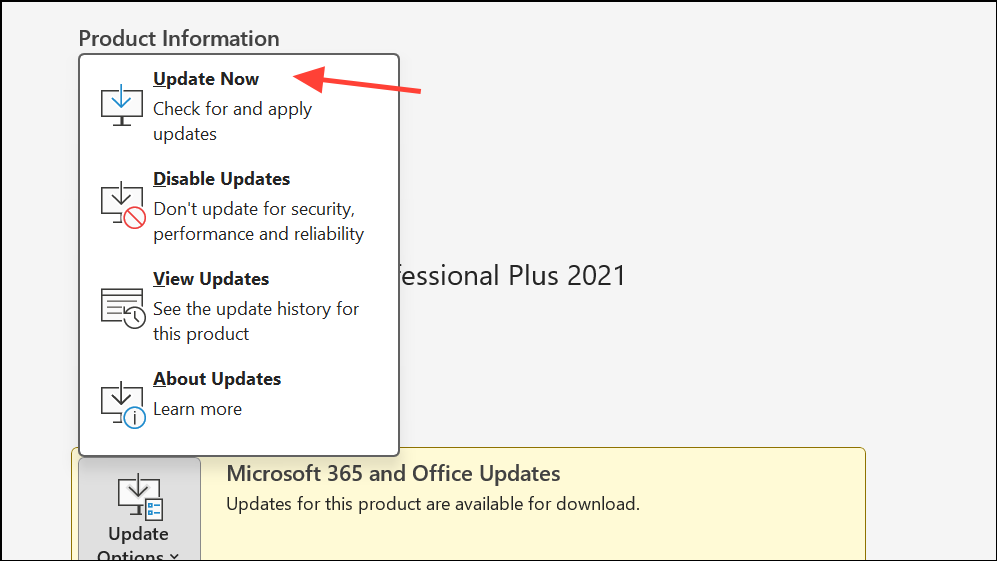
Method 6: Update Windows and Microsoft 365 Apps
Outdated software can cause compatibility problems, leading to upload and sync errors. Keeping Windows and Office apps updated ensures all recent fixes are applied.
Additional Tips and Troubleshooting
- If the error persists after trying the above methods, create a new folder in OneDrive, move your files there, and attempt to save them again. Sometimes folder-specific issues can block uploads.
- Check for any files marked as “Files Needing Attention” in Office apps. These indicate failed uploads and may require you to re-save or discard changes.
- If you use multiple Microsoft accounts (work, school, personal), make sure you’re consistently signed in with the same account across Office and OneDrive.
- For persistent issues, consider uninstalling and reinstalling the OneDrive app.
Resolving “Upload Blocked” and related OneDrive errors restores your ability to save and sync files directly from Microsoft 365 apps. Consistently using the same account, clearing credentials, and keeping software updated prevent these issues from recurring.