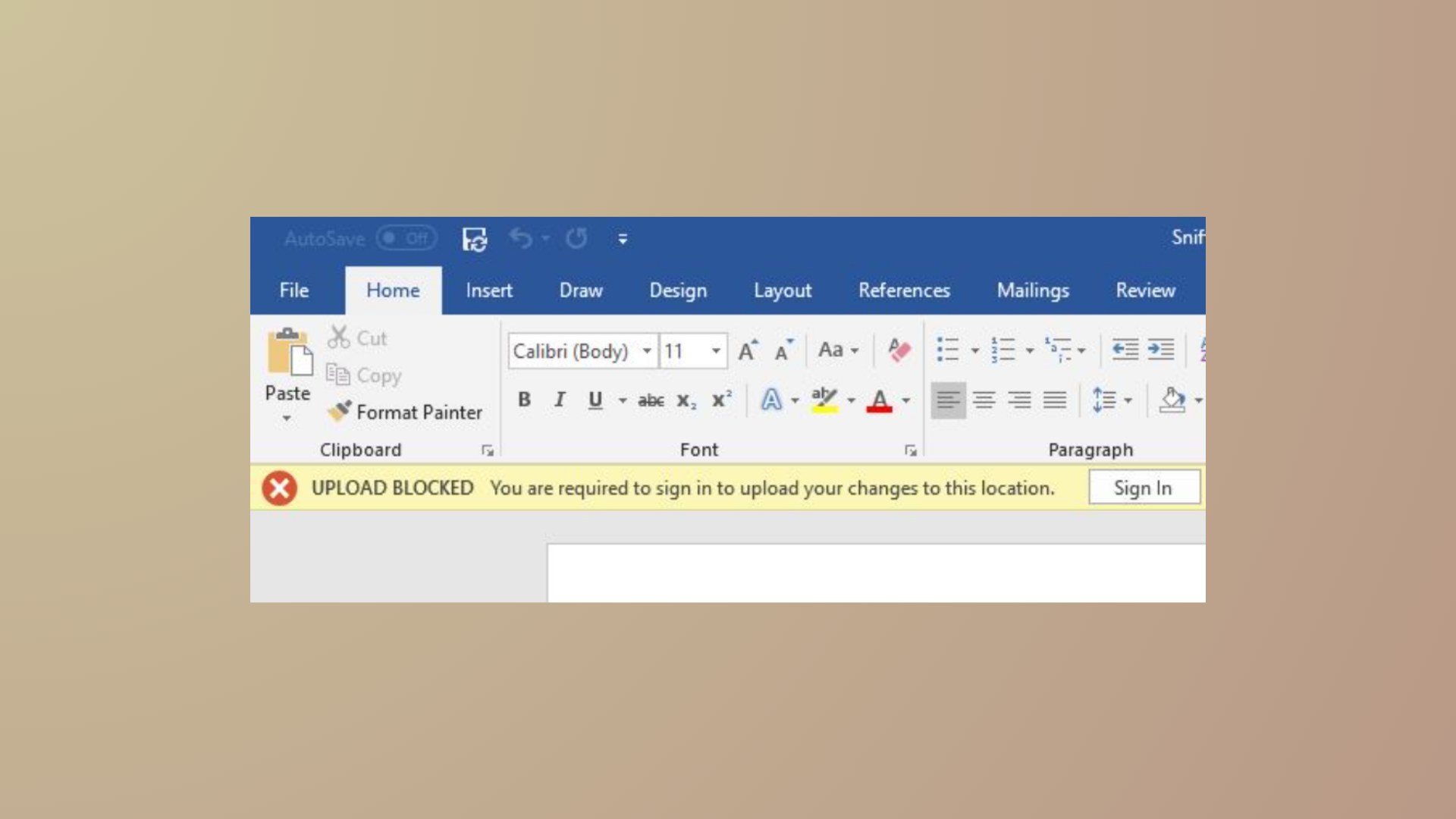
OneDrive displays error code 0x80010007 when it fails to sync files between your PC or Mac and the cloud. This specific error signals a breakdown in the connection between the local OneDrive client and the Microsoft cloud, which interrupts file uploads and downloads. Unlinking the device from your OneDrive account and running the setup process again is the most effective way to resolve this problem and restore normal syncing.
Unlink and Reconfigure OneDrive (Windows)
Show hidden icons arrow next to the notification area. If you still do not see the OneDrive icon, start OneDrive by searching for OneDrive in the Windows Start menu and launching the app.Help & Settings, then choose Settings from the dropdown menu. This opens the OneDrive settings window.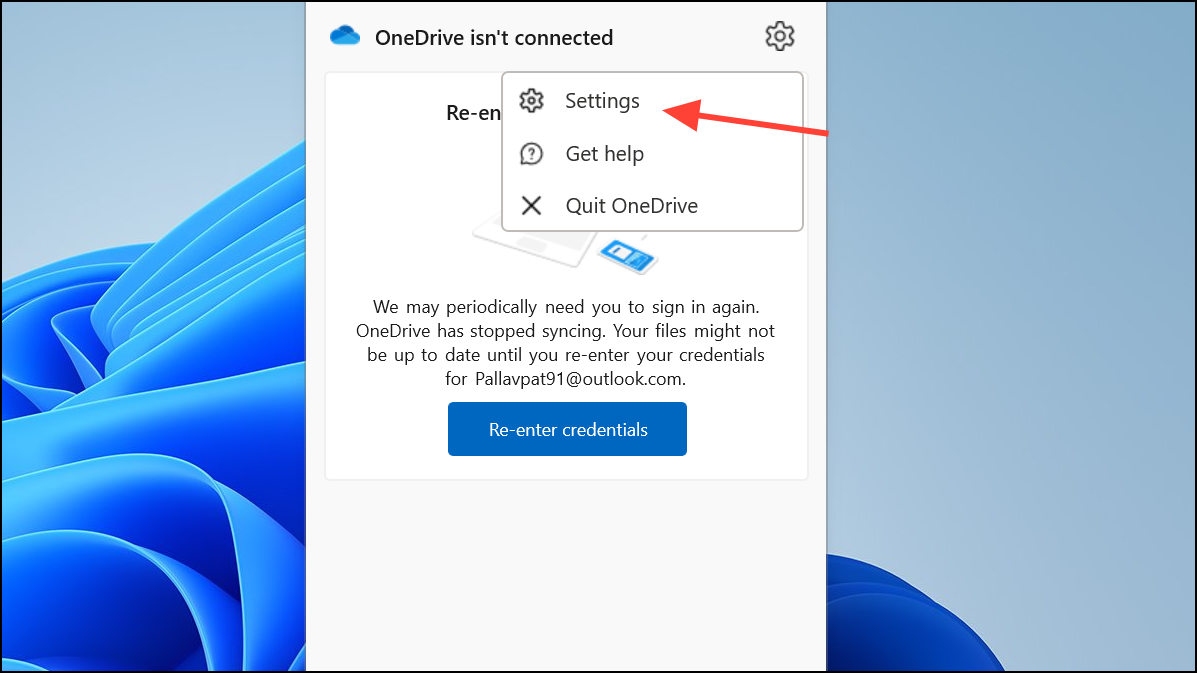
Account tab. Click the button labeled Unlink this PC and confirm by selecting Unlink account. This action disconnects your device from your OneDrive account but does not delete any files stored locally or in the cloud.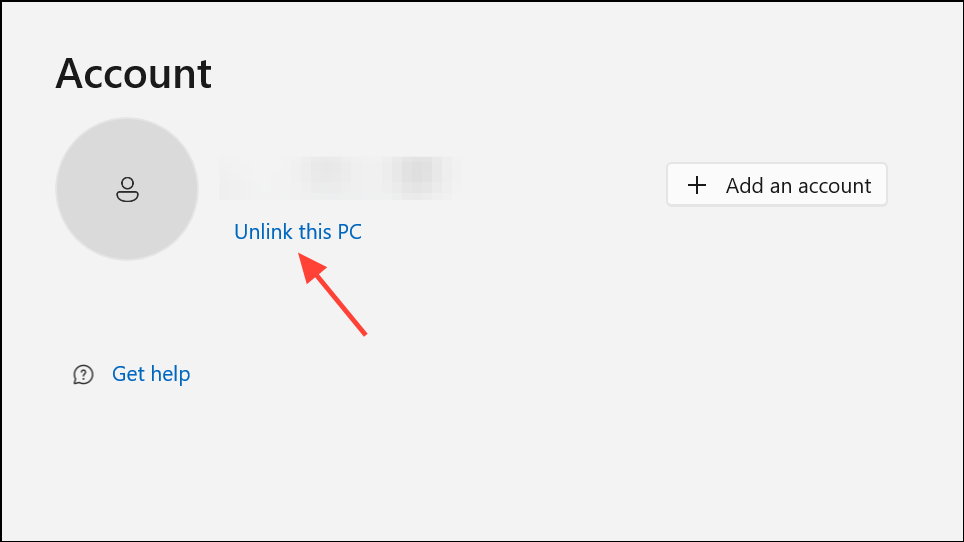
0x80010007 error.All your files remain accessible online at onedrive.live.com during this process. Unlinking and relinking does not risk data loss.
Unlink and Reconfigure OneDrive (macOS)
Command + Space, type OneDrive, and launch the app.Account tab, click Unlink this Mac. Confirm your choice. This disconnects your Mac from OneDrive without deleting any files already stored on your device or in the cloud.Unlinking and relinking on Mac follows the same logic as on Windows, reestablishing the connection and resolving the error code.
Alternative Troubleshooting Tips
While unlinking and relinking is the most reliable fix, you can try these additional steps if problems persist:
- Restart your computer after relinking to ensure all OneDrive processes reset properly.
- Update OneDrive to the latest version by downloading the newest installer from the official OneDrive download page.
- Check your internet connection to rule out network issues that could disrupt syncing.
- Ensure your Microsoft account credentials are up to date and that you are signed in with the correct account.
- If you use security software, make sure it is not blocking OneDrive’s connection to the cloud.
If you still see error code 0x80010007 after these steps, contacting Microsoft support may be necessary for advanced troubleshooting.
Reestablishing your OneDrive sync by unlinking and relinking your device restores normal file syncing and removes the 0x80010007 error, letting you get back to work without further interruptions.