Microsoft will stop providing security and feature updates for Windows 10 on October 14, 2025. After this date, devices running Windows 10 become increasingly vulnerable to malware and cyberattacks unless users take action to continue receiving security patches. To give users more time before upgrading to Windows 11, Microsoft now offers several ways to enroll in the Extended Security Updates (ESU) program—some of which are completely free for personal use. Here’s how you can keep your Windows 10 PC protected beyond the official support deadline.
Method 1: Enroll in ESU Using Windows Backup (Free Option)
Syncing your PC settings to the cloud with Windows Backup and OneDrive is the most straightforward way to receive free security updates for an additional year after Windows 10 support ends. This method is available to individual users and does not require any payment, but it does require a Microsoft account and sufficient OneDrive storage.
Settings > System > About and look under Windows specifications.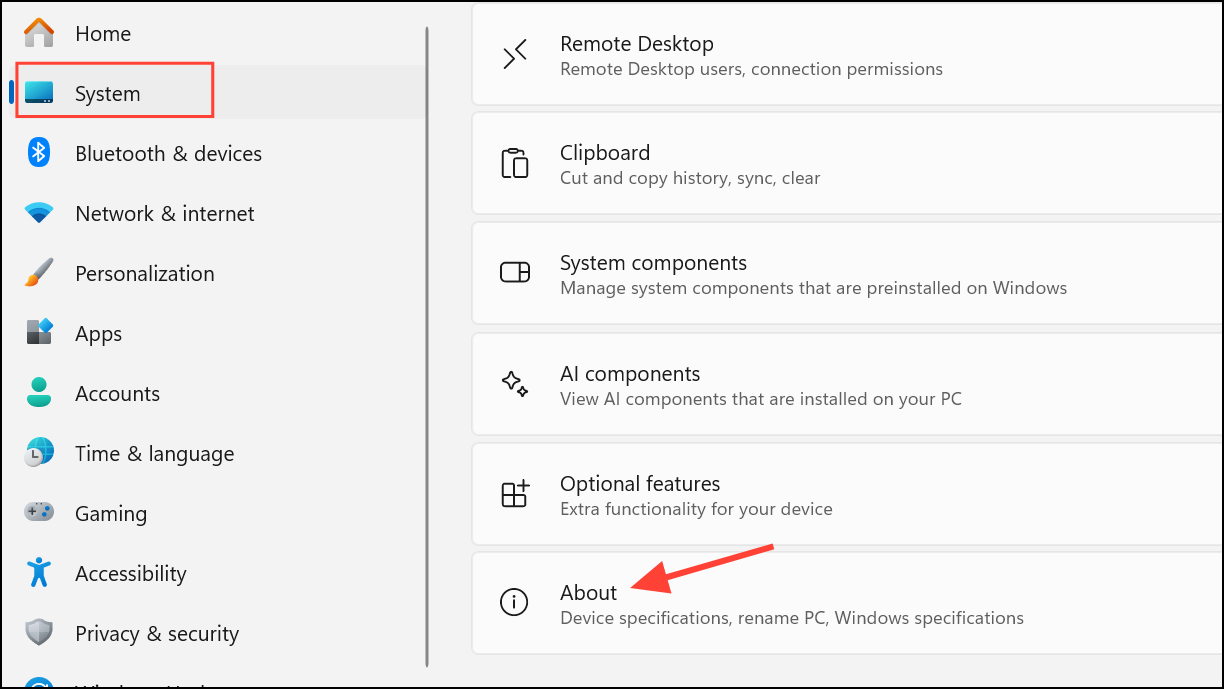
Settings > Update & Security > Windows Update and click Check for updates. This step ensures your device meets all prerequisites for ESU enrollment.
Settings > Accounts > Windows backup and follow the prompts to back up your settings and files to OneDrive. This backup process links your device to the ESU program at no additional cost.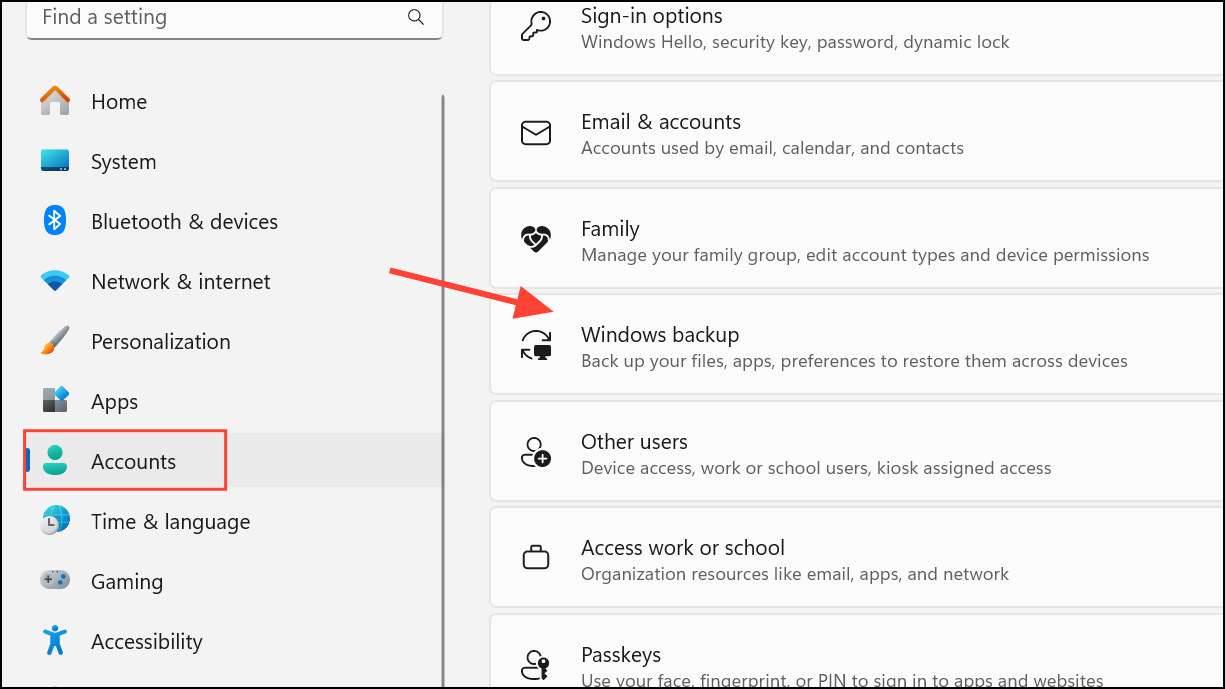
Settings > Update & Security > Windows Update. You should see an option to Enroll now for Extended Security Updates. Click this link and follow the on-screen instructions to complete enrollment.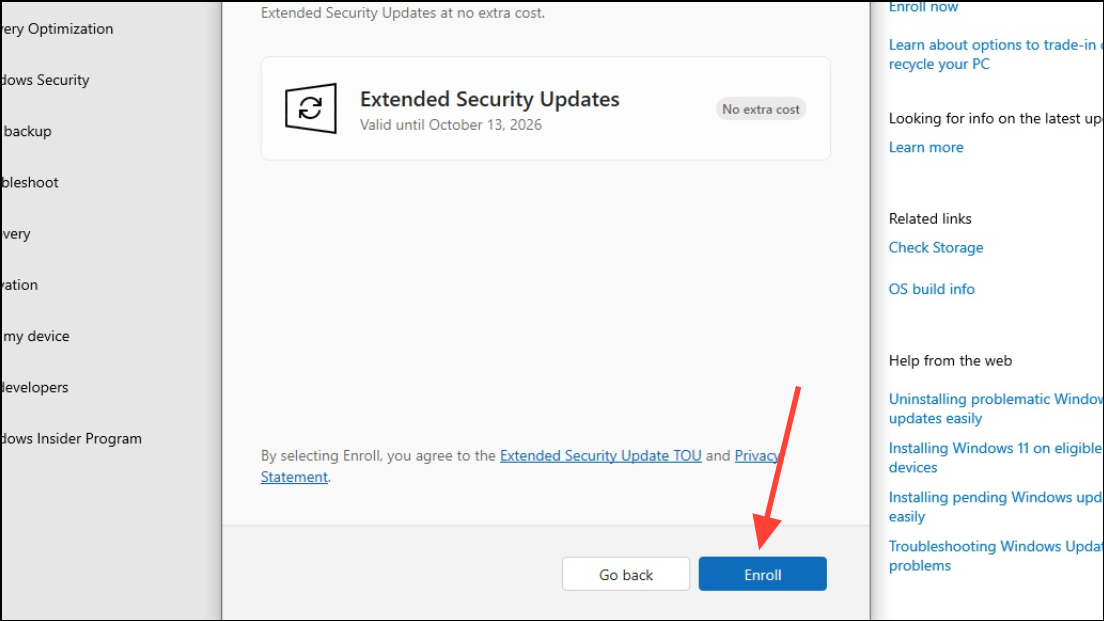
Method 2: Redeem Microsoft Rewards Points for ESU (Free Option)
If you use Microsoft Rewards, you can exchange 1,000 points for one year of Extended Security Updates. This is another no-cost method for individual users.
Settings > Update & Security > Windows Update and select Enroll now for ESU. When prompted, choose the option to redeem Microsoft Rewards points for enrollment.Method 3: Purchase ESU Subscription (Paid Option)
For users who prefer not to use cloud backup or don’t have enough Rewards points, Microsoft offers a paid ESU option for personal Windows 10 PCs. The cost is $30 for one year, covering up to 10 devices linked to your Microsoft account.
Method 4: ESU for Organizations and Commercial Devices
Businesses, educational institutions, and organizations can purchase ESU licenses through Microsoft’s Volume Licensing Program. These licenses are more expensive and designed for managed environments.
- Year 1: $61 per device for organizations; $1 per device for education customers.
- Each subsequent year doubles in price, with a maximum of three years of coverage.
- Enrollment is managed by IT administrators using tools like Microsoft Intune or Windows Autopatch.
- Minimum purchase is one license; licenses must be bought annually and are cumulative.
- Cloud-connected devices using Windows 365 or Azure Virtual Desktop may receive ESU at no additional cost.
Technical support for ESU is limited to issues with activation, installation, and update regressions. Standard Windows 10 support is not included.
Alternative: Third-Party Security Patch Services
For users who do not wish to use Microsoft’s ESU program, third-party providers like 0patch offer critical security patches for Windows 10 after end of support. These services typically cost between $25 and $36 per PC per year and deliver “micropatches” for newly discovered vulnerabilities. These are not official Microsoft updates and may require manual installation.
Unauthorized methods for bypassing ESU licensing exist but are not legal and expose users to compliance risks and potential legal action.
Keeping your Windows 10 PC secure after official support ends is now possible through several official Microsoft options, including free enrollment for personal users. Choosing the right method depends on your needs, privacy preferences, and willingness to use cloud services or rewards points.