
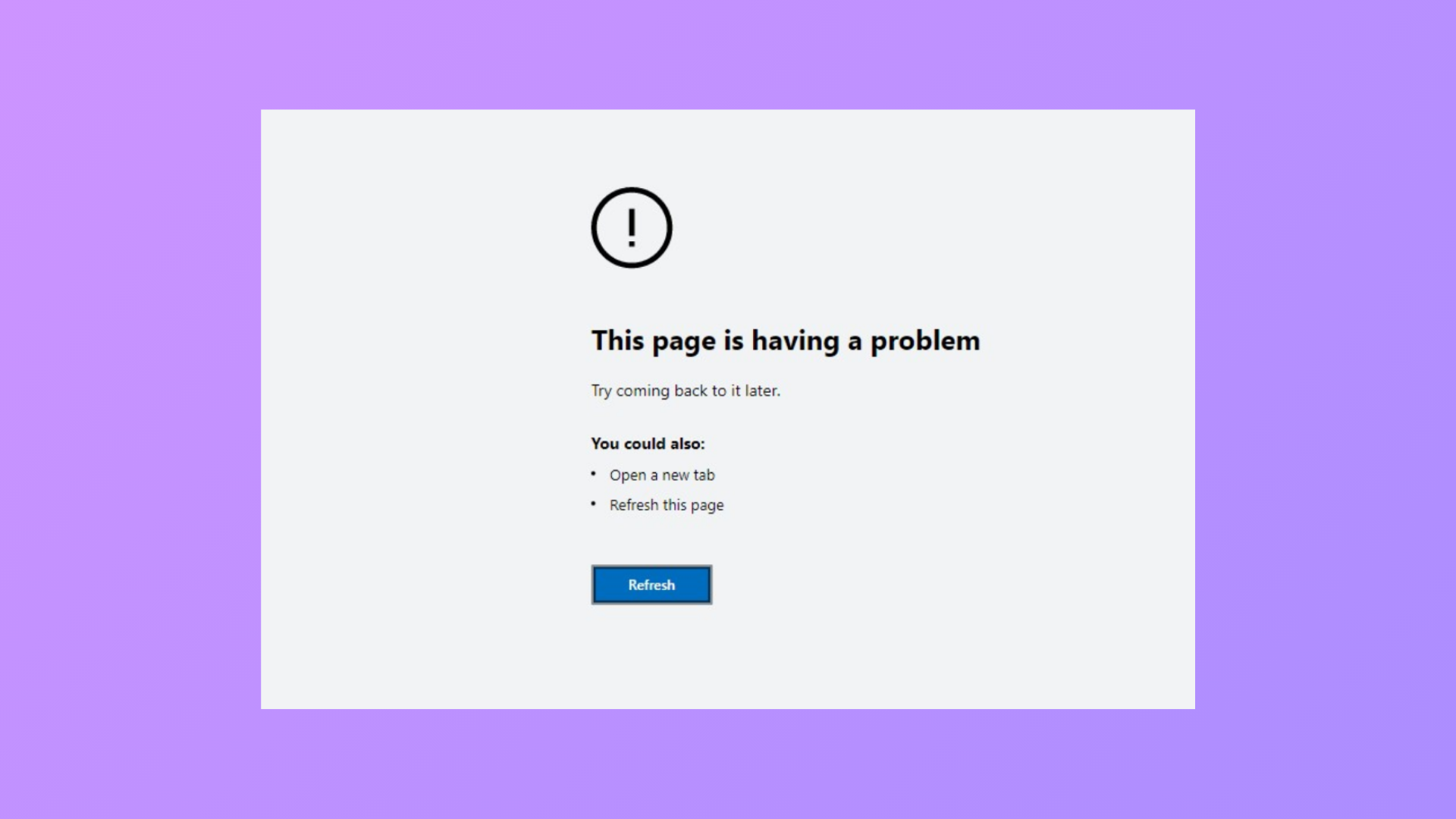
Persistent browser errors like “This page is having a problem” in Microsoft Edge can disrupt web browsing, block access to PDFs, and even prevent opening browser settings. These failures often follow system updates or changes to Edge and can make the browser unusable. Addressing the underlying causes—ranging from browser data corruption and memory issues to problematic extensions—can restore normal functionality and prevent repeated crashes.
Clear Edge Data and Reset the Browser
... menu in the top-right corner. Choose Settings from the dropdown.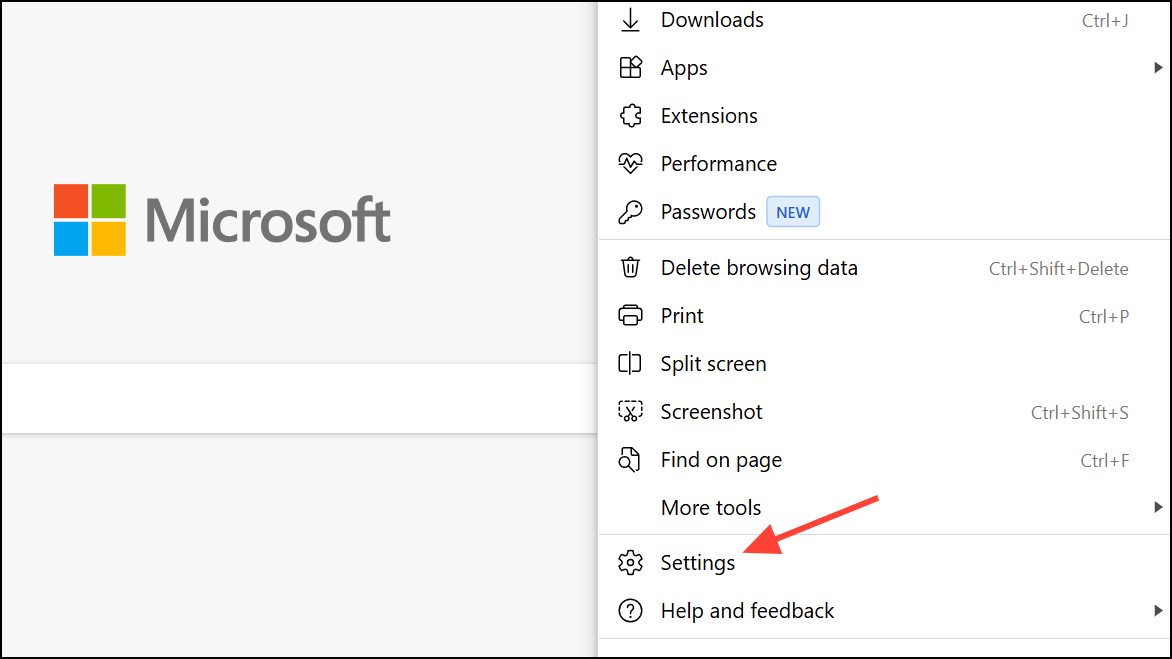
Privacy, search, and services. Scroll down to the Clear browsing data section and select Choose what to clear.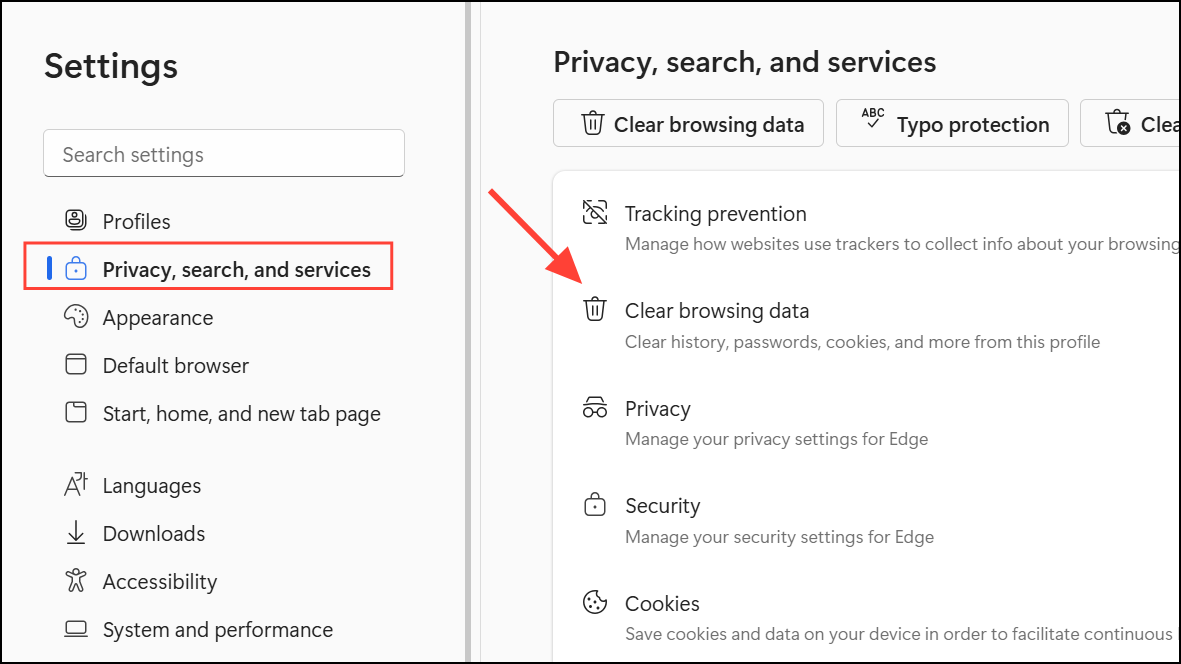
Browsing history, Cookies and other site data, and Cached images and files, then click Clear now. This removes potentially corrupted data that can trigger page errors.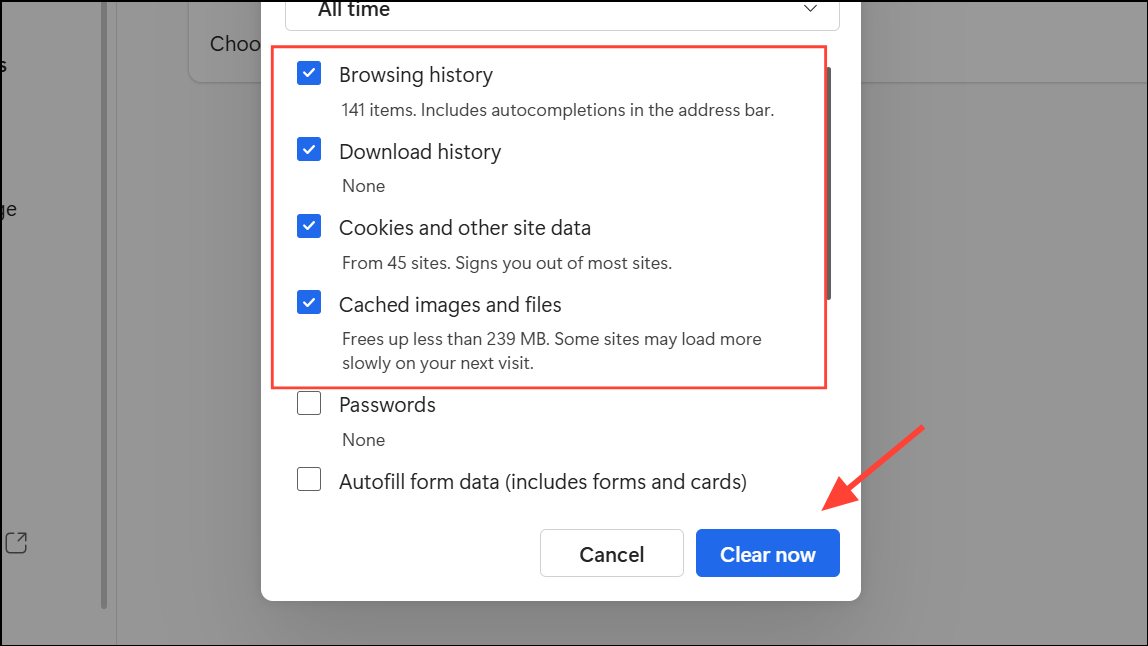
Settings, find Reset settings in the left sidebar, and select Restore settings to their default values. Confirm the prompt. This returns Edge to its original configuration, removing changes that might cause instability.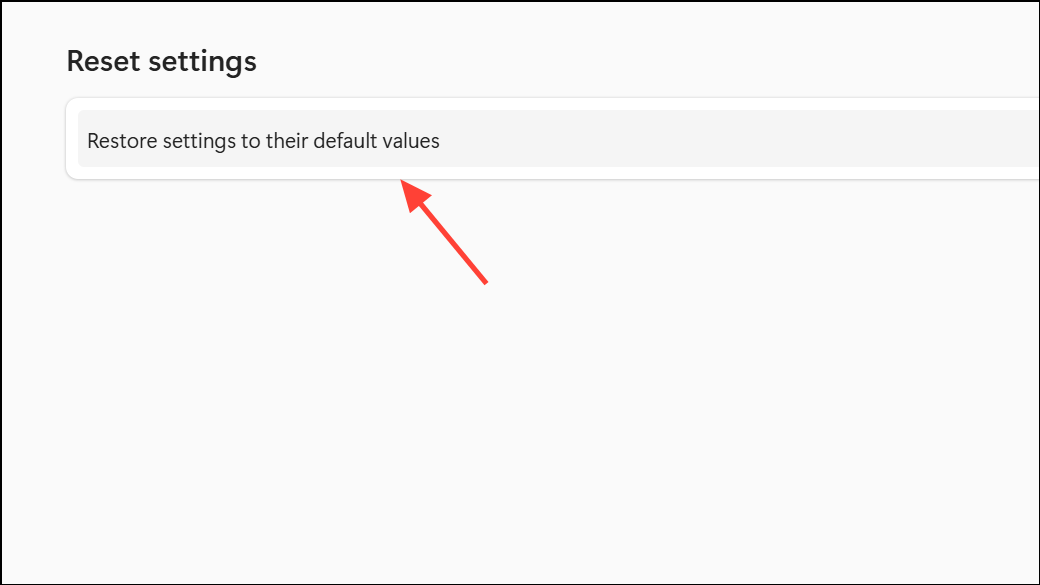
Repair or Reset Microsoft Edge via Windows Settings
When Edge is too unstable to access settings, use Windows tools to repair or reset the browser installation.
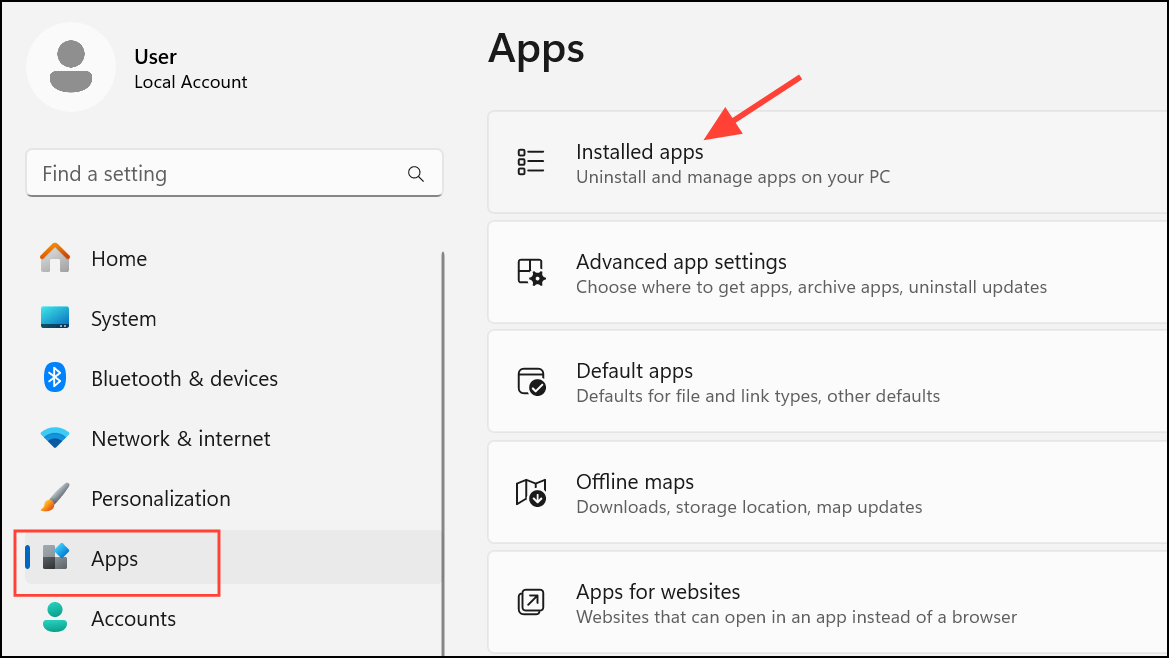
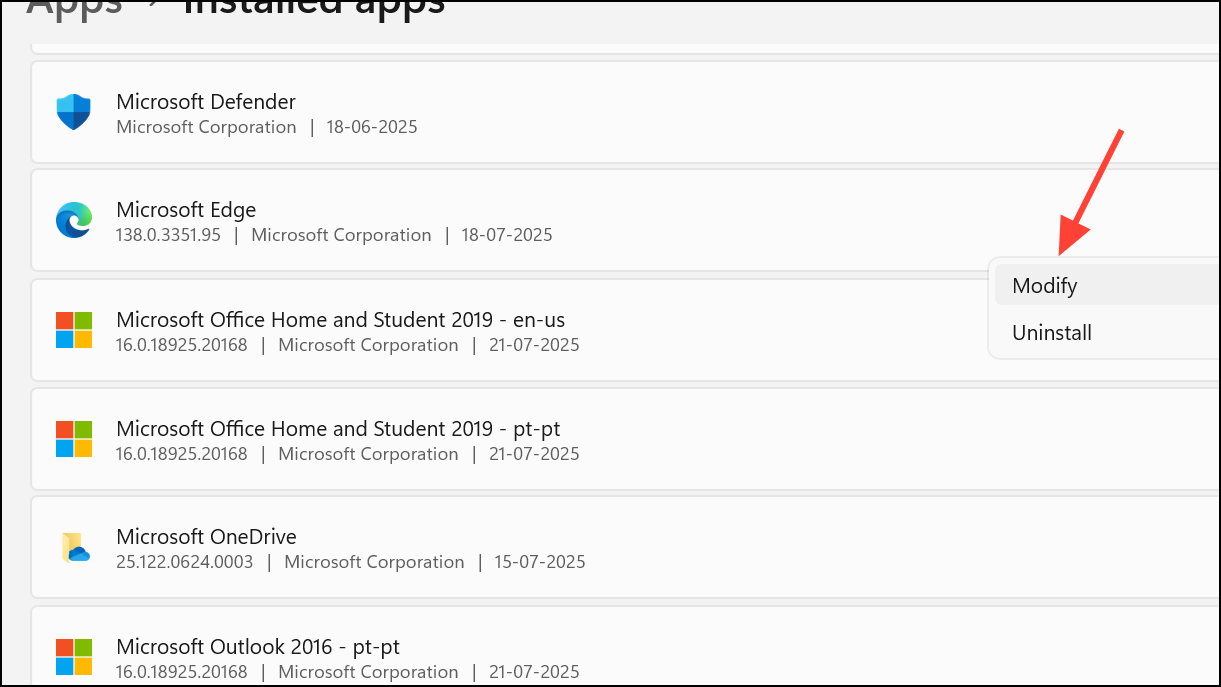
Repair to attempt fixing the app without affecting your data. If issues persist, use Reset, which reinstalls Edge and removes browser data, fully restoring defaults.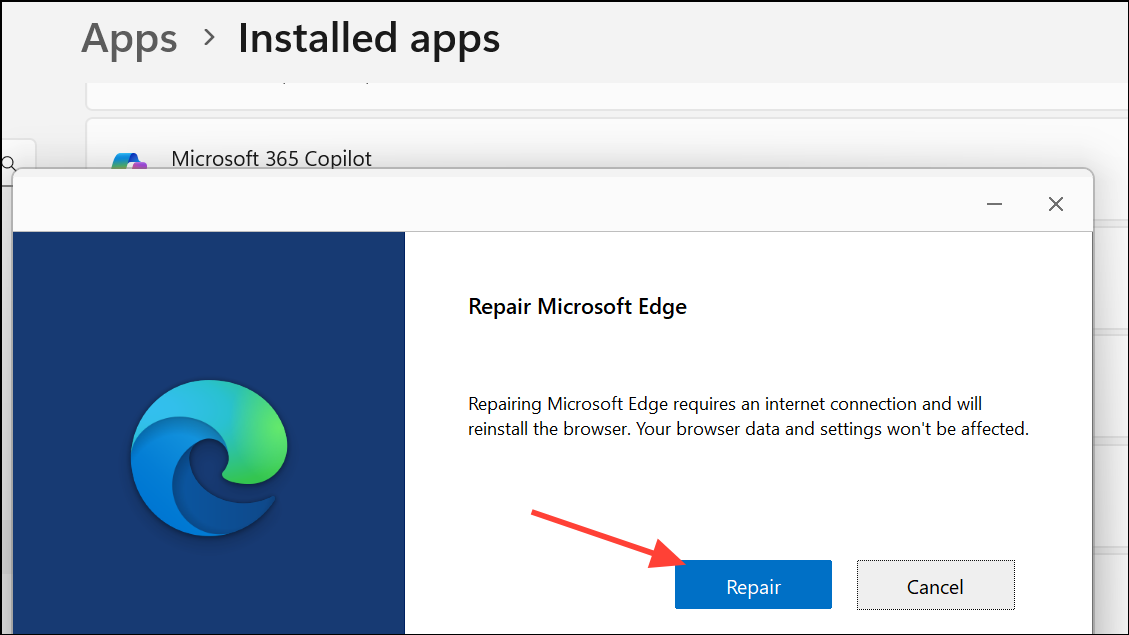
Disable Problematic Extensions and Processes
Extensions or stuck background processes can trigger persistent error pages in Edge. Disabling or ending these can restore browser stability.
... menu, choose Extensions, and turn off all extensions. Restart Edge. If the error disappears, re-enable extensions one at a time to identify the culprit.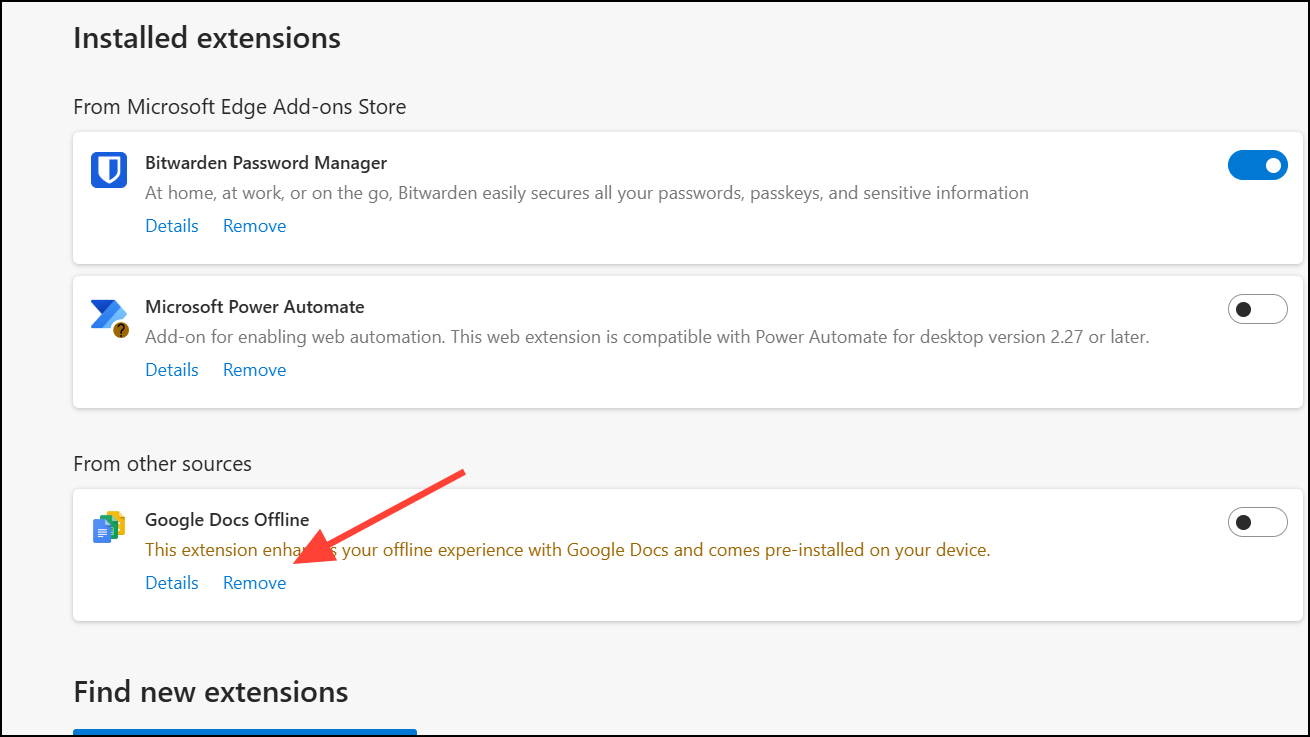
Task Manager by pressing Ctrl + Shift + Esc. Search for any Edge-related processes (they may not always be labeled as “Microsoft Edge”) and select End Task for each. This force-closes stuck browser windows or web apps using Edge’s engine.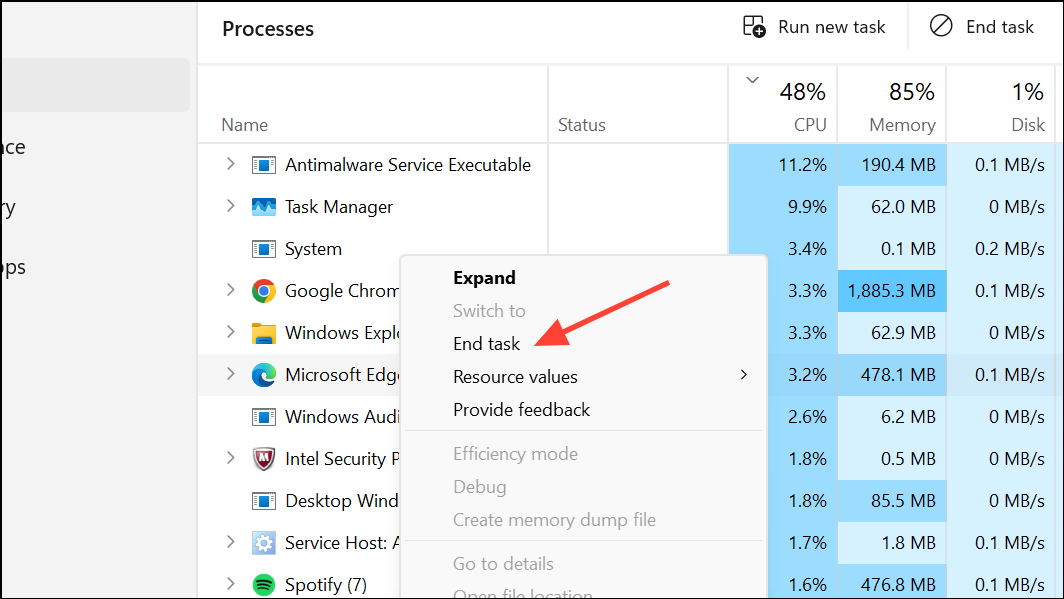
Adjust System Memory Settings
Errors like “not enough memory to open this page” can indicate Windows is not allocating enough virtual memory (paging file) for Edge to function, especially after recent updates or heavy workloads.
Adjust the appearance and performance of Windows. Select it to open the Performance Options window.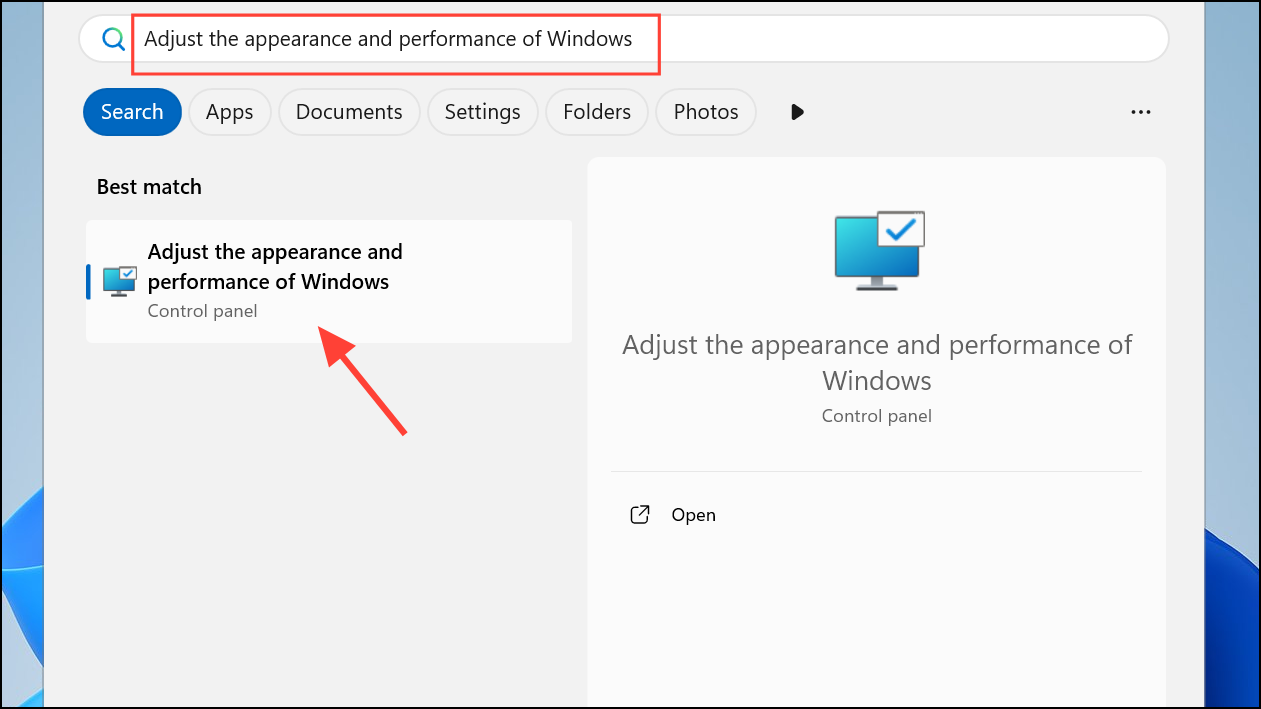
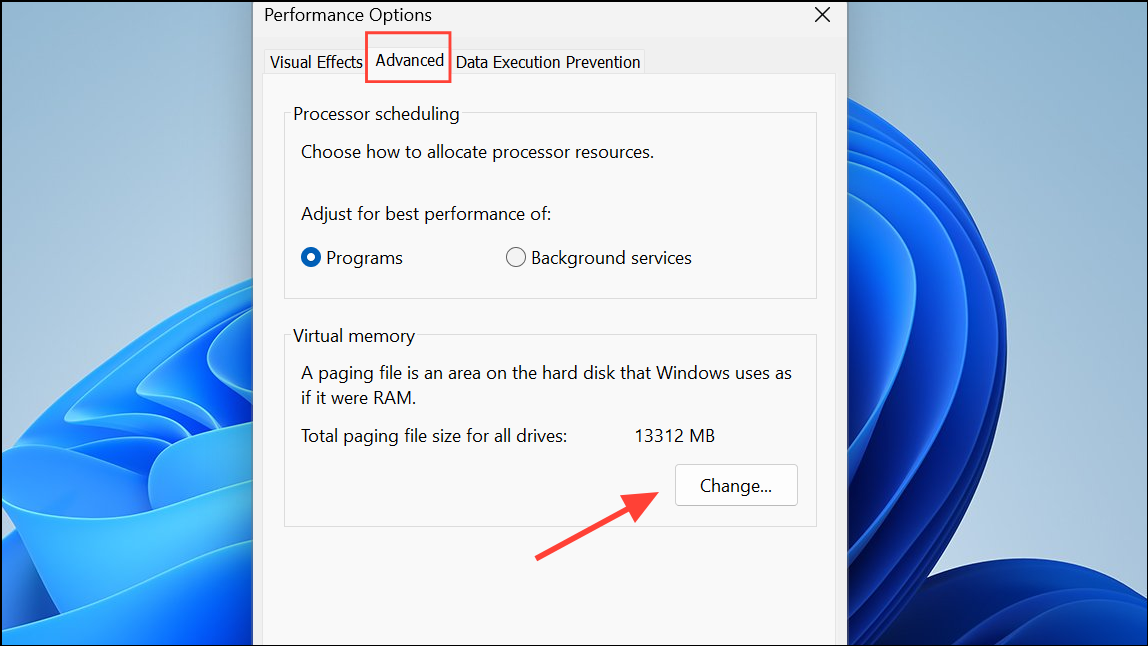
Automatically manage paging file size for all drives. Select your system drive (usually C:), then set both Initial size and Maximum size to at least 16384 MB (16 GB) or higher if you frequently run memory-intensive tasks.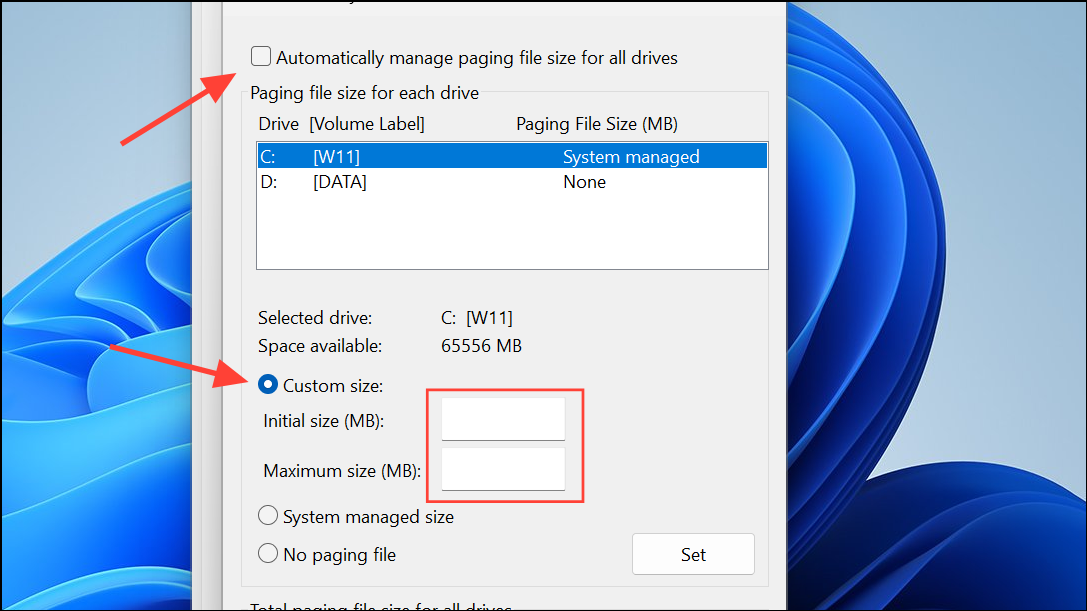
Manually Remove Corrupted Edge Data
If Edge remains unusable and resetting or repairing from Windows settings does not work, manually deleting Edge’s user data folder can clear out corrupted files.
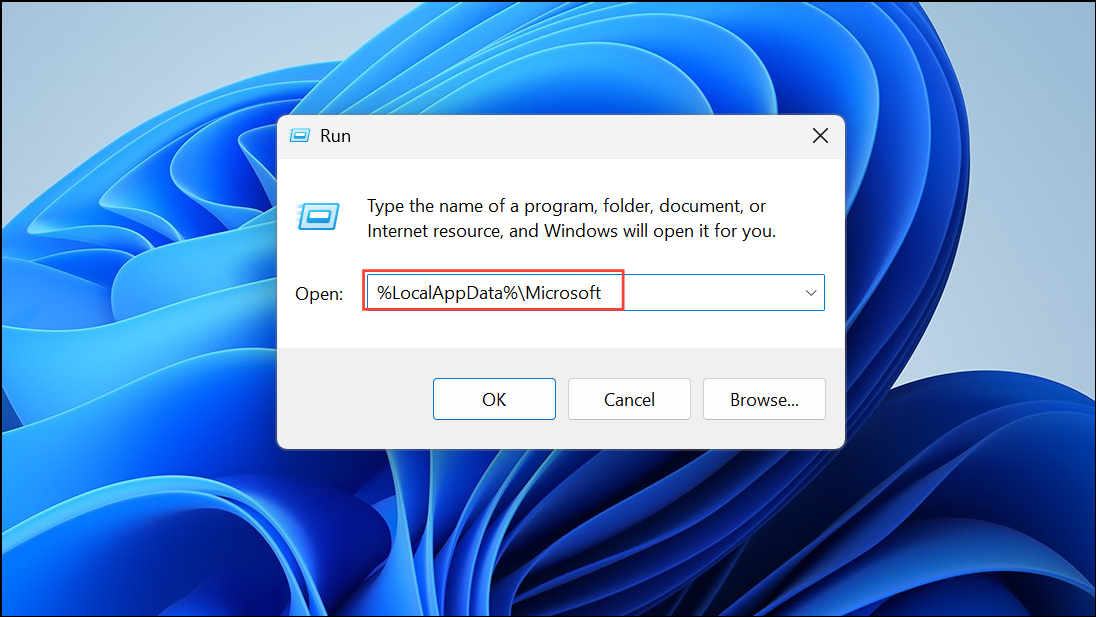
Edge folder. This will remove all user-specific data for Edge, including settings and cached files. Back up any bookmarks or data you want to keep before deleting.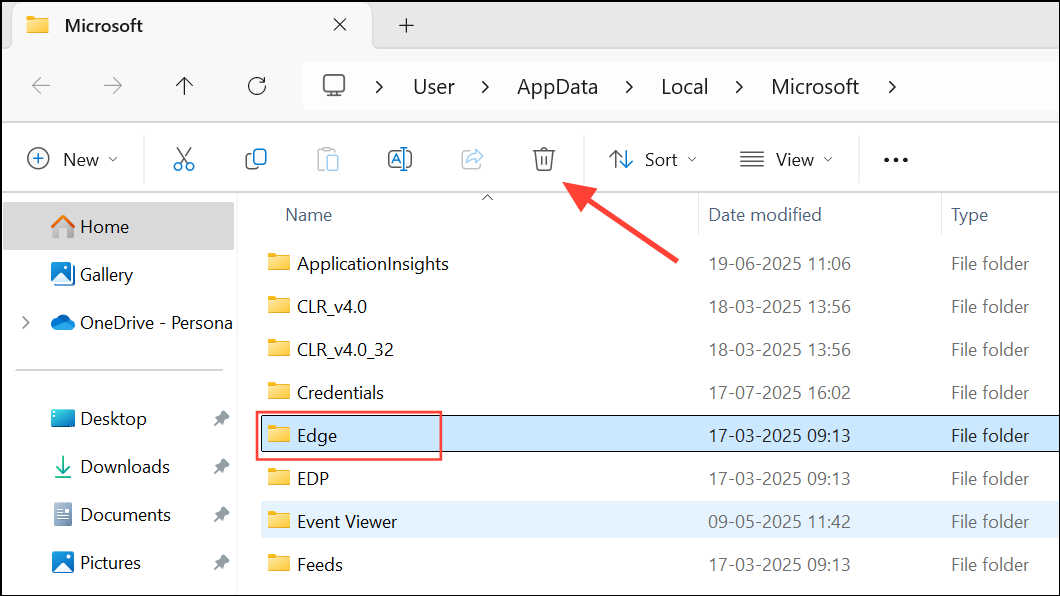
Try Compatibility Mode or Alternate Edge Versions
For persistent issues following a Windows update or if Edge will not launch at all, running the browser in compatibility mode or switching to a different Edge version can help.
Properties. Go to the Compatibility tab, check Run this program in compatibility mode for, and try selecting an earlier version of Windows (such as Windows 10 or 8).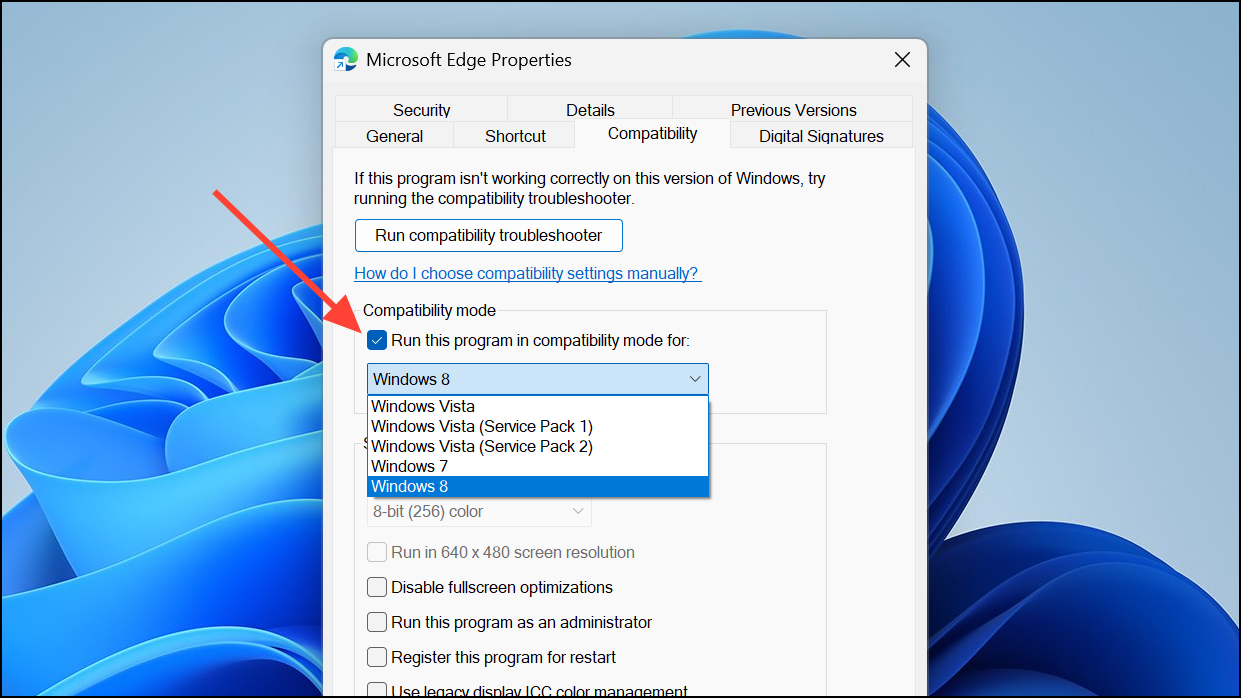
Contact Microsoft Support for Persistent Problems
In rare cases, none of the above solutions will restore Edge functionality. If you cannot access settings, reset, or repair the browser, or if errors persist after trying all troubleshooting steps, reach out to Microsoft Support for direct assistance. You can use live chat or phone support for more advanced troubleshooting or escalation.
Resolving “This page is having a problem” in Microsoft Edge often requires a combination of browser resets, extension management, and system tweaks. Regular maintenance and prompt troubleshooting can keep Edge running smoothly and minimize disruptions.





