

Microsoft Edge’s memory usage can spike on Windows 11, especially with multiple tabs or heavy extensions. This can slow down your entire system, cause browser crashes, or make other programs sluggish. Addressing high memory usage requires a combination of Edge-specific settings and general system management. Below are the most effective solutions, starting with the latest built-in resource controls and moving through practical troubleshooting steps.
Limit Edge Memory Usage Using Resource Controls
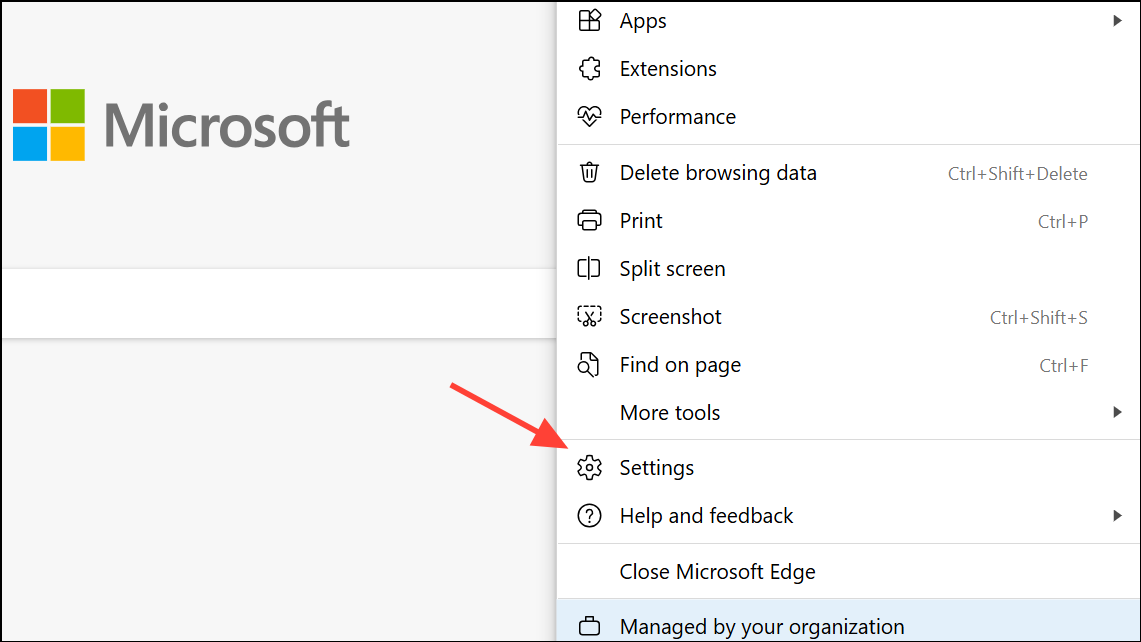
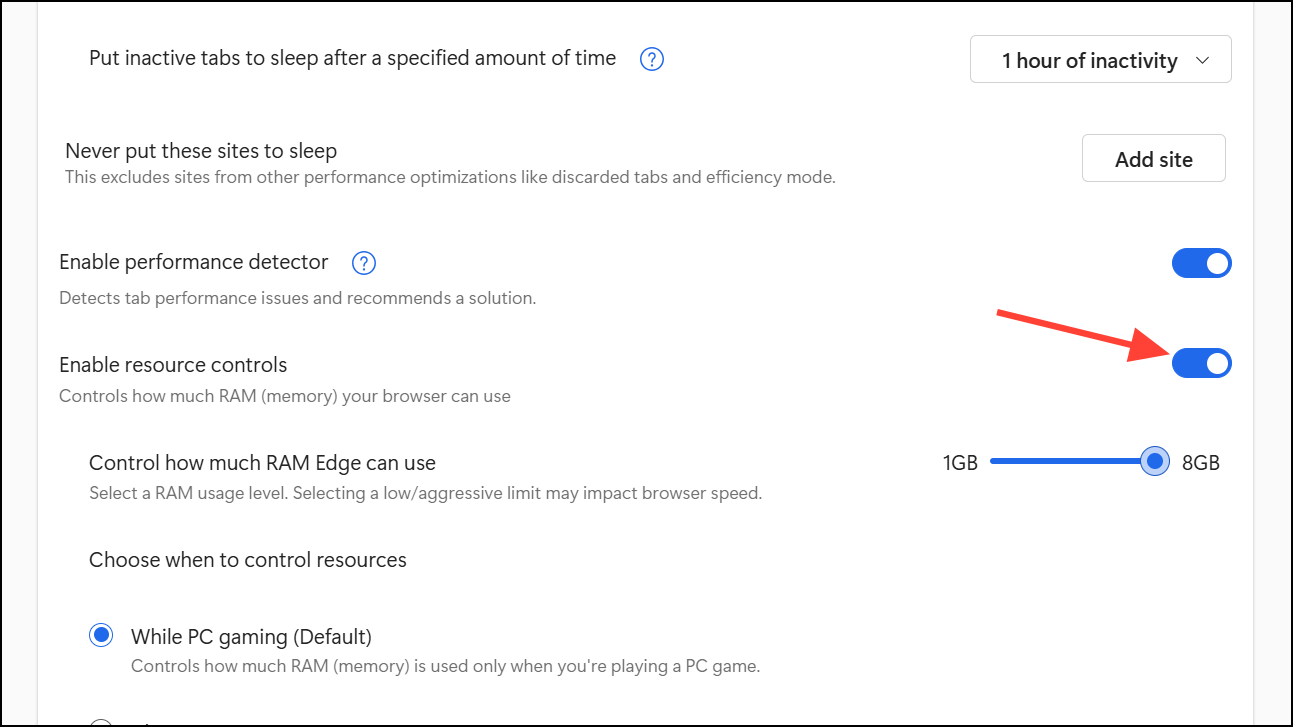
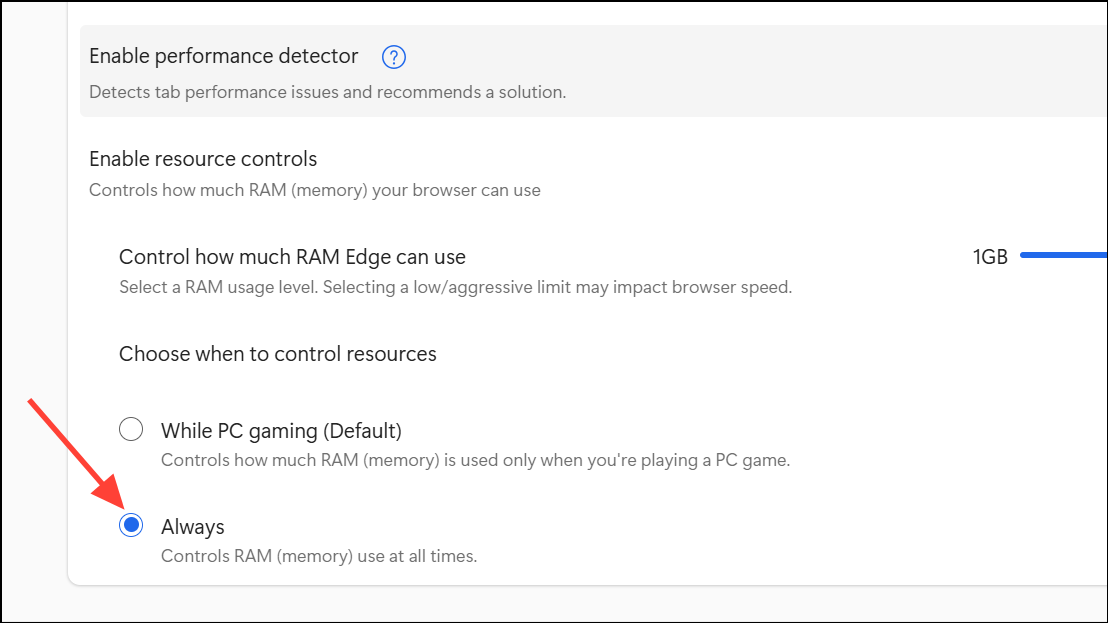
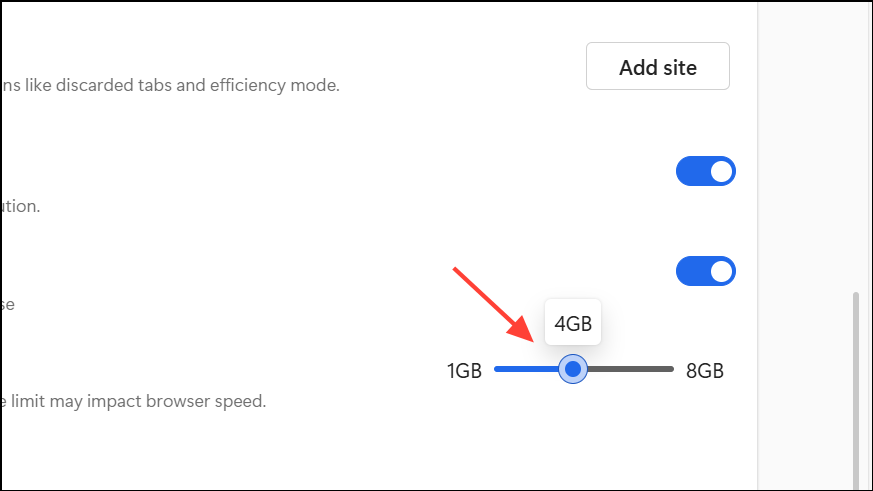
Edge version 125 and later introduces a resource controls feature that allows you to set a maximum RAM limit for the browser. This setting is especially useful if you game or multitask frequently, as it prevents Edge from consuming excessive memory.
Enable Efficiency Mode and Sleeping Tabs
Efficiency Mode in Edge reduces resource use by throttling background activity and putting inactive tabs to sleep. Sleeping Tabs further reduce memory by unloading unused tabs until you revisit them.
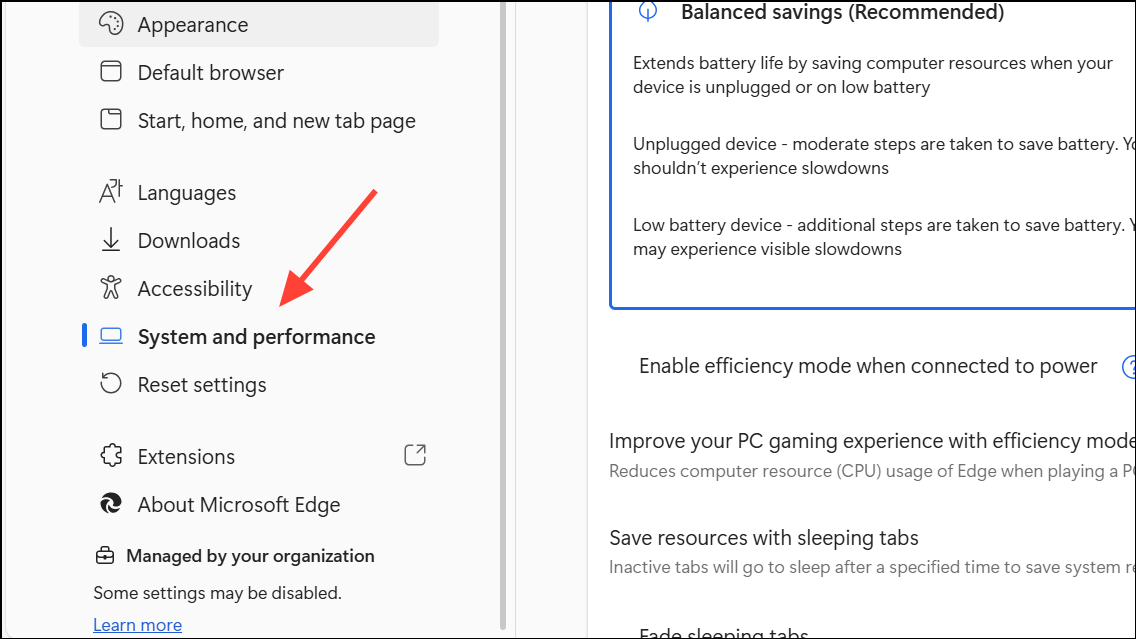
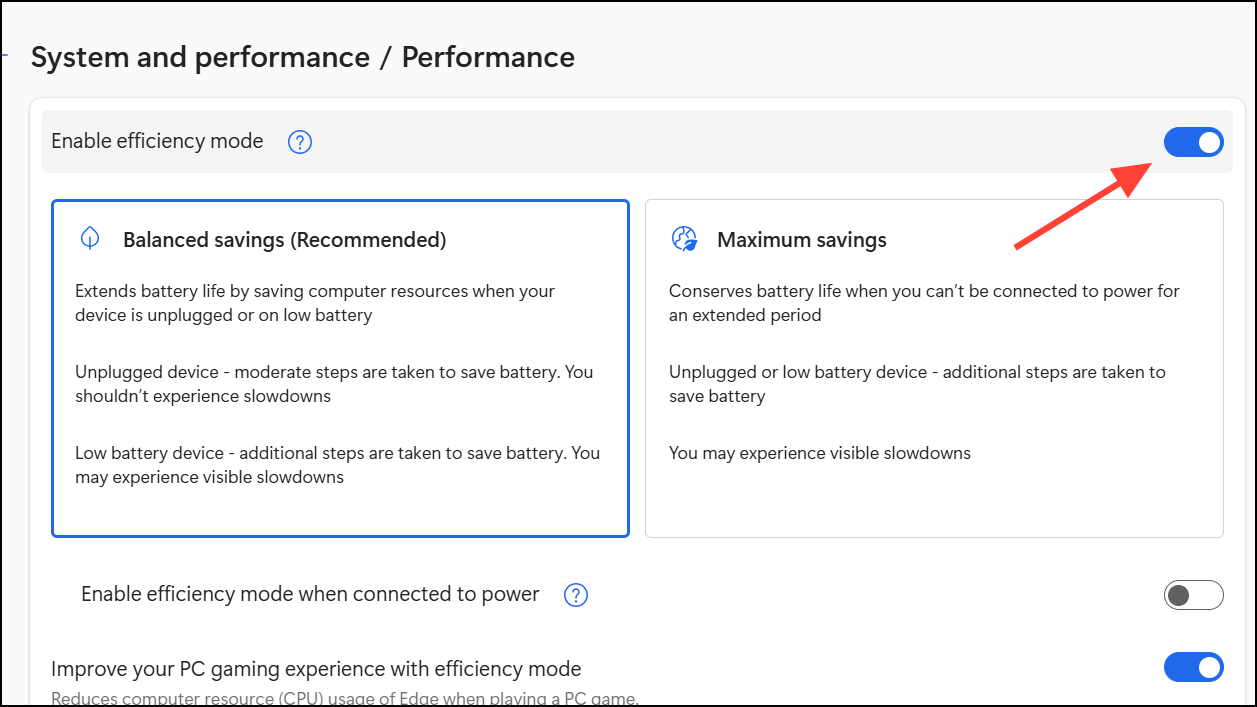
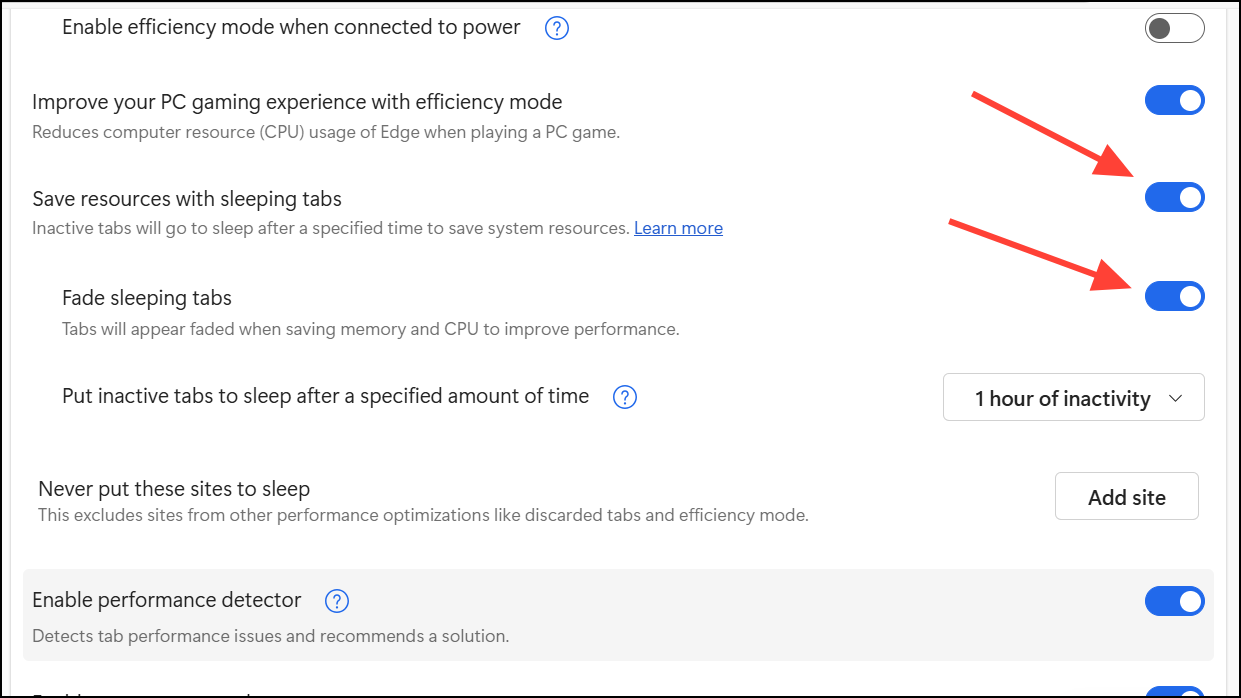
Tabs will now automatically sleep after a period of inactivity, reducing their memory footprint and freeing up resources for active tasks.
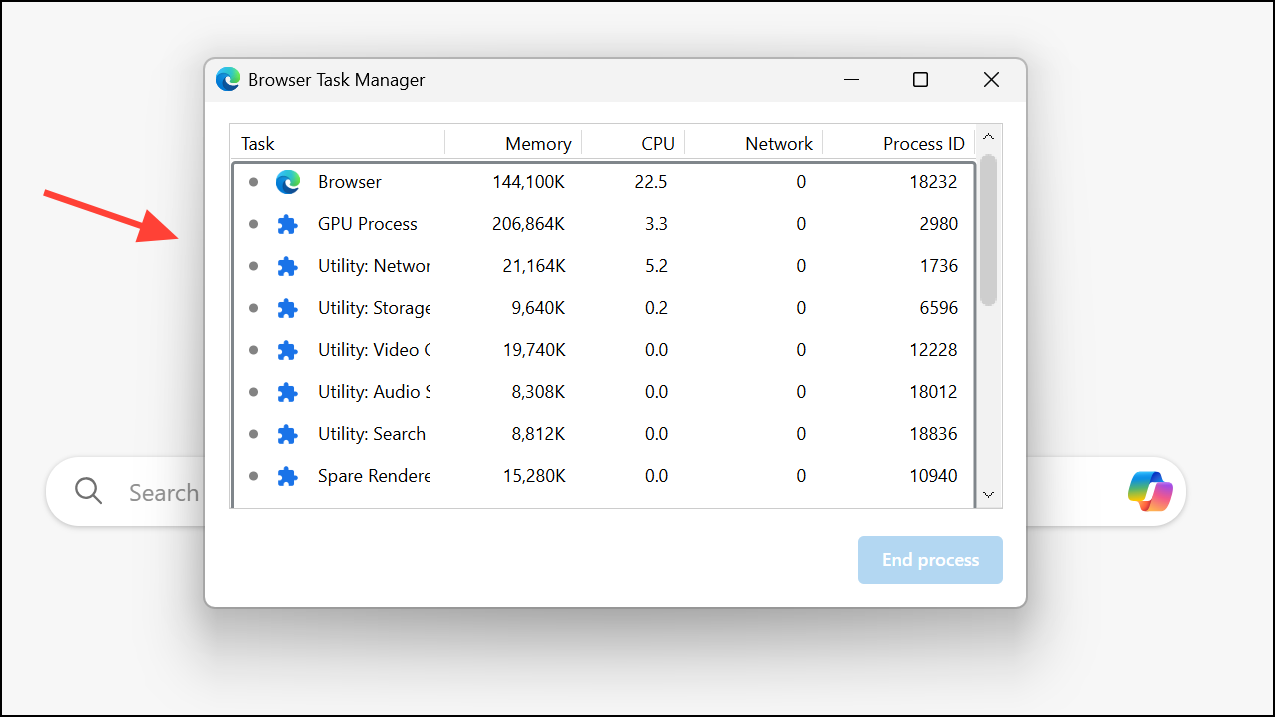
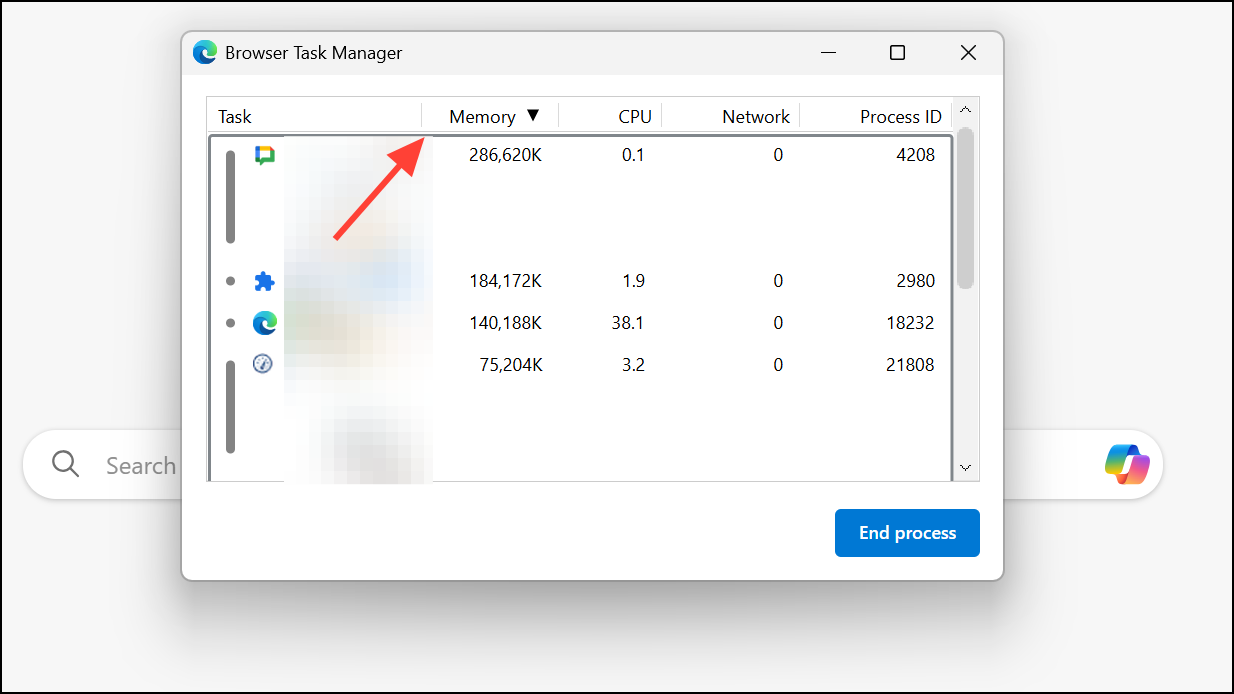
Close Unused Tabs and End High-Usage Processes
Every open tab and extension in Edge consumes memory. Too many active tabs can quickly use up available RAM, especially on systems with 8GB or less.

Clear Edge Cache and Cookies
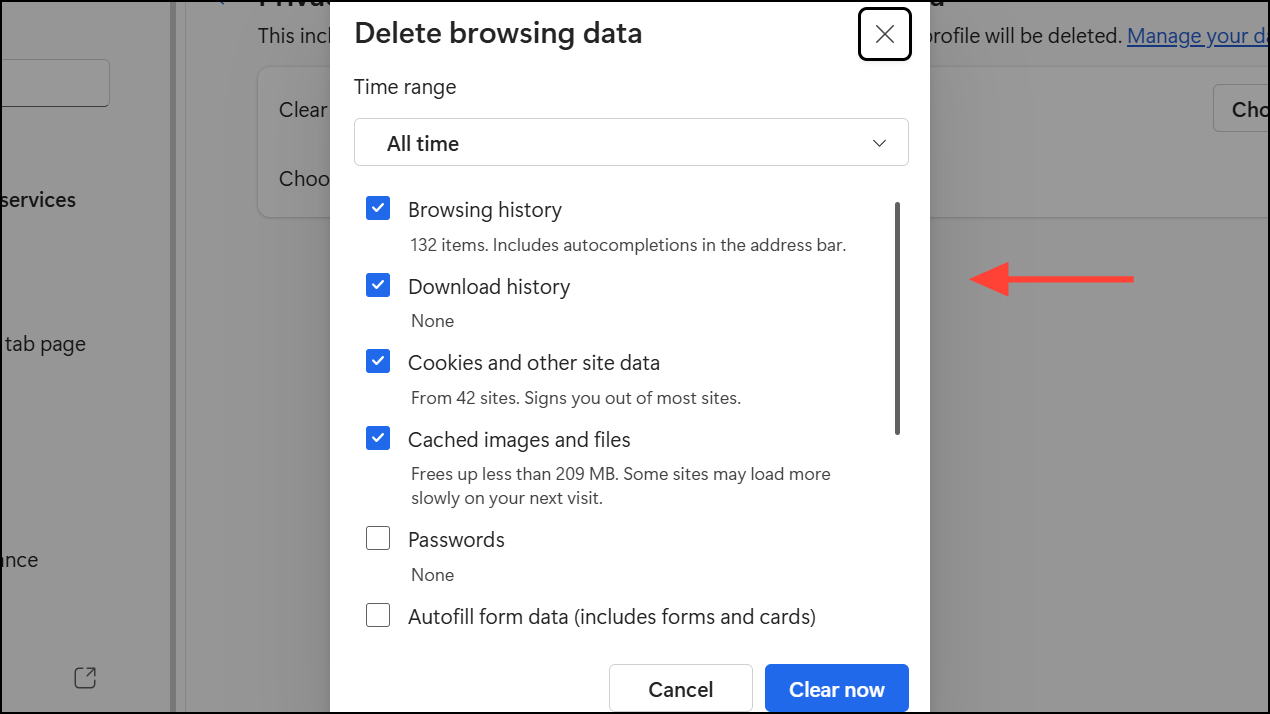
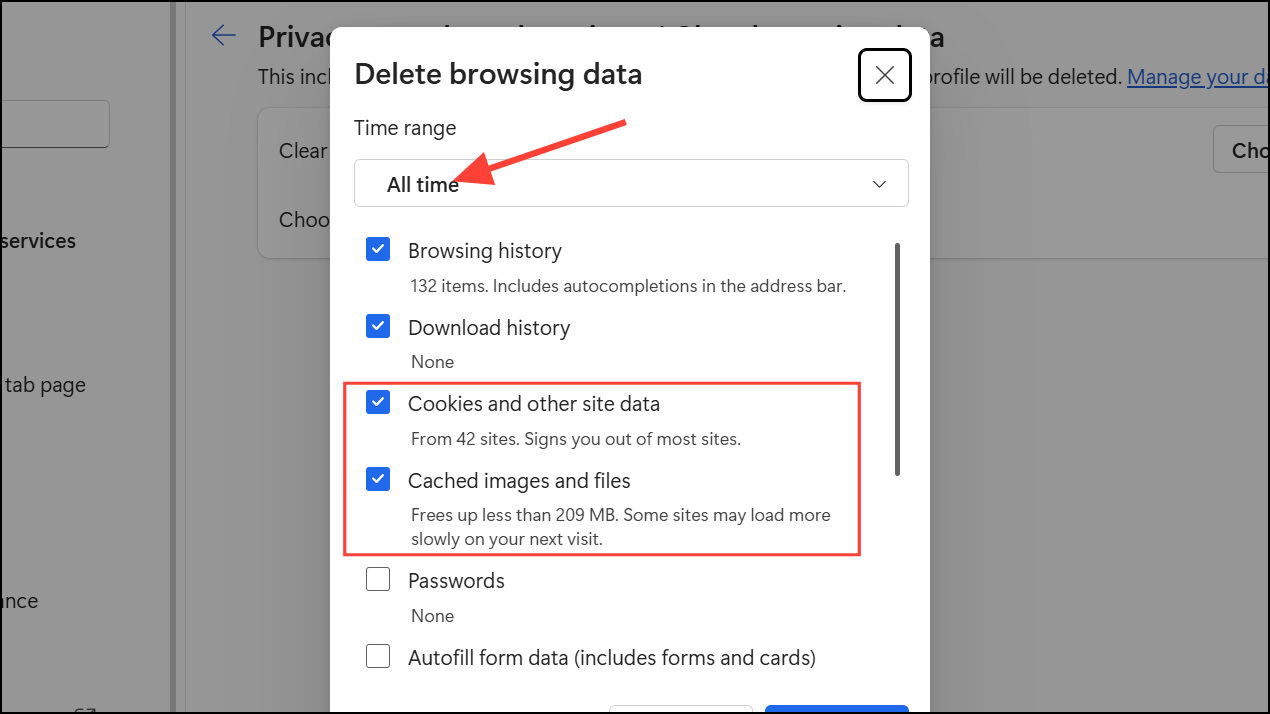
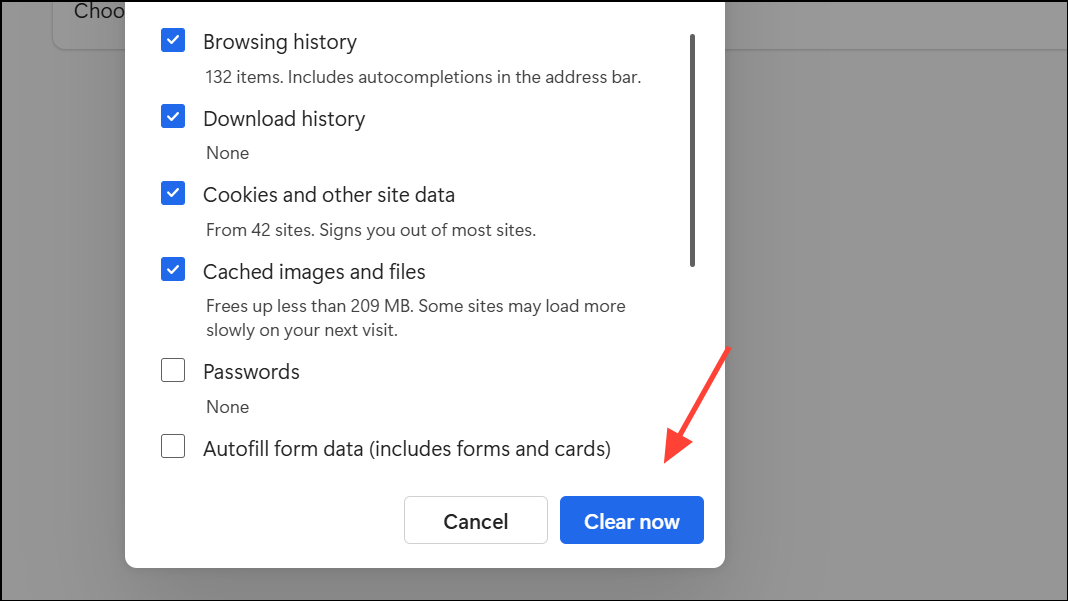
Corrupted or overloaded browser cache and cookies can cause Edge to use more memory than necessary. Clearing this data can resolve memory spikes and browser slowdowns.
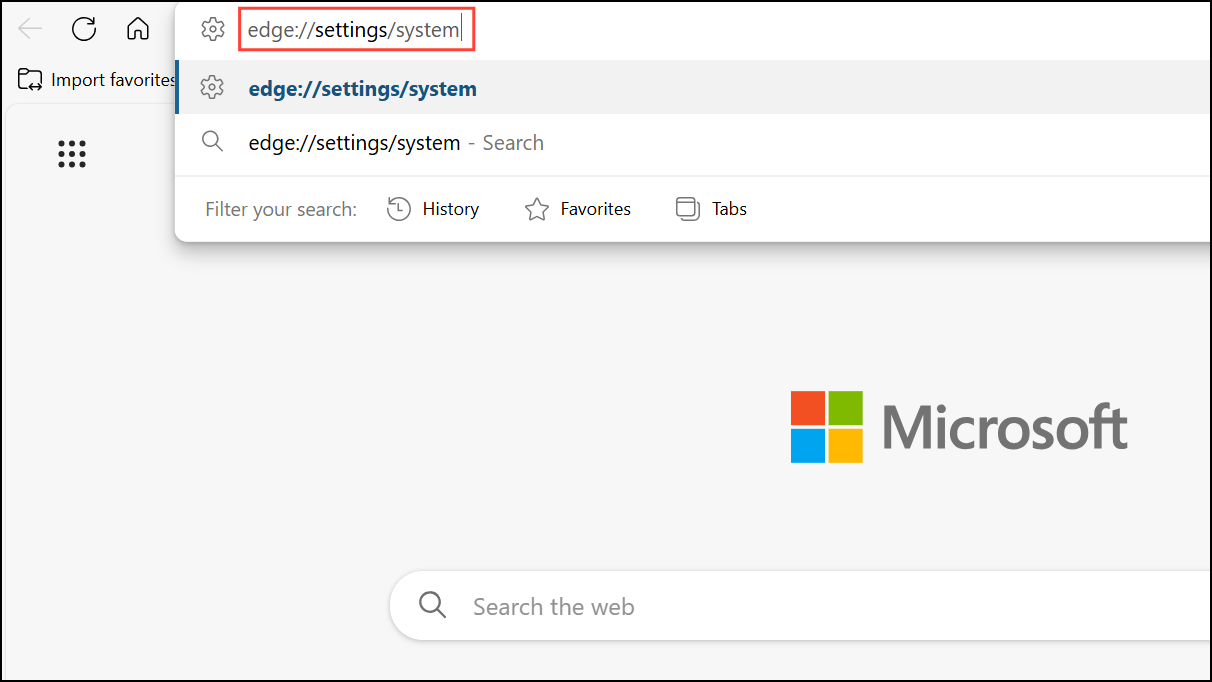
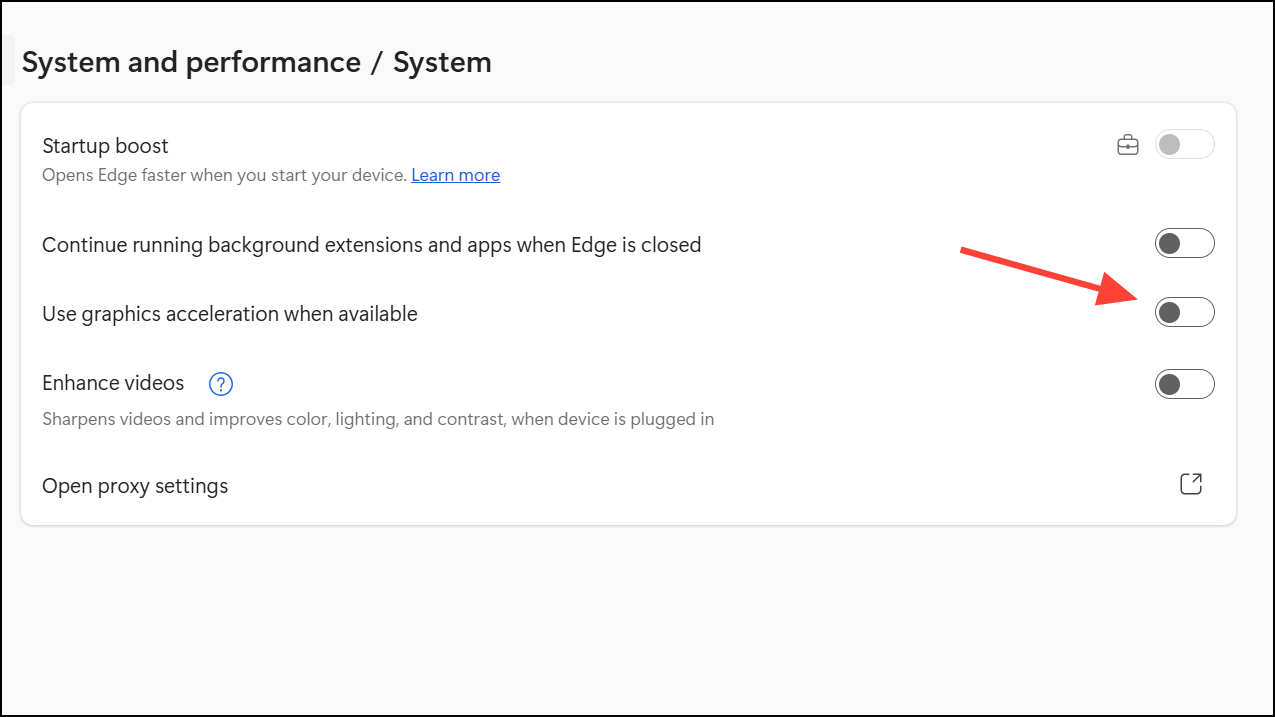
Disable Hardware Acceleration
Hardware acceleration offloads certain browser tasks to your system’s GPU. While this can speed up some operations, it can also trigger memory spikes or instability on some hardware setups.
Remove Unnecessary Extensions
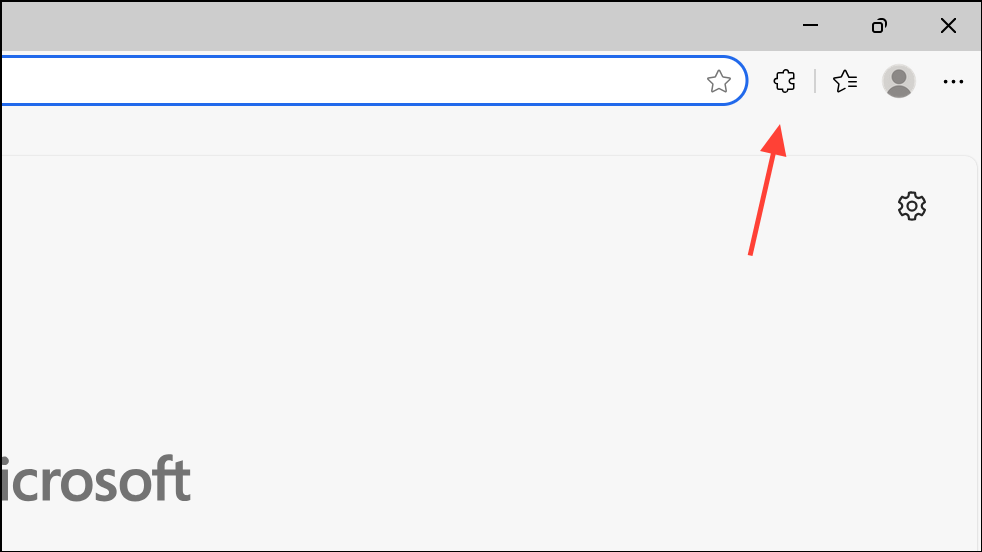
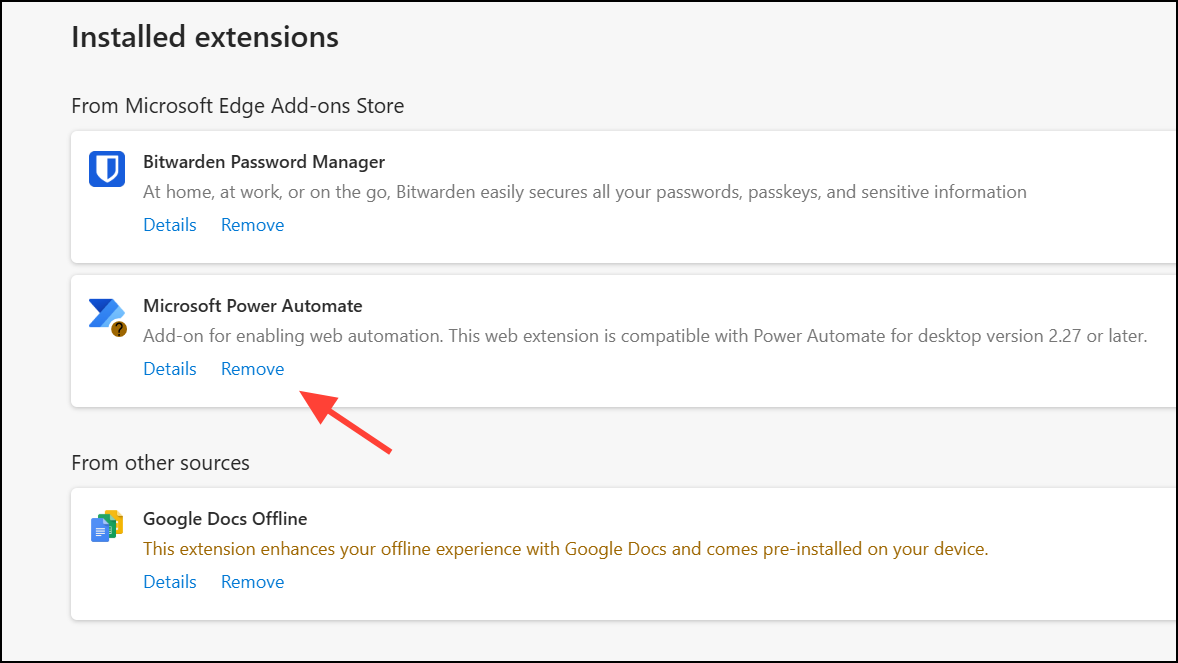
Extensions can significantly increase memory usage, especially if poorly optimized or if many are enabled at once.
Disable Startup Boost and Background Processes
Startup Boost launches Edge processes in the background when Windows starts, which can increase idle memory usage even if Edge isn’t open. Disabling it frees up RAM for other applications.
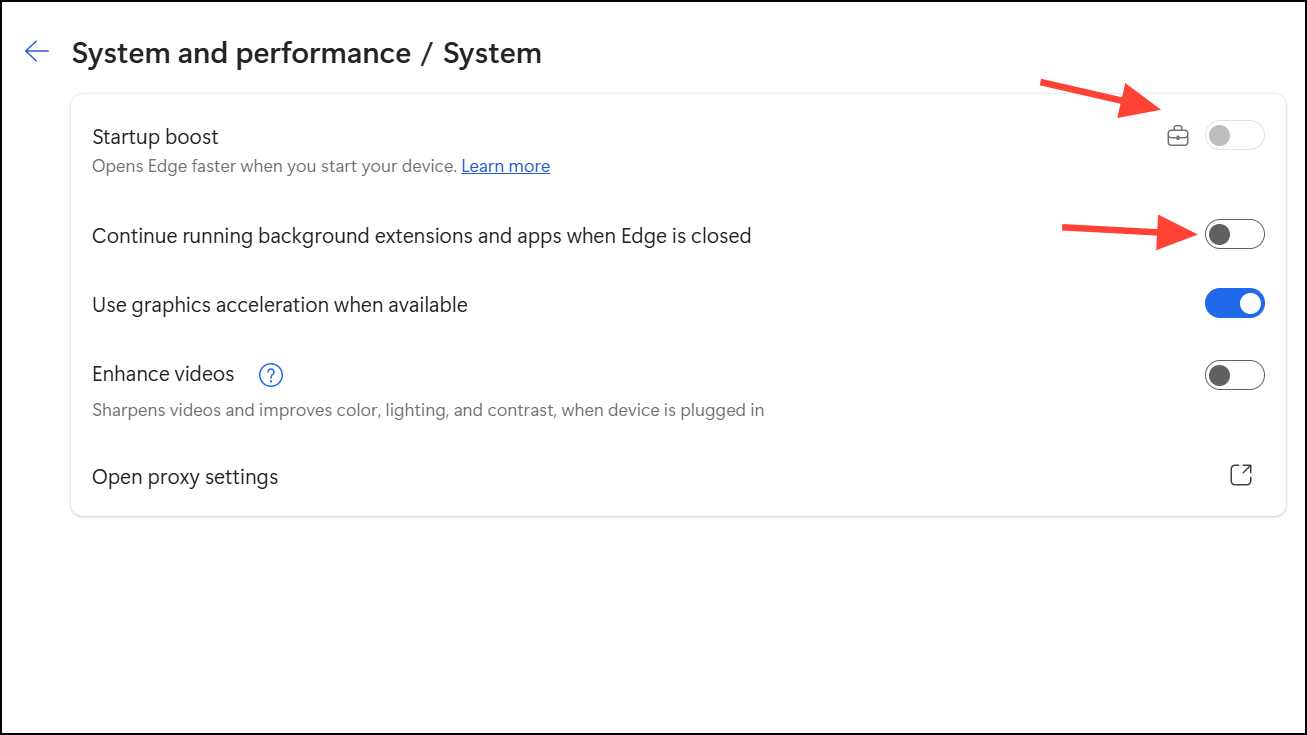
This ensures Edge releases memory when you close the browser, rather than keeping processes running in the background.
Check for Problematic Websites or Tabs
Some websites, especially those with complex scripts or multimedia content, can cause memory leaks or excessive RAM use. Identifying and avoiding these sites can prevent Edge from overloading your system.
Upgrade RAM or Adjust Virtual Memory (if Needed)
Windows 11’s baseline memory requirements mean that 4GB to 8GB of RAM can quickly become insufficient, especially with multiple applications and browser tabs open. If memory usage remains high after trying the above steps, consider upgrading your system’s RAM or increasing virtual memory.
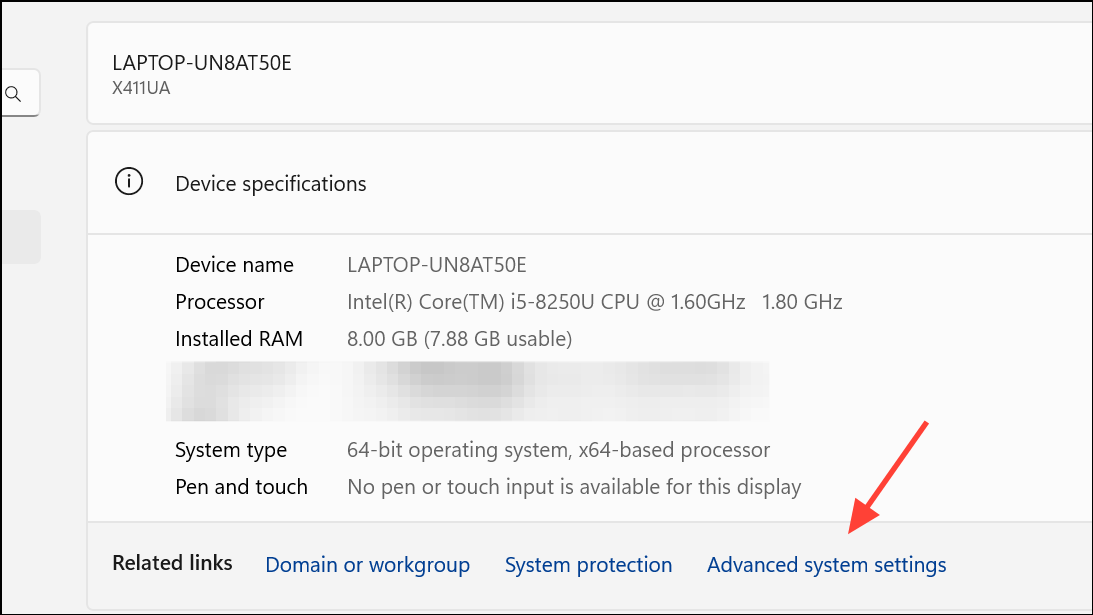
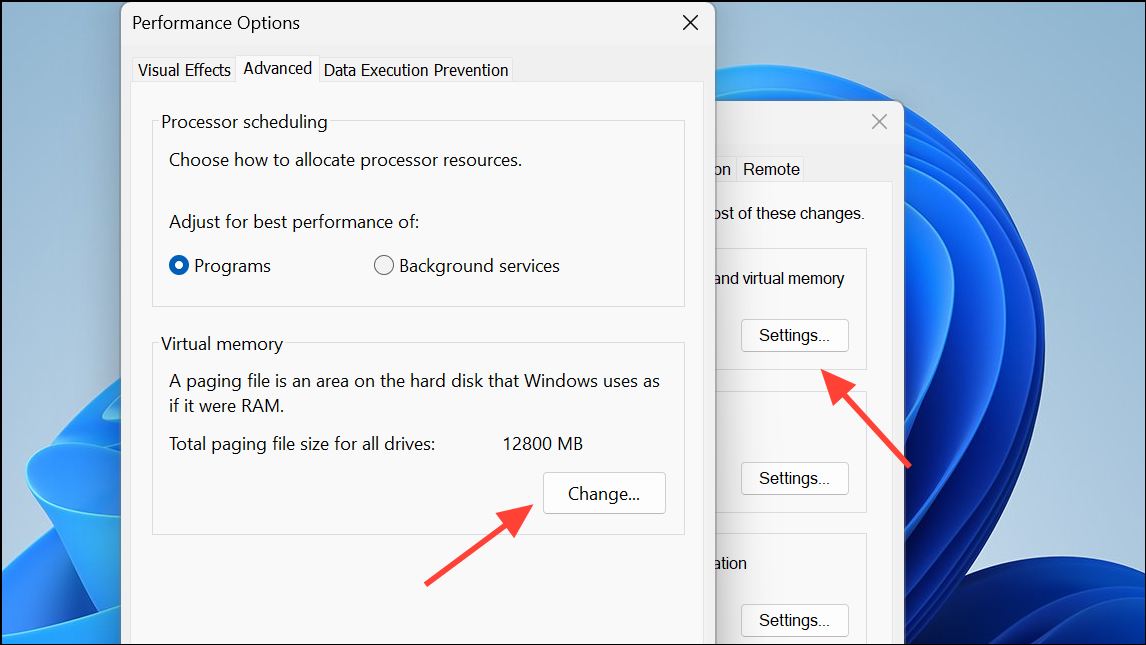
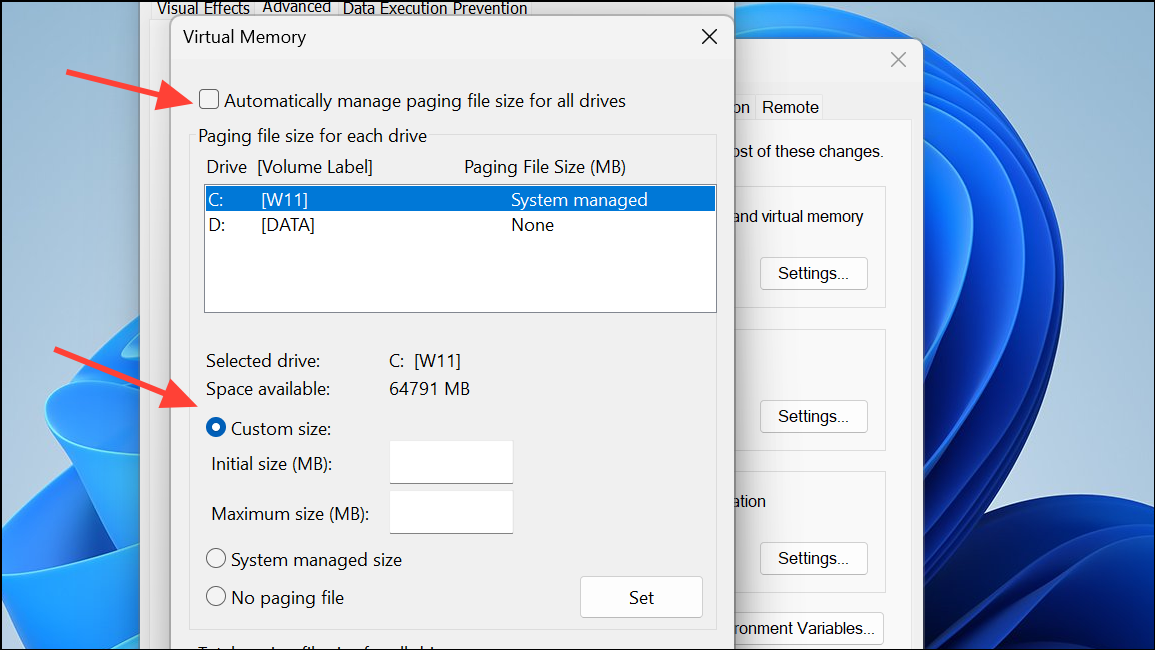
Upgrading physical RAM to 16GB or more provides a more robust solution if you regularly multitask or use memory-intensive applications.
Applying these steps will reduce Microsoft Edge’s memory usage on Windows 11 and restore system responsiveness. Regularly monitor your browser’s resource use and keep Edge updated to benefit from the latest performance features.





