

Word often stalls or crashes when handling documents with hundreds of pages, embedded graphics, tracked changes, and heavy formatting. These issues can interrupt work, risk data loss, and make collaboration difficult. Addressing the underlying causes—such as bloated styles, unoptimized images, and memory constraints—can restore stability and speed, allowing you to work with large files efficiently.
Method 1: Split Large Documents Into Smaller Files
Dividing a massive document into smaller, logically organized files reduces the strain on Word’s memory management and file handling. For instance, breaking a manual or book into separate chapters or sections allows each file to load and save more quickly, and makes collaboration smoother. To maintain a unified table of contents, use Word’s RD (Reference Document) field or, with caution, the master document feature (noting that some users report the master document function can corrupt files if not managed carefully).
Method 2: Optimize and Manage Images
High-resolution images, especially TIFFs or uncompressed screenshots, can cause file sizes to balloon and slow down Word’s rendering engine. Reducing image sizes and using efficient formats directly improves performance.
Insert > Pictures > This Device function rather than copy-paste. This ensures Word manages the image as a linked object, not embedded bitmap data.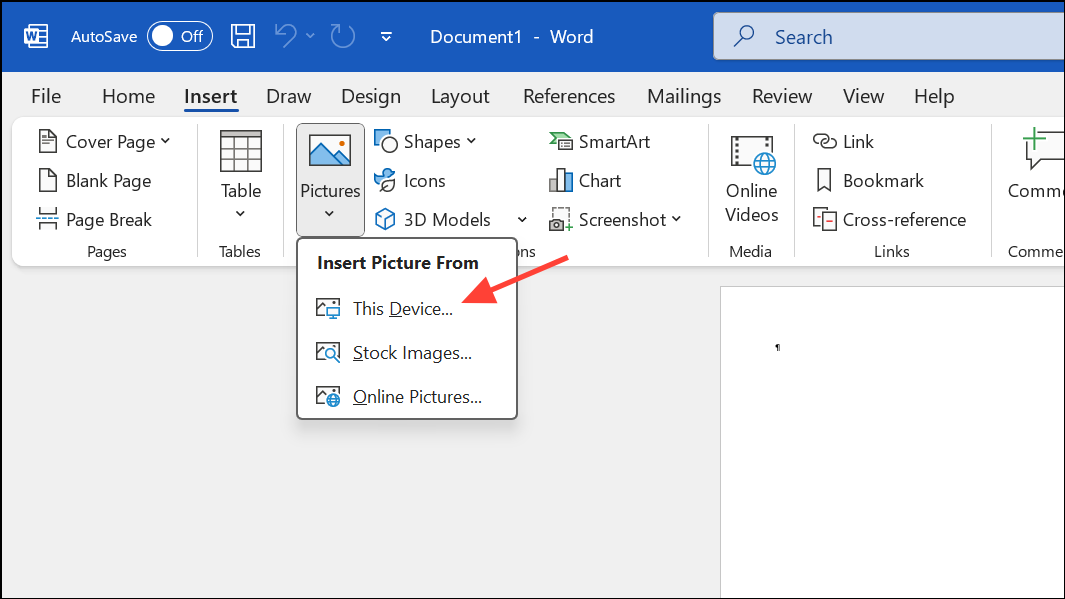
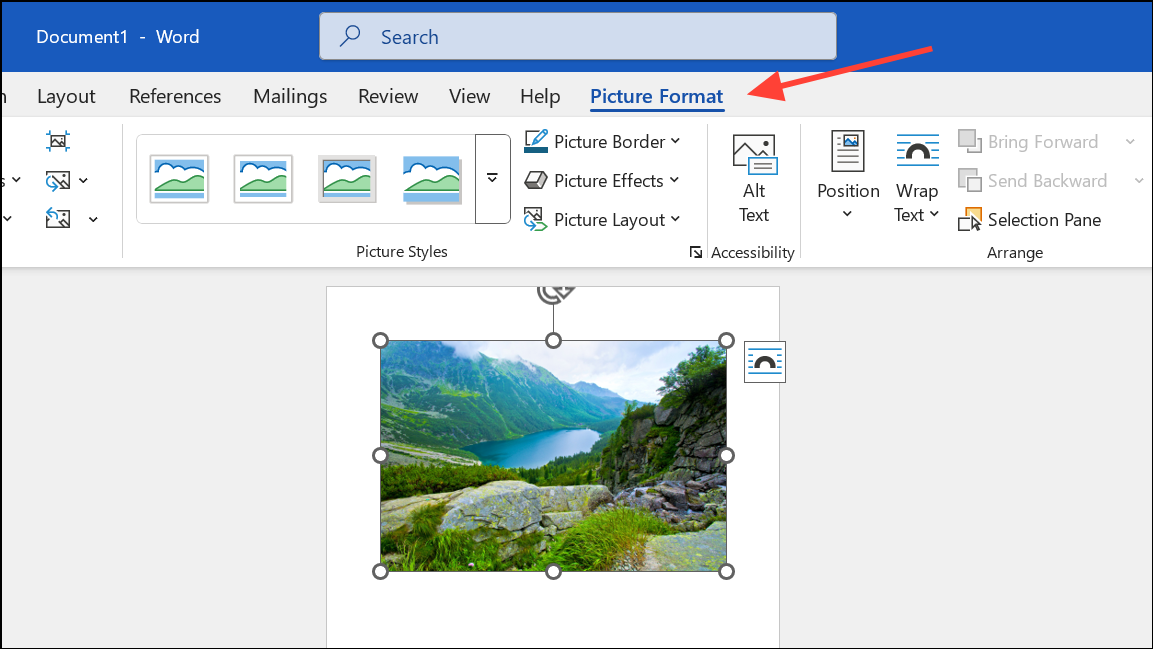
Show picture placeholders in Options > Advanced > Show document content to skip loading images during editing, reducing lag.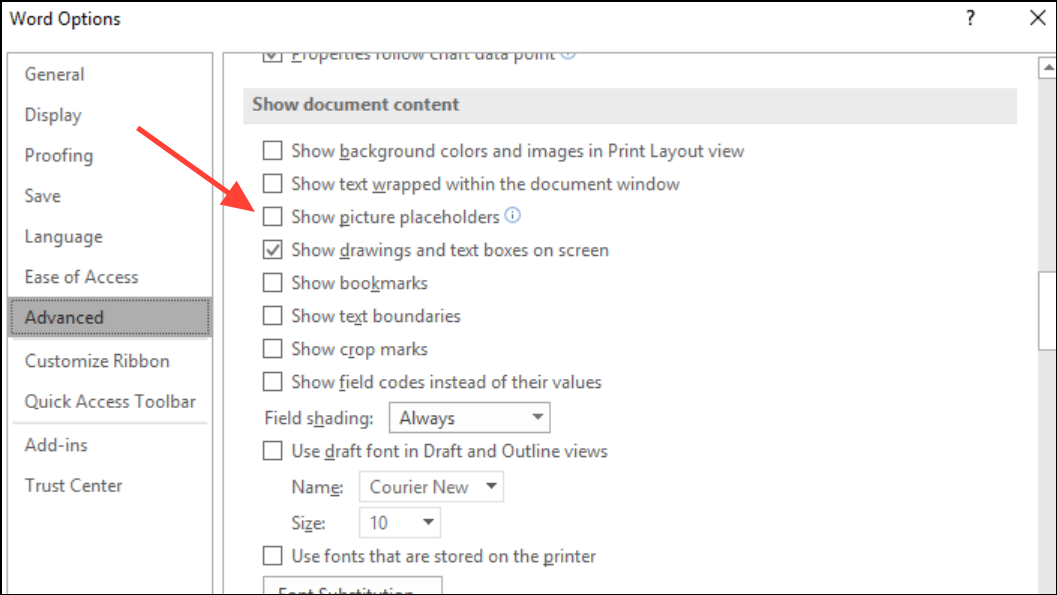
Method 3: Standardize and Clean Up Styles
Excessive or conflicting styles—often imported via copy-paste from other documents or platforms—can bloat the file’s XML and slow down formatting operations. Streamlining styles keeps the document lean and responsive.
Home > Styles > Create a Style.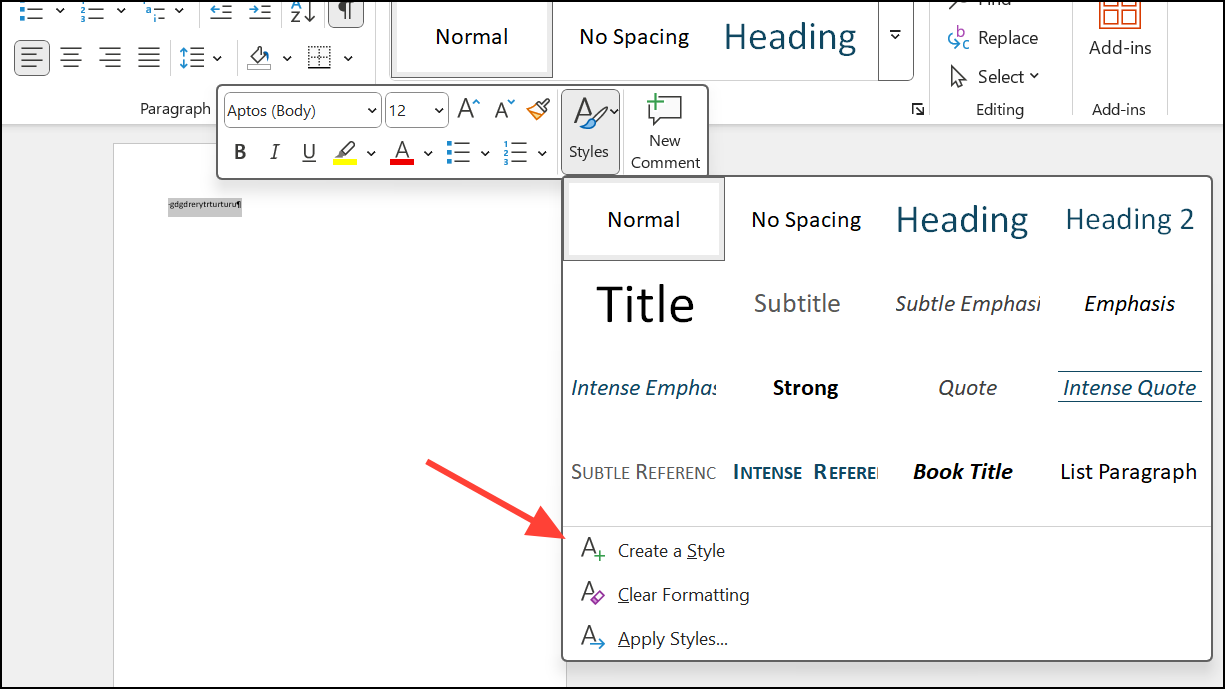
Method 4: Adjust Word and System Settings for Performance
Word’s default settings, such as frequent autosaves or rendering all drawings, can impact speed with large documents. Adjusting these options can lead to noticeable improvements.
File > Options > Save and unchecking Allow Fast Save and Save AutoRecover information every X minutes.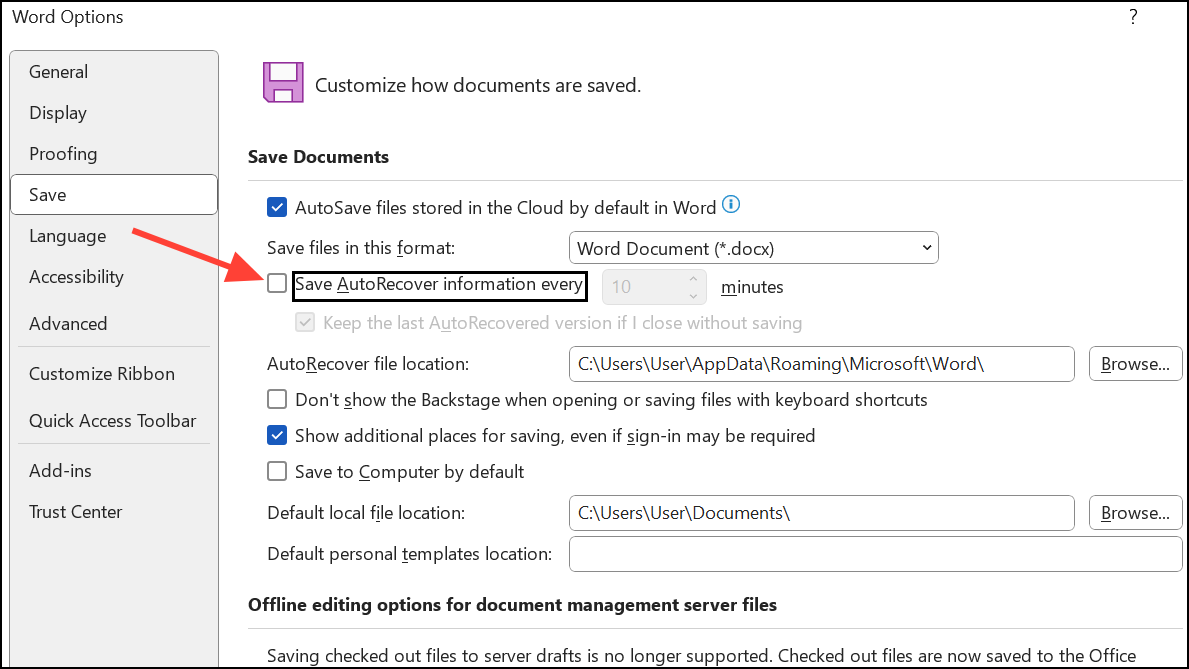
Options > Advanced > Show document content if the document contains many graphical objects.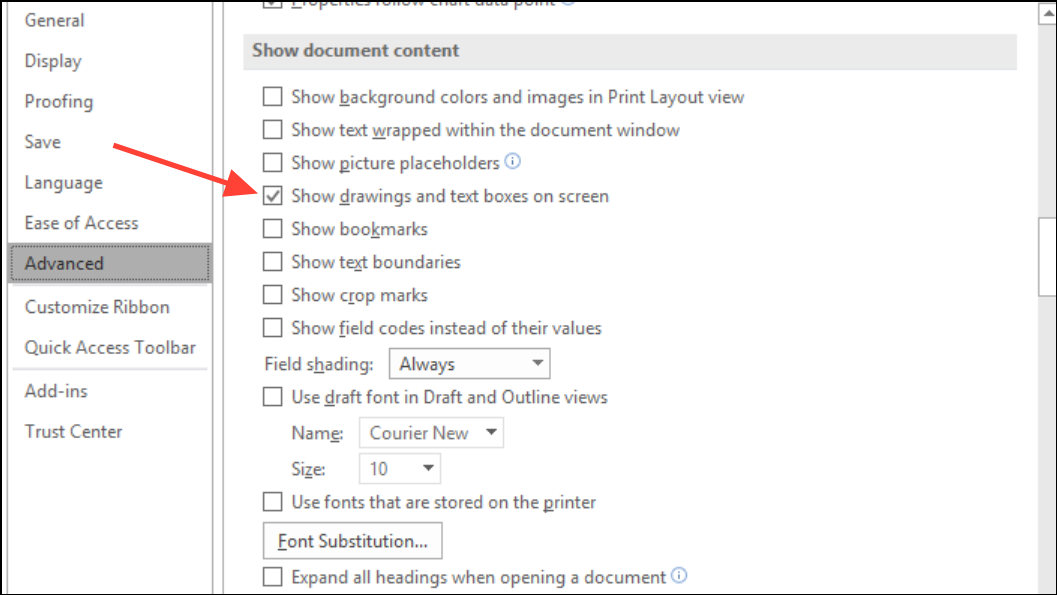
Method 5: Disable or Remove Problematic Add-ins and Extensions
Some third-party add-ins (such as PDF printers or citation managers) can conflict with Word’s document handling, especially when files are large or complex.
File > Options > Add-Ins and use the “Go” button at the bottom of the dialog to manage COM Add-ins.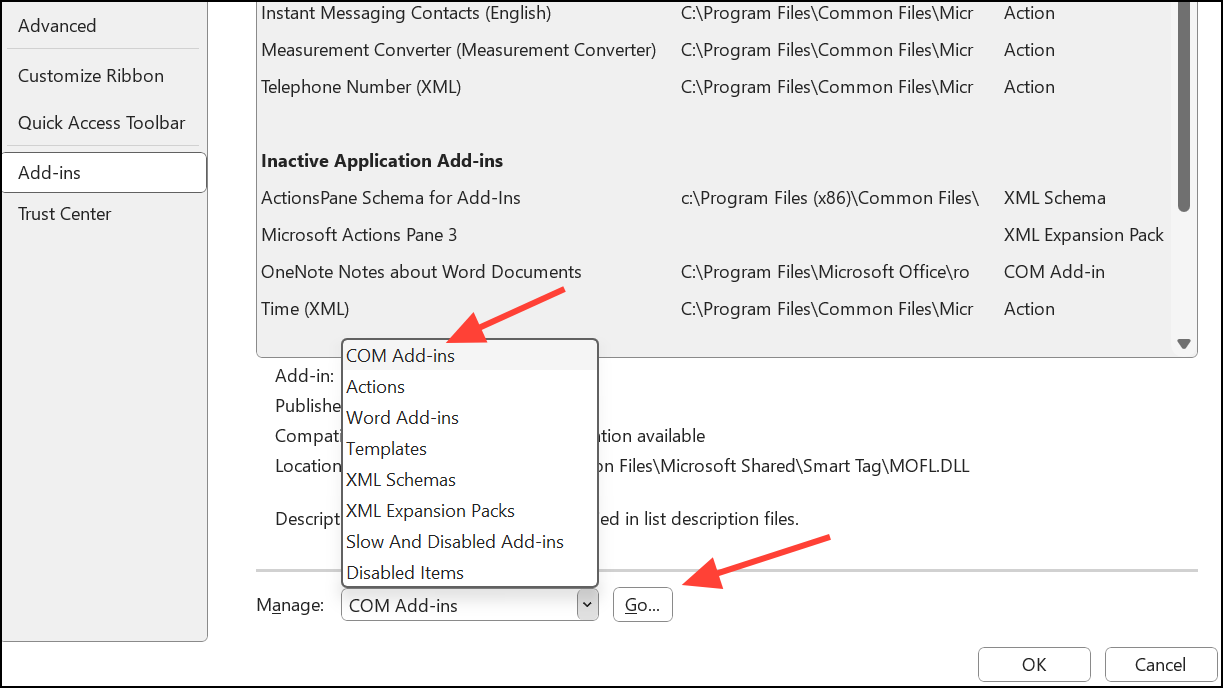
Method 6: Repair or Salvage Corrupted Documents
Corruption can occur after crashes, power failures, or improper formatting. Salvaging content is possible even if Word crashes on open.
.docx to .zip. Open the archive and extract word/document.xml for manual editing or text recovery using an XML editor..rtf and open in Word or another word processor. This may recover text, though formatting and images might be lost.Additional Tips for Large Document Stability
- Use manual saves (
Ctrl+S) instead of relying on autosave, especially during heavy edits. - Pause cloud sync services (like OneDrive) temporarily to reduce conflicts and lag during active editing.
- Set a default proofing language in
Review > Language > Set Proofing Languageto avoid dictionary conflicts. - For collaborative editing, work on separate files and merge changes at defined checkpoints to avoid simultaneous edits on a single large file.
- Consider using a dedicated computer with ample RAM (16GB or more), fast SSD storage, and the latest version of Windows 11 for best results with large documents.
Applying these targeted strategies streamlines editing, reduces crashes, and restores reliable performance when working with large Word documents. Regular maintenance—such as cleaning up styles and optimizing images—keeps your files stable as they grow.





