
Access issues in Windows 11 often block users from opening folders, especially after connecting external drives or restoring files from other devices. The error message “You have been denied permission to access this folder” signals that your account lacks the necessary rights to open or modify the folder. This can happen due to system security settings, ownership mismatches, or software conflicts.
Take Ownership of the Folder or Drive
When Windows 11 restricts access, it’s usually because the folder or drive is owned by a different user account—often one from another computer. Taking ownership transfers control to your current account, allowing you to view and modify the contents.
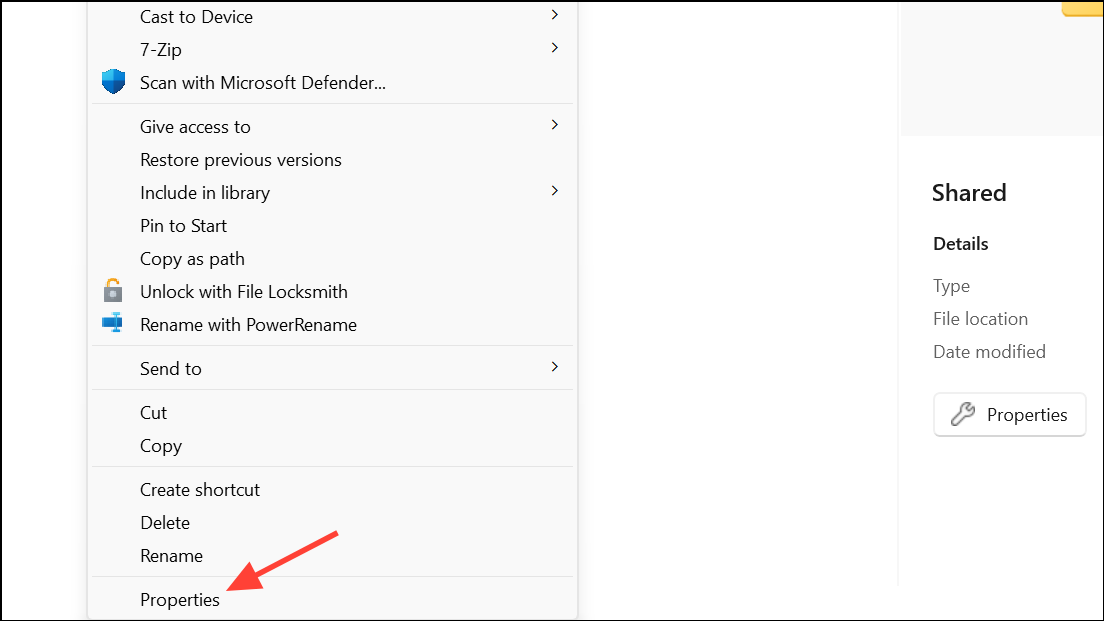
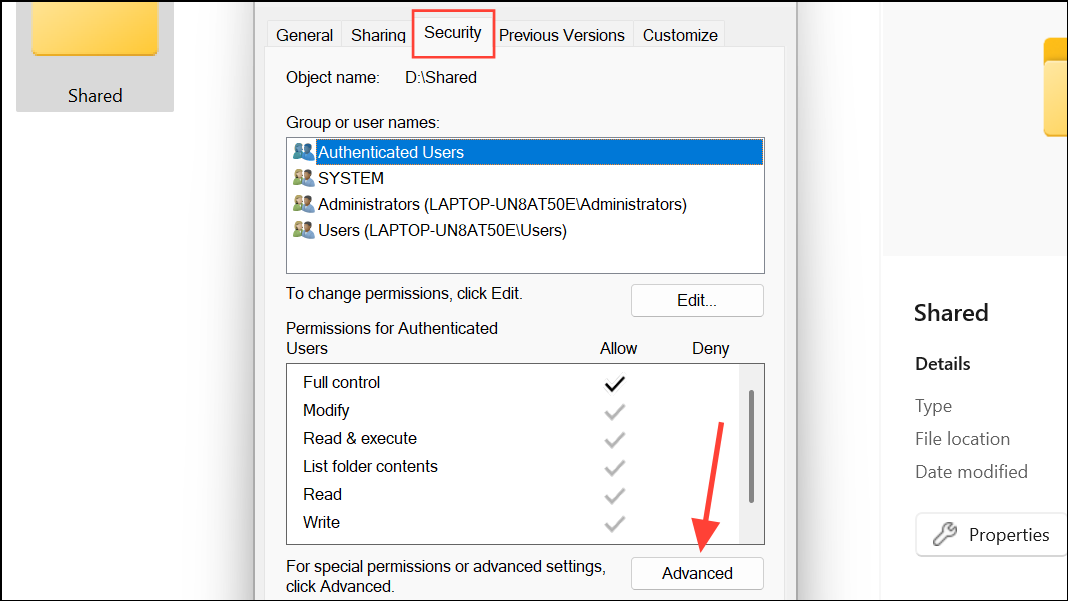
Owner section and click Change. In the dialog that appears, enter your Windows username or Administrators, then click Check Names to verify. Click OK to confirm.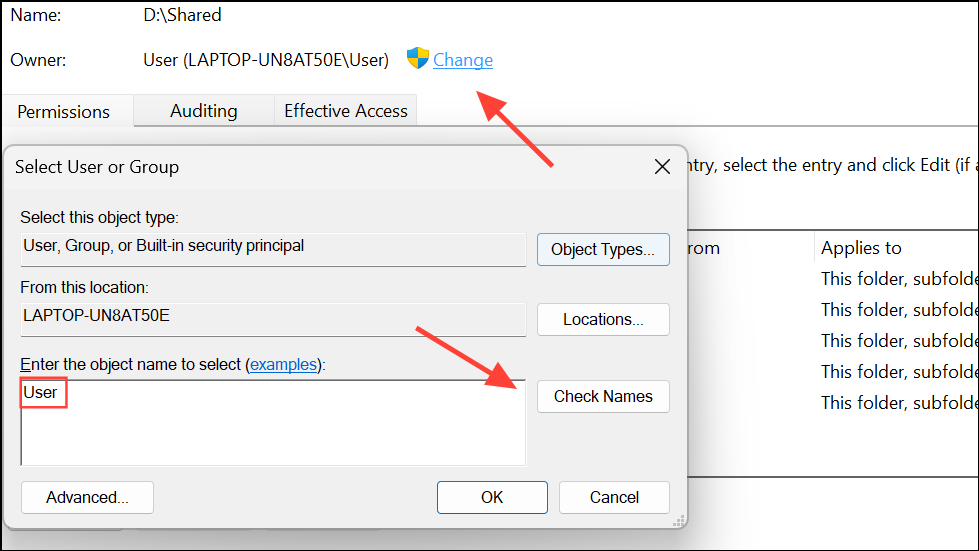
Replace owner on subcontainers and objects if you want to apply ownership to all files and subfolders. Click Apply and OK. This process may take several minutes for large folders.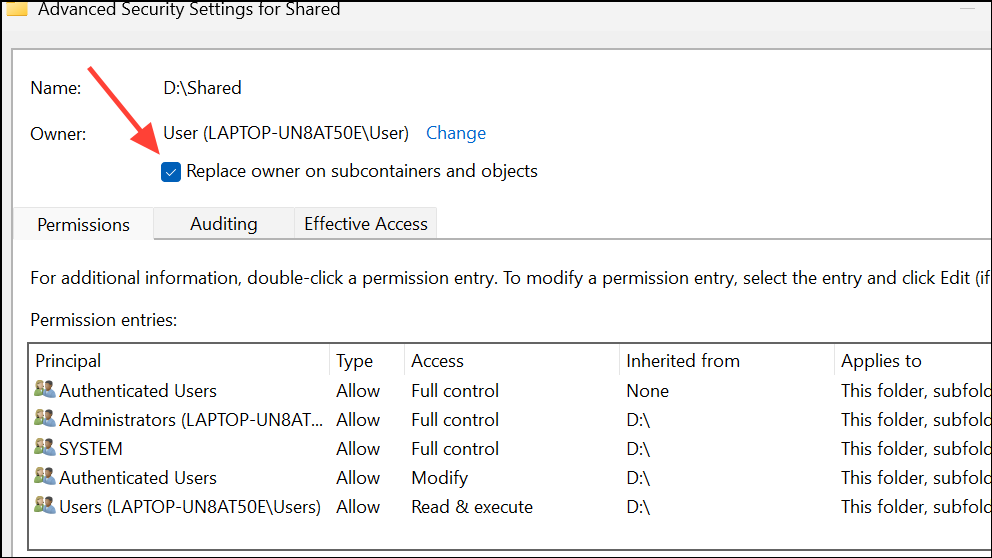
Edit, select your user account, and check the Full Control box under the Allow column. Click Apply and OK to save changes.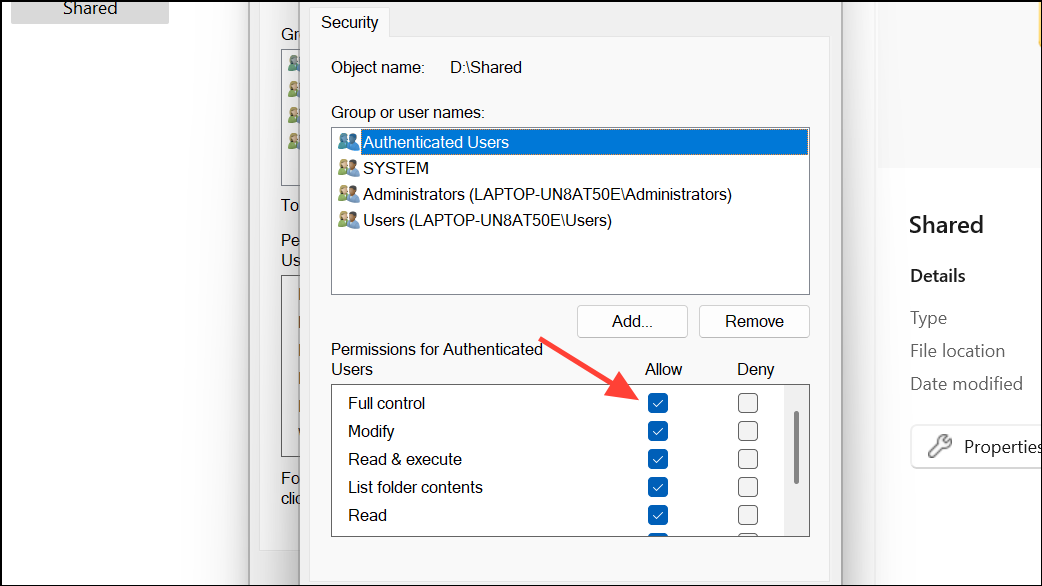
Taking ownership gives your account full access, resolving most permission errors when moving drives between PCs or recovering data from old systems.
Use Command Prompt to Reset Permissions and Take Ownership
For advanced users or when the graphical interface fails, Command Prompt offers direct control over permissions. This method is especially useful for external drives or system folders.
Win + S, type cmd, right-click Command Prompt, and select Run as administrator.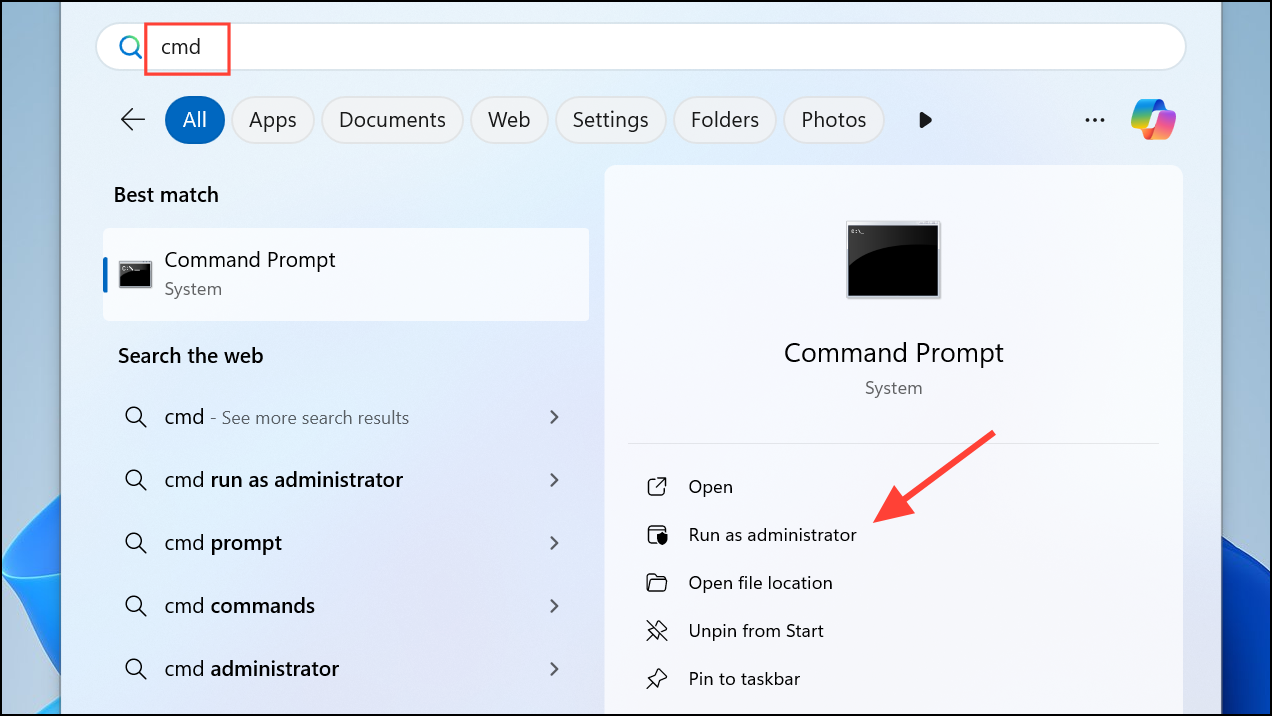
takeown /f "C:\Path\To\Folder" /r /d y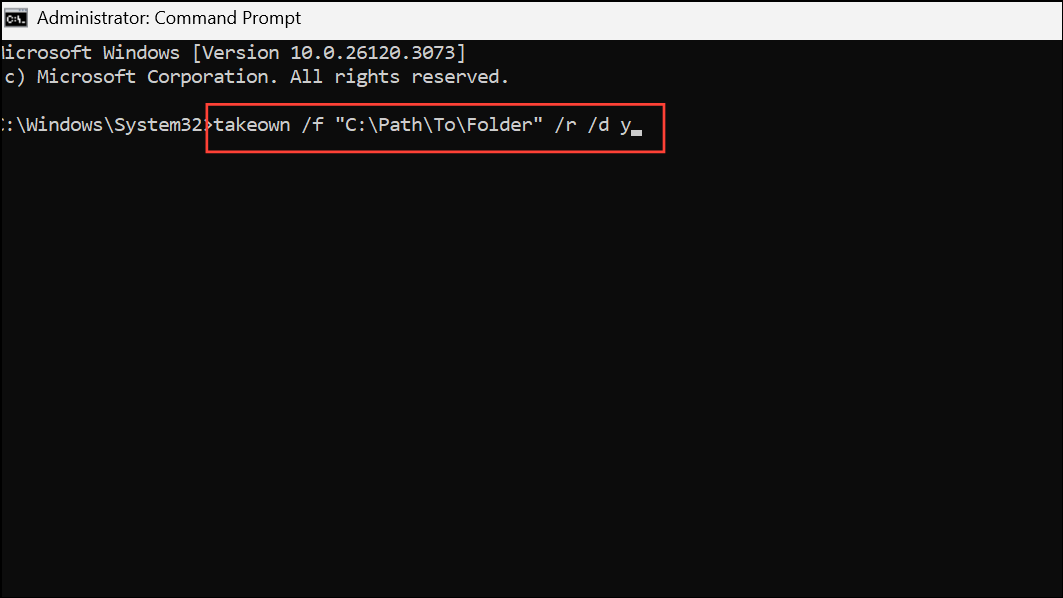
Replace C:\Path\To\Folder with the actual folder path. This command gives your account ownership of the folder and all its contents.
icacls "C:\Path\To\Folder" /grant administrators:F /t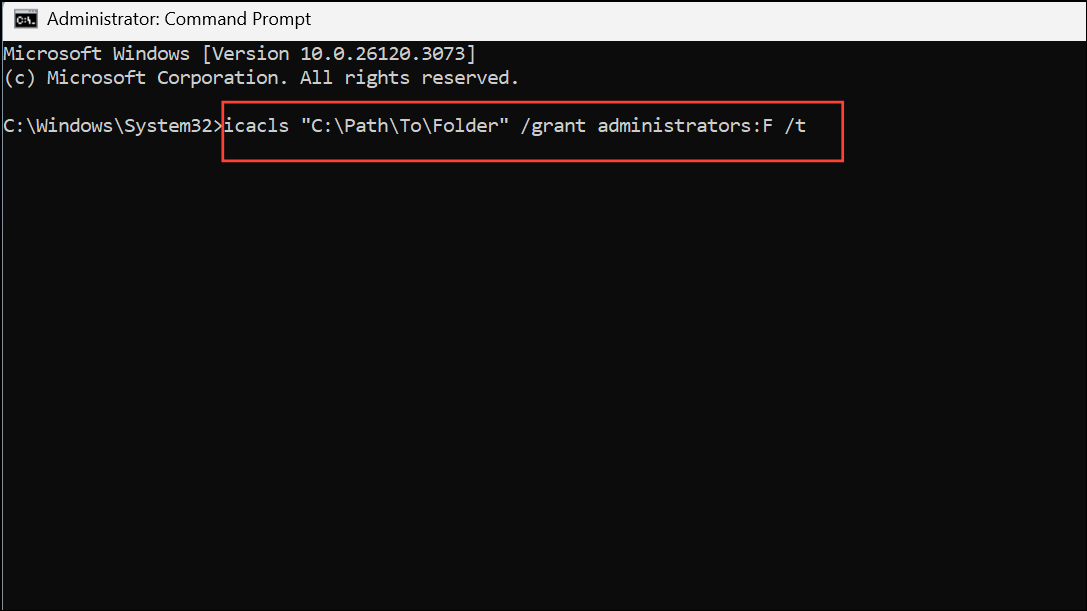
This command allows accounts in the Administrators group to access and modify everything in the folder.
This process is powerful but should be used carefully, especially on system folders, as incorrect changes can lead to data loss or application failures. Always back up important files first.
Set Your Account as an Administrator
Permission errors sometimes occur because your account is a standard user instead of an administrator. Administrative accounts have broader access, which is required for changing permissions and accessing protected folders.
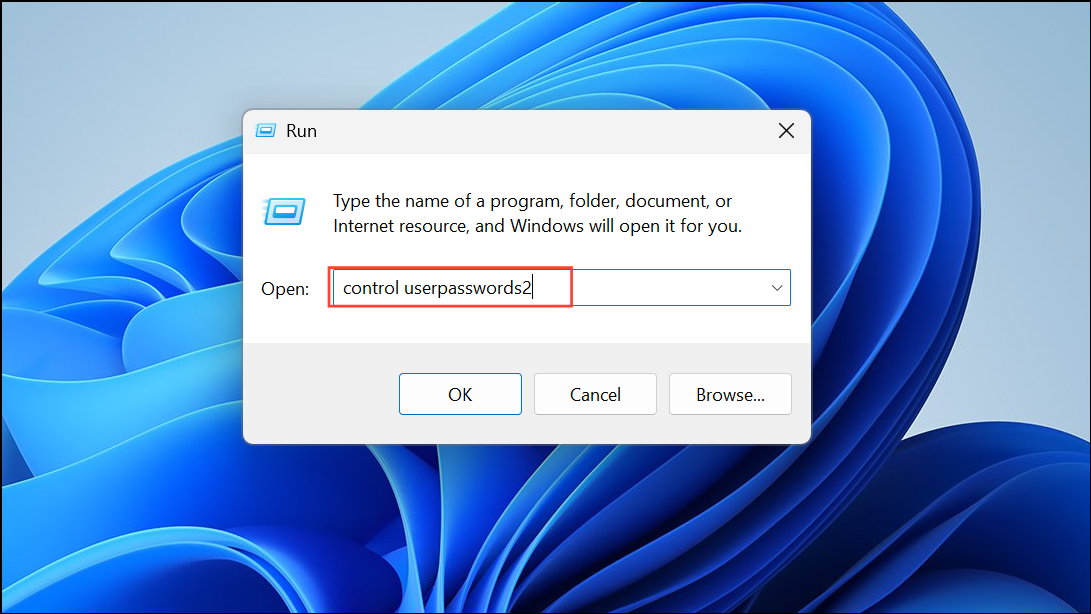
Properties. Go to the Group Membership tab and select Administrator. Click Apply and OK.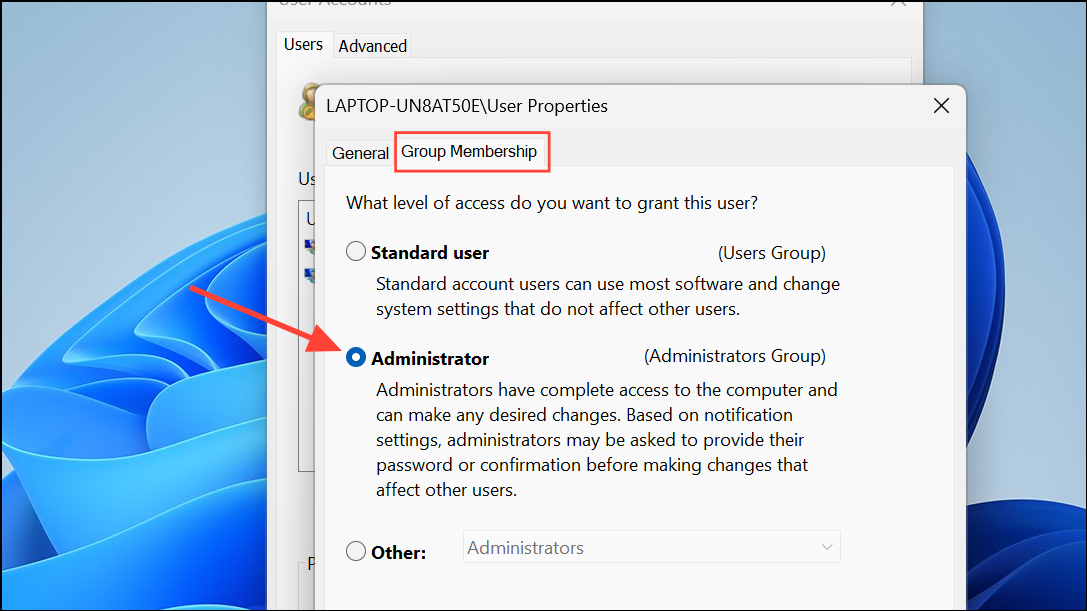
Administrative status is required for most permission and ownership changes in Windows 11.
Enable the Hidden Administrator Account
Windows 11 includes a hidden Administrator account with unrestricted access. Enabling this account can resolve stubborn access issues, particularly for system folders or drives with complex permissions.
net user administrator /active:yes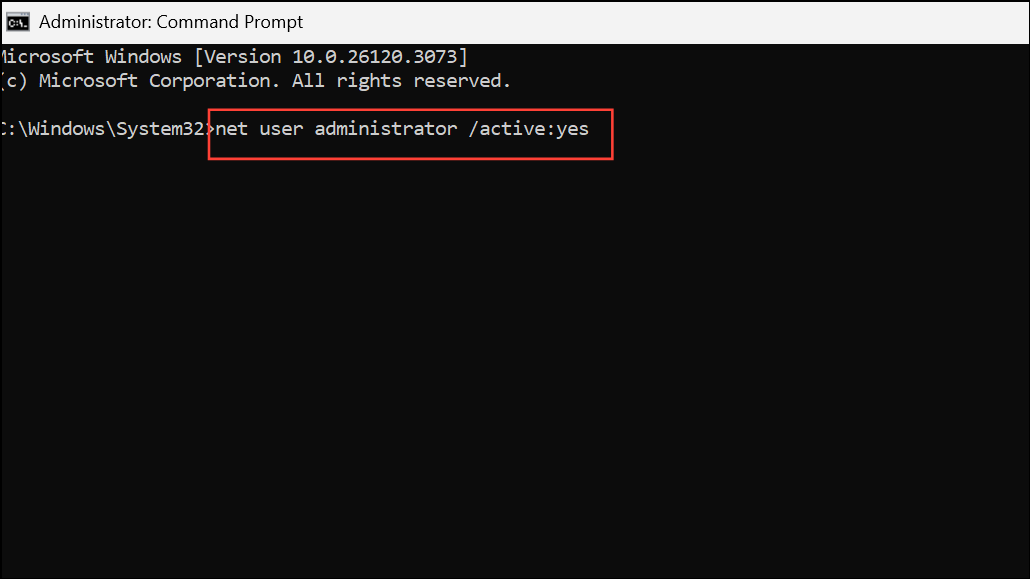
net user administrator /active:no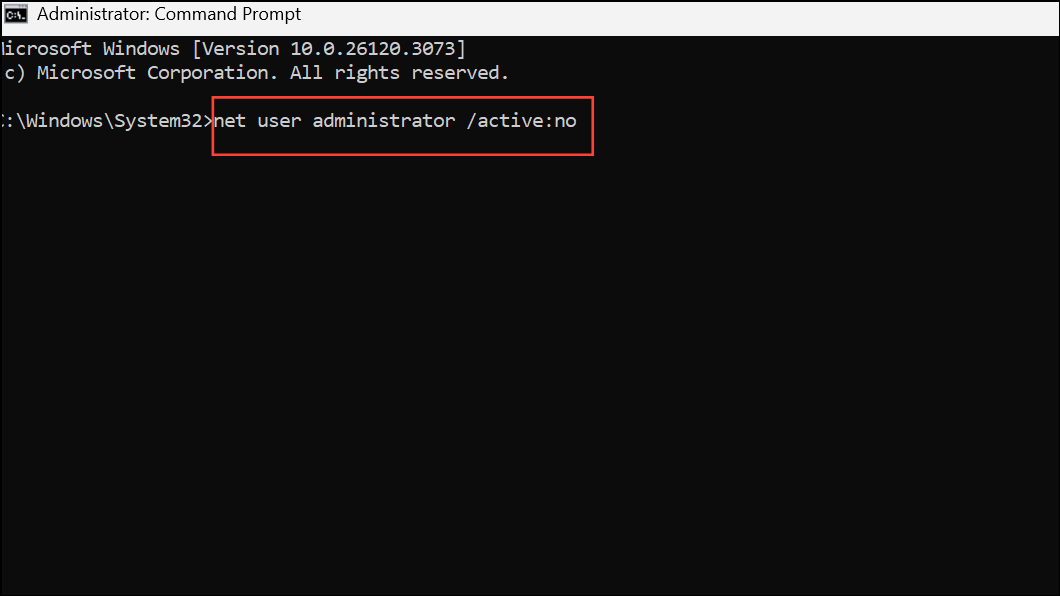
Always disable the Administrator account when not in use to reduce security risks.
Reset Permissions with ICACLS
Corrupted or misconfigured permissions sometimes lead to persistent “Access Denied” errors. The ICACLS tool can reset permissions to their default state.
icacls * /reset /t /c /q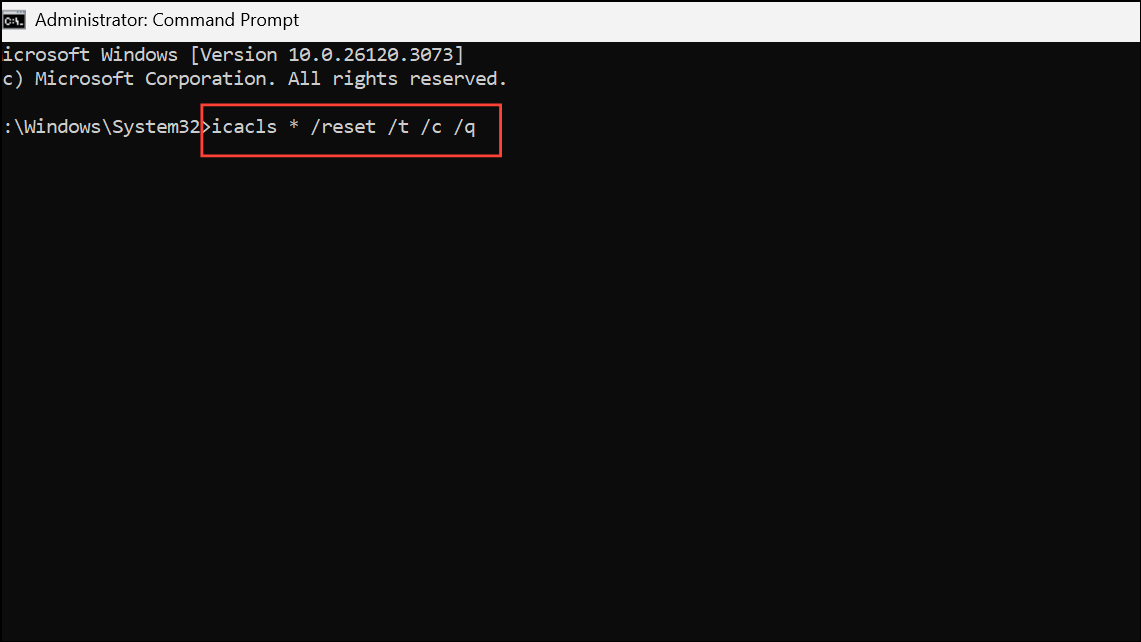
This command recursively resets permissions for all files and folders in the current directory. Use caution—resetting permissions on system folders can disrupt Windows operations.
Check for Security Tab or File System Limitations
Some drives, such as those formatted with FAT32 or exFAT, do not support NTFS permissions. As a result, the Security tab may be missing from folder properties, and ownership or permission changes will not work. If you need advanced permissions, use NTFS-formatted drives.
Additionally, SD cards and some USB drives may have physical write-protect switches. Ensure these are disabled before attempting permission changes.
Disable Third-Party Antivirus Software Temporarily
Antivirus programs can block access to drives or folders if they suspect a security risk. Temporarily disable your antivirus and try accessing the folder. If this resolves the issue, add an exception for the folder in your antivirus settings, then re-enable protection.
Never leave antivirus disabled longer than necessary, and do not disable security software on work or school devices without approval—doing so may breach policies or compromise your system.
Create a New User Account
If all else fails, your user profile may be corrupted. Creating a new account can restore access.
If successful, migrate your files and consider making the new account your primary profile.
Regaining access to restricted folders in Windows 11 is usually a matter of adjusting permissions, taking ownership, or resolving account issues. Careful application of these steps will restore control over your files and keep your system running smoothly.



