
Google Chrome closing immediately after opening interrupts daily browsing, prevents access to web apps, and can even halt work progress. This issue commonly appears after a Windows 11 update, profile corruption, or extension conflicts. Addressing the root cause restores browser stability and ensures uninterrupted access to your bookmarks, extensions, and saved passwords.
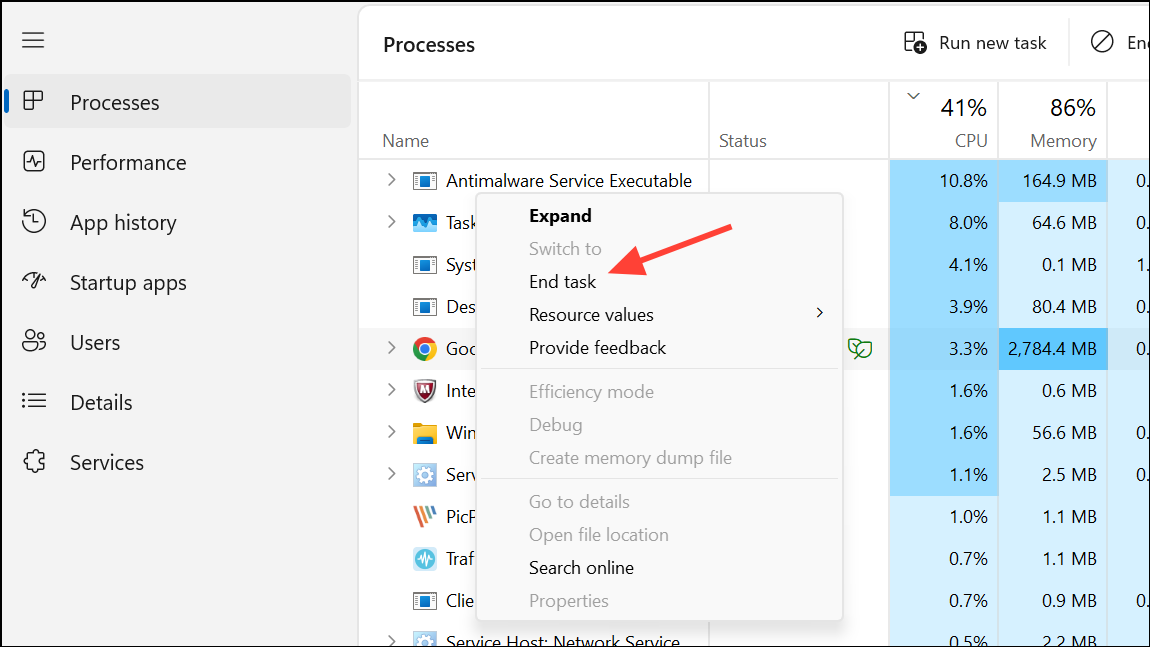
Main Method: Remove Corrupted Chrome User Data and Reinstall
Deleting all Chrome-related data from your user profile removes corrupted files that often cause the browser to crash on launch. This method resets Chrome to a clean state and is the most effective solution for persistent closing issues.
Win + R to open the Run dialog, then enter %LOCALAPPDATA%\Google and press Enter.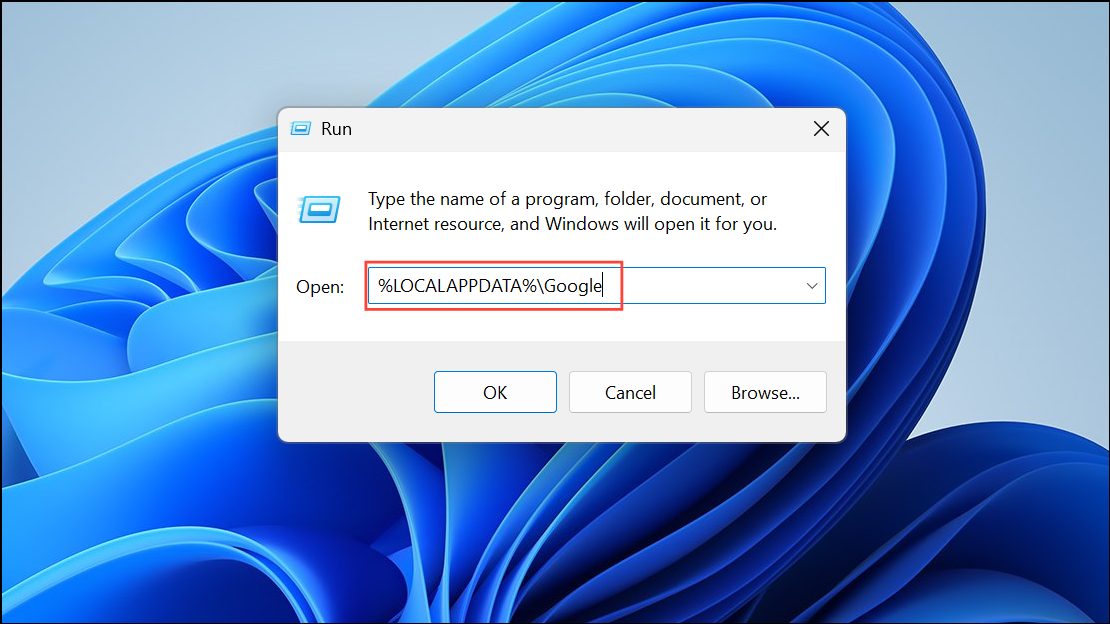
C:\Program Files (x86)\Google\ and remove the “Chrome” folder if present.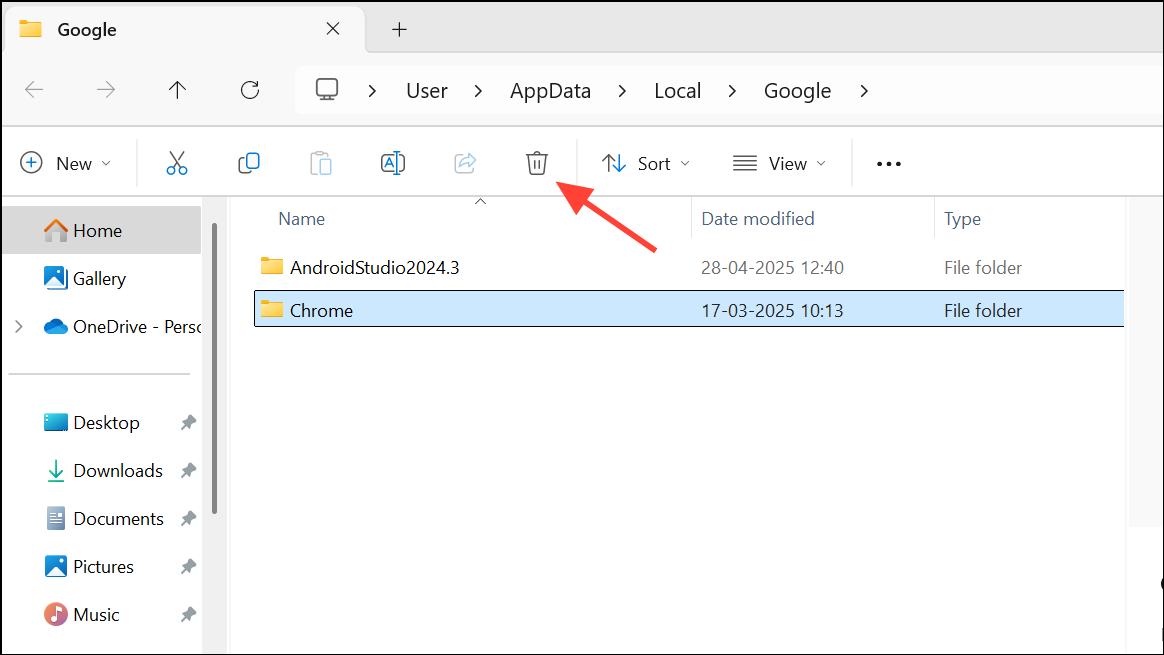
%LOCALAPPDATA%\Google\Chrome\User Data\Default before deletion. Copy files like “Bookmarks” and “Login Data” to a safe location, then restore them after reinstalling Chrome.Alternative Method: Create a New Windows User Profile
User profile corruption in Windows can prevent Chrome from running properly. Setting up a new local administrator account creates a clean environment for Chrome.
Windows Terminal (Admin) by right-clicking the Start menu and choosing “Terminal (Admin)” or “Command Prompt (Admin)”.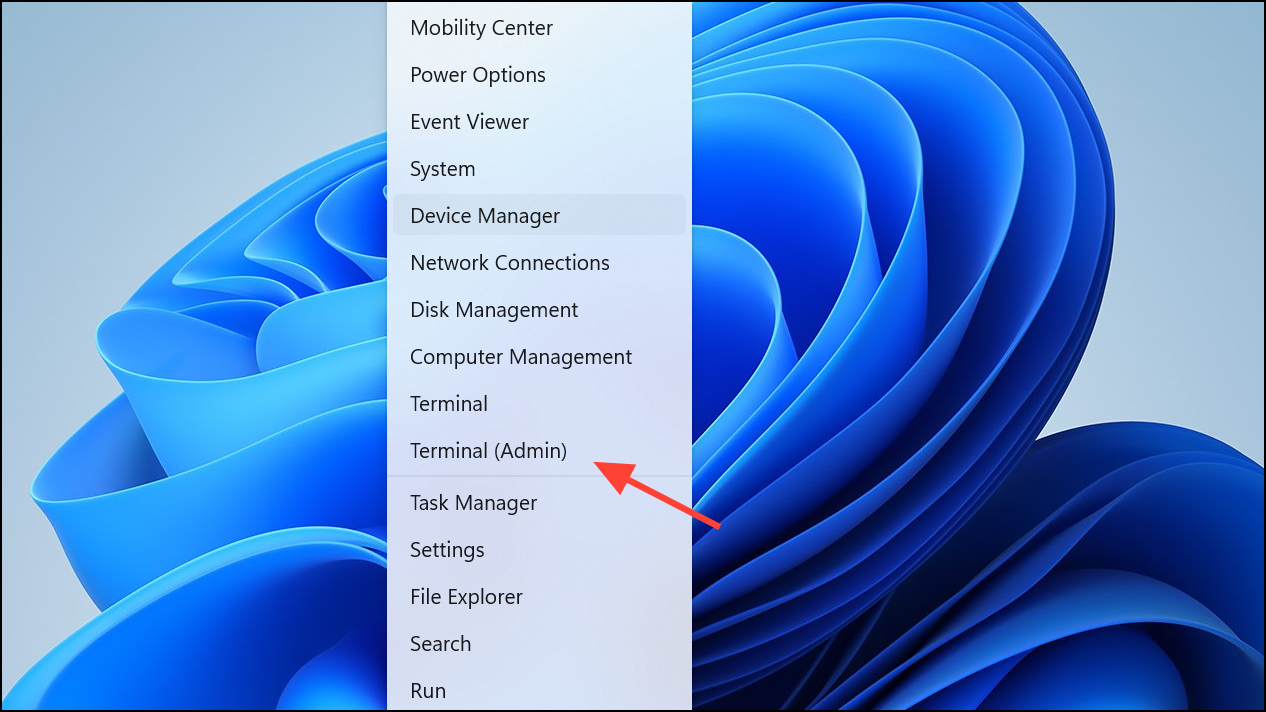
net user user1 pass1 /add
net localgroup administrators user1 /add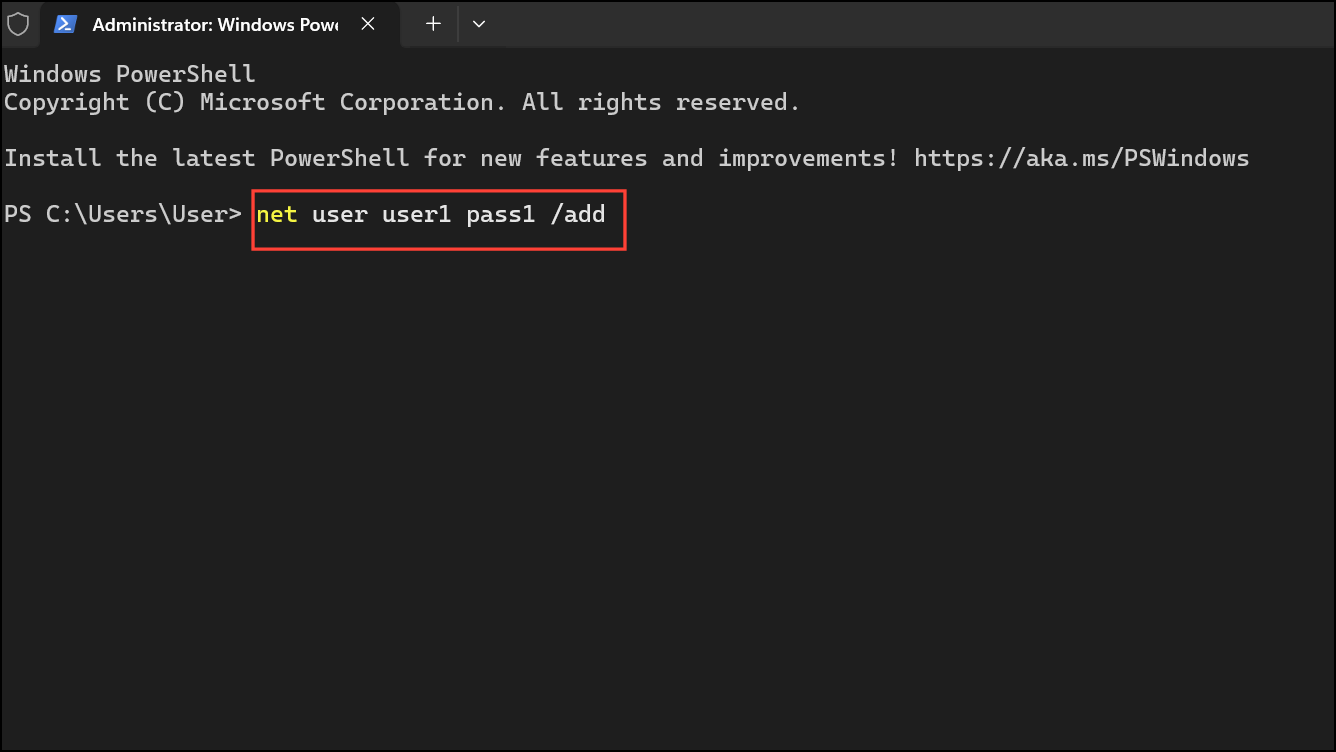
Replace user1 and pass1 with your preferred username and password.
Additional Fixes: Address Extensions, Cache, and Updates
Disable or Remove Problematic Extensions
Extensions can conflict with Chrome, causing it to close unexpectedly. To disable extensions, run Chrome with the --disable-extensions flag:
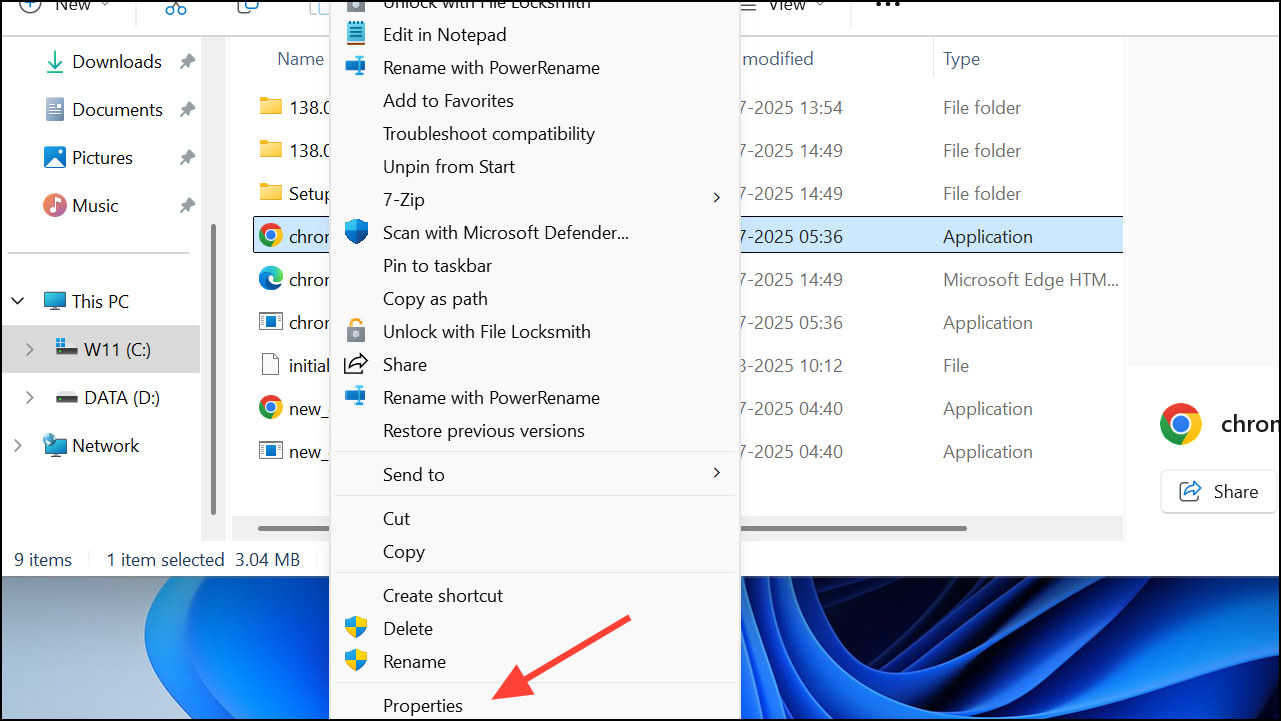
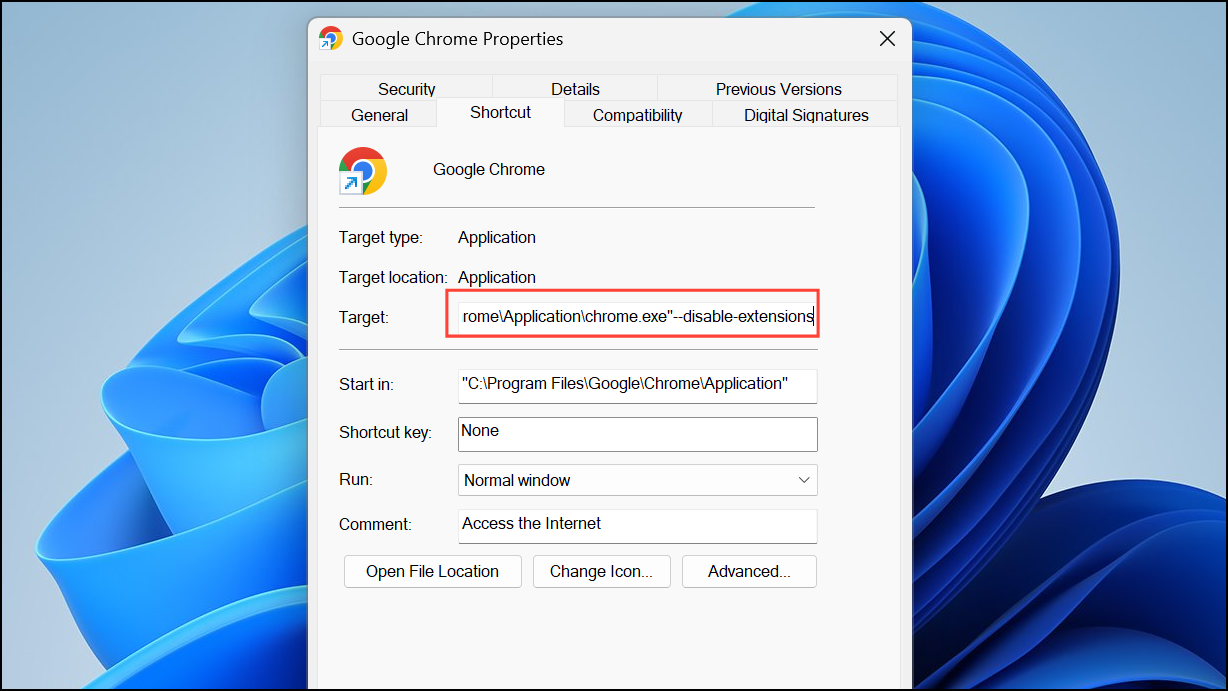
chrome://extensions and disable or remove recently added extensions.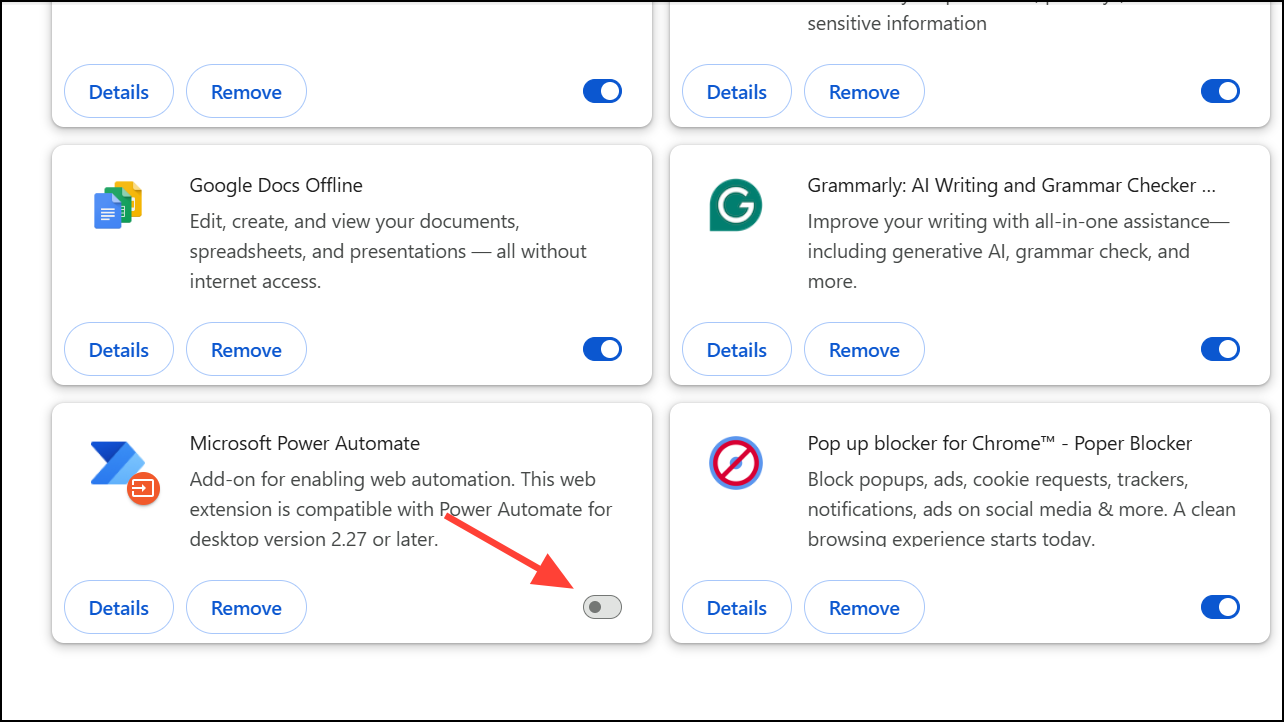
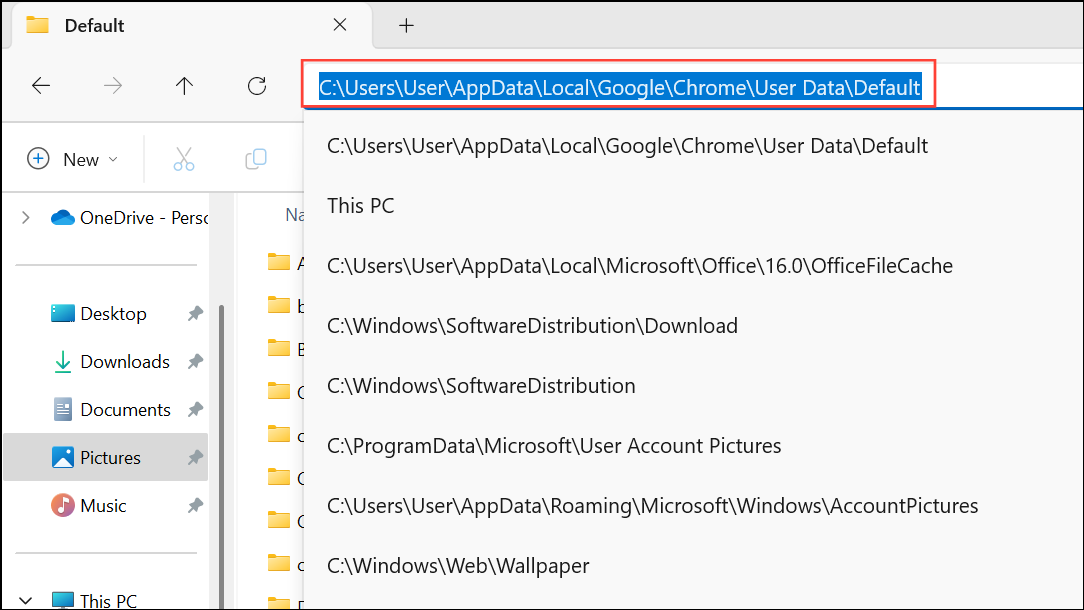
Clear Chrome Cache and User Data
Corrupted cache files can cause Chrome to crash on startup. Deleting cached data forces Chrome to rebuild its settings from scratch.
Update Windows 11 and Google Chrome
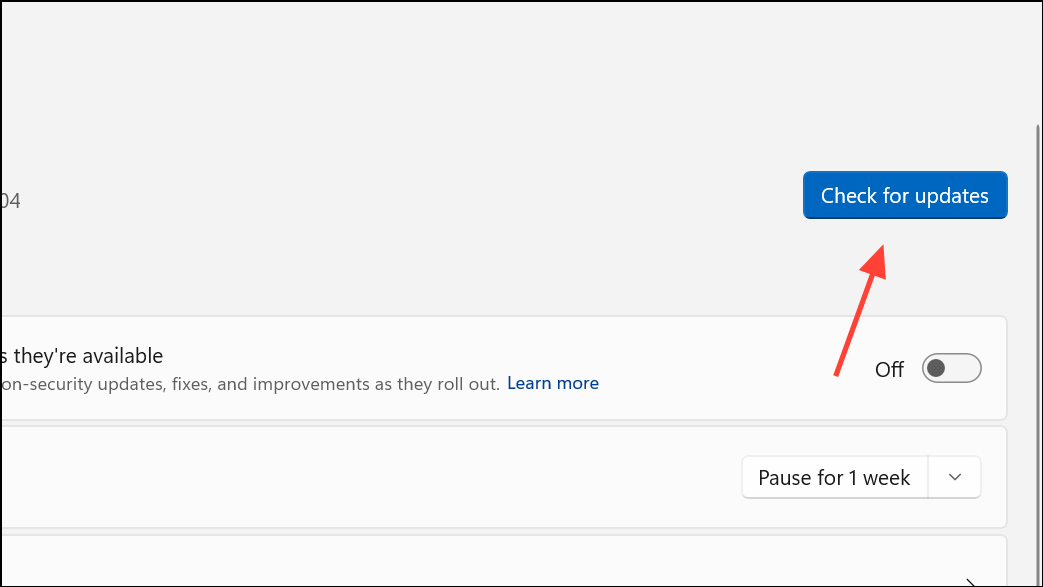
Outdated system files or browser versions can introduce compatibility issues. Keeping both Windows and Chrome up to date addresses known bugs and improves stability.
- Open
SettingswithWin + I, then go toUpdate & Security > Windows Updateand select “Check for updates”. Install any available updates and reboot.
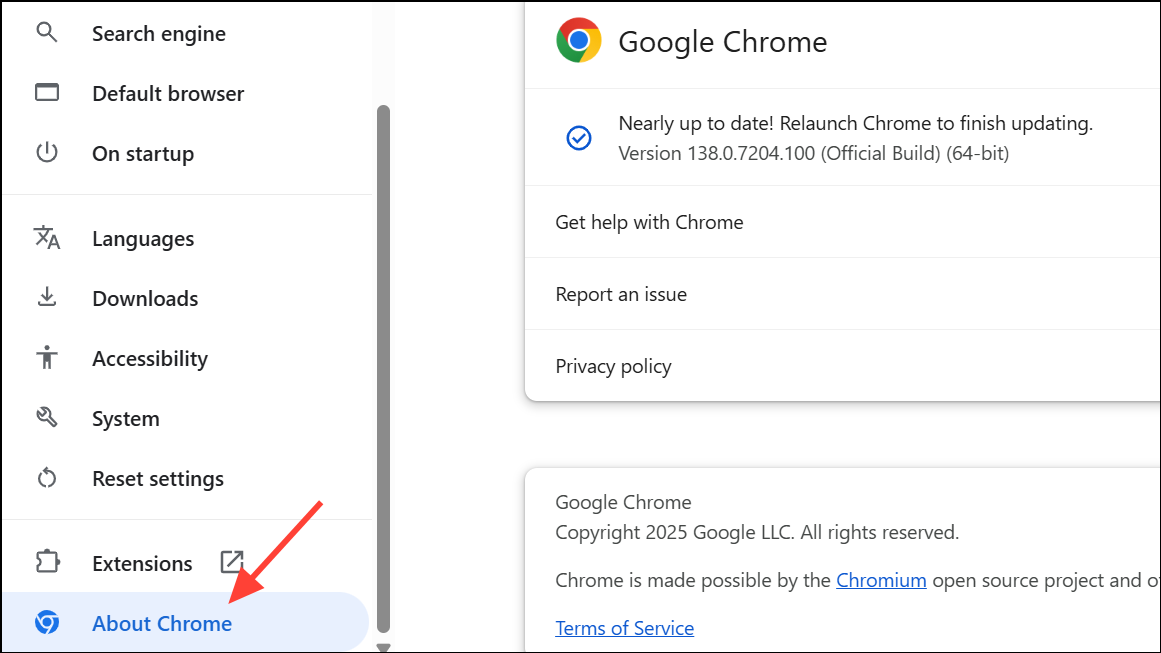
- For Chrome, select the three-dot menu > “Settings” > “About Chrome”. Chrome will automatically check for and apply updates.
Other Troubleshooting Steps
- Restart your computer to clear temporary glitches.
- Scan your system with antivirus software to rule out malware.
- Try running Chrome as an administrator by right-clicking the shortcut and choosing “Run as administrator”.
- If Chrome only closes immediately after a Windows update, uninstalling the recent update can sometimes resolve the issue.
Restoring Chrome’s stability on Windows 11 is achievable by deleting corrupted user data, creating a new Windows profile, or disabling problematic extensions. Regularly updating your system and browser helps prevent future issues and keeps browsing smooth.





