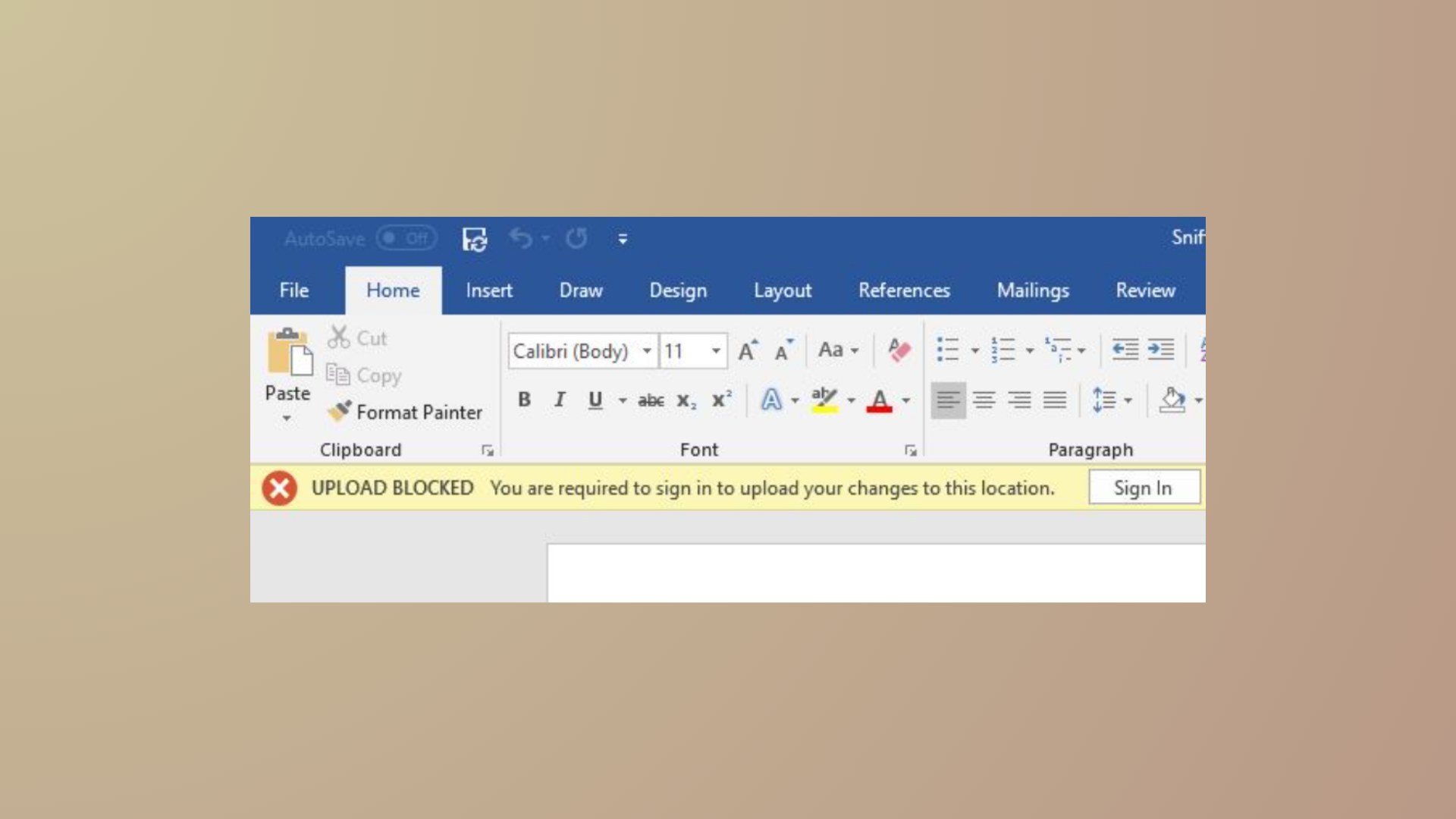
Missing files in OneDrive disrupt access to important documents, photos, or project work, often causing confusion about where the data went and how to recover it. OneDrive’s sync and backup features can sometimes lead to files vanishing from both cloud and local storage, especially when multiple devices or accounts are involved. To address this issue, follow these thorough steps to locate, restore, and safeguard your data.
Search for Files on OneDrive.com
www.onedrive.com using the credentials for the account where your files were stored. Make sure you are using the correct Microsoft account, as files may be tied to different personal, work, or school profiles.report, April, or .jpg to cast a wider net.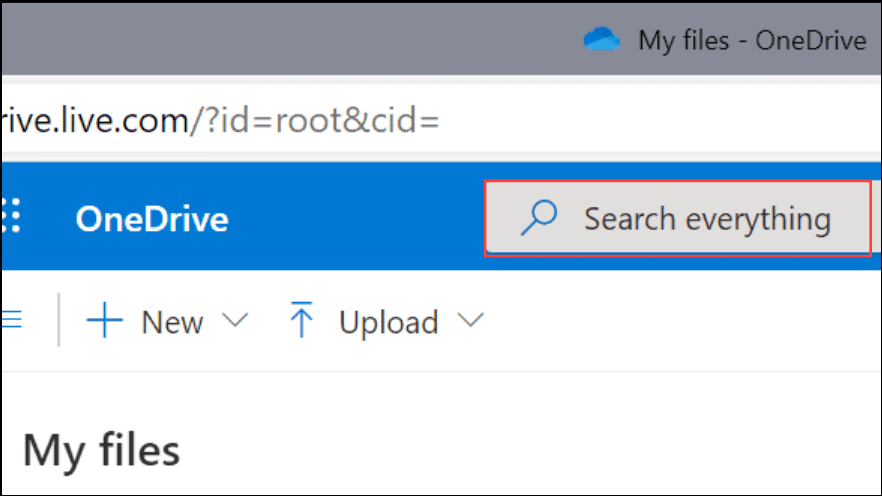
Restore Files from the OneDrive Recycle Bin
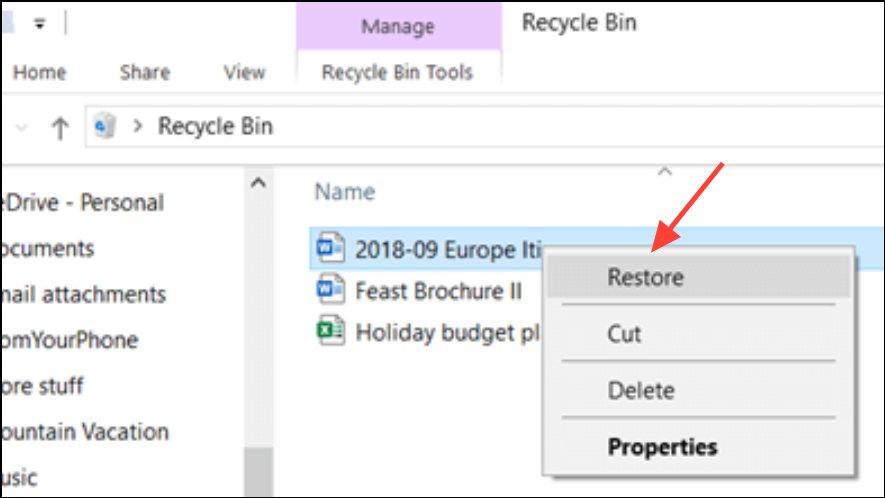
For files deleted from the Personal Vault, ensure the Vault is unlocked before checking the Recycle Bin. If you do not see the option to show Personal Vault items, your Vault may already be unlocked or empty.
Check for Files in Another Microsoft Account
Be aware that personal OneDrive accounts inactive for two years may be deleted, and work or school accounts may have files automatically removed after a set retention period (commonly 93 days).
Restore Your Entire OneDrive to a Previous Date
onedrive.live.com/?v=restore.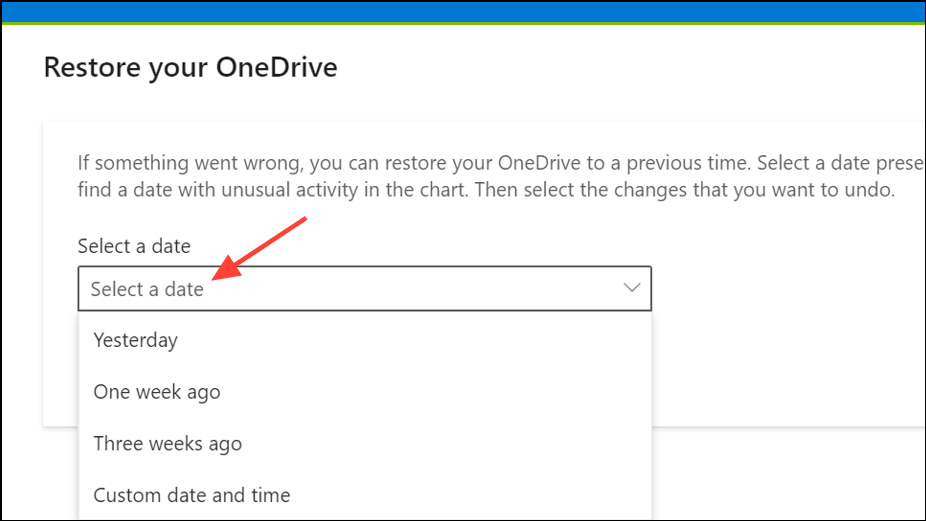
This approach is most effective when a large number of files have disappeared due to accidental deletion, ransomware, or sync errors.
Check Device Storage and Local Folders
Documents or Pictures folders) and select Properties > Location to confirm the folder is pointing to the correct OneDrive location. If it is not, update the path and manually move any missing data.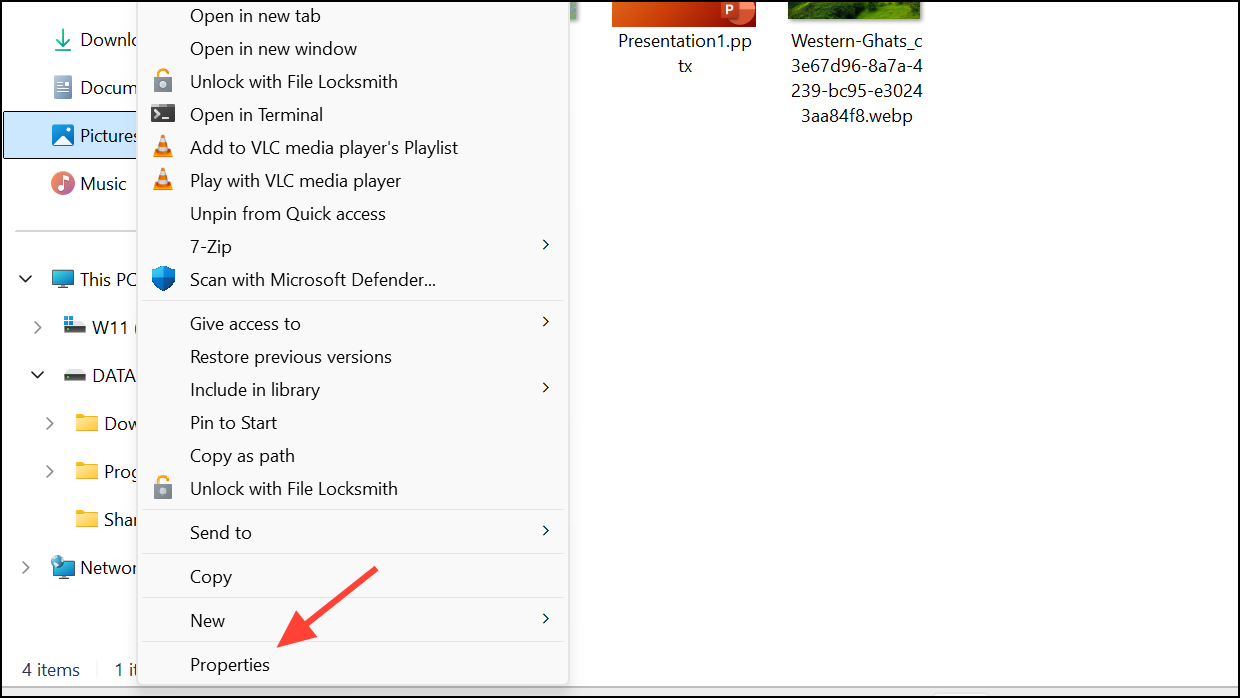

Additional Troubleshooting and Support
If files are missing from both OneDrive and your local device and are not present in the Recycle Bin, the following may help:
- Check the Version History of files in OneDrive for previous versions that may contain your data.
- Review the OneDrive activity log for recent deletions, moves, or sync activity. Lack of logged actions may indicate a sync error or account issue.
- Contact Microsoft Support with detailed information, including file/folder names, dates last accessed, and the devices used. Support agents cannot access your files directly but may provide additional guidance.
- If you use specialized apps like Obsidian or Samsung Gallery, verify their sync settings and local folder structure, as app-specific behaviors can sometimes cause files to disappear or revert to earlier versions.
For critical data, maintain separate backups outside of OneDrive, such as external drives or alternative cloud storage, to minimize risk of data loss from sync errors or account problems.
By systematically searching, restoring, and verifying account settings, you can recover most files that disappear from OneDrive. Regular backups and careful management of sync settings help prevent future issues.