How to Fix Firefox Stuck on Loading or Checking for Updates
Resolve issues where Firefox fails to load web pages or remains in a perpetual update check loop using detailed troubleshooting on Windows 11.
Resolve issues where Firefox fails to load web pages or remains in a perpetual update check loop using detailed troubleshooting on Windows 11.
by Pallav Pathak
Firefox freezing during startup or endlessly displaying “Checking for updates” can prevent access to the web and disrupt daily workflow. This issue frequently appears after a new installation, system update, or network configuration change, and is often accompanied by web pages failing to load while other browsers like Edge or Chrome work normally. The root cause may relate to proxy settings, network configuration, or corrupted browser data. Addressing these factors with targeted troubleshooting restores Firefox functionality and avoids repeated crashes or forced shutdowns.
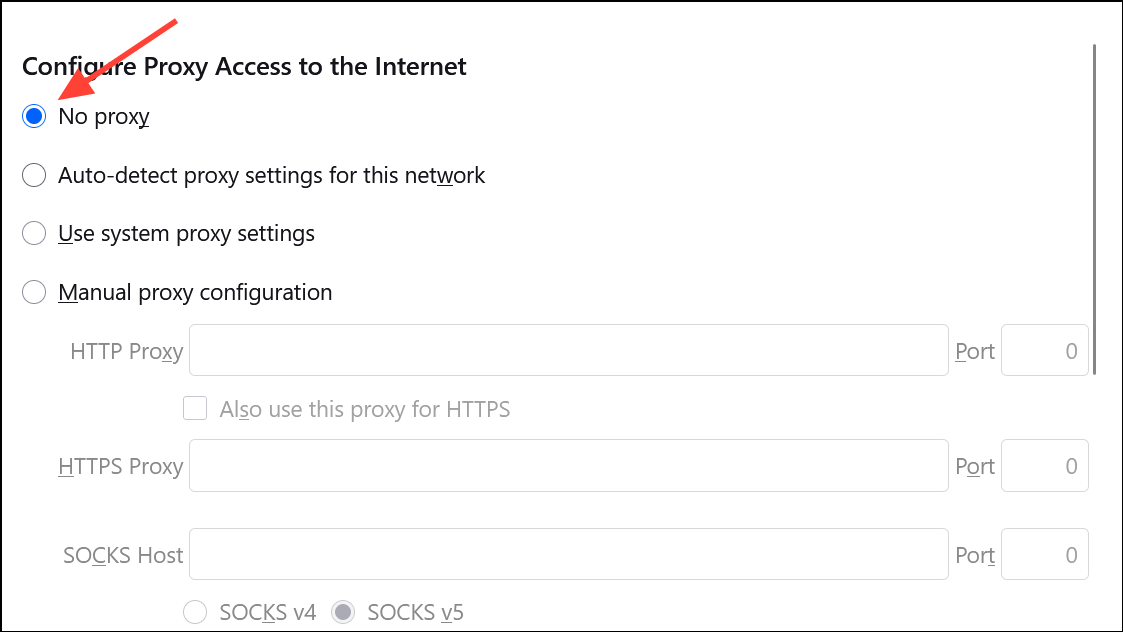
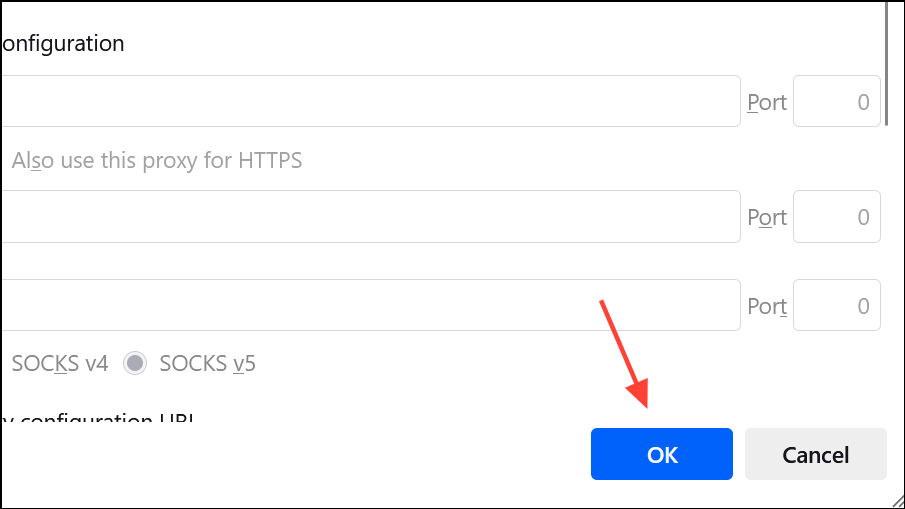
Click OK to save changes and close the dialog. Restart Firefox to check if the browser now loads pages and exits the update loop.
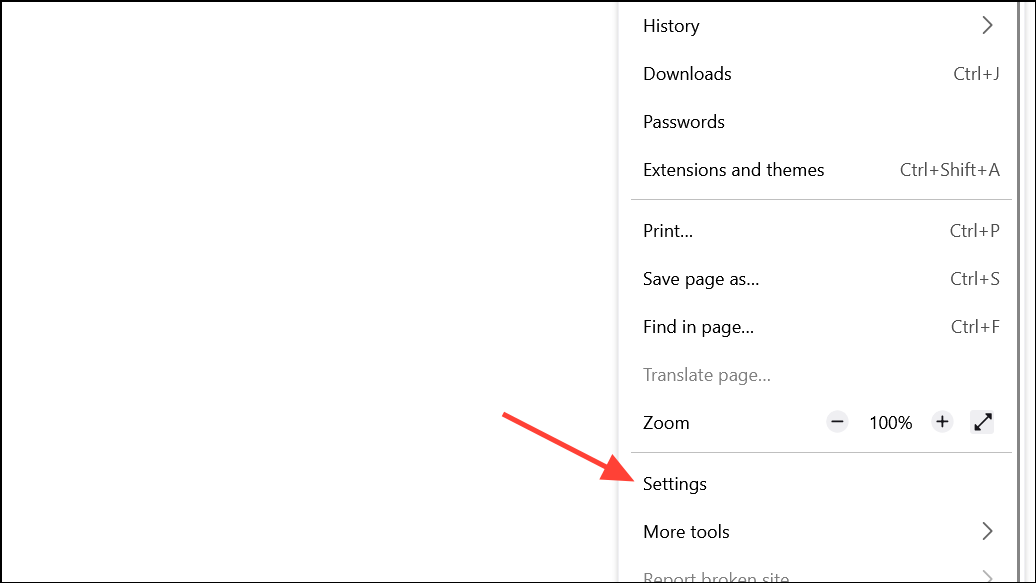
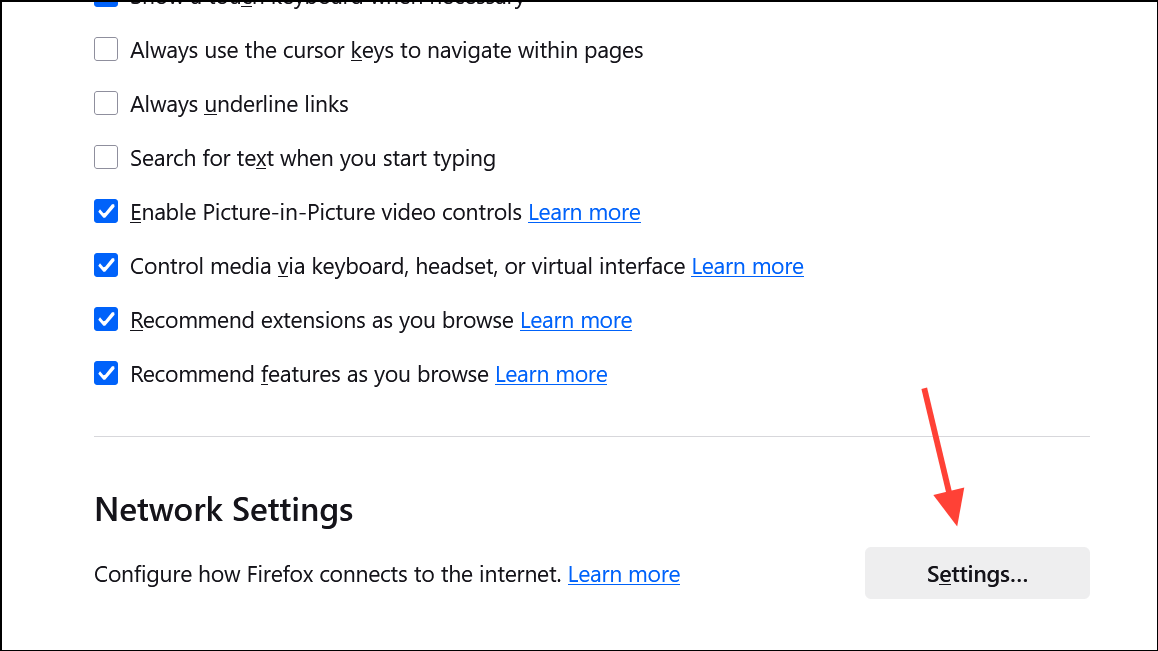
This adjustment bypasses potential misconfigurations in Windows 11 system proxy settings that may block Firefox’s internet access, even when no explicit proxy is set. Users report that switching to “No proxy” immediately resolves the infinite update check and restores normal browsing.
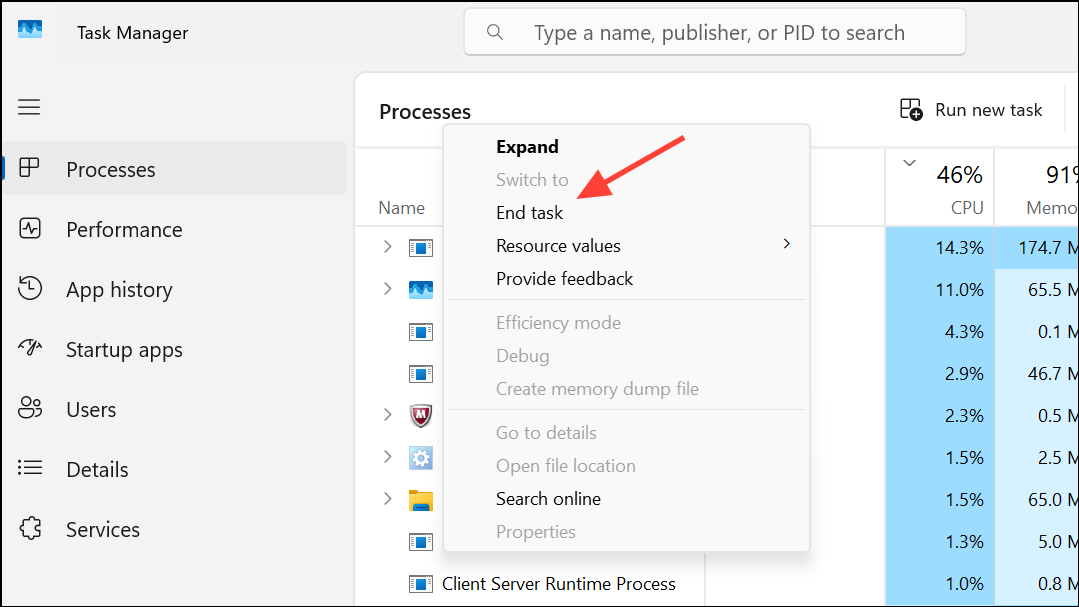
Restart Firefox. This clears any lingering background processes that might prevent proper startup or cause browser hangs. If Firefox still fails to load, proceed to the next method.
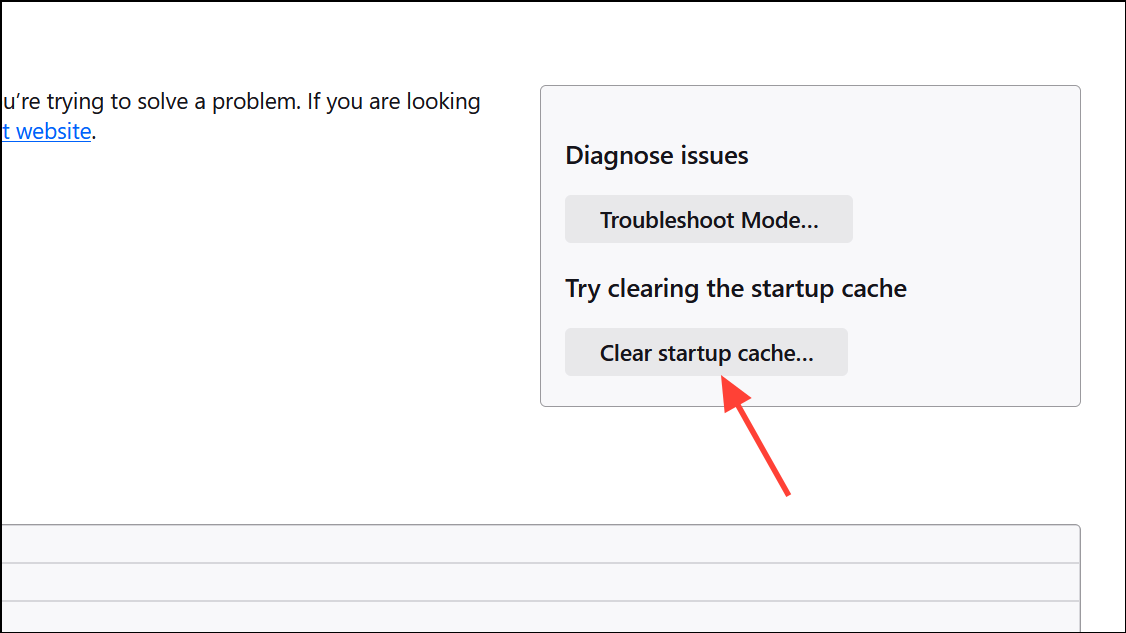
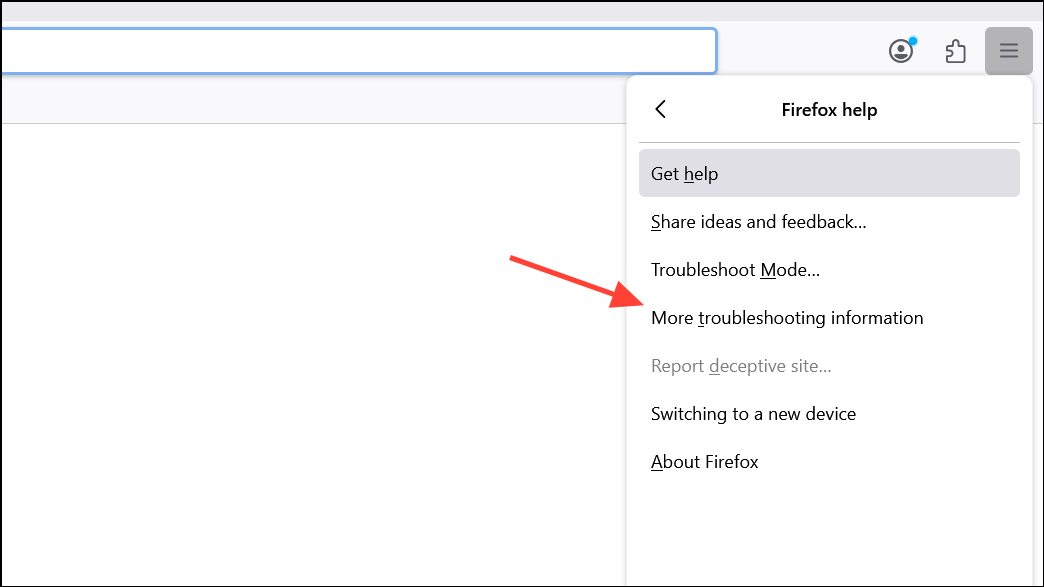
To clear the startup cache, go to Help > More Troubleshooting Information, then click Clear startup cache… and confirm the restart. This removes temporary files that may interfere with browser loading and update checks.
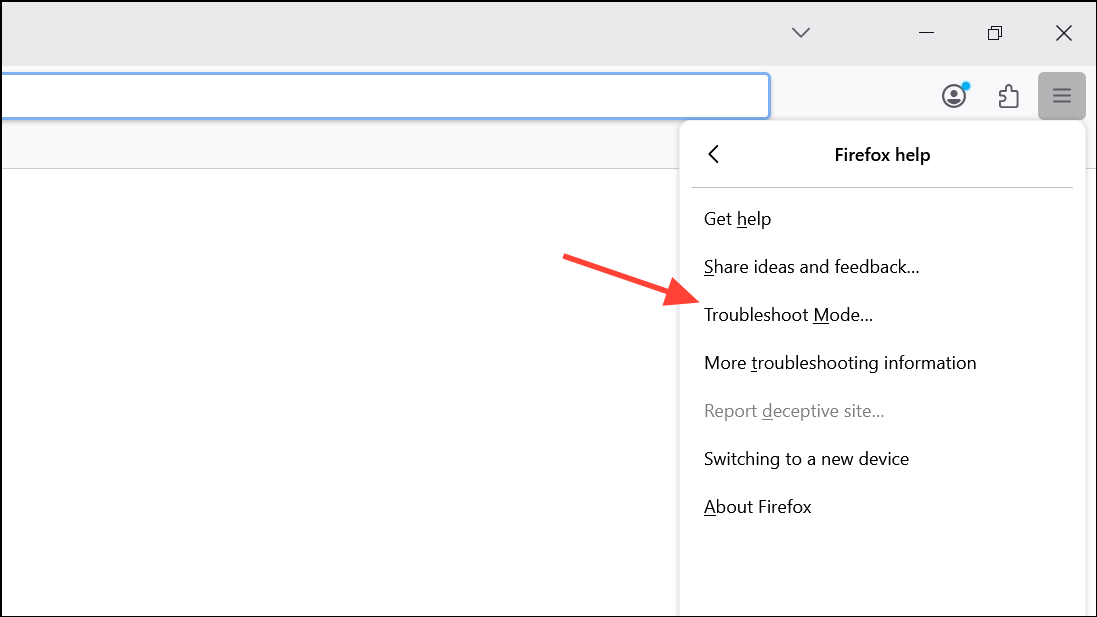
In Troubleshoot Mode, all extensions are disabled, and default settings are used. Attempt to load a web page. If Firefox works in this mode, the issue may be caused by an extension, theme, or hardware acceleration.
If the browser functions normally, exit Troubleshoot Mode and disable extensions one by one to identify the culprit. If the problem persists in Troubleshoot Mode, move to the next method.
Confirm the refresh when prompted. Firefox will close, remove add-ons and customizations, and restore default settings while preserving bookmarks, passwords, and essential data. After the refresh, test if the browser loads pages and completes the update check.
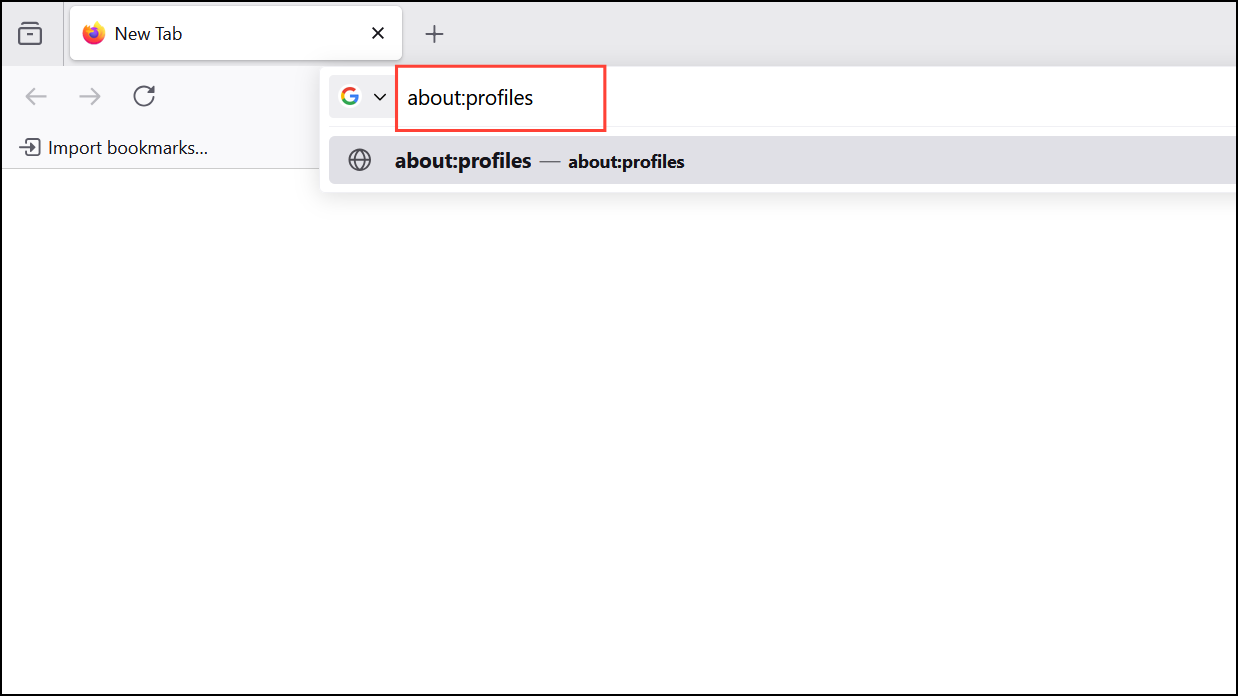
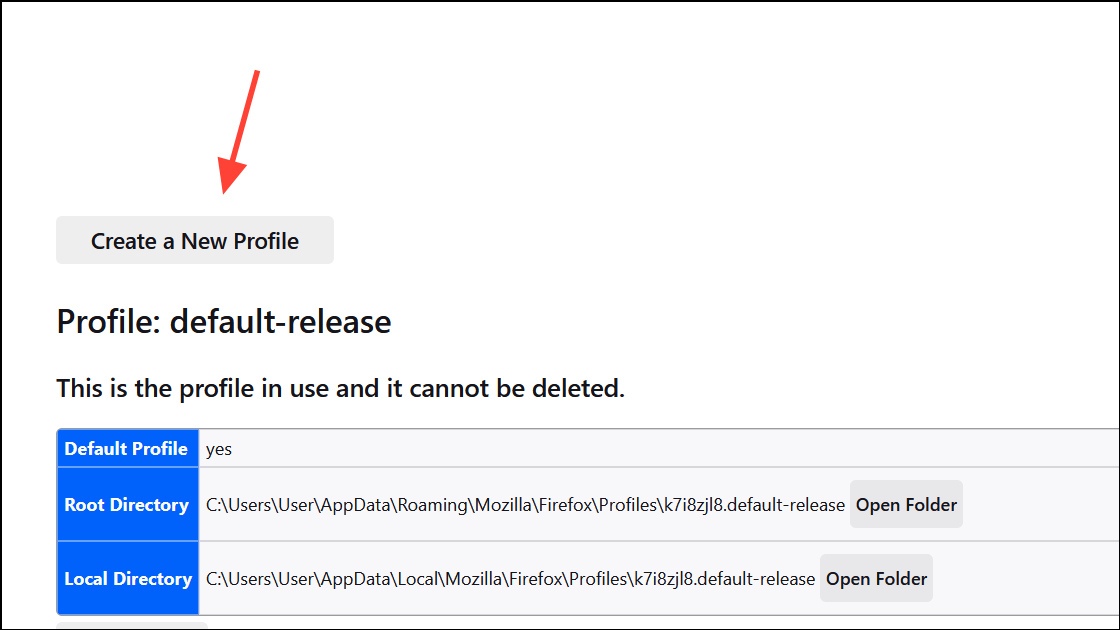
Click Create a New Profile, follow the prompts, and switch to the new profile. This creates a fresh user environment, bypassing any corruption in the old profile.
If Firefox works with the new profile, consider transferring bookmarks and passwords from the old profile. Avoid copying over extensions or settings files that may reintroduce the issue.
Temporarily disable or reconfigure firewalls, antivirus, or other security tools. Remove Firefox from the list of blocked or restricted applications, then add it back as an allowed program. Some security suites mistakenly block browser updates or network traffic, causing update loops or loading failures.
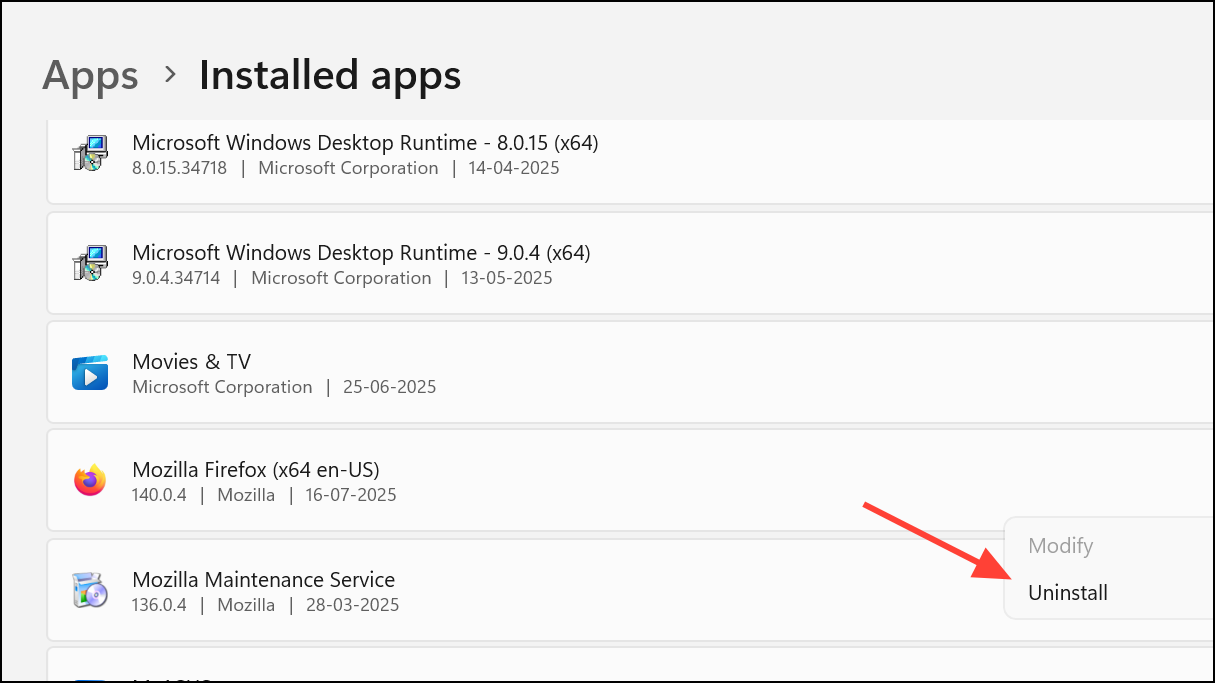
Reinstall Firefox using the fresh installer. This step replaces any corrupted program files that may prevent updates or page loading.
Switching Firefox’s proxy setting to “No proxy” resolves most cases of endless update checks and page loading failures, especially on Windows 11. If the issue persists, systematically clear browser data, check for security conflicts, and consider a clean reinstall to restore reliable browsing.