Images missing from websites in Firefox can disrupt browsing, prevent access to key information, and make sites difficult to use. This issue often results from browser settings, conflicting extensions, cached data, or security features blocking content. Addressing the root cause restores full website functionality and a consistent browsing experience.
Clear Cookies and Cache
Removing outdated or corrupted cached files and cookies frequently restores image loading in Firefox. Cached data can become stale or conflict with new website content, leading to broken images or missing graphics.
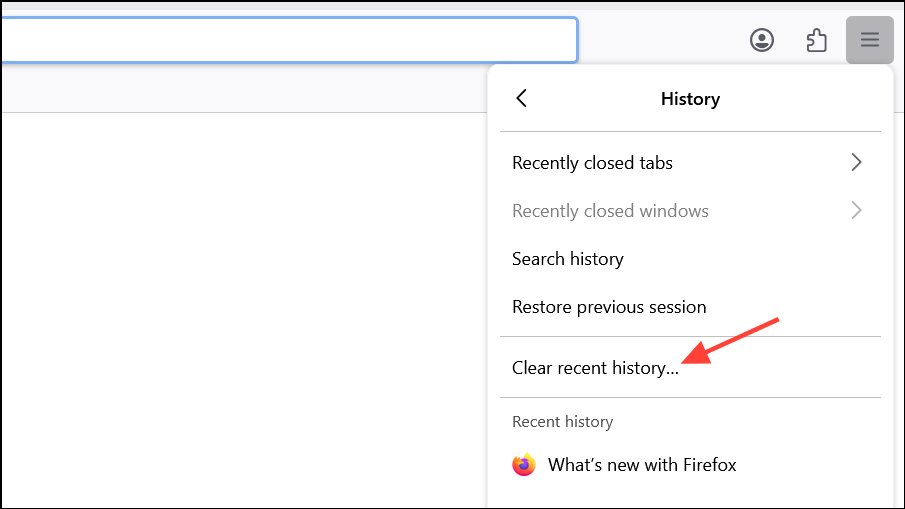
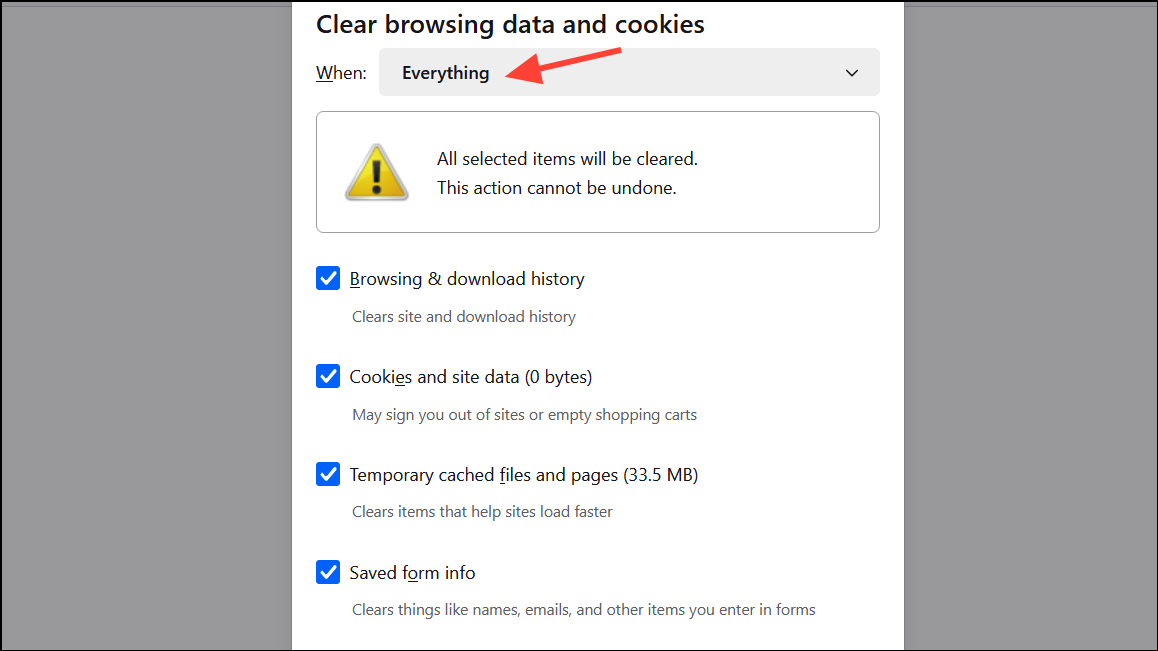
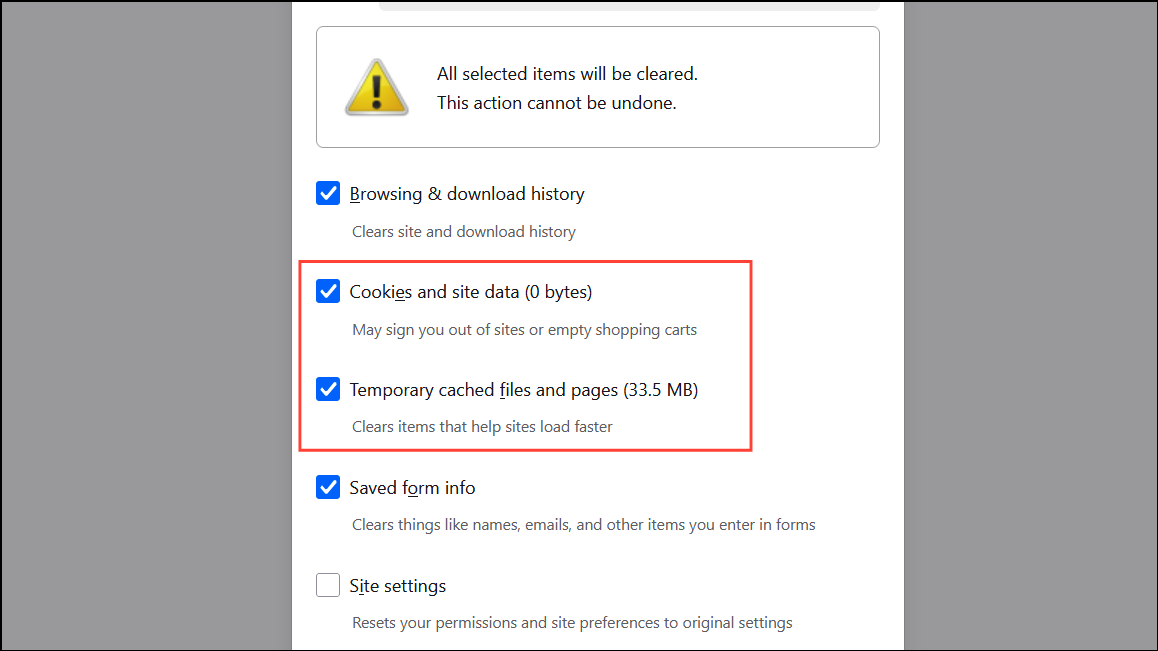
Clear Now to delete the selected data. After clearing, reload the affected website to see if images display correctly.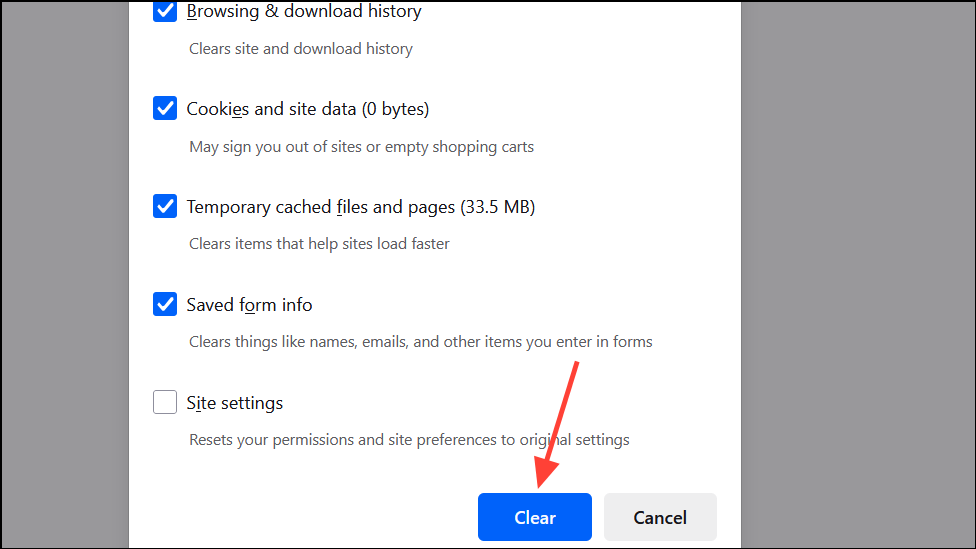
Check Extensions and Content Blockers
Browser extensions—especially ad blockers, privacy tools, and script managers—can interfere with images by blocking content or scripts required for image loading. Identifying and disabling problematic extensions restores image visibility.
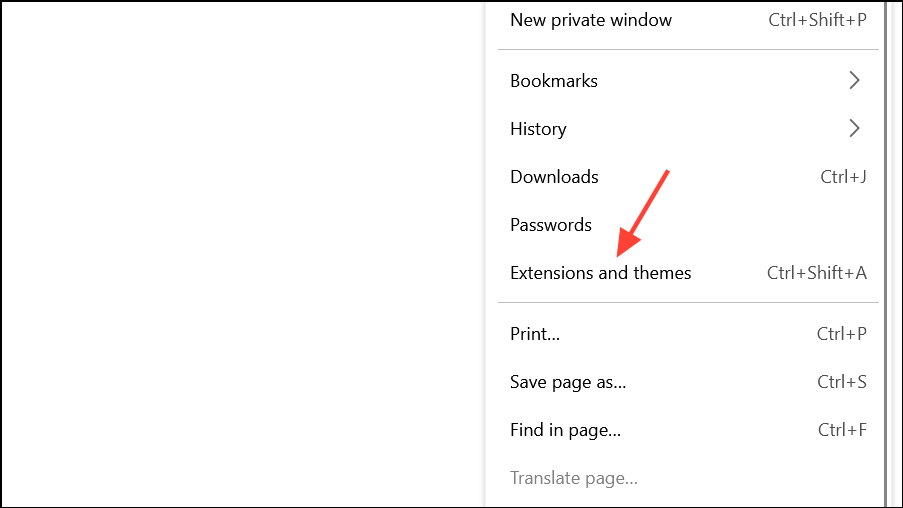
Help, then Troubleshoot Mode and restart. This disables all extensions and custom settings temporarily, allowing you to test site functionality without interference.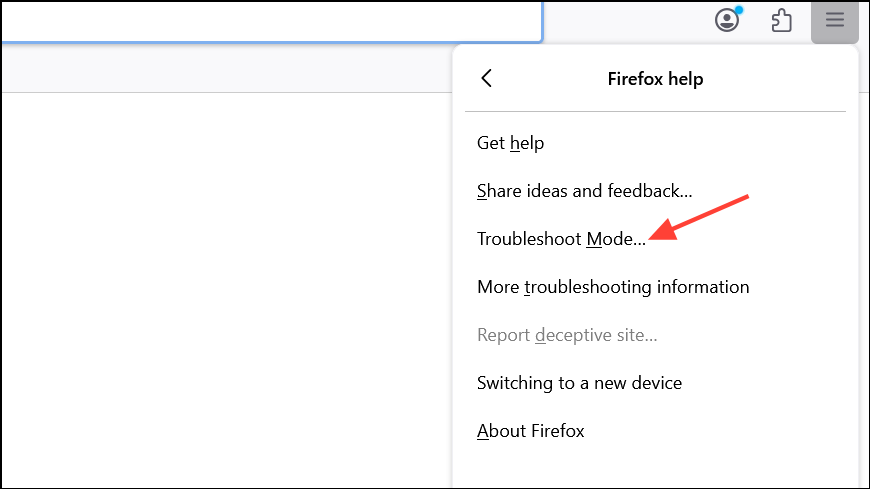
Review Firefox Settings and Permissions
Incorrect browser settings can prevent images from loading. Specific preferences, especially those altered via about:config, may block images globally or on certain sites.
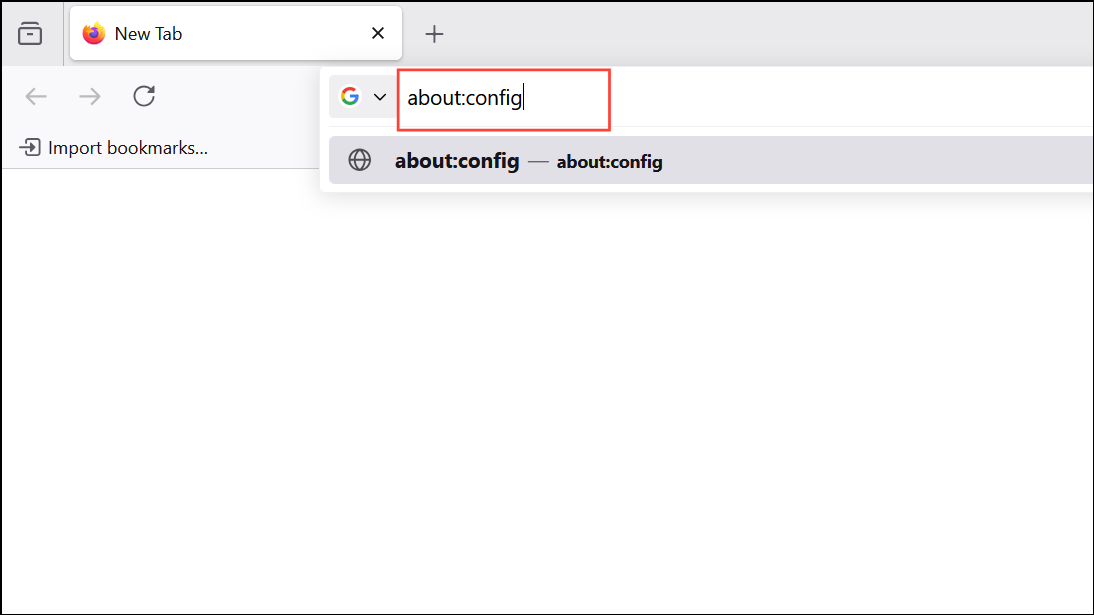
permissions.default.image. The value should be 1 (allow all images). If set to 2 (block all images) or 3 (block third-party images), reset it to 1 by clicking the reset arrow.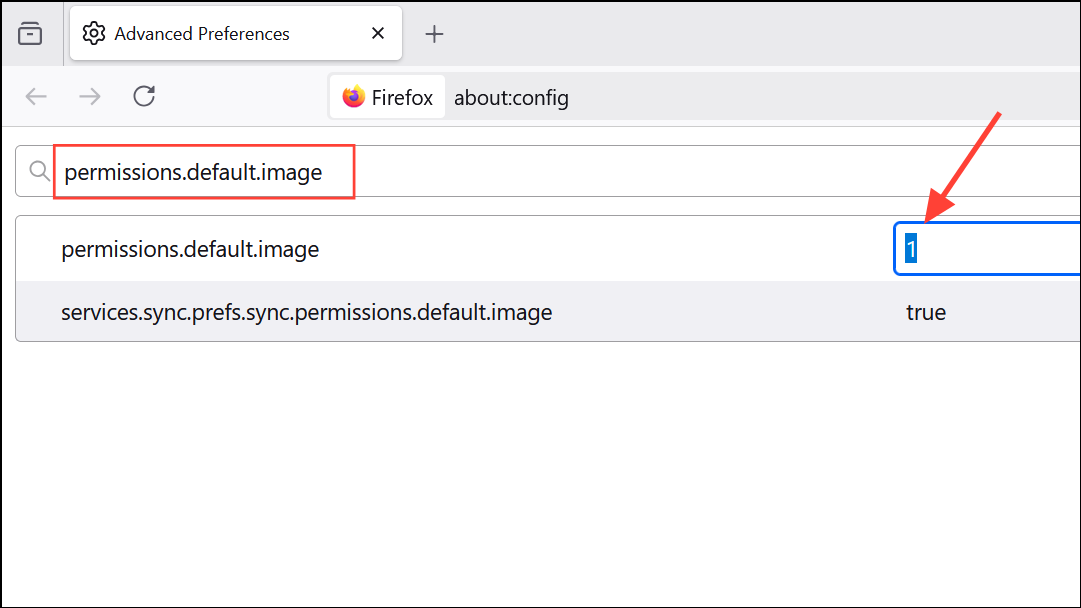
browser.display.document_color_use and ensure the value is 1 (default). Incorrect values may cause display issues with images and backgrounds.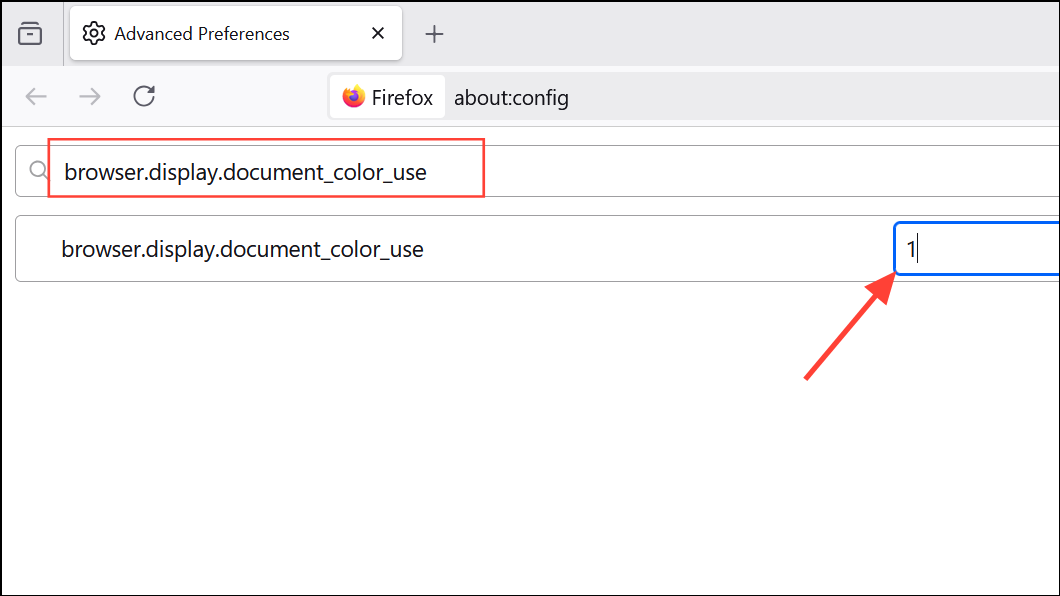
Settings → General → Fonts & Colors → Colors… and confirm Override the colors specified by the page with your selections above is set to Never or Only with High Contrast themes if you are not using a high contrast theme. This allows websites to display their intended colors and images.Adjust Security and Privacy Software
Internet security suites, antivirus programs, and firewalls sometimes block images as a privacy measure or in an attempt to stop tracking. These tools may identify images as tracking pixels or web bugs and prevent them from loading.
Disable Web Accelerator or Proxy Software
Web accelerator tools or certain proxy configurations can cause images to appear broken, load incorrectly, or not display at all. These tools may compress or cache images in ways that conflict with Firefox’s rendering.
Reset Firefox Profile or Preferences
Corrupted or bloated profile files can cause persistent issues, including images not displaying. Creating a new Firefox profile or resetting preferences restores default settings and often resolves stubborn problems.
about:profiles in the address bar and click Create a New Profile. Follow the prompts to set up a fresh profile.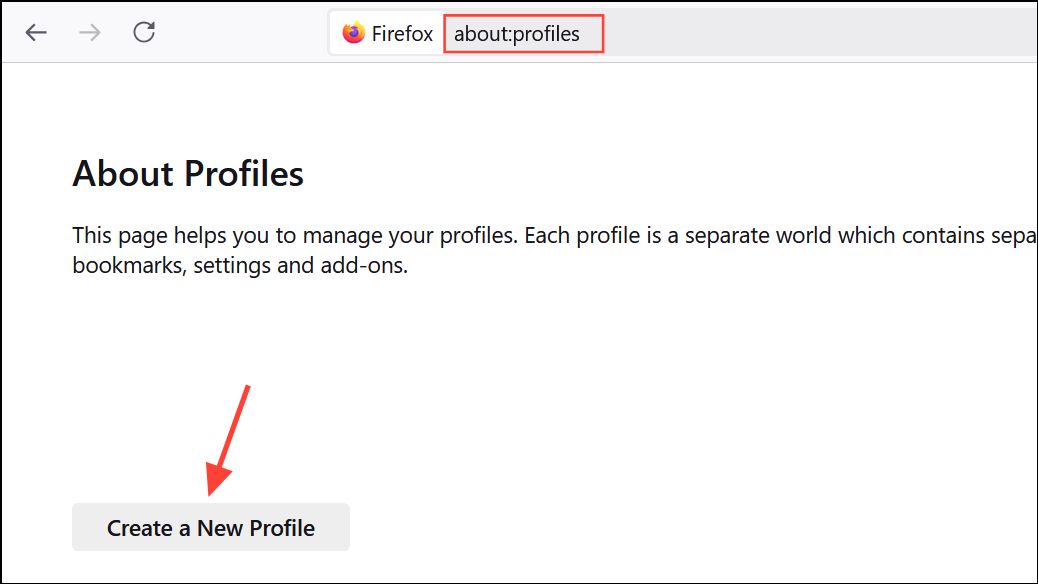
Refresh Firefox feature by going to Help → More Troubleshooting Information and clicking Refresh Firefox…. This resets Firefox to default state while keeping essential information.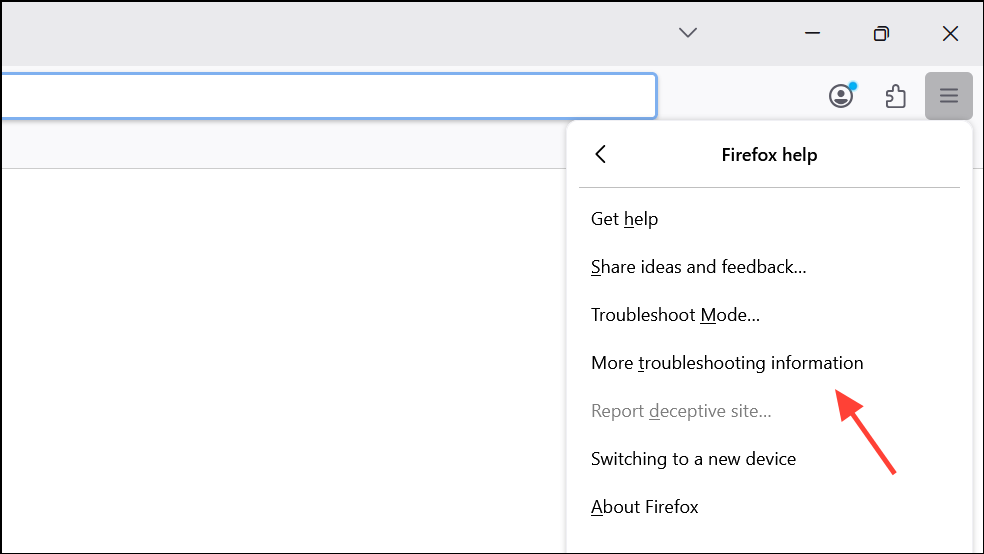
Address Website-Specific Problems
Sometimes, the issue lies with the website itself or with how images are referenced. Broken image links, server problems, or incorrect file paths can prevent images from displaying in any browser.
- Test the site in another browser to confirm if the problem is specific to Firefox.
- Check the image URL for backslashes (
\) instead of forward slashes (/), as Firefox does not support backslashes in image paths. - Contact the website’s support if images are missing due to server misconfiguration.
Resolving missing images in Firefox typically involves clearing cache, checking extensions, and reviewing browser settings. These steps restore normal browsing and ensure websites display as intended.