Firefox will not launch when the error message “Platform version ‘x.x.x’ is not compatible with minVersion >= x.x.x maxVersion <= x.x.x” appears. This issue frequently occurs after a failed or incomplete update, leaving a mix of old and new files in the Firefox installation directory. Windows 11 users often see this error after an automatic update or when security software prevents file replacement during installation. The steps below restore Firefox functionality and help you recover your bookmarks, passwords, and other user data.
Reinstall Firefox Using the Full Installer
Ctrl + Shift + Esc). End any Firefox processes if found.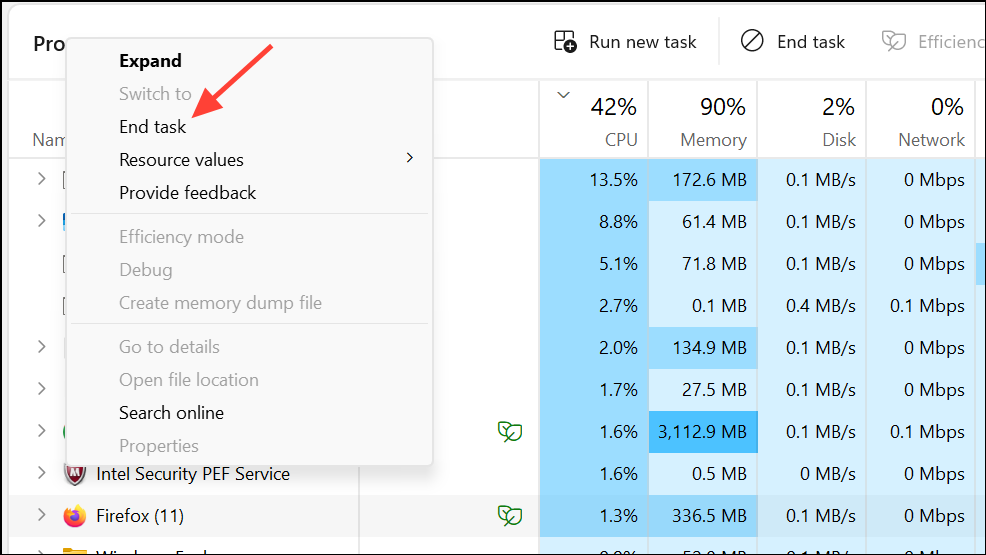
Restore Your Old Firefox Profile
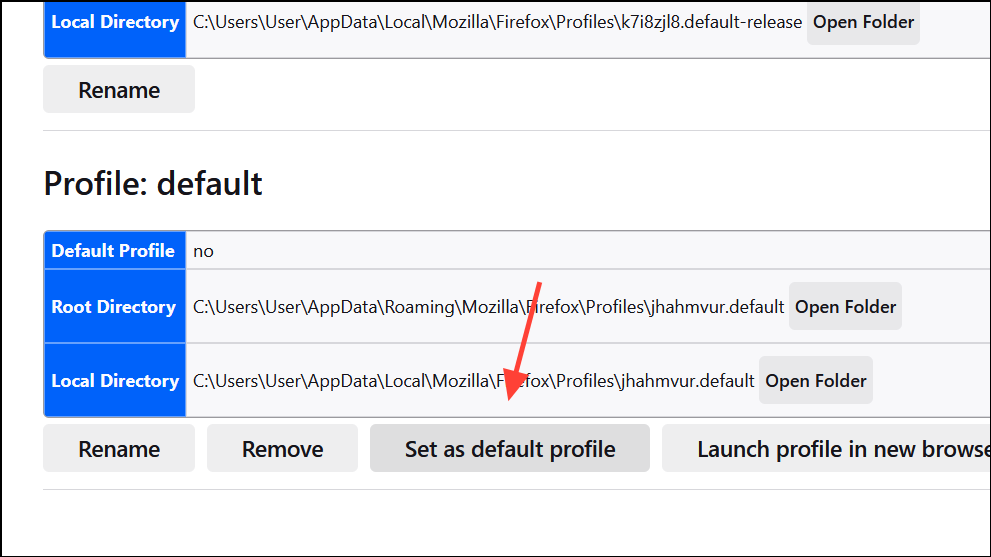
Sometimes, a new Firefox profile is created during reinstallation, making your bookmarks and saved passwords appear missing. Profiles store all personal data, and you can switch back to your old profile using Firefox’s built-in profile manager.
about:profiles and press Enter. This opens the Profile Manager, displaying all detected profiles on your system.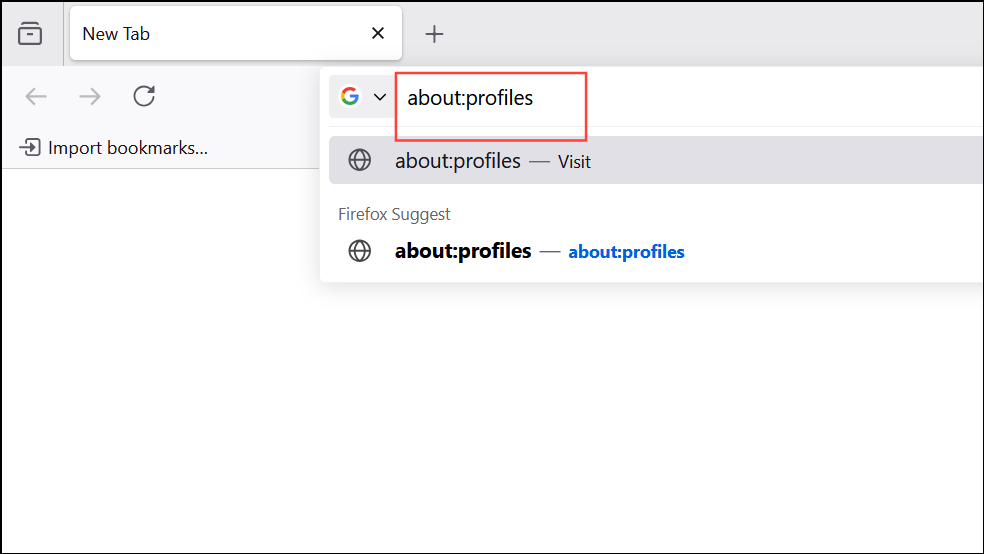
default or default-release. These likely contain your previous bookmarks and settings.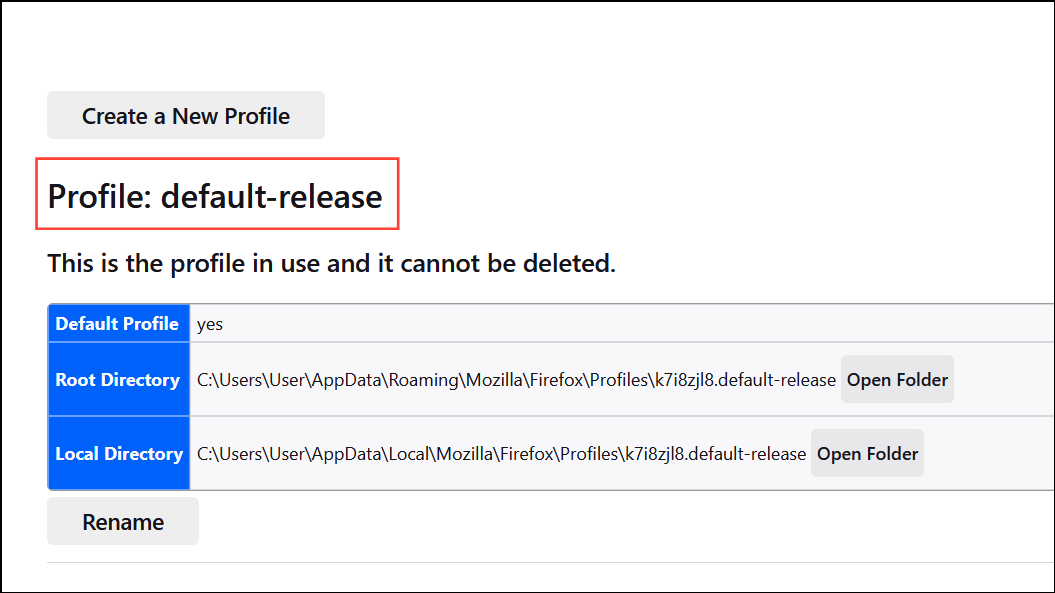
Perform a Clean Reinstall (If Problems Persist)
If the error continues or you see duplicate Firefox shortcuts or pop-ups, a clean reinstall is needed to fully remove corrupted files. This process requires uninstalling Firefox and deleting its program folder, but your user data can be preserved.
Settings > Apps > Installed apps). Locate Mozilla Firefox in the list, click the three-dot menu, and select Uninstall.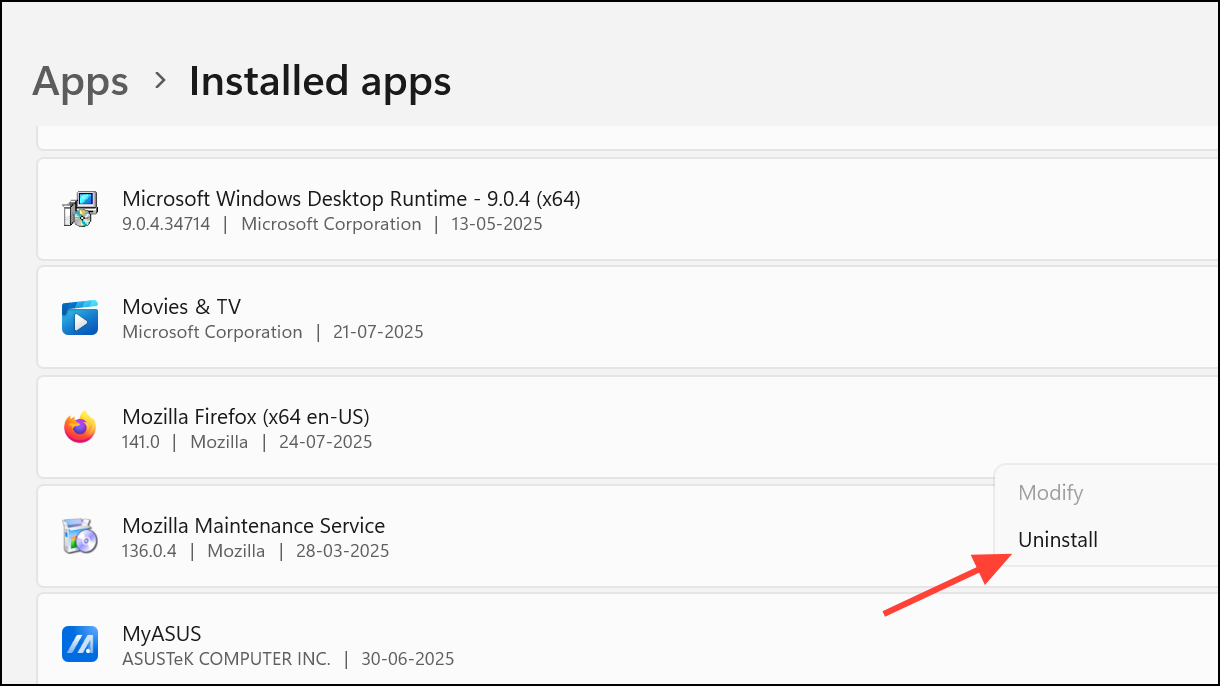
C:\Program Files\Mozilla Firefox (or C:\Program Files (x86)\Mozilla Firefox for 32-bit installations). This ensures no leftover files cause future problems.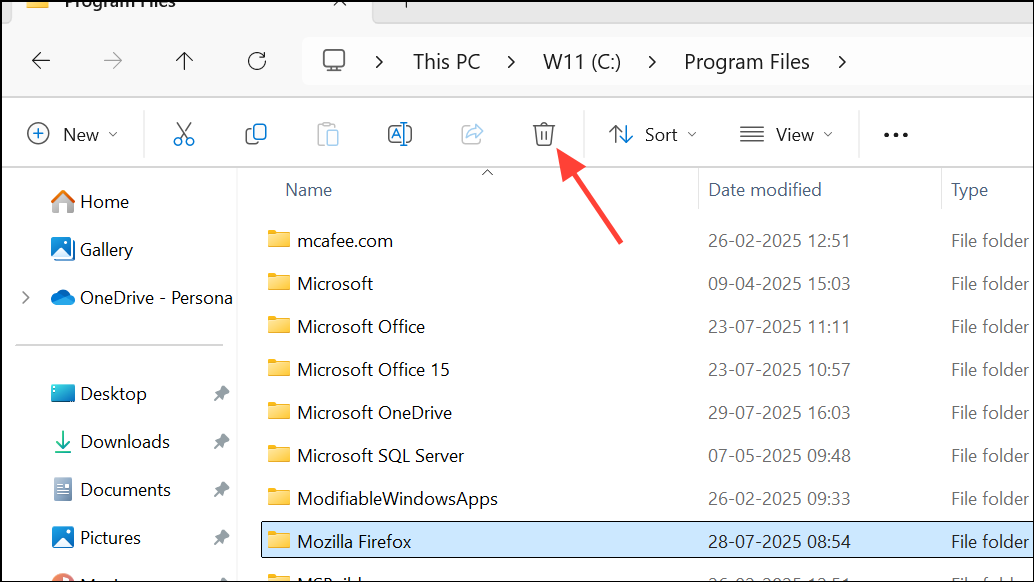
about:profiles method to restore your data.C:\Users\[YourUsername]\AppData\Roaming\Mozilla\Firefox\Profiles. Copy this folder to a safe location in case you need to restore it later.Additional Tips and Troubleshooting
- Security software can sometimes interfere with Firefox updates. Temporarily disable antivirus or security programs if repeated errors occur during installation.
- If you see persistent error pop-ups after reinstalling, ensure all old Firefox shortcuts are deleted and only one version of Firefox is installed.
- For advanced troubleshooting or to recover missing data, consult the official Mozilla support article on recovering user data after a Firefox update.
- Always download Firefox installers directly from Mozilla’s official website to avoid malware or outdated versions.
Reinstalling Firefox with the full installer resolves the “platform version is not compatible” error for most Windows 11 users. Switching to your old profile restores your bookmarks and settings, so you can get back to browsing with minimal disruption.