

Receiving a “File in Use” or “The document is locked for editing by another user” message when opening a Microsoft Word file often points to leftover temporary files or background processes that prevent access. This issue can stop you from editing or printing your document, especially if Word did not close properly or the file is shared on a network or cloud service.
Method 1: Close All Instances of Word and Remove the Owner File
Exit all Microsoft Word windows. Sometimes, Word may still be running in the background even after closing all visible windows.
Open Task Manager by pressing
CTRL+ALT+DELETE and then selecting Task Manager. Go to the Processes tab, find any instances of Winword.exe, select them, and click End Task. Repeat for each occurrence to ensure Word is fully closed.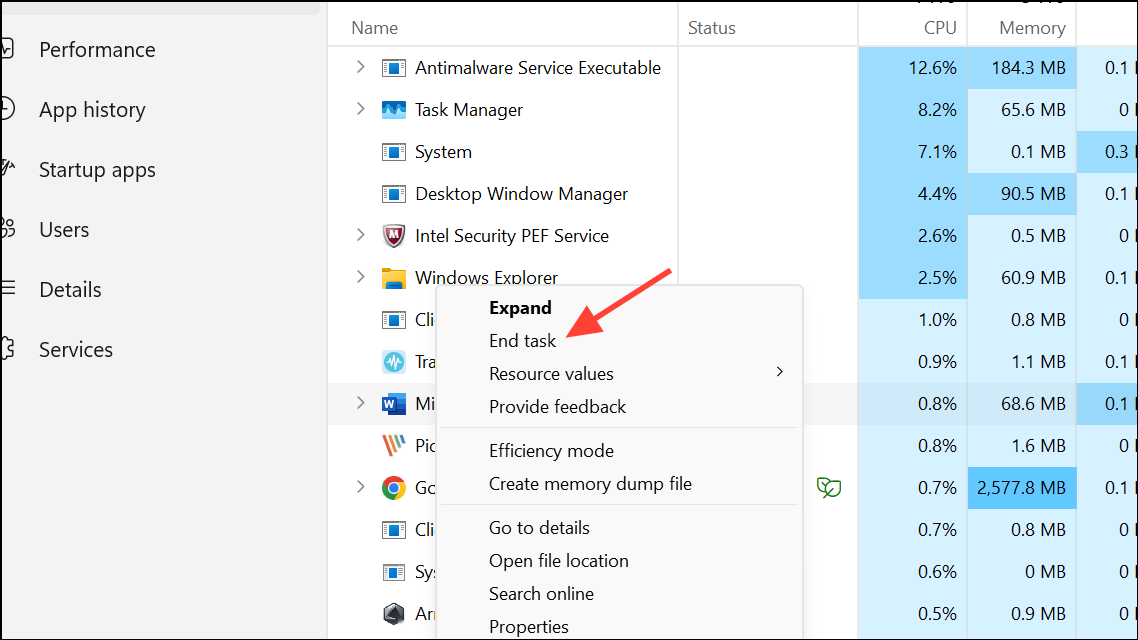
Launch File Explorer and navigate to the folder containing your problematic Word document. Look for a temporary file that starts with
~$ followed by the document name (for example, ~$Document.docx). This is the owner file that controls editing access.Delete the
~$ owner file. Removing this file releases the lock and typically restores normal access to your Word document.Reopen Word and then open your document. If prompted about loading changes to the template, select
No to avoid applying any unintended modifications.Method 2: Check for Network or Cloud File Locks
If your document is stored on a shared network drive, OneDrive, or SharePoint, verify that no one else has the file open. Simultaneous editing or an interrupted connection can leave files locked.
Ask other users to close the document. If you’re using a cloud service like OneDrive, wait a few minutes for the service to sync and release the lock. Sometimes, logging out and logging back into your Windows account can help clear the issue.
For files on OneDrive or similar services, try moving the file to a local folder outside of the synced directories (such as a new folder on your C: drive). This can bypass cloud sync issues that keep files locked.
Method 3: Restart Your Computer
Restarting your computer closes all background processes, including any lingering Microsoft Word or cloud sync tasks that might have locked the file.
After rebooting, try opening your Word document again. In most cases, the file lock will be cleared, and you’ll regain editing access.
Method 4: Additional Troubleshooting Steps
- Make sure you have the latest updates for Microsoft Word and Windows 11 installed. Updates often address file handling bugs.
- If you continue to experience file locks, consider disabling OneDrive temporarily to see if the issue persists. Some users report fewer file lock issues when working outside of cloud-synced folders.
- For persistent network-related file locks, contact your network administrator or IT support for additional help.
Clearing the “File in Use” message in Microsoft Word typically requires closing all background processes and removing any leftover owner files. These steps restore access and prevent future interruptions during document editing or printing.





