
Phone Link error 0x80190001 interrupts the connection between Windows 11 and Android devices, often displaying a “Something went wrong” message. This error can block syncing notifications, messages, and files, and may be triggered by outdated credentials, corrupted system files, or misconfigured update components. Addressing these root causes restores seamless integration between your PC and phone.
Clear Outdated Microsoft Account Credentials
Authentication failures after recent password changes or account recovery can cause error 0x80190001. Removing old credentials ensures Windows uses your updated login details and prevents token mismatches.
Windows + R to open the Run dialog, then enter control keymgr.dll and hit Enter. This opens the Stored Usernames and Passwords manager.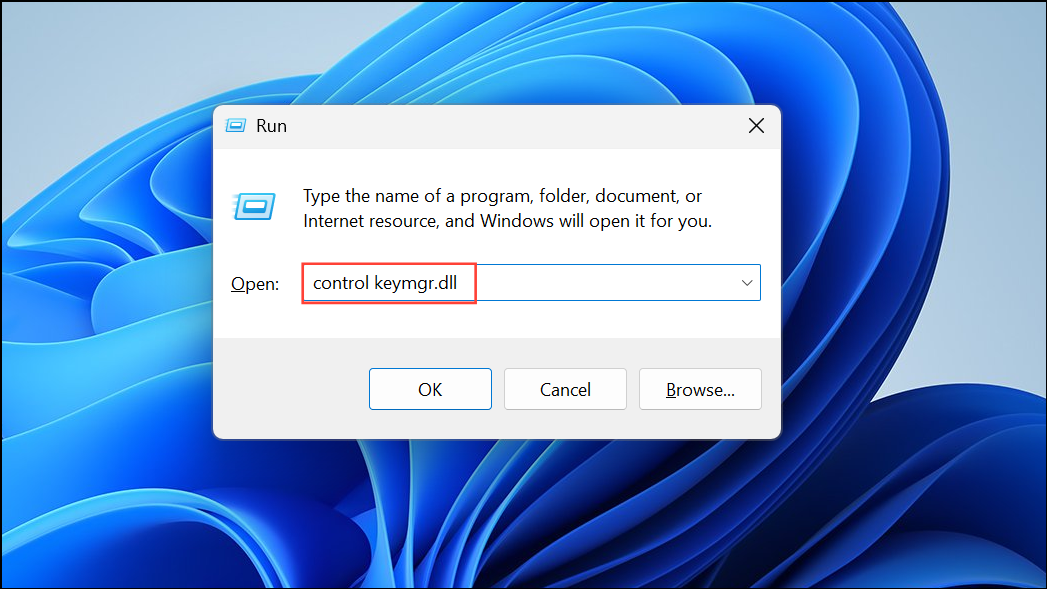
MicrosoftOffice, MicrosoftAccount:user=, OneDrive, or Teams. This step prevents Windows from using outdated tokens that can block authentication.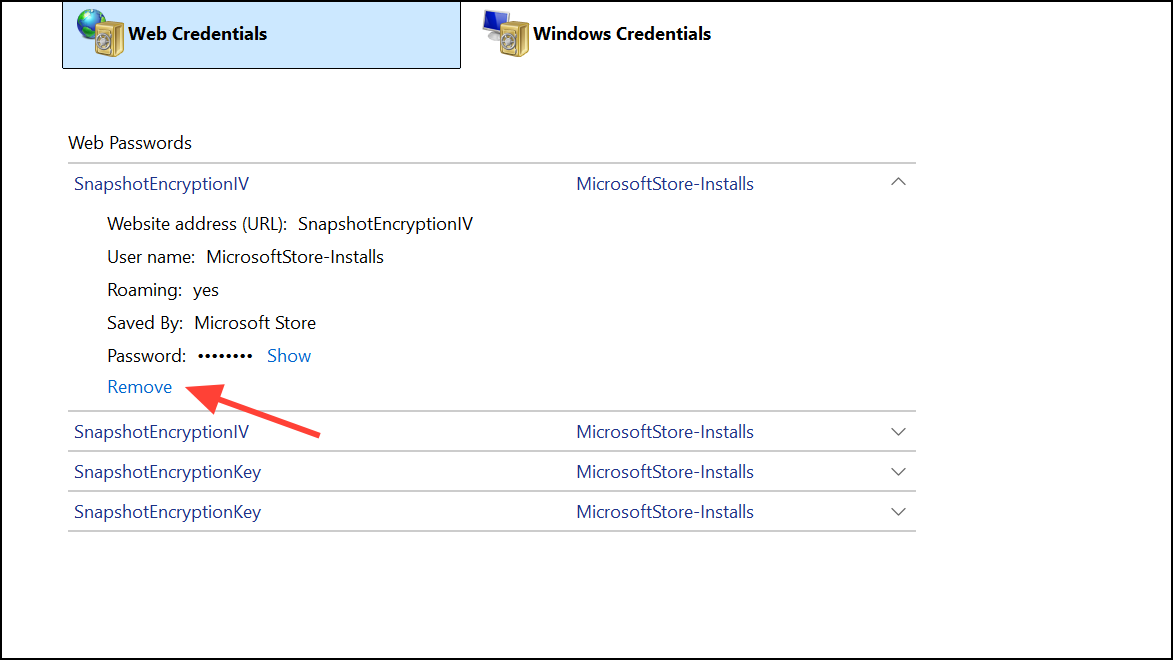
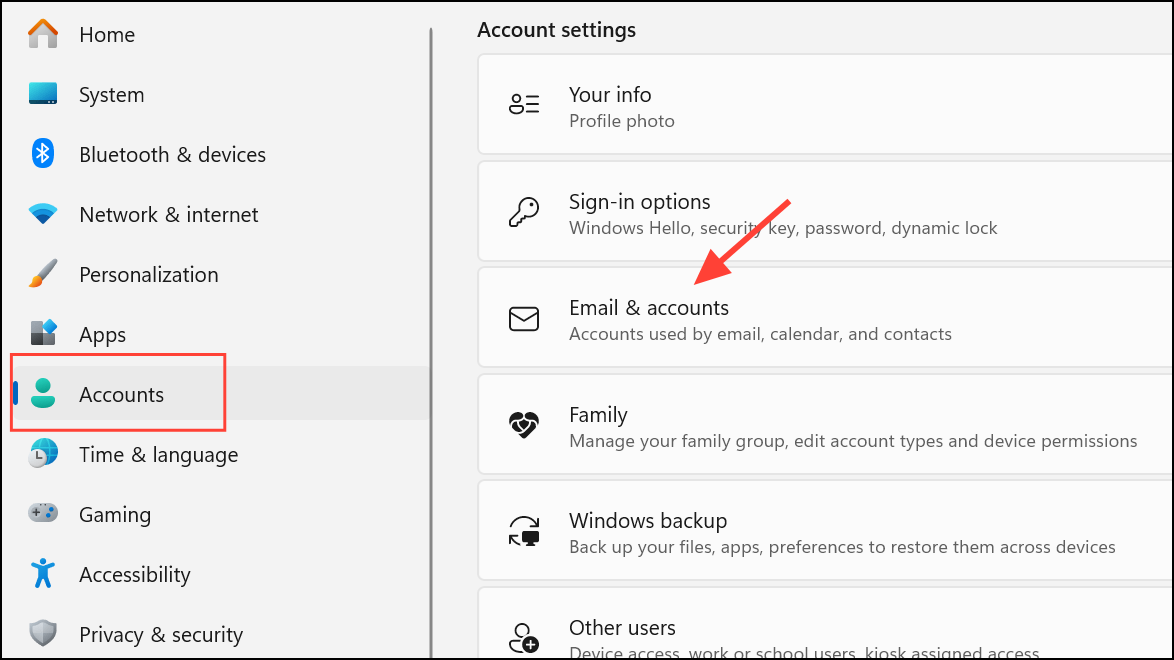
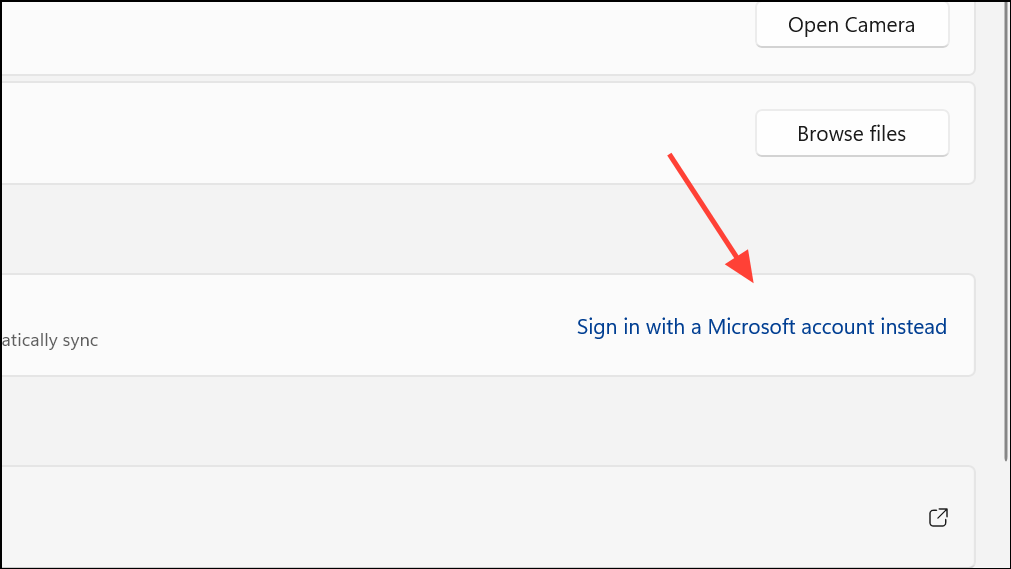
Run the Windows Update Troubleshooter
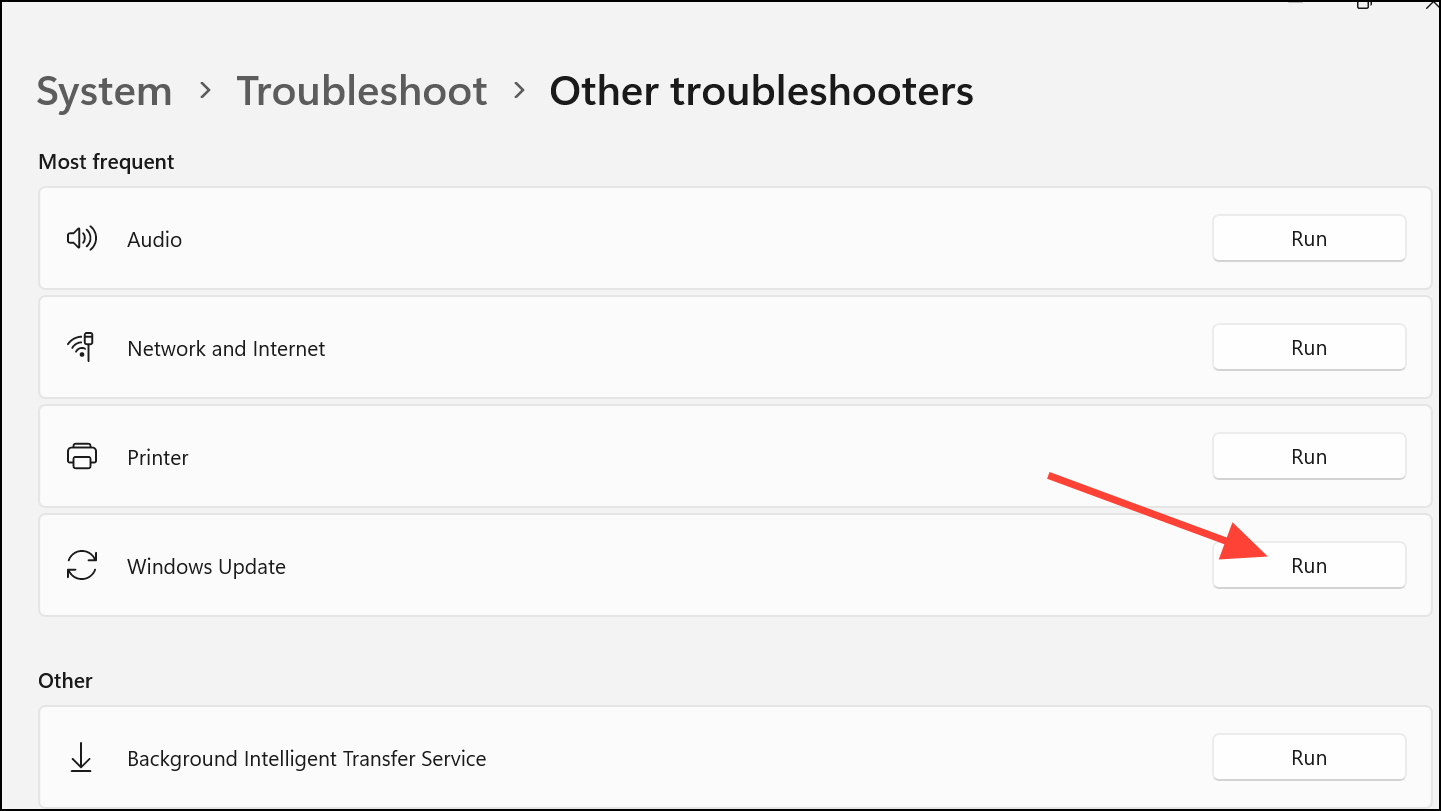
Corrupted update components can interfere with Phone Link’s authentication or syncing. The built-in troubleshooter identifies and repairs common update-related issues.
Windows + I to open Settings. Navigate to System > Troubleshoot > Other troubleshooters (in Windows 11).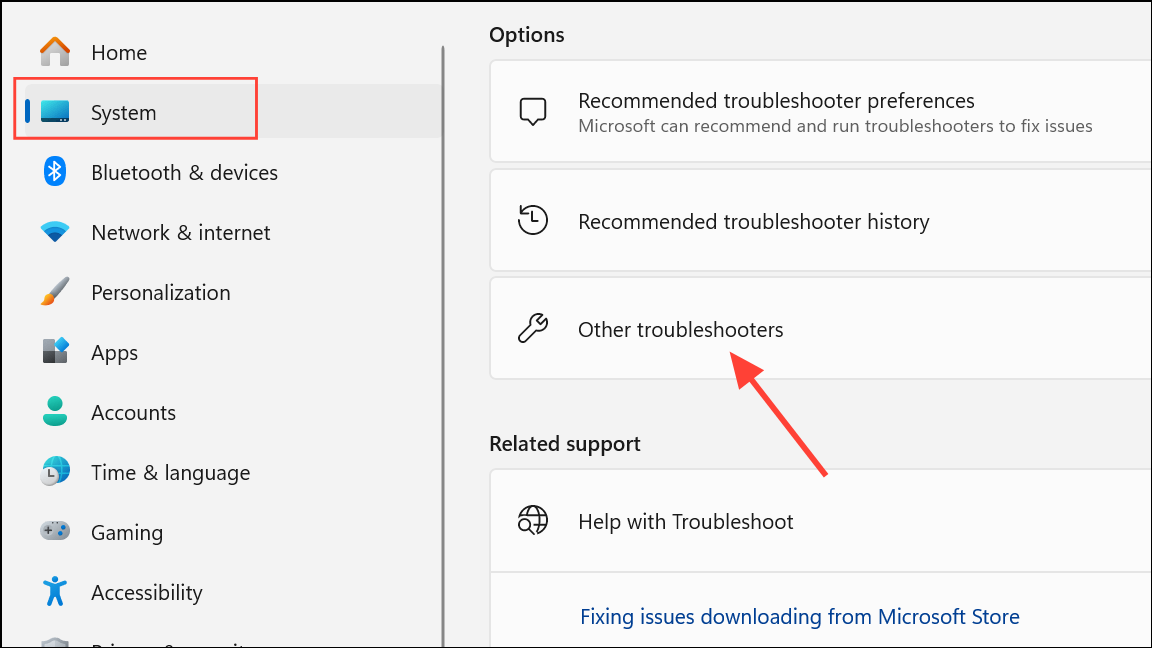
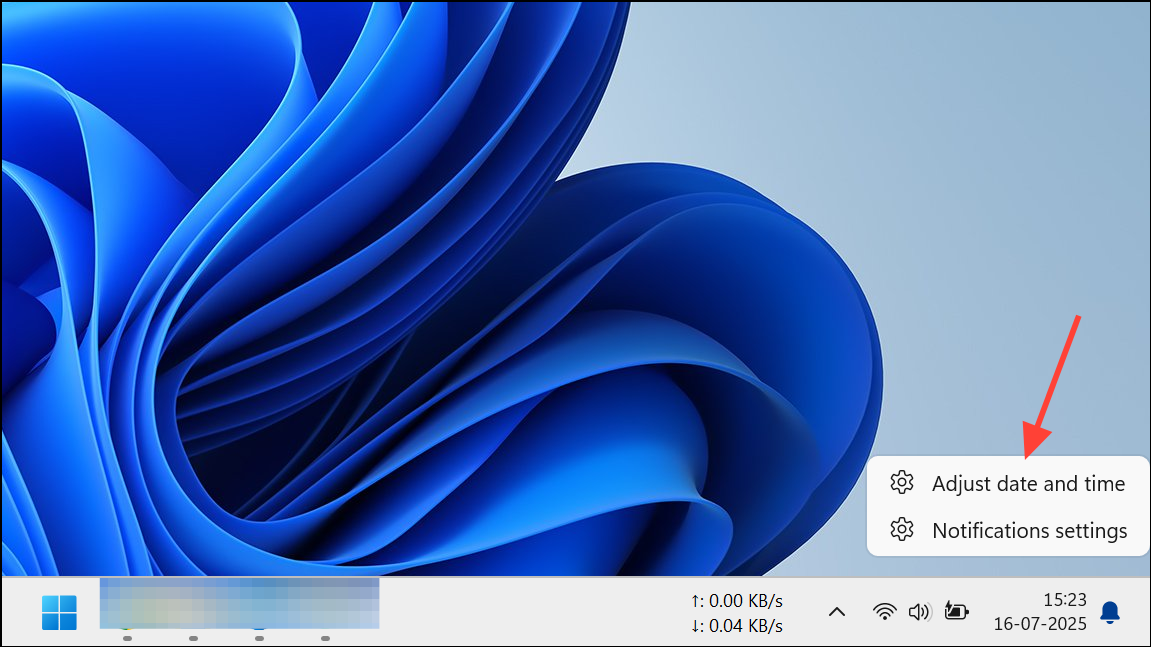
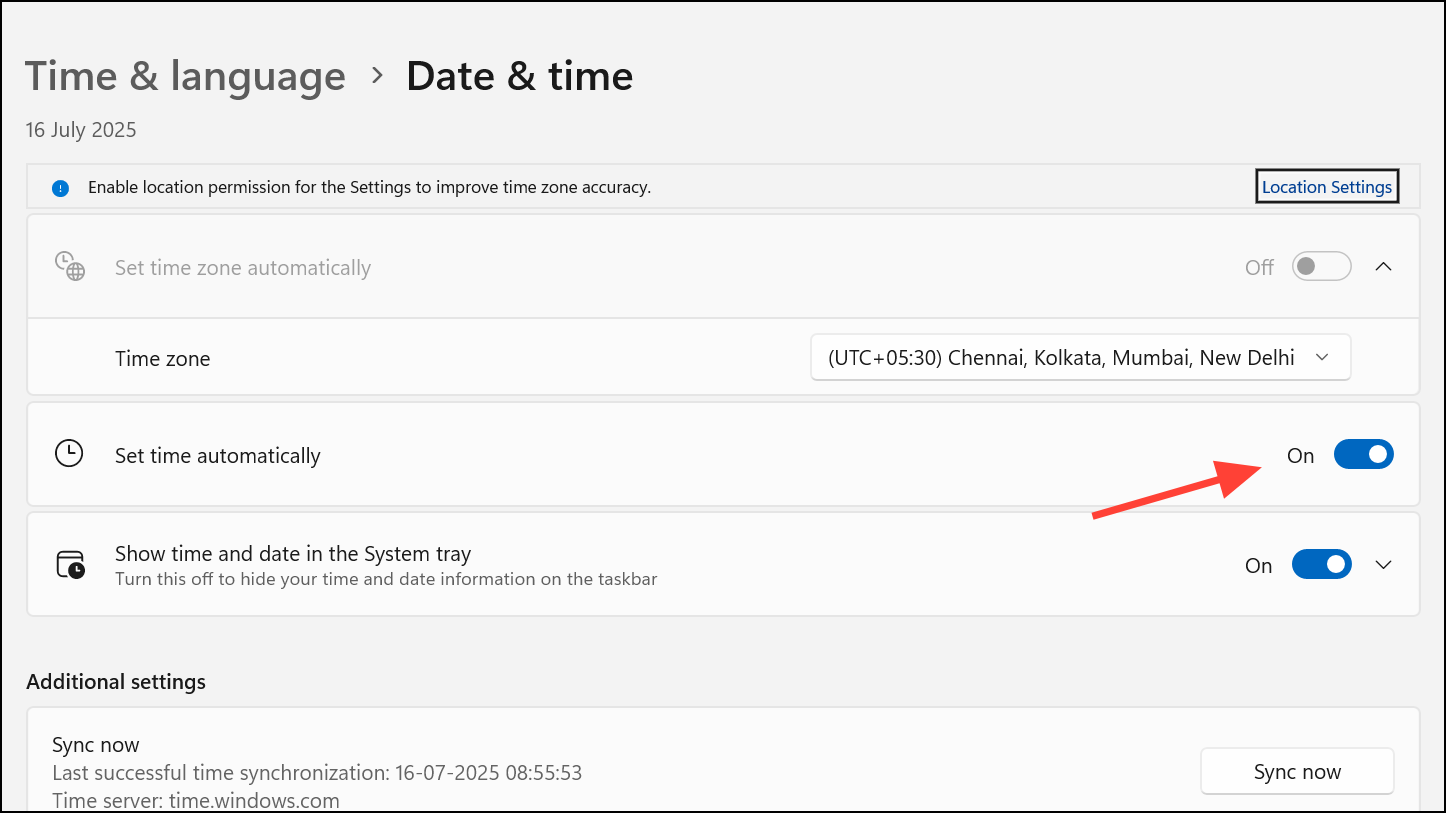
Check and Correct Date and Time Settings
Incorrect system date and time can prevent secure connections between your PC and Microsoft services, leading to error 0x80190001.
Repair Corrupted System Files
Corrupted Windows system files can disrupt authentication and connectivity for Phone Link. Running system scans can repair these files and restore normal operation.
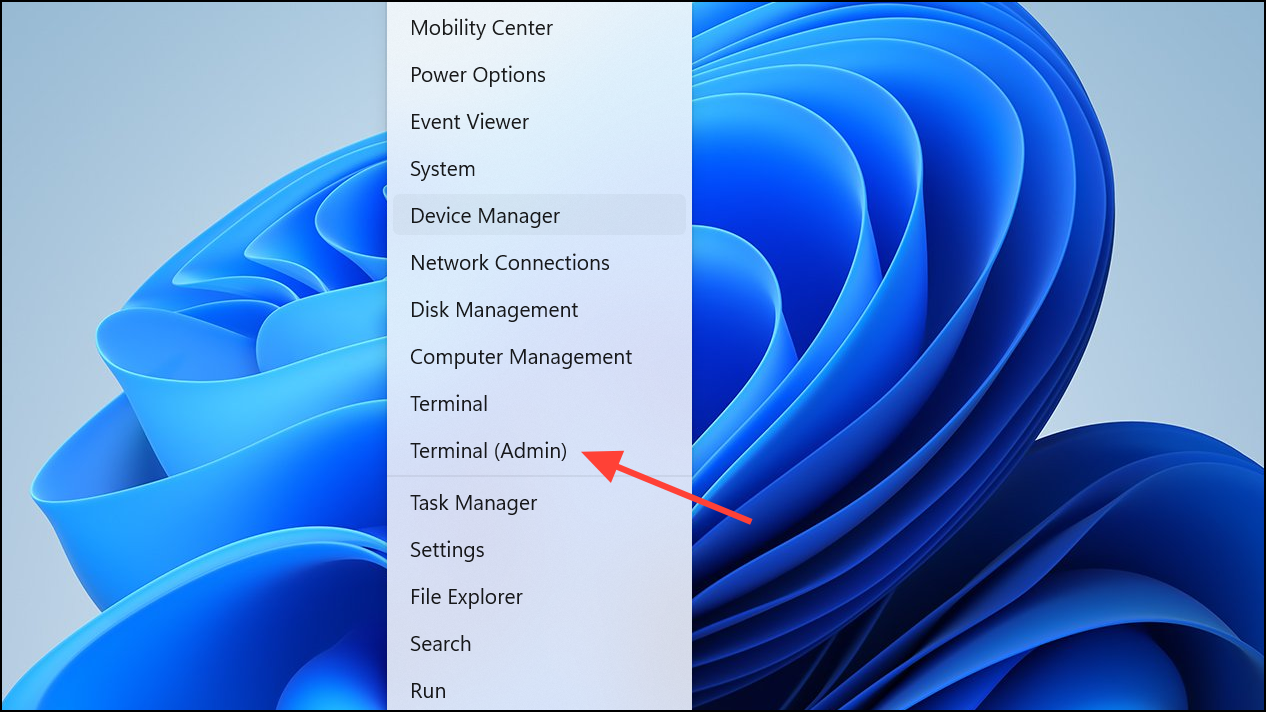
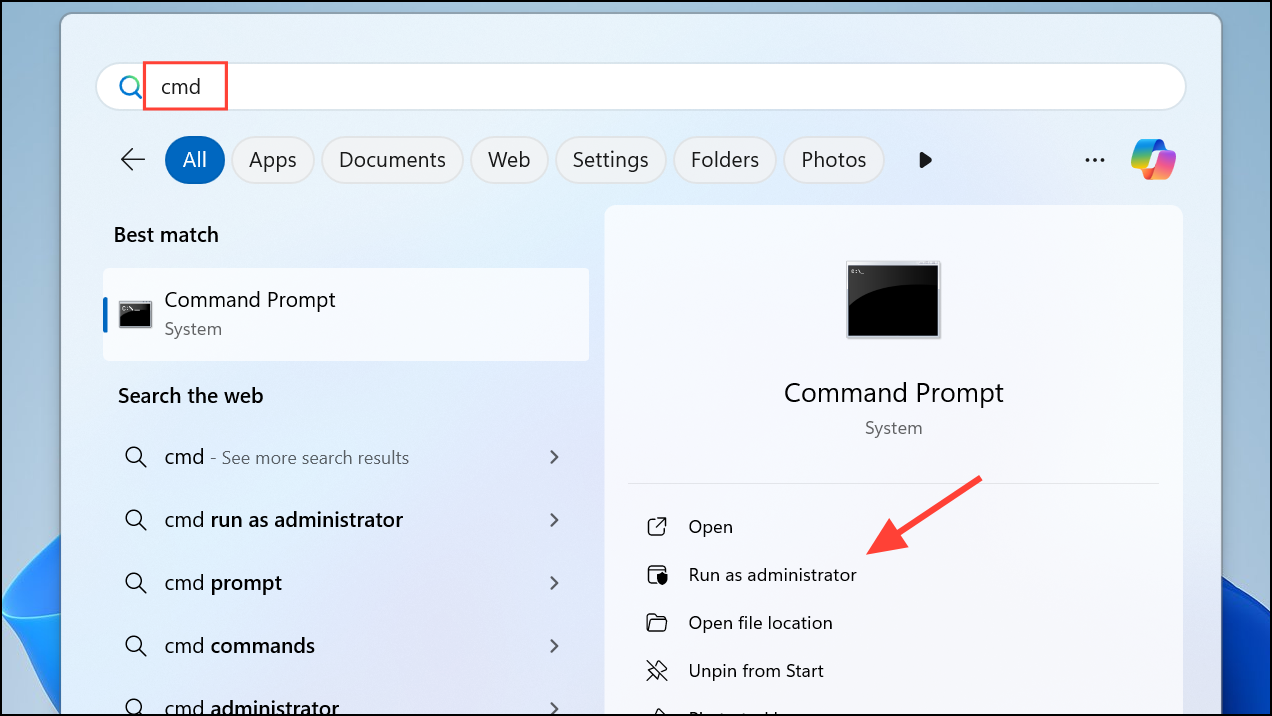
sfc /scannow and press Enter. Allow the System File Checker to complete its scan and fix any detected issues.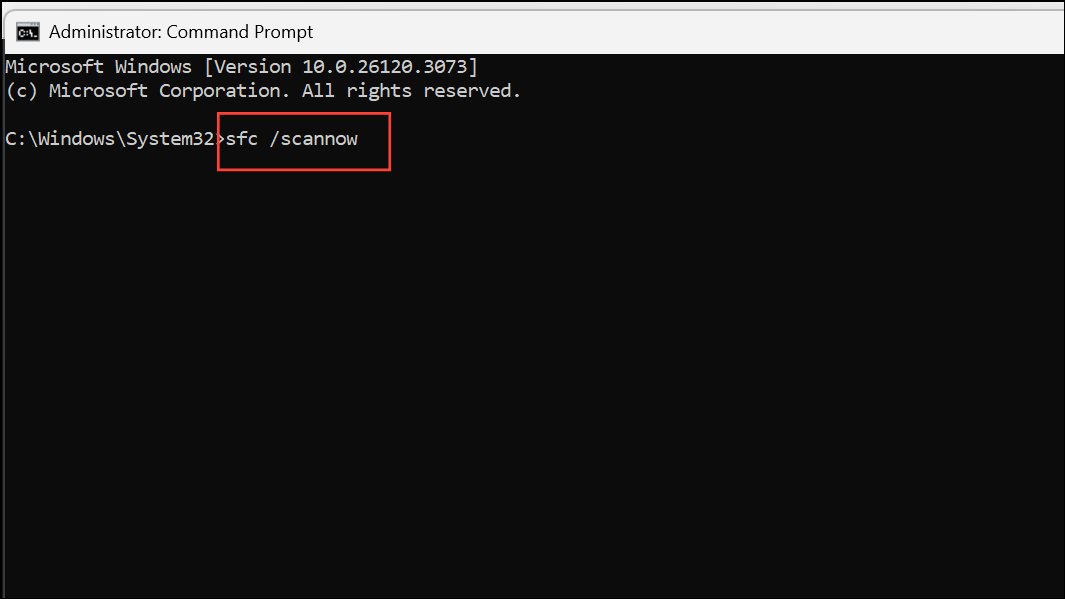
DISM.exe /Online /Cleanup-image /Restorehealth and press Enter. Wait for the process to finish, then restart your PC.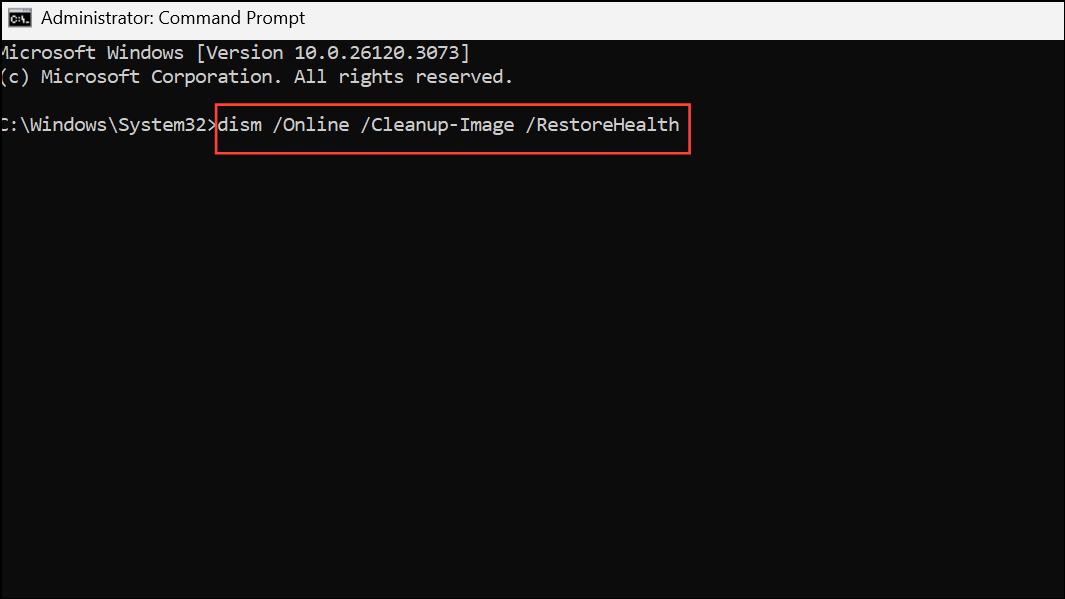
Clear Windows Update Cache and Restart Services
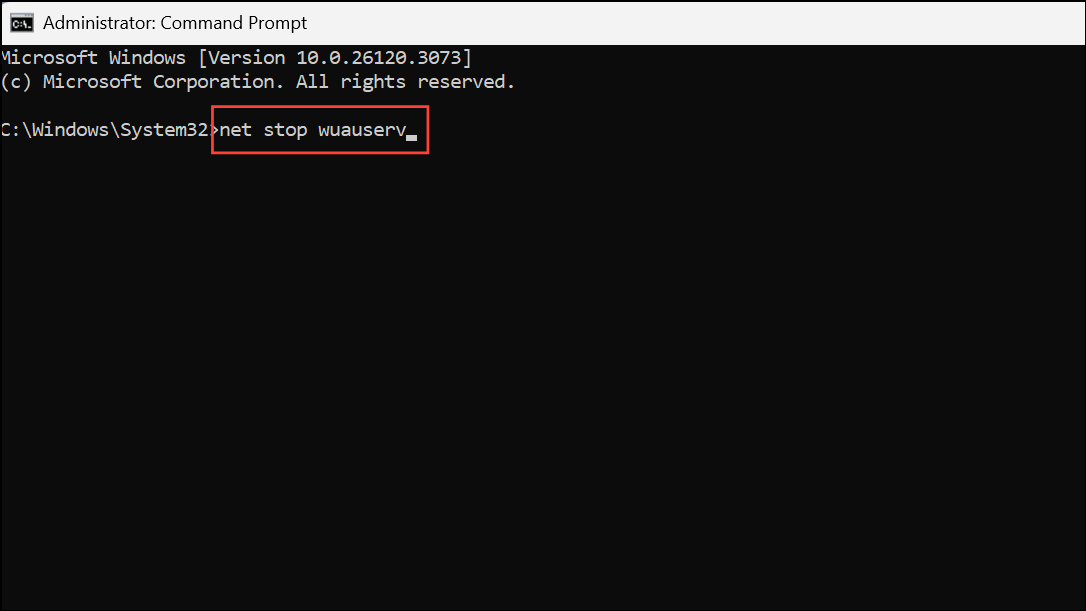
Residual update files or stuck services can interfere with Phone Link’s ability to authenticate or sync. Resetting these components often resolves persistent 0x80190001 errors.
net stop wuauserv
net stop cryptSvc
net stop bits
net stop msiserver
ren C:\Windows\SoftwareDistribution SoftwareDistribution.old
ren C:\Windows\System32\catroot2 Catroot2.old
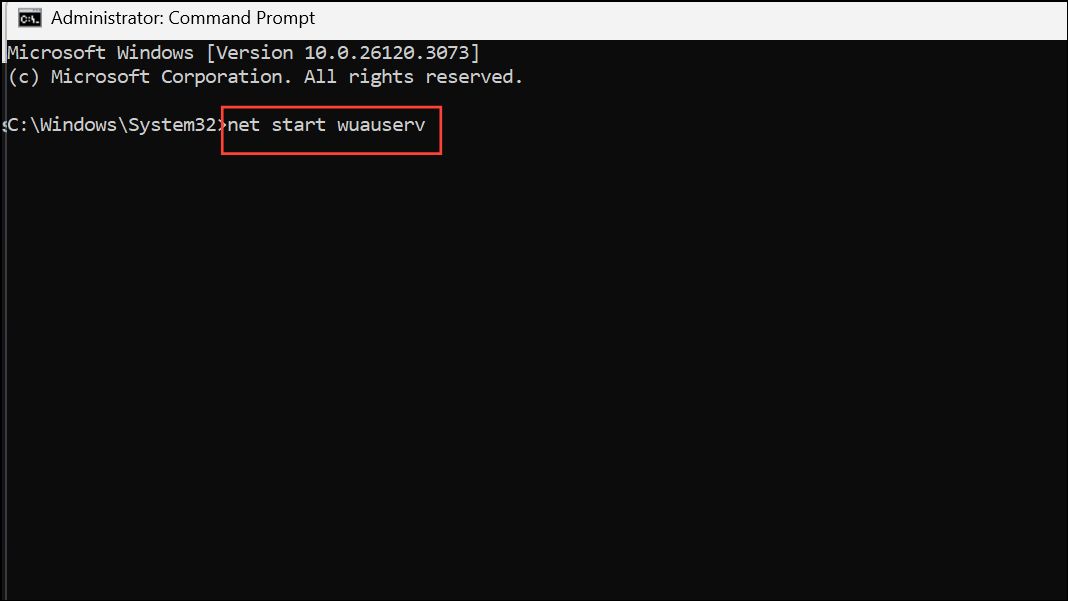
net start wuauserv
net start cryptSvc
net start bits
net start msiserver
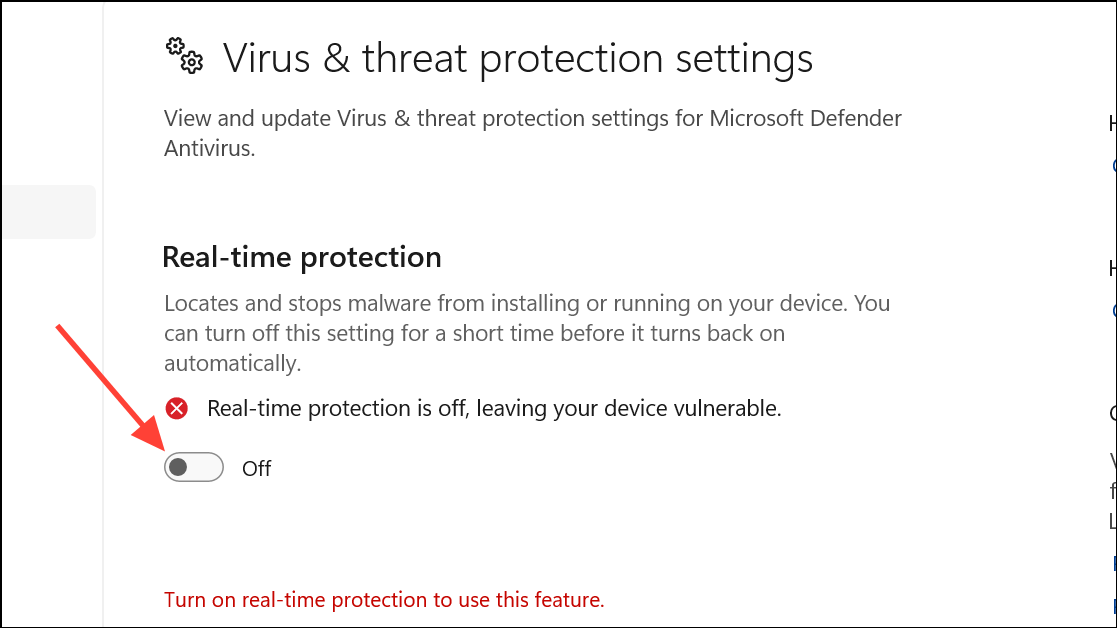
Temporarily Disable Antivirus and Security Software
Overly aggressive antivirus or firewall settings can block connections required by Phone Link, resulting in error 0x80190001. Temporarily disabling these tools can help identify if they are the source of the issue.
Remove Temporary and Junk Files
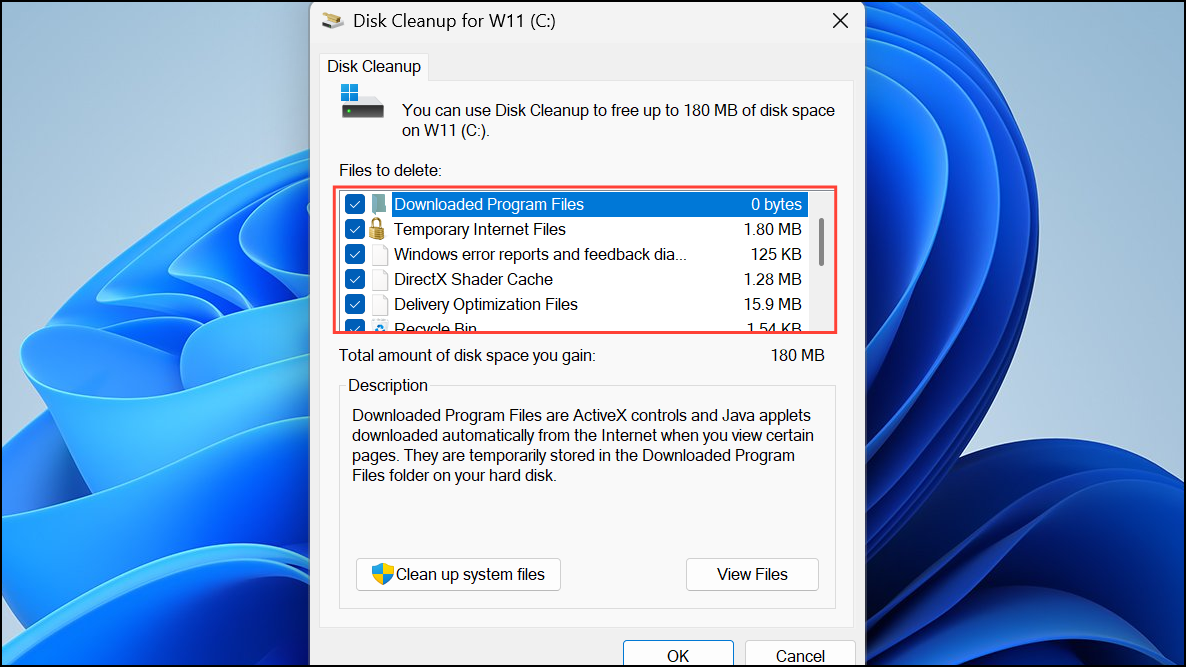
Accumulated temporary files can sometimes disrupt update and authentication processes. Cleaning these files frees up space and removes potential sources of conflict.
Windows + E to open File Explorer. Right-click your system drive (usually C:) and select Properties.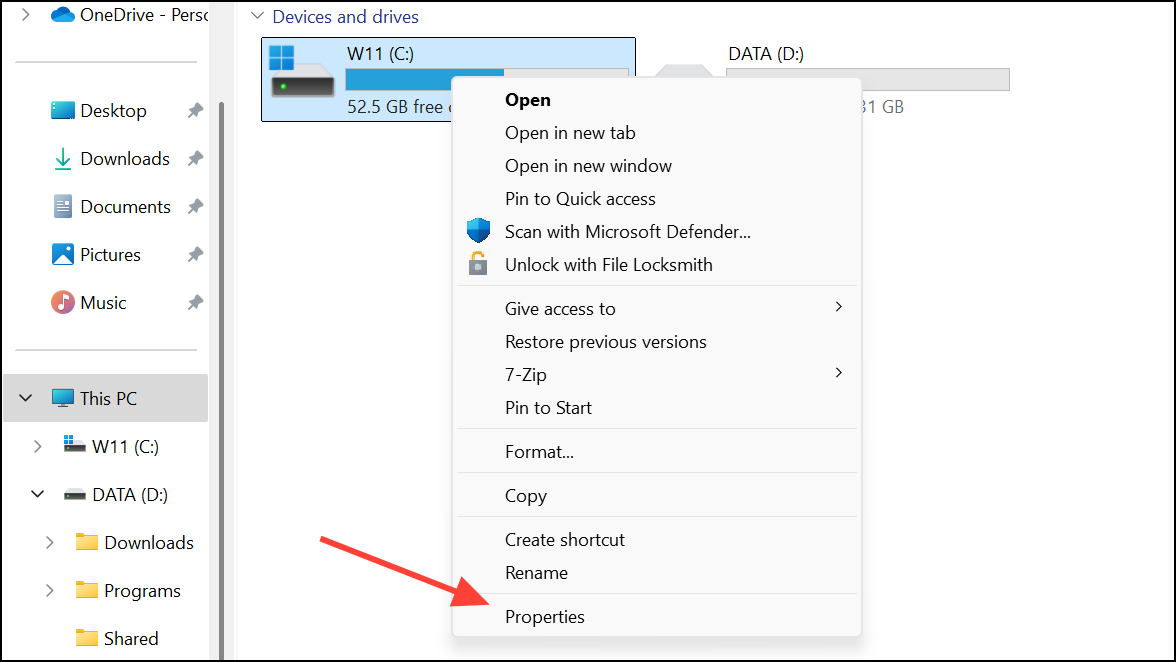
Update Device Drivers
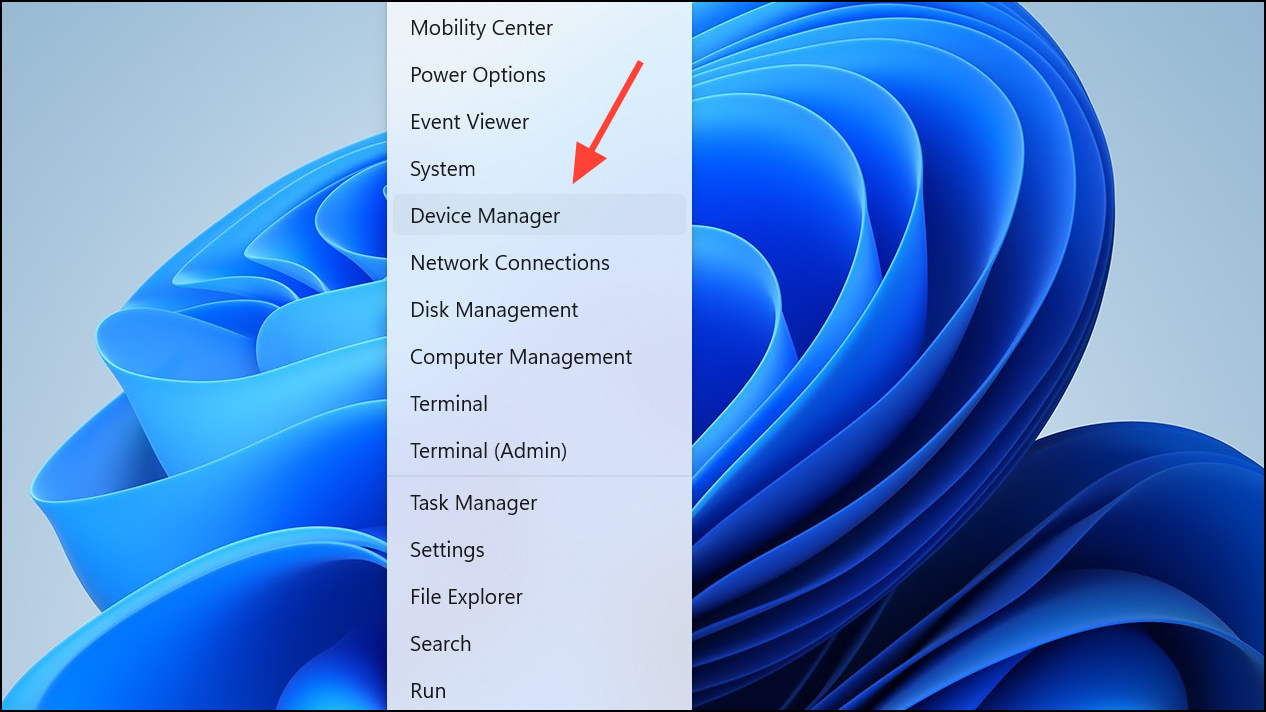
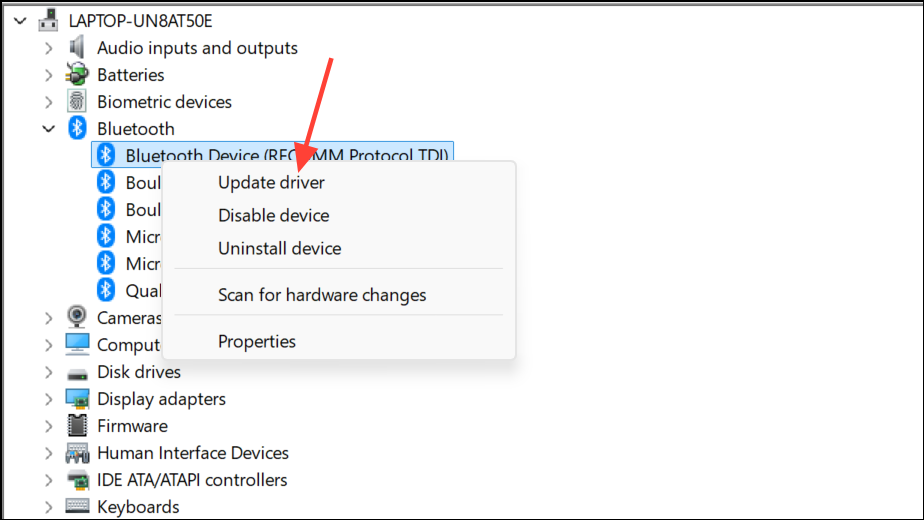
Outdated or incompatible drivers for Bluetooth, Wi-Fi, or USB can interfere with Phone Link’s ability to communicate with your phone.
Additional Tips and Maintenance
- Ensure your Windows 11 installation is fully updated by checking for updates in Settings > Windows Update.
- Disconnect unnecessary external devices (USB drives, printers) while troubleshooting.
- Verify that your Android device and Phone Link app are both updated to their latest versions.
- If the issue began after a major system change, consider using System Restore to revert to a previous state.
Resolving error 0x80190001 in Windows 11’s Phone Link typically involves clearing outdated credentials, repairing system files, and resetting update components. Consistently applying these fixes restores reliable phone-to-PC connectivity without recurring errors.



