
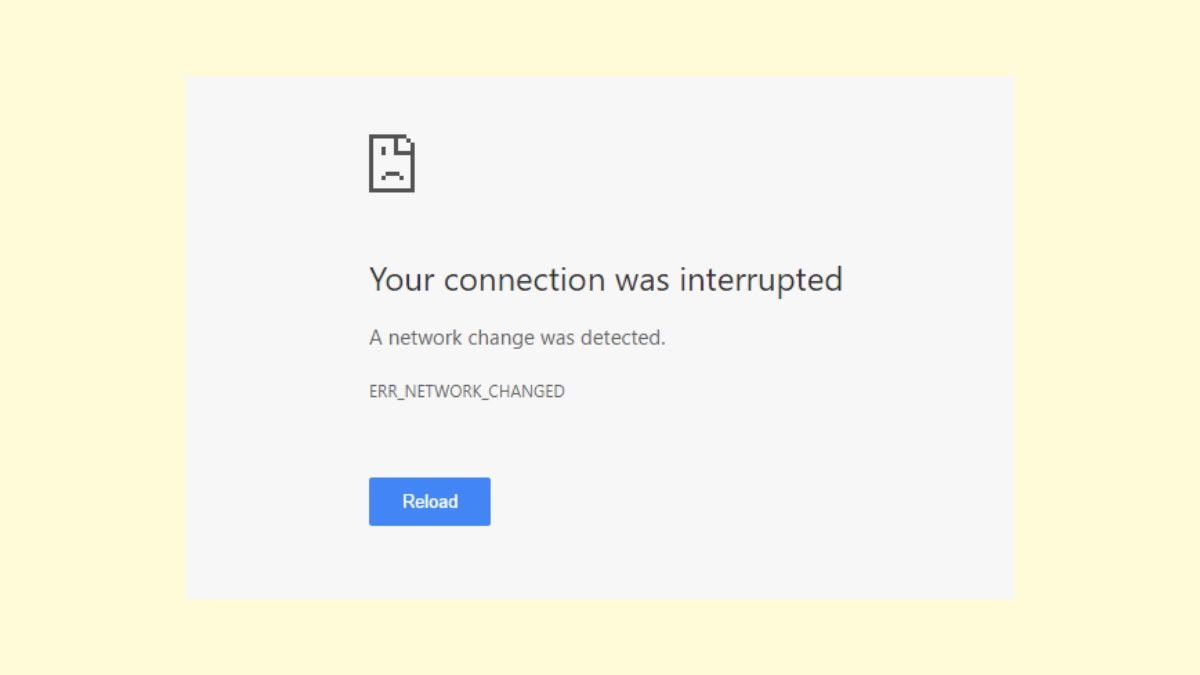
Webpages failing to load with the message “Your connection was interrupted. A network change was detected” often point to issues in Windows 11’s network configuration or hardware. This error disrupts browsing in Chrome, Edge, Opera, and other browsers, and is commonly tied to changes in network adapters, DNS problems, proxy settings, or interference from security software. Addressing these root causes restores consistent internet connectivity and prevents further interruptions.
Reset Network Settings
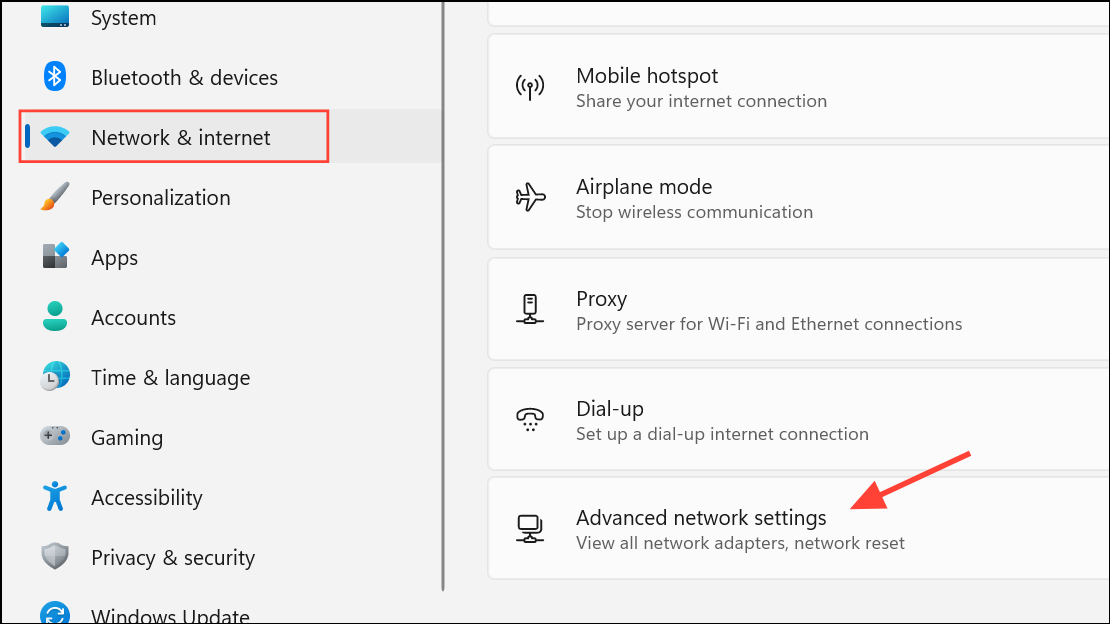
Network reset. This will remove and reinstall all network adapters and reset networking components to their default settings.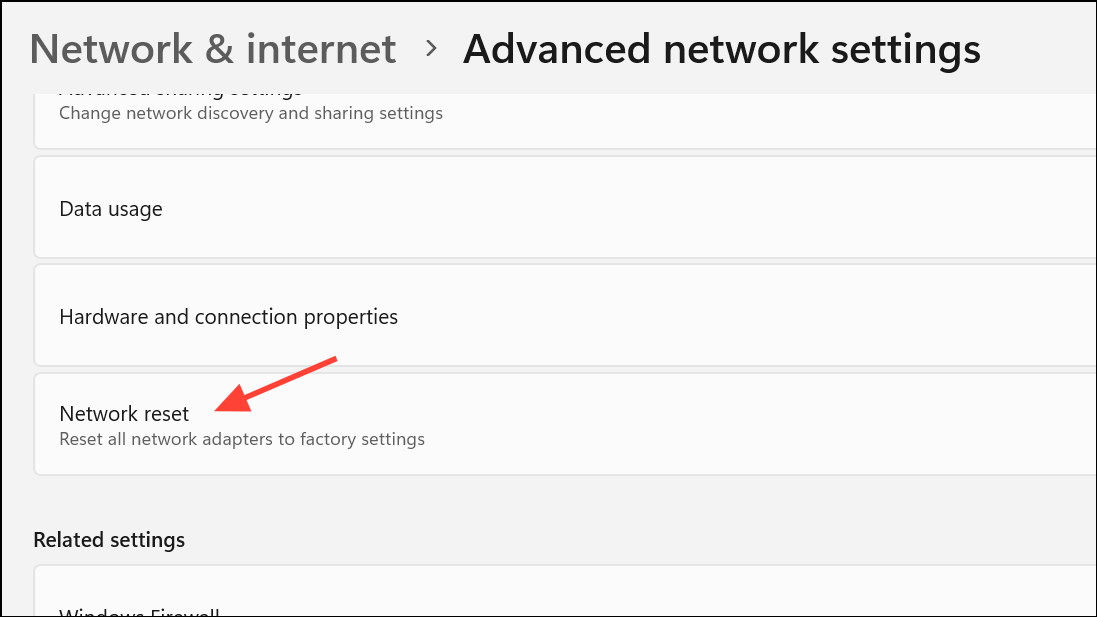
Reset now to confirm. Your system will require a restart. After restarting, reconnect to your Wi-Fi or Ethernet network and test your browser.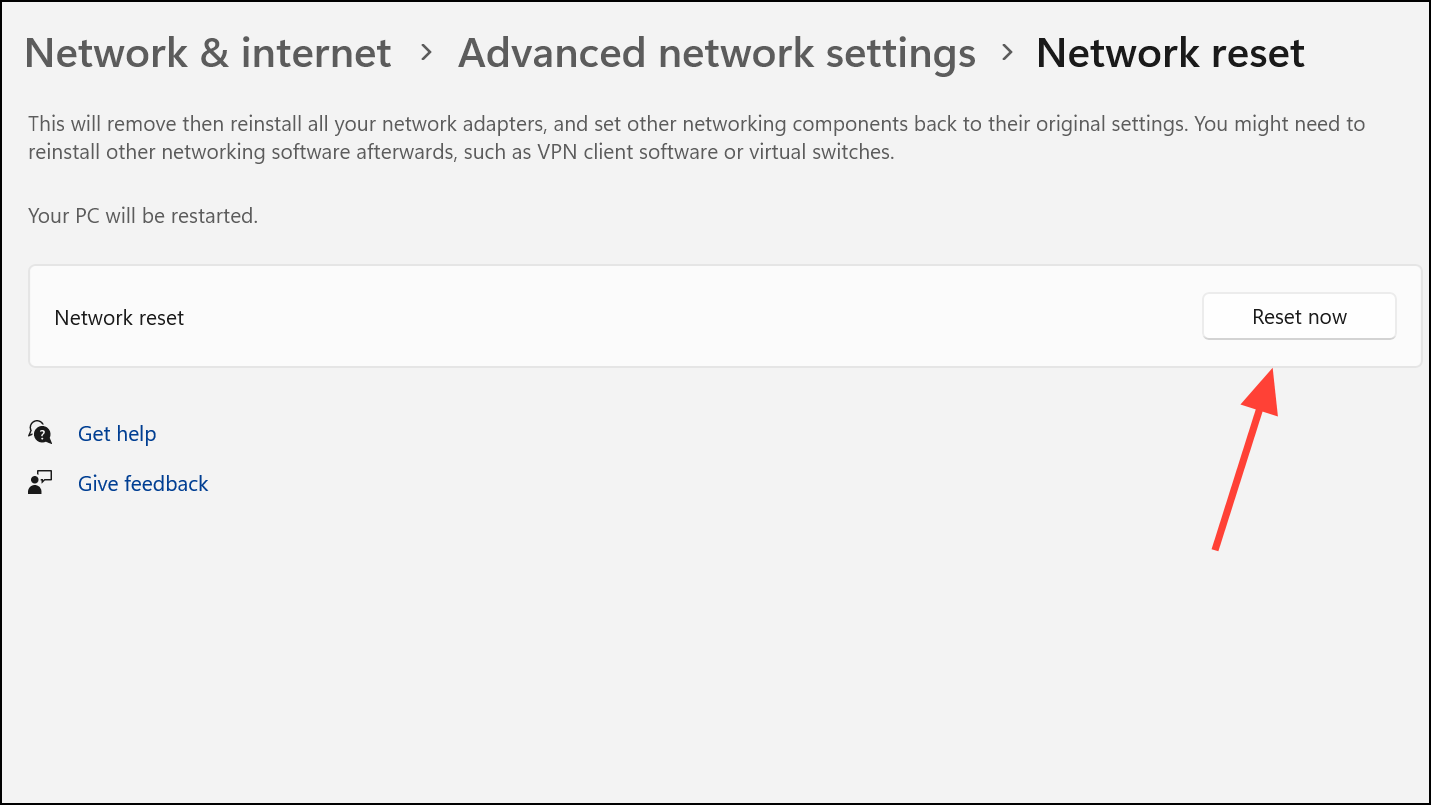
Flush DNS Cache and Reset TCP/IP Stack
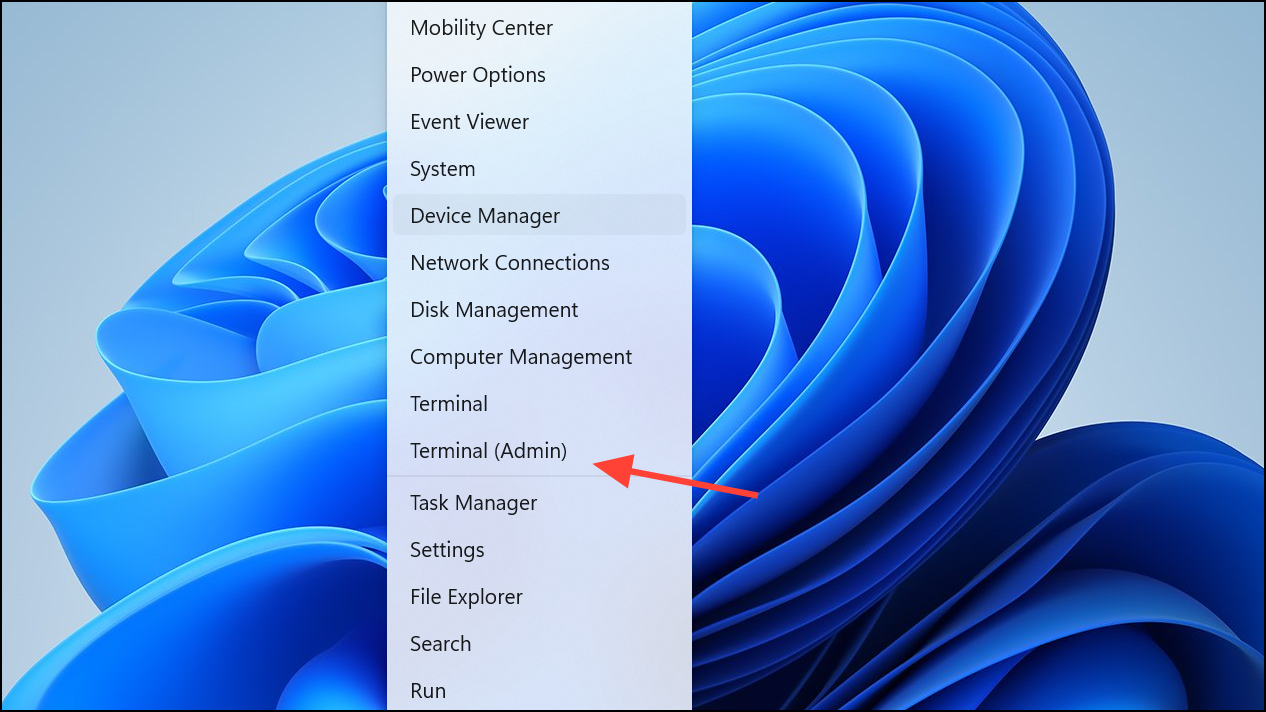
Corrupted DNS cache or TCP/IP stack can cause network interruptions. Flushing these resets can resolve hidden connectivity issues.
netsh winsock reset
netsh int ip reset
ipconfig /release
ipconfig /renew
ipconfig /flushdns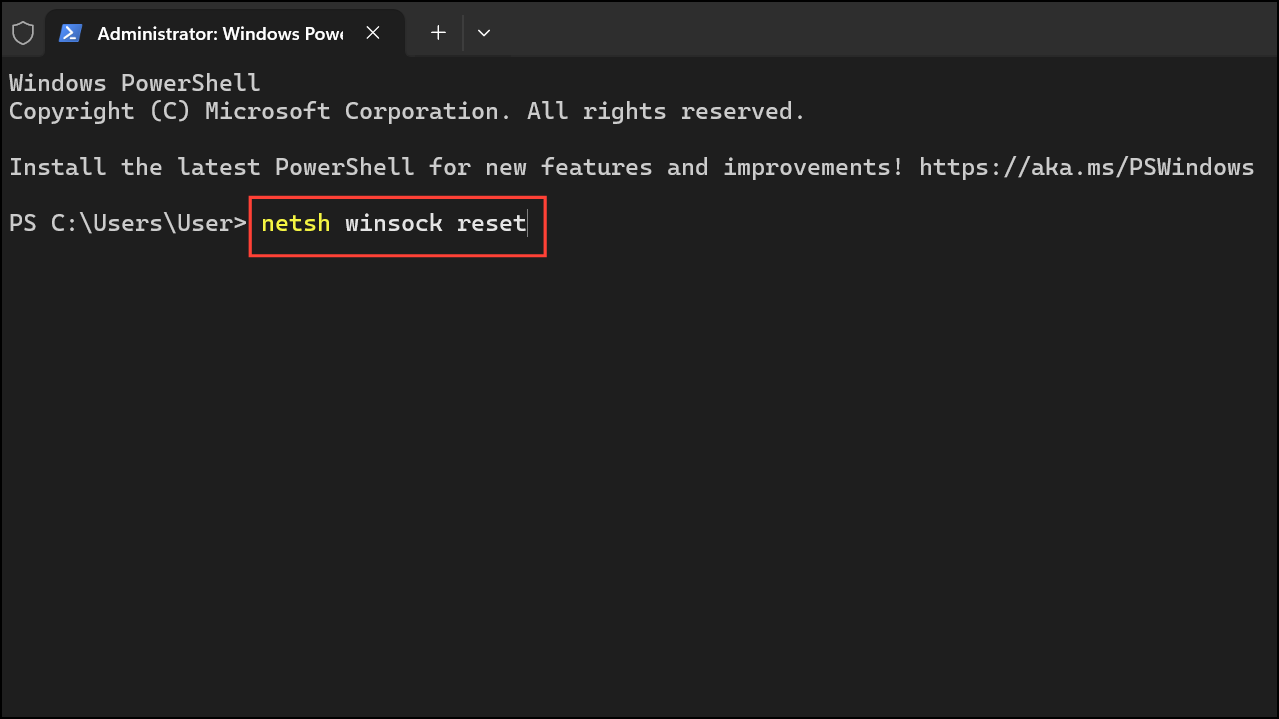
Each command targets a different aspect of your network configuration. netsh winsock reset restores Winsock settings. netsh int ip reset resets TCP/IP. The ipconfig commands release and renew your IP address and clear DNS cache.
Disable Unused Network Adapters
Switching between Wi-Fi and Ethernet or having multiple adapters enabled can cause Windows 11 to mismanage connections, leading to network change errors.
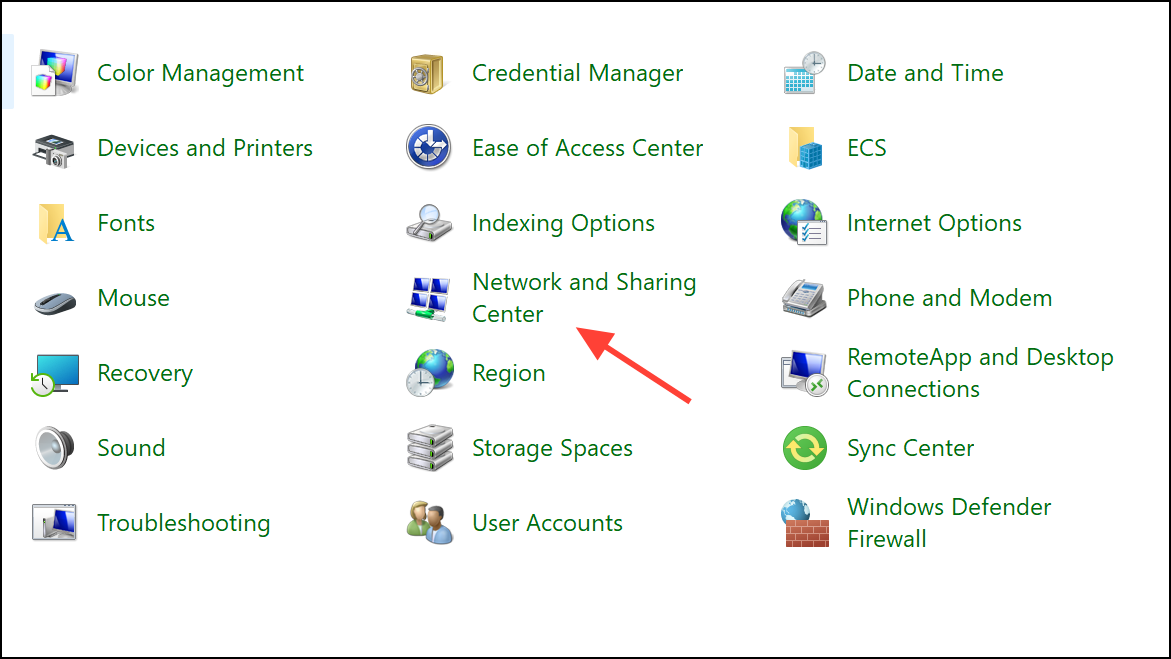
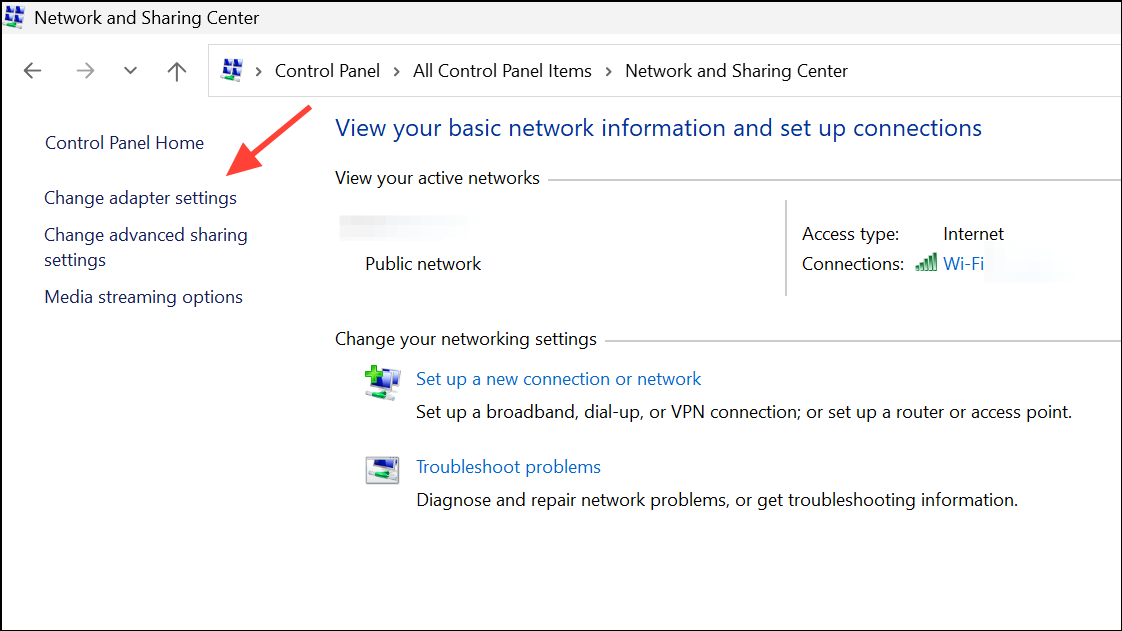
Disable.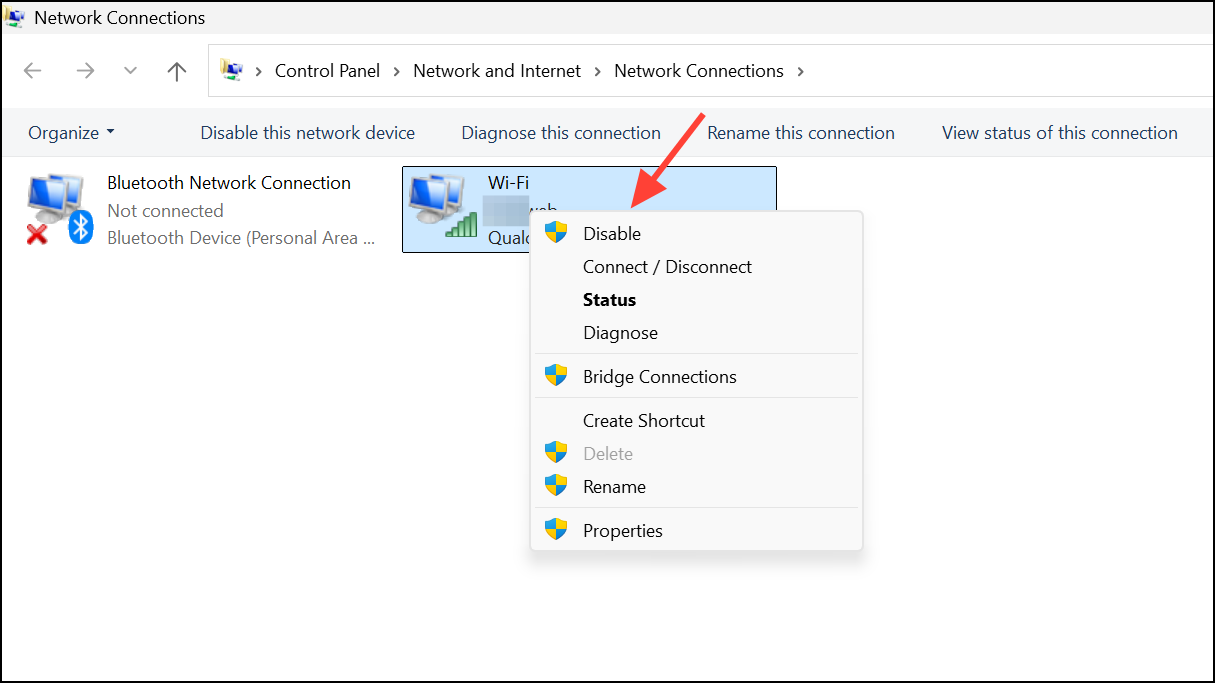
Change DNS Settings
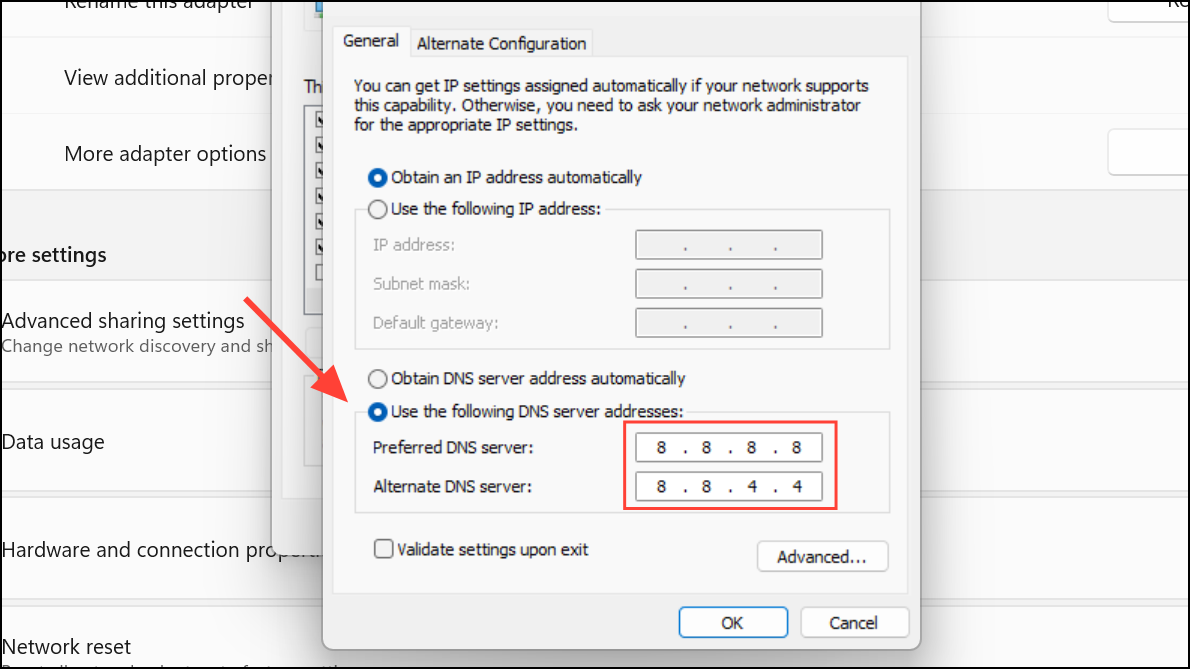
Your Internet Service Provider’s DNS servers may be unreliable. Switching to a public DNS like Google’s can improve connection stability and resolve “network change” errors.
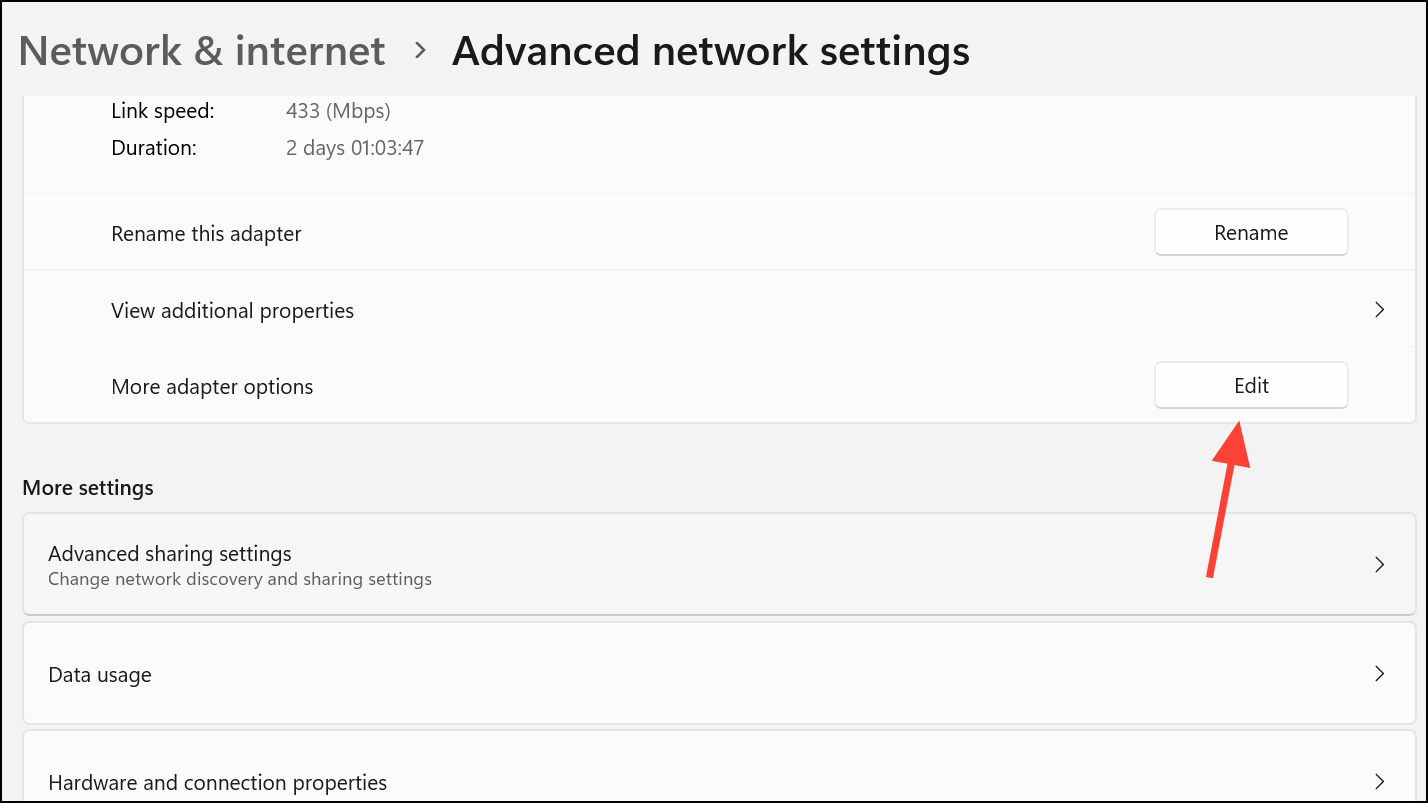
Properties dialog box. Select Internet Protocol Version 4 (TCP/IPv4) and click Properties again.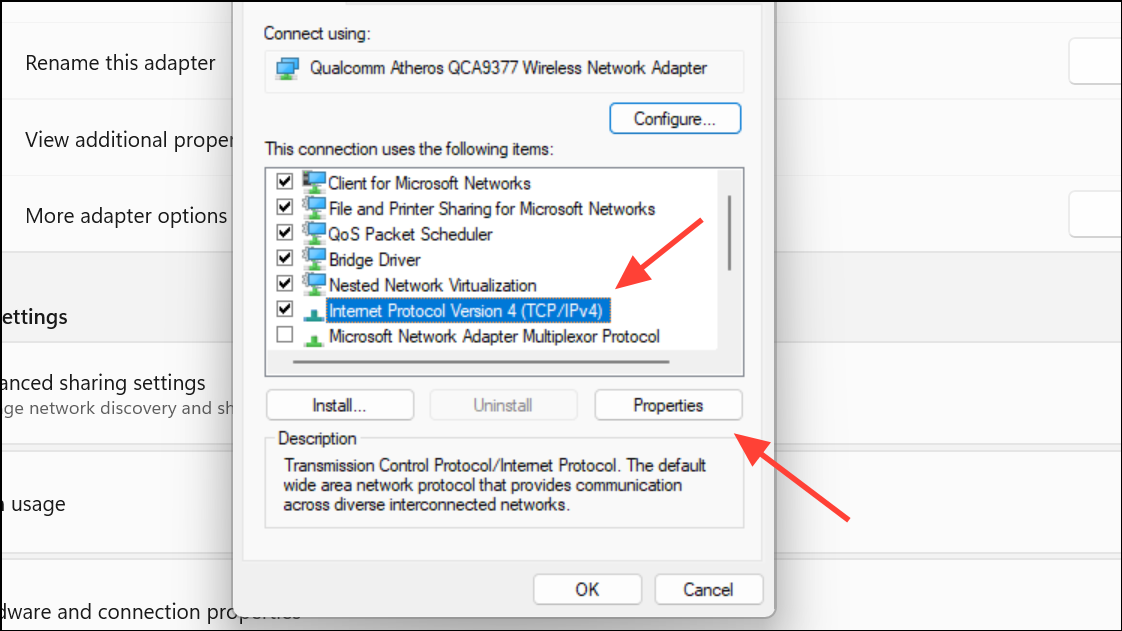
- Preferred DNS server:
8.8.8.8 - Alternate DNS server:
8.8.4.4
Check Proxy and VPN Settings
Proxy servers and VPN software may disrupt standard connections or cause Windows to interpret network changes incorrectly.
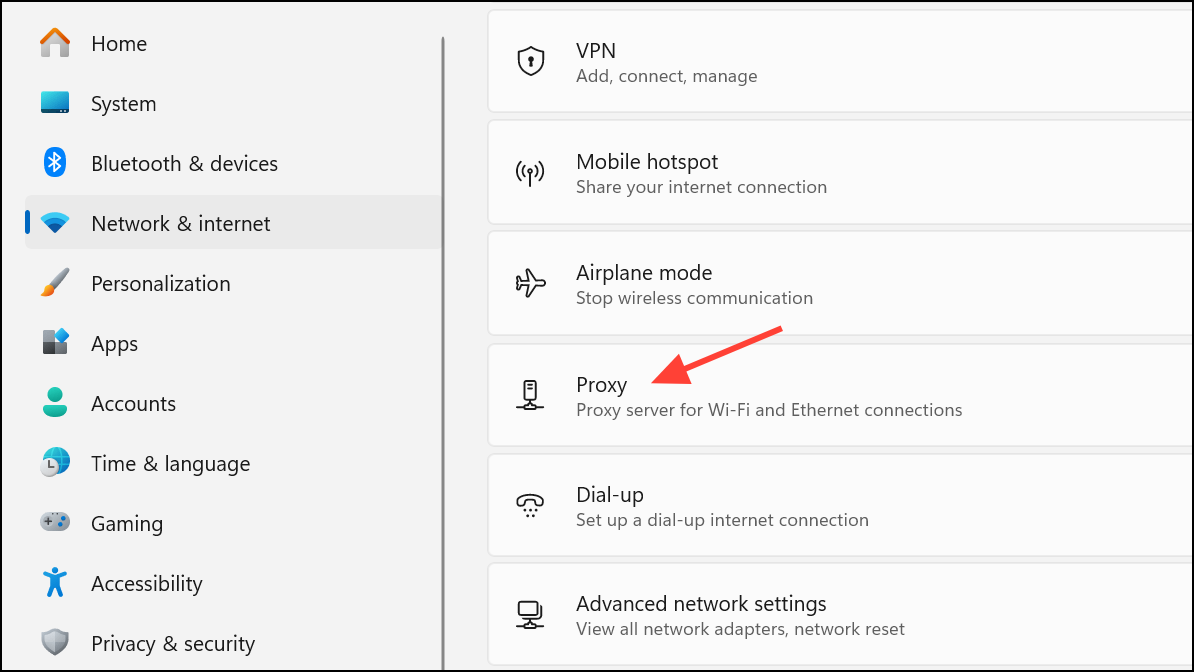
Use a proxy server and Automatically detect settings if they are enabled. If you use a VPN, temporarily disable it to see if the error resolves.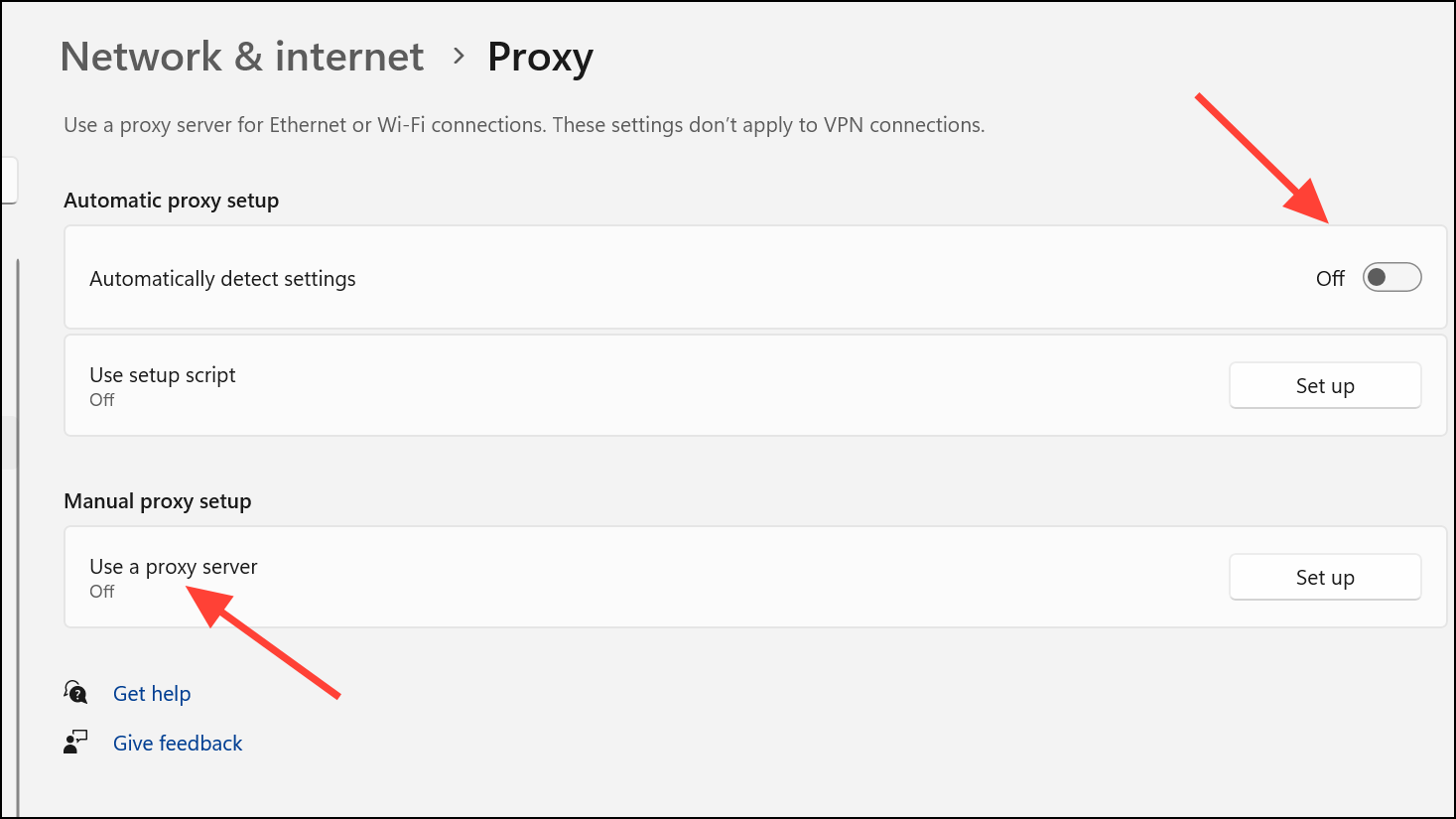
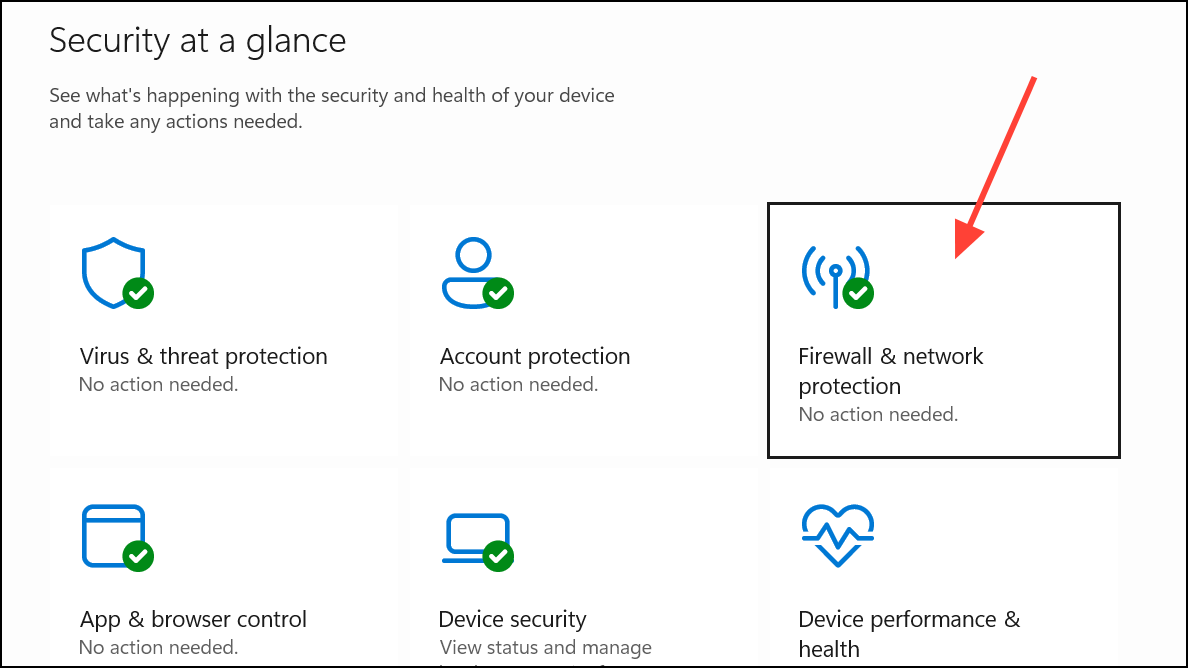
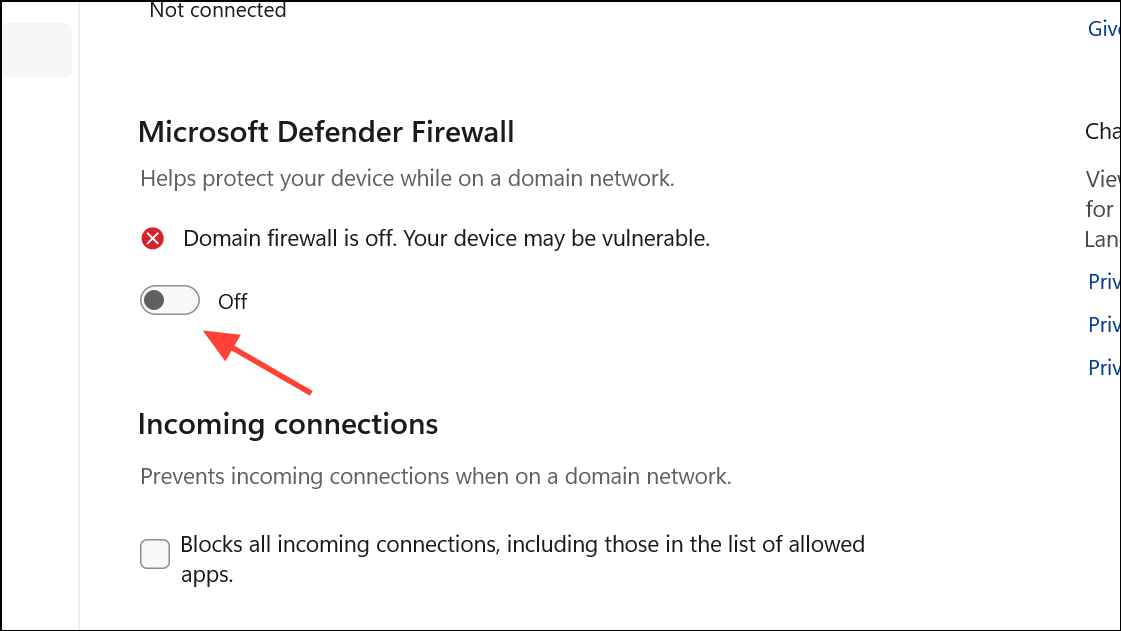
Privacy & Security and disable any network-related features that might interfere.Temporarily Disable Firewall and Antivirus
Security software can block network traffic or interfere with browser connections, especially after updates or configuration changes.
Clear Browser Cache and Data
Corrupted browser cache or cookies can cause loading failures and persistent error messages.
Privacy and Security.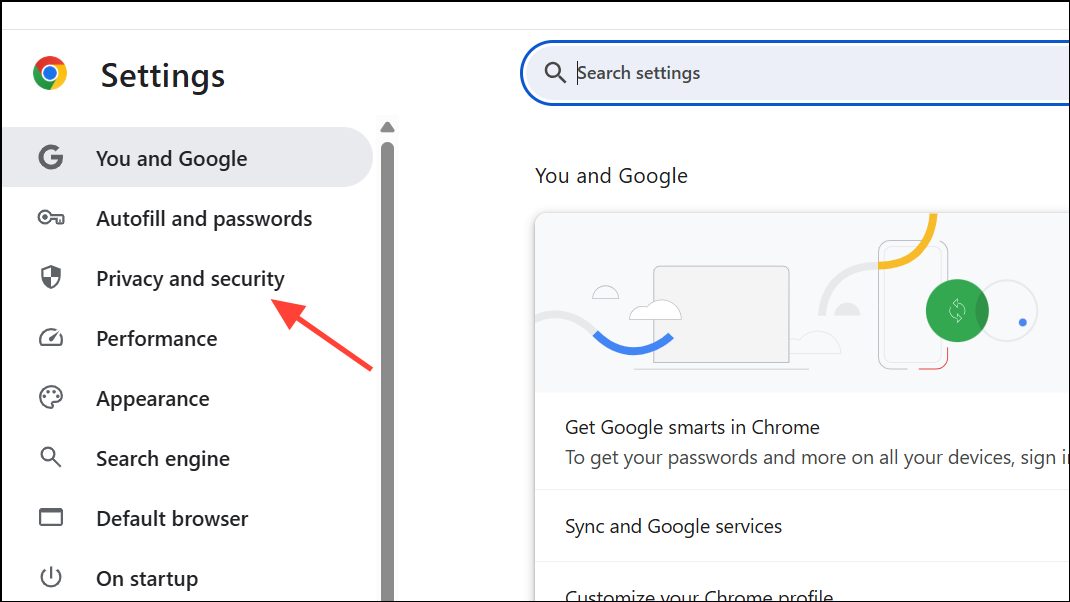
Clear browsing data. Check the boxes for Browsing history, Cookies and other site data, and Cached images and files.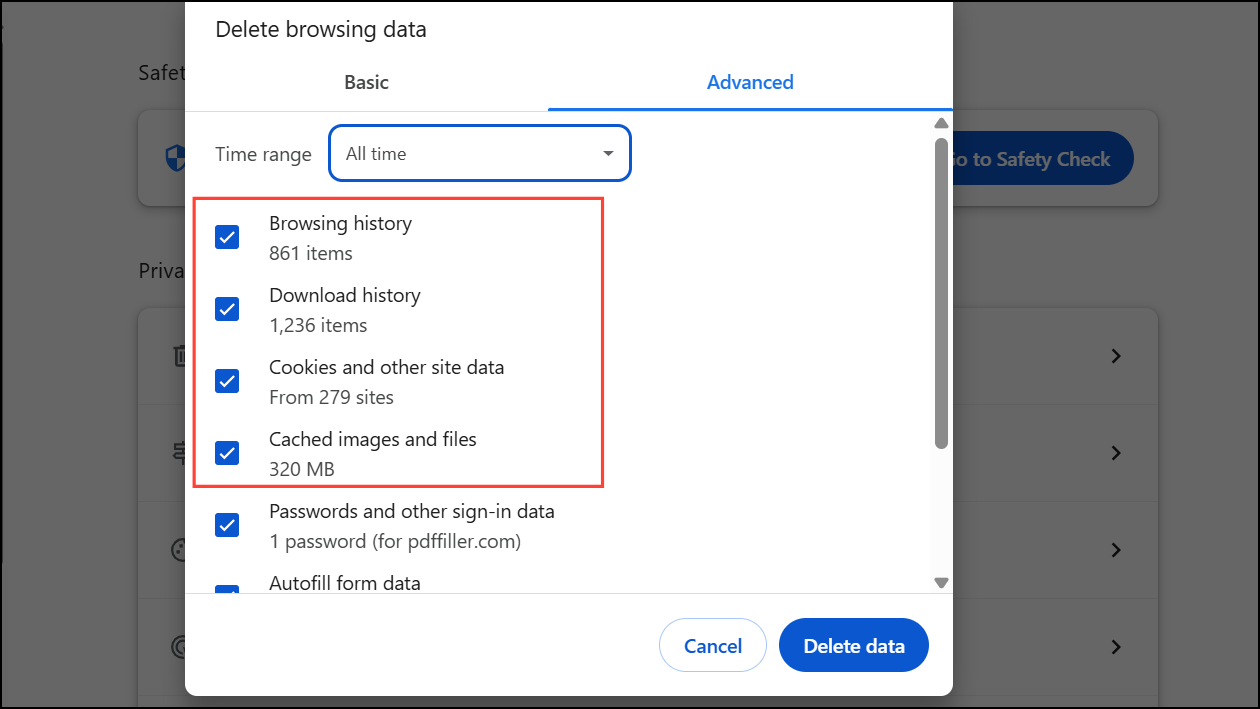
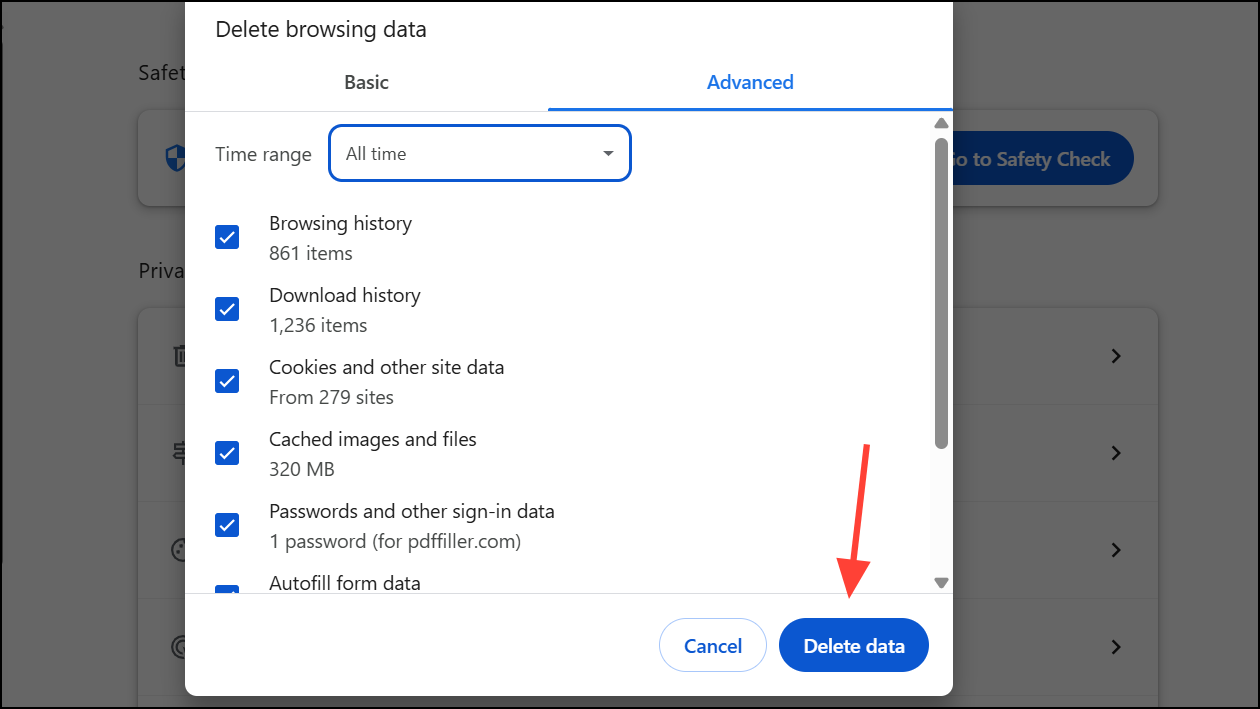
Update or Reinstall Network Drivers
Outdated or corrupt network drivers can cause persistent connection drops and errors.
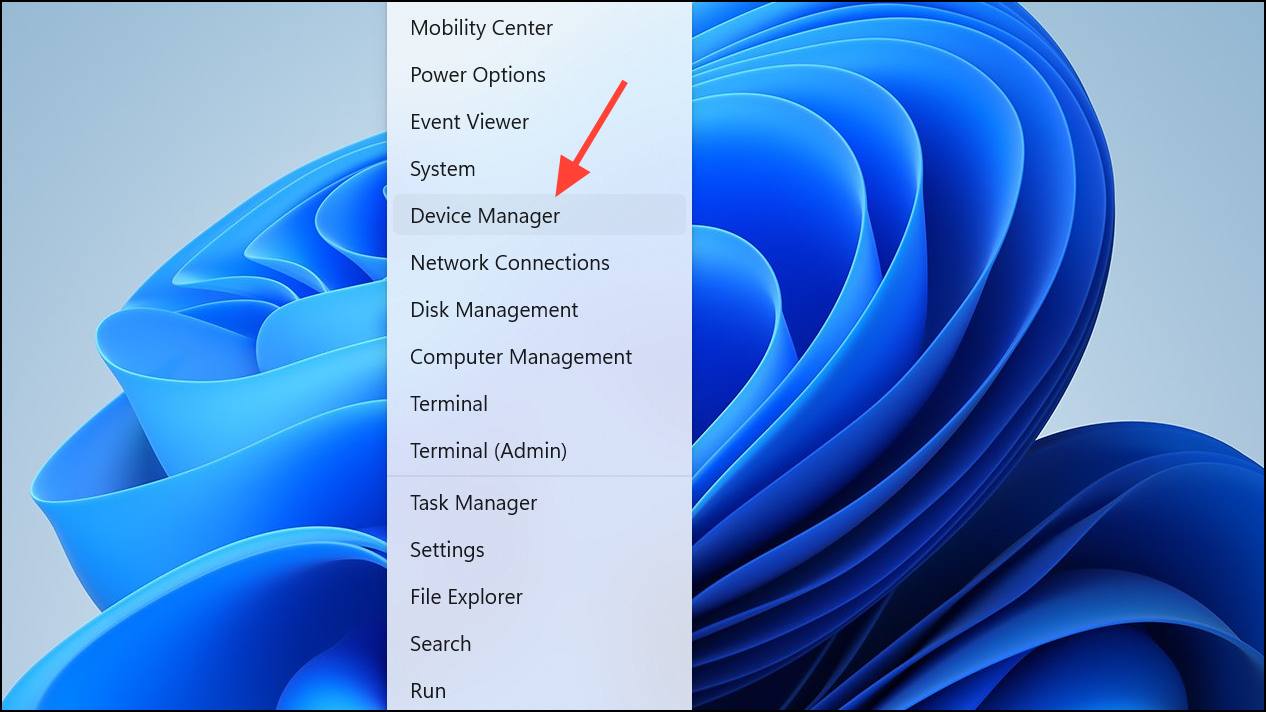
Network adapters, right-click your primary adapter, and choose Update driver. Select Search automatically for drivers. If no update is found, you can uninstall the driver and restart your PC to force Windows to reinstall it.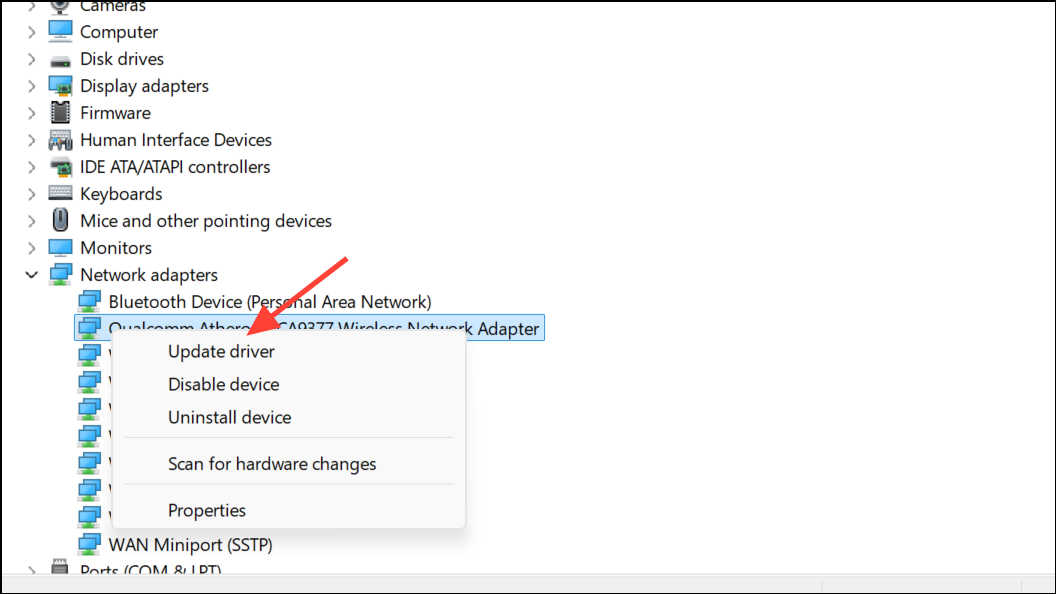
Restore Windows to an Earlier State
If the error appeared after a recent Windows update or software installation, rolling back to a previous restore point can resolve configuration conflicts.
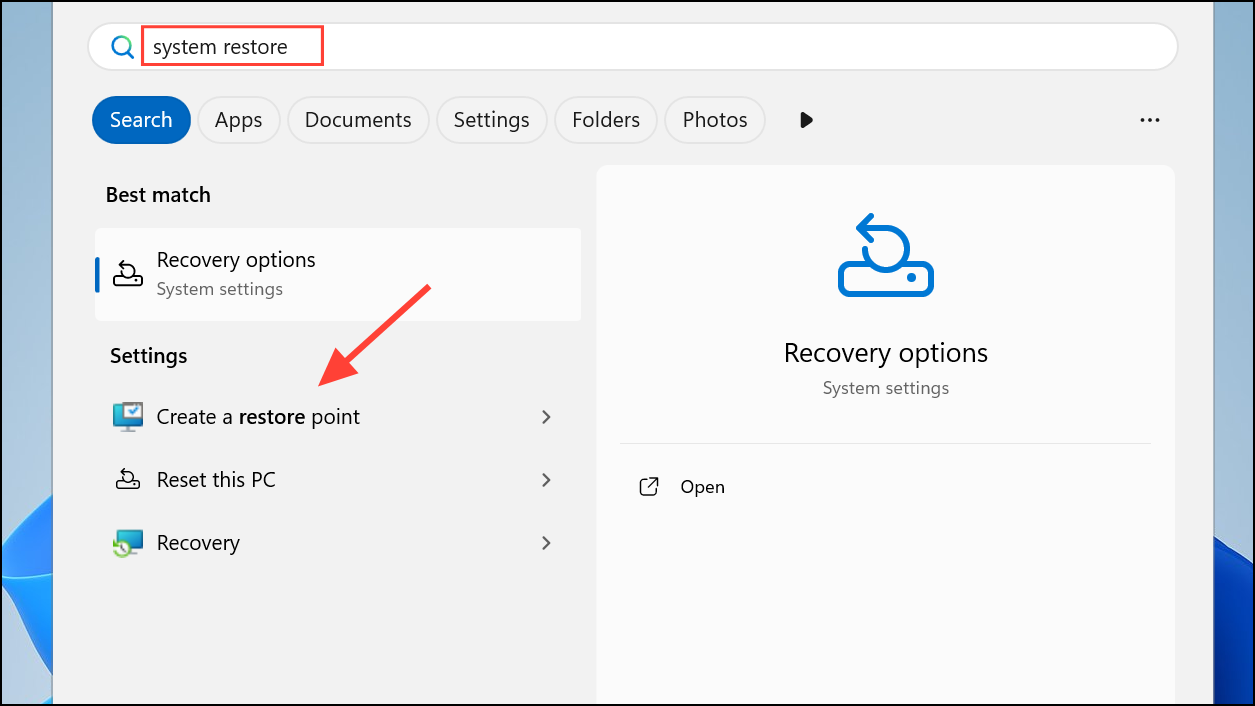
System Restore, then follow the prompts to select a restore point from before the network issue began. Complete the process and restart your PC.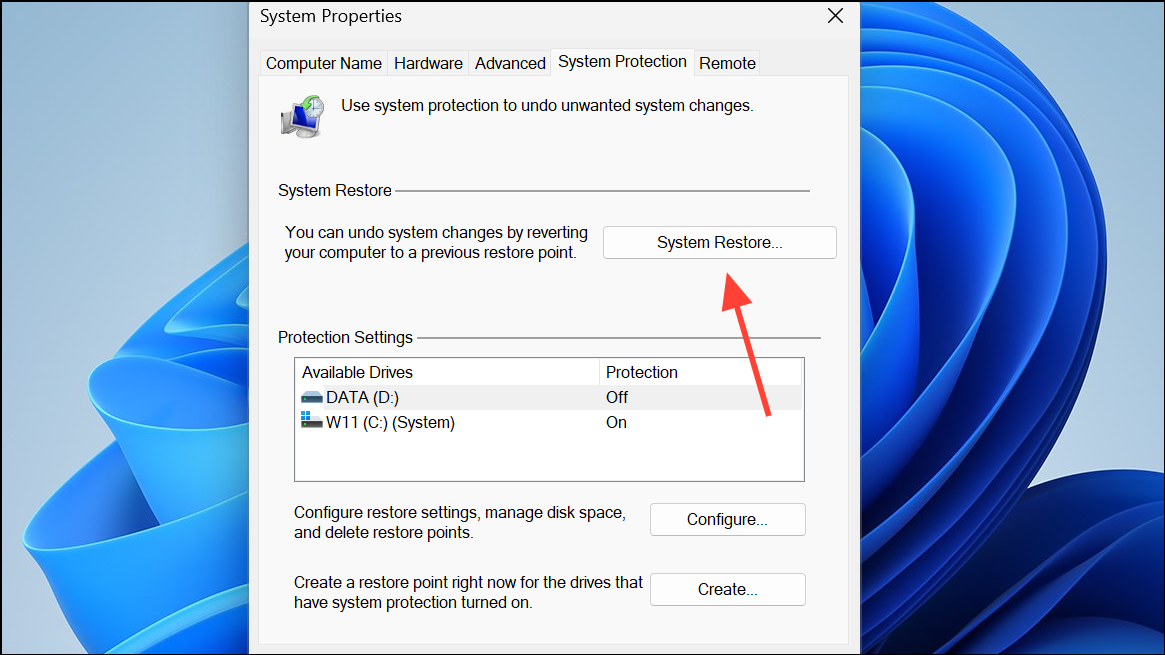
Resolving the “Your connection was interrupted” error in Windows 11 often requires a combination of network resets, adapter adjustments, and configuration checks. Once these steps are completed, your browsing should return to normal without unexpected disconnects.



