
Excel repeatedly closing or freezing on startup—especially when you open a specific file—can disrupt productivity and risk data loss. This issue often stems from file corruption, problematic add-ins, outdated software, or resource conflicts. Addressing the root causes quickly restores stable, reliable access to your spreadsheets and prevents recurring crashes.
Clear the Office File Cache
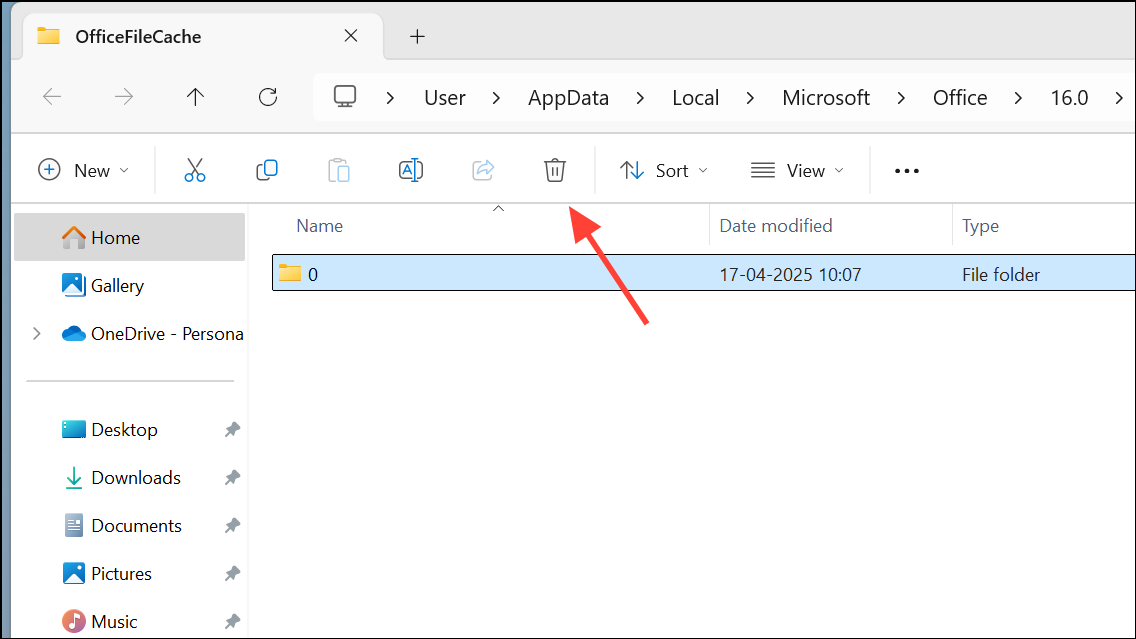
Corrupt or overloaded file cache data is a common trigger for Excel crashes at startup or during file opening. Clearing the Office file cache removes temporary files that may be interfering with Excel’s operation.
Windows + R to open the Run dialog. Enter %localappdata%\Microsoft\Office\16.0\OfficeFileCache and press Enter.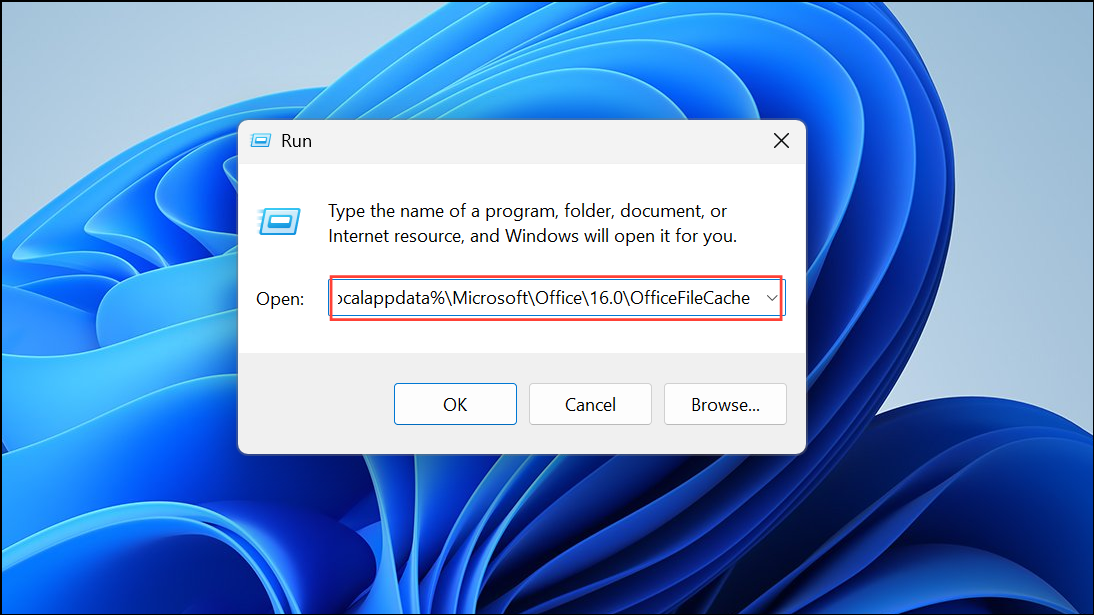
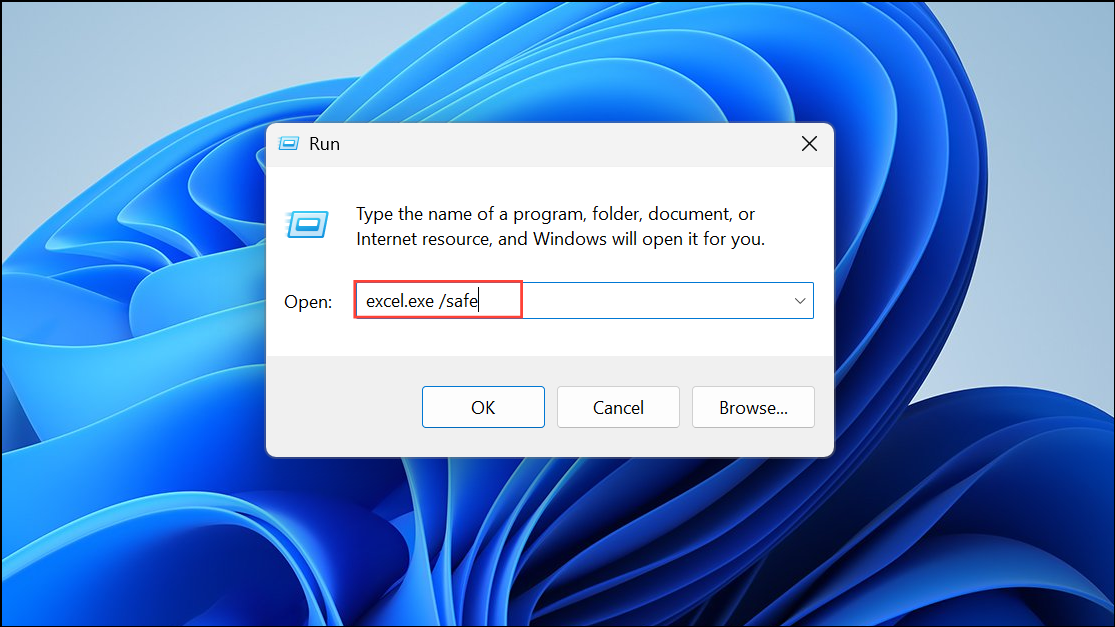
Start Excel in Safe Mode
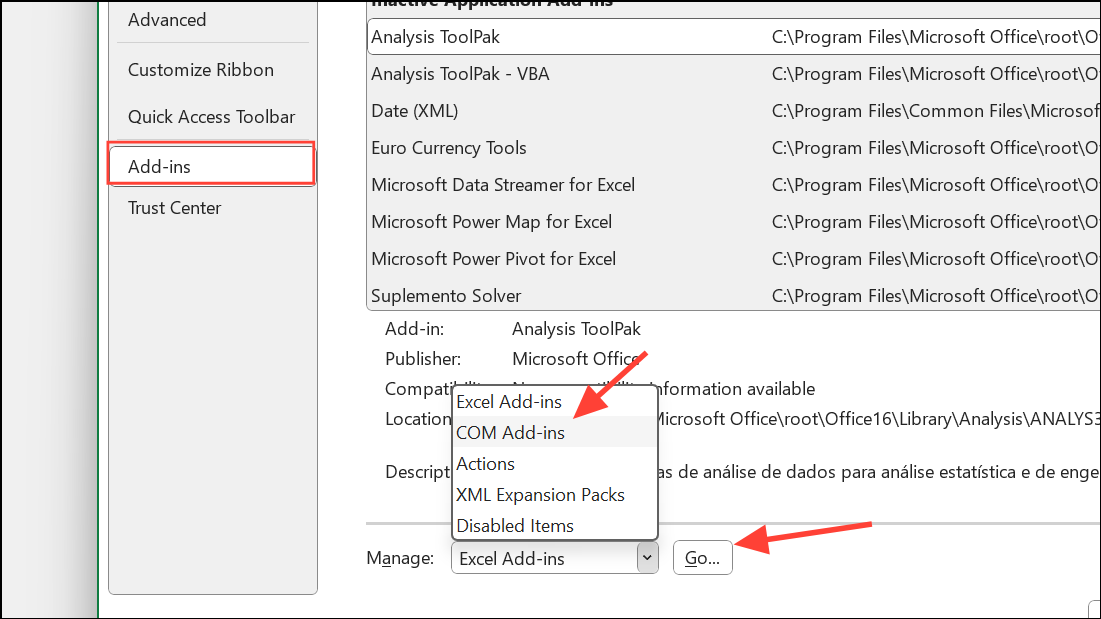
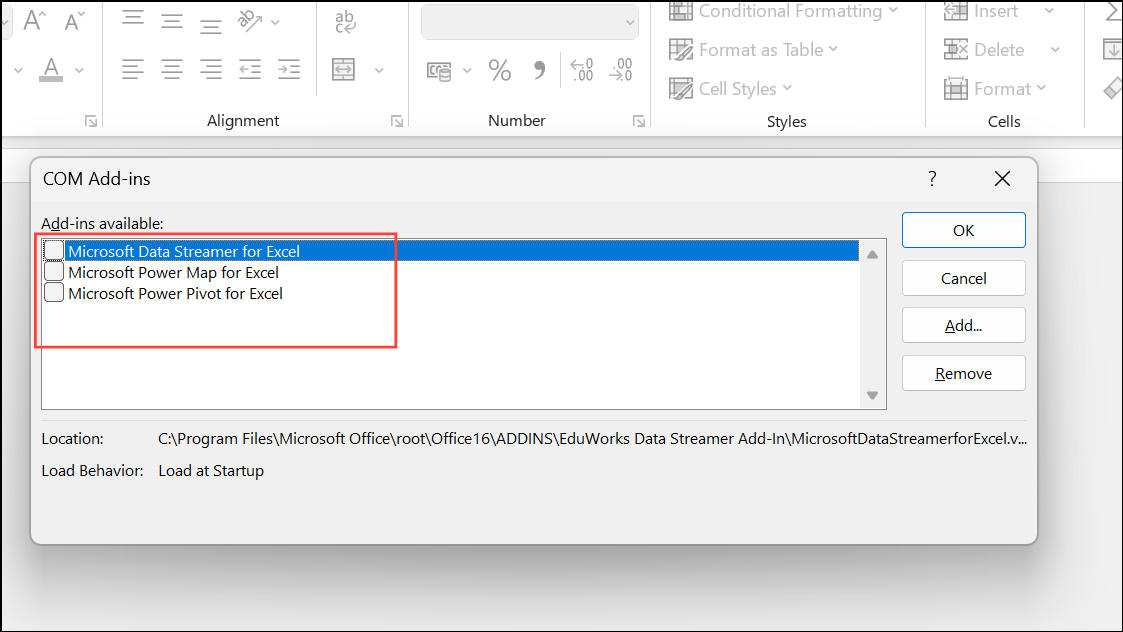
Safe Mode launches Excel with minimal features and disables all add-ins, which helps isolate whether add-ins or custom configurations are responsible for the crash.
Repair or Recover the Problematic Excel File
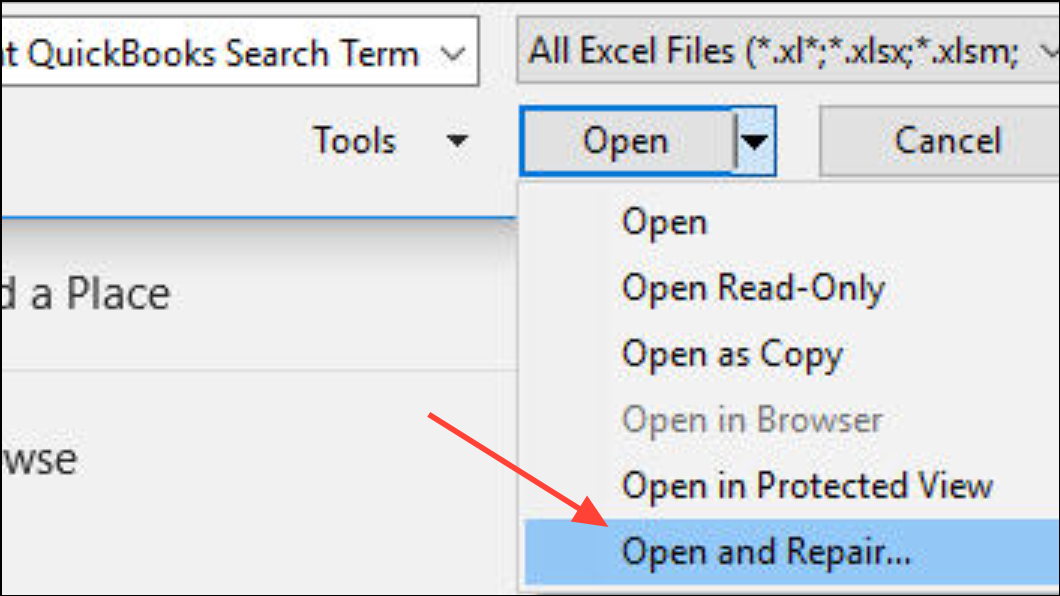
File corruption, especially in workbooks with macros or complex formulas, often causes Excel to crash immediately upon opening a specific file. The built-in repair tool can recover data and restore file functionality.
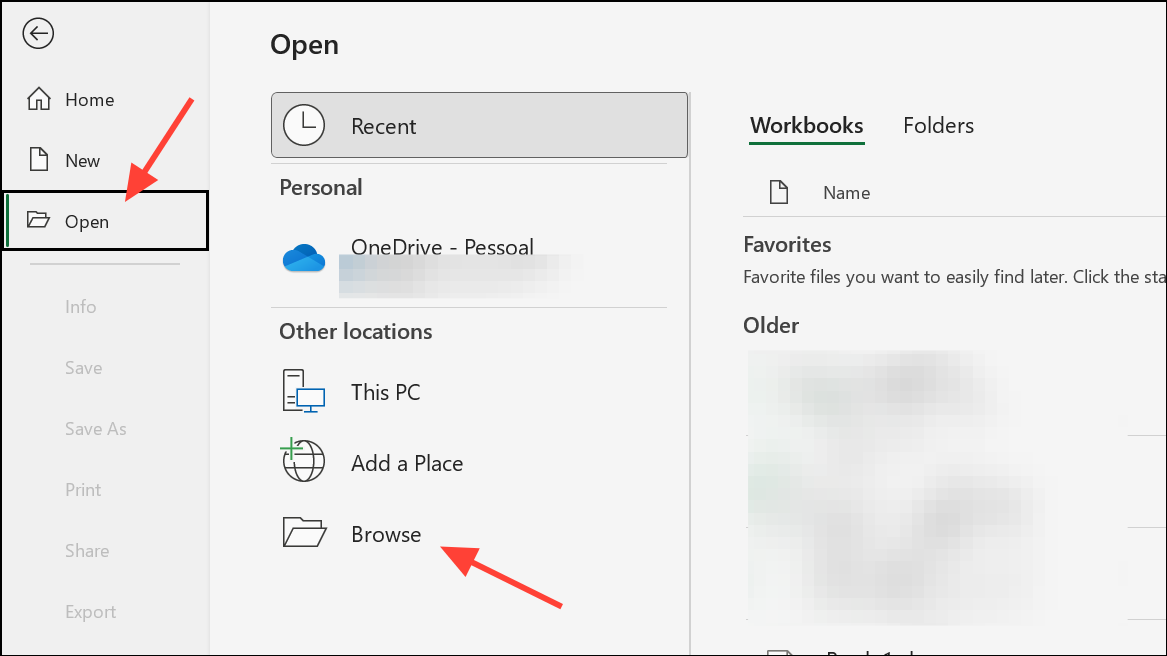
For files that consistently crash Excel but open on other systems (such as Mac), open and re-save the file on the working system, then transfer it back to your Windows PC. This can resolve compatibility issues introduced by recent updates or file corruption.
Update Microsoft Excel and Windows
Outdated software can introduce bugs and compatibility issues, especially after major Windows 11 or Office updates. Keeping Excel and Windows current ensures you benefit from the latest stability and performance fixes.
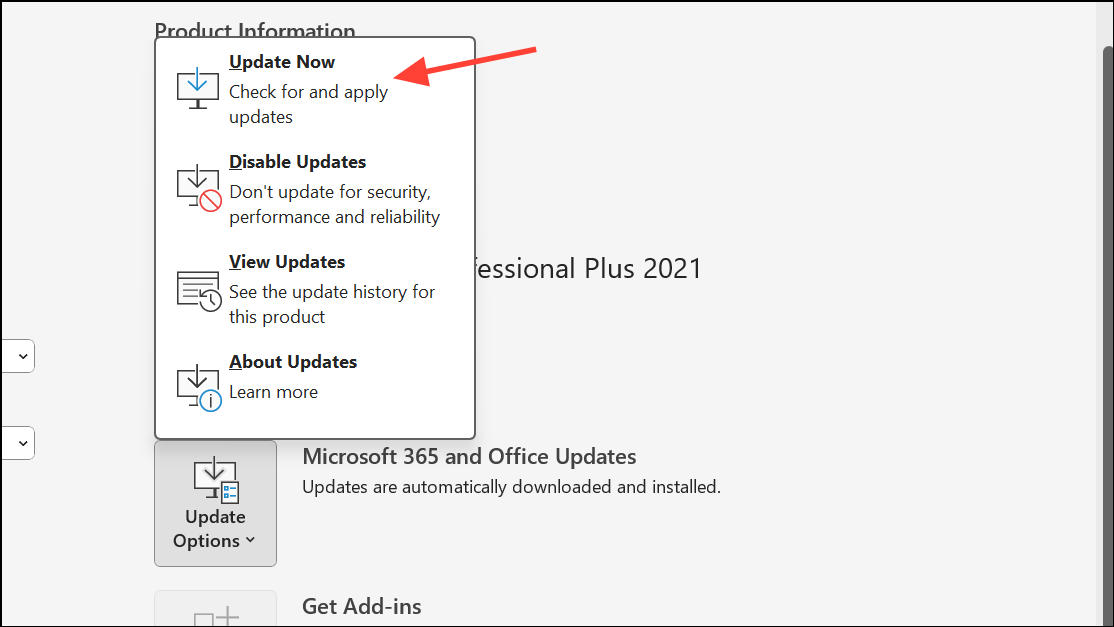
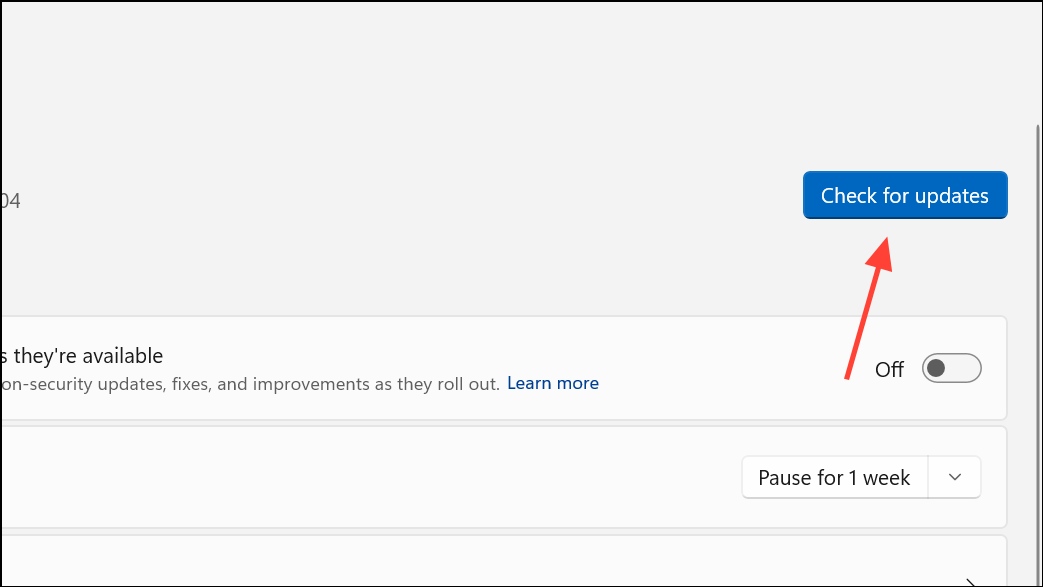
Investigate Startup Folders and Alternate Startup Locations
Excel automatically opens any files located in its startup folders, which can lead to crashes if a problematic file is present. Removing files from these folders can resolve startup issues.
XLSTART folder.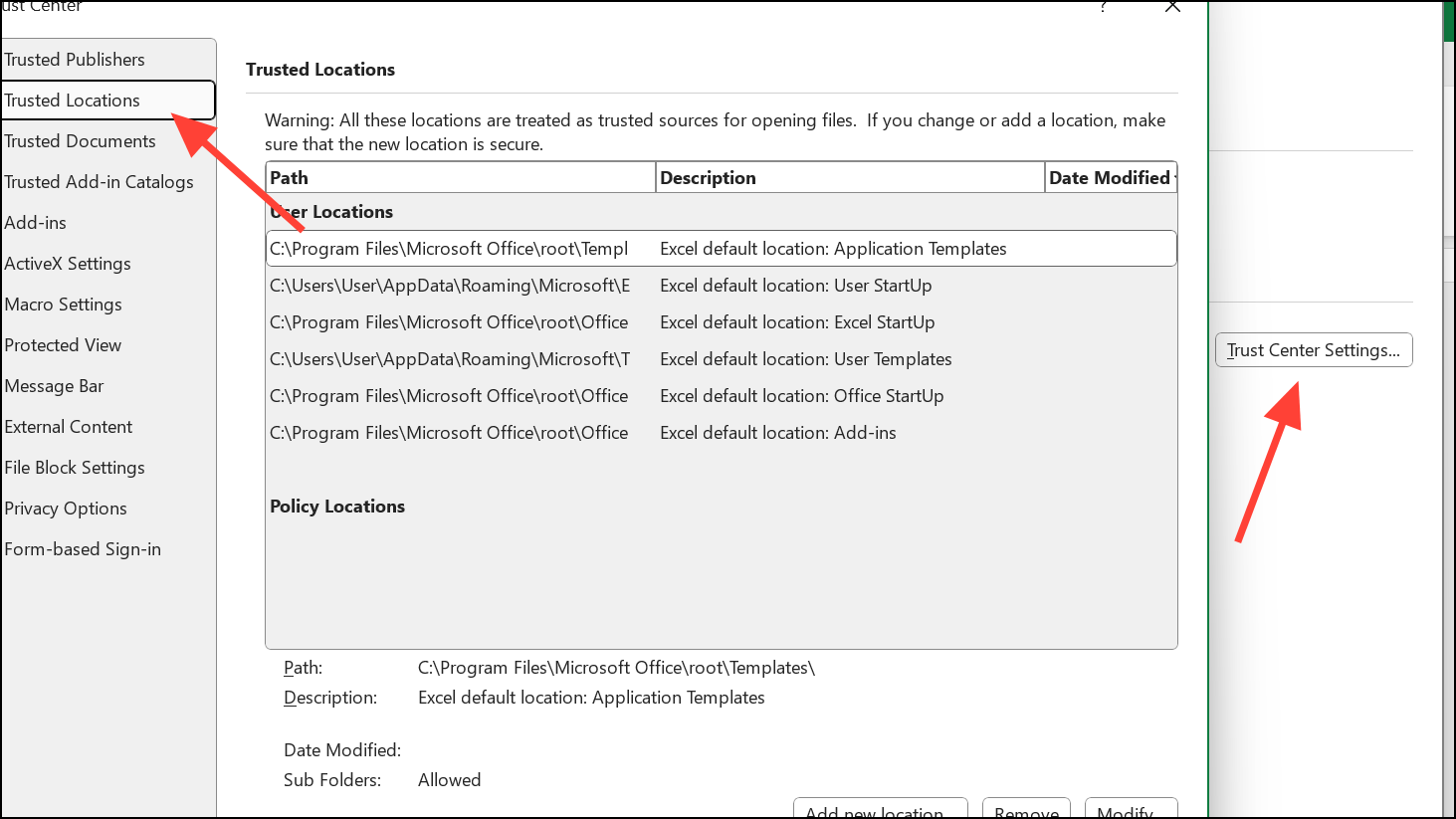
XLSTART folder and any alternate startup folders (located in File > Options > Advanced, under the General section).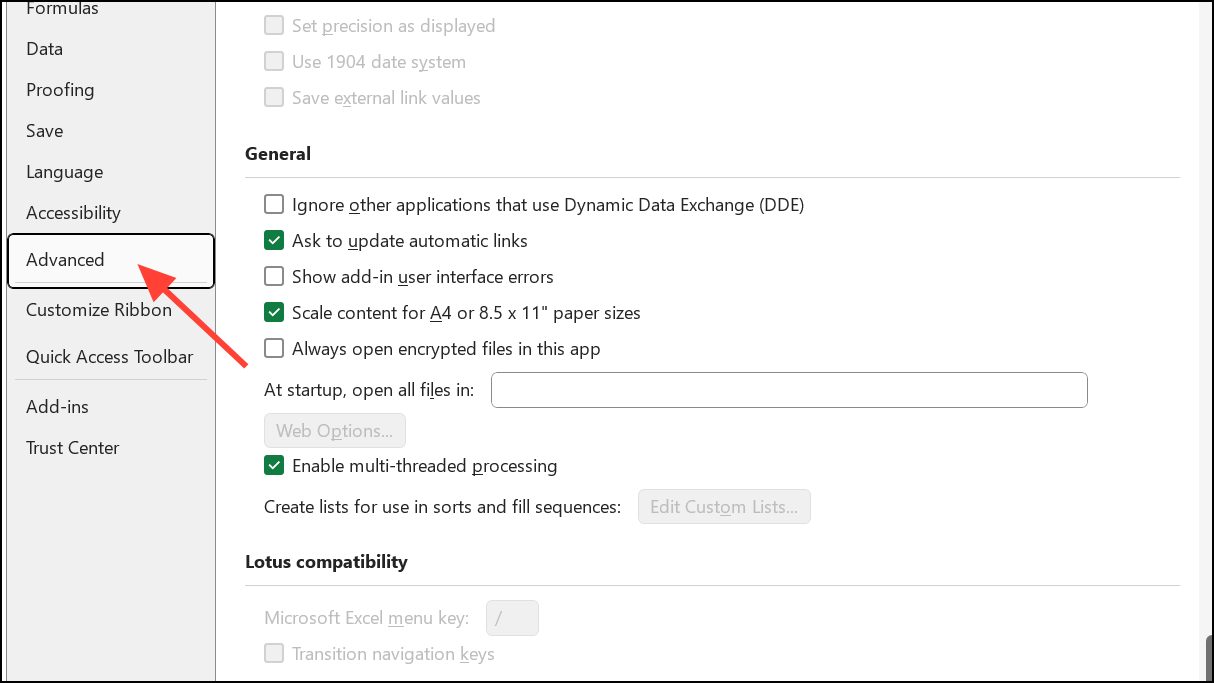
Repair Microsoft Office Installation
Corrupted Office installations can cause Excel to malfunction. Running the repair utility replaces missing or damaged files and restores stable operation.
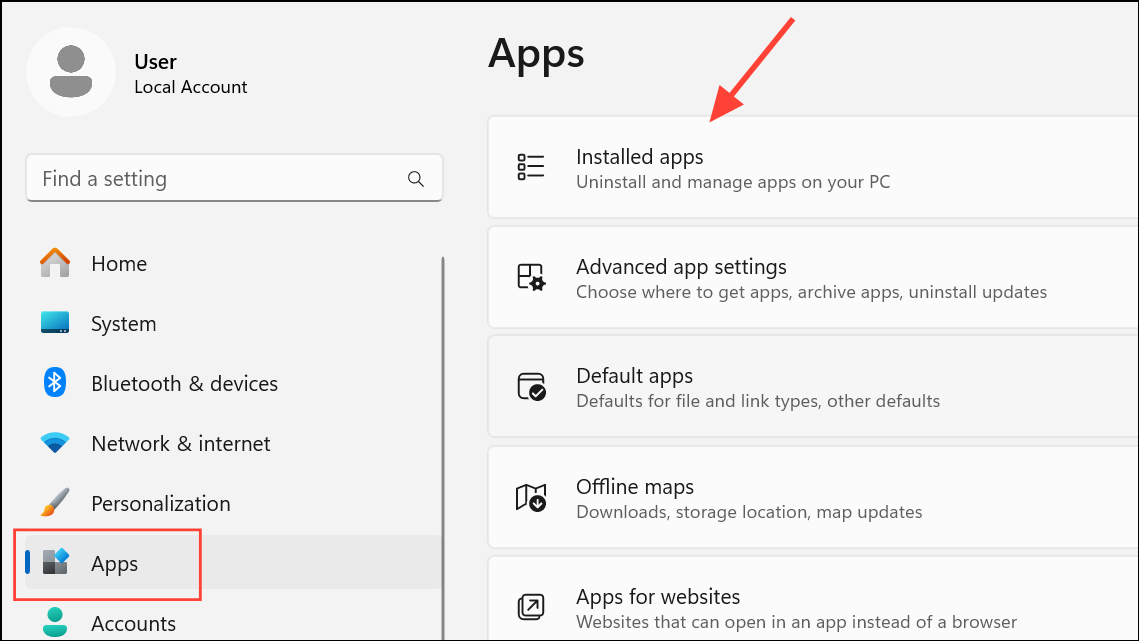
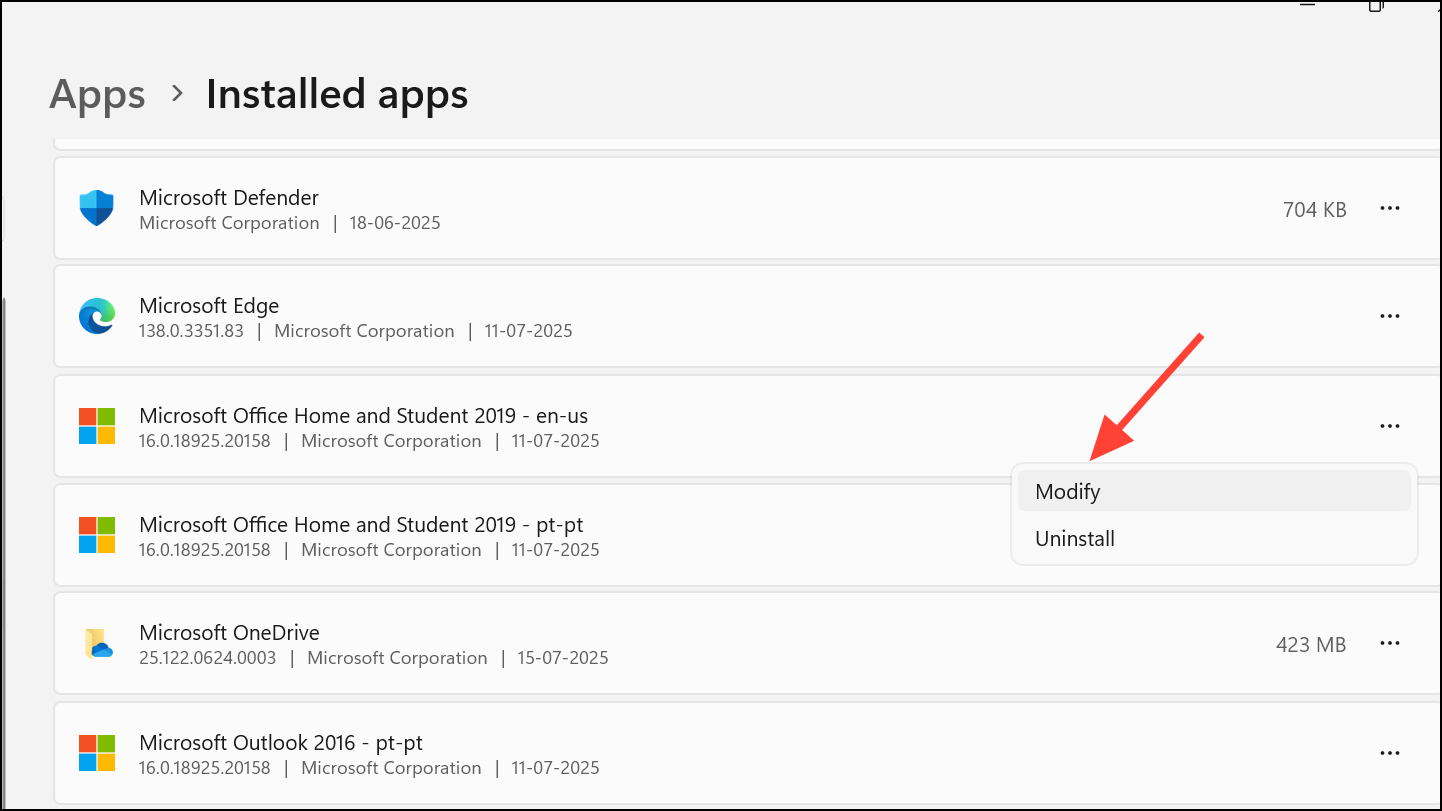
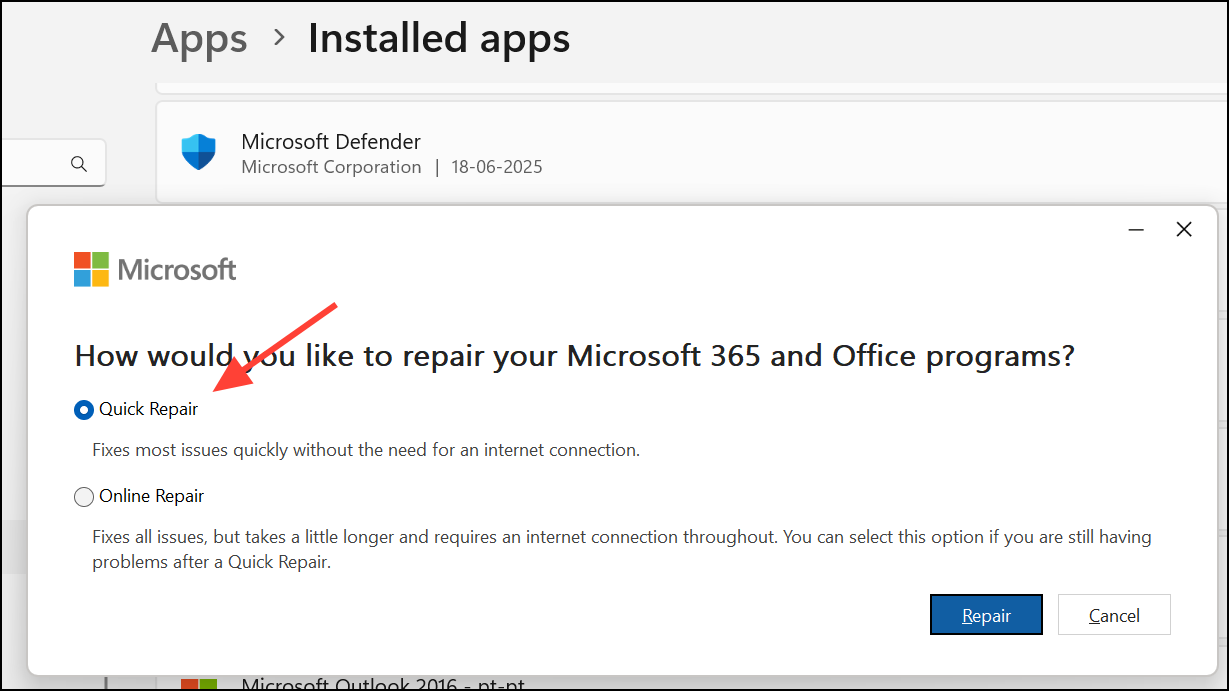
Check for Macro and VBA Issues
Workbooks containing VBA macros can crash Excel if the code is corrupt or incompatible with your version. Disabling macros on open may allow you to access and fix the file.
Alt + F11 to open the VBA editor. Review the Workbook_Open event or any code that runs on file open. Remove or comment out suspicious code.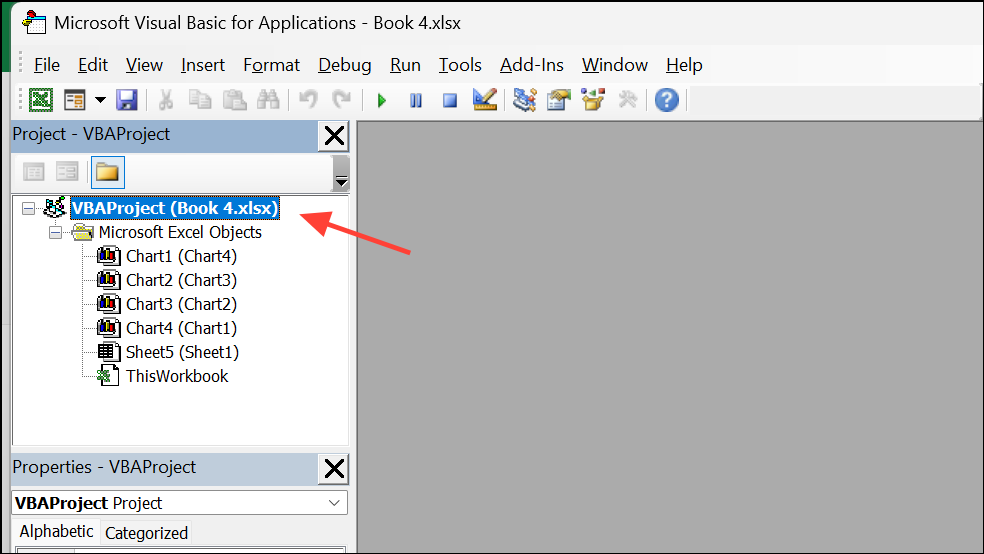
F12). Close and reopen the new file, then gradually re-enable macros if needed.In some cases, opening the file on a Mac or in a different version of Excel, then saving it as a new file type (e.g., .xlsm instead of .xlsb), can bypass issues introduced by recent Windows updates or file format incompatibilities.
Additional Steps: Firewall and Antivirus Settings
Overly aggressive firewall rules or antivirus integrations can block Excel processes or interfere with file opening. Review recent changes to security software if Excel only started crashing after installing or updating these tools.
- Temporarily disable antivirus Excel integration or add-ins to test for conflicts.
- Review and remove custom inbound/outbound firewall rules related to Office or Excel, especially if they were created during previous installations.
Always re-enable security features after testing, and consult your IT department before making permanent changes.
Applying these targeted solutions resolves Excel startup crashes and file opening issues for most users. Regularly updating Office, keeping backups, and monitoring add-ins or startup files will help maintain a stable Excel environment on Windows 11.





