
Google Chrome windows closing immediately after installing Windows 11 update KB5037591 signals a compatibility or configuration issue introduced by the update. Users report Chrome failing to launch, showing blank windows, or crashing instantly, while other browsers like Microsoft Edge remain unaffected. Addressing this problem requires targeted steps to restore browser stability and ensure Chrome works reliably again.
Check for Profile Corruption by Creating a New User Account
Terminal (Admin) or Command Prompt (Admin). This provides administrator-level access for user management.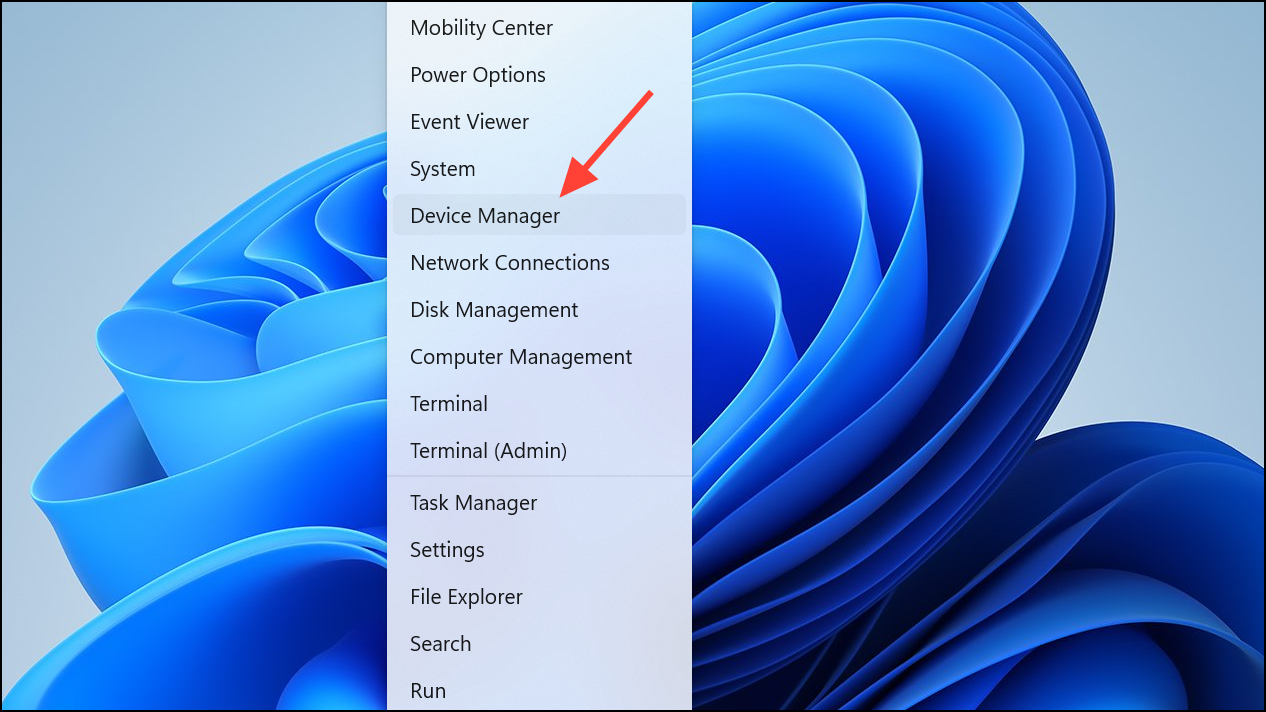
net user user1 pass1 /add
net localgroup administrators user1 /add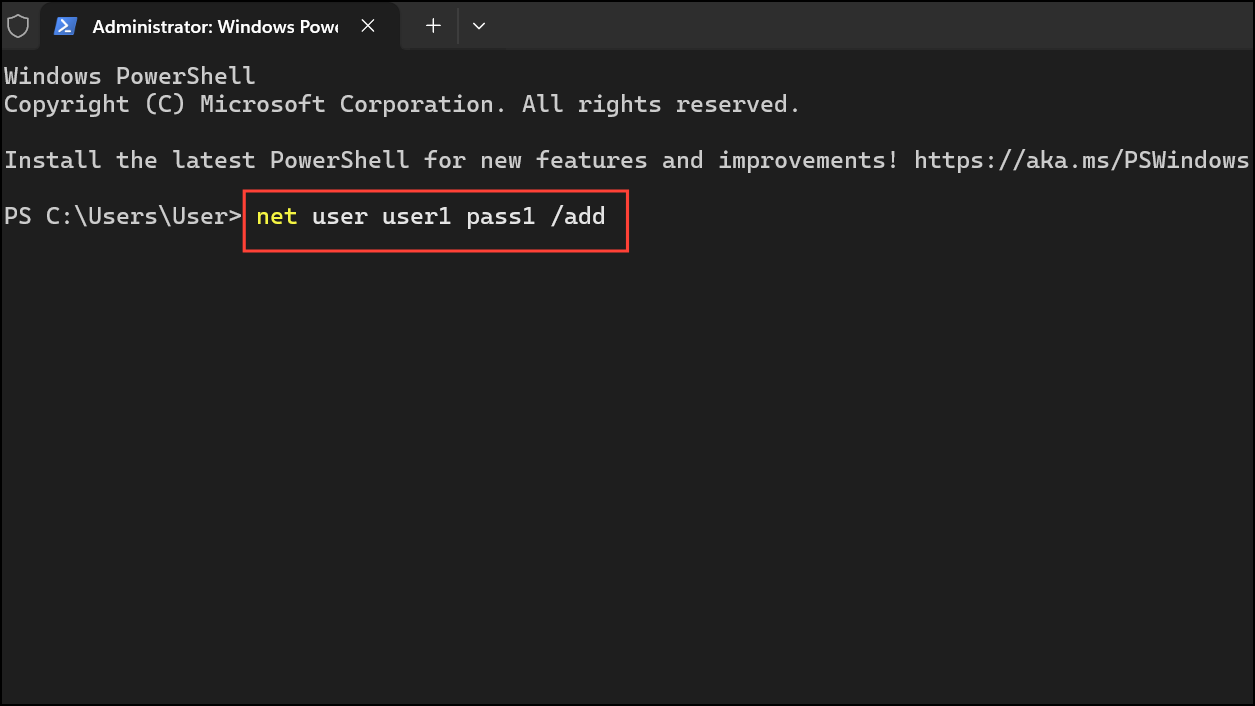
Replace user1 and pass1 with your chosen username and password. This creates a new local administrator account.
Run Chrome with Special Launch Options
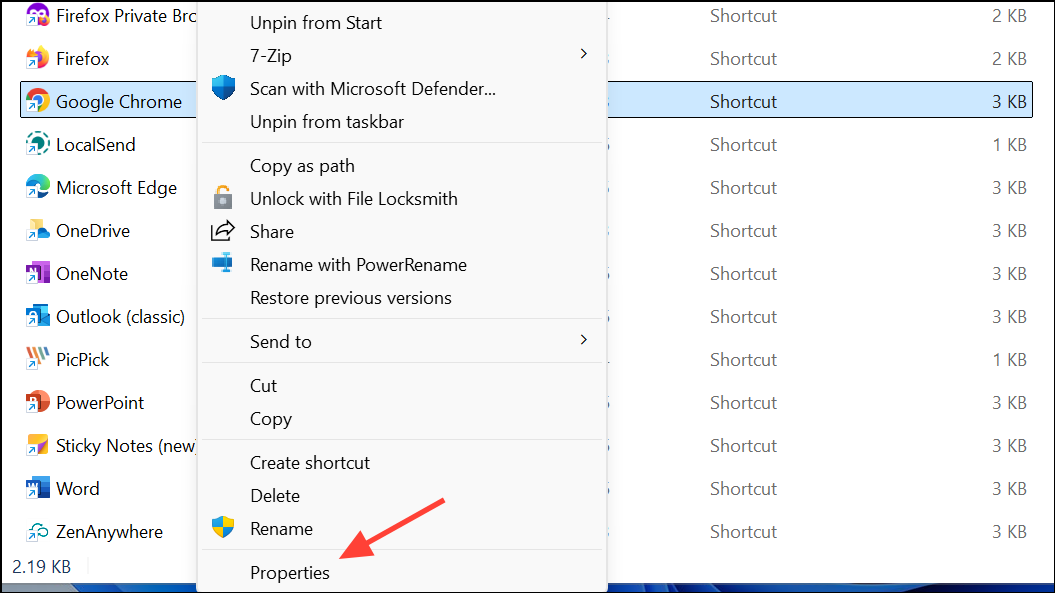
"C:\Program Files\Google\Chrome\Application\chrome.exe" -no-sandbox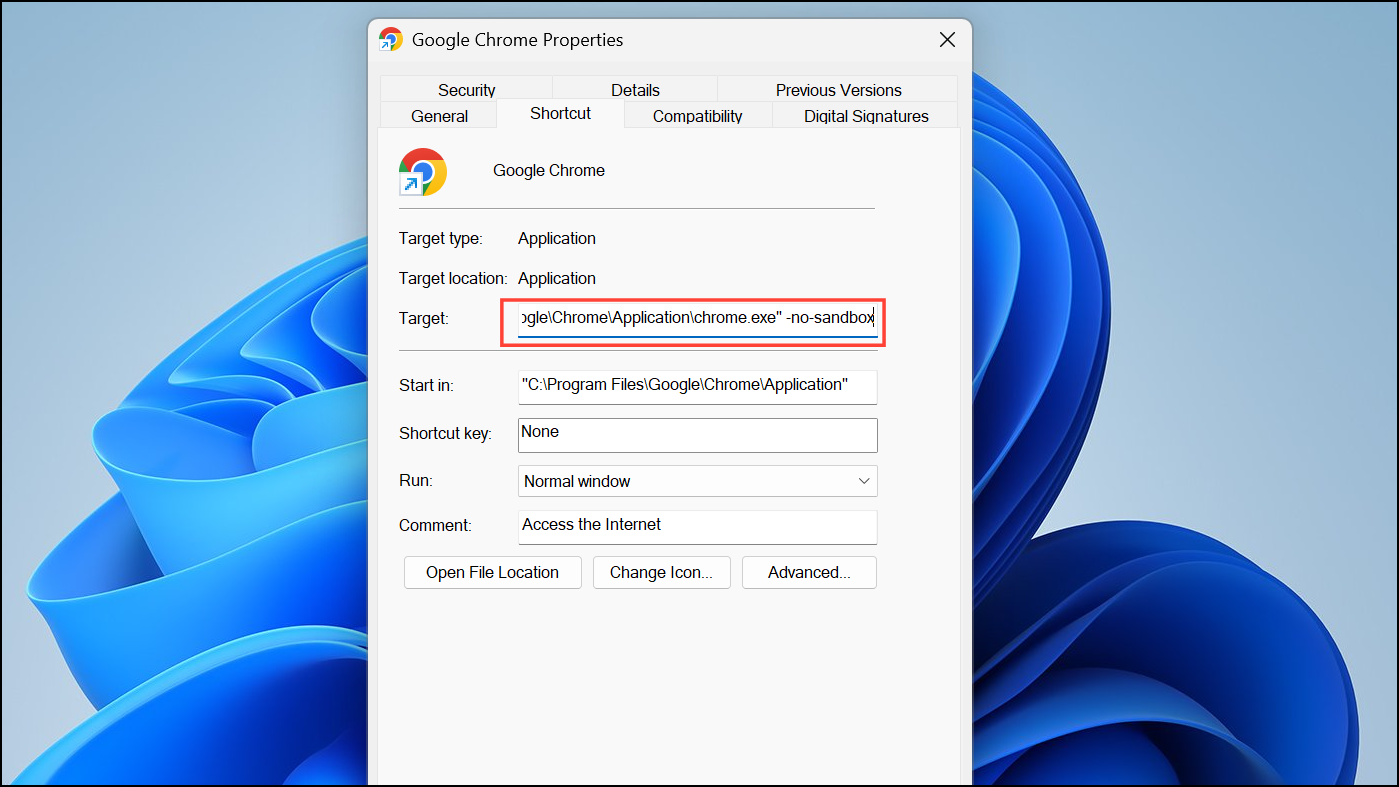
Apply and OK, then try launching Chrome using this shortcut. The -no-sandbox flag disables a security feature that sometimes conflicts with Windows updates, especially after system changes.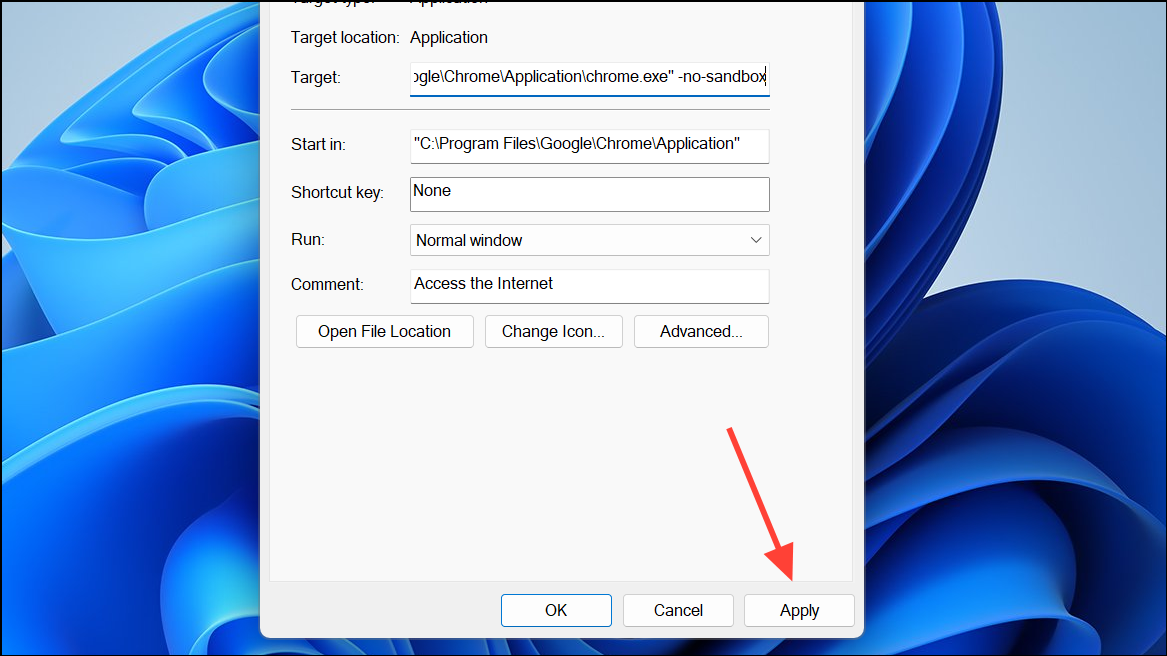
Adjust Exploit Protection Settings in Windows Security
Windows Security from the Start menu. Navigate to App & browser control, then select Exploit protection settings.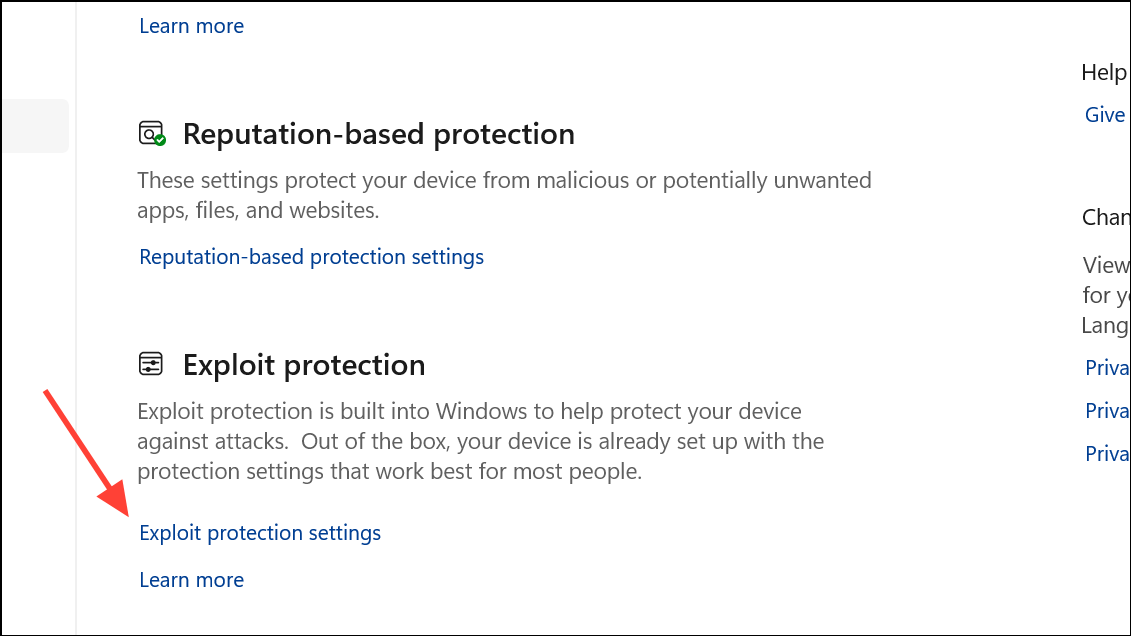
Program settings, click Add program to customize and choose the exact file path for chrome.exe.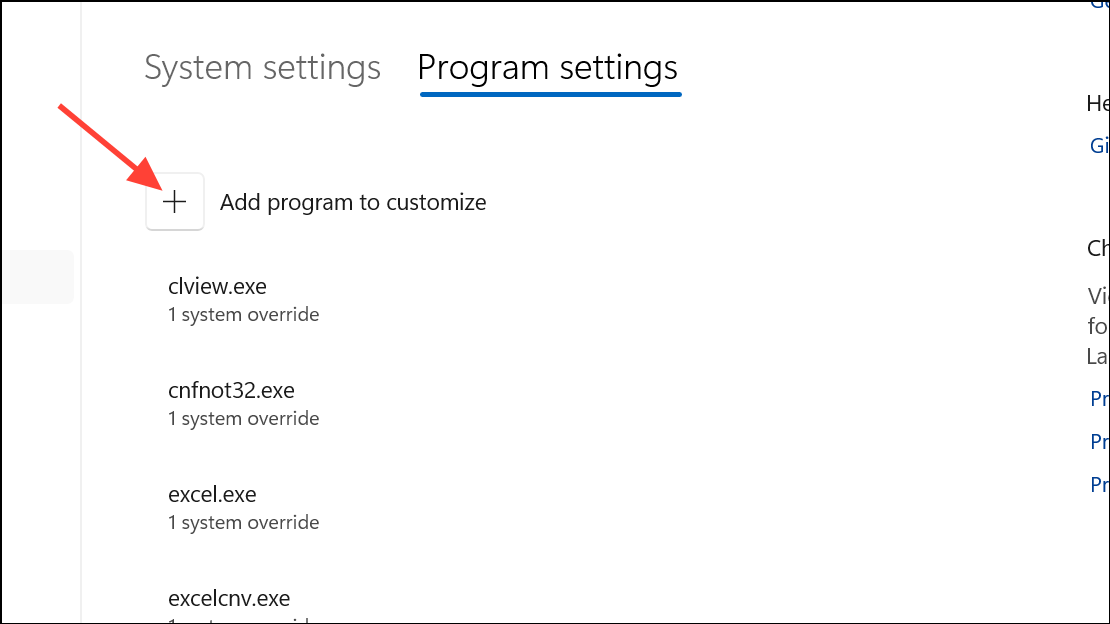
Edit, find Hardware-enforced stack protection, set it to Override system settings, turn it on, and choose Audit only. This change allows Chrome to run while logging any protection events, helping isolate compatibility problems.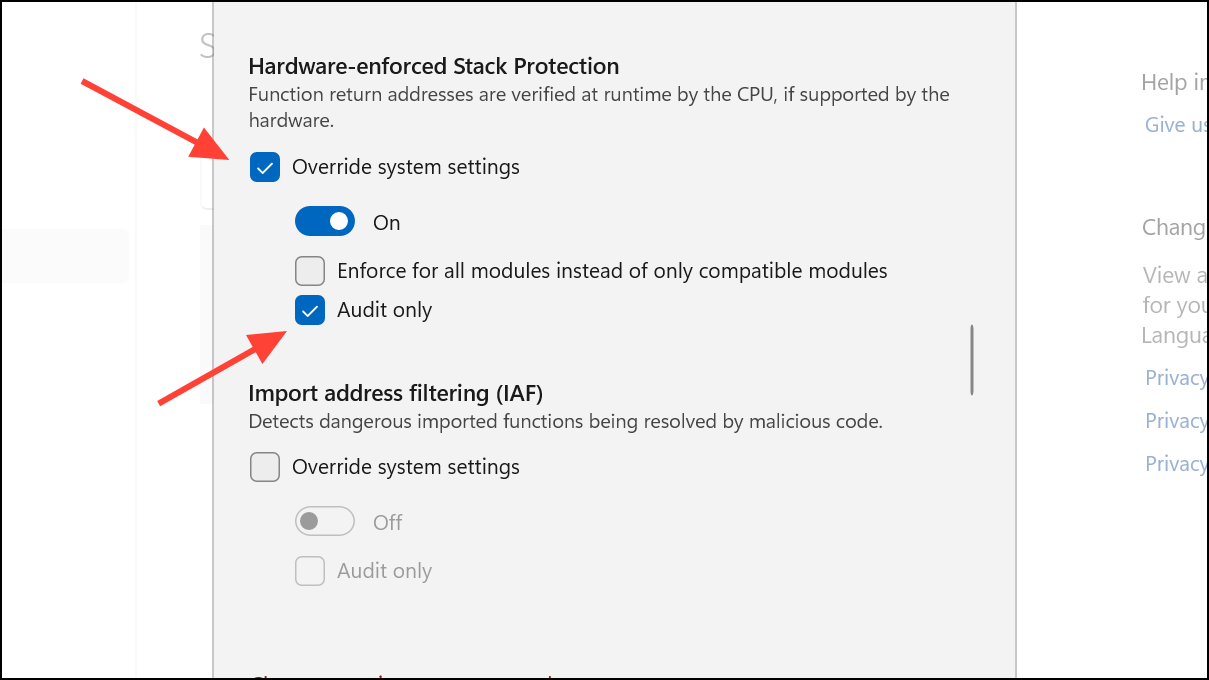
Uninstall and Reinstall Google Chrome
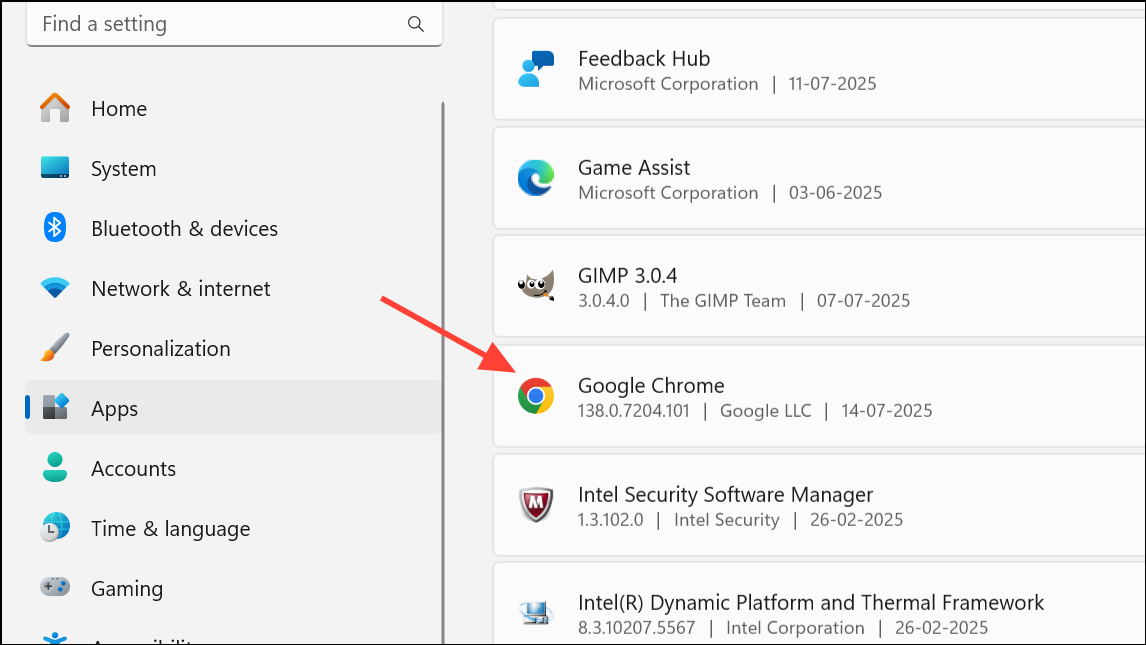
Uninstall. When prompted, check the box to delete browsing data to remove any corrupted user data or settings.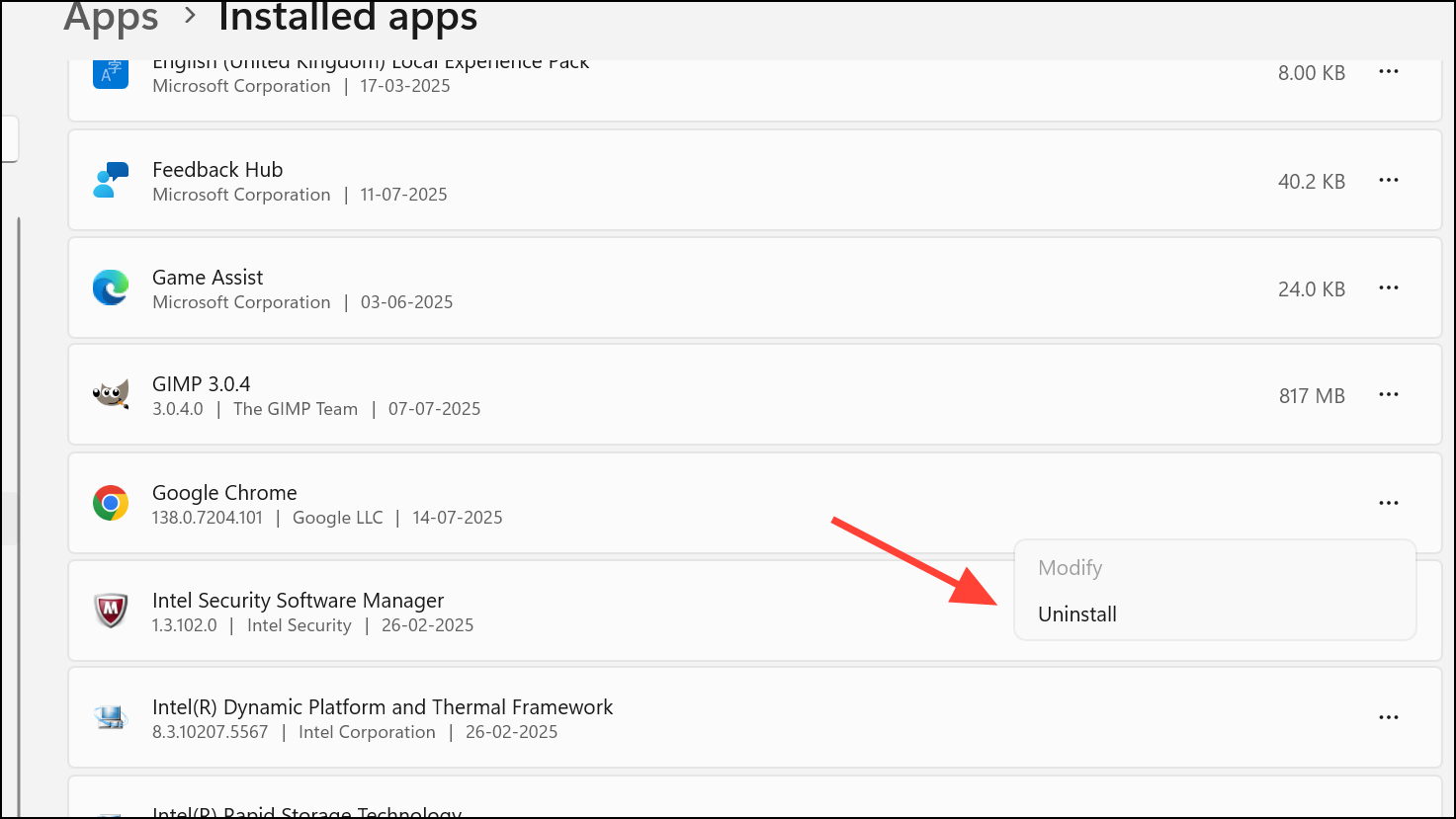
Disable Hardware Acceleration and Extensions
Settings, then System. Turn off Use graphics acceleration when available.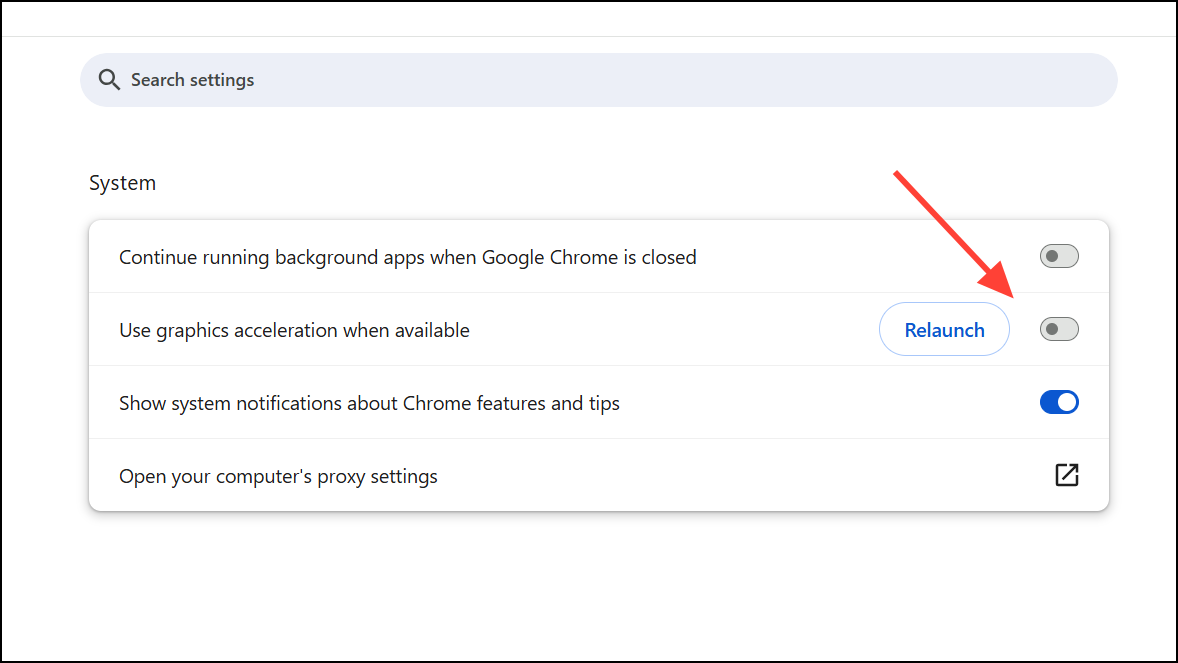
More tools > Extensions. Toggle off all extensions, then restart Chrome. If Chrome stabilizes, re-enable extensions one by one to find any causing issues.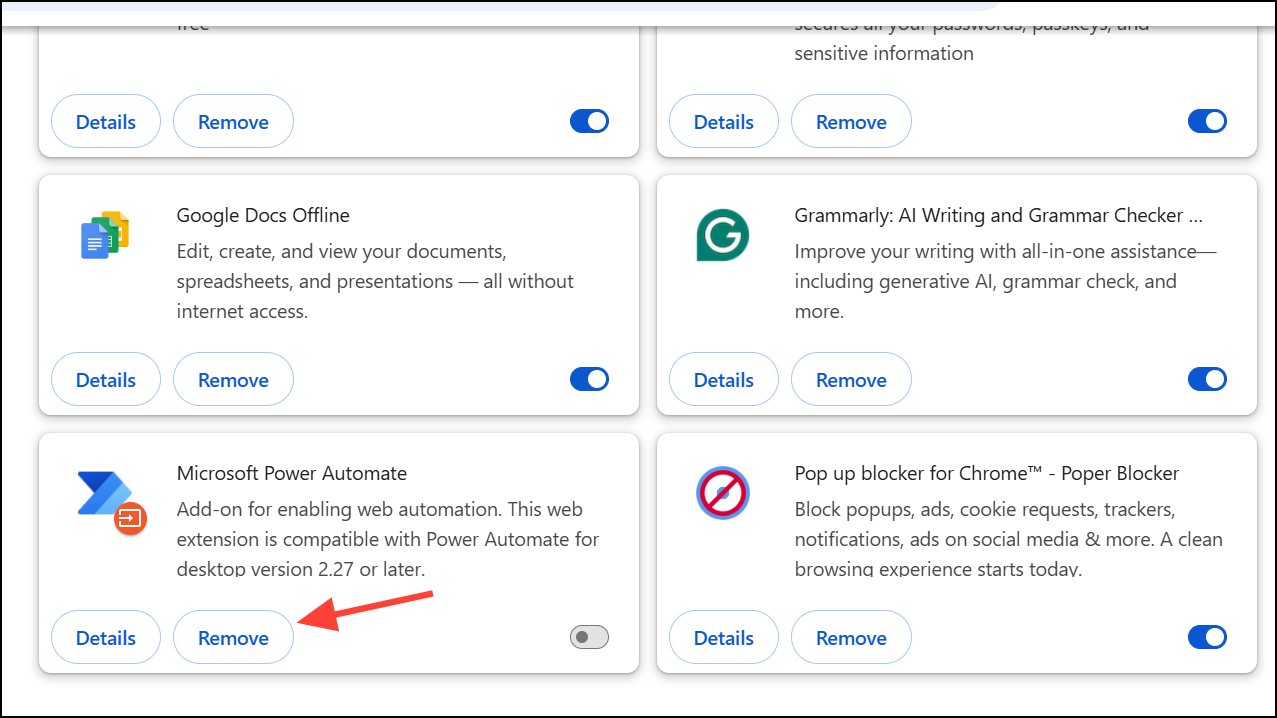
Update Windows and Check for Additional Updates
Win + I to open Settings. Navigate to Windows Update and select Check for updates. Install any pending updates, especially those related to .NET Framework or cumulative patches.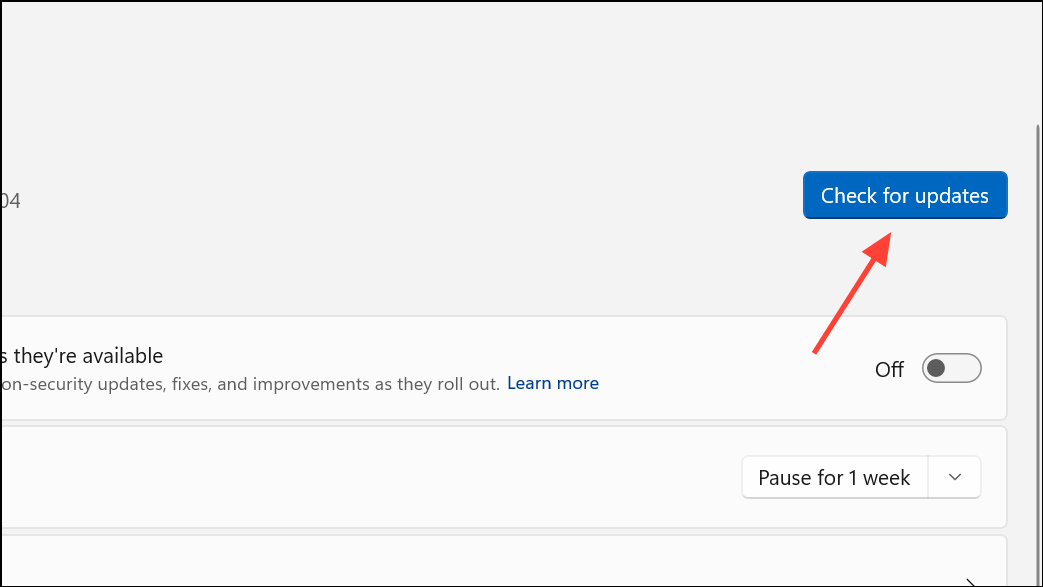
Scan for Malware and Review Antivirus Settings
Applying these targeted fixes restores Chrome’s reliability after Windows 11 update KB5037591. If Chrome continues to crash, using Microsoft Edge or another browser temporarily can maintain productivity while awaiting further official updates or patches.





