

System image backups in Windows 11 can fail for a variety of reasons, including storage issues, disk errors, system file corruption, or conflicts with security software. These failures can prevent you from restoring your system after a crash or major update. Addressing these problems not only restores backup functionality but also improves overall system reliability and data safety.
Use a Reliable Third-Party Backup Tool
Switching to a dedicated backup application often resolves persistent backup failures caused by Windows’ legacy tools. Macrium Reflect Free and AOMEI Cyber Backup are two widely recommended options. These programs offer robust imaging and restore features, and they tend to be more dependable than the built-in Backup and Restore (Windows 7) tool, which Microsoft has deprecated and no longer actively maintains.
These tools also support incremental and differential backups, which speed up subsequent backups and reduce storage requirements.
Check Storage Space on Backup Destination
For those who prefer using Windows’ built-in tools, several targeted troubleshooting steps can address common causes of backup failures. Error codes like 0x80070015 (file in use or locked), 0x80780166 (VSS service failures), and 0x807800A1 (insufficient storage) each point to specific problems that can be resolved with the right approach.
File Explorer and navigate to your backup destination drive. Right-click and select Properties to view available free space. Make sure you have more free space than the total size of the system image you want to create. If storage is low, delete old backups or move non-essential files elsewhere.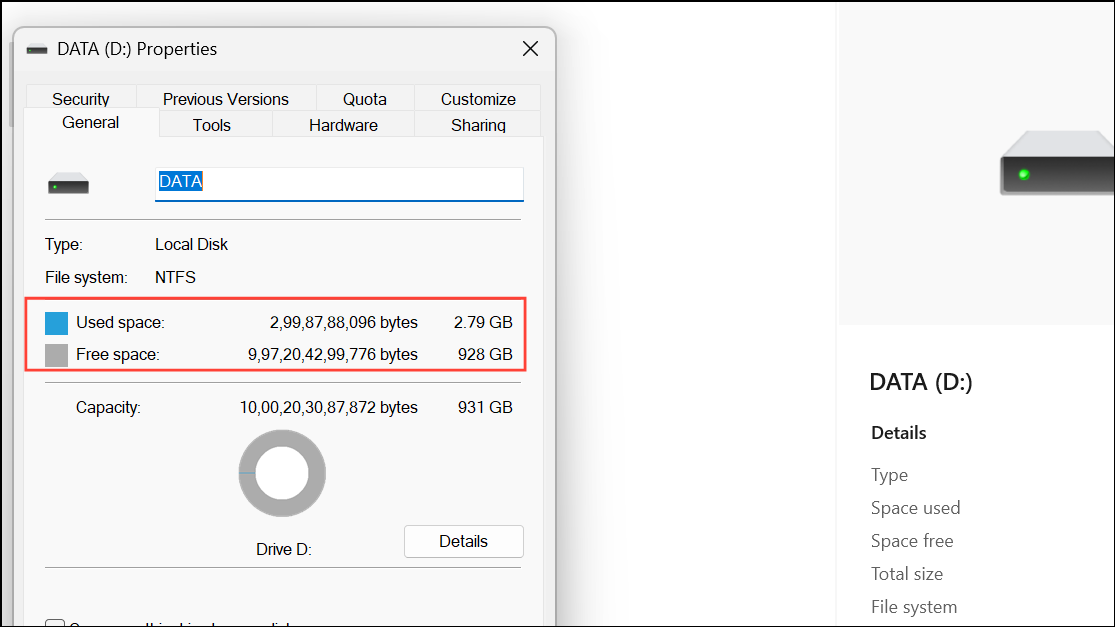
Scan for Disk Errors and Repair System Files
chkdsk /f /r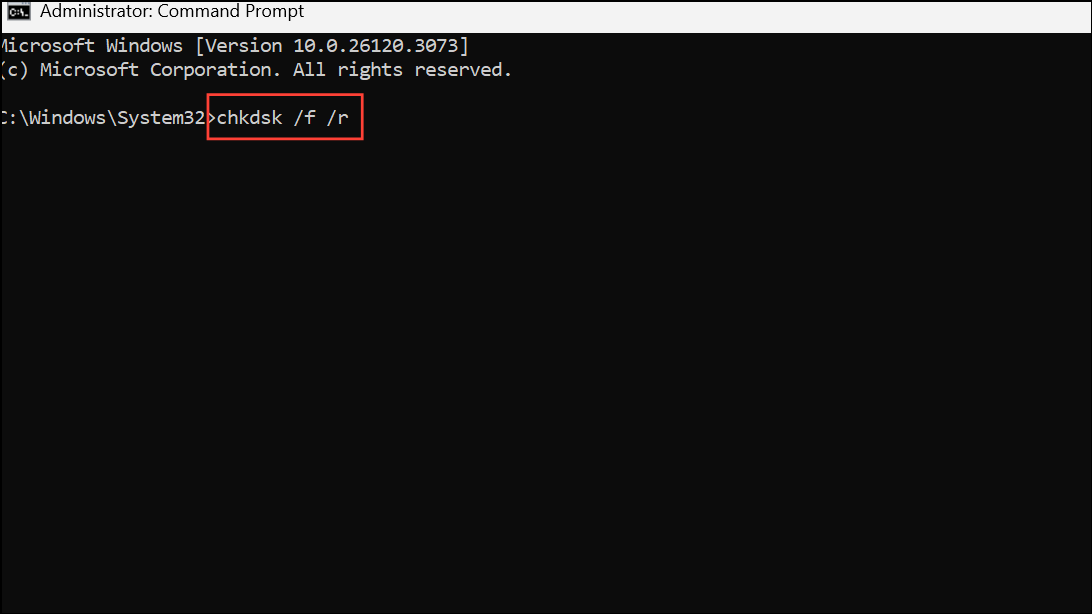
sfc /scannow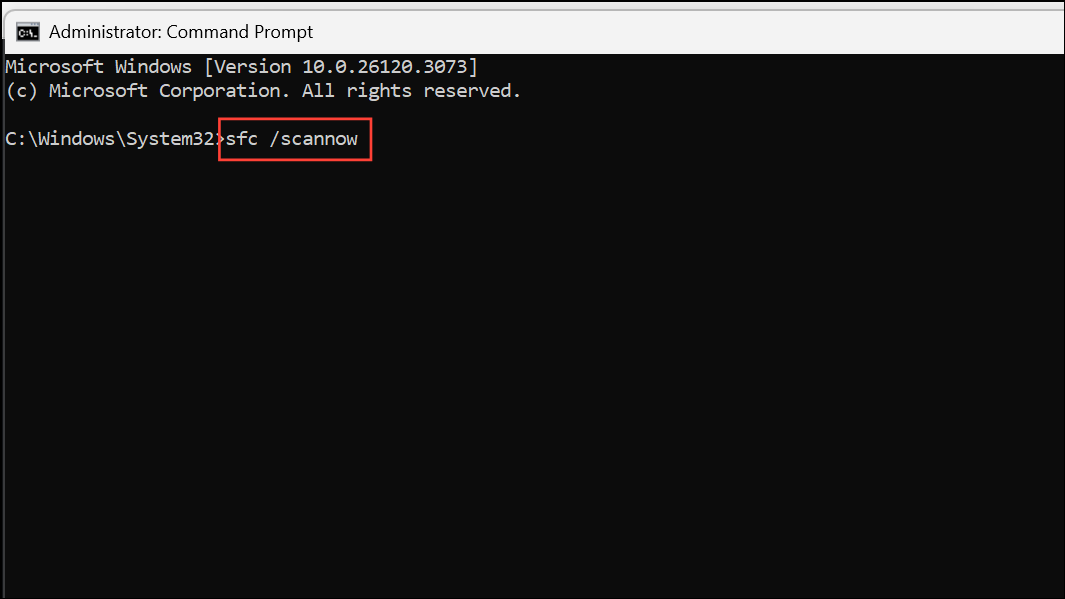
dism /online /cleanup-image /restorehealth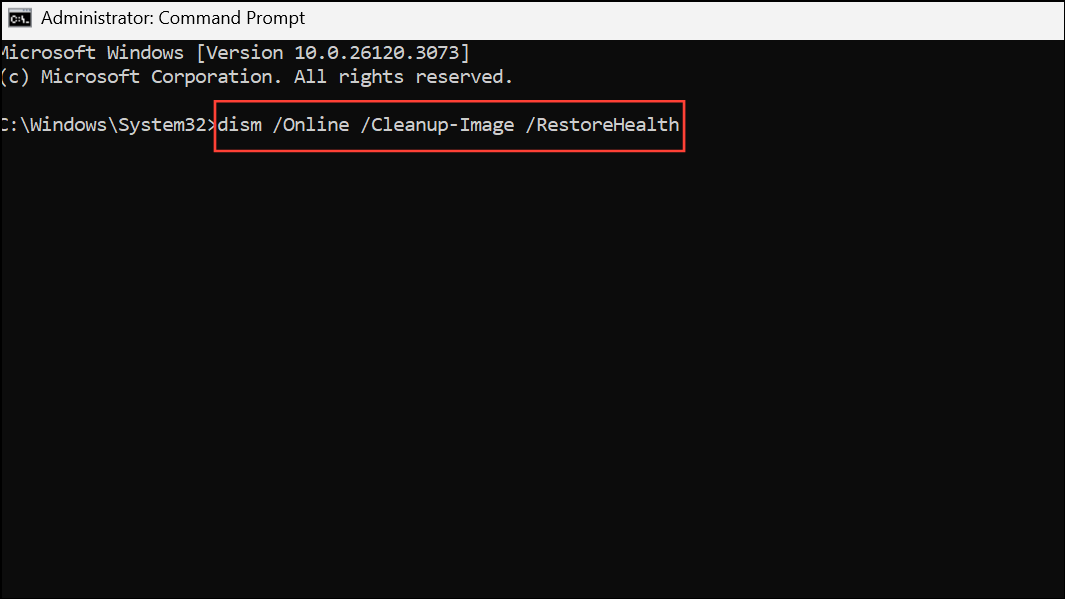
These steps address both physical disk issues and corrupted Windows system files that can block backups.
Check and Restart Backup-Related Services
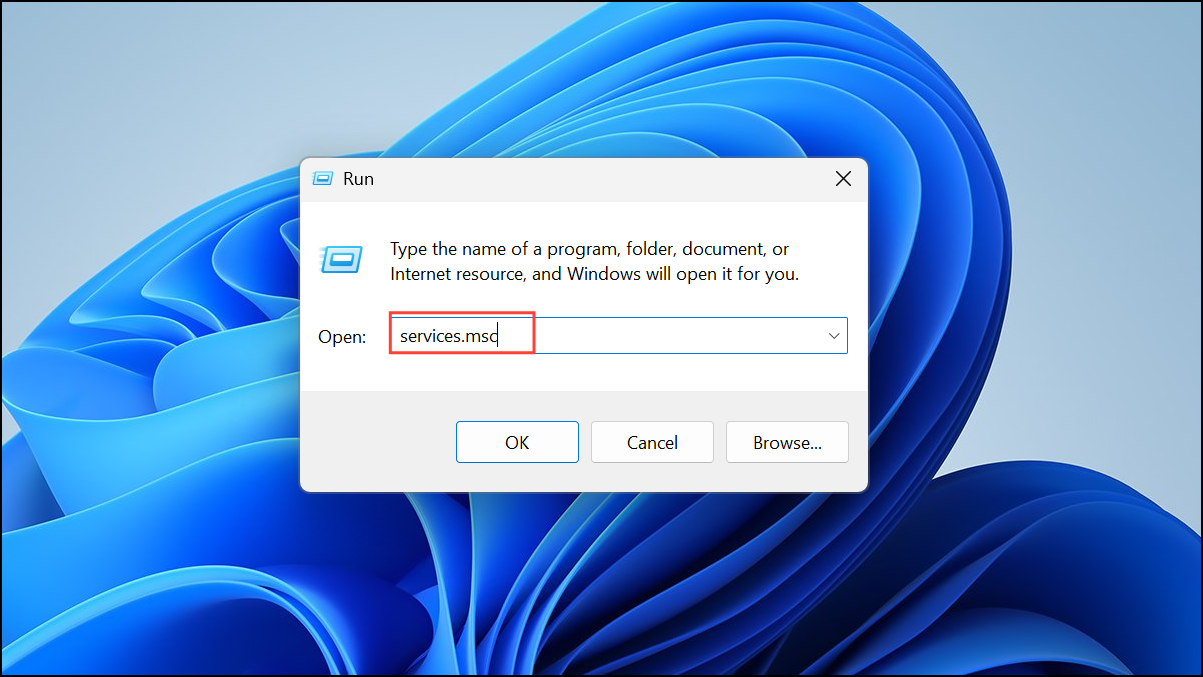
- Volume Shadow Copy (VSS)
- Microsoft Software Shadow Copy Provider
- Block Level Backup Engine Service
- Windows Backup
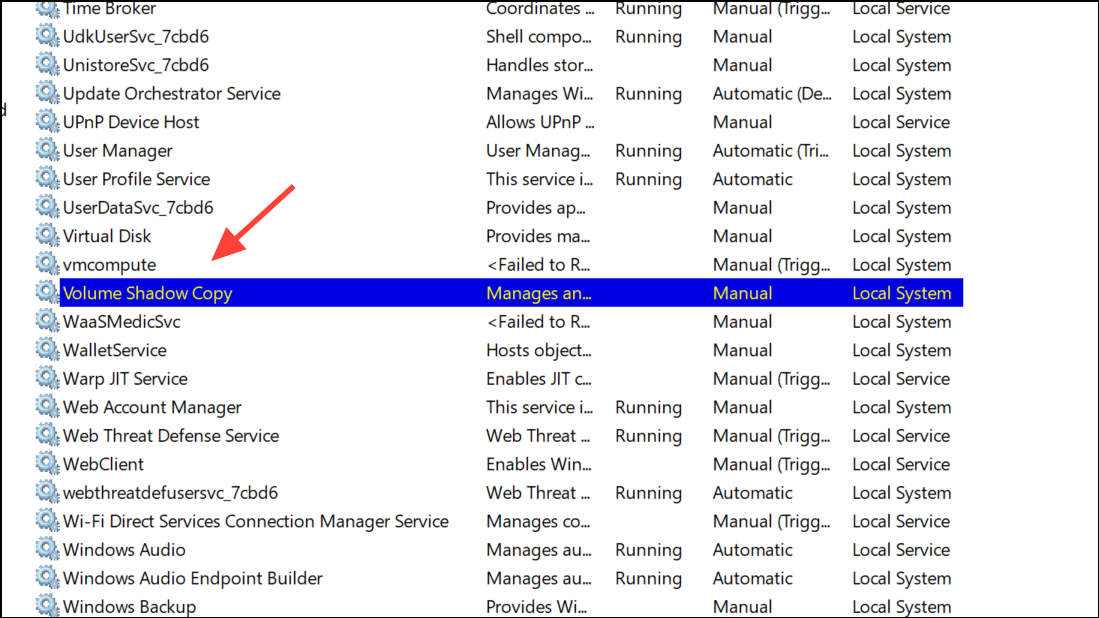
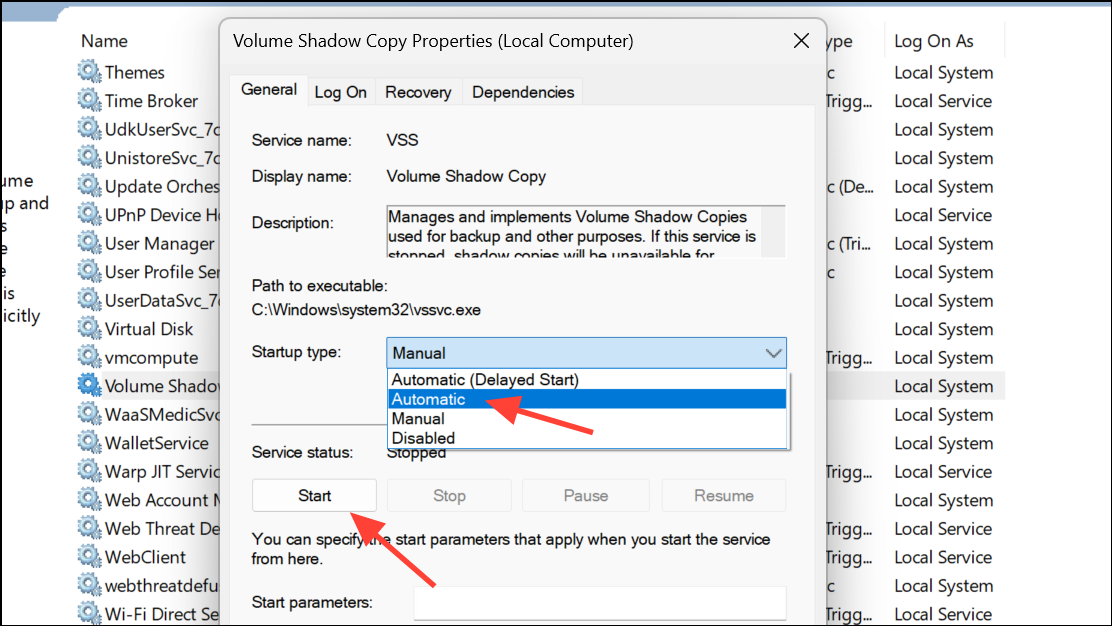
Reconnect or Reformat the Backup Drive
File Explorer, right-click the drive, choose Properties > Tools > Error Checking, and scan for problems. If issues persist, back up any data, then reformat the drive as NTFS to resolve potential corruption or permission problems.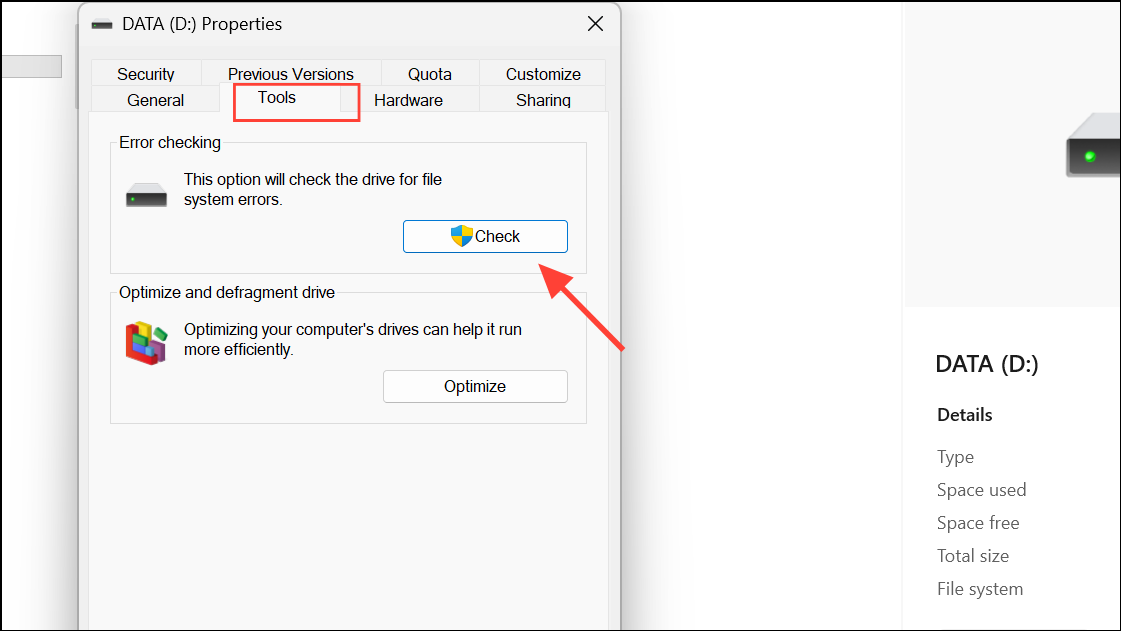
Temporarily Disable Security Software
Third-party antivirus programs can block backup operations. Temporarily disable your antivirus and firewall, then retry the backup. If the process works, add exceptions for backup services or consider using Windows Defender instead.
Review and Reset Backup Configuration
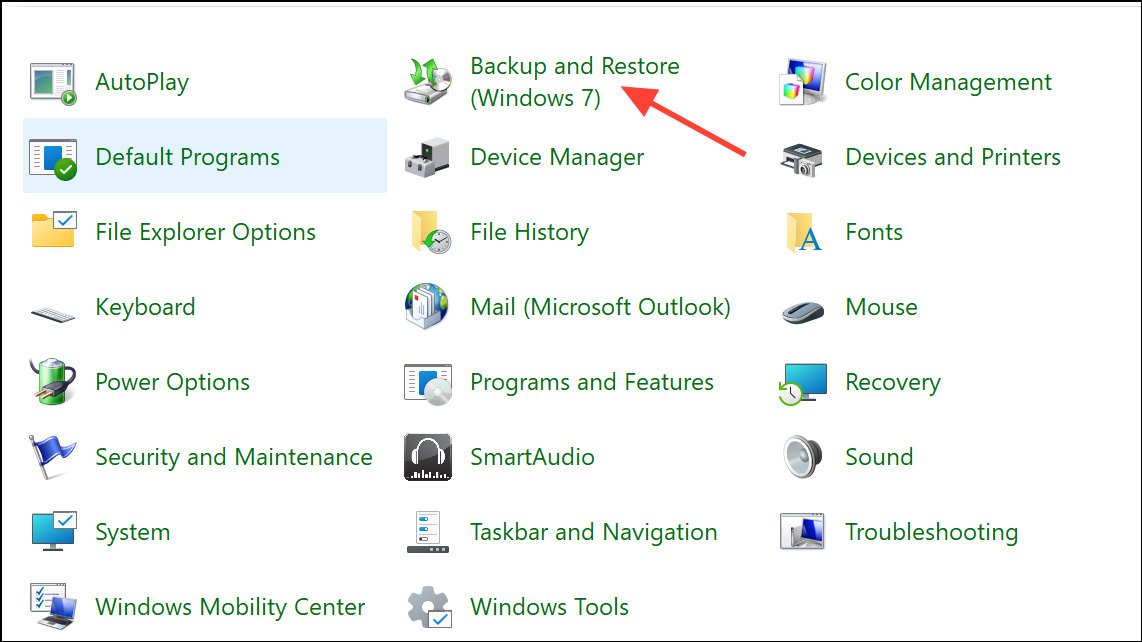
Manage space to delete old backup images. If backups continue to fail, select Set up backup to create a new backup plan from scratch, rather than using an old schedule that may be corrupted.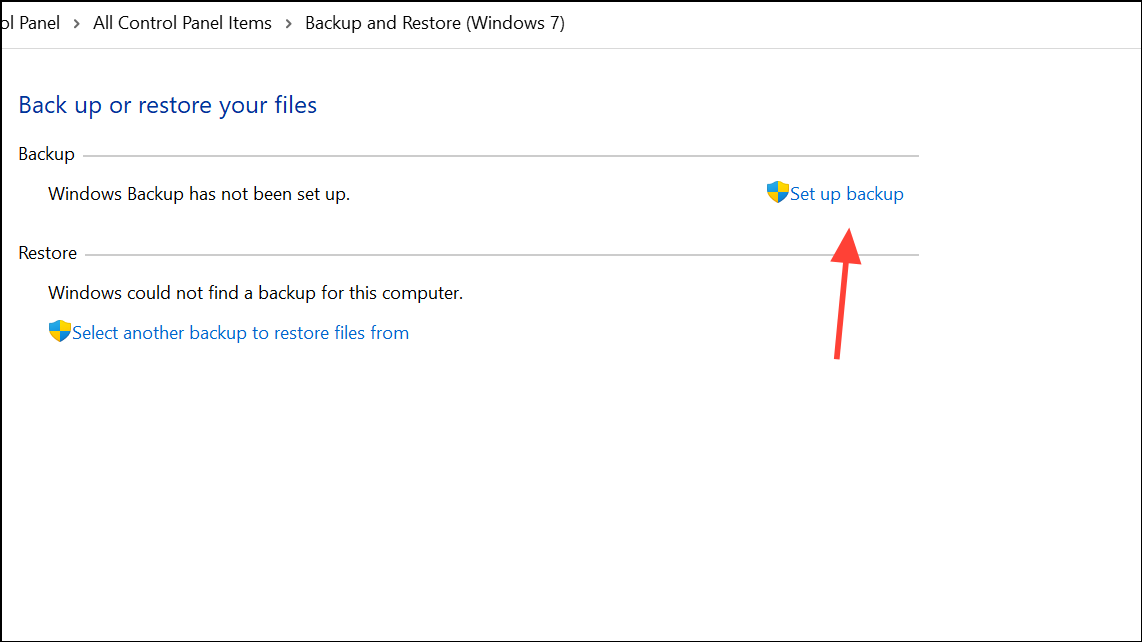
Check for Locked or Missing Files
Backup errors can occur if files are missing or in use. Review the error details for skipped files. If the backup tool reports missing folders (such as a Pictures directory), create the required folder or exclude it from the backup selection. Close any open files or applications before starting the backup.
Repair Windows with In-Place Upgrade
If system corruption persists, perform a non-destructive repair install. Download the latest Windows 11 ISO from Microsoft’s website. Right-click the ISO, select Mount, and run setup.exe. Choose the option to keep personal files and apps. This process reinstalls Windows system files without affecting your data or programs.
Restore System Image When Recovery Fails
Restoring a system image sometimes fails if you attempt it from the standard Windows Recovery Environment (WinRE) and the necessary drivers or partitions are missing. If you see prompts to insert a CD or cannot select your backup location, use these steps:
System Image Recovery and point to the backup image stored on an external drive. Ensure the WindowsImageBackup folder is in the root directory of the drive, not inside a subfolder.Use File Synchronization for Personal Data
For users mainly concerned with backing up personal files (Documents, Pictures, Videos), synchronization tools like FreeFileSync provide a simple way to mirror folders to an external drive. This approach is ideal if you want to avoid full system images and only need to protect specific data.
D:\Documents, D:\Pictures).C:\Users\YourName\Documents) and the right pane to the destination folder on your external drive.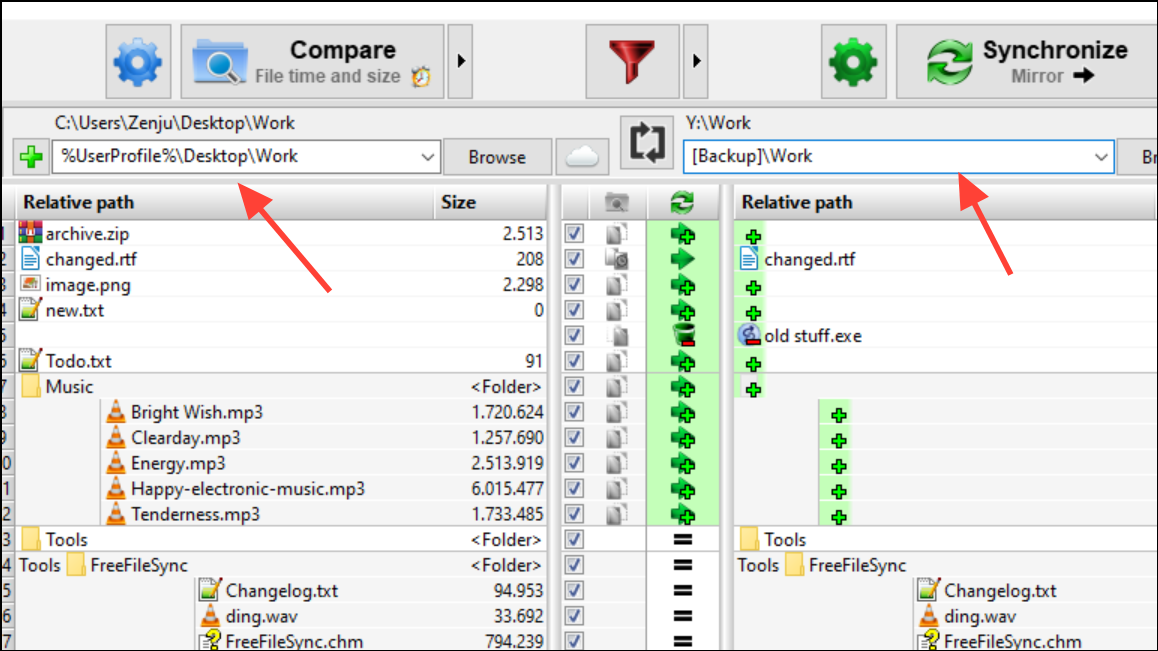
Mirror option to ensure the backup drive matches your source folder. Only new, updated, or deleted files are synchronized each time you run the job.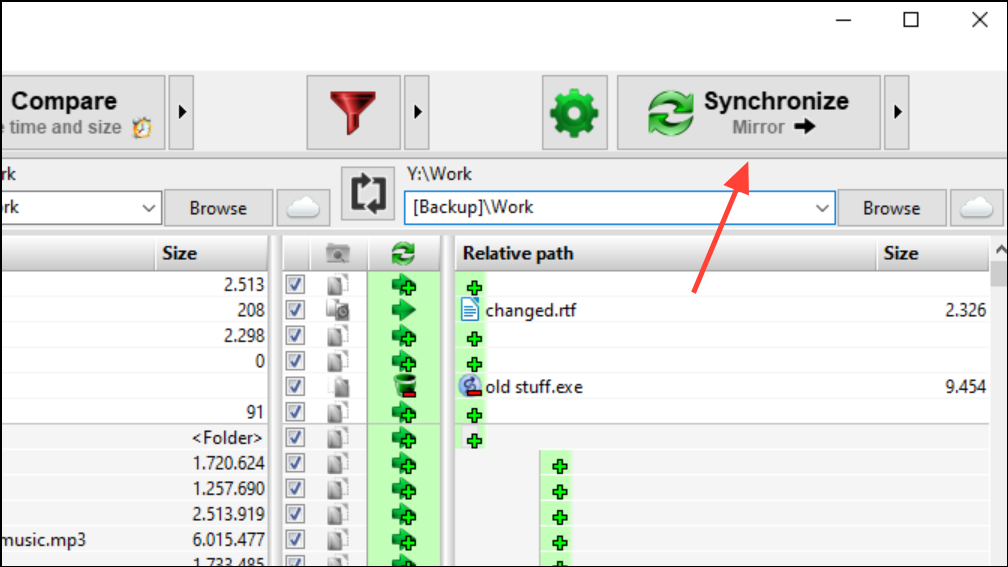
This method streamlines the process of keeping personal files safe without relying on system image tools.
Regularly verifying your backup destination, keeping system files healthy, and considering reliable alternatives to Windows’ built-in tools will minimize backup failures and ensure your data is always recoverable.



