How to Disable Selection Highlight When Hovering Over an Object in Windows 11
Stop files and folders from being automatically selected or highlighted when your mouse hovers over them in Windows 11 File Explorer.
Stop files and folders from being automatically selected or highlighted when your mouse hovers over them in Windows 11 File Explorer.
by Pallav Pathak
Automatic selection of files or folders when hovering the mouse in Windows 11 File Explorer can disrupt workflow and result in accidental actions, especially when managing large numbers of files. This behavior may be caused by system accessibility settings, File Explorer options, group policy configurations, or registry values. Several methods are available to disable this feature and regain precise control over file selection.
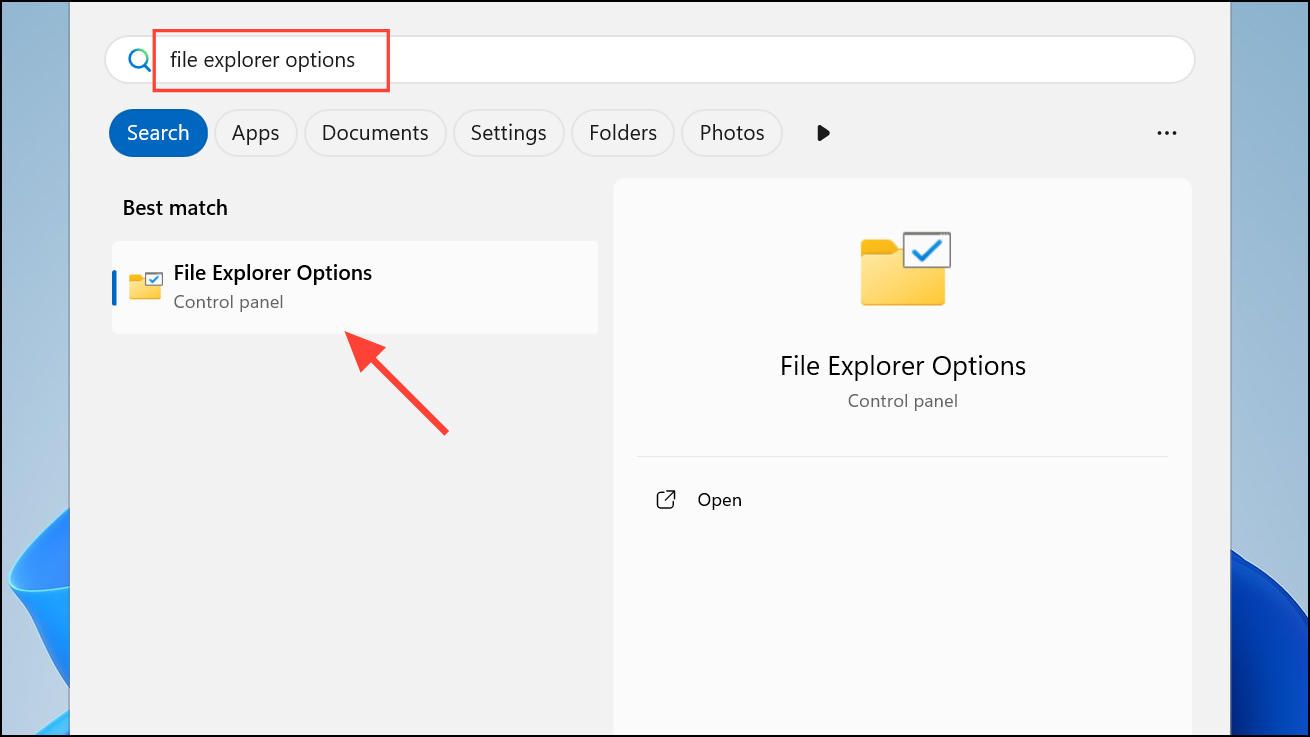
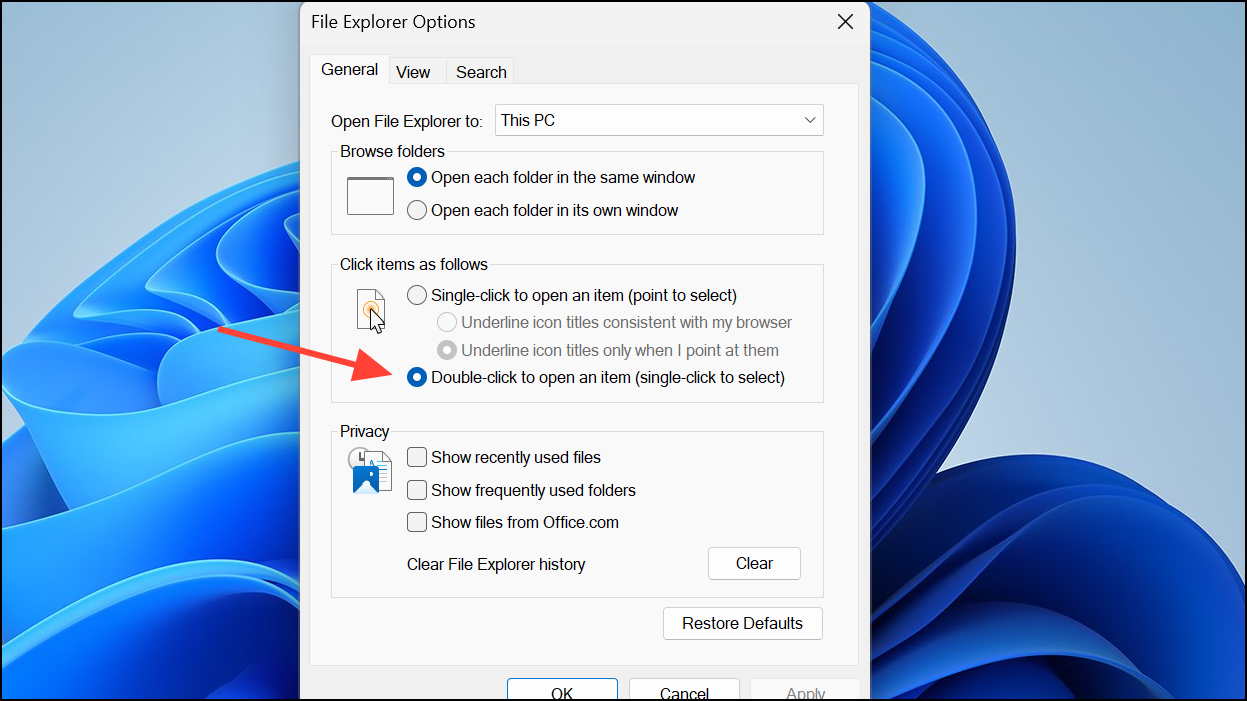
In the General tab, locate the Click items as follows section. Make sure Double-click to open an item (single-click to select) is selected instead of Single-click to open an item (point to select). This setting requires a physical click to select or open items, rather than selecting on hover.
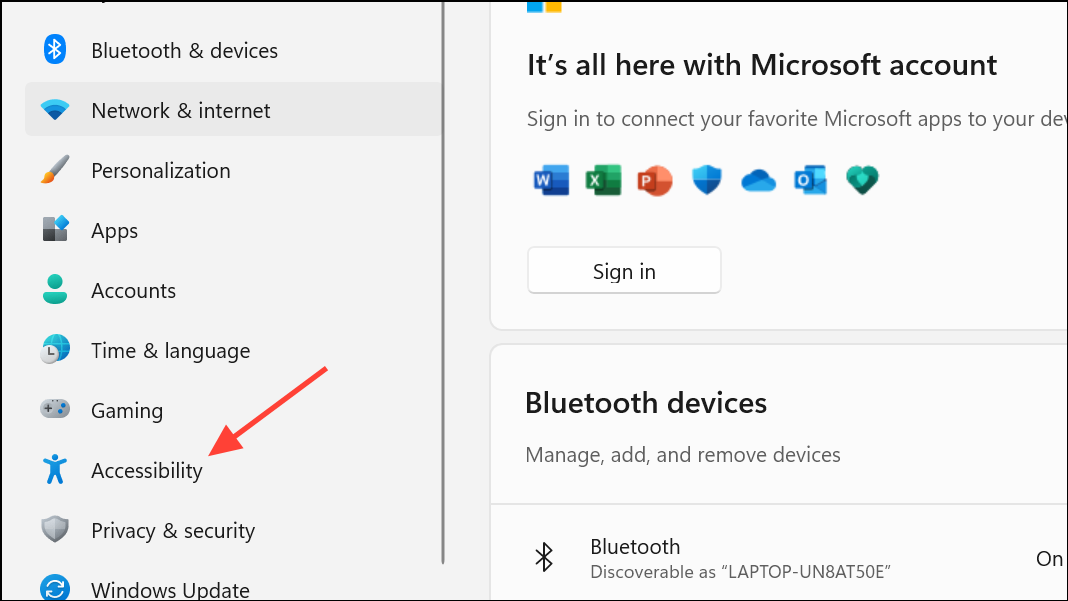
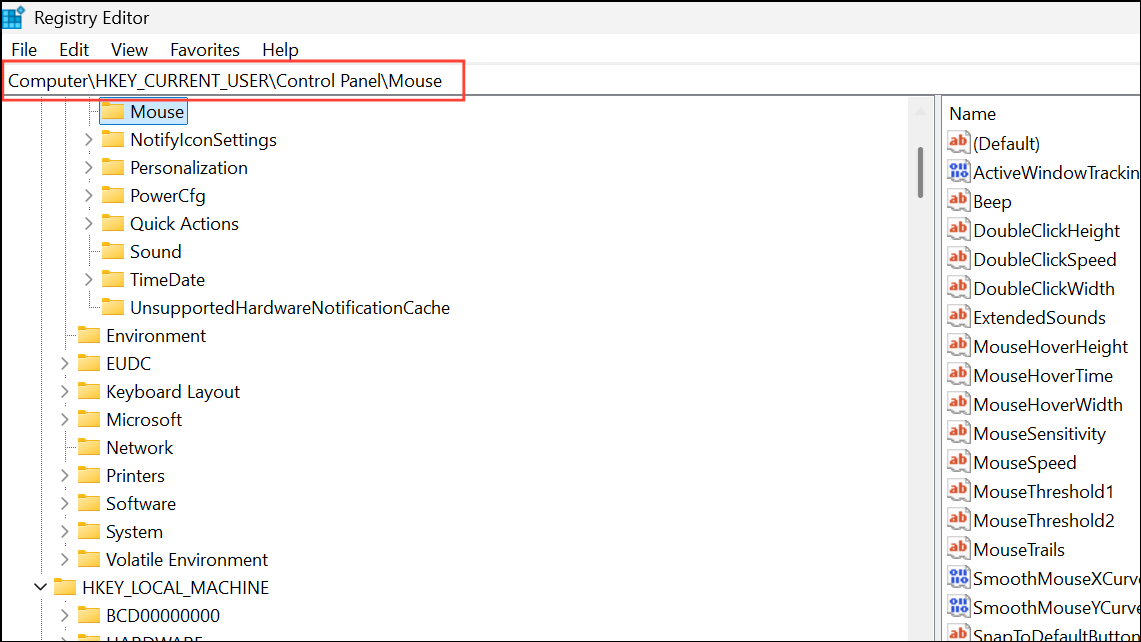
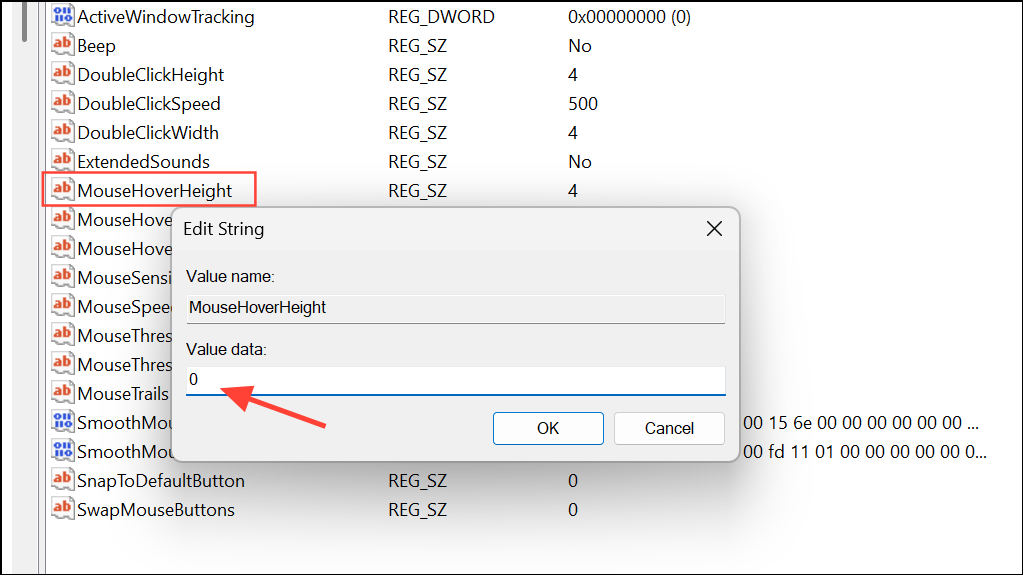
Look for any option related to activating or selecting items on hover (such as “Activate a window by hovering over it with the mouse”). If enabled, turn this feature off. This prevents the system from selecting or activating items simply by hovering.
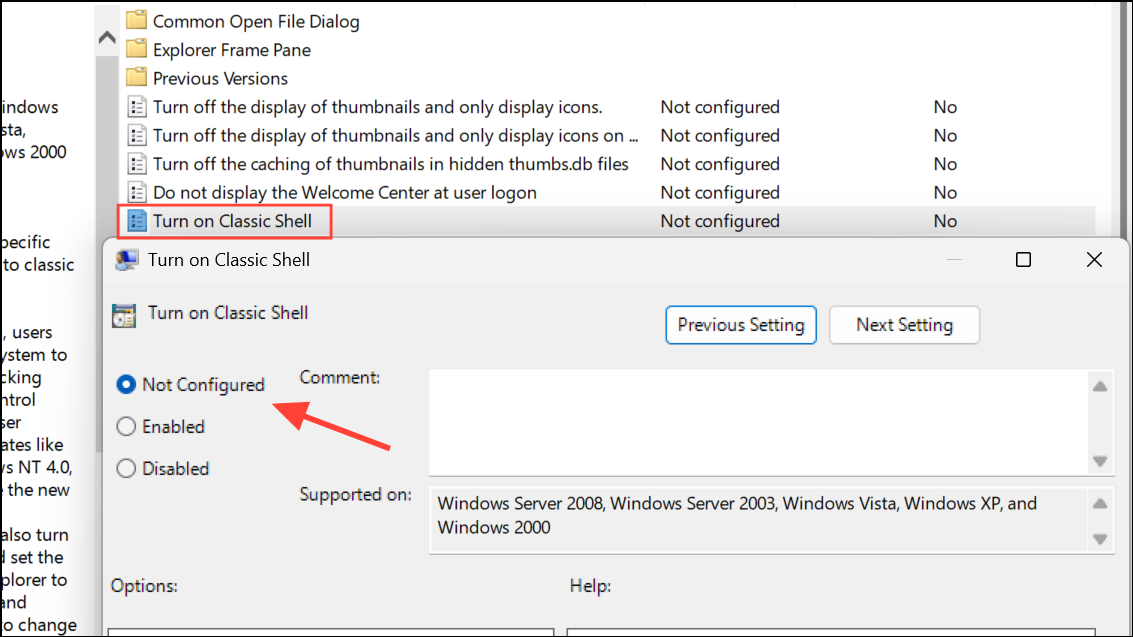
Double-click on Turn on Classic Shell (or a similarly named policy). Set it to Not Configured and click OK. This step removes policies that may enforce hover selection or restrict File Explorer behavior.
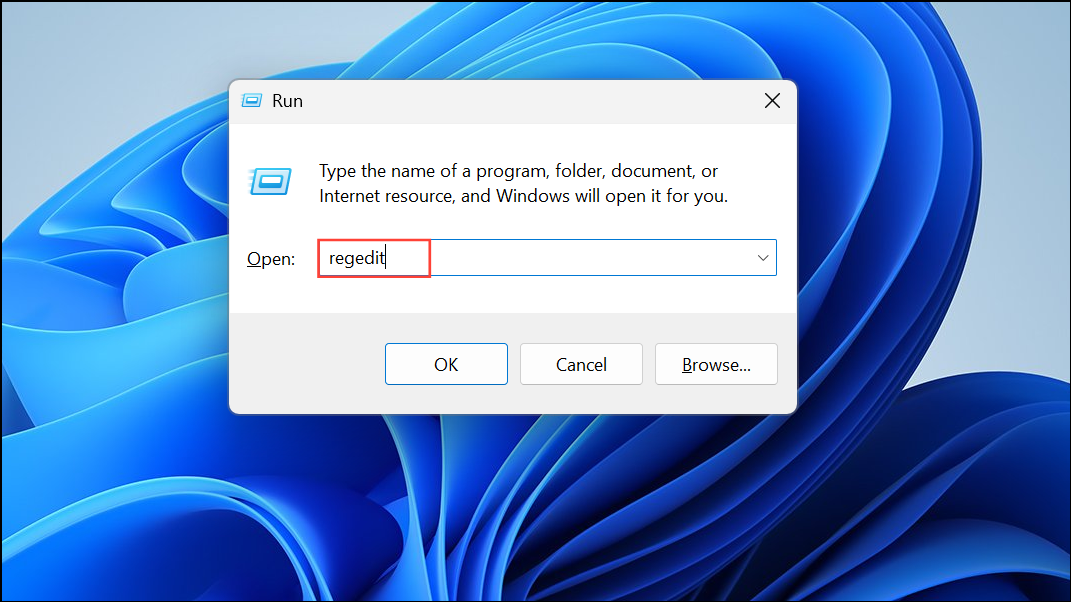
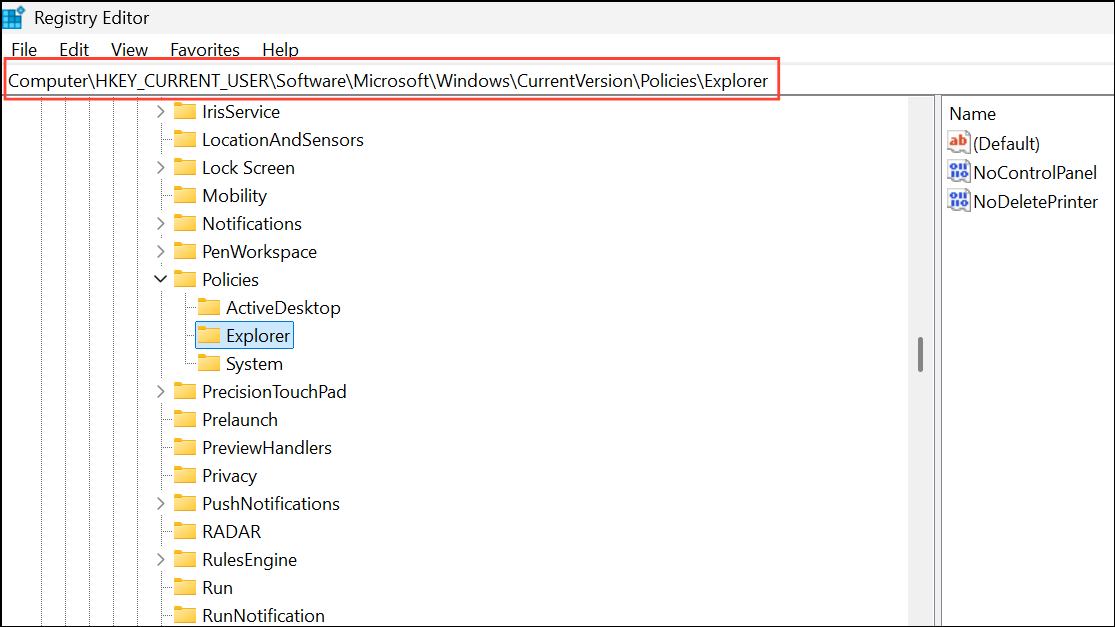
Optionally, check HKEY_CURRENT_USER\Software\Microsoft\Windows\CurrentVersion\Policies\Explorer for a value named ClassicShell. If present, delete this value to remove any enforced classic shell settings that could affect selection behavior.
Close the Registry Editor and restart your computer for the changes to take effect.
Caution: Editing the registry can cause system issues if done incorrectly. Always back up the registry before making changes. For backup instructions, refer to Microsoft’s official documentation.
Method 5: Update Mouse Drivers and Adjust Mouse Settings
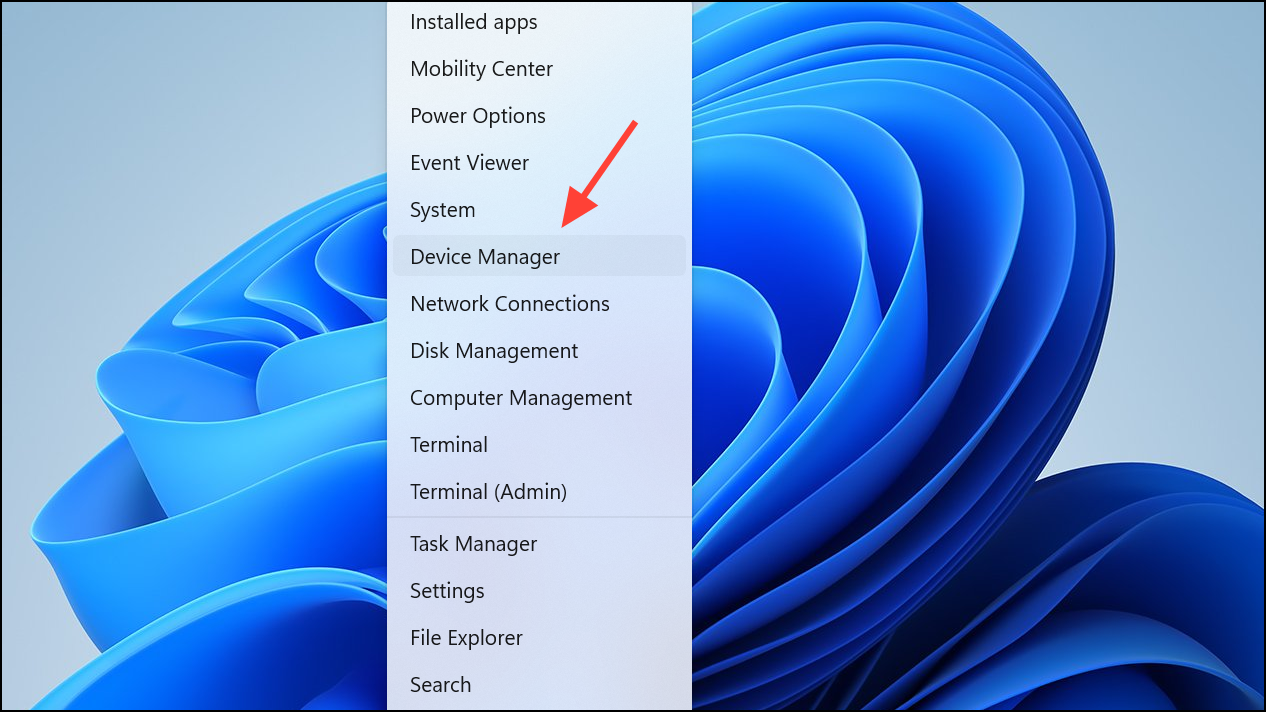
Occasionally, outdated or malfunctioning mouse drivers or misconfigured mouse settings may cause unwanted selection behavior.
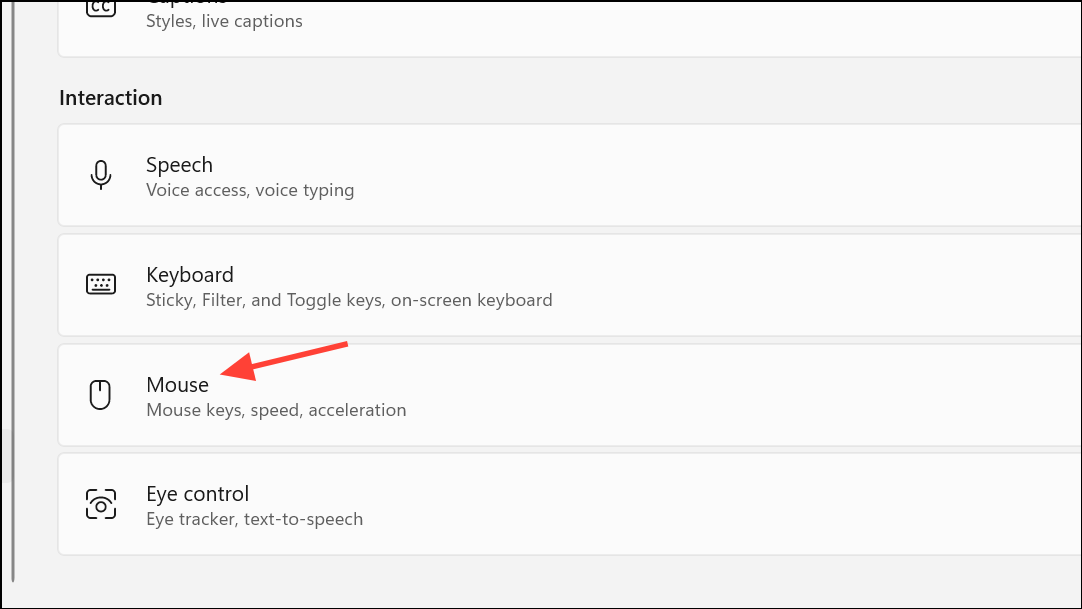
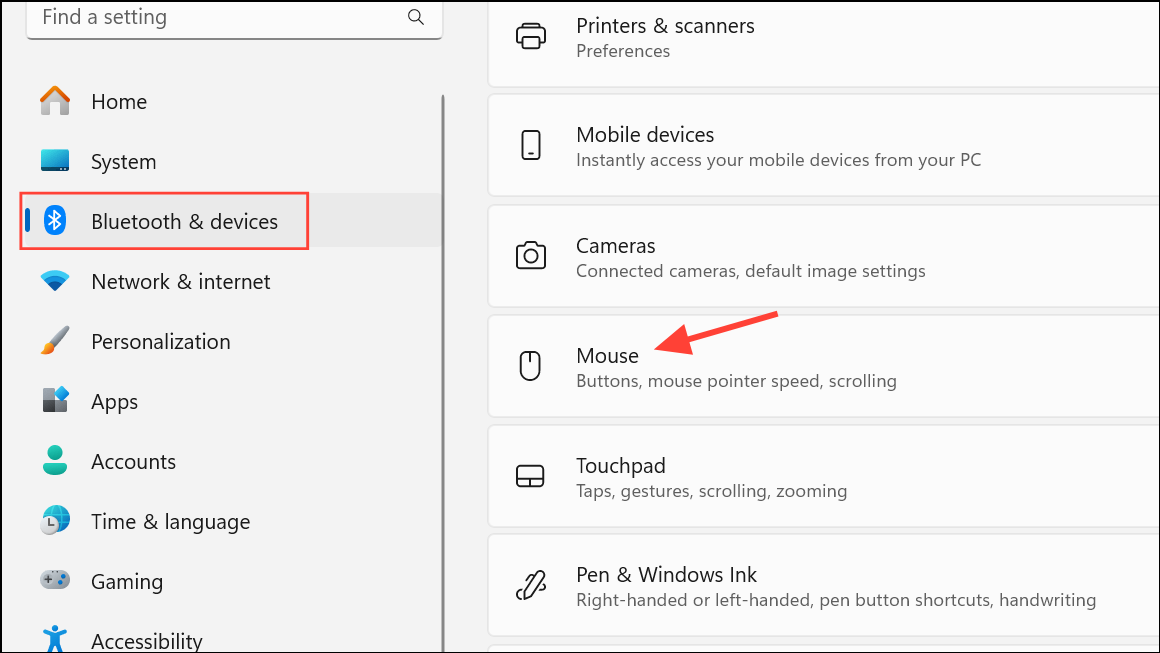
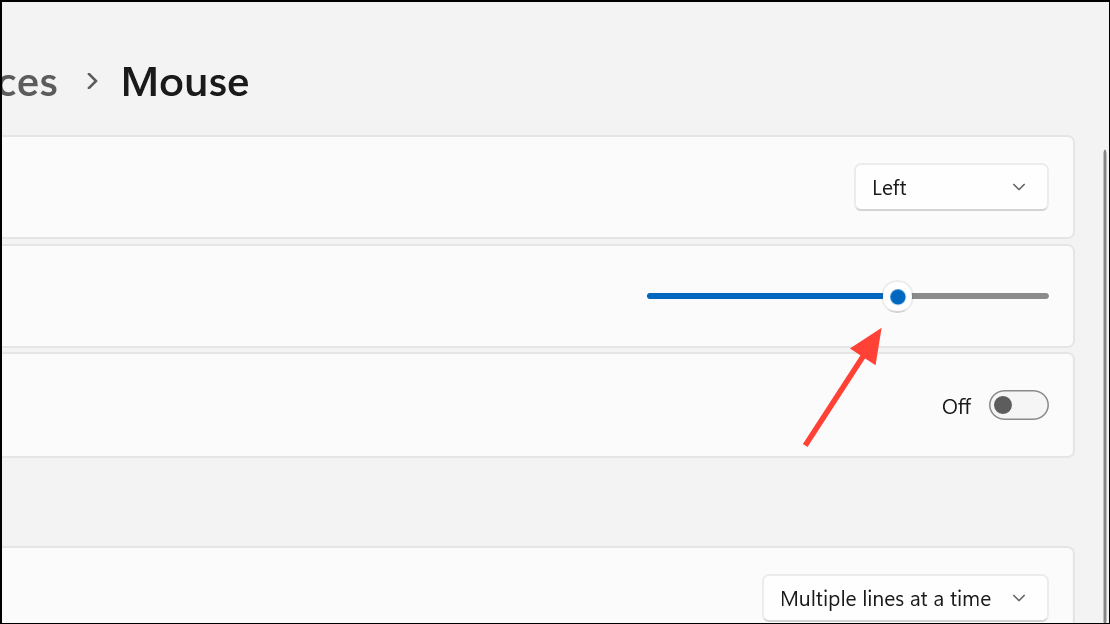
Adjust the Cursor speed slider to a slower setting if the mouse feels overly sensitive. For laptops, select Touchpad and adjust sensitivity under the Taps section.
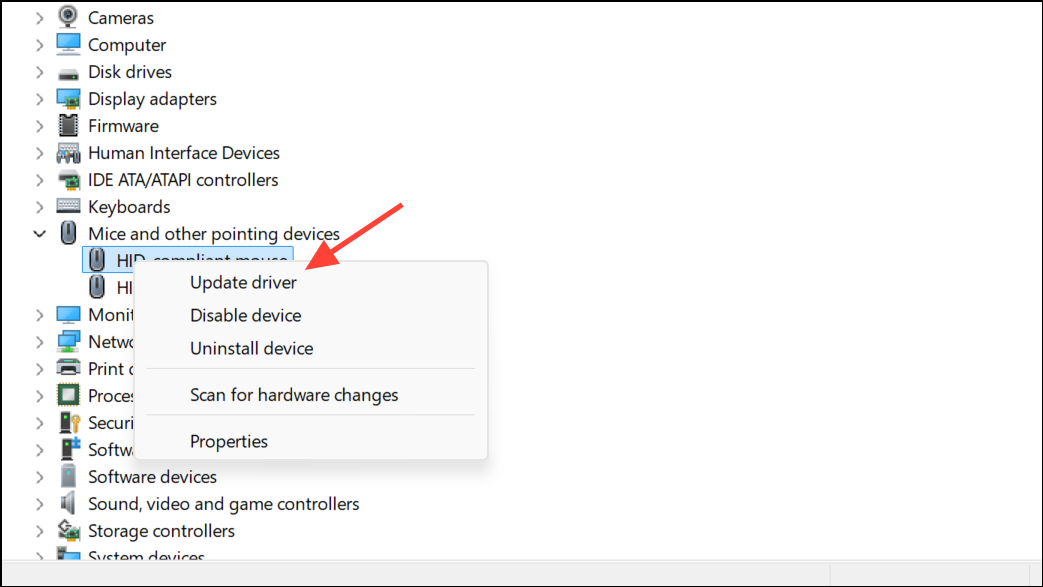
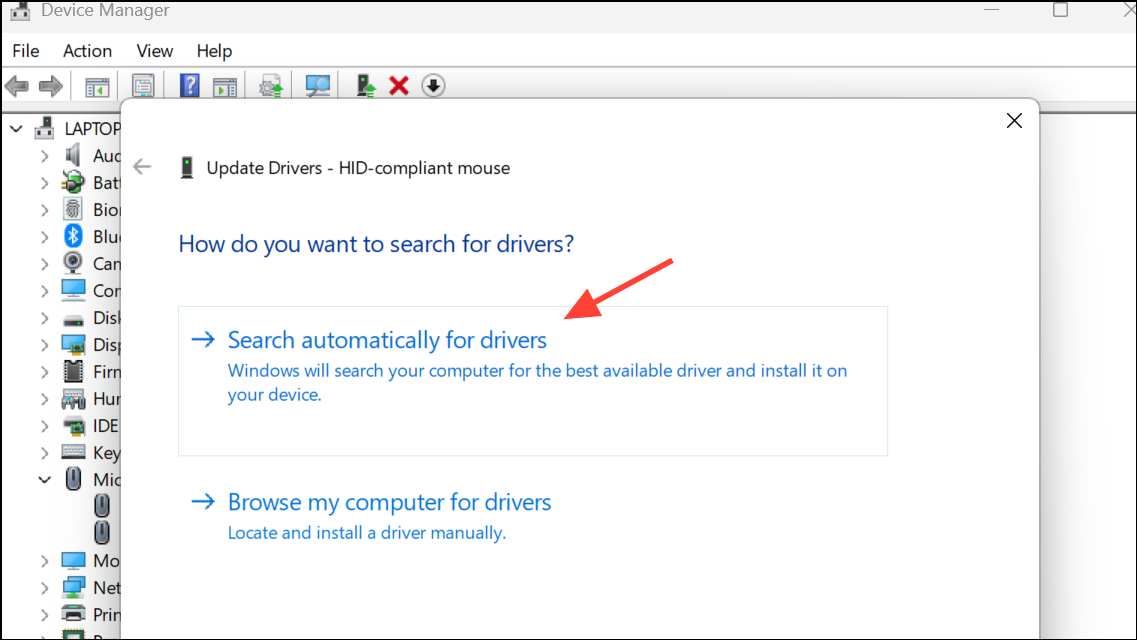
Choose Search automatically for drivers to check for updates. If no update is found, try Uninstall device and restart your PC to reinstall the driver automatically.
Method 6: Disable Tablet Mode (If Applicable)
Tablet mode can sometimes trigger hover-based selection, especially on touch-enabled devices.
Applying these methods will stop Windows 11 from automatically selecting or highlighting items when hovering. If the issue persists after trying all methods, check for third-party utilities or corporate policies that may enforce custom behaviors, and consider contacting your system administrator for further assistance.