
Printing jobs in Windows 11 can fail abruptly with the message “The I/O operation has been aborted because of either a thread exit or an application request.” This error typically interrupts printing, scanning, or device syncing processes, and is often linked to corrupted print drivers, issues with the print spooler service, or outdated system files. Addressing these root causes restores device functionality and prevents further disruptions.
Update or Reinstall Printer Drivers
Outdated or corrupted printer drivers are a primary source of the I/O operation error. Installing the latest drivers ensures compatibility with Windows 11 and removes problematic files from previous installations.
Programs and Features by searching for it in the Start menu. Locate your printer in the list, select it, and choose Uninstall to remove the software.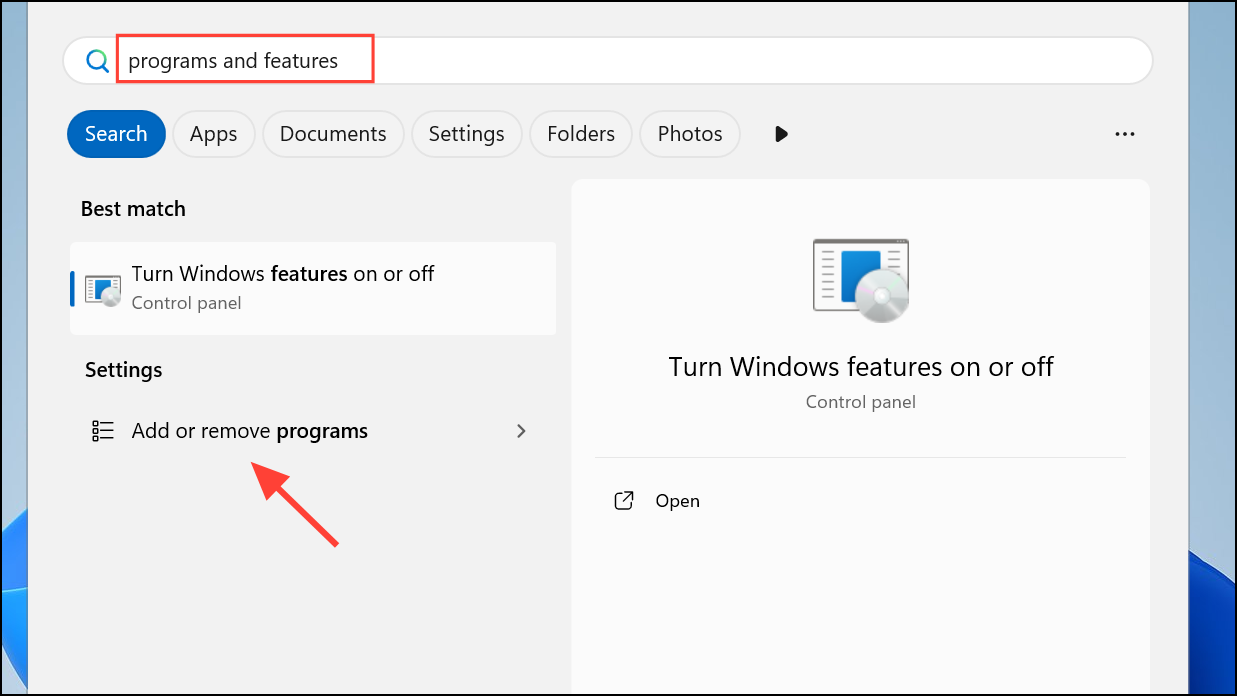
Printers and Scanners from the Start menu. Right-click your printer and select Remove Device to clear any remaining references.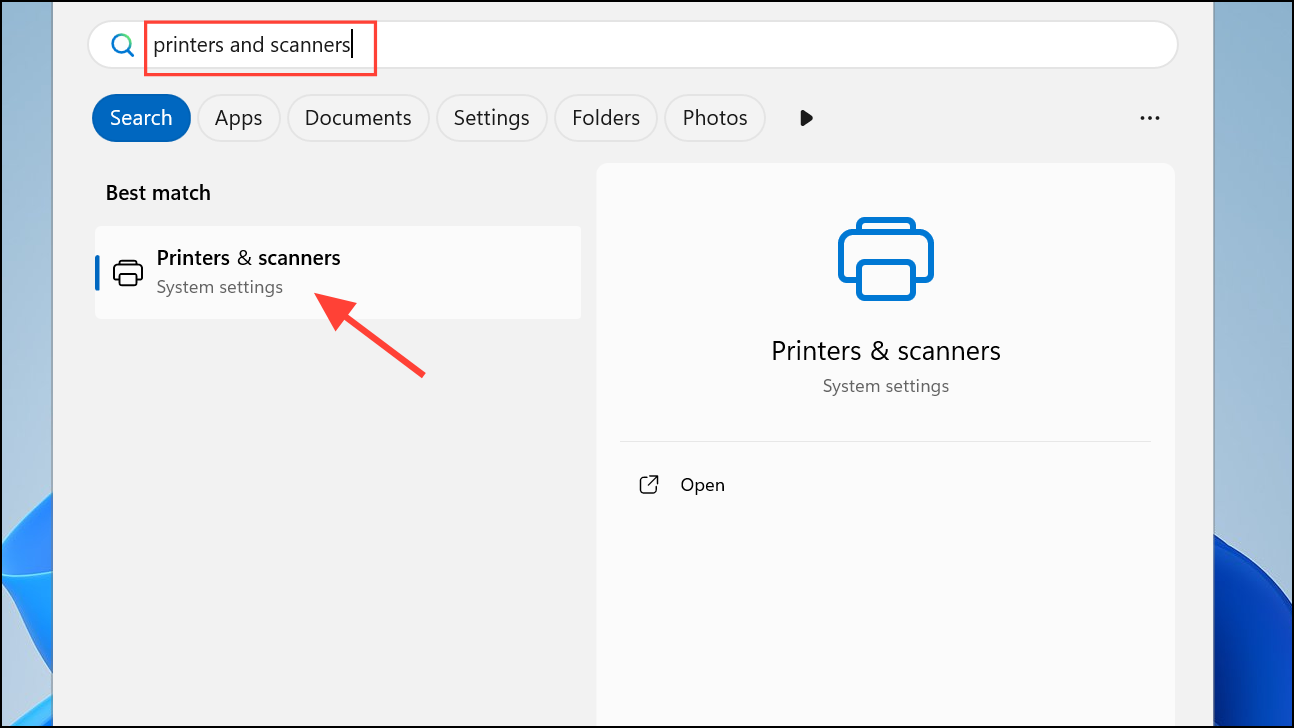
Windows + R to open the Run dialog, then enter printui.exe /s and click OK. In the Print Server Properties window, go to the Drivers tab, select your printer driver, and click Remove.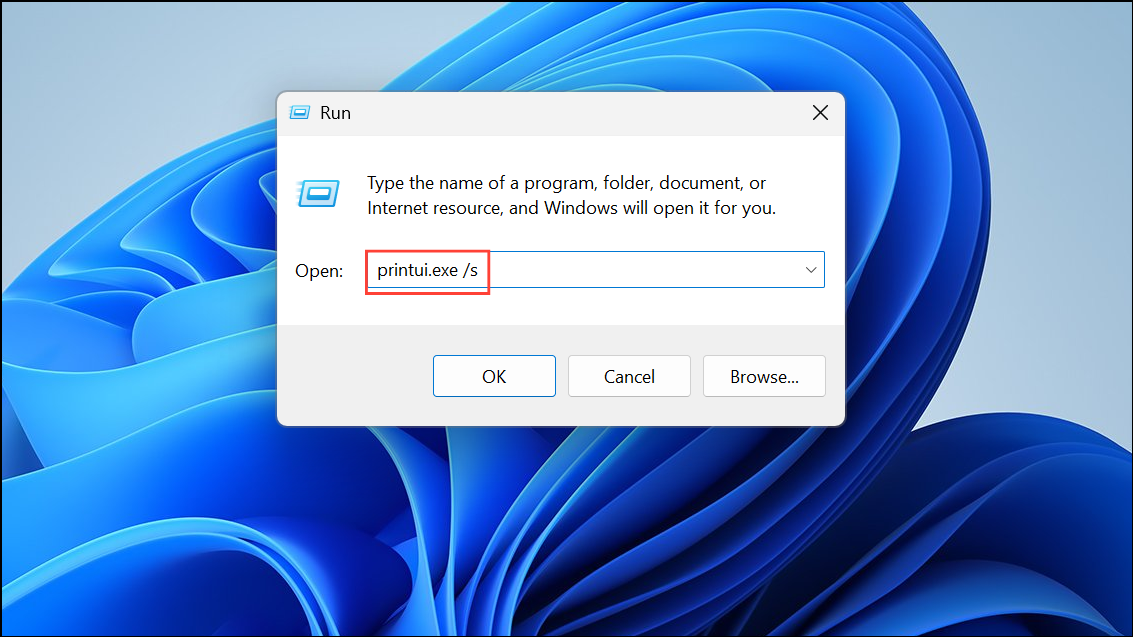
Updating drivers resolves compatibility conflicts and removes residual files that may block print jobs.
Reset the Print Spooler Service
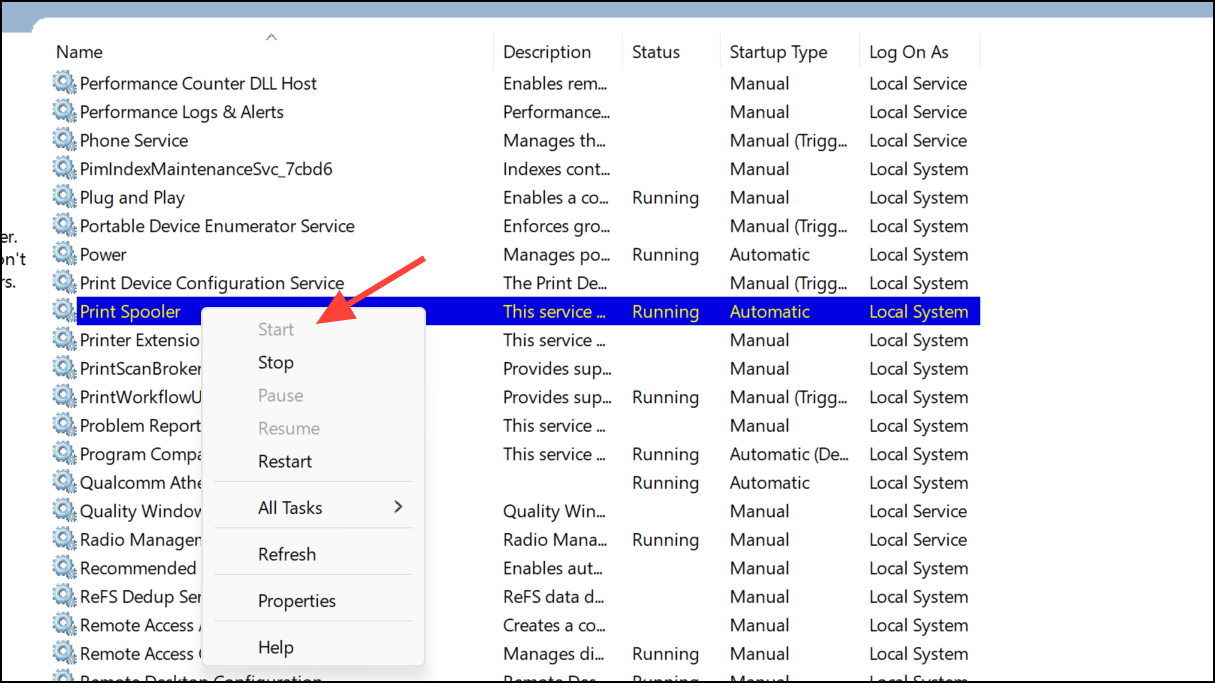
The print spooler service manages all print jobs sent to the printer. Corrupted spooler files can halt operations and trigger the I/O error. Resetting the spooler clears stuck jobs and refreshes the service.
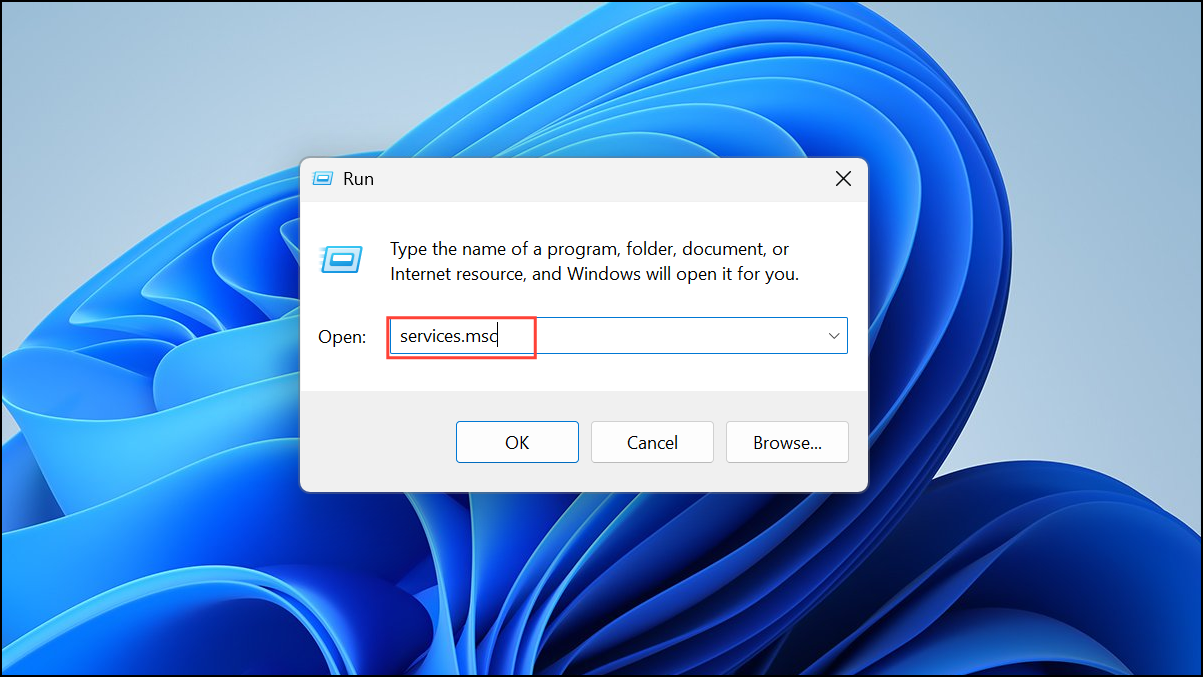
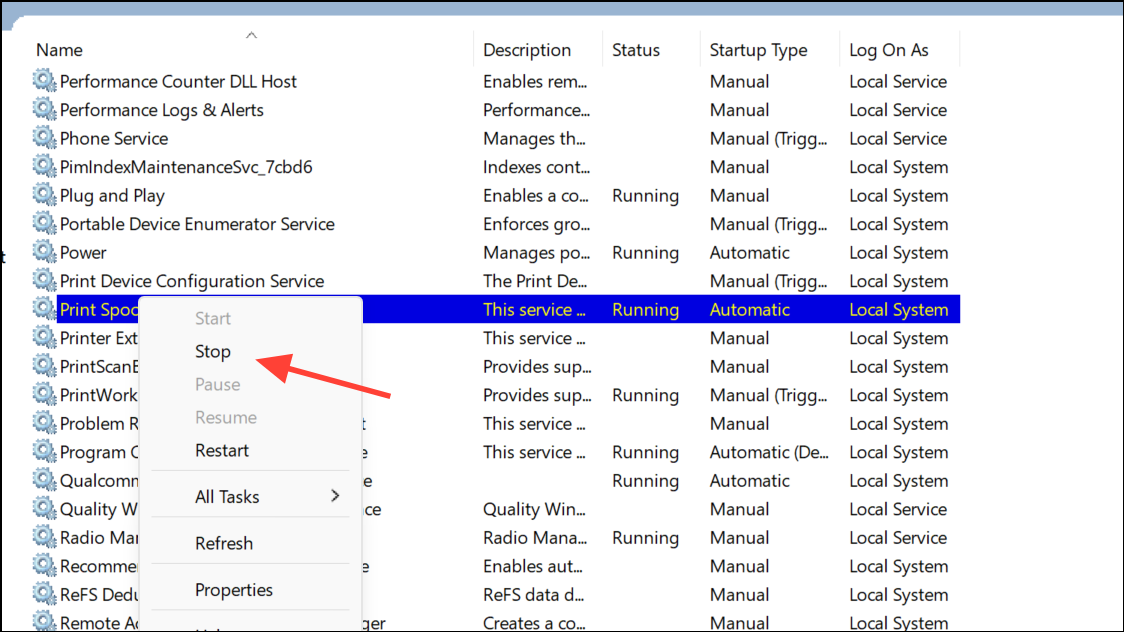
Windows + R, enter %systemroot%\System32\Spool\Printers, and click OK. Select all files in this folder and delete them to remove any stuck print jobs.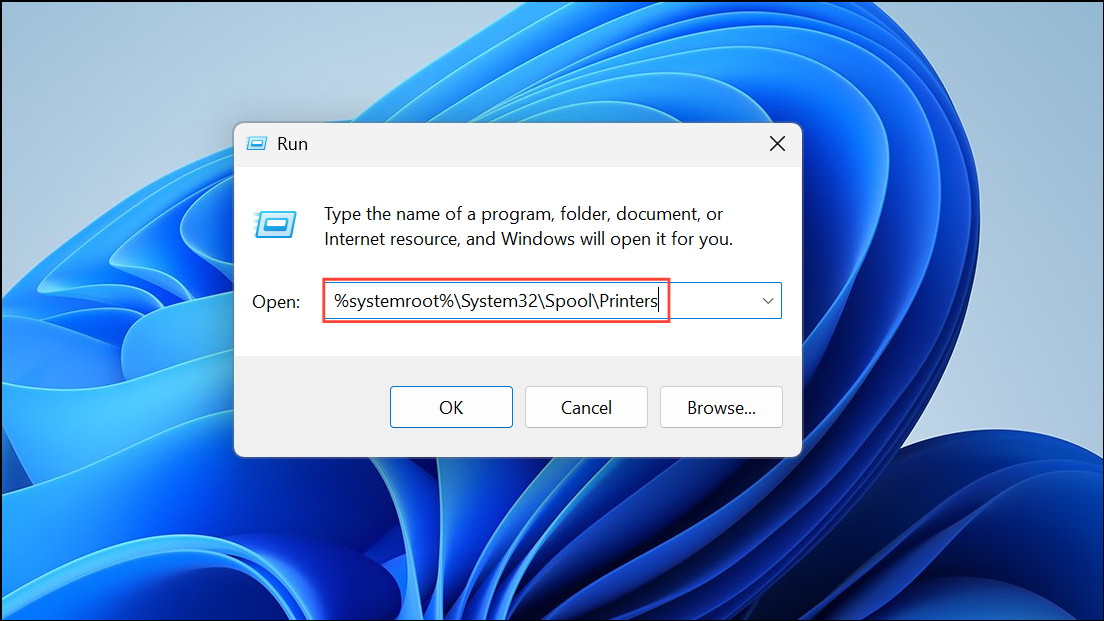
Run the Printer Troubleshooter
Windows 11 includes a built-in troubleshooter that can detect and fix common printing issues automatically.
Windows + R, enter msdt.exe /id PrinterDiagnostic, and click OK to launch the printer troubleshooter.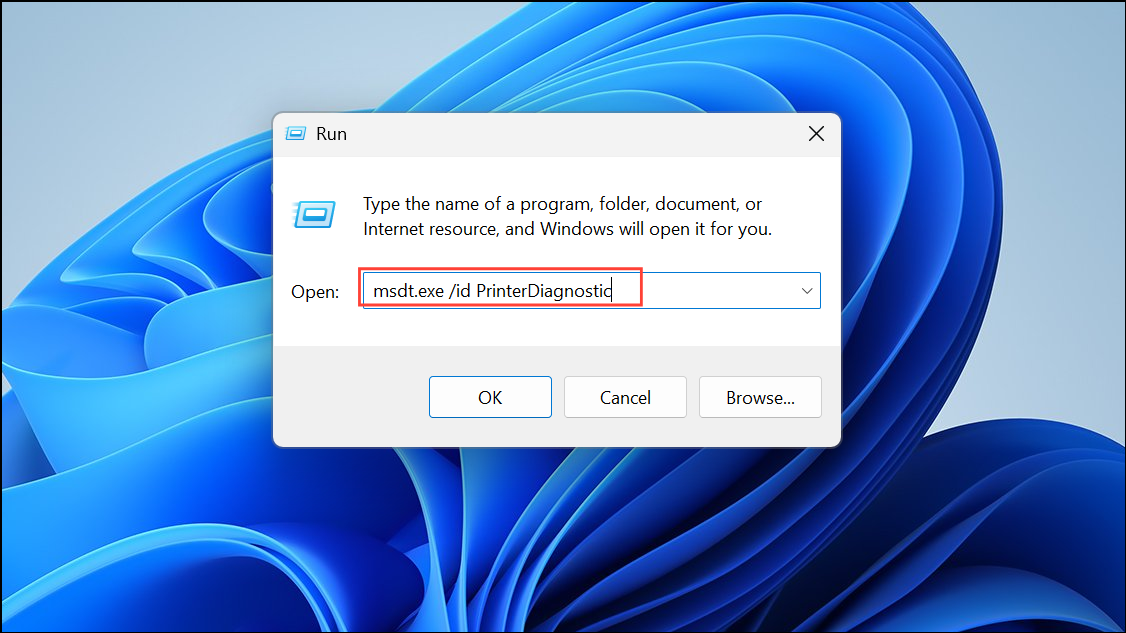
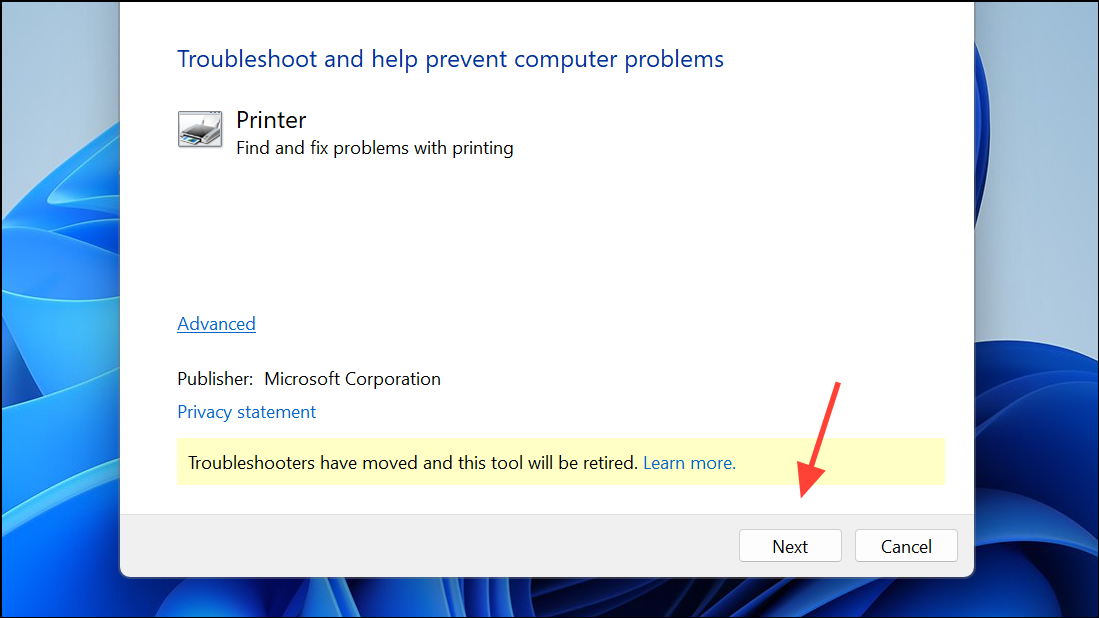
If the tool identifies and fixes the problem, printing should resume as expected. If not, proceed to the next method.
Repair System Files Using DISM and SFC
Corruption in Windows system files can prevent printing operations from completing successfully. The DISM and SFC tools scan for and repair damaged system components.
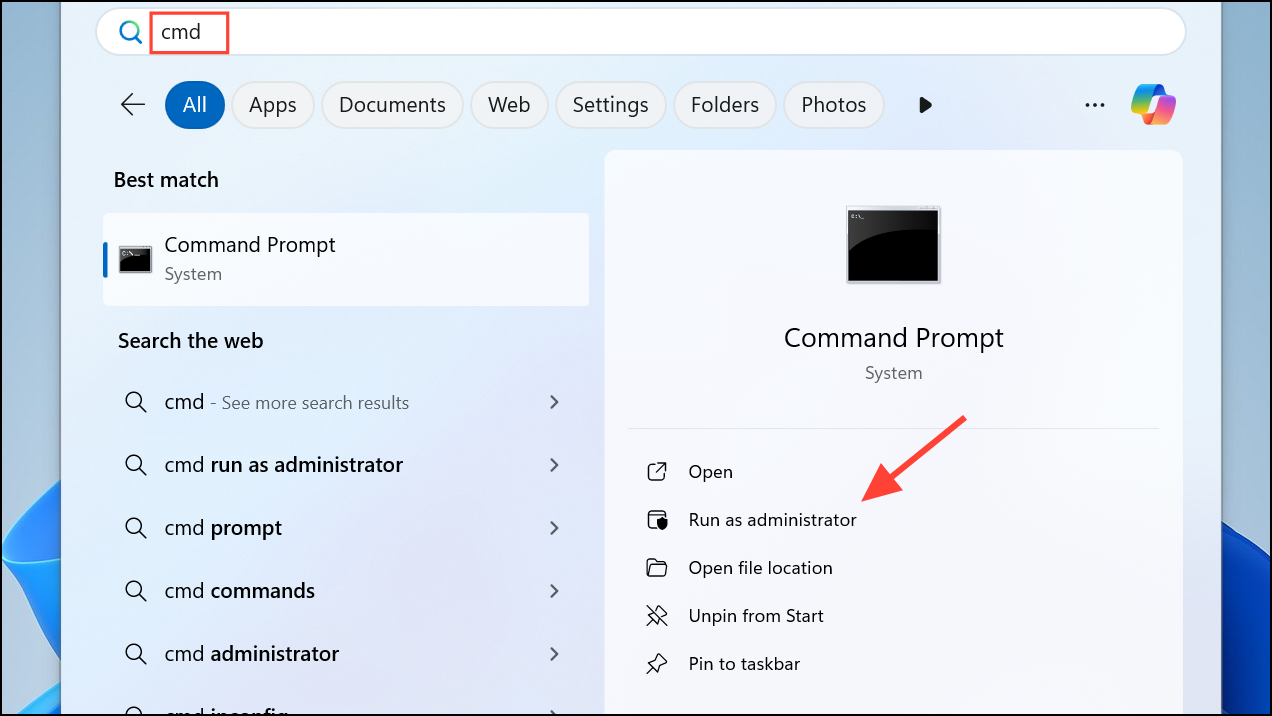
Dism.exe /Online /Cleanup-Image /Restorehealth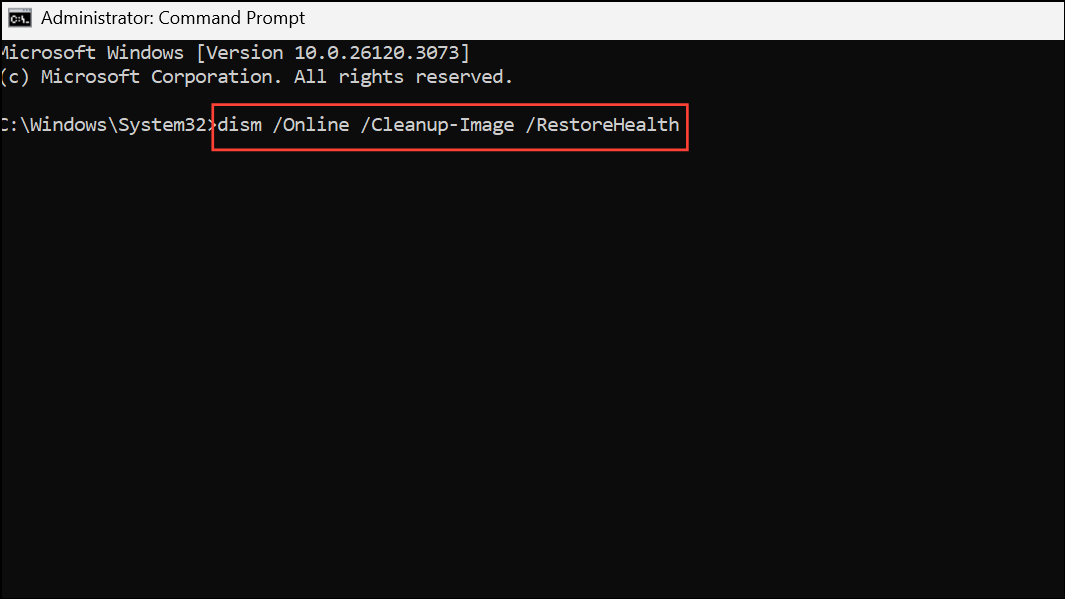
This command checks for and repairs corruption in the Windows component store. Wait for the process to finish.
SFC /SCANNOW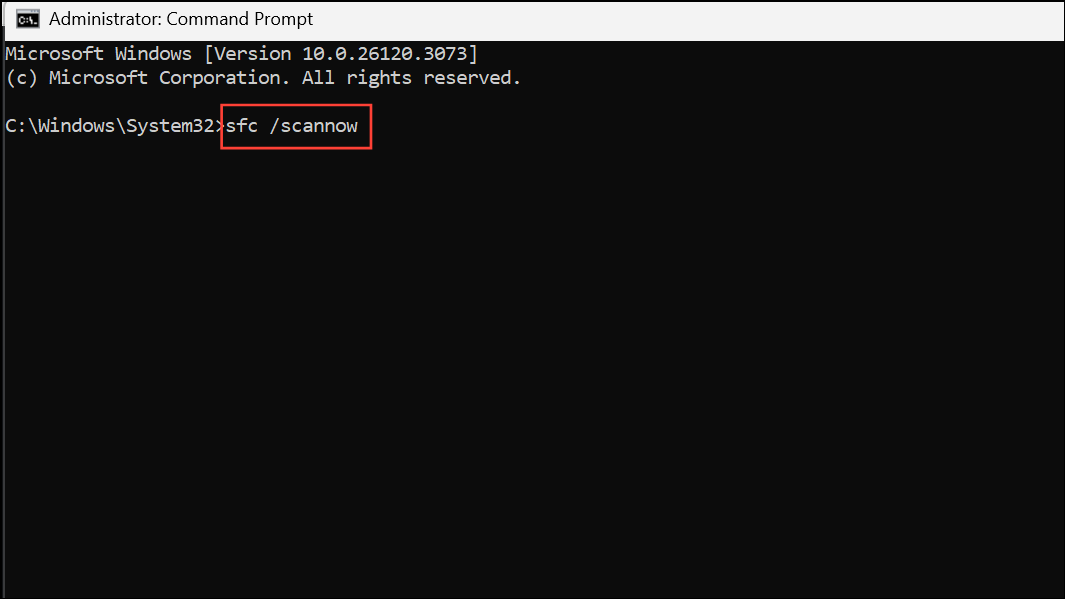
This command scans and repairs system files. Once finished, restart your computer and test your printer again.
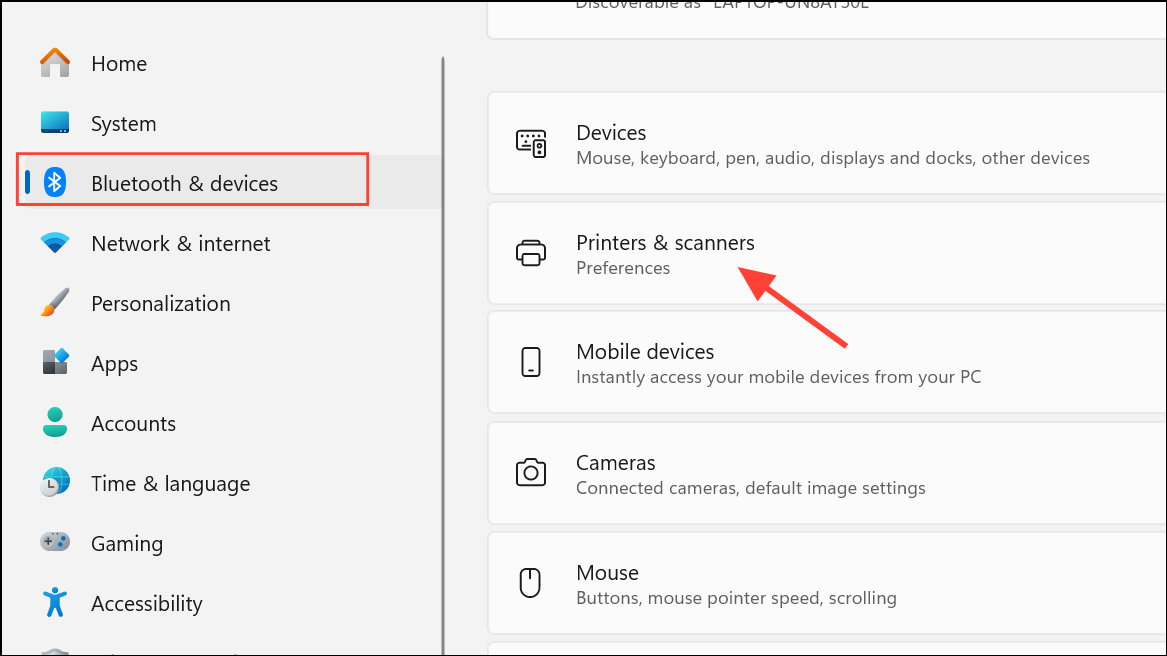
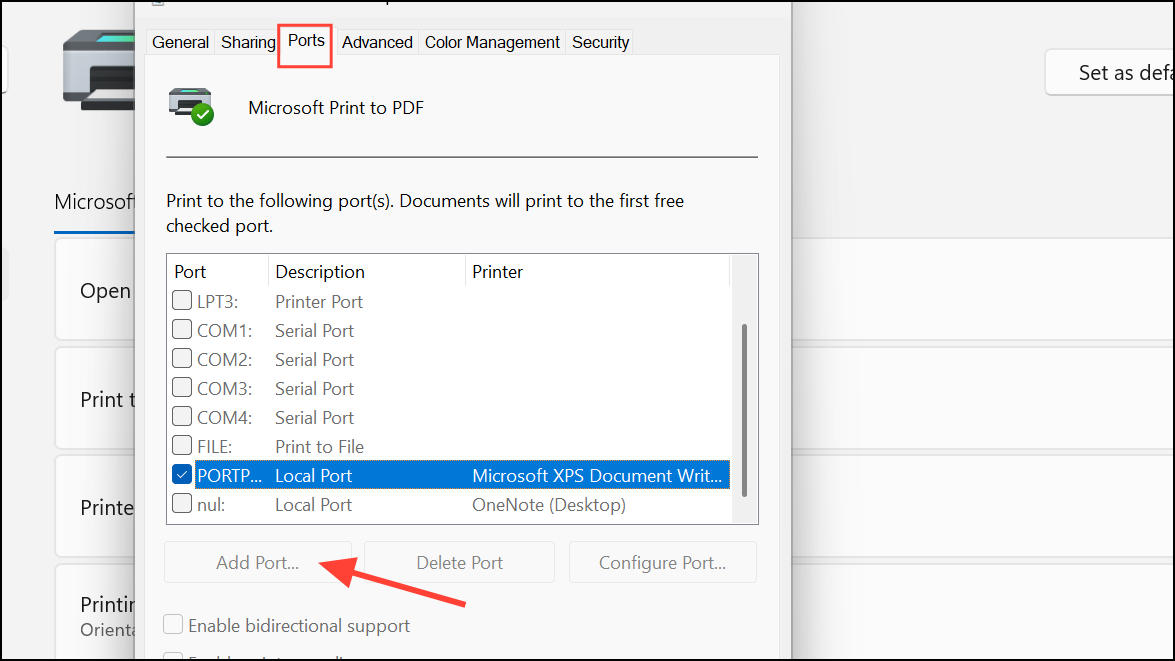
Change Printer Port to IP Address (For Network Printers)
Network printers configured with incorrect ports may encounter communication issues that result in the I/O operation error. Assigning the printer to its specific IP address can resolve these conflicts.
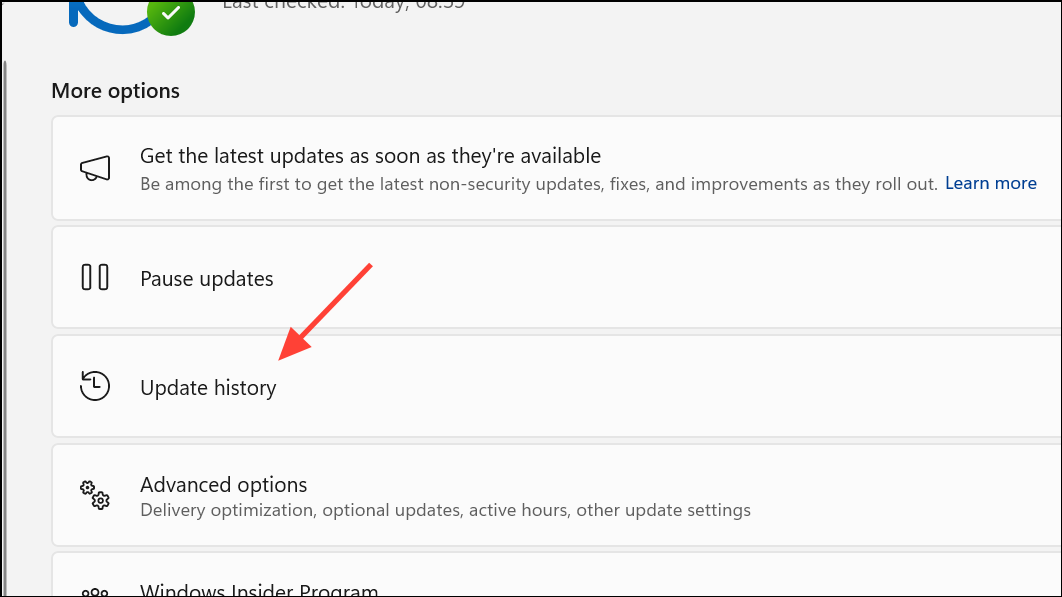
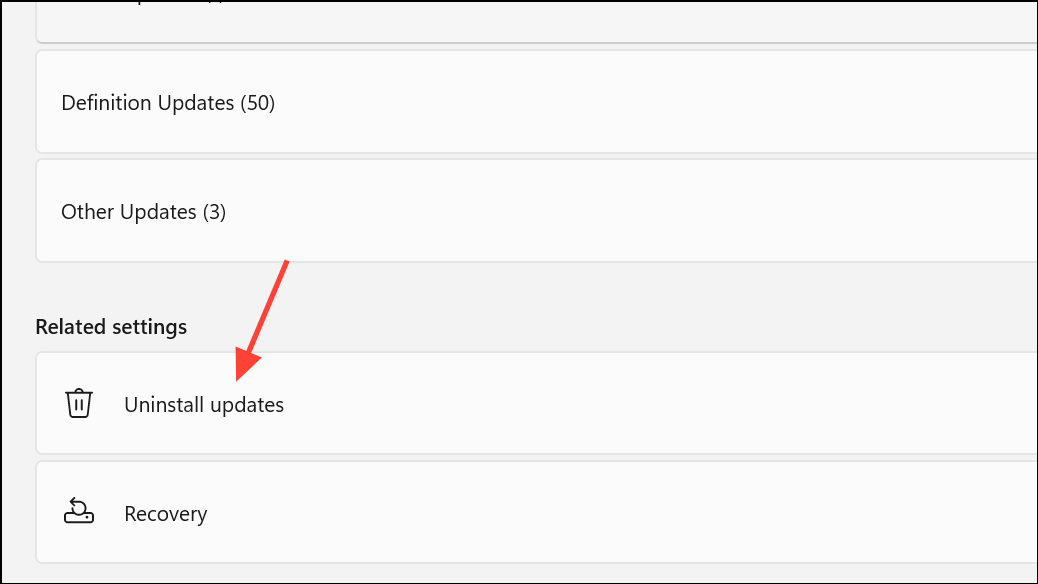
Uninstall Recent Windows Updates
Occasionally, a recent Windows update may introduce compatibility issues with printing devices. Rolling back the latest updates can restore functionality.
Additional Tips and Maintenance
- Always keep your printer firmware and Windows 11 system updated for best compatibility.
- Use only official drivers from your printer manufacturer’s website.
- If you continue to experience the error after these steps, consider checking for hardware faults or contacting the device manufacturer’s support team.
Applying these targeted troubleshooting steps restores printing capability and prevents further interruptions from the I/O operation error on Windows 11.



