
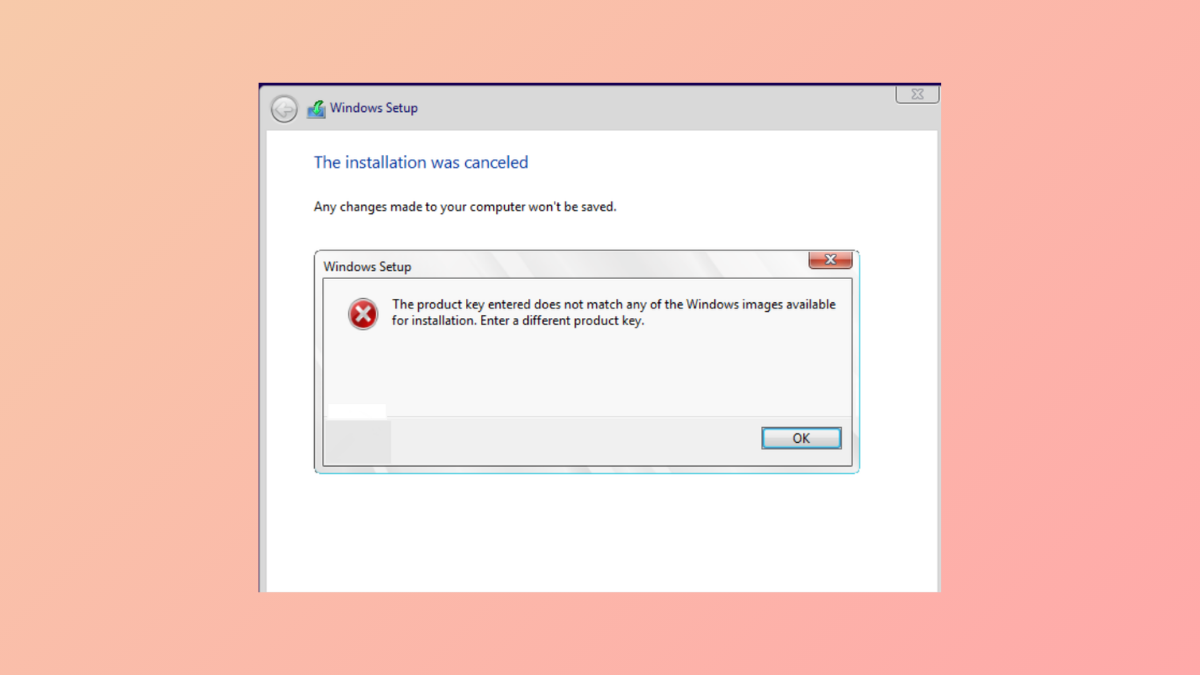
Installation of Windows 11 can halt unexpectedly with the message: “The product key entered does not match any of the Windows images available for installation. Enter a different product key.” This error appears when the product key provided—whether from a sticker, embedded in firmware, or entered during setup—does not correspond to the version or edition of Windows present on your installation media. The mismatch blocks the installation process, leaving you unable to proceed until the conflict is resolved.
Verify Installation Media and Product Key Match
ShowKeyPlus on an existing Windows installation.Use a PID.txt or EI.cfg File to Specify the Correct Product Key or Edition
sources folder on your Windows installation USB drive. Here you can place a PID.txt file containing your product key, or an EI.cfg file to specify the edition.PID.txt with the following format (replace XXXXX-XXXXX-XXXXX-XXXXX-XXXXX with your product key):
[PID]
Value=XXXXX-XXXXX-XXXXX-XXXXX-XXXXX
EI.cfg file to force Windows Setup to recognize the desired edition. The file should contain:
[EditionID]
Professional

[Channel]
OEM

[VL]
0
Replace Professional with the edition that matches your key (such as Home or Pro).
sources folder on the USB. This step directs Windows Setup to use the specified key or edition, bypassing the automatic detection that can cause mismatches.Proceed Without Entering a Product Key During Setup
Check for BIOS-Embedded Keys and Edition Mismatches
EI.cfg file to force Windows Setup to offer edition selection or ignore the embedded key.Tokens.dat and pkeyconfig.xrm-ms files in the image match the intended edition and activation method. Swapping these files from a working installation can sometimes resolve persistent activation issues, but this approach is typically reserved for IT professionals managing large deployments.Additional Tips and Troubleshooting
- Always use the correct installation media for your product key type: OEM, Retail, or Volume License.
- Double-check file extensions when creating
PID.txtorEI.cfg. Notepad may save files asPID.txt.txt—ensure the extension is correct. - If you have a custom image or have used sysprep, verify that all activation-related files are intact and unaltered.
- For persistent issues, consider recreating installation media using the official Media Creation Tool and avoid modifying installation files unless necessary.
- If you’re working with enterprise deployments, match your deployment tools (WDS, MDT, etc.) and media with the type of product key and licensing in use.
Matching your Windows 11 product key with the correct installation media and edition resolves this error and allows setup to complete. Adjusting configuration files or skipping key entry until after installation can streamline the process and prevent further activation problems.



