
External webcams that fail to appear in Windows 11 can halt video calls, remote meetings, and streaming setups. This detection problem often traces back to driver conflicts, privacy restrictions, recent Windows updates, or even simple hardware issues. Addressing each possible cause systematically will help restore camera functionality and minimize downtime for users who rely on video input for work or communication.
Check Physical Connections and Camera Power
Confirm that the external camera is firmly plugged into a working USB port. Try disconnecting and reconnecting the device, and if possible, use a different USB port to rule out port-specific failures. Avoid USB hubs or extension cables during troubleshooting, as these may introduce power or connectivity issues.
If your webcam has a physical power switch, privacy shutter, or indicator light, ensure it is powered on and unblocked. Some models include a sliding cover or dedicated button that must be enabled for the camera to function.
Test Camera Recognition in Windows
Open the built-in Camera app by selecting
Start, typing Camera, and launching the application. If you see a live preview, Windows recognizes your camera. If the app reports “No camera attached” or displays a black screen, continue with additional troubleshooting.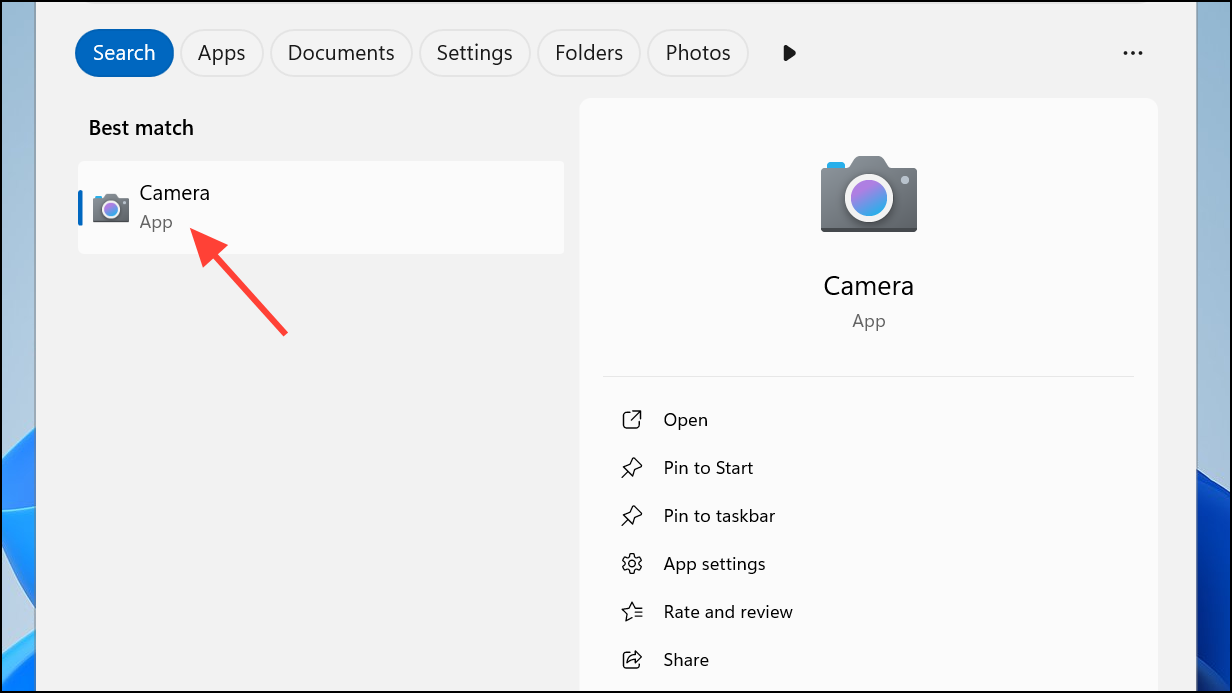
Check if the camera appears in Device Manager. Right-click the
Start button, select Device Manager, and expand the Cameras or Imaging devices section.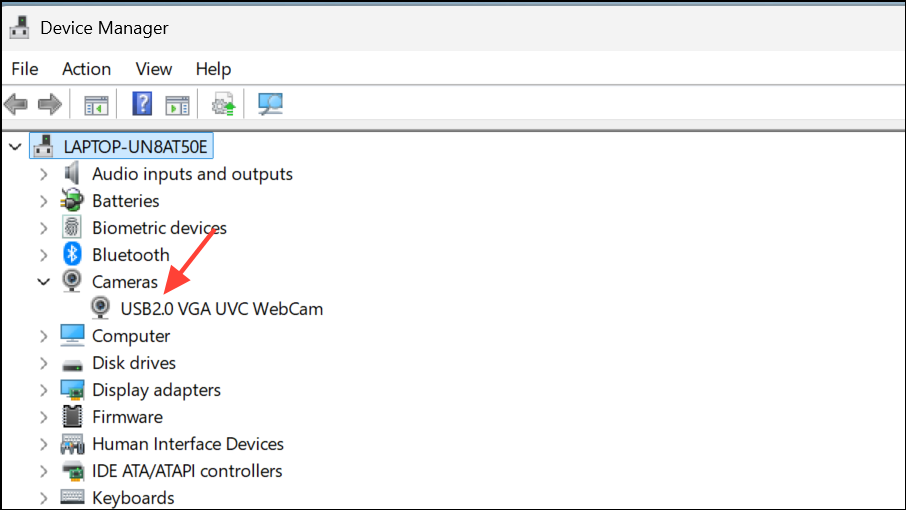
If your camera is not listed, select the
Action menu and click Scan for hardware changes. This prompts Windows to search for new devices and may restore the camera listing.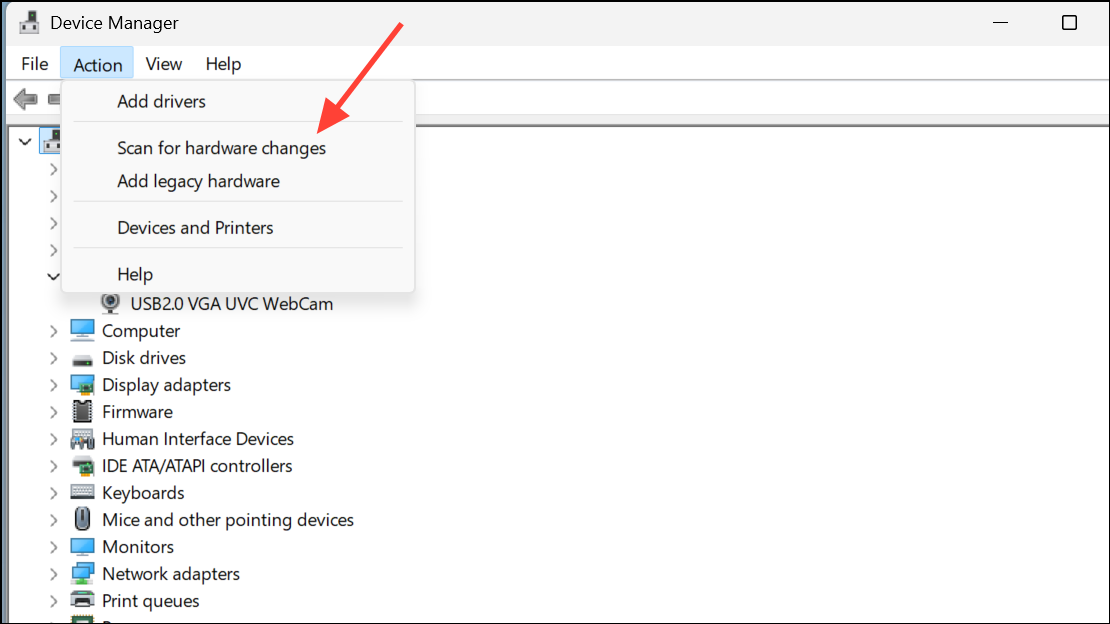
Adjust Camera Privacy and App Permissions
Windows 11 privacy controls can block camera access for both system and third-party apps. To review these settings, navigate to
Start > Settings > Privacy & security > Camera.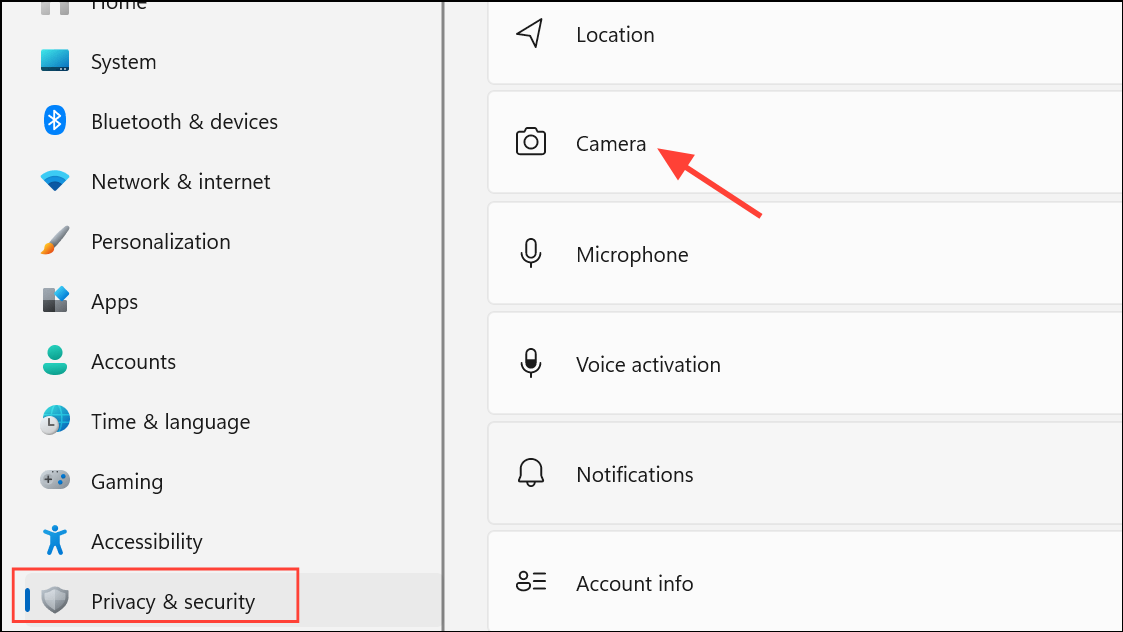
Ensure
Camera access is turned on for the device. If this option is greyed out, administrative privileges may be required to enable it.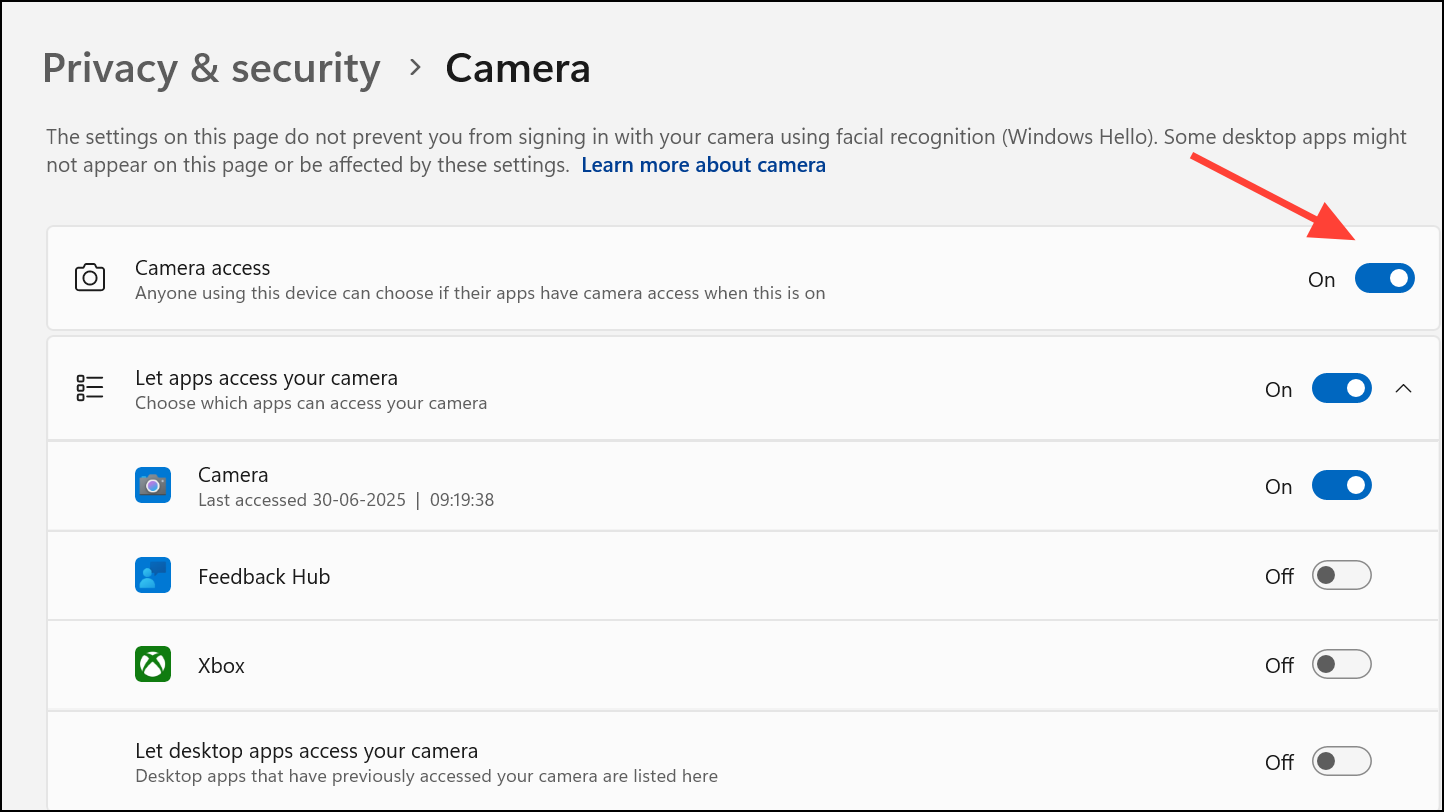
Turn on
Let apps access your camera. Review the list of apps and enable camera access for any you intend to use, such as Microsoft Teams or Zoom. For desktop applications not installed from the Microsoft Store, enable Let desktop apps access your camera to grant broader access.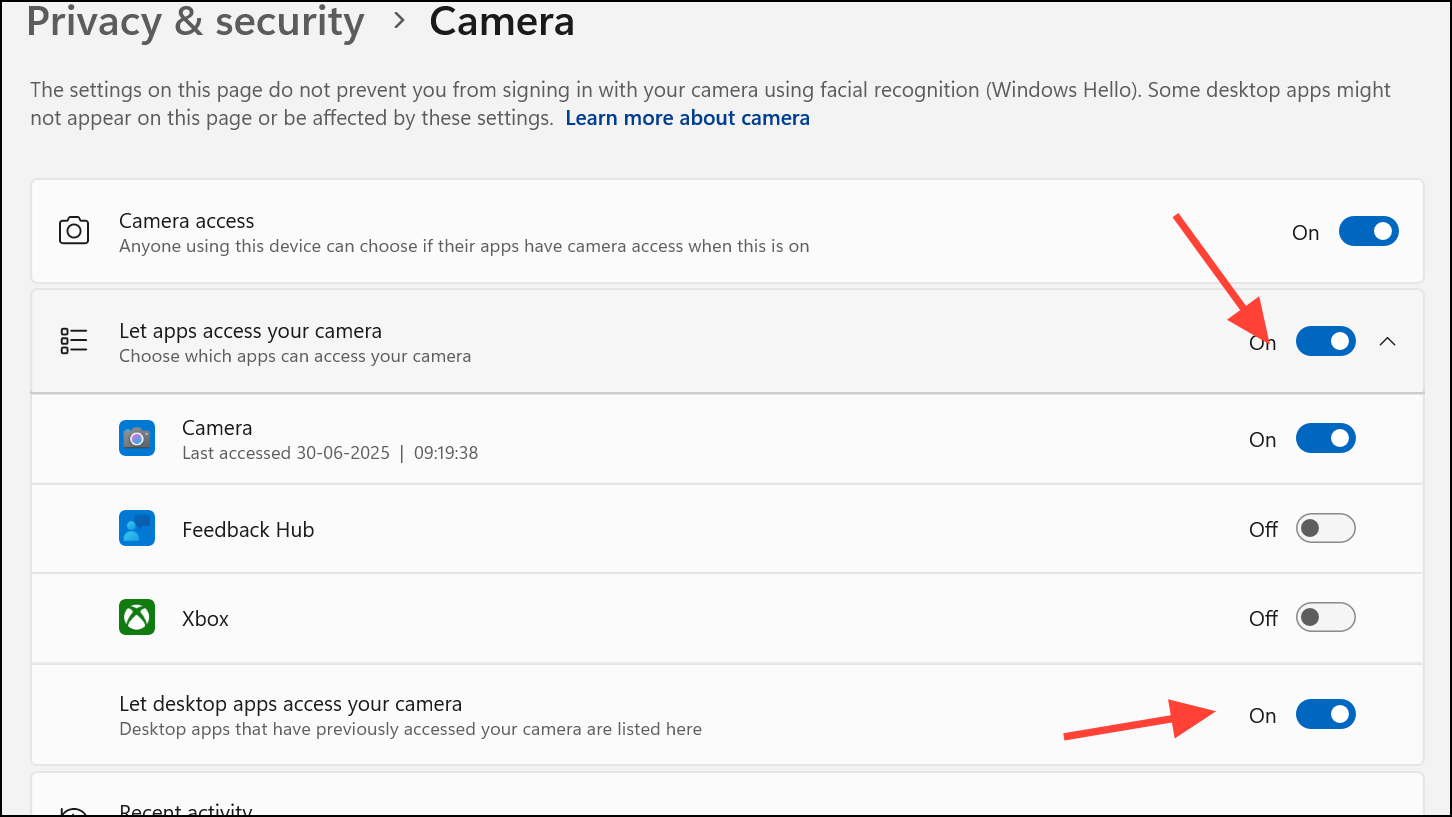
If using a browser-based video service, check browser-specific permissions. For example, Chrome and Edge have their own site-specific camera access controls in their settings menus.
Update, Roll Back, or Reinstall Camera Drivers
Outdated or incompatible drivers are a common cause of camera detection failures, especially after Windows updates. In Device Manager, right-click the external camera entry and choose
Update driver. Select Search automatically for drivers to let Windows locate and install the latest compatible version.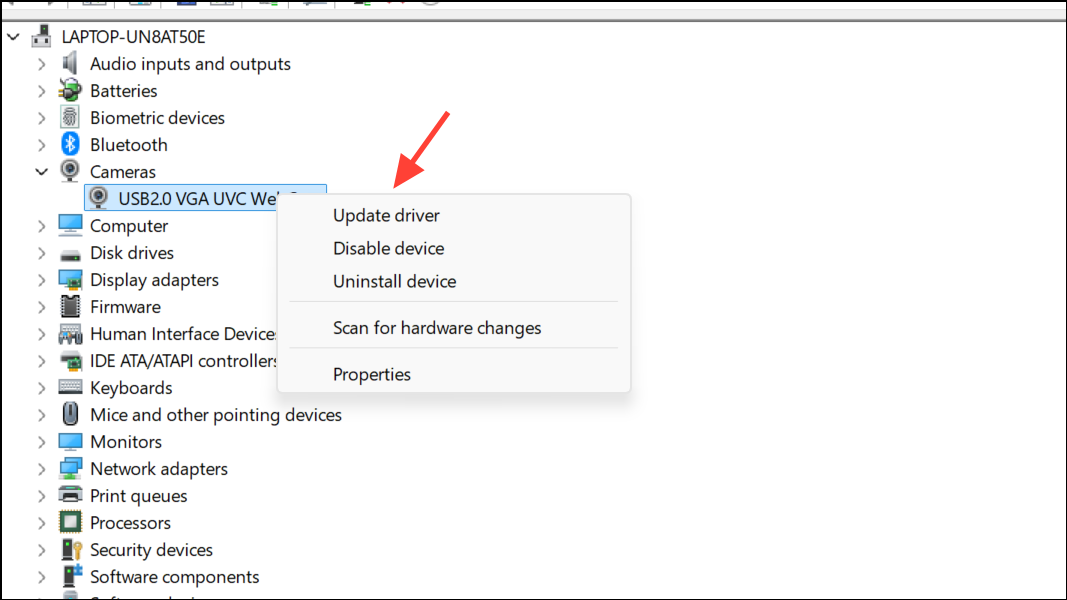
If the problem began after a recent Windows or driver update, consider rolling back the camera driver. In Device Manager, right-click the camera, select
Properties, go to the Driver tab, and click Roll Back Driver if available. Restart the PC after rolling back.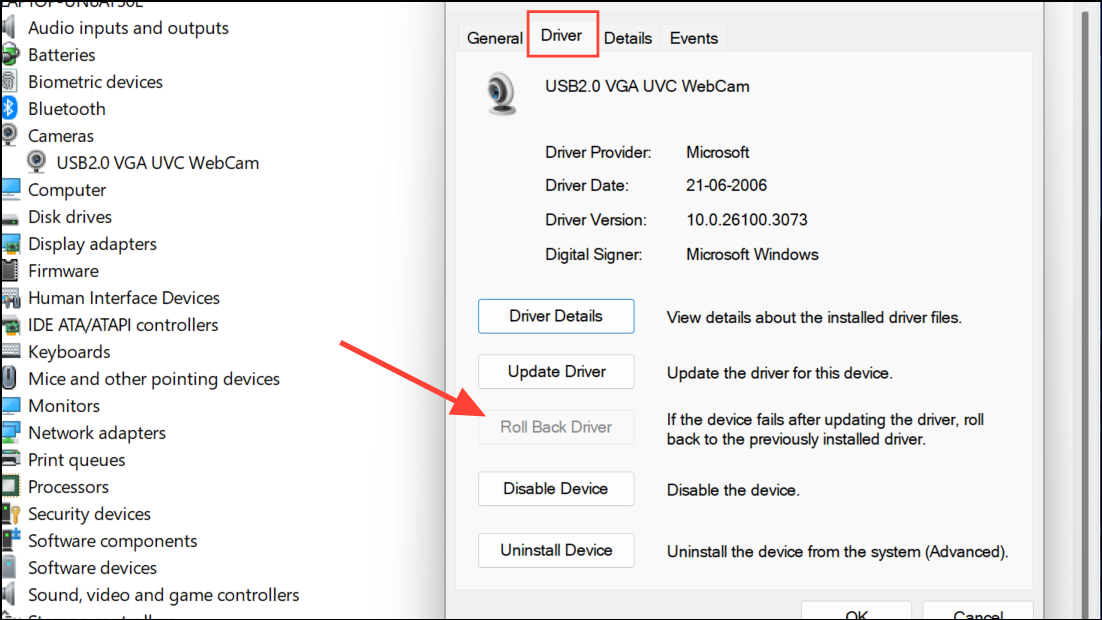
If updating or rolling back does not resolve the issue, uninstall the camera device. In Device Manager, right-click the camera, select
Uninstall device, and check Delete the driver software for this device if prompted. After uninstalling, unplug the camera, restart your PC, then reconnect the camera to trigger automatic reinstallation.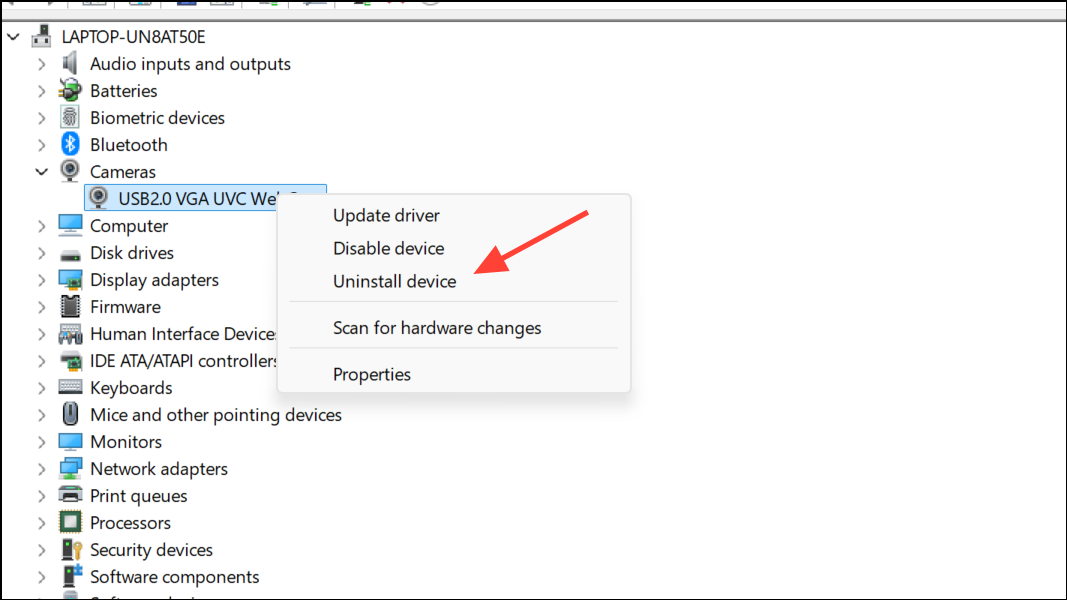
For USB webcams that use the standard USB Video Class (UVC) protocol, you can force Windows to use its built-in driver. In Device Manager, right-click the camera, select
Update driver, choose Browse my computer for drivers, then Let me pick from a list of available drivers on my computer. Select USB Video Device and proceed with the installation.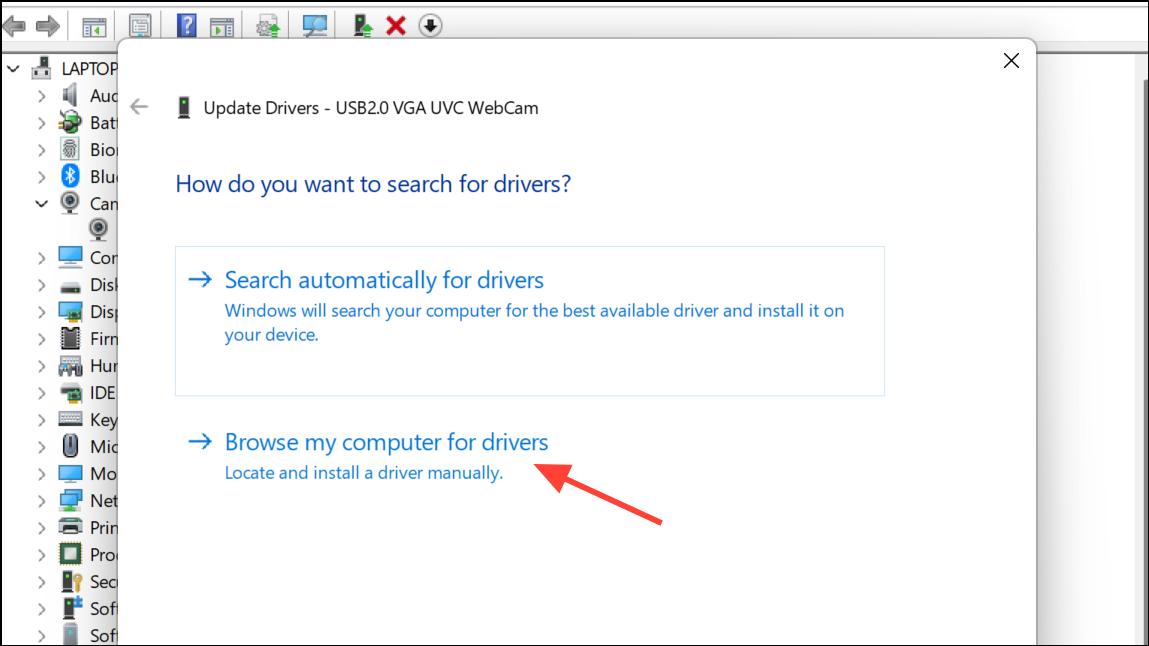
If your camera manufacturer provides a firmware update (as with Insta360 or other brands), follow their instructions to update the device firmware, as this can restore compatibility after Windows changes.
Run the Windows Camera Troubleshooter
Windows 11 includes an automated troubleshooter for camera devices. Access it by opening
Start > Settings > System > Troubleshoot > Other troubleshooters. Locate the Camera section and click Run.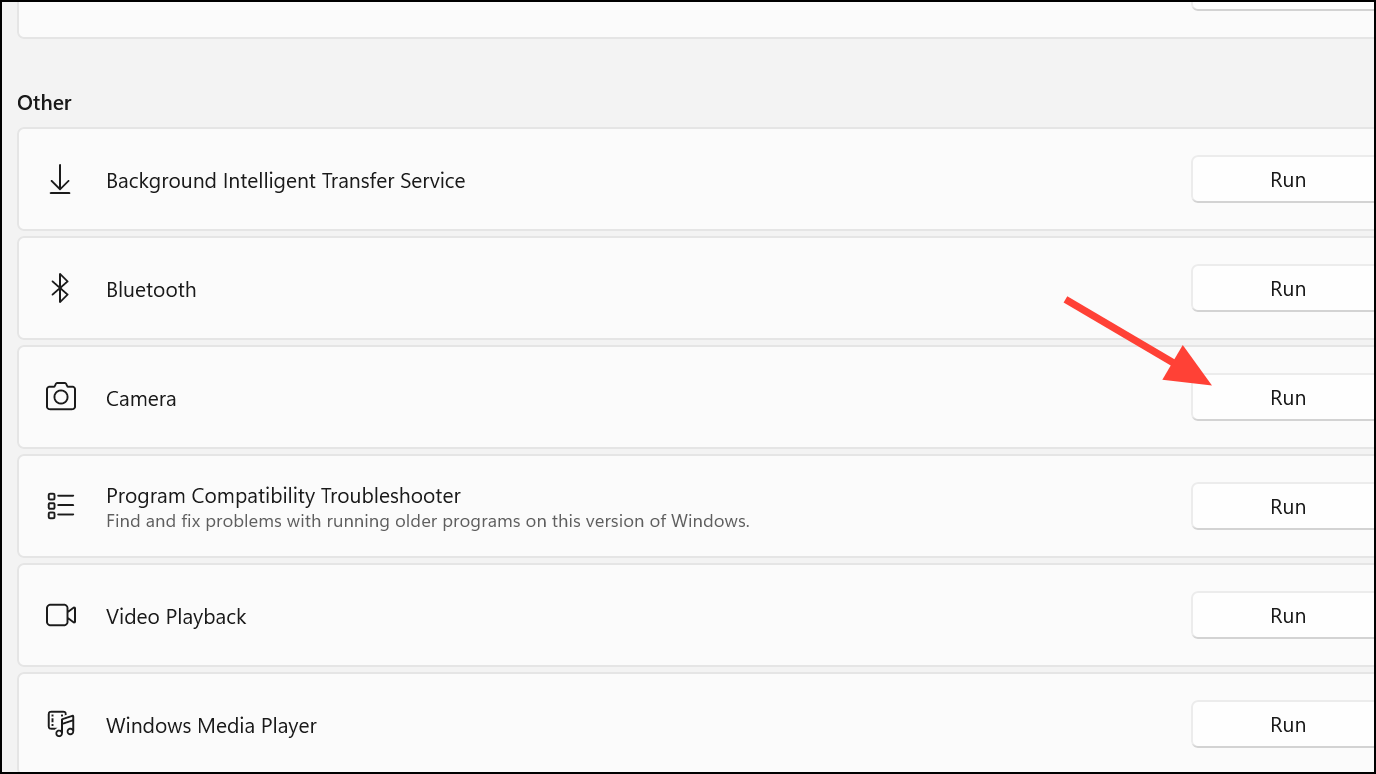
The troubleshooter will scan for common issues such as device conflicts, driver errors, or service interruptions. Follow any recommended actions, and restart your PC if prompted.
Temporarily Disable Antivirus or Security Software
Some antivirus programs include privacy controls that block camera access. Open your security software and look for camera or privacy protection settings. Temporarily disable these features, or pause the antivirus entirely, and test the camera in Windows or your preferred app.
If the camera works while the antivirus is disabled, adjust the program’s settings to allow camera access, then re-enable security protections. Consult your antivirus vendor’s documentation for specific instructions.
Address Issues After Windows Updates
If the external camera stopped working immediately after a Windows 11 update, check for additional driver or firmware updates from your camera manufacturer. Some brands release new drivers or firmware to restore compatibility with recent Windows changes.
Visit the manufacturer’s support website and search for your camera model. Download and install any recommended updates, following their instructions closely.
If no updates are available and the camera remains undetected, consider rolling back the most recent Windows update. Open
Settings > Windows Update > Update history, then select Uninstall updates and remove the update that coincided with the camera problem. This should be used as a temporary solution until a permanent fix is released.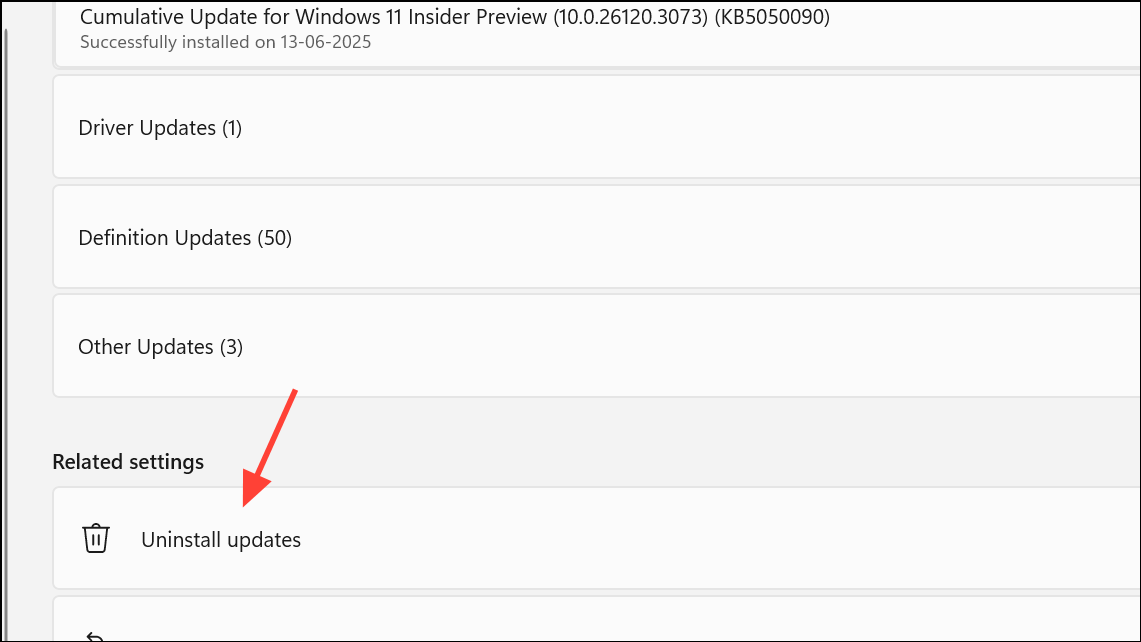
Additional Tips and Considerations
- Test the camera on another Windows 11 device to rule out hardware failure.
- If using multiple cameras (internal and external), disable the unused device in Device Manager to avoid conflicts.
- Clean the camera lens and remove any physical obstructions that may block the view.
- For specific error codes (e.g., Code 10, 0xA00F4244), refer to the manufacturer’s documentation or Windows support resources for targeted troubleshooting steps.
By systematically checking hardware, permissions, drivers, and software conflicts, external webcam detection issues in Windows 11 can usually be resolved. For persistent problems, contacting the camera manufacturer or your device vendor may provide a tailored solution.



