How to Fix “Your Password Has Expired” Error on Windows 11
Practical solutions for resolving password expiration errors and preventing future lockouts in Windows 11.
Practical solutions for resolving password expiration errors and preventing future lockouts in Windows 11.
by Pallav Pathak
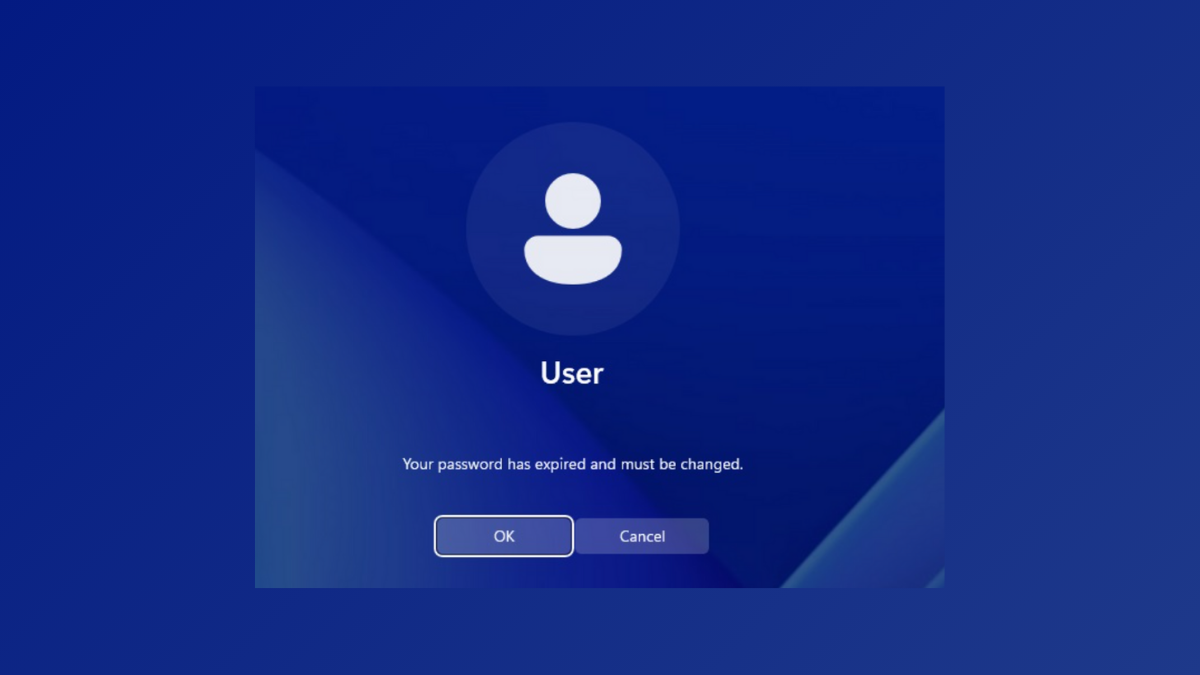
Seeing the “Your password has expired” message on a Windows 11 sign-in screen blocks access to your PC until you update your credentials. This issue can occur with both local and Microsoft accounts, and sometimes even prevents password resets if the system is misconfigured. Addressing this promptly restores access and prevents recurring lockouts.
If prompted that your password has expired, enter your current password in the “old password” field. Then create and confirm a new password. If you do not remember your old password, you will need to try alternative methods described below.
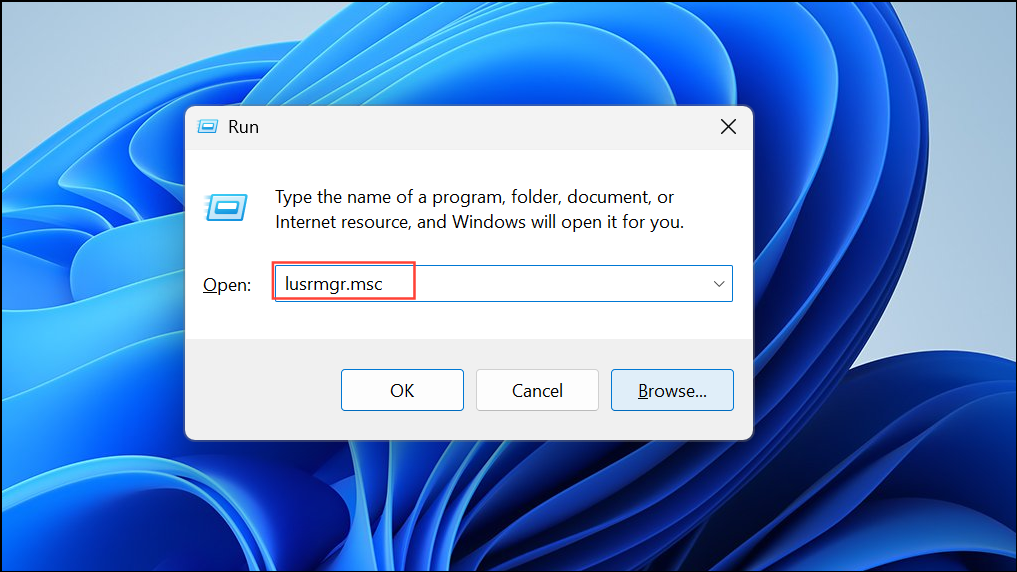
After regaining access, disable password expiration to avoid future interruptions. Press Windows + R to open the Run dialog, then type lusrmgr.msc and press Enter.
If the system does not accept your old password, try leaving the “current password” field blank when prompted. Some users have reported that this allows them to proceed if no password was set previously, especially after system repairs or resets.
If you still cannot log in, attempt to use another administrator account to reset your password. At the sign-in screen, check if other accounts are available and try logging in with them. If successful, open the “Users” section in Computer Management and reset your main account’s password.
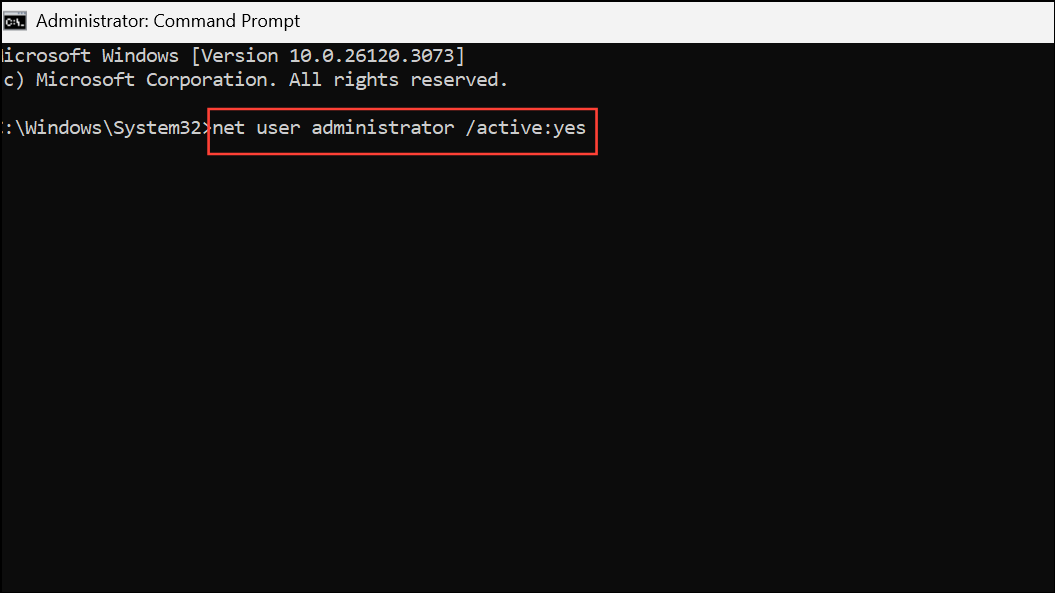
If no other administrator accounts exist, you may need to enable the built-in administrator account using recovery tools or Safe Mode. Access advanced startup options by holding Shift and clicking “Restart” from the sign-in screen, then navigate to Troubleshoot > Advanced options > Command Prompt. In the Command Prompt, run:
net user administrator /active:yes
Reboot and log in as “Administrator,” then reset your regular account’s password through Computer Management.
Addressing Password Expiration with Microsoft Accounts
On the sign-in screen, select “I forgot my password” and follow the prompts to reset your Microsoft account password online. Make sure your device has an internet connection, as the reset process requires communication with Microsoft’s servers.
After resetting your password, use the new credentials to sign in. If the system still rejects your new password, verify that your device’s date and time settings are correct. Incorrect system time can prevent successful authentication with Microsoft accounts.
In rare cases, synchronization delays may cause the new password not to work immediately. Wait a few minutes, then try signing in again. If problems persist, check for local account confusion—sometimes, after repairs or reinstalls, the system may default to a local account instead of a Microsoft account.
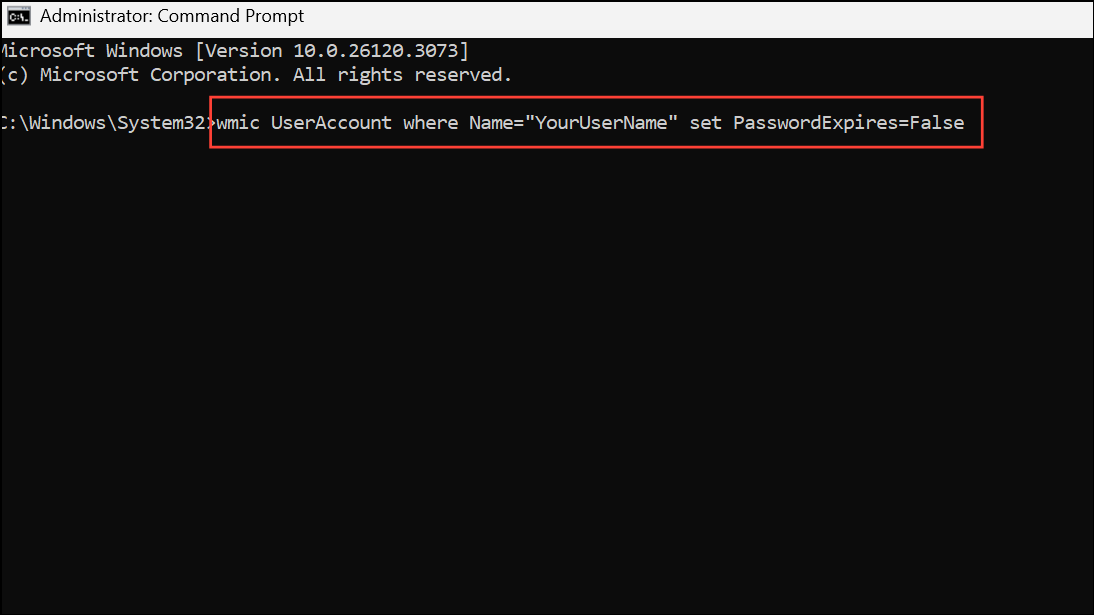
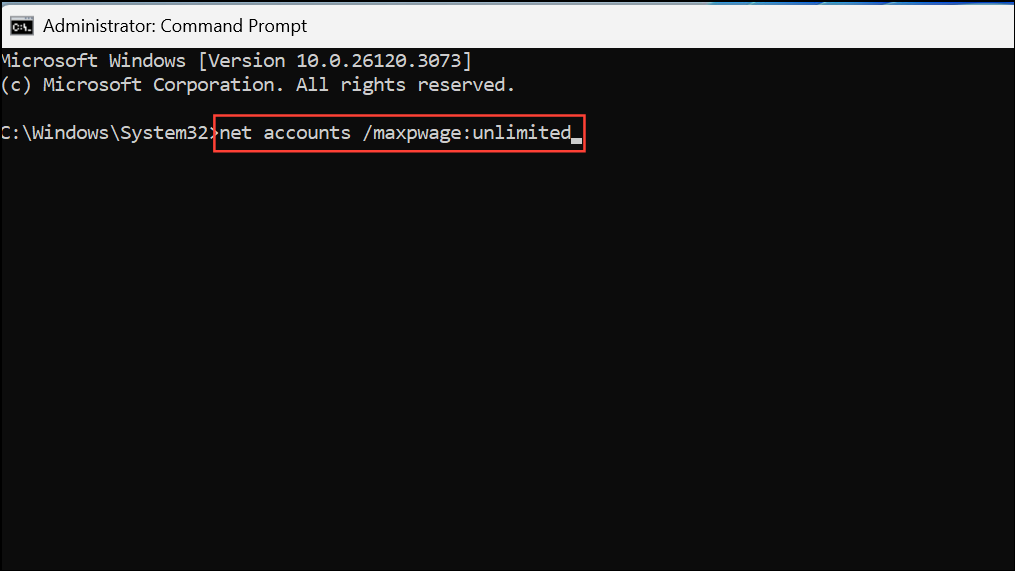
For individual accounts, use the wmic command as described earlier, or adjust properties in “Local Users and Groups” if available on your Windows 11 edition.
Additional Tips and Considerations
If your installation was created using tools like Rufus or custom scripts, default password policies may differ. Always review settings after setup to prevent unexpected expiration.
Windows 11 Home edition lacks some local user management tools. Use Command Prompt methods if “Local Users and Groups” is not available.
Password expiration is typically off by default for home users, but can be enabled by certain system setups, security toolkits, or after repairs.
If you encounter persistent issues or cannot regain access, consult official Microsoft support for advanced recovery options.
Disabling password expiration and resetting credentials restores smooth access to Windows 11 and prevents future lockouts. Review your account settings after making changes to confirm that password expiration is turned off for all relevant users.