
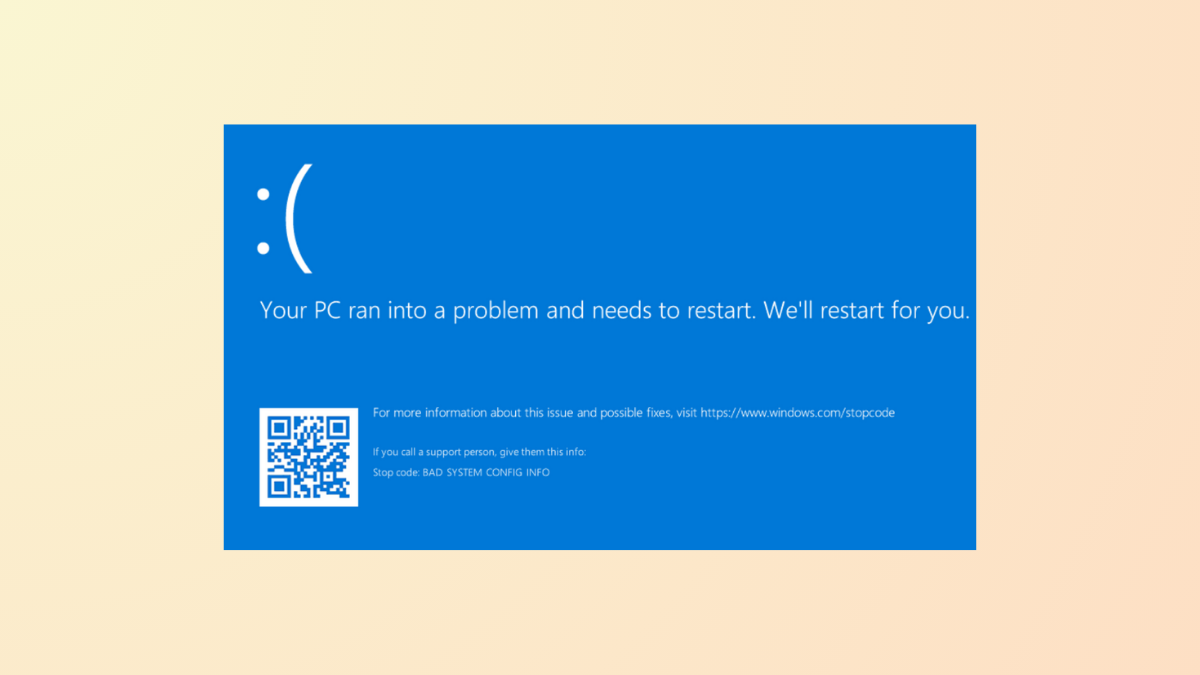
Repeated blue screen errors displaying the message Your PC ran into a problem and needs to restart. We're just collecting some error info, and then we'll restart for you. in Windows 11 signal underlying problems with drivers, hardware, or system files. These errors can prevent normal startup, disrupt work, and sometimes result in data loss if not addressed promptly. System logs and error codes shown on the blue screen can help pinpoint the root cause, but the troubleshooting process often involves both software and hardware checks.
Method 1: Use Windows Recovery Environment for Startup Repair
Troubleshoot, then choose Advanced Options, and click on Startup Repair. This tool scans for issues that prevent Windows from booting and attempts to fix them automatically. If prompted, select your user account and enter your password.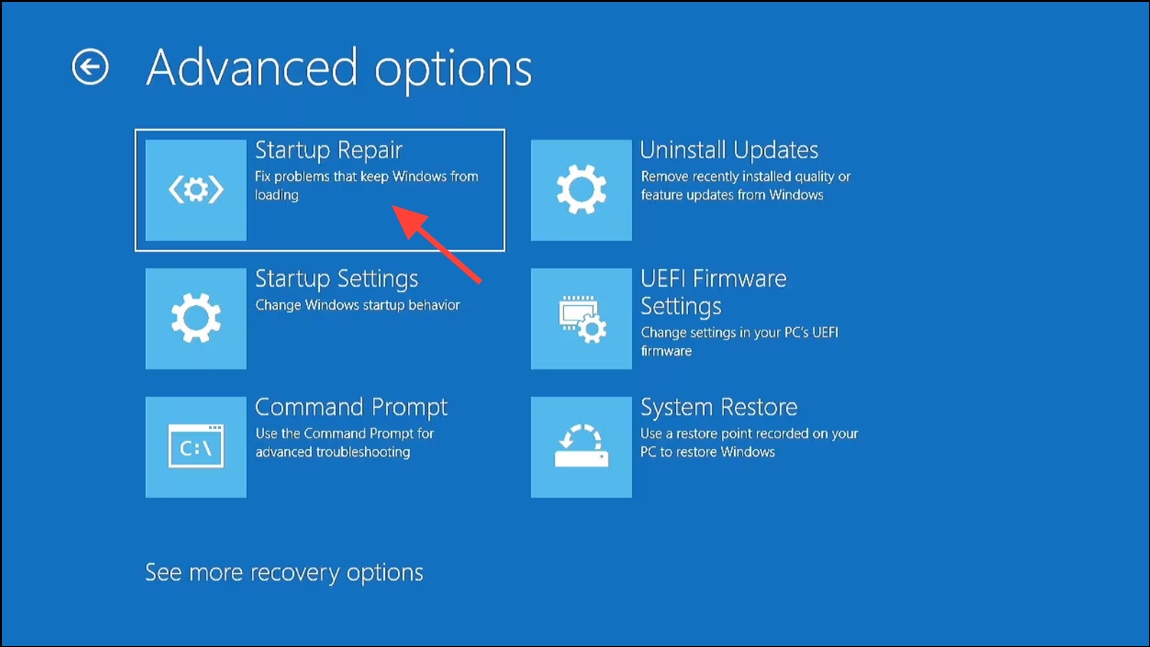
Method 2: Restore Windows Using System Restore
Troubleshoot, then Advanced Options, and choose System Restore.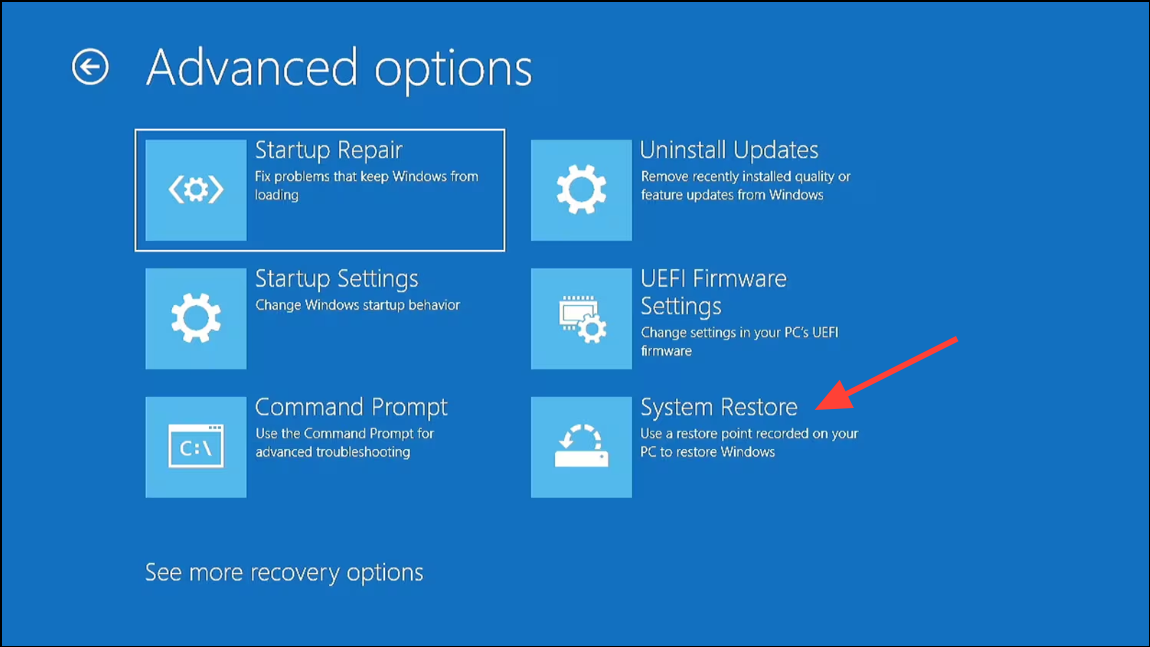
Method 3: Diagnose and Update Device Drivers
Windows + X and select Device Manager.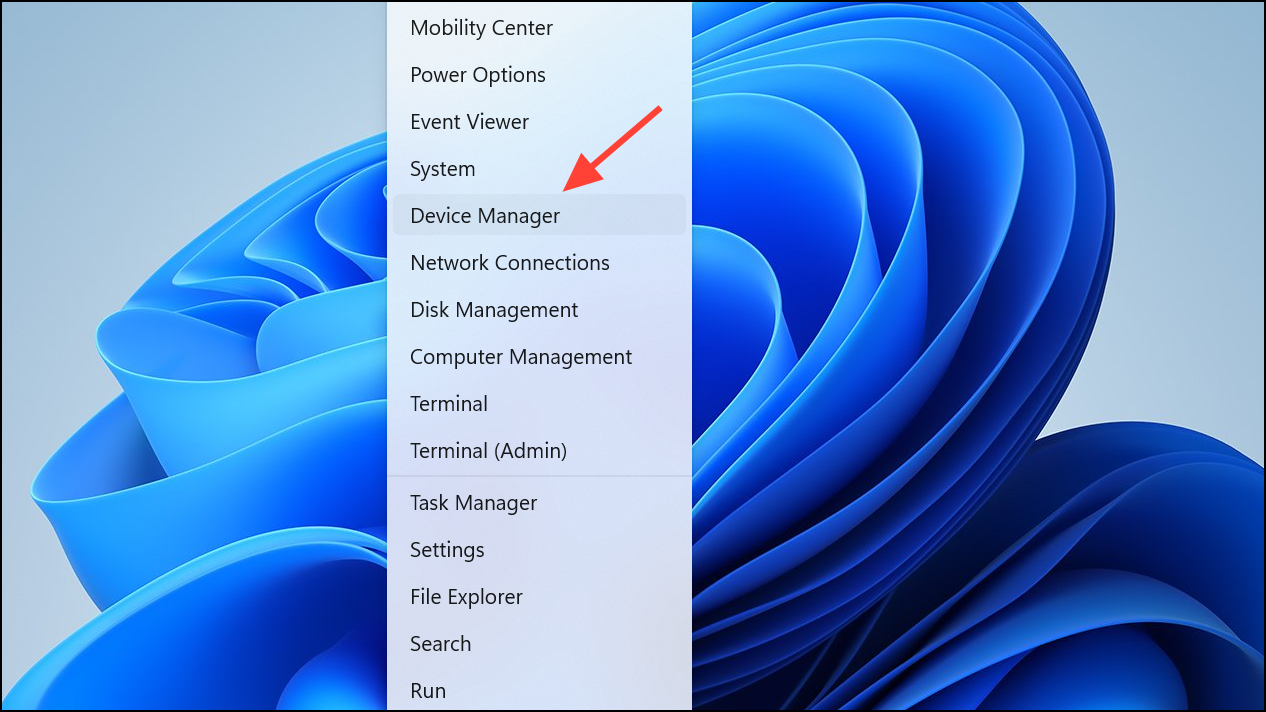
Sound, video and game controllers and Network adapters.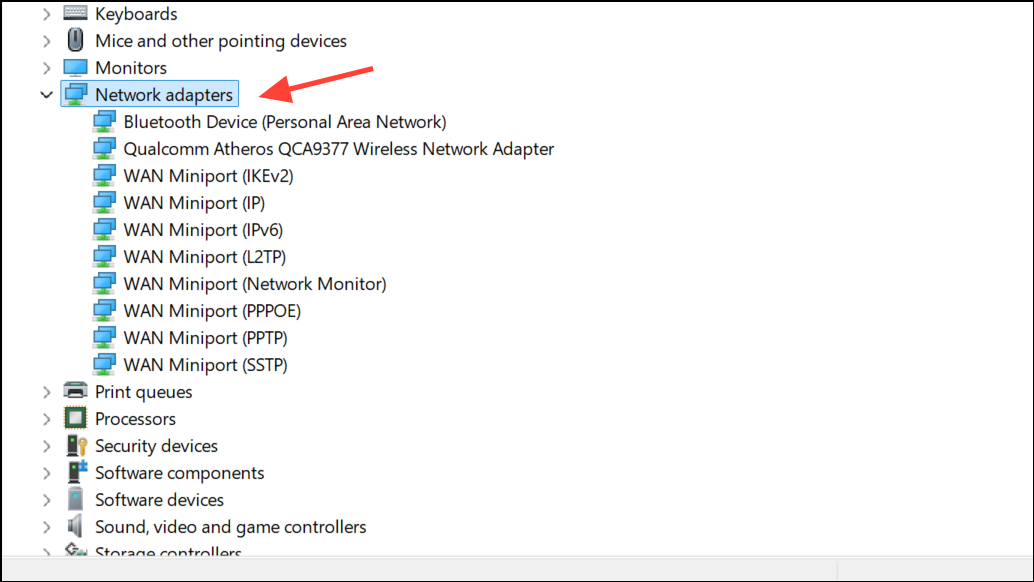
Update driver. Choose Search automatically for drivers, or visit the manufacturer’s website for the latest versions. For persistent blue screen errors referencing files like RtUsbA64.sys (Realtek USB Audio), right-click the device and select Disable device if you do not use it.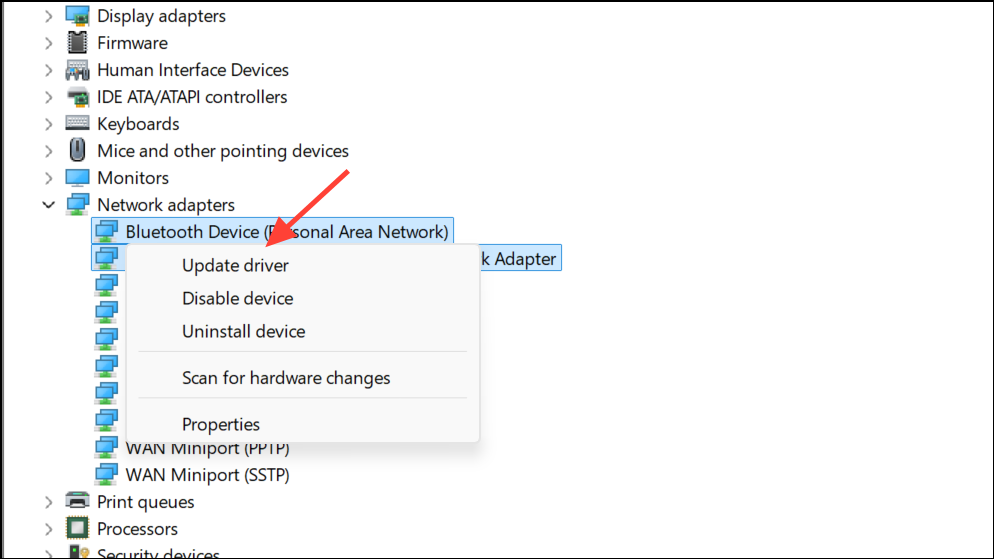
Method 4: Scan for Malware and System File Corruption
Windows + X, then select Windows Terminal (Admin) or Command Prompt (Admin)). Run the System File Checker with the following command:
sfc /scannow
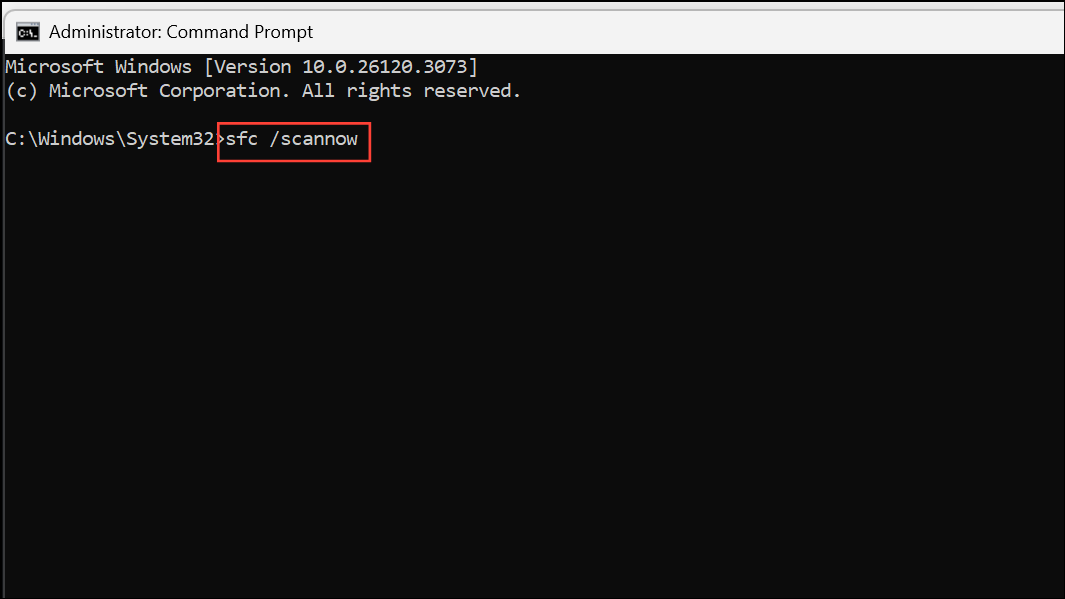
This command checks for and repairs corrupted system files. If issues are detected and fixed, restart your PC.
Method 5: Check Hardware Components
Windows + R, typing mdsched.exe, and following prompts to restart and check for memory errors. For more thorough testing, use a bootable tool like MemTest86.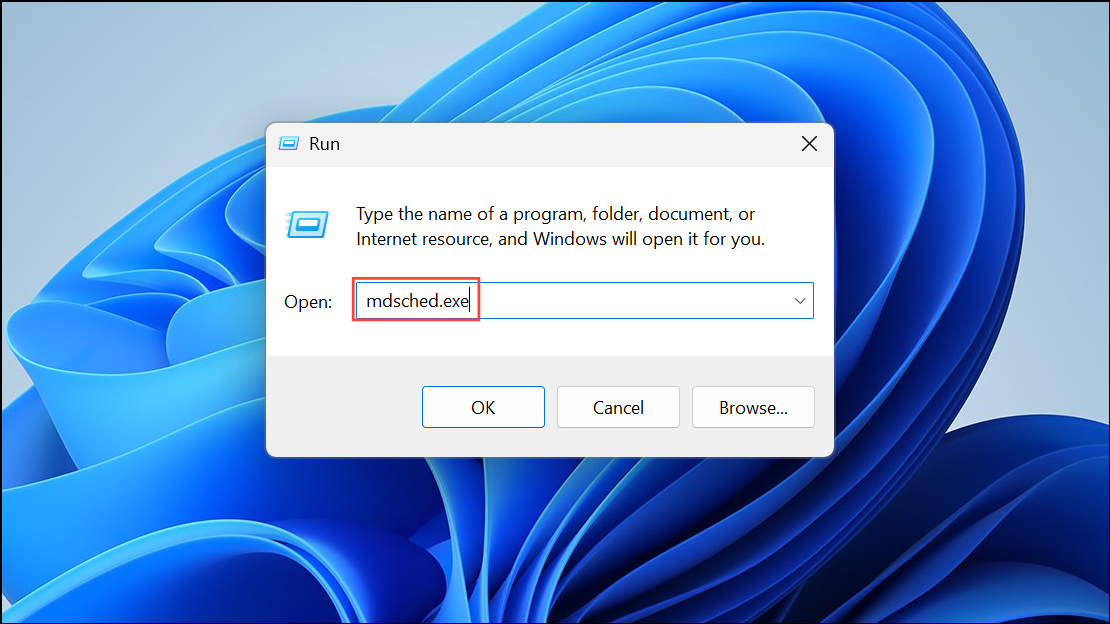
chkdsk C: /f in an elevated Command Prompt. Approve the scan on next restart if prompted.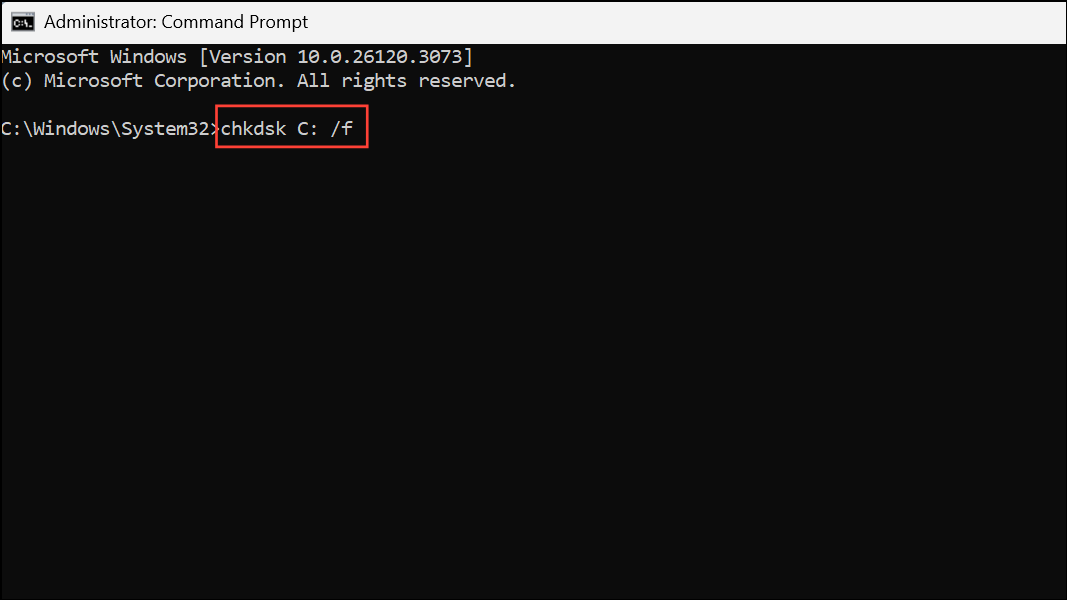
Method 6: Perform a Clean Windows 11 Installation (Last Resort)
F12, Esc, or Del during startup). Choose Repair your computer for advanced troubleshooting, or proceed to reinstall Windows if other methods fail.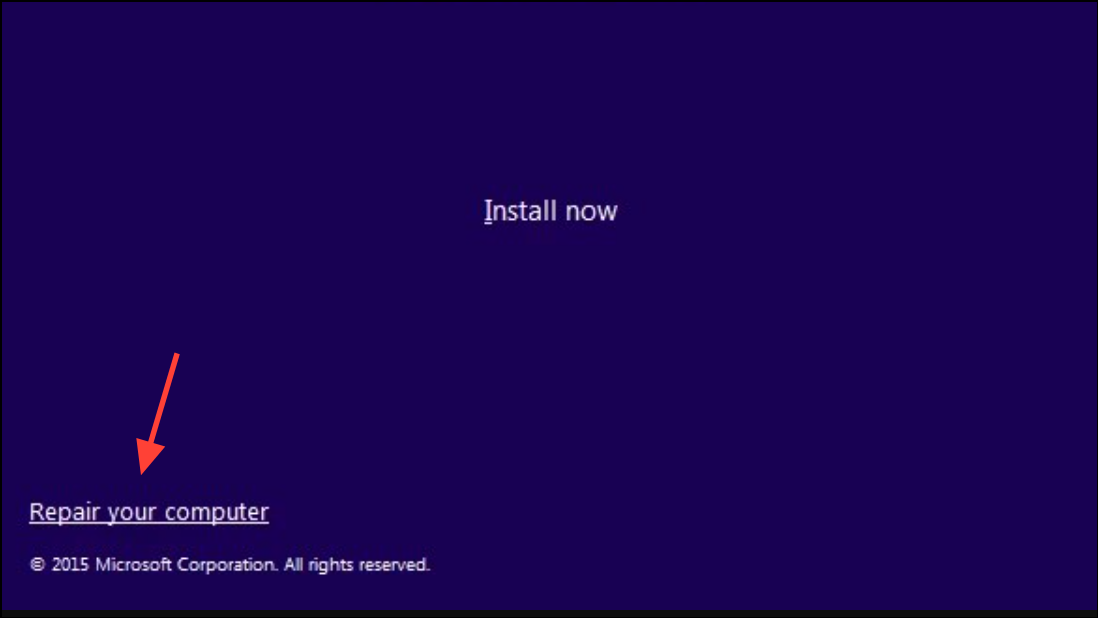
Resolving repeated “Your PC ran into a problem and needs to restart” errors in Windows 11 often requires a combination of repair tools, driver updates, and hardware checks. Regular backups and keeping your system updated will help prevent future issues.



