
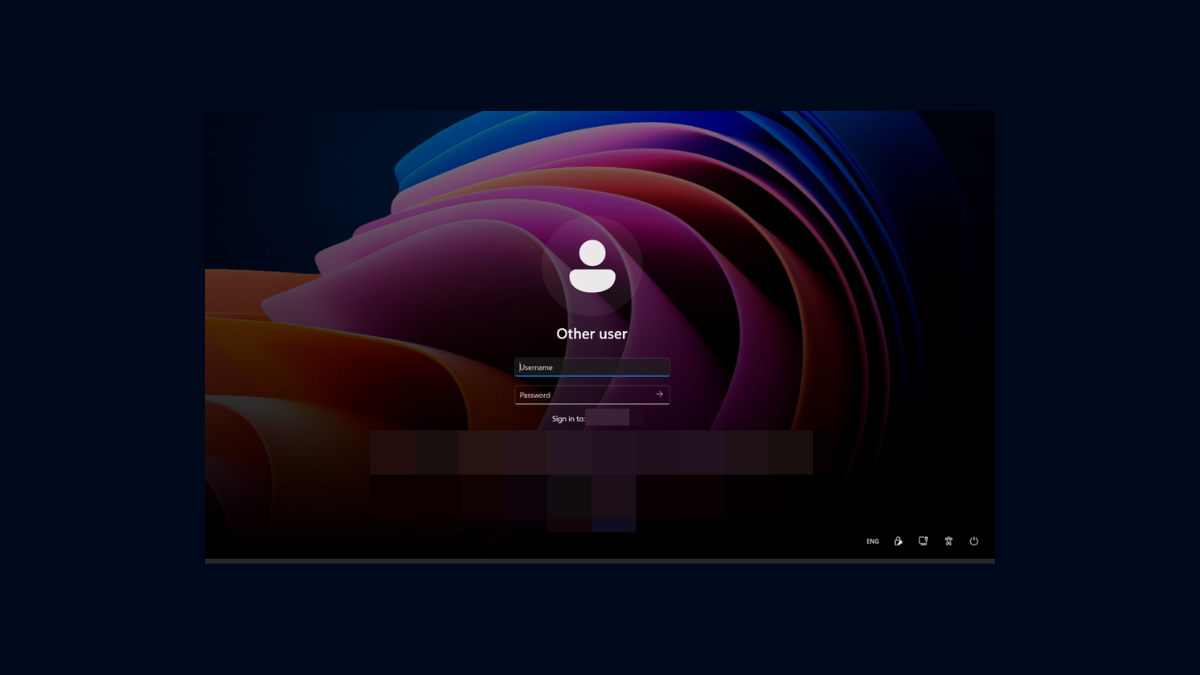
Public computers, shared spaces, or even a home office can sometimes expose your email address on the Windows 11 login screen, potentially revealing personal information to anyone nearby. Disabling this display not only improves privacy but also reduces the risk of your email being seen or misused. Several approaches exist to remove or hide your email address from the Windows 11 login screen, ranging from simple settings adjustments to more advanced system changes. Here’s how to do it.
Hide Email Address Using Windows 11 Settings
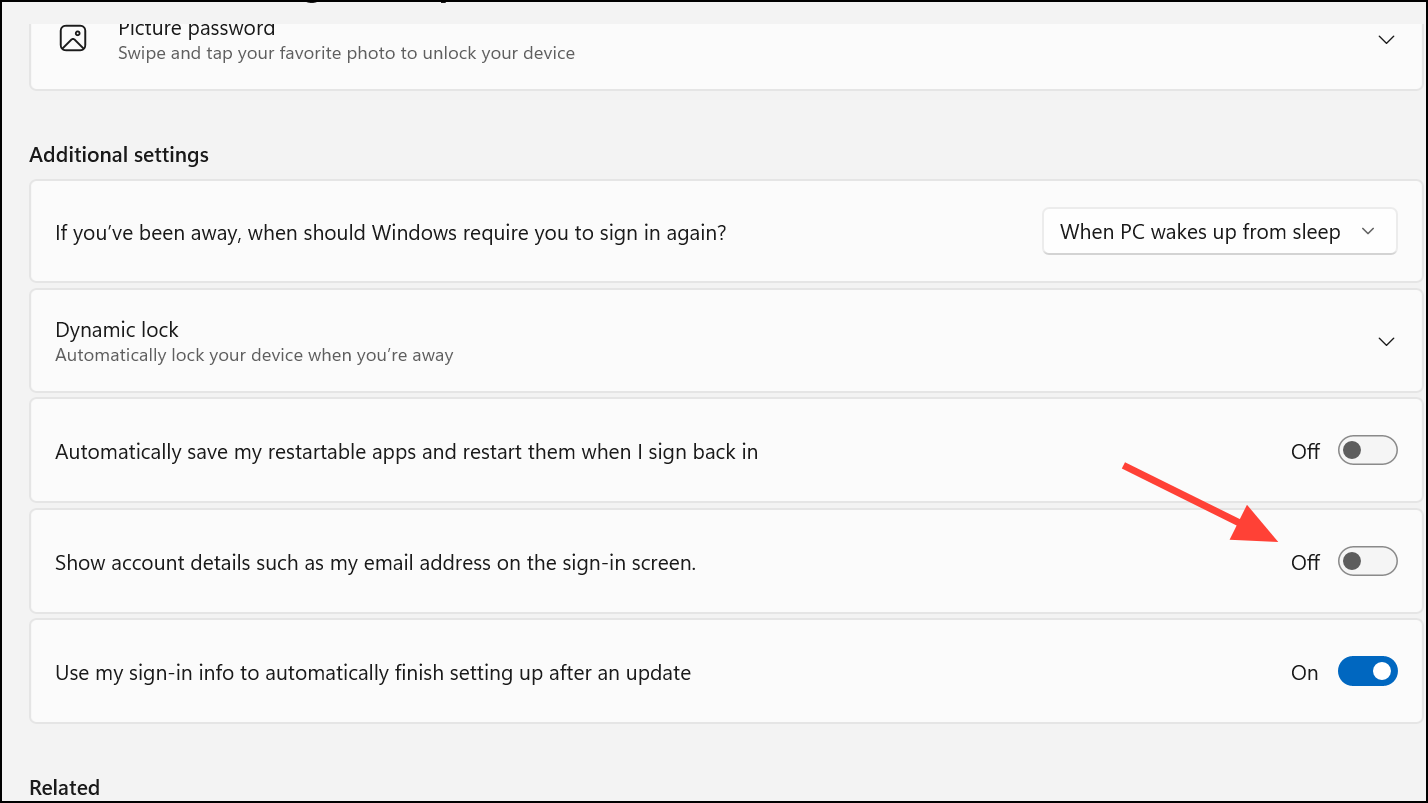
Win + I. This shortcut launches the Settings window immediately.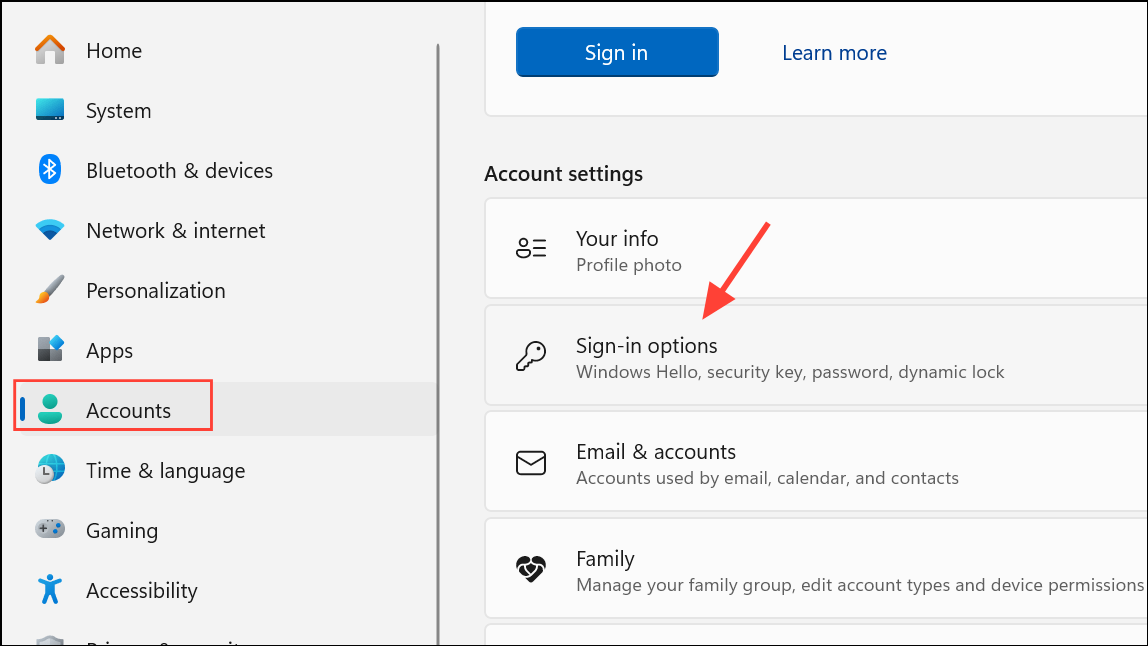
Hide Email Address Using Local Group Policy Editor
For users running Windows 11 Pro, Enterprise, or Education, the Local Group Policy Editor provides a way to enforce this setting across all user accounts. This approach is especially useful in business or multi-user environments.
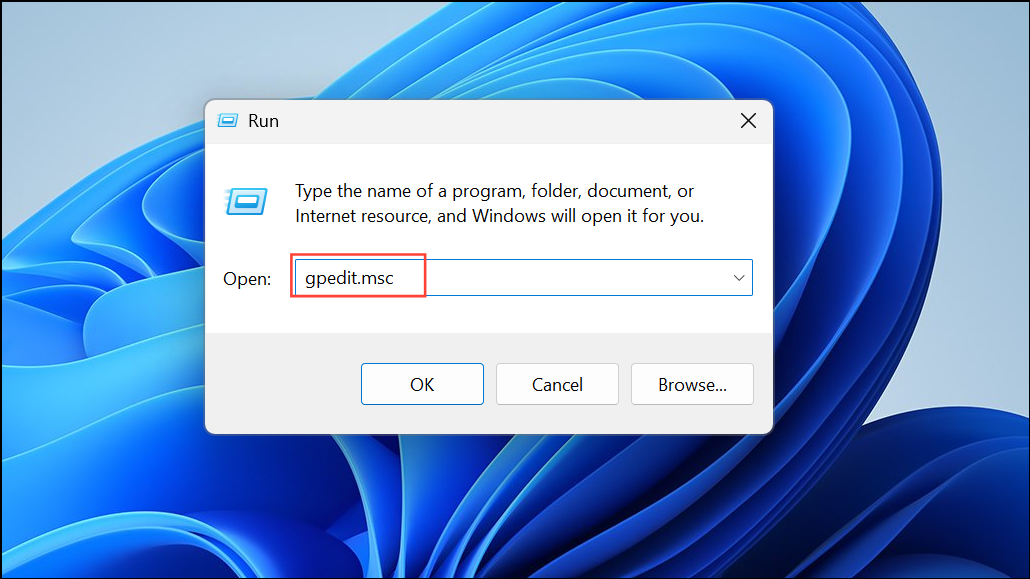
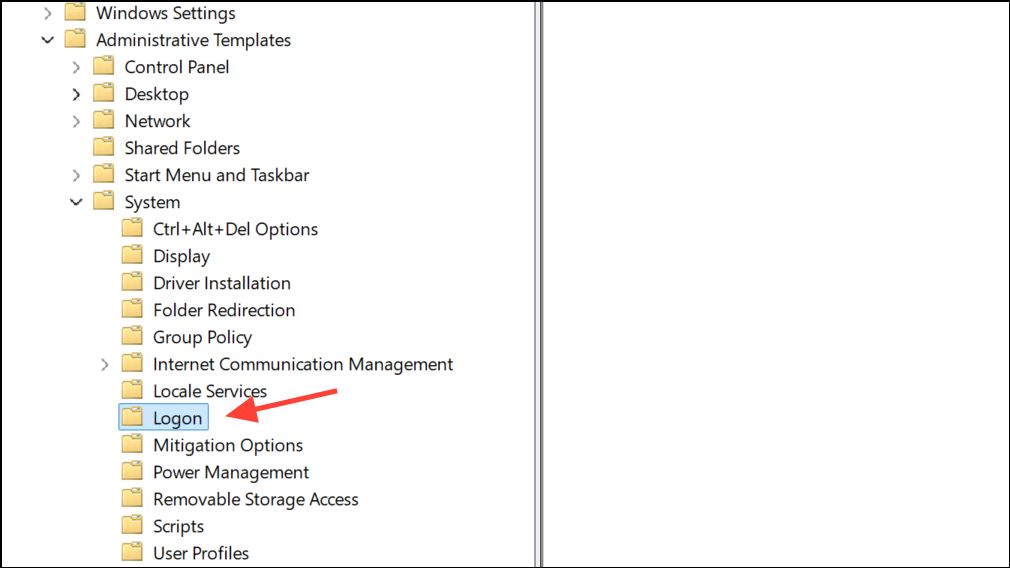
This method overrides user-level settings and is ideal for system administrators or anyone managing multiple user profiles.
Hide Email Address Using Registry Editor
For advanced users or those on Windows 11 Home (which lacks Group Policy Editor by default), the Registry Editor offers a direct way to control this privacy setting. Editing the registry can affect system stability, so create a backup or restore point before proceeding.
Win + X and select Run. Type regedit and press Enter to open Registry Editor. Approve the UAC prompt if it appears.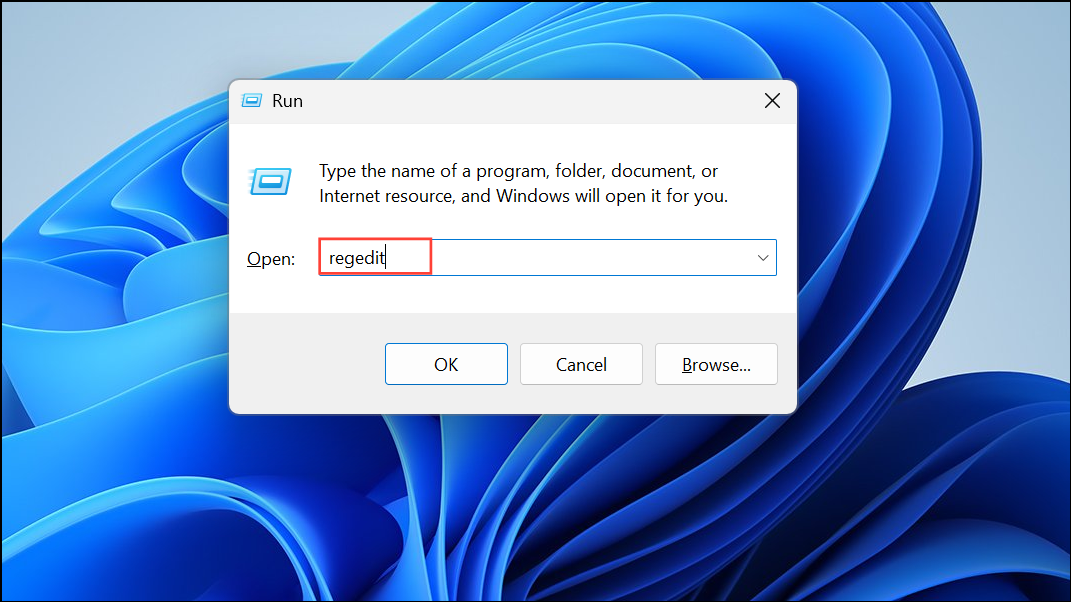
HKEY_LOCAL_MACHINE\SOFTWARE\Policies\Microsoft\Windows\System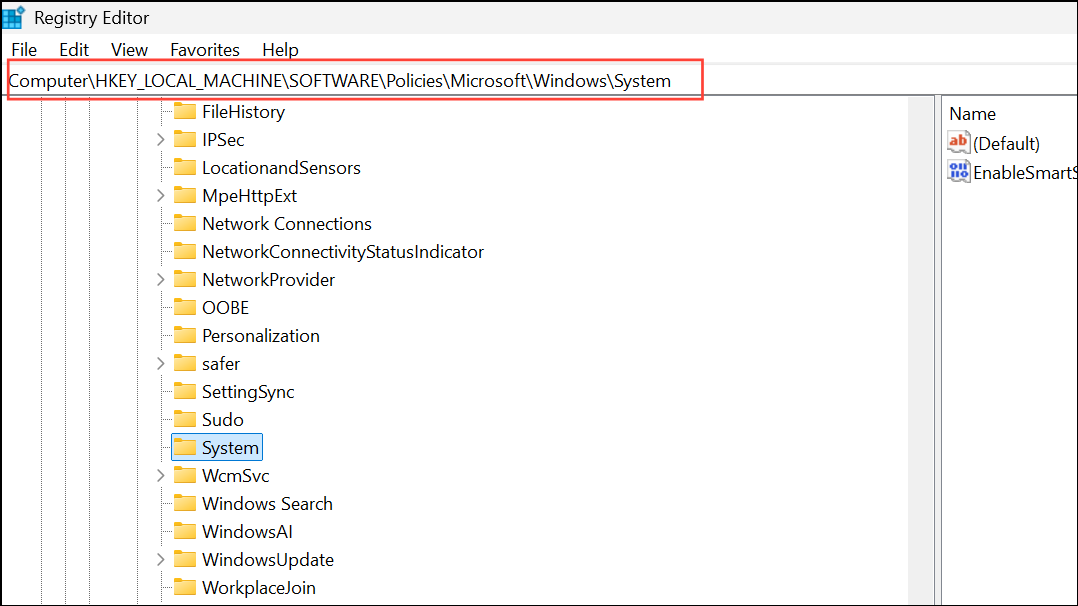
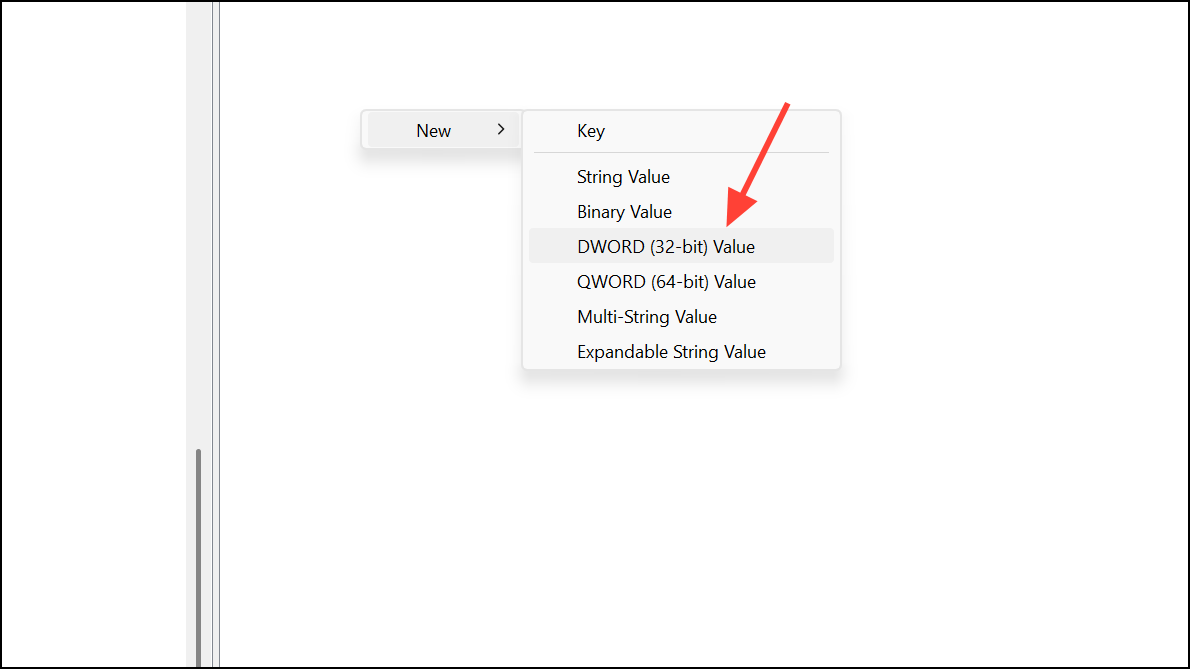
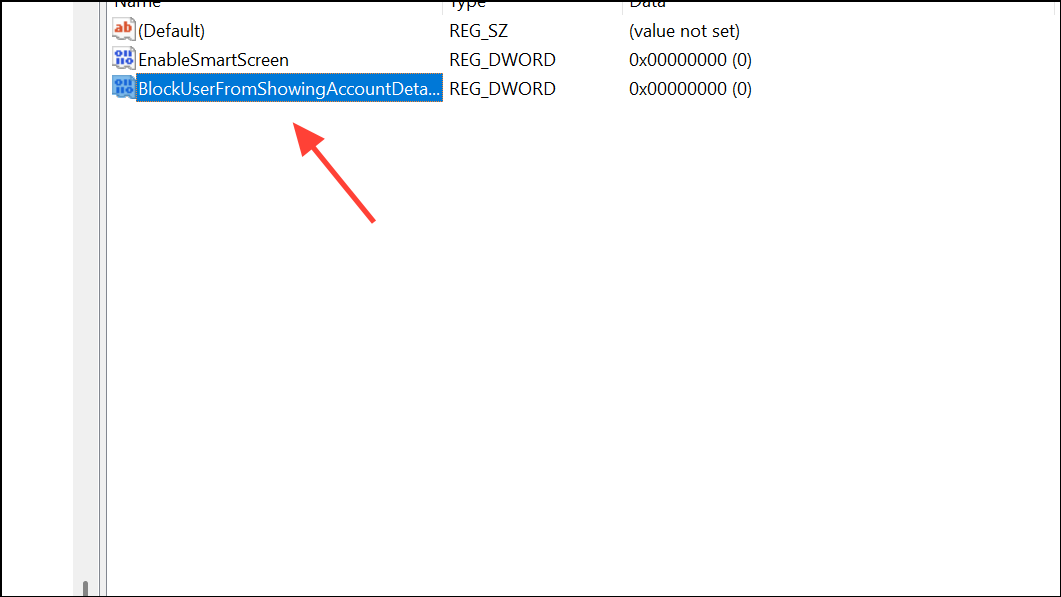
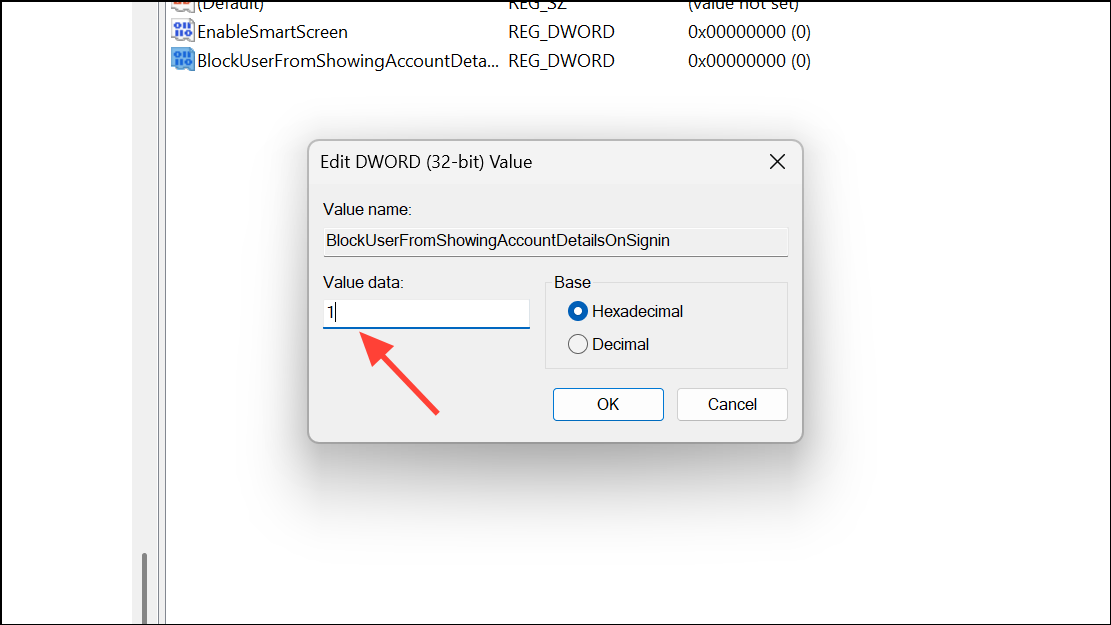
Switch to a Local Account to Remove Email Address Entirely
If you want to remove all traces of your Microsoft account—including your email address—from the login experience, switching to a local account is the most direct approach. This method severs the link between your device and your Microsoft account, which means you won’t be able to use features that require a Microsoft account (such as OneDrive sync or Microsoft Store purchases).
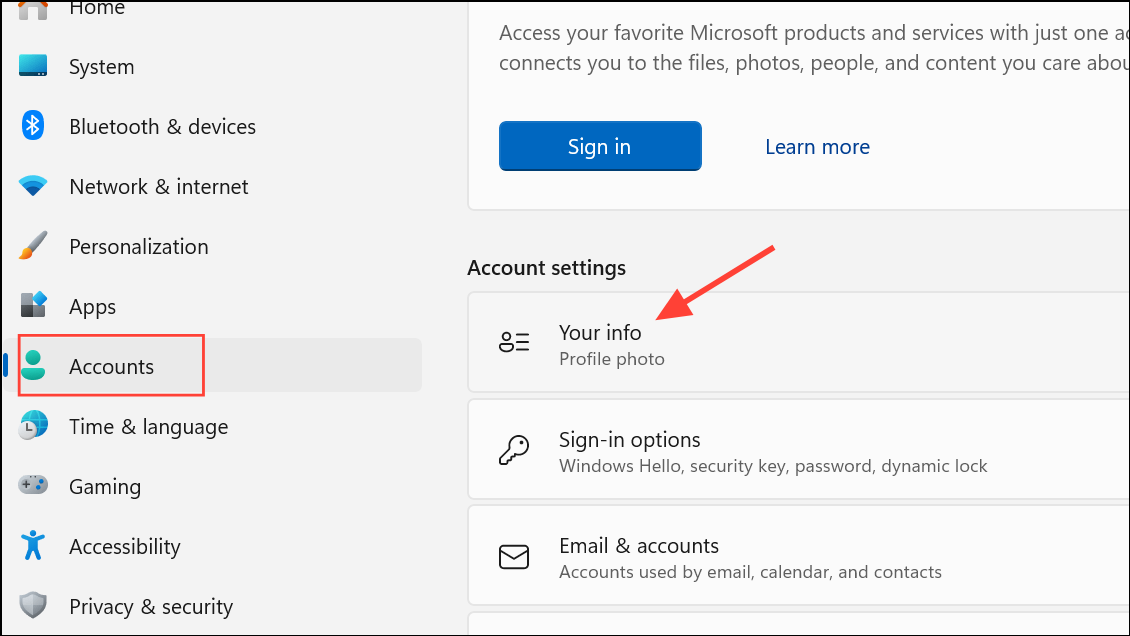
This method is especially effective if you want to maximize privacy and minimize Microsoft’s access to your usage data. However, you’ll lose access to Microsoft-specific services tied to account syncing.
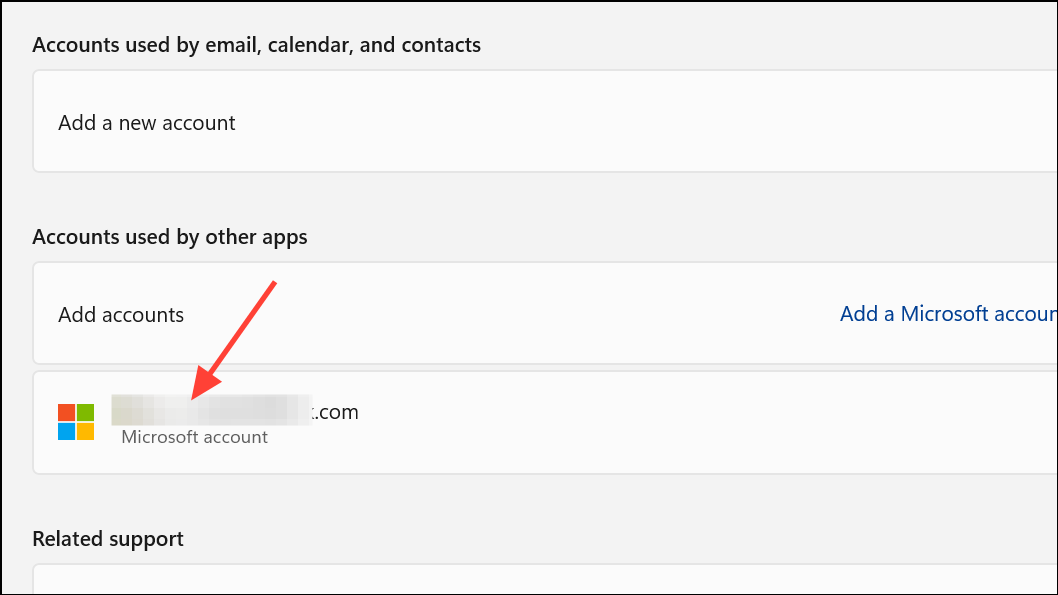
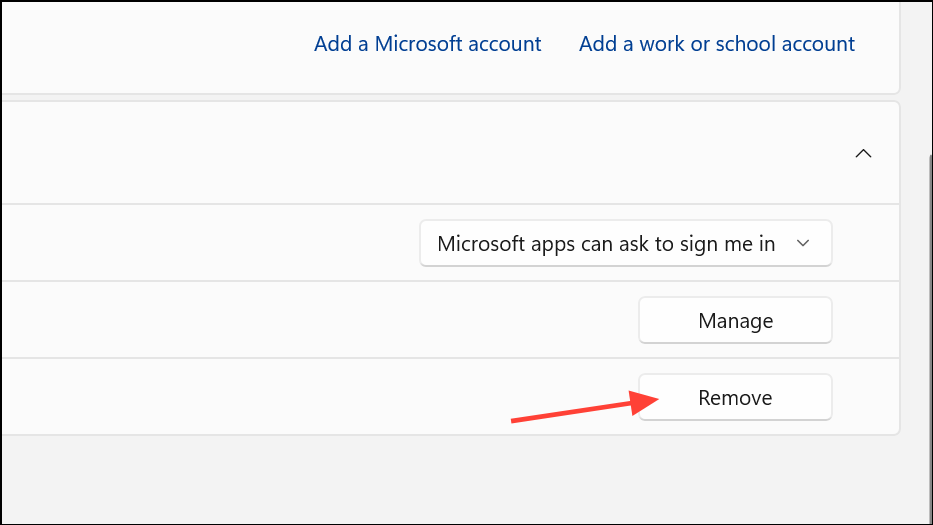
Remove Connected Email Accounts From Windows 11
Sometimes, even after removing your Microsoft account, other email accounts may remain connected to Windows 11 (such as work or school accounts). Disconnecting these prevents sign-in prompts and further exposure of your email information.
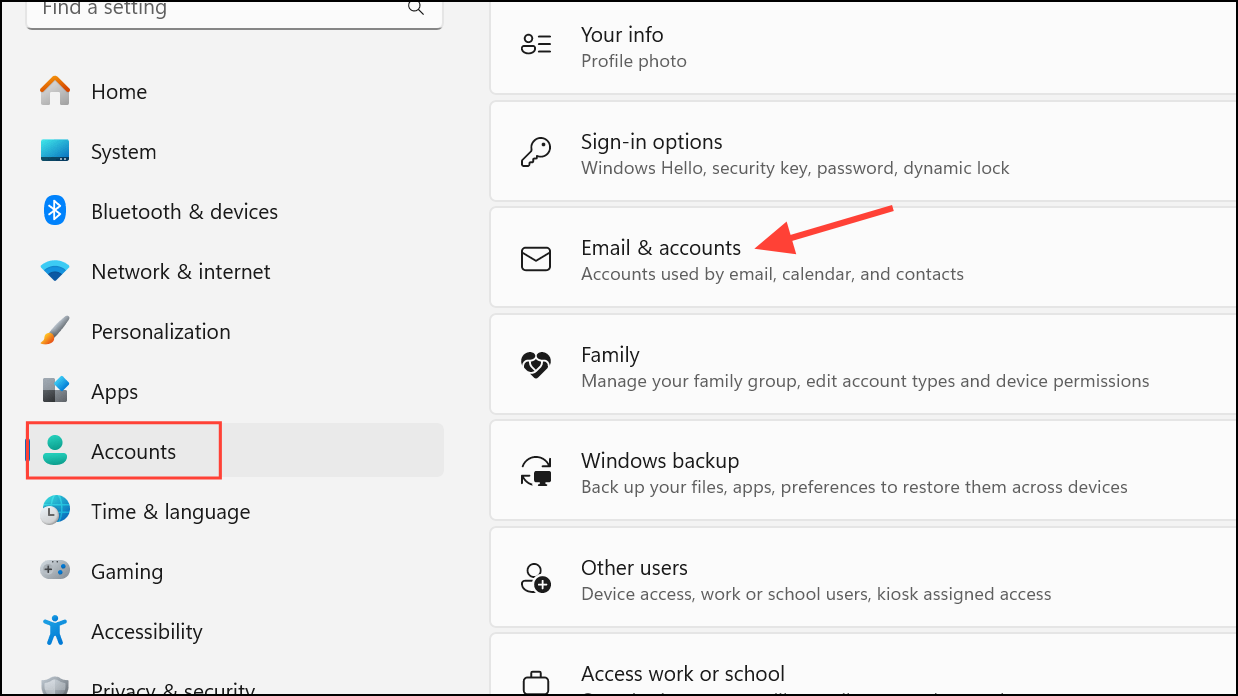
Adjusting these settings shields your email address from public view on the Windows 11 login screen and streamlines your sign-in experience. For ongoing privacy, periodically review your account and login configurations, especially after major updates or device changes.



