

Video files that previously played without issue in Windows 11 may suddenly display a “Video could not be decoded” error, often accompanied by audio playback without visuals or a message about unsupported formats or codecs. This problem disrupts not only casual viewing but also professional editing and multimedia tasks, especially when deadlines are tight or specific software is required. Addressing this error involves a combination of checking codec support, updating system components, and sometimes switching playback software to restore full video functionality.
Use a Different Media Player with Built-In Codecs
Switching to a media player that includes its own codec library is the fastest and most reliable way to play videos that Windows Media Player or the default Movies & TV app cannot decode. Applications like VLC Media Player, MPC-BE, MPC-HC, and PotPlayer are widely recommended for their ability to handle a vast array of video formats without requiring extra codec installations.
https://www.videolan.org/).Install or Update Video Codecs
Missing or incompatible codecs are a primary cause of decoding errors. Windows 11 does not natively support every video codec, especially for less common formats like DVC or certain MOV/AVI variants. Installing codec packs or specific codec filters can restore playback capability in your preferred player.
Settings > Apps > Installed Apps, search for “codec,” and remove all related entries.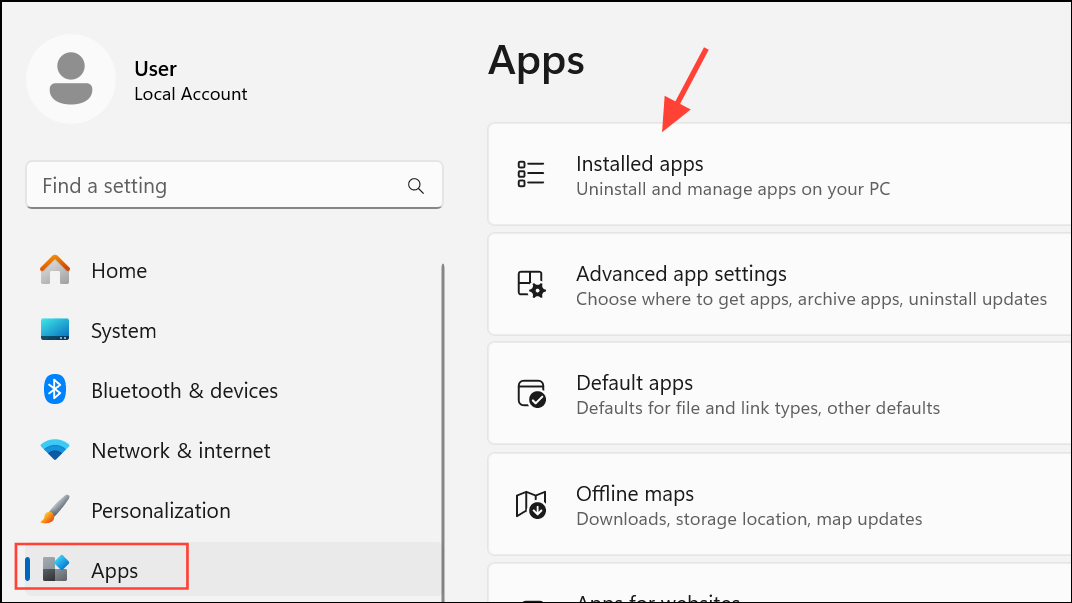
Convert the Video File Format
Some video files use rare or outdated codecs that are not well supported in Windows 11. Converting the video to a widely supported format like MP4 or AVI can resolve decoding issues and simplify future playback.
This approach is particularly useful for video editing software that has strict codec requirements.
Repair or Reinstall Windows Media Player
Windows Media Player is a built-in component of Windows 11 and may become misconfigured or corrupted, leading to decoding errors. Reinstalling or repairing the app can restore its ability to play video files.
turn windows features on or off in the Start menu search and pressing Enter.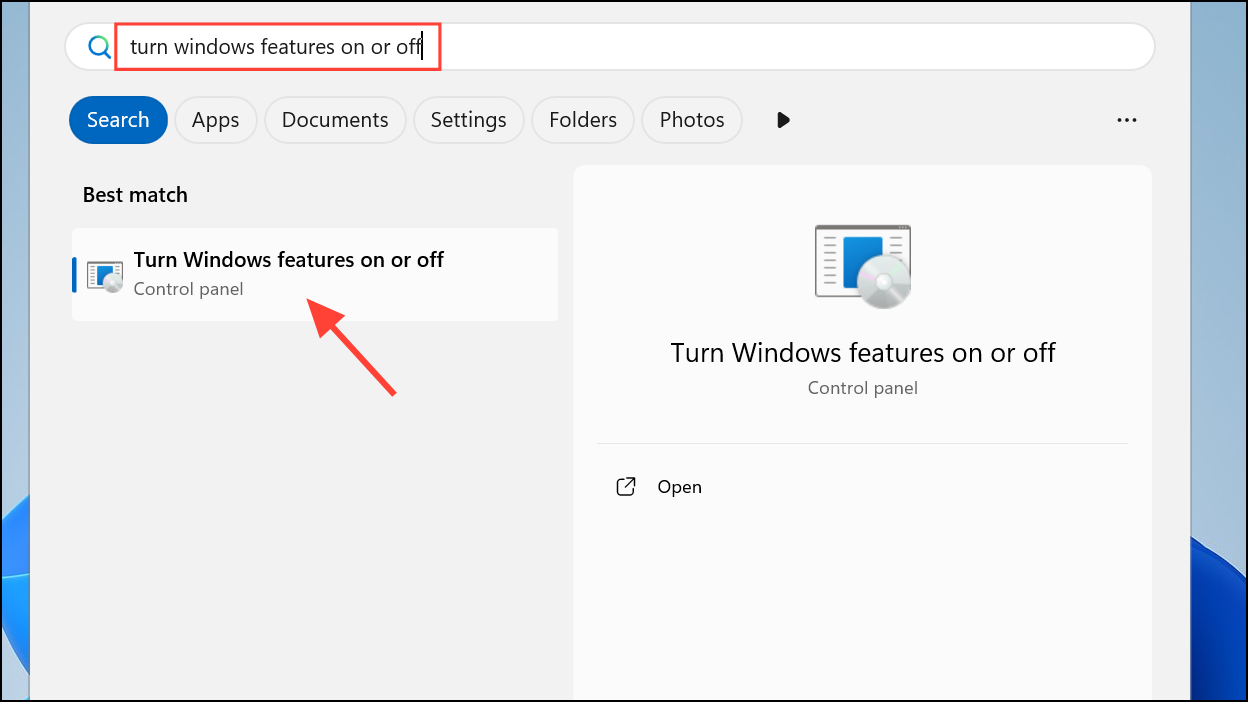
Update Your Display (Graphics) Drivers
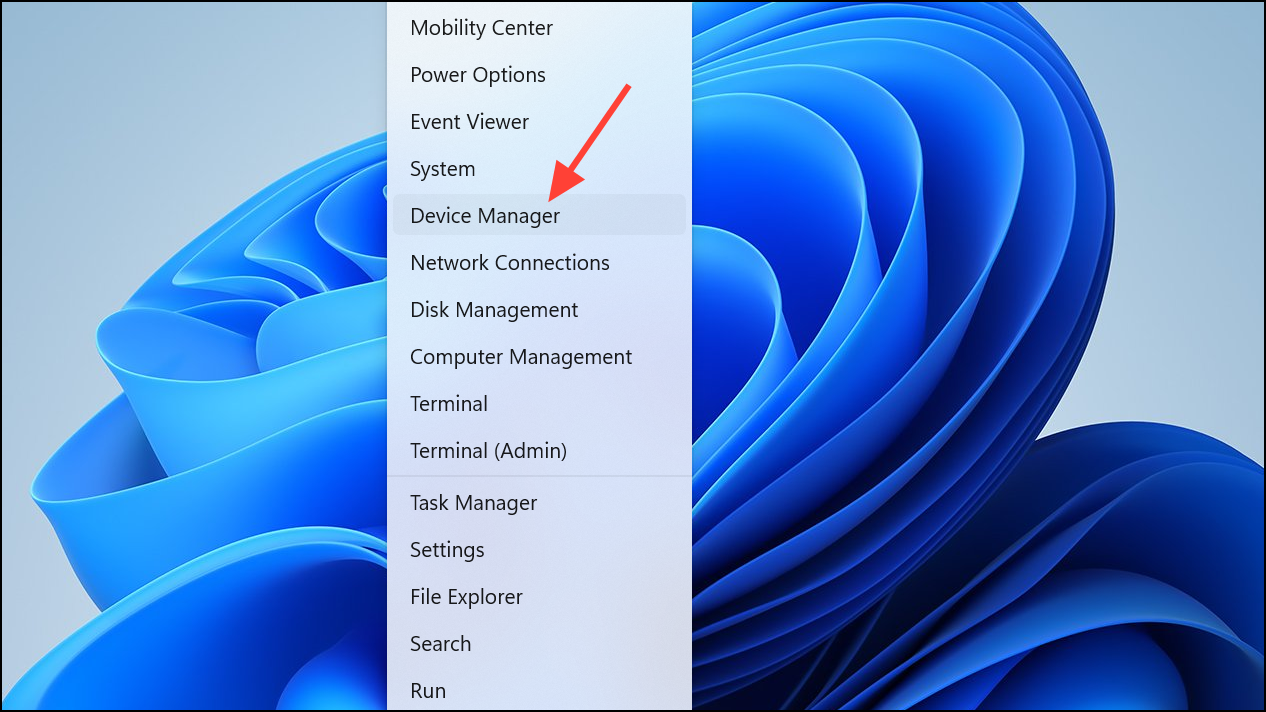
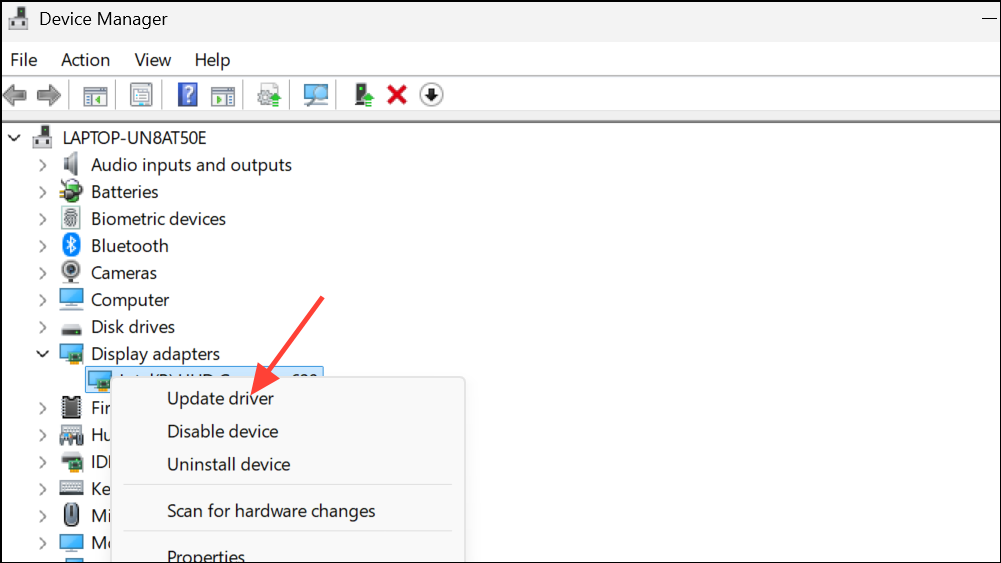
Outdated or faulty graphics drivers can interfere with video decoding, producing playback errors or black screens. Updating to the latest driver version can restore proper video rendering.
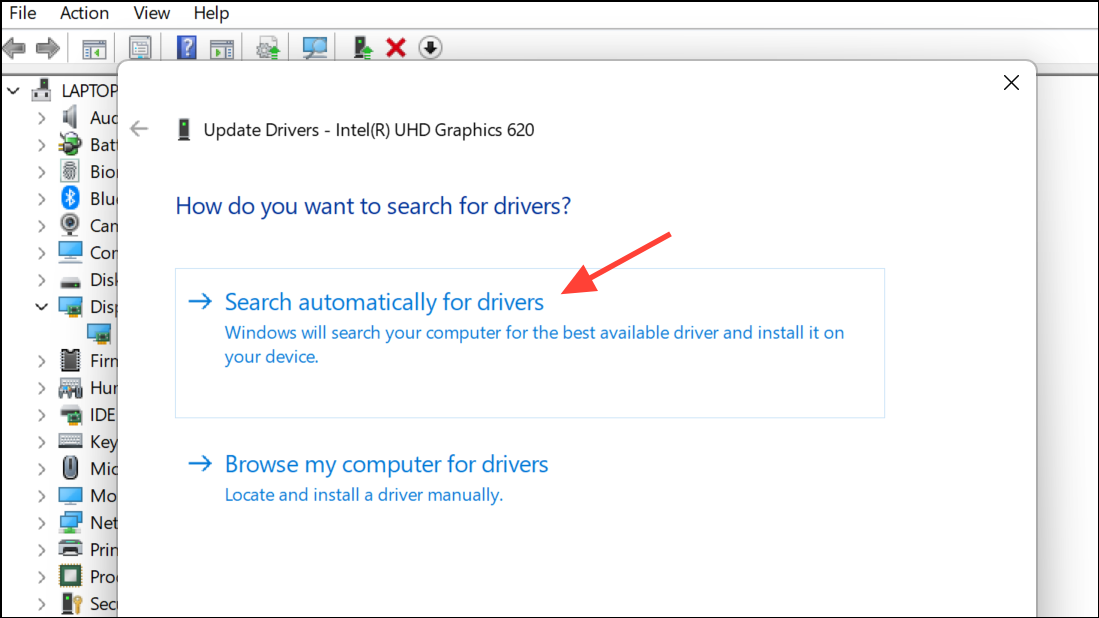
Check and Restore System Changes
System updates, software installations, or malware events can alter codec availability or system configuration, leading to sudden playback failures. Rolling back recent changes or using System Restore can revert the system to a working state.
Settings > Windows Update > Update history and select “Uninstall updates.”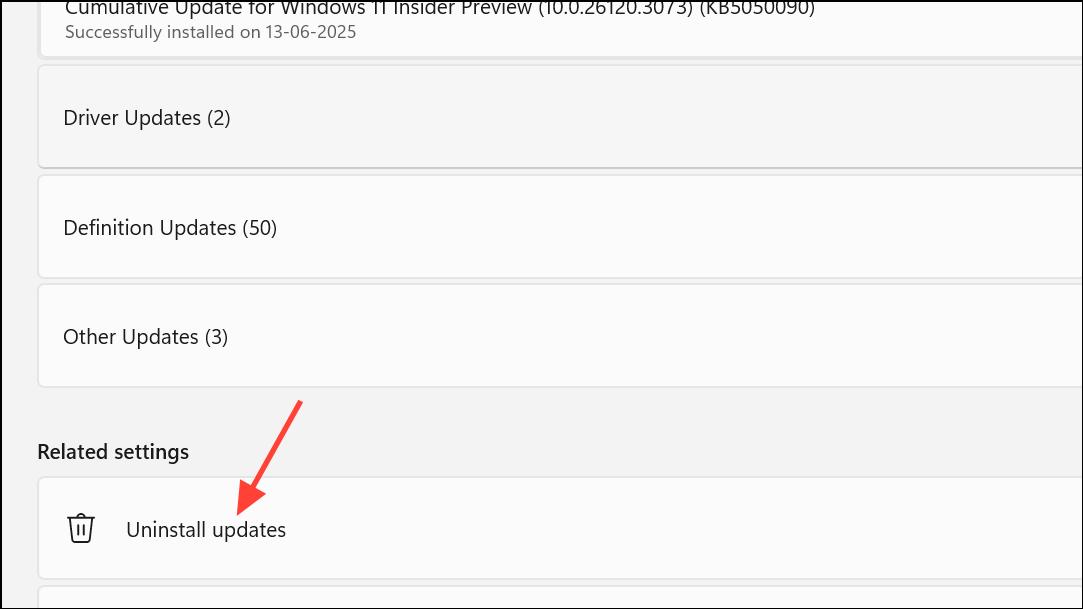
Control Panel > Recovery > Open System Restore and follow the on-screen instructions.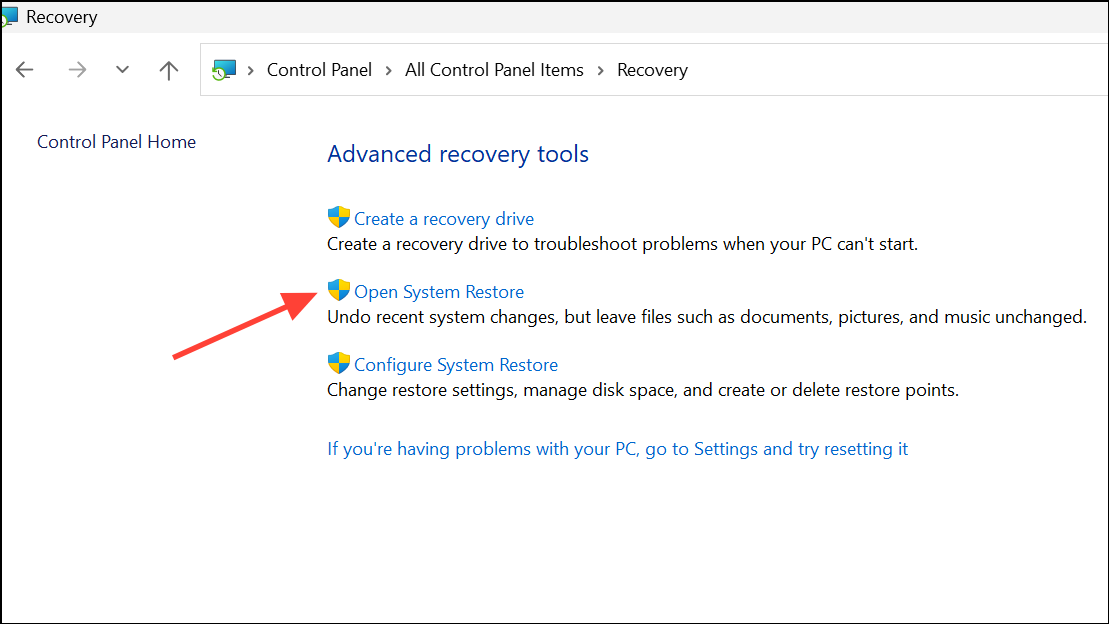
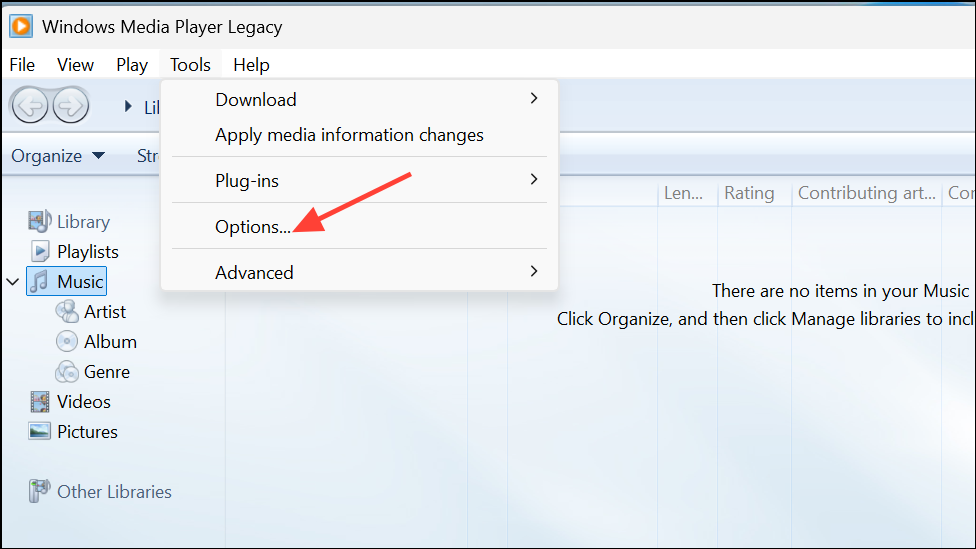
Check Audio Device and Output Settings
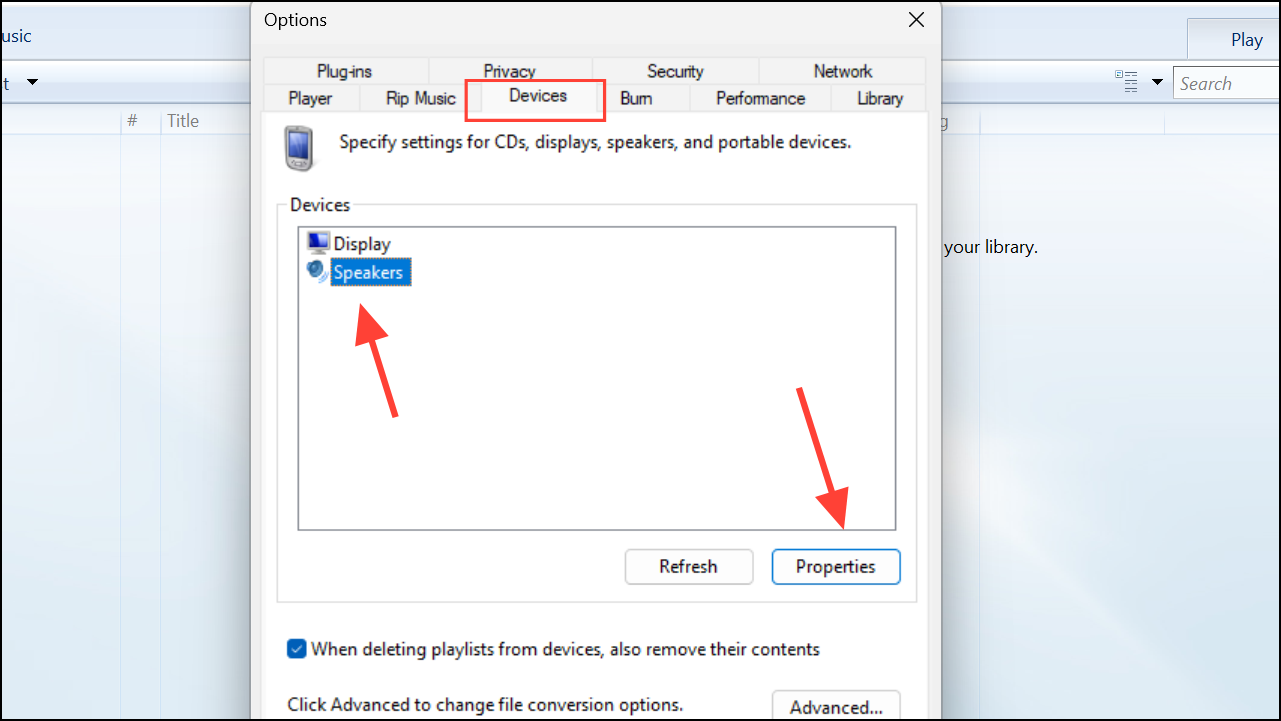
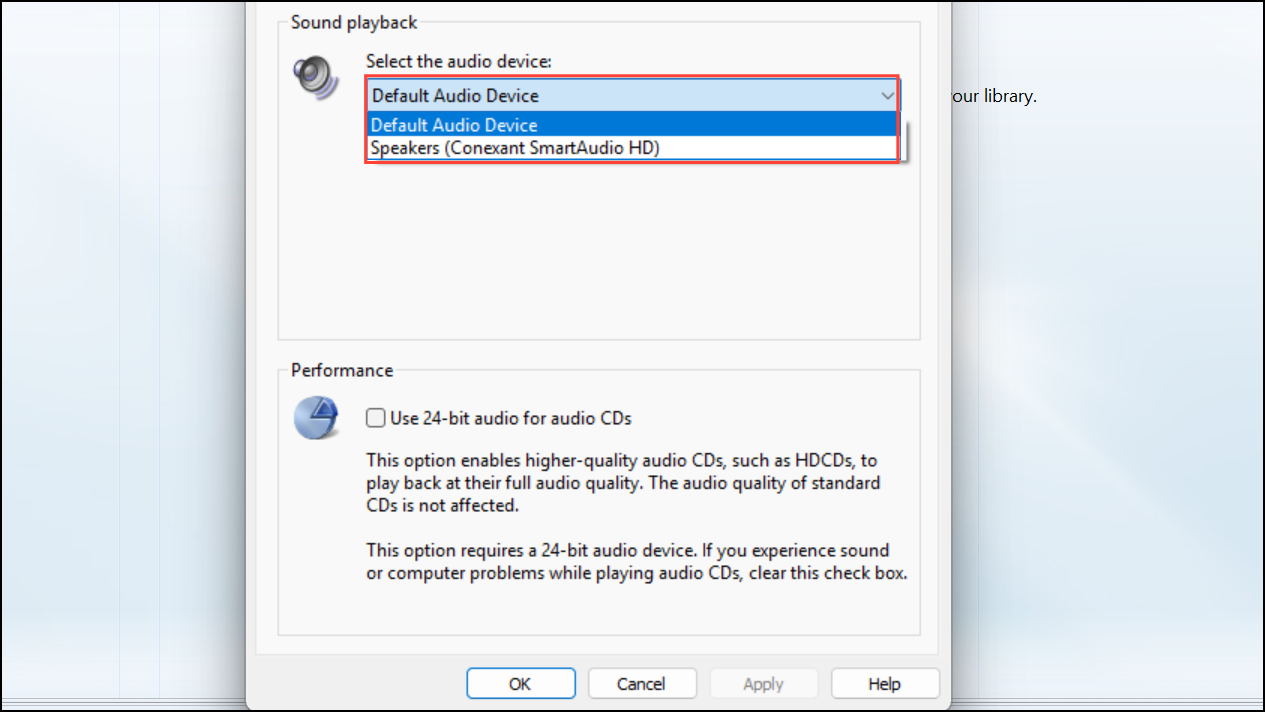
Incorrect audio device selection in Windows Media Player can sometimes trigger decoding errors or cause videos to play without sound. Ensuring the correct output device is set can resolve related issues.
Resolving the “Video could not be decoded” error in Windows 11 often comes down to codec compatibility, driver updates, or switching to a more capable media player. If one method doesn’t work, try the next—your videos should be back in action soon.



