
Seeing the message Microsoft Store is blocked. Check with your IT or system administrator. in Windows 11 can prevent you from downloading or updating essential apps. This issue often occurs when group policies, registry settings, or account associations restrict access, even if you are the administrator. Addressing these restrictions restores full Microsoft Store functionality, allowing you to install and update apps without barriers.
Remove Old Work or School Account Associations
Switching from a work or school account to a personal Microsoft account can leave behind organizational policies that block the Store. Disconnecting these accounts is a crucial first step.
Accounts > Email & accounts. Check for any work or school email addresses listed under Accounts used by other apps or Access work or school.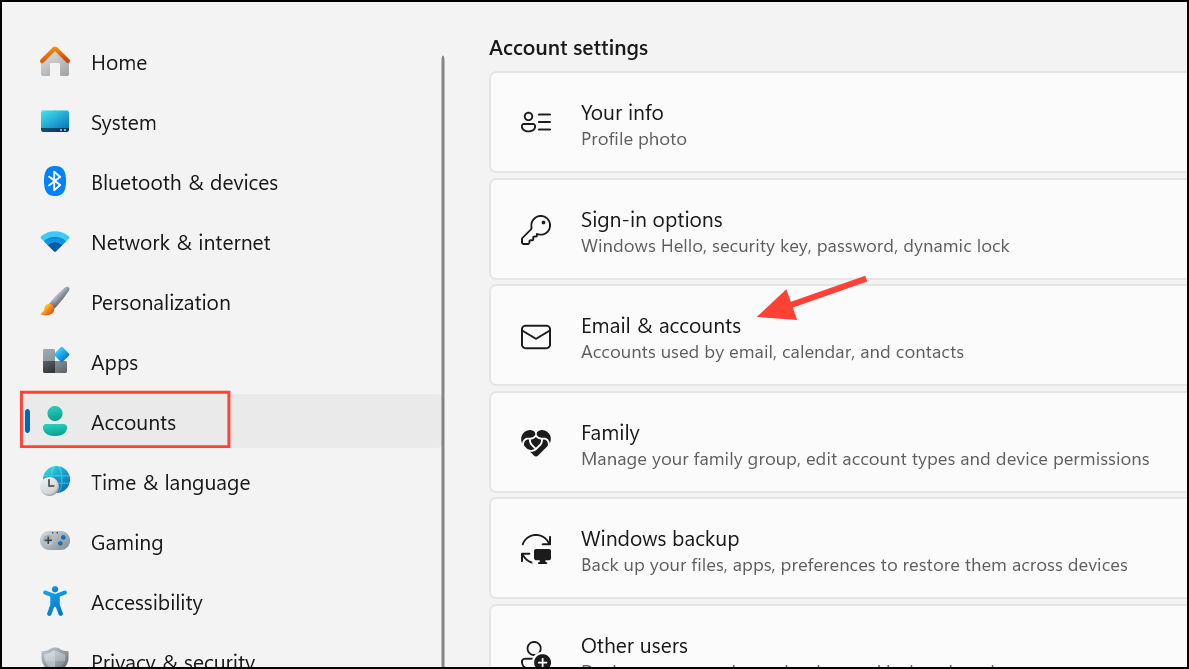
Disconnect. Confirm any prompts to remove the account.Delete Restrictive Registry Keys
Lingering registry keys from previous group policies or organizational accounts can continue to block the Microsoft Store. Removing these specific keys clears out restrictions.
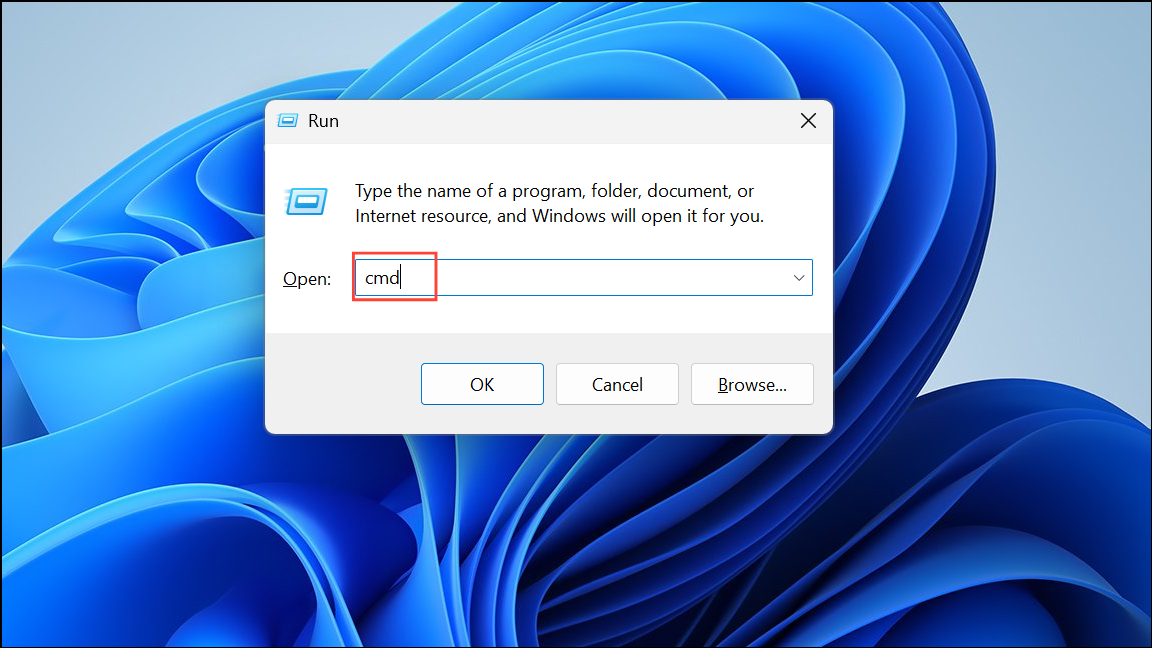
Access Denied or an error, continue to the next command. These commands remove policies that may restrict the Store:reg delete "HKLM\Software\Microsoft\Windows\CurrentVersion\Policies" /f
reg delete "HKLM\Software\Microsoft\WindowsSelfHost" /f
reg delete "HKLM\Software\Policies" /f
reg delete "HKLM\Software\WOW6432Node\Microsoft\Policies" /f
reg delete "HKLM\Software\WOW6432Node\Microsoft\Windows\CurrentVersion\Policies" /f
reg delete "HKLM\SOFTWARE\Policies\Microsoft\Windows Defender" /v DisableAntiSpyware
reg delete "HKCU\Software\Microsoft\Windows\CurrentVersion\Policies" /f
reg delete "HKCU\Software\Microsoft\WindowsSelfHost" /f
reg delete "HKCU\Software\Policies" /f
reg delete "HKLM\Software\Microsoft\Policies" /f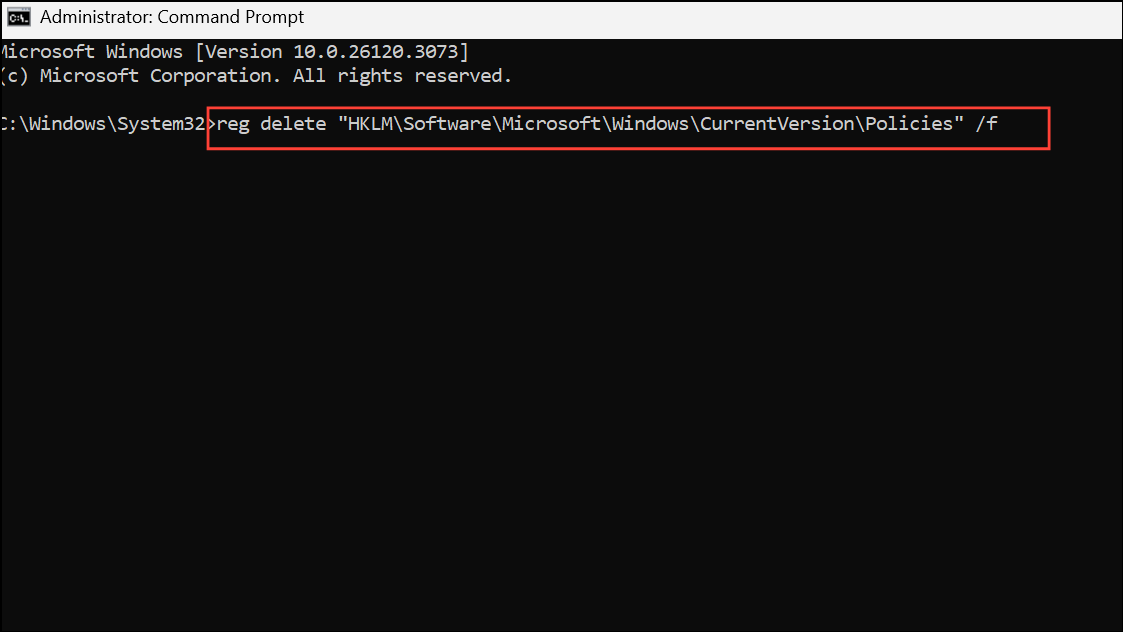
Check and Adjust Group Policy Settings
Group Policy settings can explicitly block the Microsoft Store. Resetting them restores access for all users on the device.
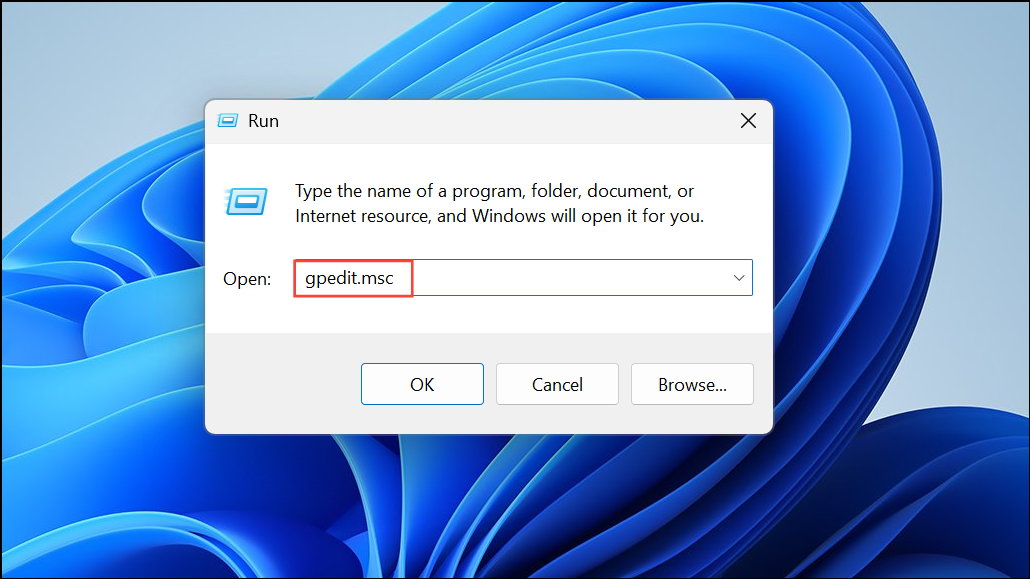
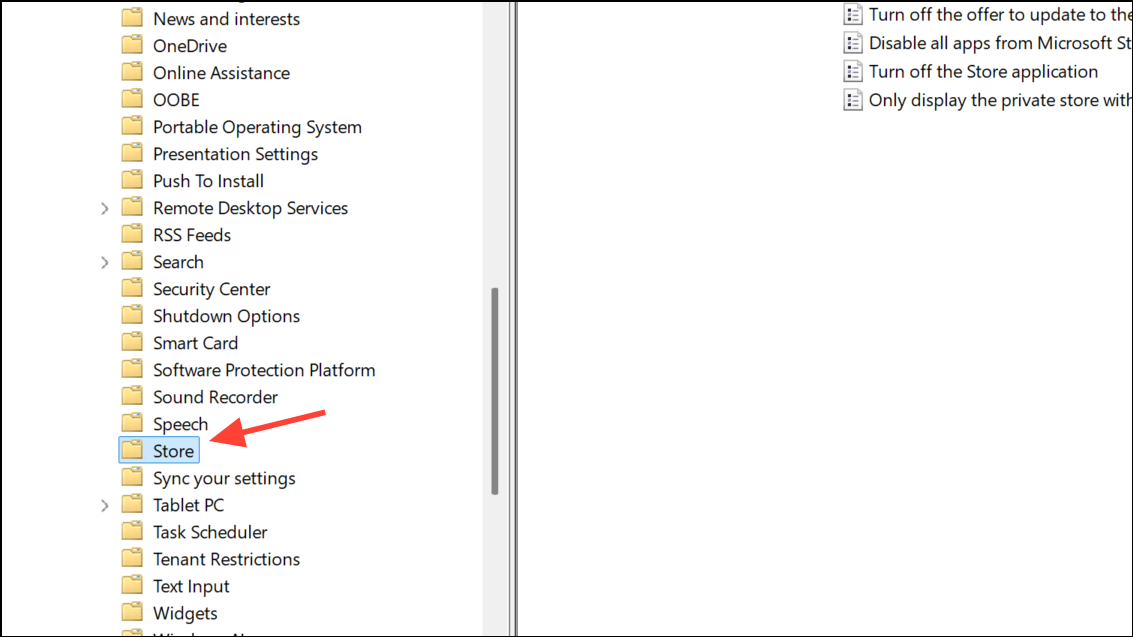
Turn off the Store application. Set it to Not Configured or Disabled if you want to be explicit. Click OK to save your changes.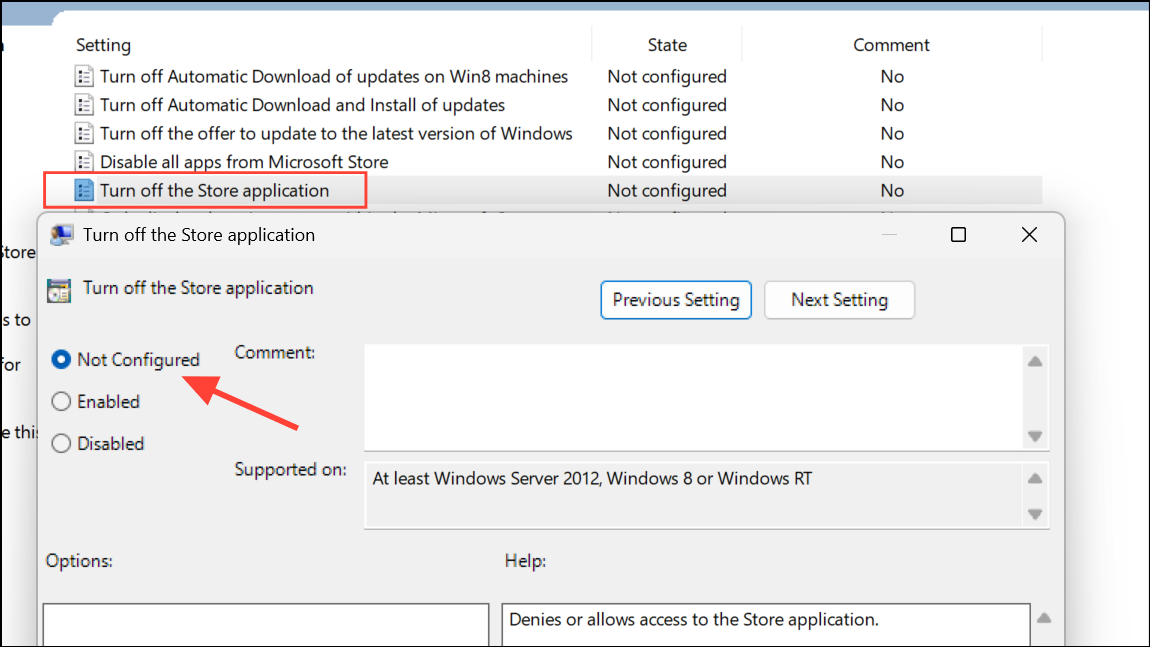
Remove AppLocker or Custom Security Policy Rules
AppLocker or custom application control rules can deny access to the Store. Removing or adjusting these rules re-enables the Store for all users.
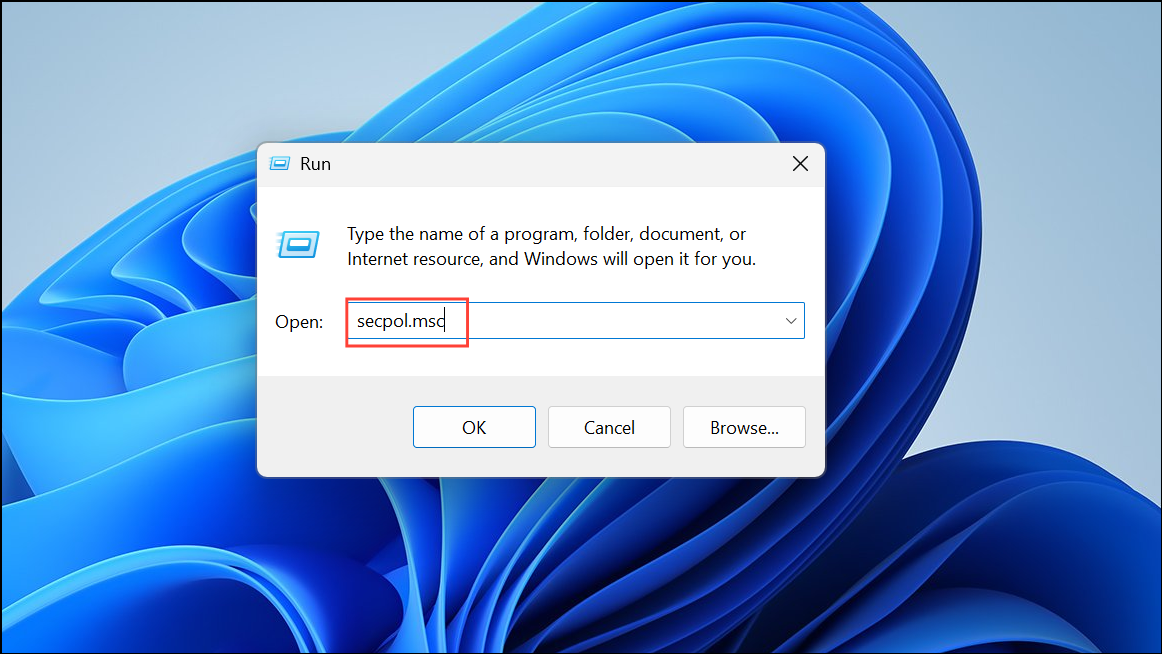
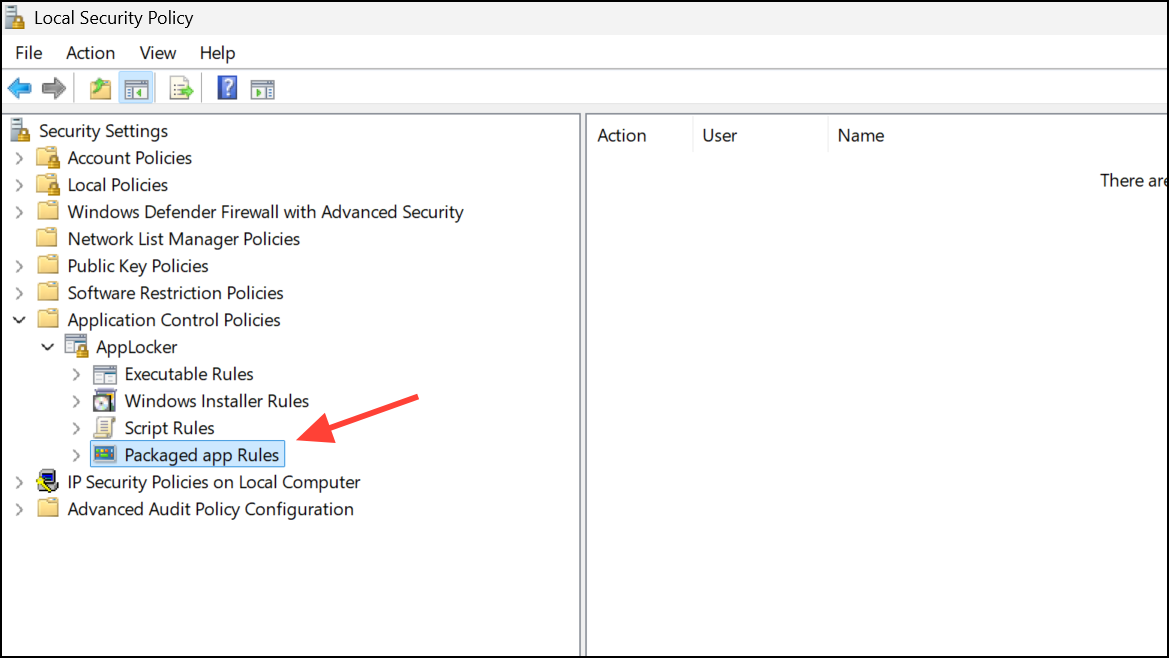
Microsoft.WindowsStore. If the Action is set to Deny, right-click the rule and choose Delete.Clear Store Cache and Reset Store App
After policy changes, cached settings can still block the Store. Resetting the cache ensures the Store recognizes new permissions.
Win + R, type wsreset.exe, and press Enter. A blank Command Prompt window will appear, then the Store will open automatically when the reset is complete.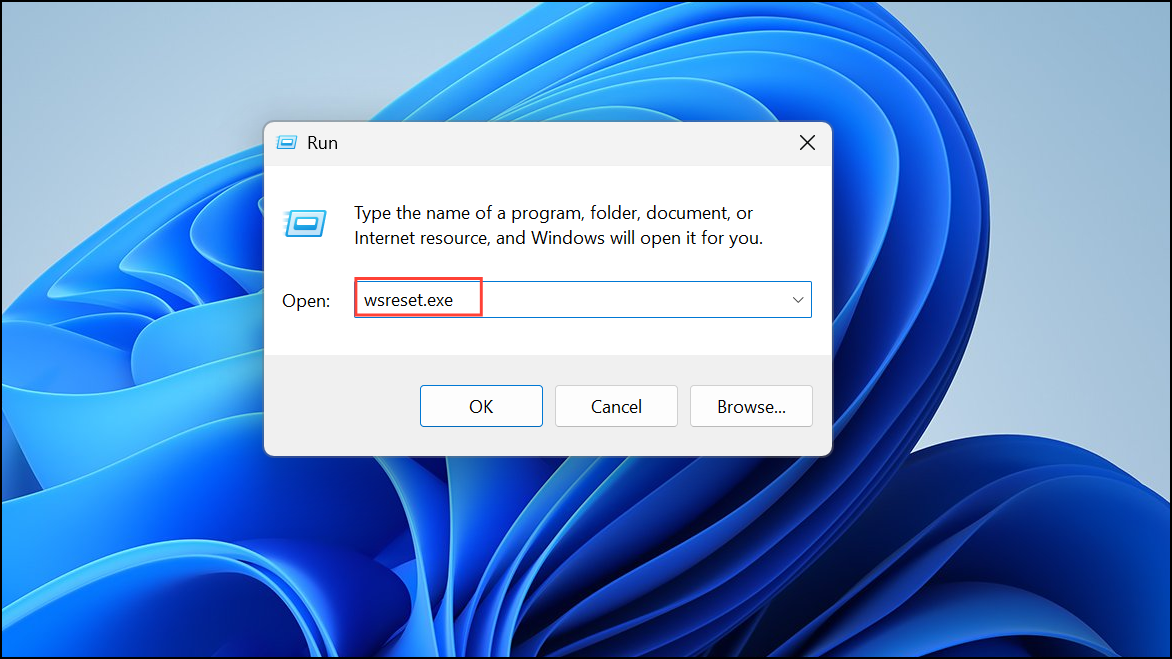
Adjust Registry Settings for Private Store Policies
Some organizations set the RequirePrivateStoreOnly registry value, which can block the public Microsoft Store. Removing or resetting this value restores access.
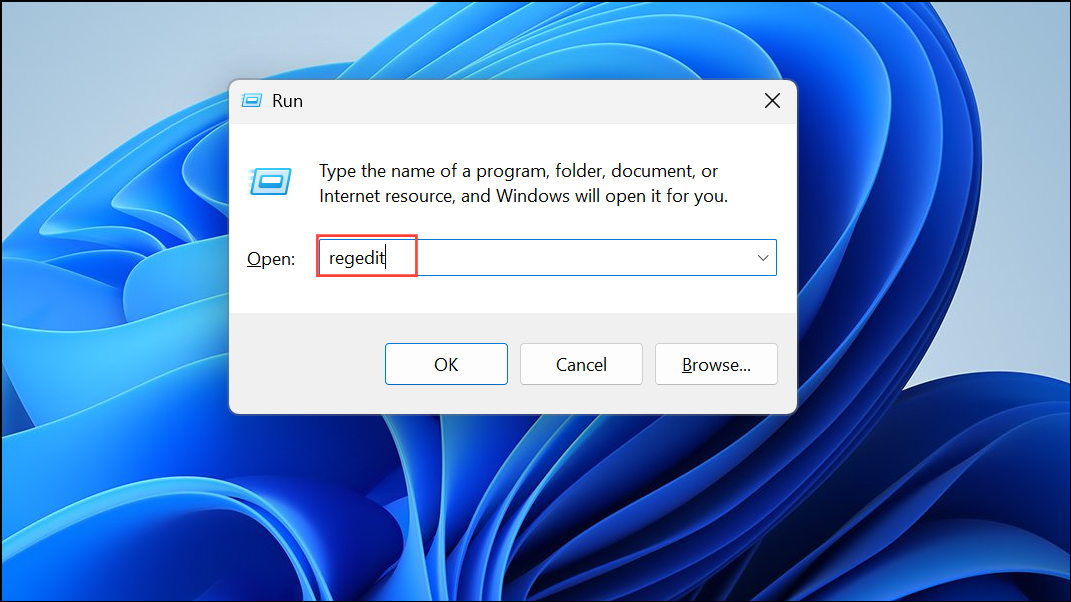
HKEY_LOCAL_MACHINE\SOFTWARE\Policies\Microsoft\WindowsStoreHKEY_CURRENT_USER\SOFTWARE\Policies\Microsoft\WindowsStore
RequirePrivateStoreOnly, right-click it and select Delete or set its value to 0.By methodically removing lingering account associations, policy restrictions, and cached settings, you restore full Microsoft Store access in Windows 11. If you continue to see the error after these steps, double-check for overlooked group policies or consult your organization’s IT support for additional restrictions.



