
Mouse clicks on the Windows 11 taskbar may suddenly stop working, leaving you unable to open the Start menu, launch pinned apps, or access system icons. This problem can occur after system updates, when waking from sleep, or seemingly at random, disrupting your workflow and making basic navigation difficult. Several methods exist to restore normal taskbar functionality, ranging from quick workarounds to more in-depth troubleshooting steps.
Lock and Unlock the Computer
Locking and unlocking your computer resets input states and often restores mouse click functionality to the taskbar and desktop. This method is quick and does not require restarting your PC or closing applications.
After unlocking, check if the taskbar and desktop are responsive to mouse clicks again. This approach works for many users and avoids interrupting ongoing work.
Restart Windows Explorer
Windows Explorer manages the taskbar, Start menu, and desktop. Restarting it refreshes these UI elements and can resolve temporary glitches causing unresponsiveness.
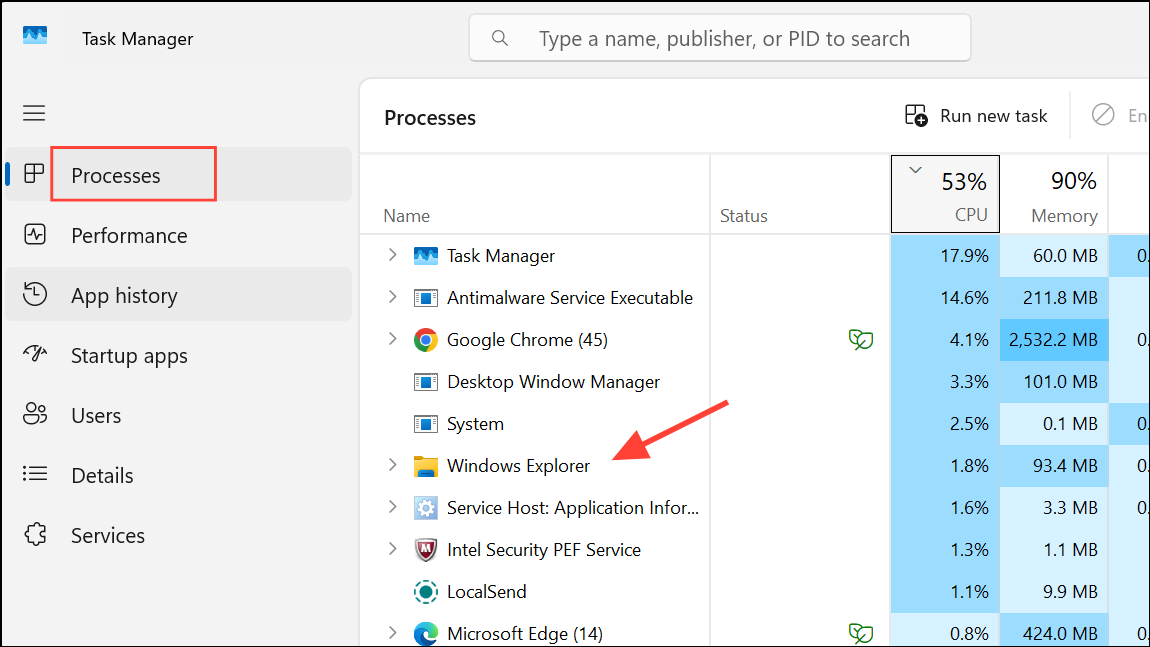
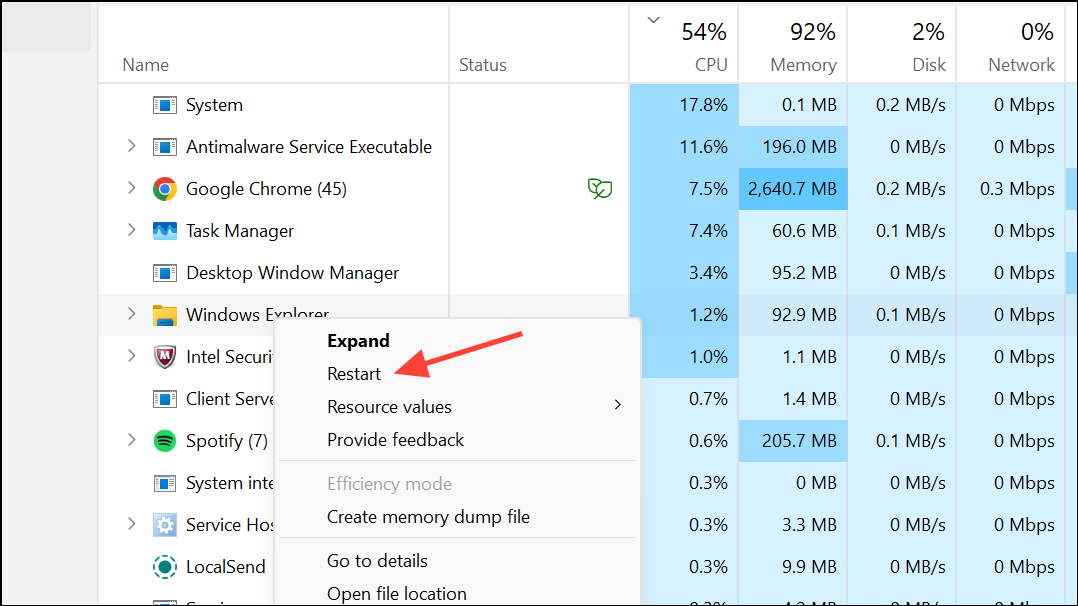
This step often restores click functionality without requiring a full system reboot.
Check for Stuck Mouse or Keyboard Inputs
Occasionally, a stuck mouse button (especially the middle button or a side button) or a keyboard key like Scroll Lock can interfere with input handling in Windows 11, causing the taskbar or desktop to become unresponsive.
Scroll Lock or other toggle keys. If your keyboard has a Scroll Lock key, press it once to turn it off. If not, use the Windows On-Screen Keyboard to disable it.Resolving stuck input devices can immediately restore normal click behavior.
Run System File Checker and DISM Tools
Corrupted system files or component store issues can cause UI problems, including an unresponsive taskbar. Running built-in repair tools checks for and repairs these issues.
Win + R, typing cmd, and pressing Ctrl + Shift + Enter.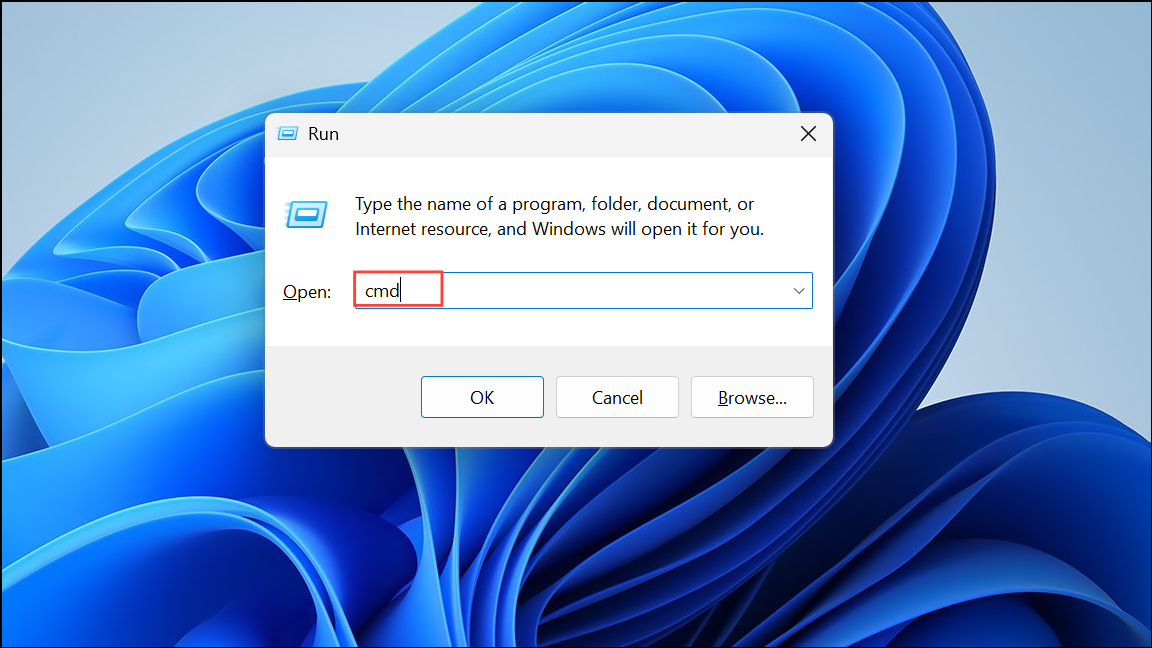
DISM /Online /Cleanup-Image /CheckHealth
DISM /Online /Cleanup-Image /ScanHealth
DISM /Online /Cleanup-Image /RestoreHealth
sfc /scannow
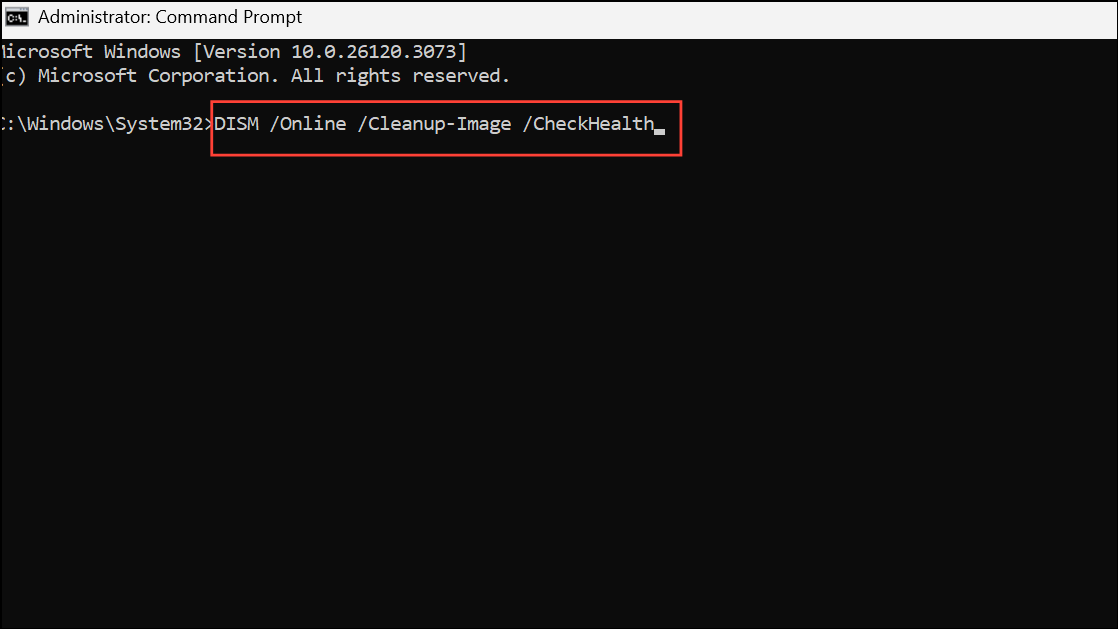
These tools repair common system integrity problems that may be the underlying cause of taskbar issues.
Remove Hidden or Unused Mouse Devices
Windows may retain drivers for old or disconnected mice, which can sometimes conflict with active devices and disrupt input handling.
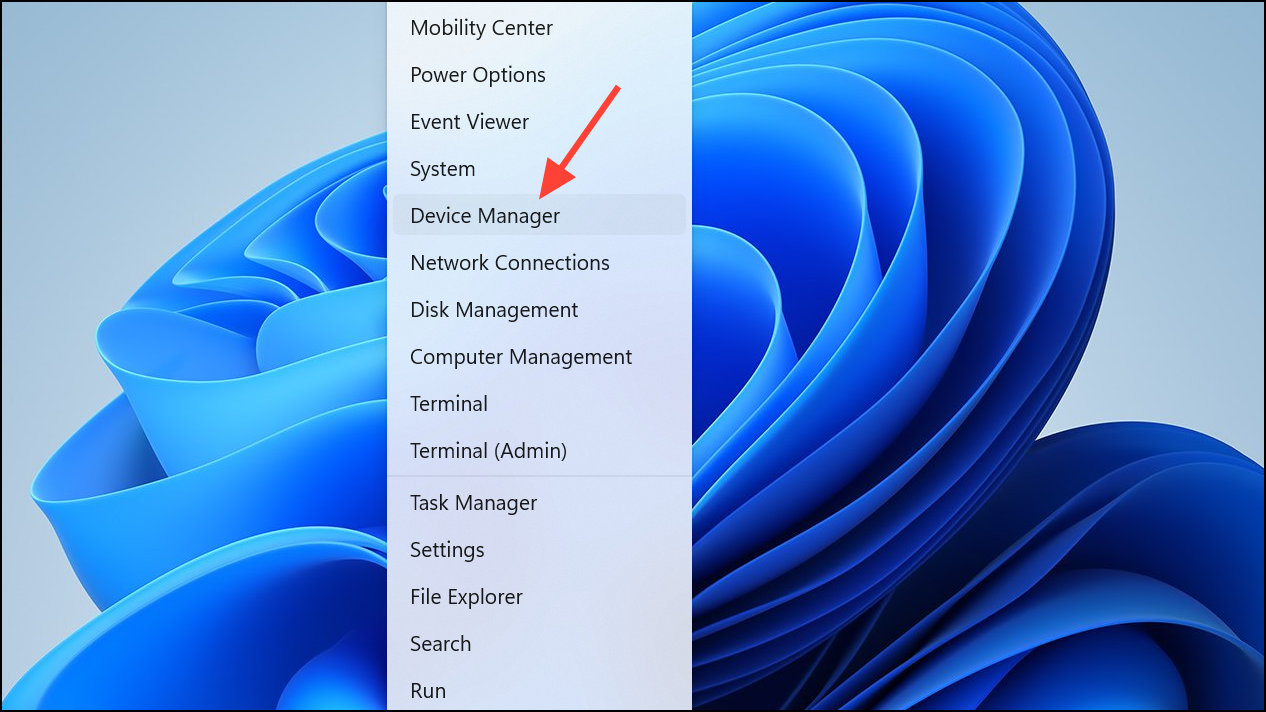
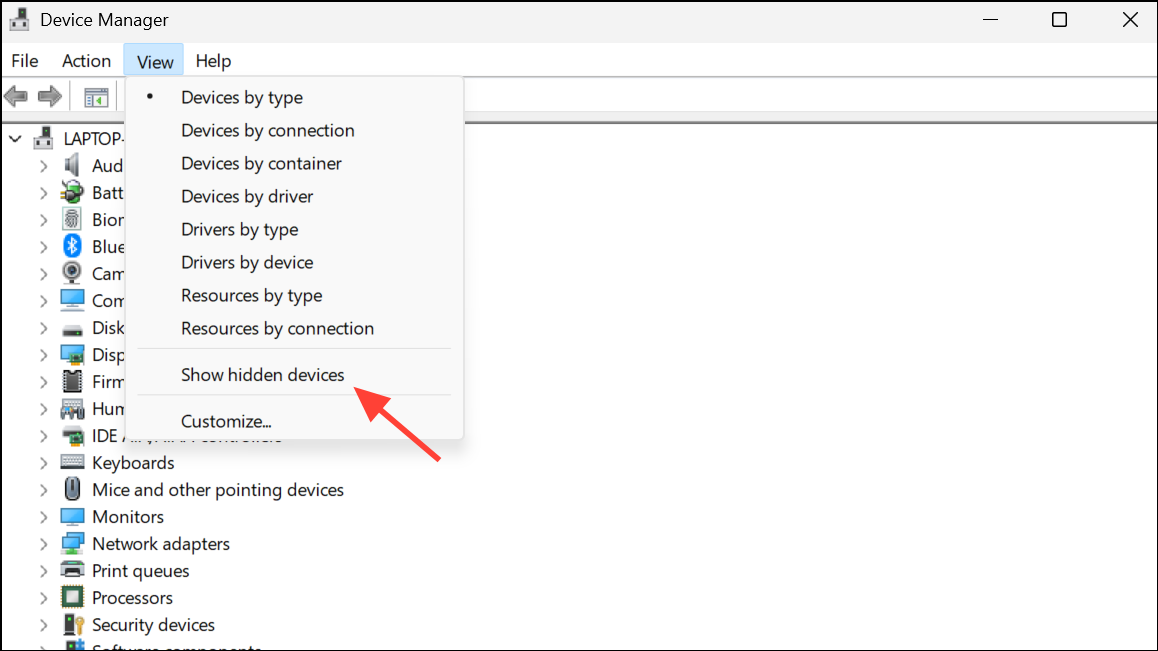
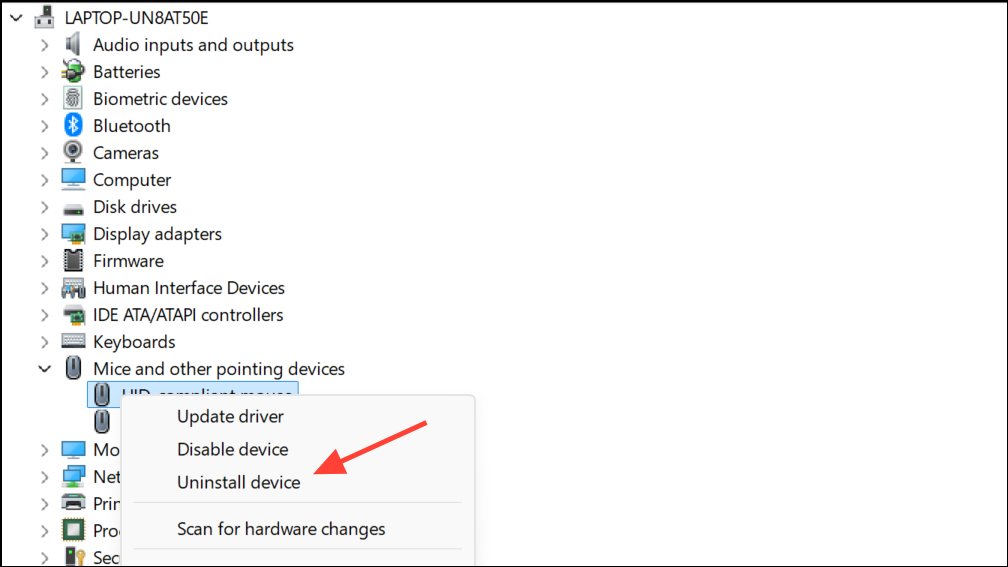
This step can resolve conflicts that cause intermittent or persistent click issues.
Clear Windows Notifications
An overloaded notification center can occasionally cause input issues with the taskbar and Start menu.
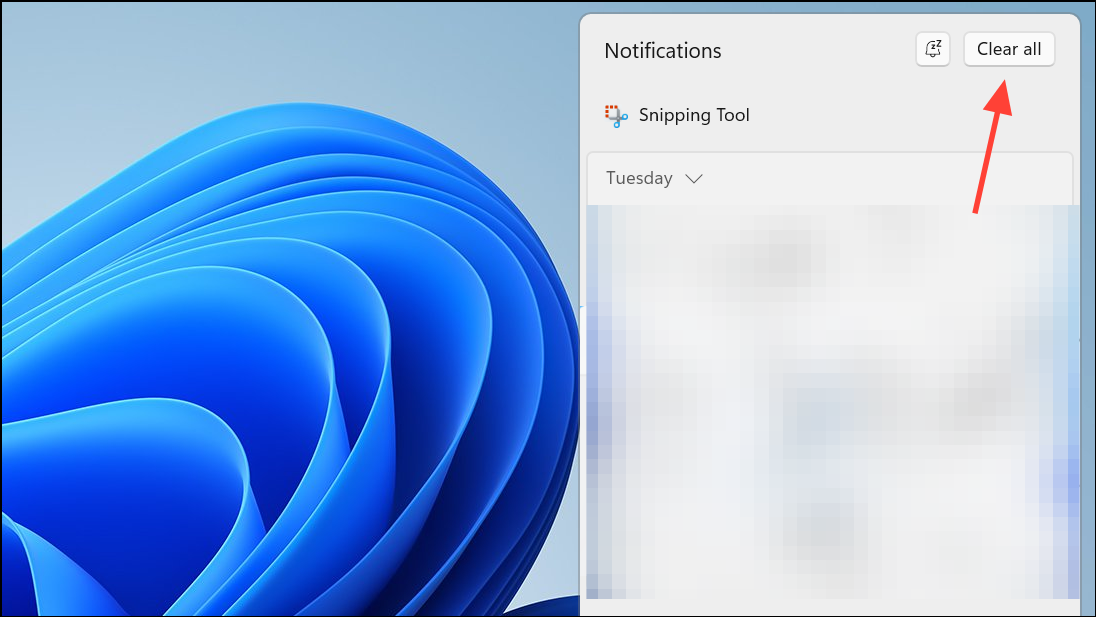
This method is quick and can resolve the problem if notification handling is the trigger.
Perform an In-Place Upgrade (Advanced)
If none of the above solutions resolve the issue, performing an in-place upgrade reinstalls Windows 11 system files without removing your apps or personal data.
This method repairs deeper system problems while preserving your settings and installed programs.
Applying these methods restores taskbar click functionality for most Windows 11 systems. If issues persist, monitor for new Windows updates or consider contacting Microsoft support for further assistance.



