

File Explorer in Windows 11 may display the “No Such Interface Supported” error when system files, user profiles, or application components become corrupted or misconfigured. This issue can prevent you from opening files, launching certain apps, or even accessing basic system functions. The error often appears after system updates, registry modifications, or when DLL files required by File Explorer or other programs fail to load correctly. Addressing this problem involves targeted repair steps that restore normal system operation and prevent potential data loss.
Repair or Reset the Affected Application
Problems with specific applications, such as Microsoft Photos, Media Player, or third-party viewers, can trigger the “No Such Interface Supported” error when opening files directly from File Explorer. Repairing or resetting the problematic app often restores its normal operation and resolves the error.
Apps in the left sidebar, then select Installed apps or Apps & features depending on your Windows version.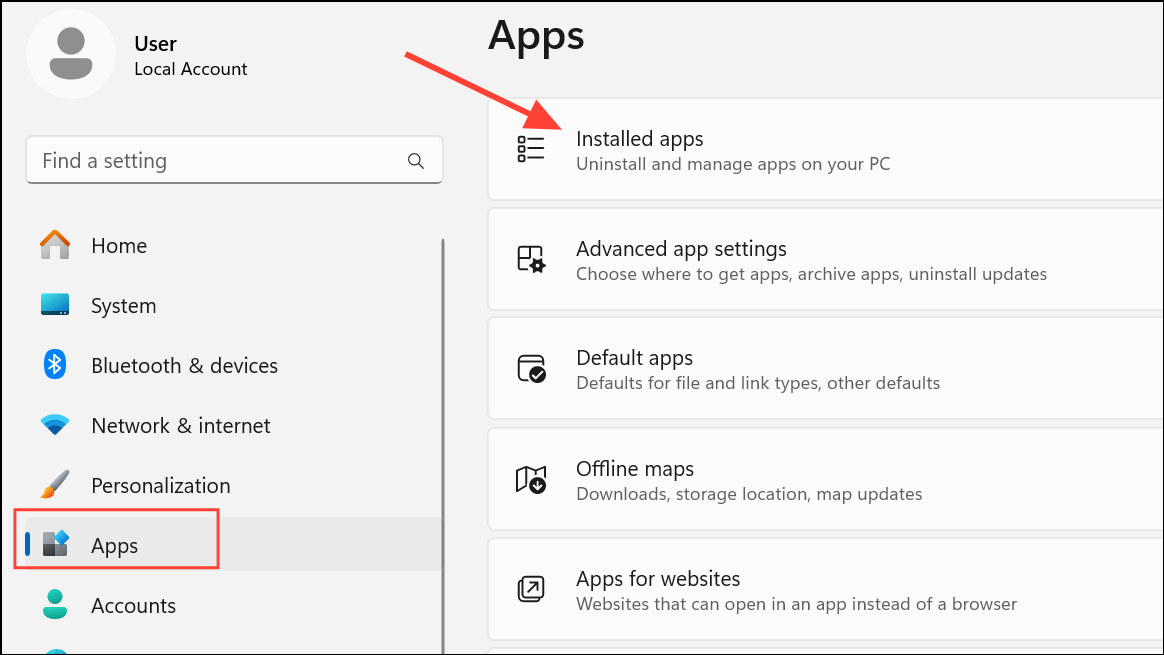
Advanced options.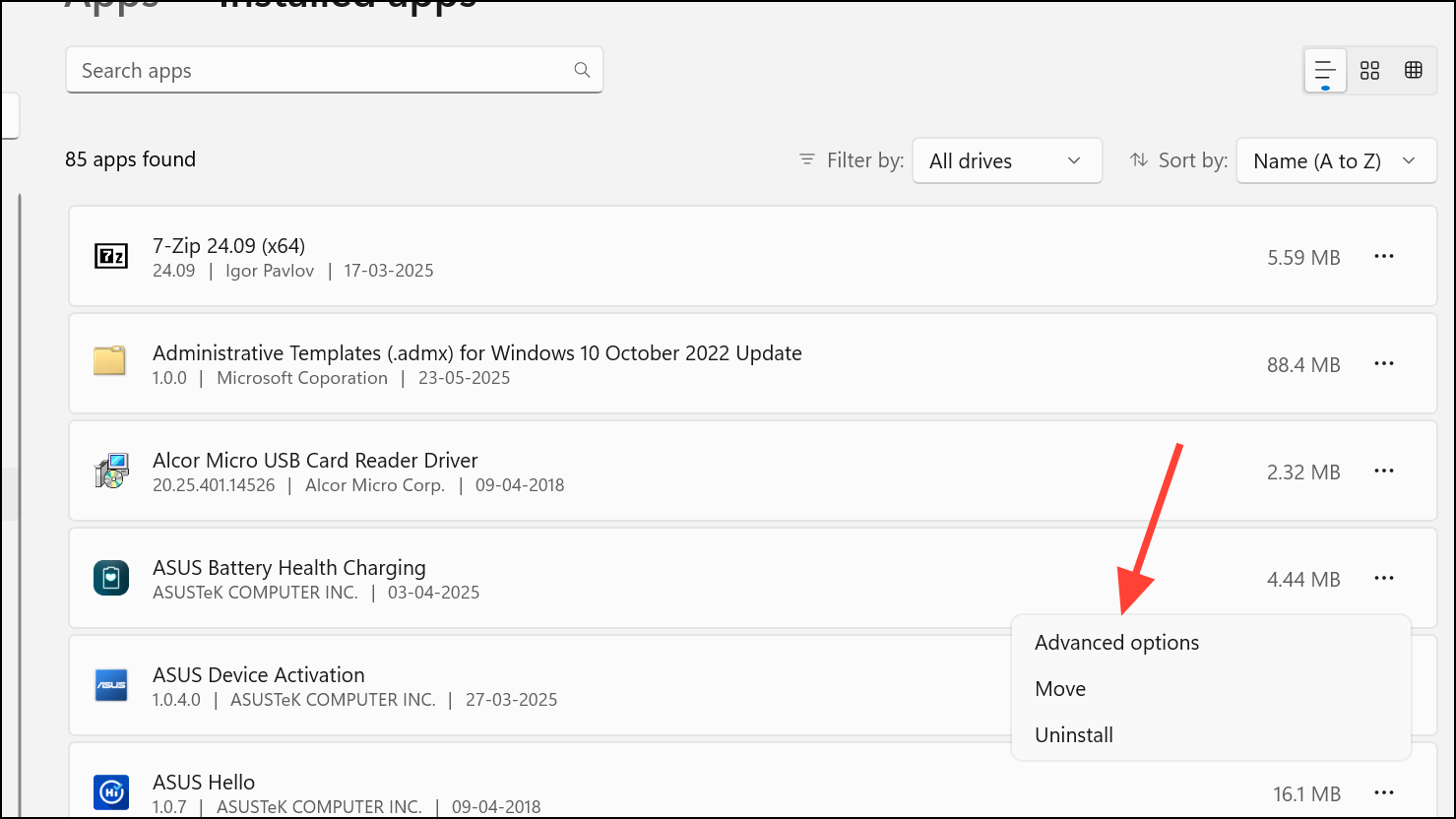
Reset section. Click Repair to attempt a non-destructive fix that keeps your app data. If the issue persists, use Reset to restore the app to its default state.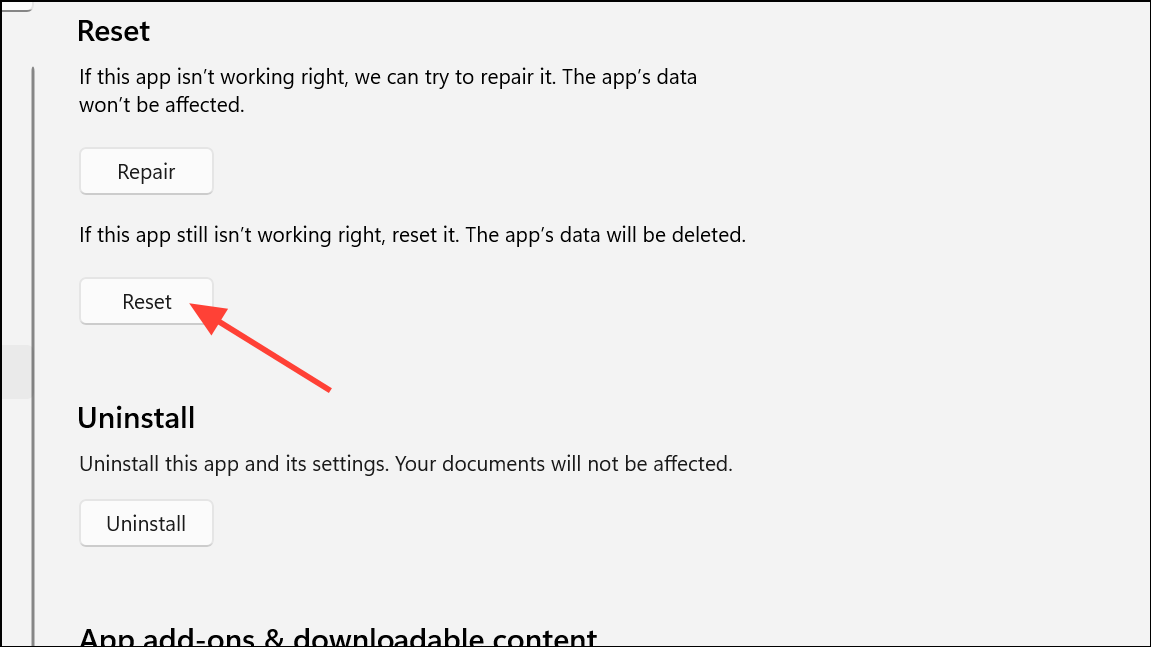
appwiz.cpl in the Run dialog, restart your PC, and download the latest version from the official source.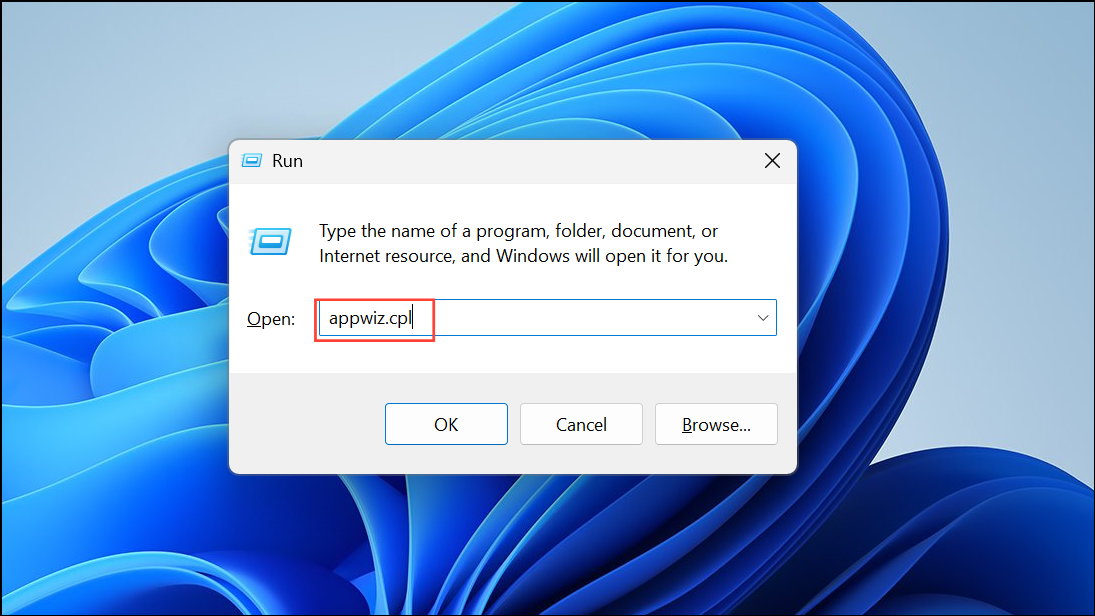
Run System File Checker (SFC) to Repair Corrupted System Files
Corrupted or missing system files can disrupt Windows interfaces and cause File Explorer errors. The System File Checker tool scans for and repairs these files, restoring expected behavior.
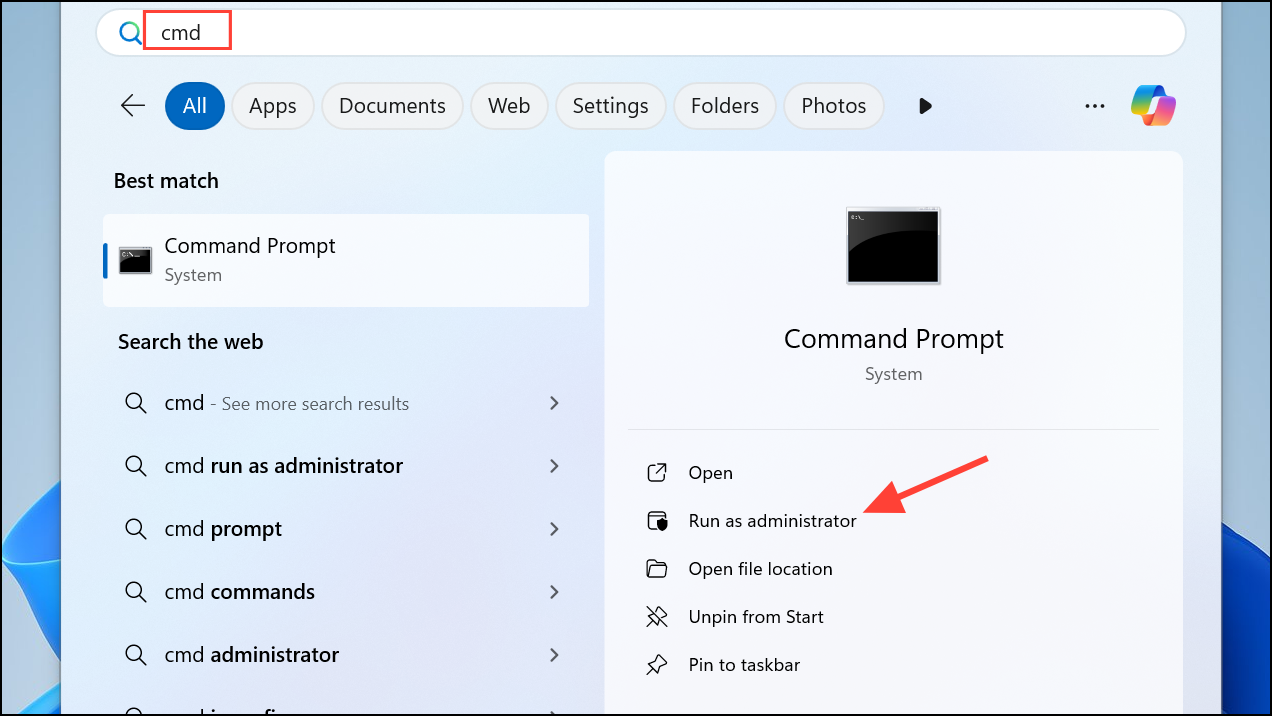
sfc /scannow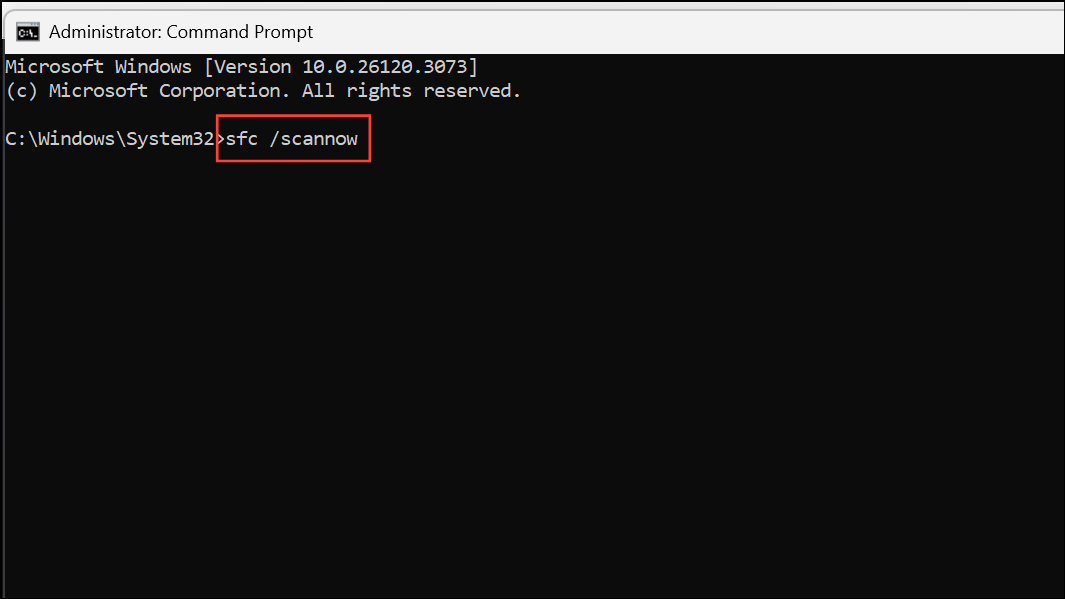
This command scans protected system files and automatically repairs any detected corruption. Wait for the process to complete, then restart your computer. Check if File Explorer and affected applications now function correctly.
Re-Register DLL Files Required by File Explorer
File Explorer and many Windows apps rely on specific DLL (Dynamic Link Library) files. If these files are unregistered or damaged, the system may throw interface errors. Re-registering DLLs can restore required functionality.
regsvr32 c:\windows\system32\actxprxy.dll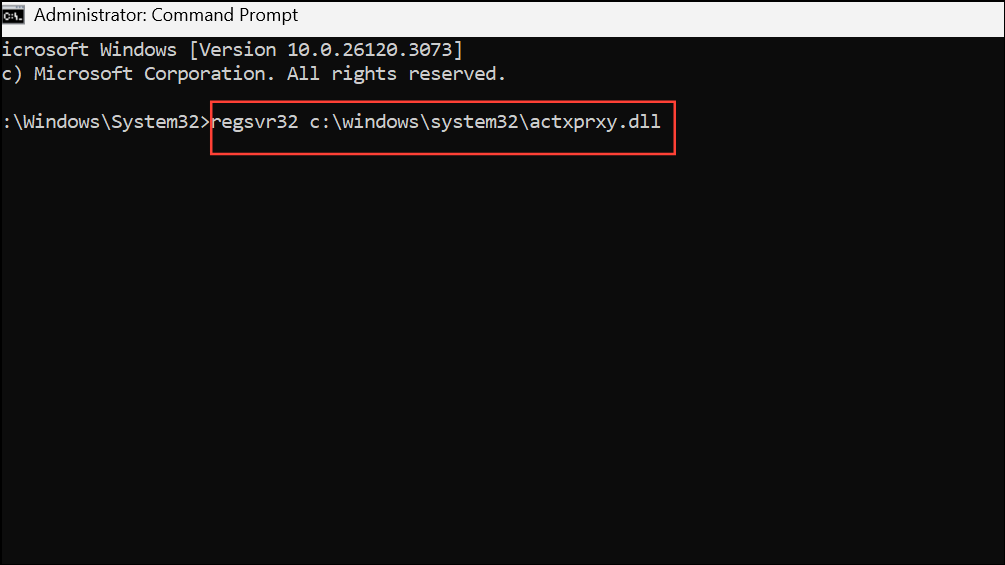
FOR /R C:\ %G IN (*.dll) DO "%systemroot%\system32\regsvr32.exe" /s "%G"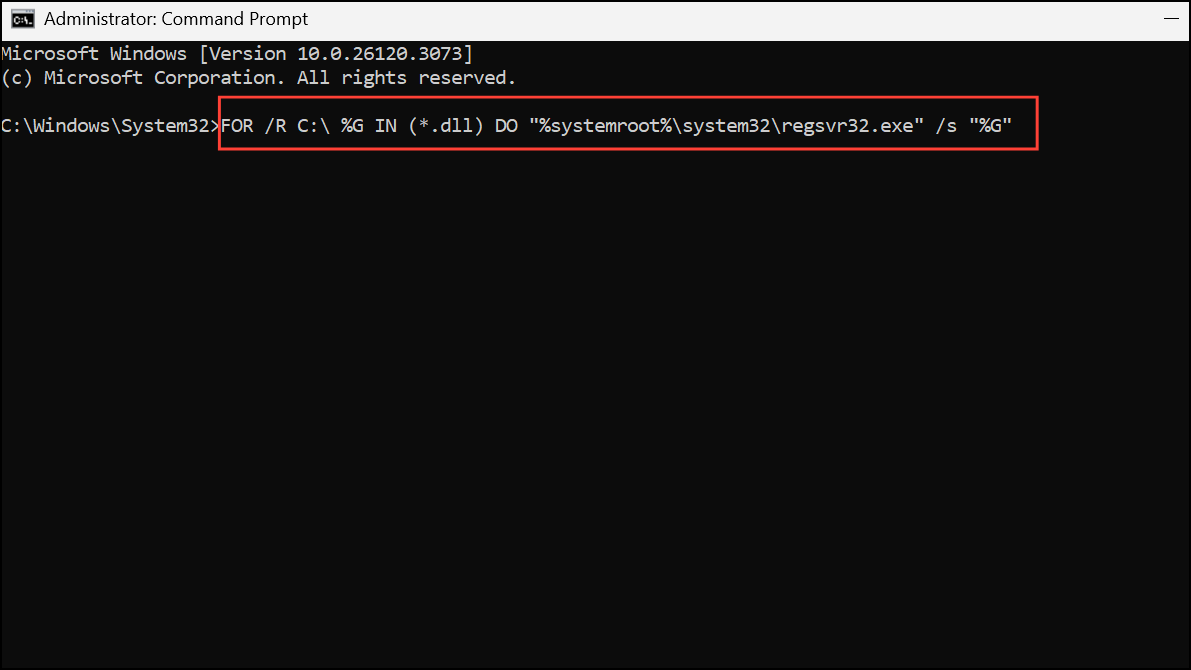
This process may take several minutes and will not display output for each file. Once complete, restart your computer and test File Explorer and related apps.
Try Opening Files from the Desktop or Directly Within Applications
Sometimes, the error only appears when attempting to open files from certain locations in File Explorer. Moving files to the desktop or opening them directly from within the target application can serve as a temporary workaround.
Open menu to browse and select the file.This approach helps determine if the issue is tied to folder permissions or File Explorer itself. If the file opens from the desktop or through the app, the problem may be isolated to File Explorer or the original folder’s settings.
Check and Repair Disk Errors Using CHKDSK
Disk errors can interfere with file access and system operations, resulting in interface errors. Running the Check Disk utility identifies and repairs these issues to restore normal file handling.
chkdsk C: /r /v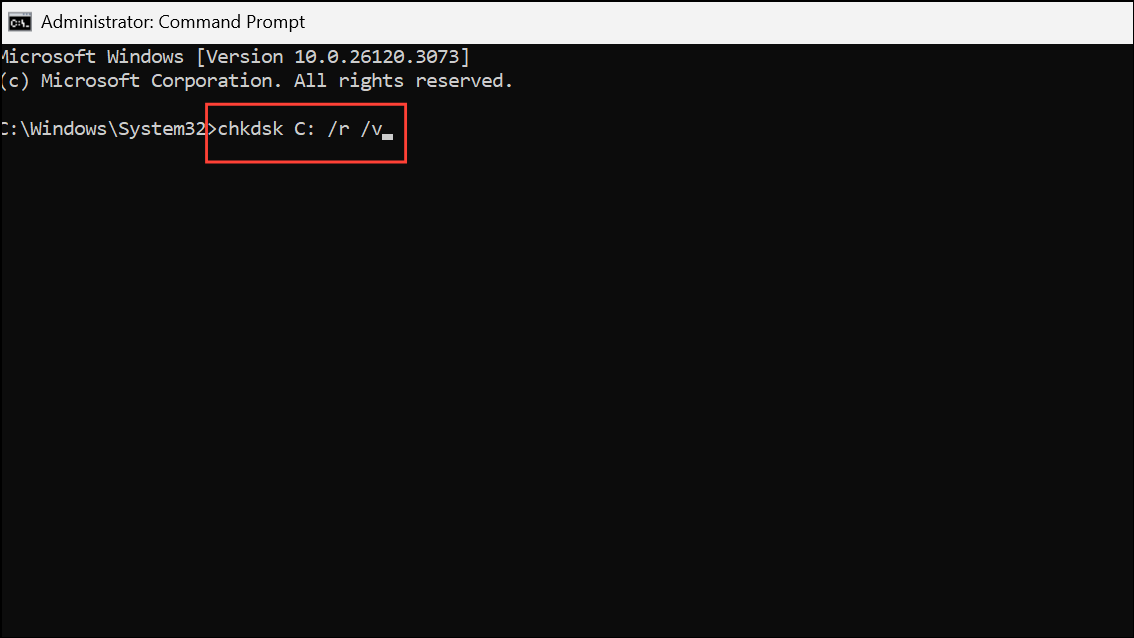
Y and press Enter. Restart your computer to allow CHKDSK to scan and repair the drive. After the process completes, check if the error has been resolved.Create a New User Profile to Rule Out Account Corruption
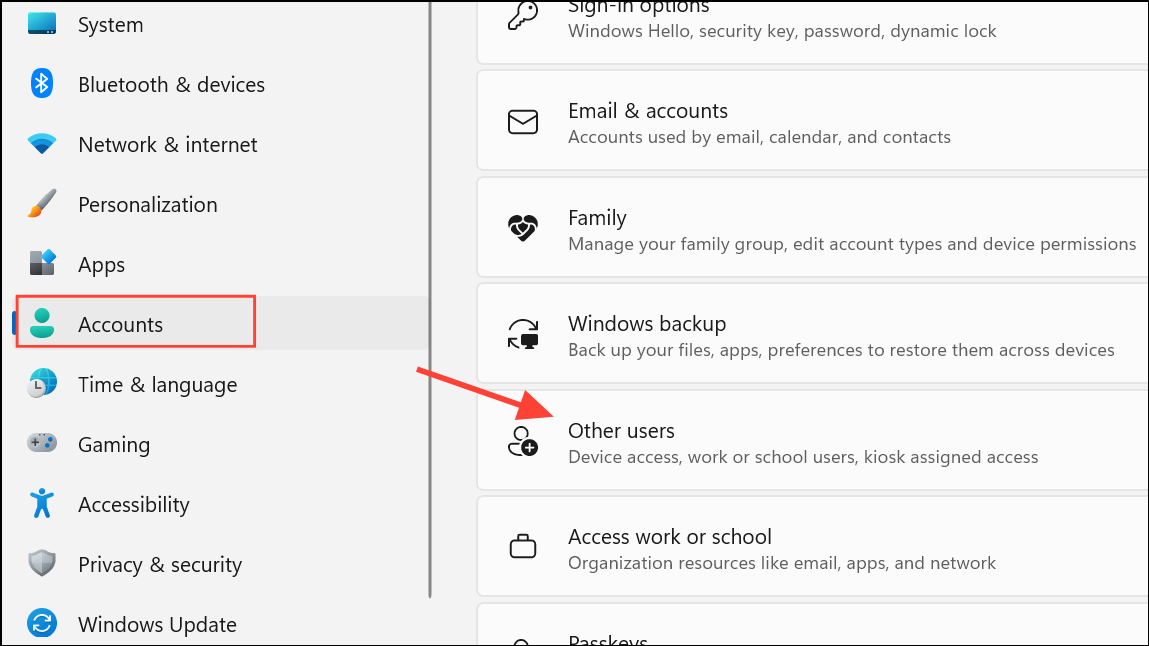
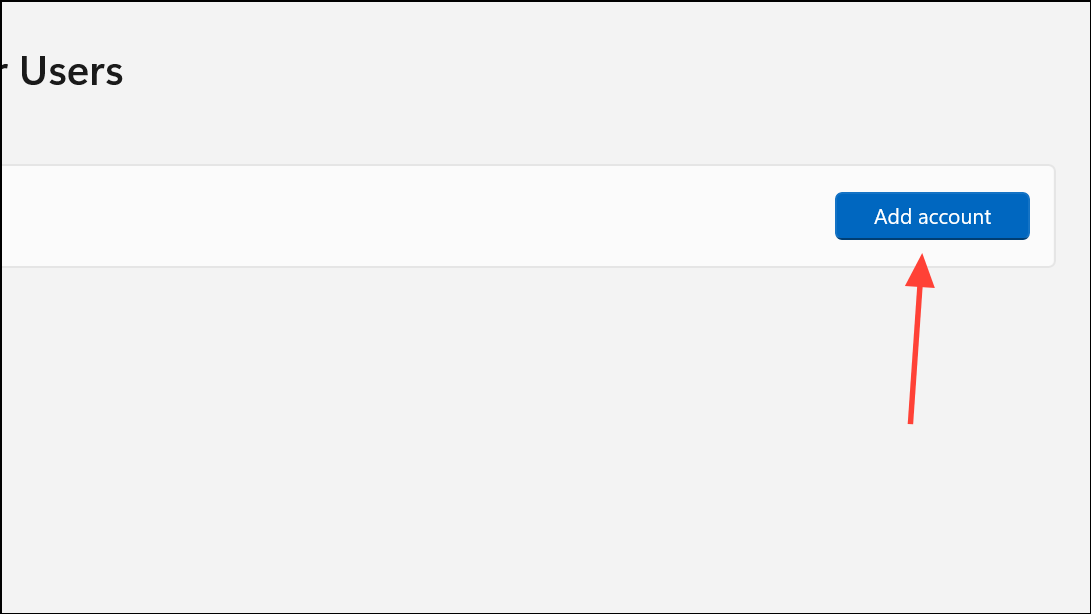
User profile corruption can prevent File Explorer and apps from accessing necessary interfaces. Creating a new user account helps determine if the problem is tied to your current profile.
Additional Tips and Maintenance
- Always keep Windows and all applications updated to the latest versions to avoid known bugs.
- Run regular malware scans, as malicious software can corrupt system files and interfaces.
- Back up important data before making major changes or running system repair commands.
- If none of these steps resolve the issue, consider restoring your system to a previous restore point or performing a repair install of Windows 11.
Addressing the “No Such Interface Supported” error in Windows 11 restores access to File Explorer and affected apps, making file management and daily tasks reliable again. If the problem returns, reviewing recent system changes or consulting Microsoft support may help you identify lingering issues.



