
Printing a document in Windows 11 sometimes brings up a “Save Print Output As” dialog instead of sending the file directly to your printer. This issue typically arises when the print job is being sent to a virtual printer (like “Microsoft Print to PDF”) or when the “Print to file” option is enabled. This can interrupt workflow by requiring extra steps and causing confusion, especially if you expect a physical printout. The following methods detail how to correct this behavior and restore direct printing.
Uncheck “Print to File” in the Print Dialog
File → Print from the menu of your application (such as Word, Excel, or your PDF reader).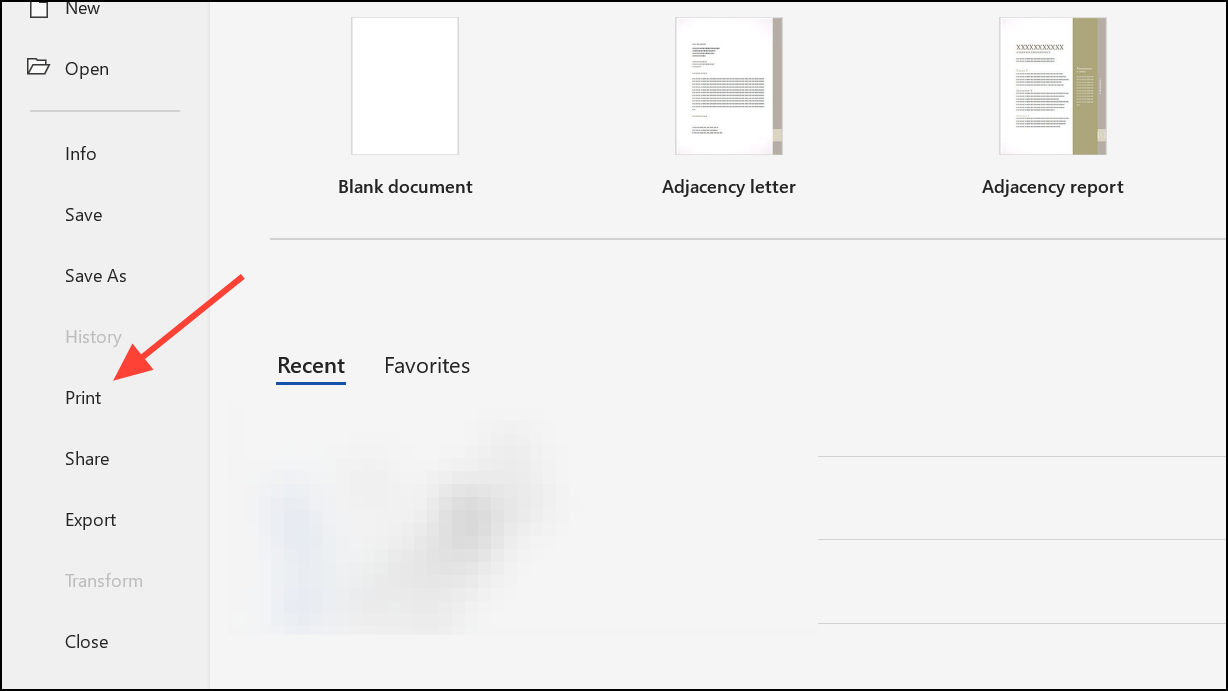
Print to file. This option is often located near the bottom of the dialog or in the Printer dropdown.Print to file box is checked, click it to uncheck it. Leaving this option checked will prompt Windows to save your print output as a file (like .prn or .pdf) instead of sending it to your printer.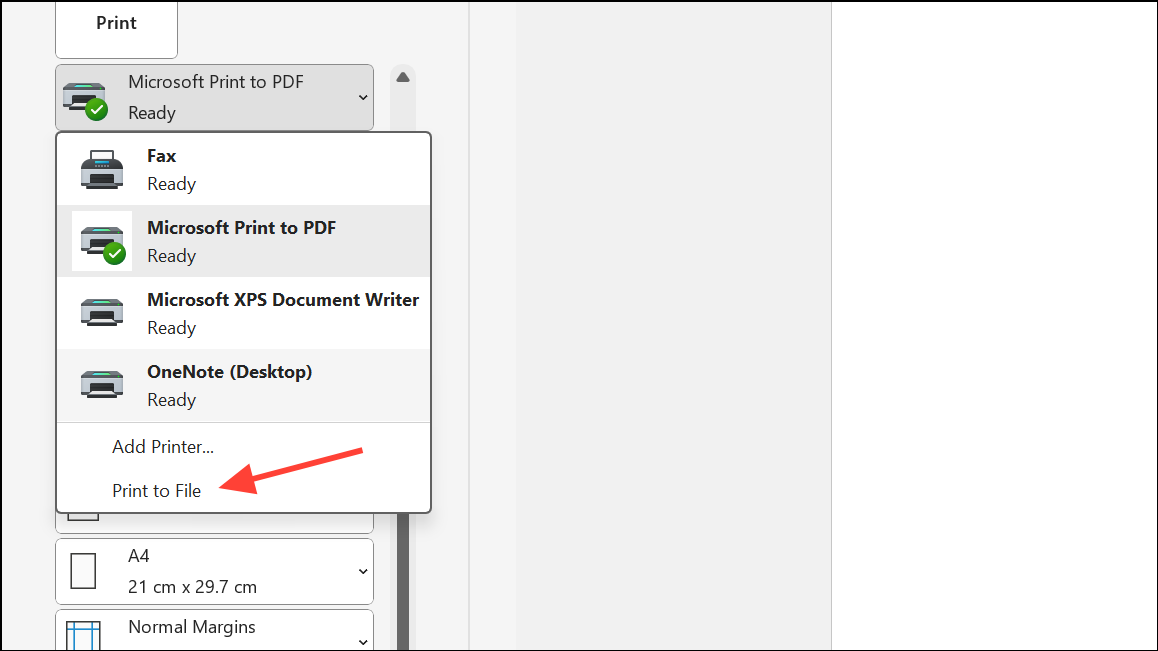
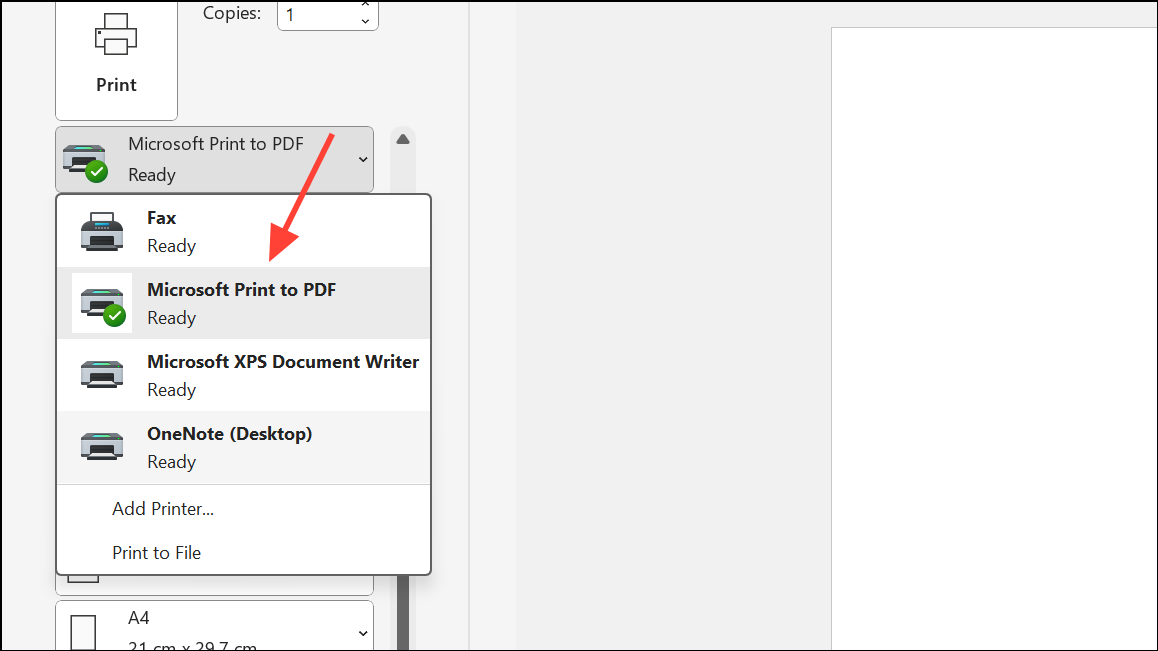
Print or OK to send the job directly to your printer. The document should print without any further prompts to save a file.Set Your Physical Printer as the Default
Control Panel, then press Enter to launch it. Select Devices and Printers.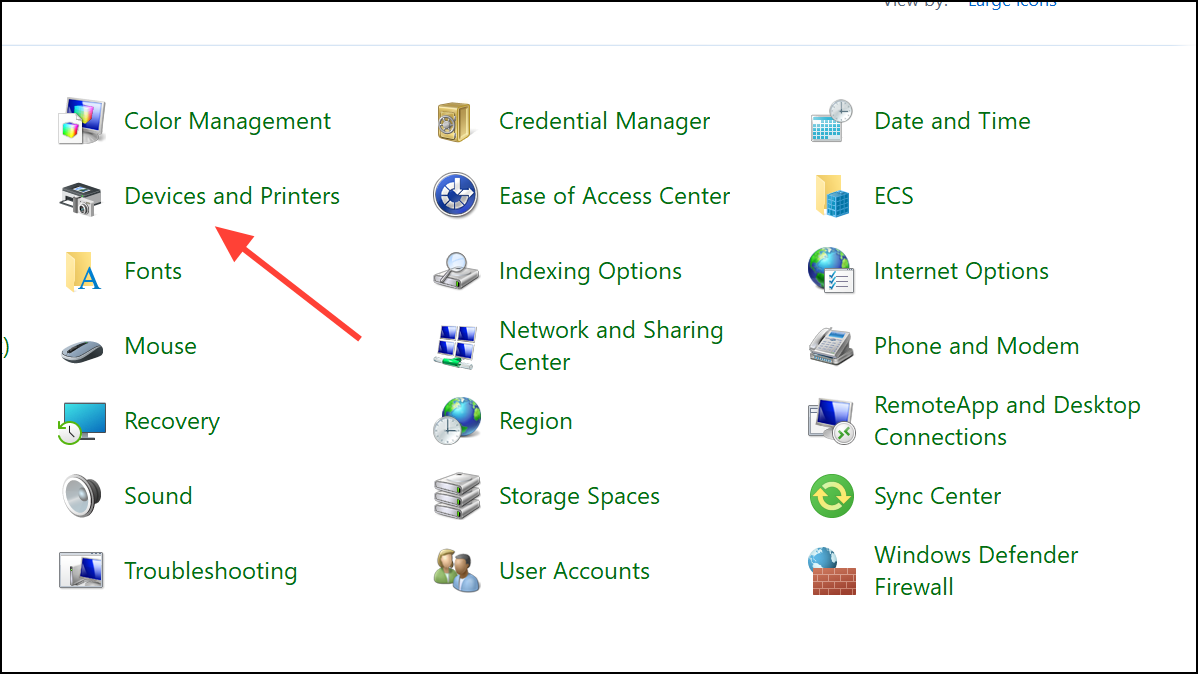
Set as default printer. A green checkmark should appear, confirming it’s now the default.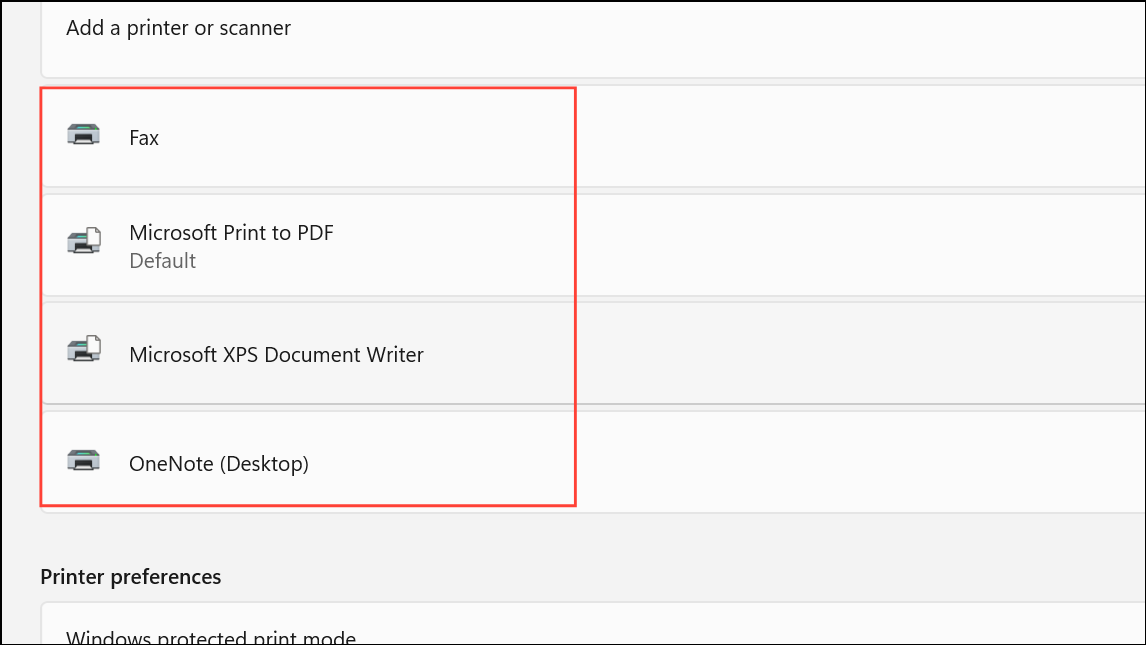
Select the Correct Printer in the Print Dialog
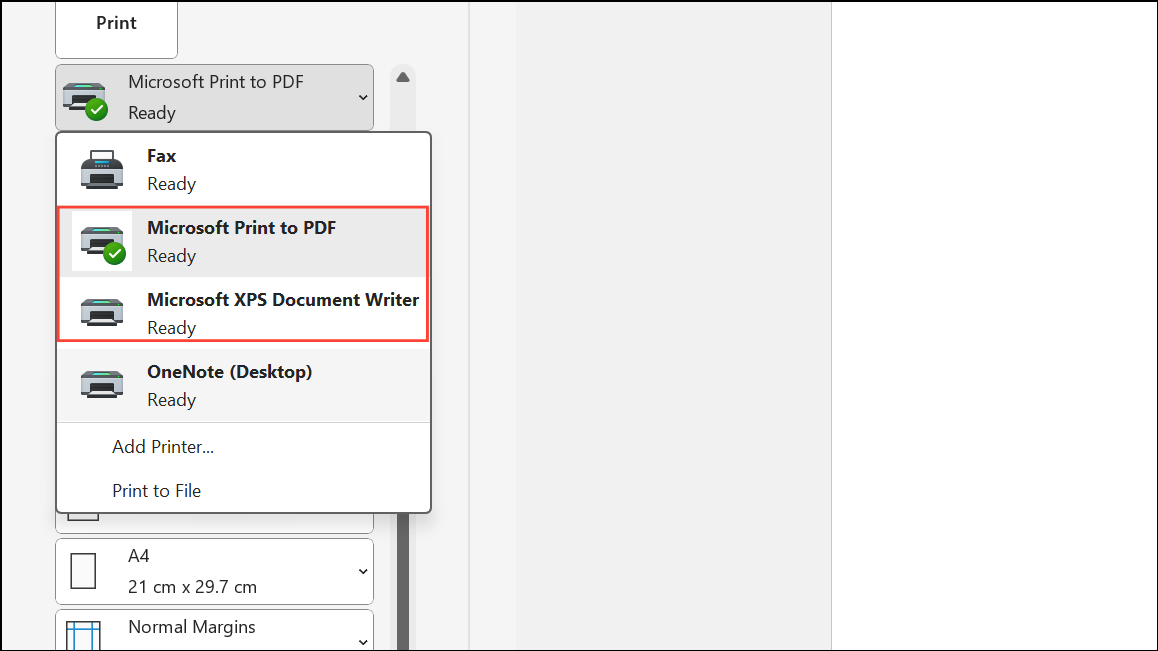
Update or Reinstall Printer Drivers
Control Panel → Programs and Features, finding your printer software in the list, and selecting Uninstall. Restart your computer after uninstalling.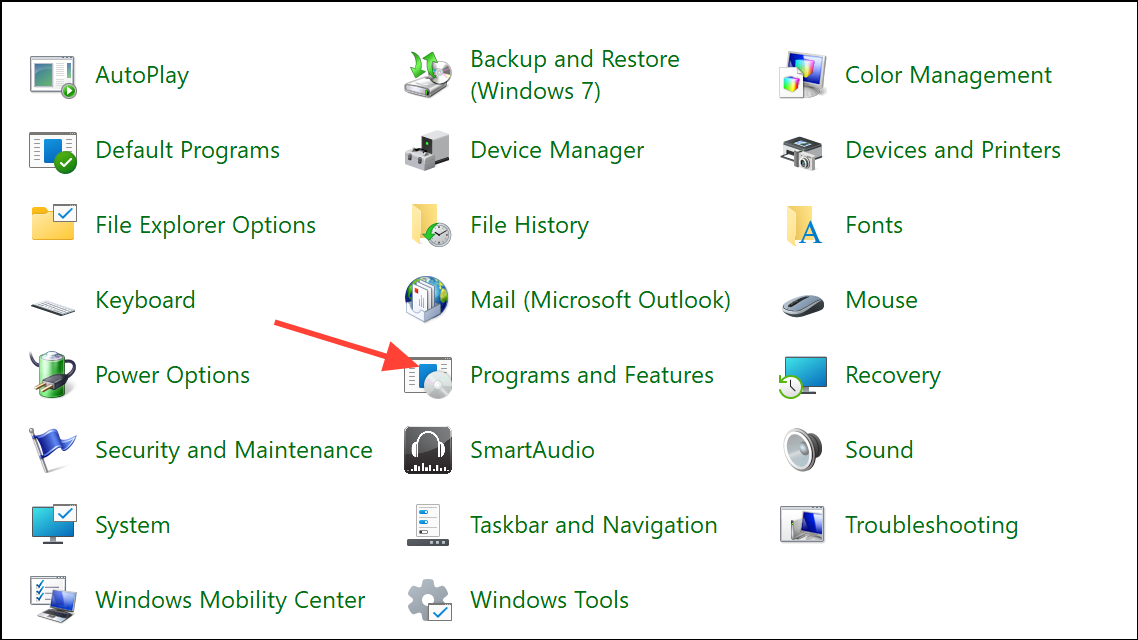
Remove Unused Virtual Printers
Devices and Printers in the Control Panel. Review the list for virtual printers like “Microsoft Print to PDF,” “Microsoft XPS Document Writer,” or any software-based printers you do not use.Remove device. Removing unused virtual printers reduces the chance of accidentally selecting them when printing.Additional Tips and Troubleshooting
- Always double-check the selected printer before clicking
Print, especially after Windows updates or installing new software. - If your printer is networked, ensure it’s connected and powered on. Network issues can cause Windows to default to a virtual printer.
- If problems persist, try restarting your computer, printer, and router (for network printers).
- For persistent driver issues, use the manufacturer’s cleanup utility or Windows’ built-in troubleshooter to remove residual files before reinstalling the driver.
Disabling the “Save Print Output As” prompt on Windows 11 restores a straightforward printing process, sending documents directly to your printer and saving time on every print job. Regularly checking your default printer and print dialog settings prevents this issue from recurring.



