
Internet connectivity can suddenly drop on Windows 11 after disconnecting from a VPN, leaving browsers and apps unable to access online resources. This disruption often stems from network settings changes, adapter conflicts, or lingering VPN configurations that block normal traffic. Addressing these issues promptly restores reliable access and prevents work interruptions or communication breakdowns.
Reset Network Adapter and TCP/IP Stack
Network adapters may retain improper routing or DNS settings after a VPN session, preventing the system from reconnecting to the internet. Resetting the adapter and TCP/IP stack often resolves these conflicts.
Command Prompt as an administrator by searching for “cmd” in the Start menu, right-clicking Command Prompt, and selecting Run as administrator.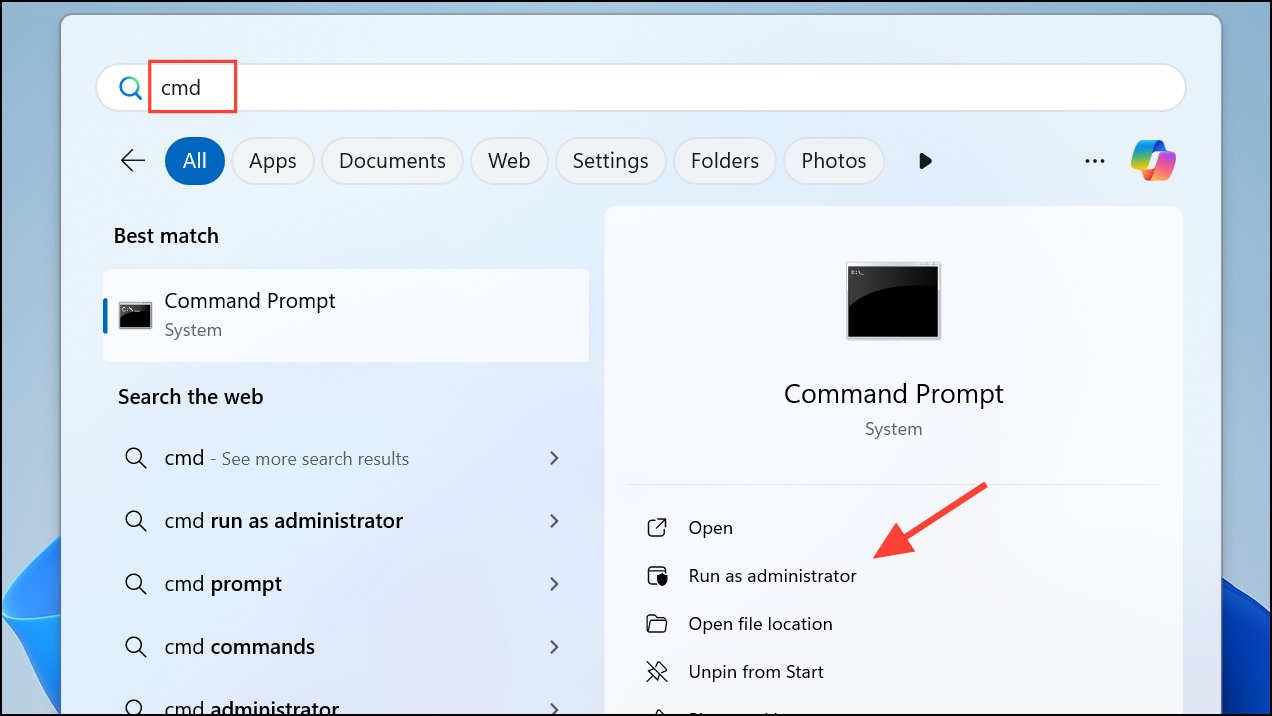
netsh winsock reset
netsh int ip reset
ipconfig /release
ipconfig /renew
ipconfig /flushdns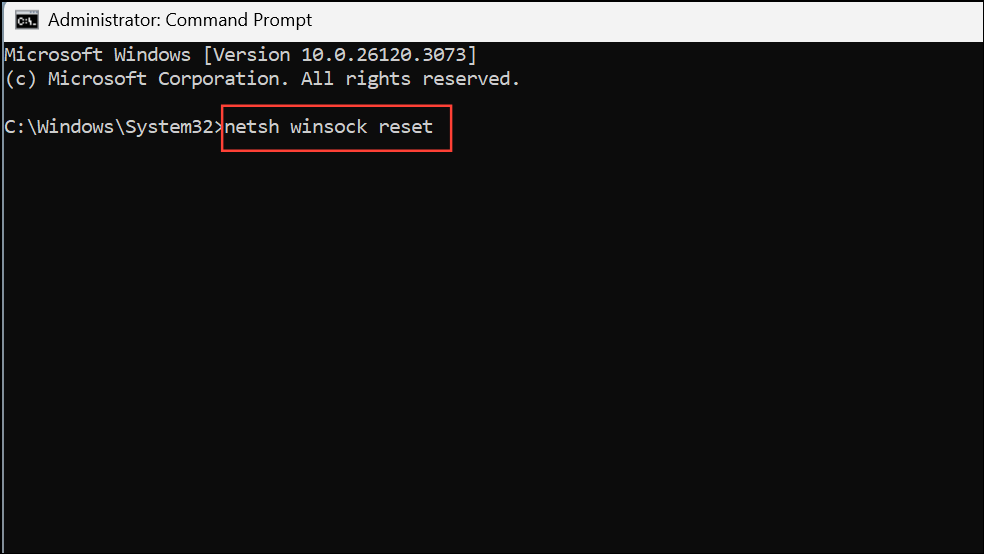
These commands reset the networking stack, release and renew your IP address, and clear cached DNS data. This process removes any lingering VPN routes and restores standard internet access.
Disable “Use Default Gateway on Remote Network” in VPN Settings
Some VPN connections modify the routing table by enabling the “Use default gateway on remote network” option. This setting causes all internet traffic to be routed through the VPN, which may persist even after disconnecting, resulting in lost connectivity.
Control Panel and navigate to Network and Internet > Network and Sharing Center > Change adapter settings.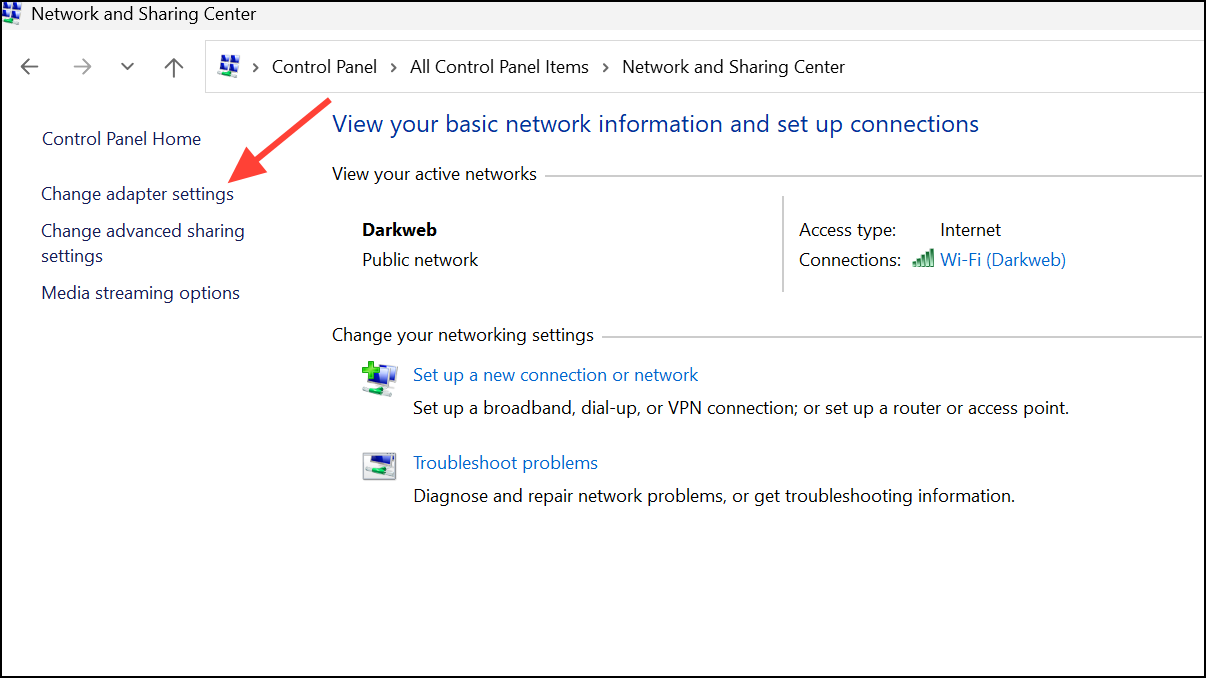
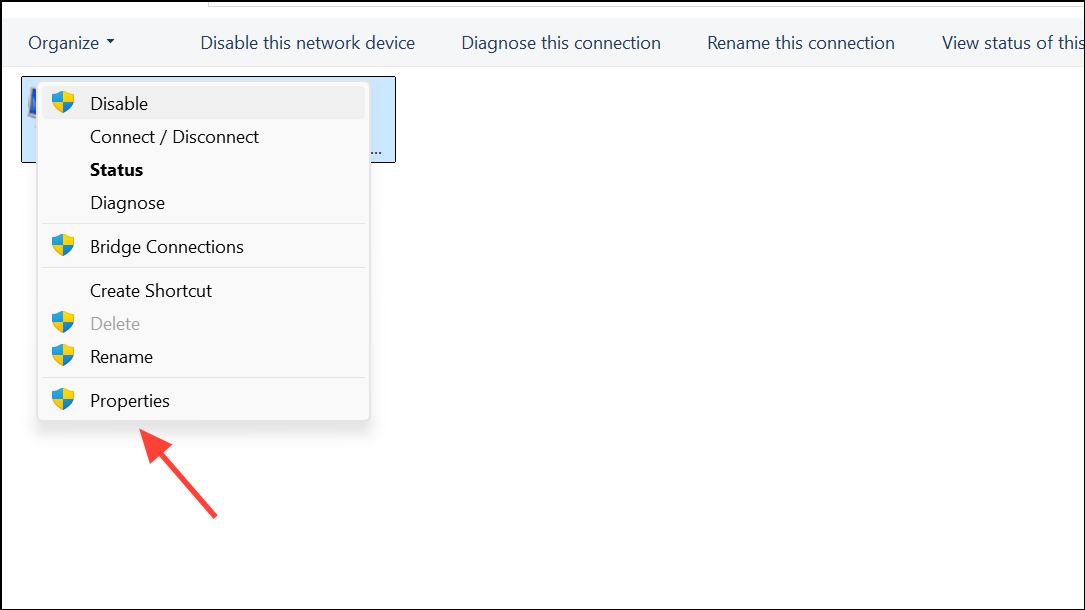
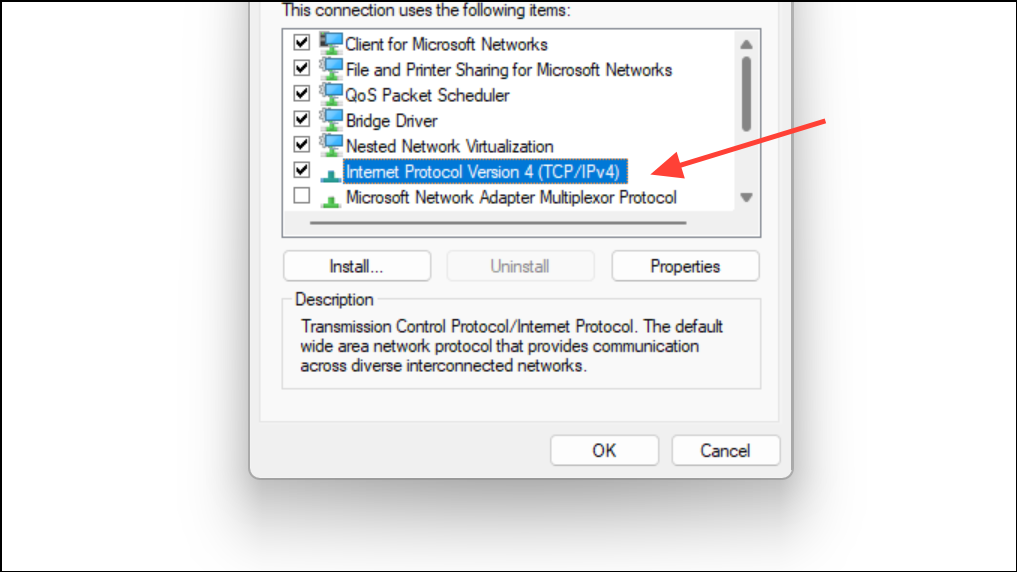
Disabling this option prevents the VPN from taking over your default internet route, allowing your device to use its normal gateway when the VPN disconnects.
Restart Network Hardware and Reconnect
Routers and modems sometimes hold onto previous session data, which can block new connections after VPN use. Restarting these devices refreshes their state and clears temporary routing issues.
This process helps resolve issues where the network hardware fails to assign a new IP address or route traffic correctly after a VPN disconnect.
Disable Receive Segment Coalescing (RSC) on Wi-Fi Adapter
Updates like KB5026372 or certain network drivers can cause compatibility issues between Wi-Fi adapters and VPN software, especially when Receive Segment Coalescing (RSC) is enabled. Disabling RSC can restore both internet and VPN connectivity on affected systems.
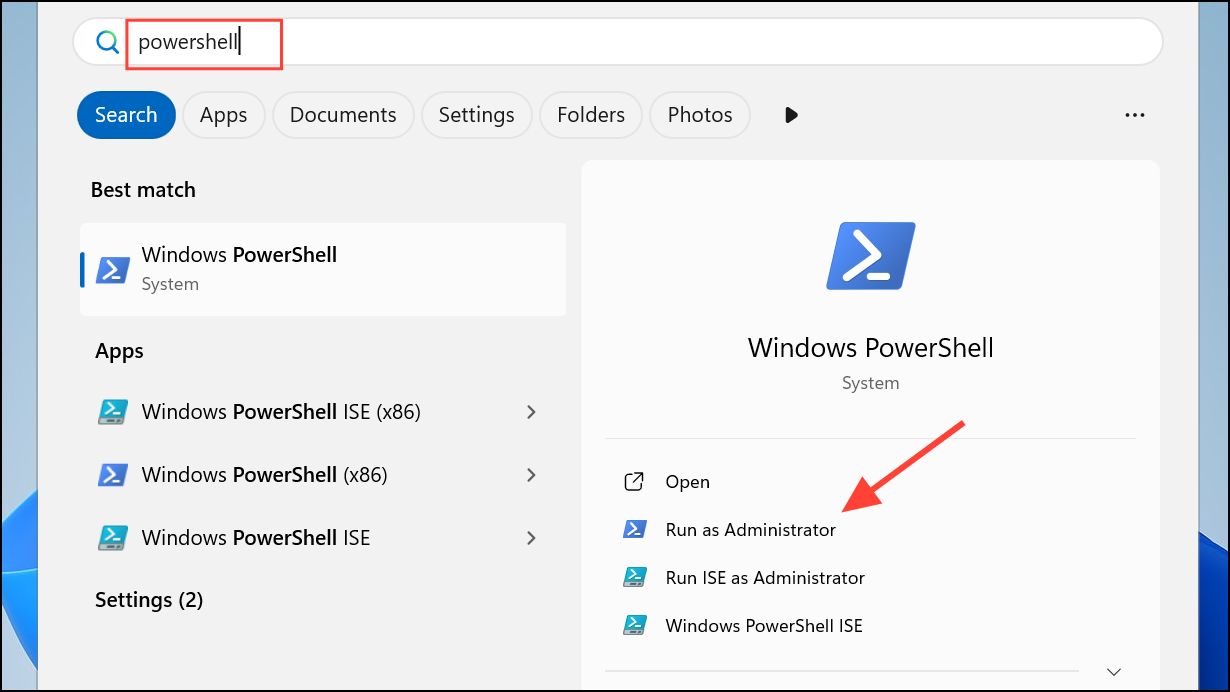
Get-NetAdapterRsc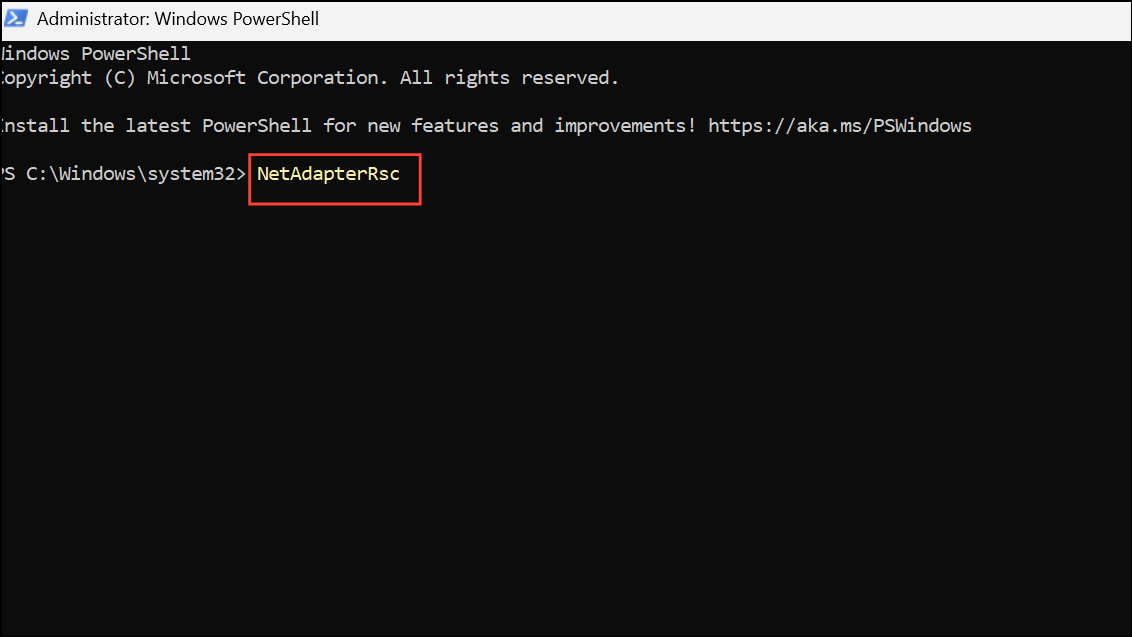
Disable-NetAdapterRsc -Name "Wi-Fi"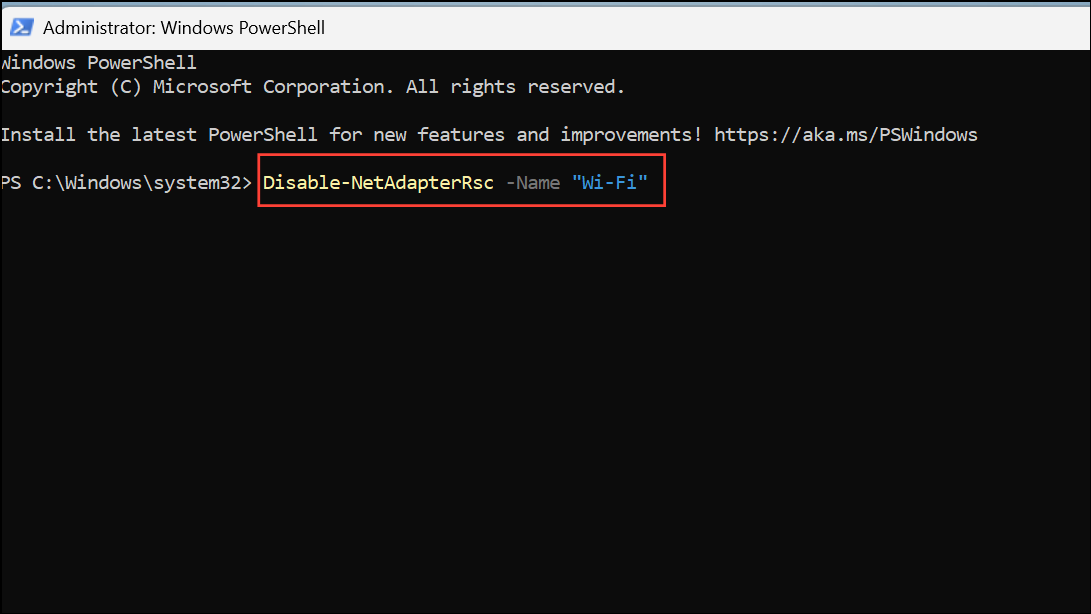
Replace "Wi-Fi" with the exact name of your wireless adapter if it differs.
Disabling RSC addresses packet handling issues introduced by some Windows updates, especially when using L2TP or similar VPN protocols over Wi-Fi.
Check for Conflicting Network Adapters and Disable Unused Ones
Multiple virtual adapters, such as those from older VPN clients or virtual machine software, can interfere with normal routing after VPN use. Disabling unused adapters streamlines network traffic and prevents conflicts.
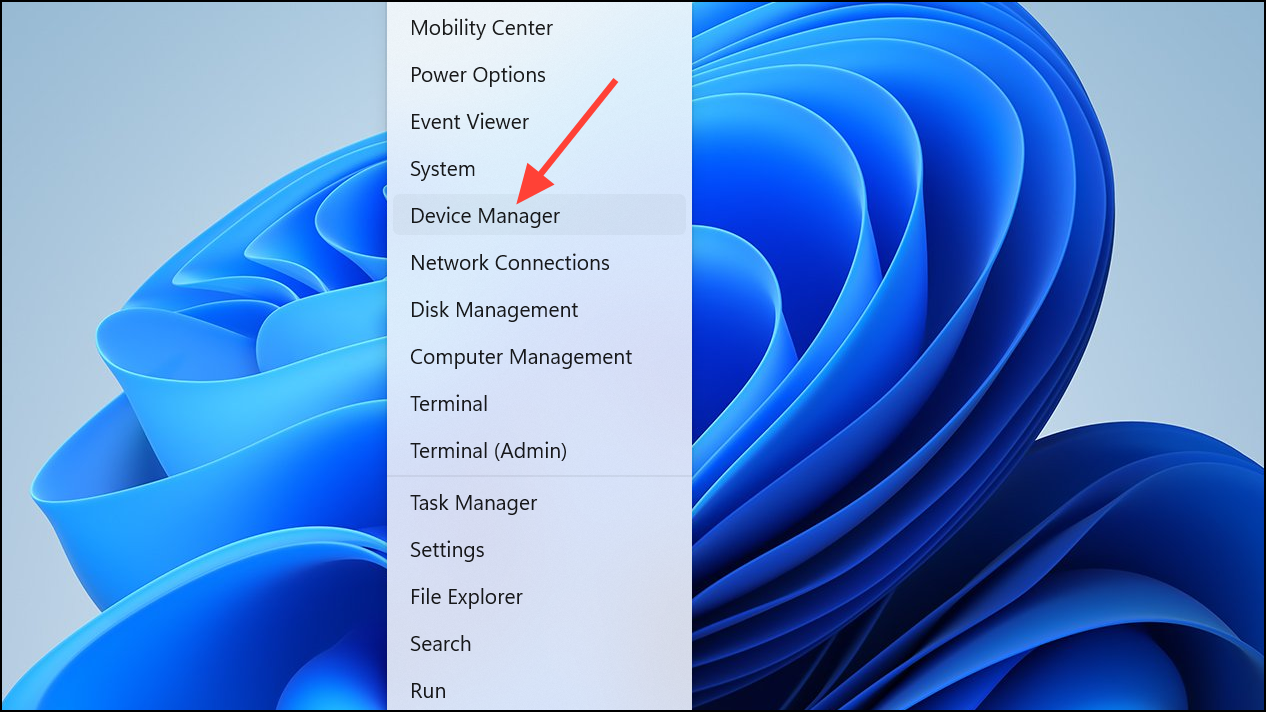
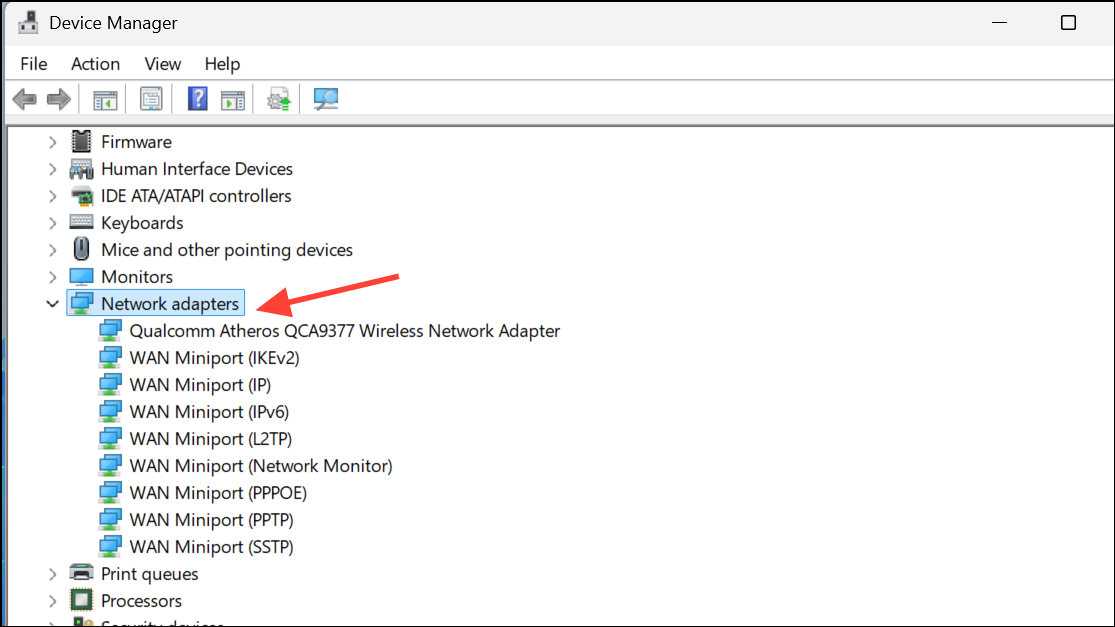
Disable device. Avoid disabling your primary Ethernet or Wi-Fi adapter.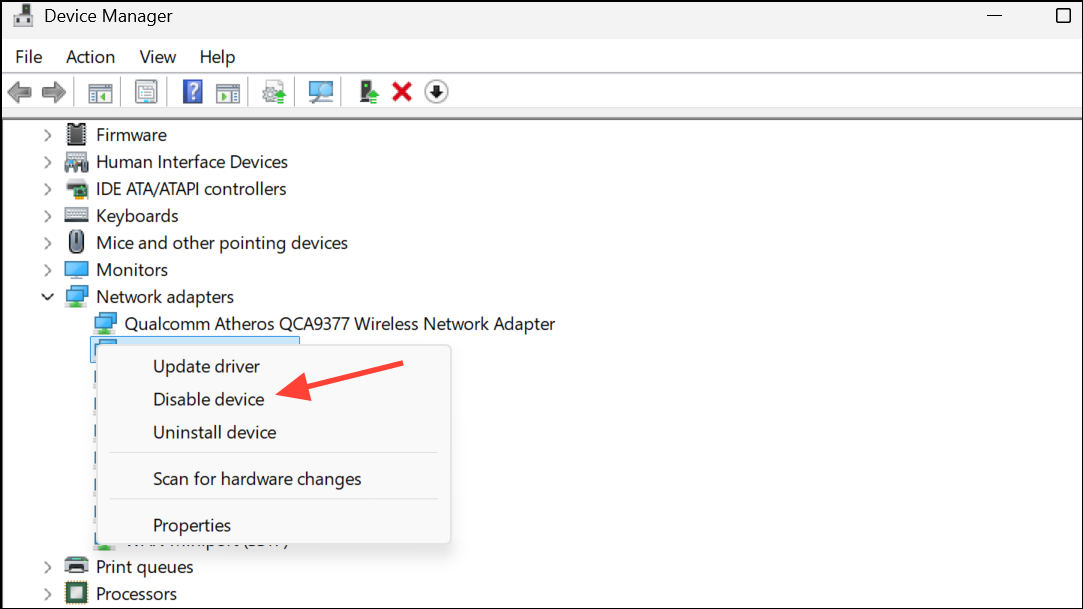
This step eliminates adapter conflicts that can block internet access after VPN sessions.
Update or Reinstall Network and VPN Drivers
Outdated or corrupt network drivers, as well as VPN client software, can leave residual settings that disrupt internet connectivity. Updating or reinstalling these components ensures proper configuration.
Device Manager, right-click your network adapter and choose Uninstall device. Check the box for Attempt to remove the driver for this device if available.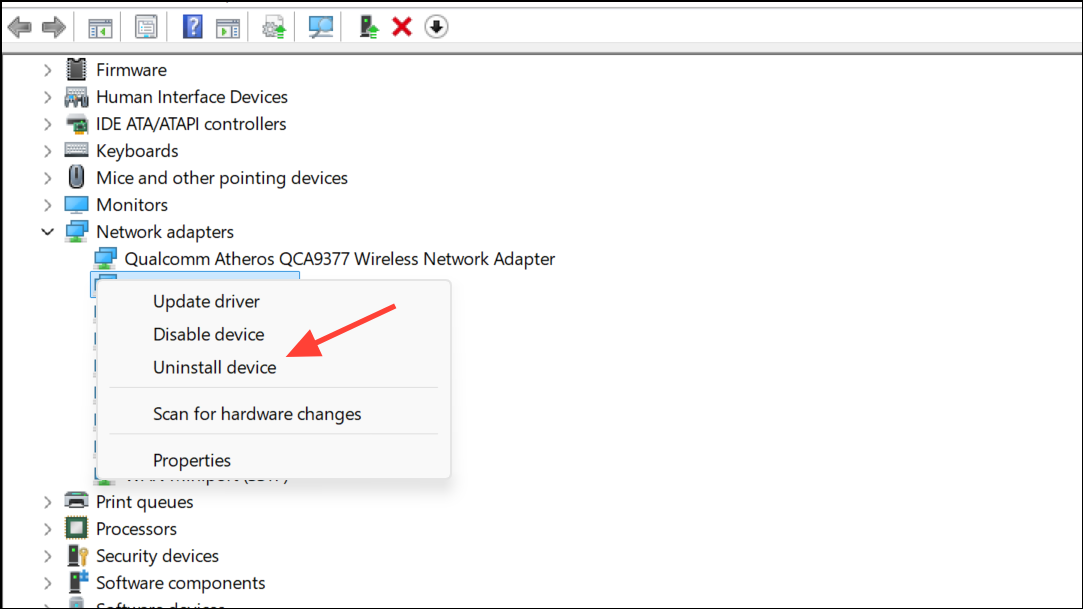
These actions restore default network settings and remove problematic configurations left by previous software versions or updates.
Additional Troubleshooting Steps
- Disable proxy settings: Go to
Settings > Network & Internet > Proxyand ensure all proxy settings are turned off unless required by your network. - Check for Windows updates: Install any pending updates in
Settings > Windows Updateto address known bugs. - Perform a network reset: In
Settings > Network & Internet > Advanced network settings > Network reset, clickReset now. This will remove and reinstall all network adapters, returning settings to default.
Applying these targeted steps restores consistent internet connectivity on Windows 11 after disabling VPNs, reducing downtime and keeping your workflow running smoothly.



