
Moving the mouse wheel changes the system volume instead of scrolling through pages or documents—this unexpected behavior often results from a feature in certain mice that support both normal and media modes. Gaming mice and some multi-function models allow toggling between these modes, but a stuck setting, accidental button press, or software conflict can switch the wheel to control volume globally on Windows 11. This guide details practical steps to restore normal scrolling and stop the mouse wheel from changing the volume.
Switch Mouse from Media Mode to Normal Mode
On some mice, especially those with additional software or custom drivers, the media mode toggle may be mapped to a different button. Refer to your mouse’s user manual or manufacturer website for model-specific instructions if the DPI button does not resolve the issue.
Disconnect and Reconnect the Mouse
Check for Mouse Software or Driver Conflicts
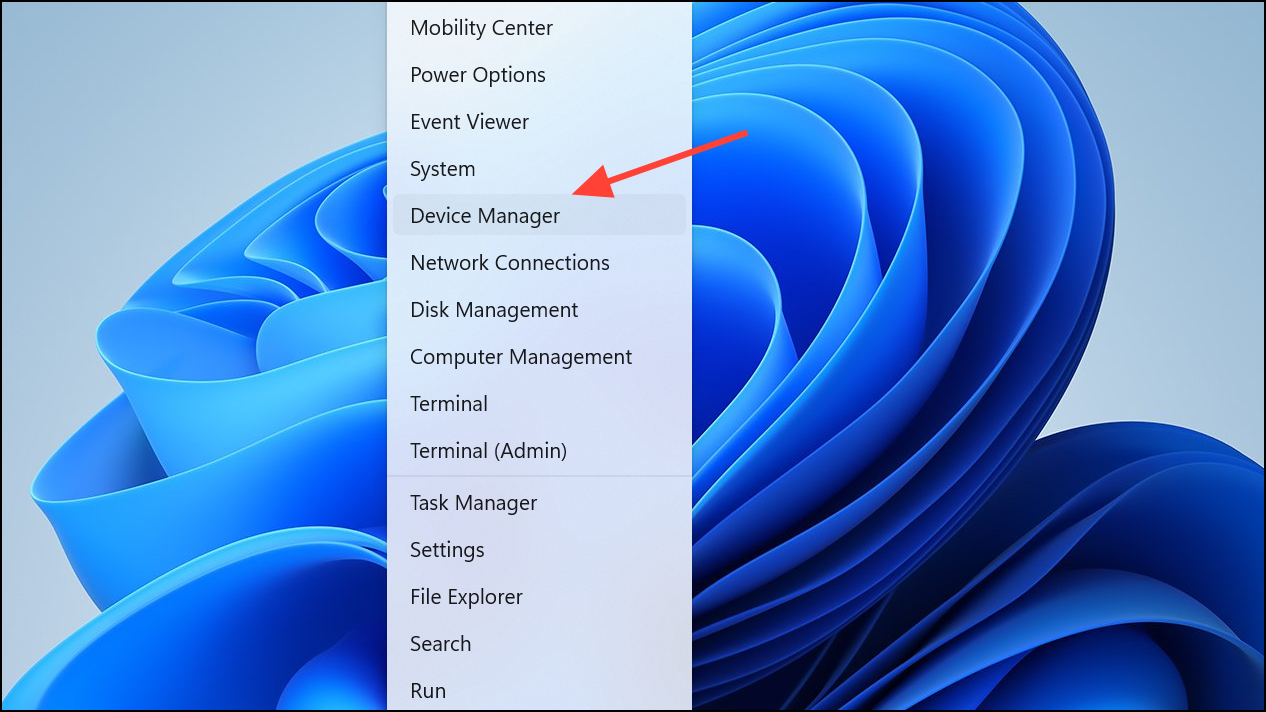
Update driver. Select Search automatically for drivers to let Windows find updates, or Browse my computer for drivers if you have a manufacturer-supplied driver.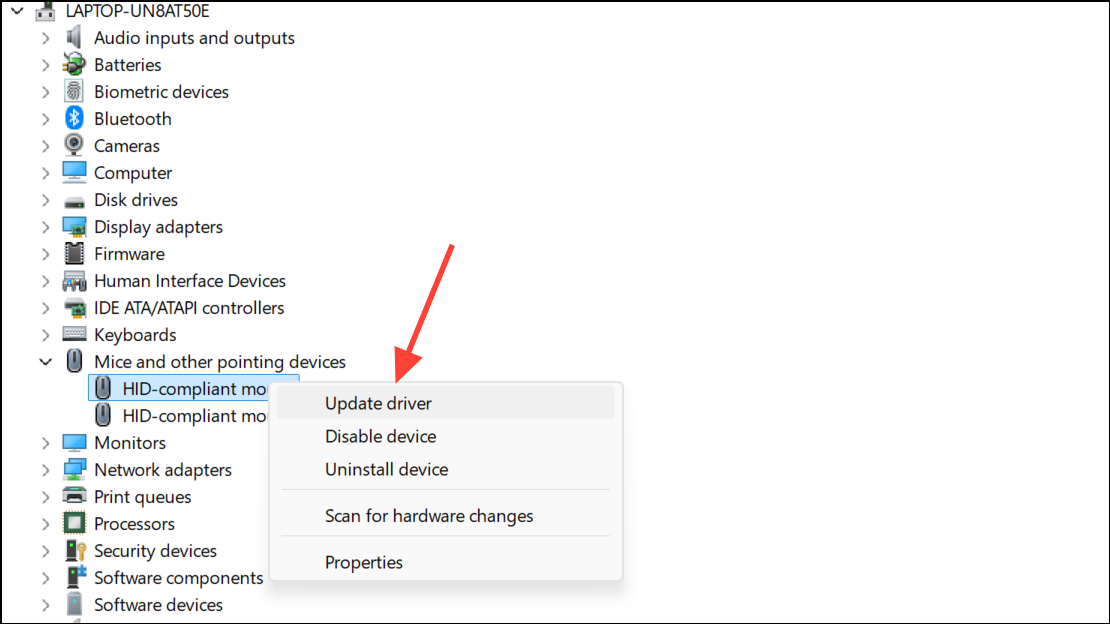
Uninstall device. Reboot to let Windows reinstall the default driver.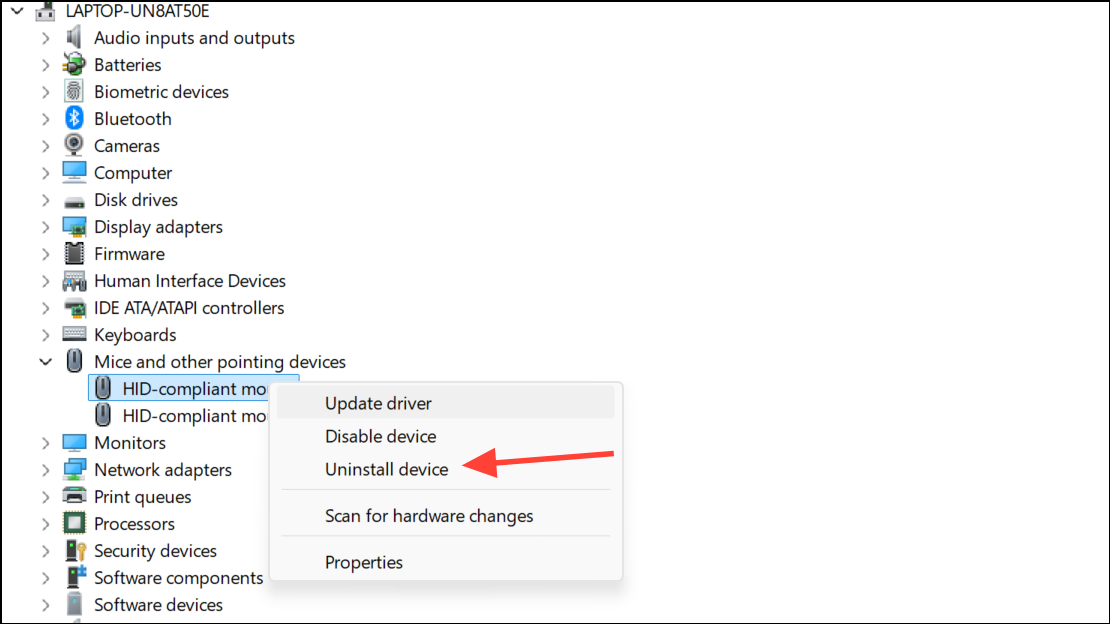
Some mice come with bundled software that allows remapping buttons or wheel functions. Open the mouse configuration utility (often found in the Start menu or system tray) and check for any custom assignments to the scroll wheel. Reset all settings to default if needed.
Uninstall Conflicting Applications
Third-party applications can sometimes override mouse behavior, especially utilities designed for productivity or gaming. Applications like OneQuick or other macro tools may assign volume control to the mouse wheel.
Settings > Apps > Installed apps and review recently added programs. Uninstall any software that modifies mouse or keyboard input.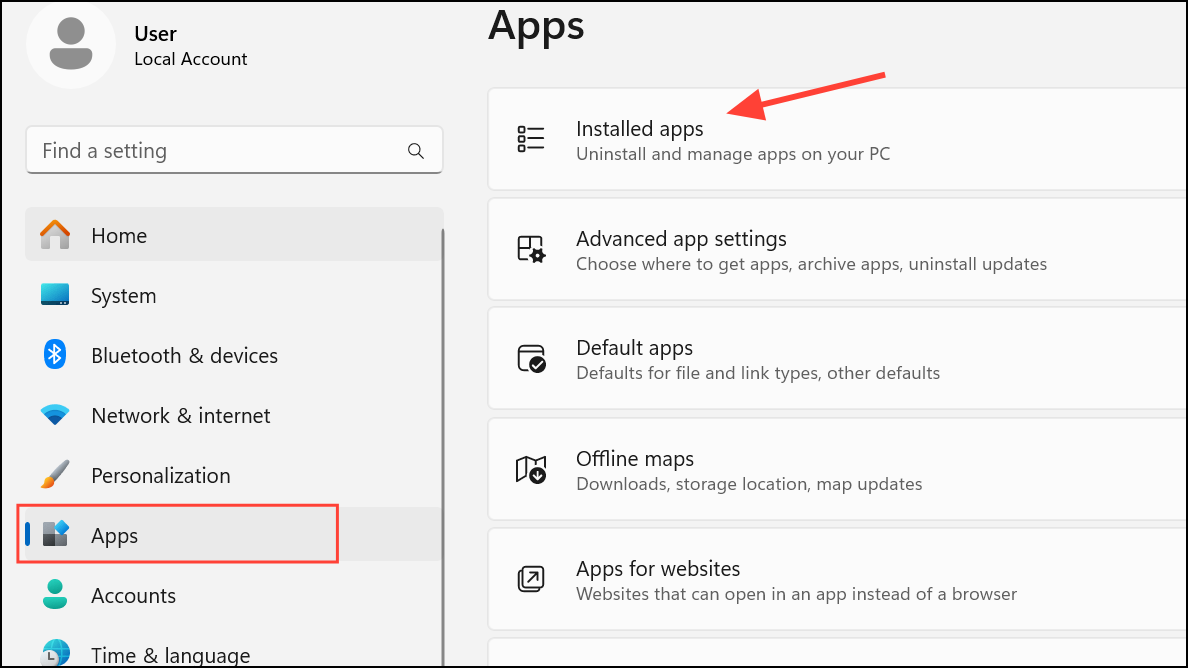
msconfig in the Start menu, disabling all non-Microsoft services, and rebooting. This isolates software conflicts.Reset Mouse Settings to Default
Additional mouse settings and look for a button or tab labeled Restore Defaults or similar. Confirm the reset and apply changes.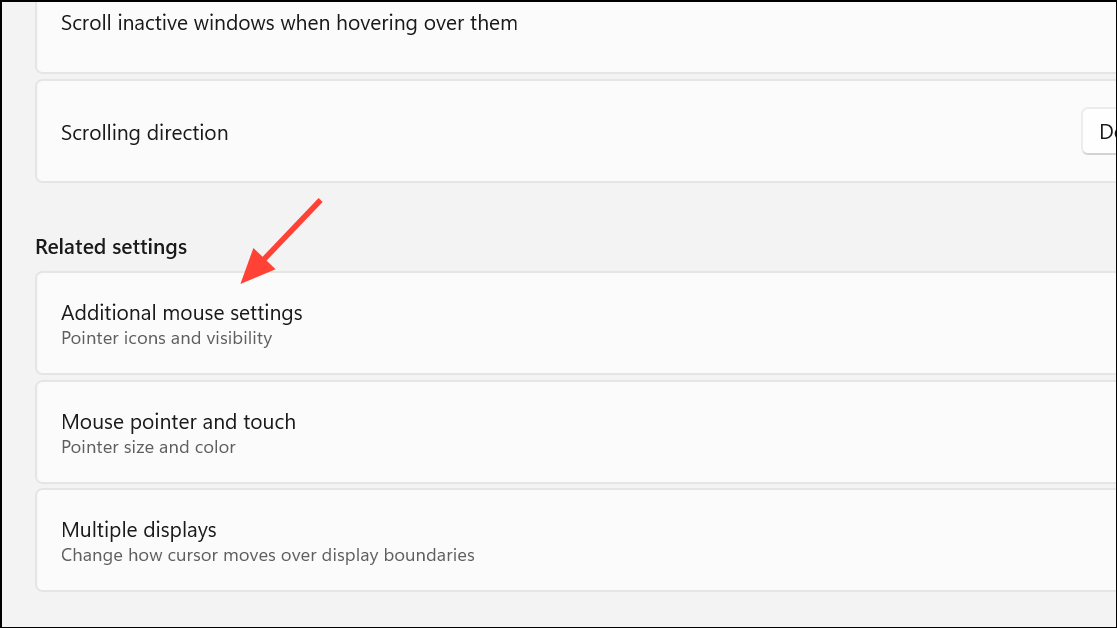
Check for Stuck Buttons or Hardware Issues
Physical issues like a stuck volume button or scroll wheel can also cause the problem. If your mouse has dedicated volume buttons, press and release each one to ensure none are jammed. On some models, holding down the scroll wheel or a side button for several seconds toggles special modes.
If the issue appeared after dropping the mouse or after a spill, try the mouse on another computer. If it still changes volume instead of scrolling, the mouse hardware may be faulty and require replacement.
Additional Tips for Taskbar Volume Control
Windows 11 allows adjusting system volume by hovering over the taskbar speaker icon and using the mouse wheel. This only works when the pointer is over the icon or the volume slider. If you want to prevent accidental volume changes, avoid hovering the cursor over the speaker icon while scrolling.
For advanced users, disabling “Scroll inactive windows when hovering over them” in Settings > Bluetooth & devices > Mouse may reduce unintentional volume changes, but this also affects window scrolling behavior system-wide.
Switching your mouse back to normal mode or updating drivers usually resolves the issue where the wheel changes volume instead of scrolling. If hardware or software conflicts persist, replacing the mouse or uninstalling problematic apps restores standard functionality quickly.



