Windows 11’s July 2026 Patch Tuesday update, KB5101650, is now rolling out with a mix of security fixes and several gradually appearing features. It lands as a mandatory cumulative update and installs on its own whether or not you manually check for it. On your PC it shows up as “2026-07 Security Update (KB5101650).”
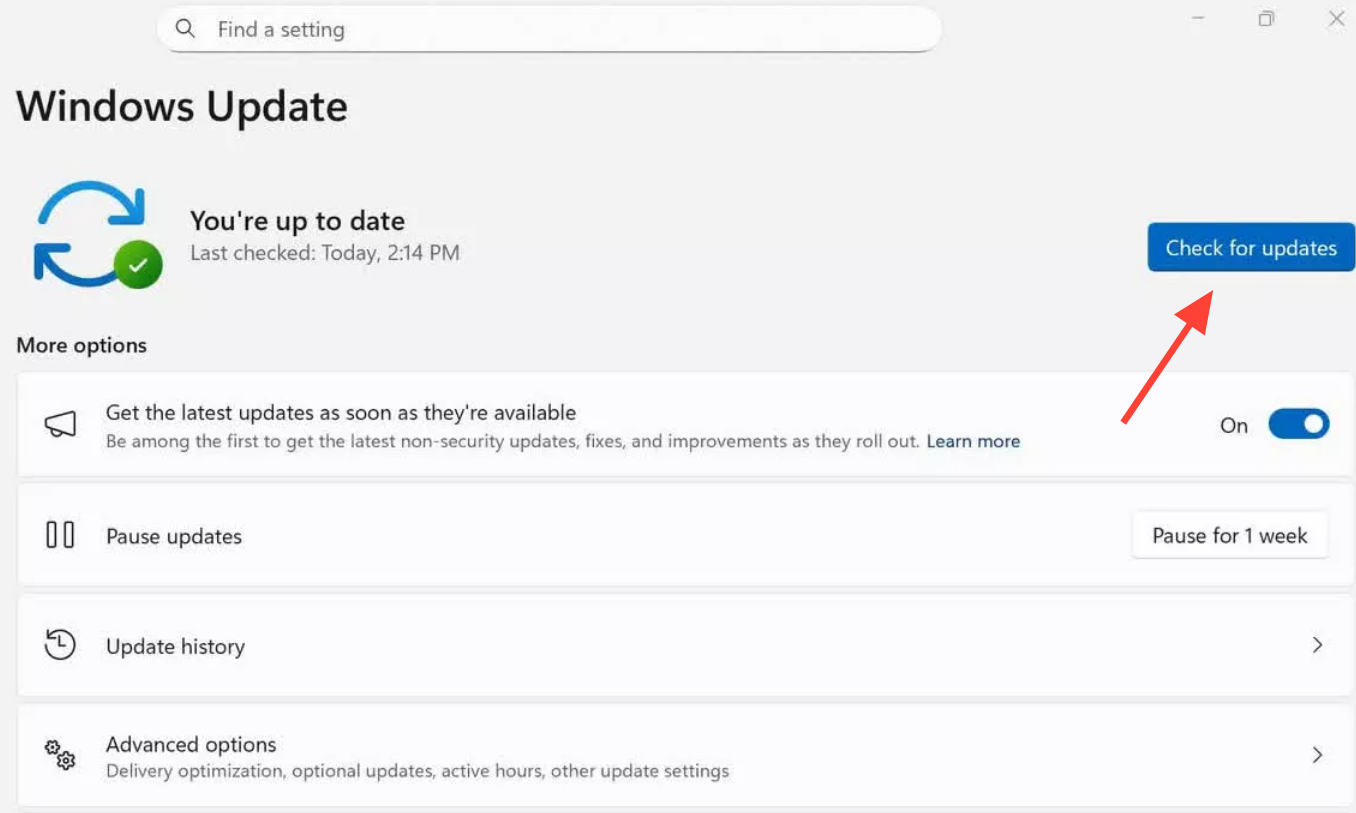
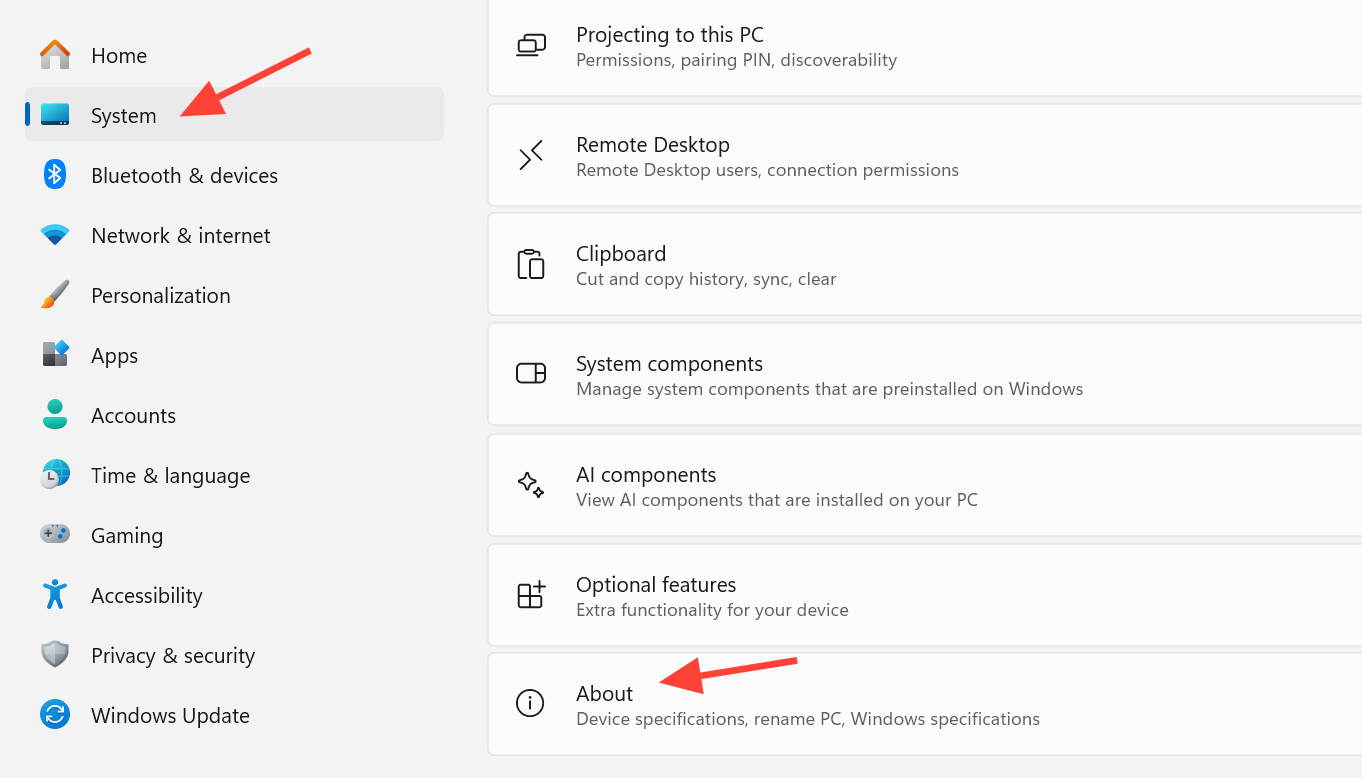
Quick answer: Open Settings > Windows Update and click Check for updates to install KB5101650. You are up to date once your build reads 26200.8875 (25H2) or 26100.8875 (24H2).
Which build KB5101650 installs
The same update reaches both supported versions of Windows 11, but the OS build number differs. Windows 11 25H2 moves to build 26200.8875, while Windows 11 24H2 moves to 26100.8875. If you are still on 24H2, keep in mind that support for that version is ending, with the final update planned for October 2026.
| Windows 11 version | Build number | Update size (x64) |
|---|---|---|
| 25H2 | 26200.8875 | 5383.7 MB |
| 24H2 | 26100.8875 | 4799.2 MB |
Update packages are now larger than in the past, running past 5GB in some cases because of AI bundles and changes to how updates are shipped.
Point-in-time restore arrives
The headline addition is point-in-time restore, a recovery feature that lets you roll your system back to an earlier state. It is conceptually close to the old System Restore, but more configurable and broader in what it saves. Restore points cover your current Windows installation, your apps and settings, and local files such as pictures and videos.
Restore points are stored locally through Volume Shadow Copy Service (VSS), so you do not need a separate drive and your files stay protected. On Windows 11 Home, the system is captured every 24 hours. On Windows 11 Enterprise, you can adjust the backup schedule and how long points are kept.
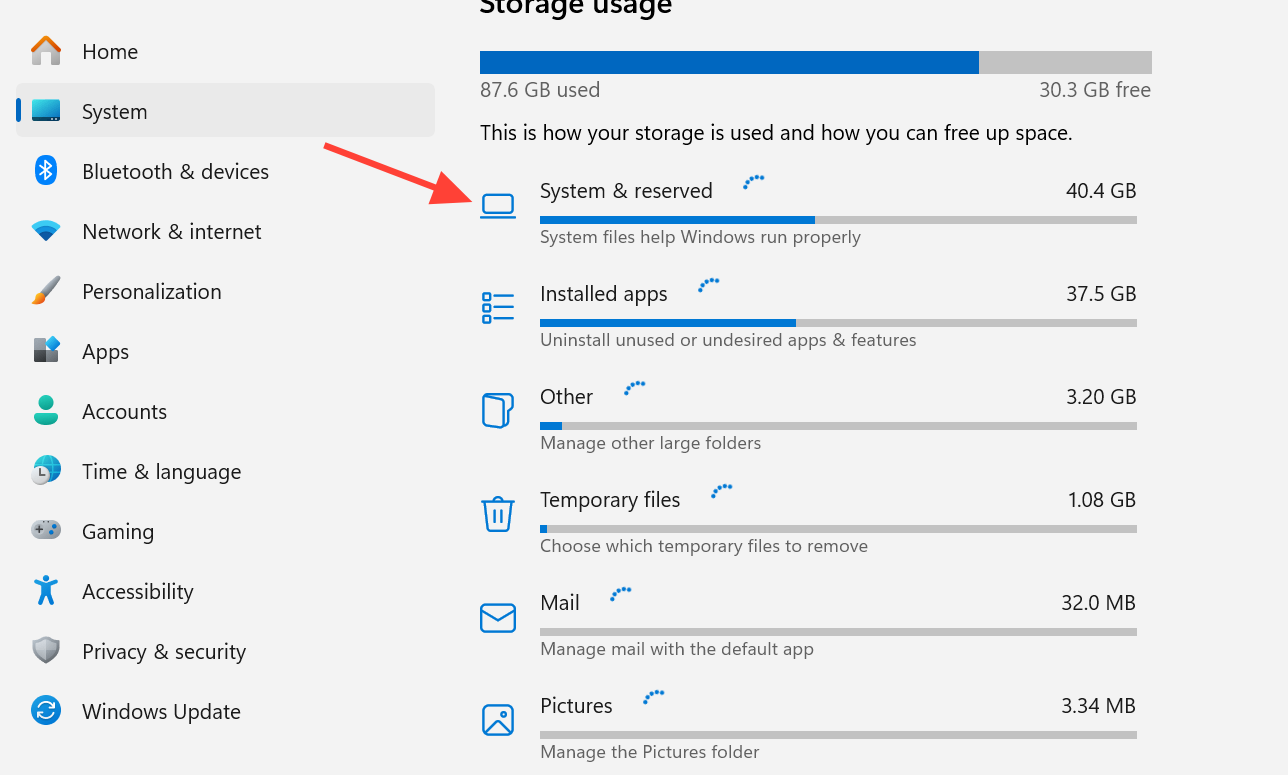
Storage handling has a few rules worth knowing. When the feature is on, Reserved storage under Settings > Storage > Show more categories > System & reserved resizes as points are created and later purged. A restore point will not be created if your device has less than 20GB free. You can set how much space it uses with a slider, up to a 50GB ceiling. Points older than 72 hours are removed automatically, and you pick from the available points on the Windows recovery and troubleshoot screen.
Pause updates on a specific day
Windows Update gains more flexible pause control. Instead of only pausing for a set number of days or weeks, you can now defer updates to a specific day within a 35-day window using a calendar. The 35-day cap still applies, but you can unpause and re-pause repeatedly as the resume date approaches, which effectively lets you hold updates longer as long as you remember to renew the block. This closes some of the gap between Home and the Group Policy deferral options on Pro and Enterprise.
Screen Tint, quieter Widgets, and File Explorer changes
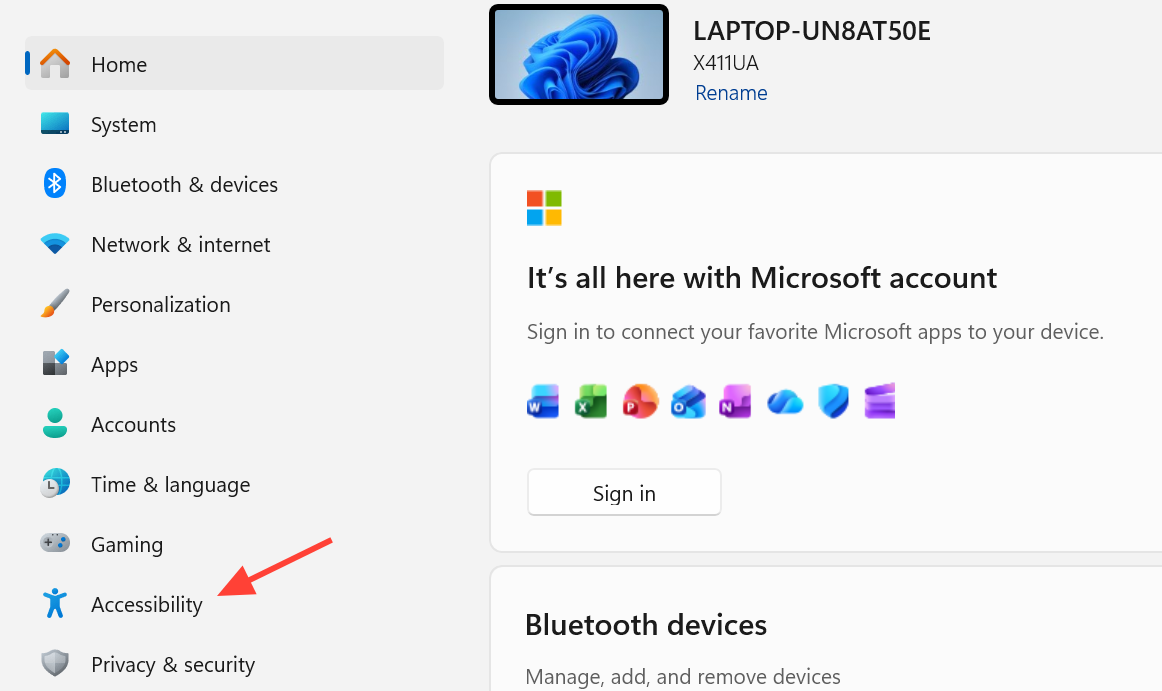
Screen Tint is a more advanced take on Night mode. Night mode uses one fixed tint with adjustable intensity, while Screen Tint lets you choose your own color, aimed at use cases like reducing headaches or migraines. You customize it under Settings > Accessibility.
The Widgets board is quieter and cleaner. It no longer opens as easily when you hover over the taskbar, the default layout has less clutter, and you can configure it from a new option in the navigation bar. It is also described as faster and more reliable.
File Explorer picks up smaller tweaks. Hovering over items in the Home tab now surfaces “Open file location” and “Ask Copilot,” with the Microsoft 365 Copilot option showing instead for those who use it. Home tab resource loading has been optimized so Explorer launches a bit quicker and behaves more reliably. Microsoft says it is not aware of any major known issues, and a bug that could consume 500GB of storage has been patched.
All of these features roll out gradually, so they may not appear immediately after you install the update.
Other updates shipping alongside
This month also delivers .NET security updates that many Windows apps depend on, plus the monthly malware removal tool.
- 2026-07 .NET 8.0.29 Security Update for x64 Client (KB5104032)
- 2026-07 .NET Framework Security Update (KB5100998)
- 2026-07 .NET 9.0.18 Security Update for x64 Client (KB5104033)
- Windows Malicious Software Removal Tool x64 – v5.143 (KB890830)
How to install KB5101650
If Windows Update keeps failing, or you need to deploy the patch across many machines at once, you can grab the offline .msu installer for 64-bit and ARM64 systems from the Microsoft Update Catalog. These downloads are large, so the built-in update flow is the better option in ordinary cases.
Because it is a security update, installing sooner rather than later is the safer choice, especially with warnings about attackers moving quickly against unpatched bugs. Once your build number matches, KB5101650 is fully applied, and the new features will surface as their staged rollout reaches your device.