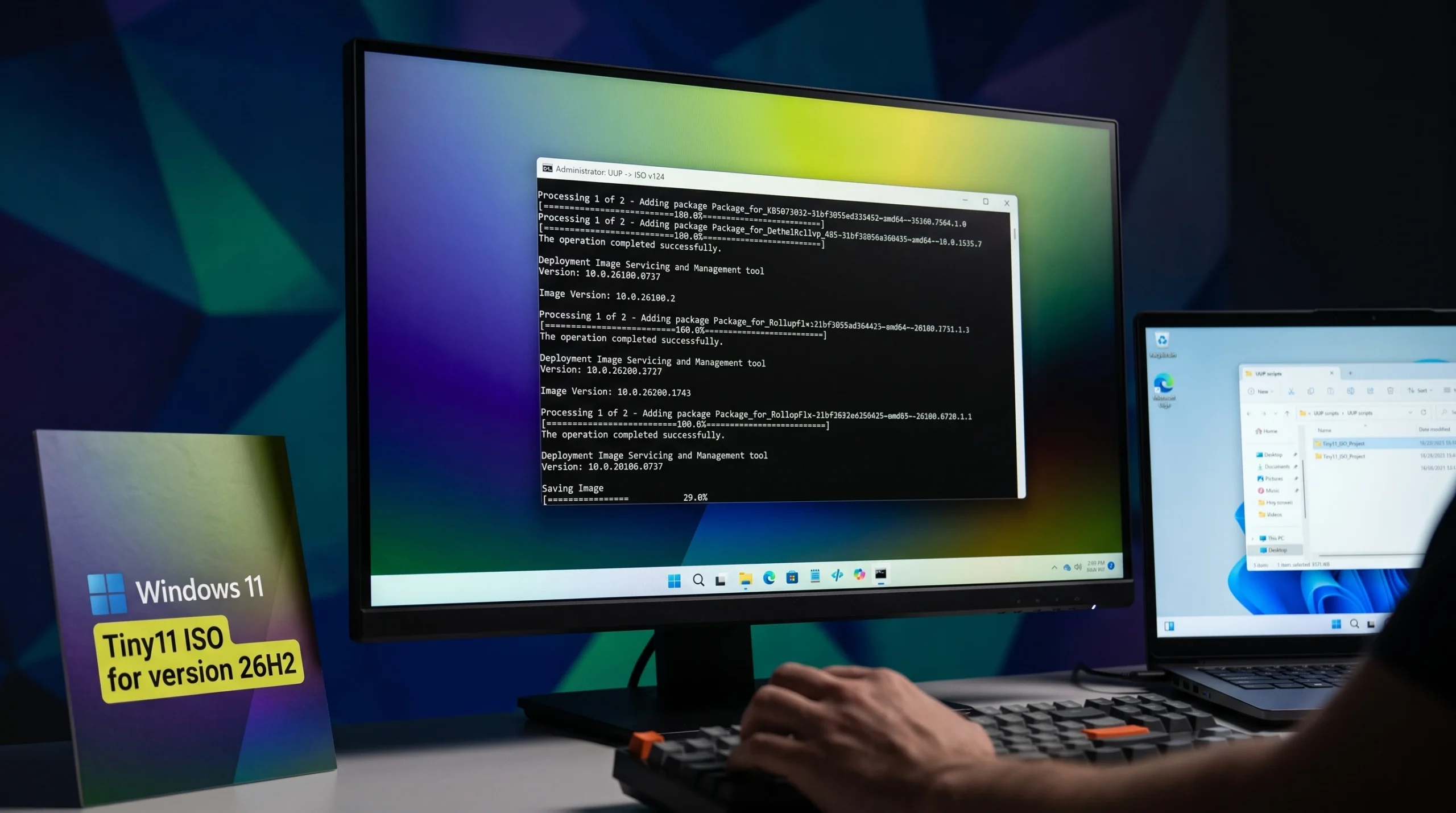
Tiny11 is a stripped-down build of Windows 11 put together by developer NTDEV. It keeps the core Windows 11 experience but removes many preinstalled apps and background services, so it uses less disk space and less memory than a standard install. The 26H2 release is the newest of these builds, and there are two practical ways to get it.
Quick answer: The prebuilt Tiny11 26H2 ISO is hosted on the Internet Archive. For an image you control completely, build your own with the open-source Tiny11 Builder using an official Windows 11 ISO from Microsoft.
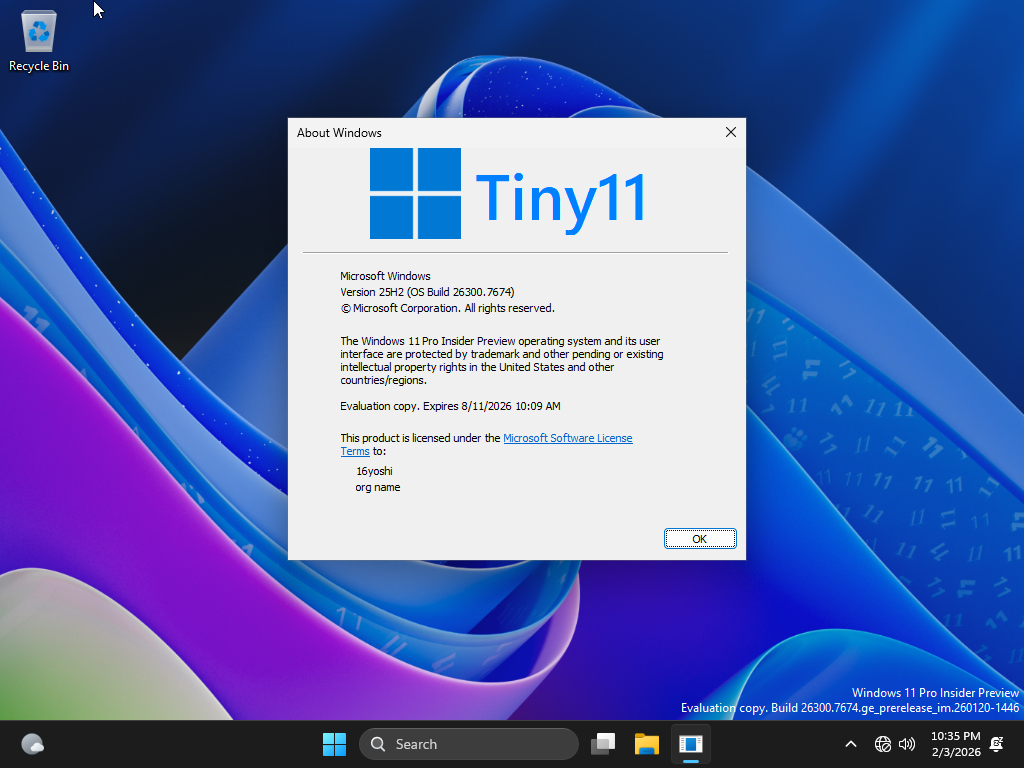
What Tiny11 removes and changes
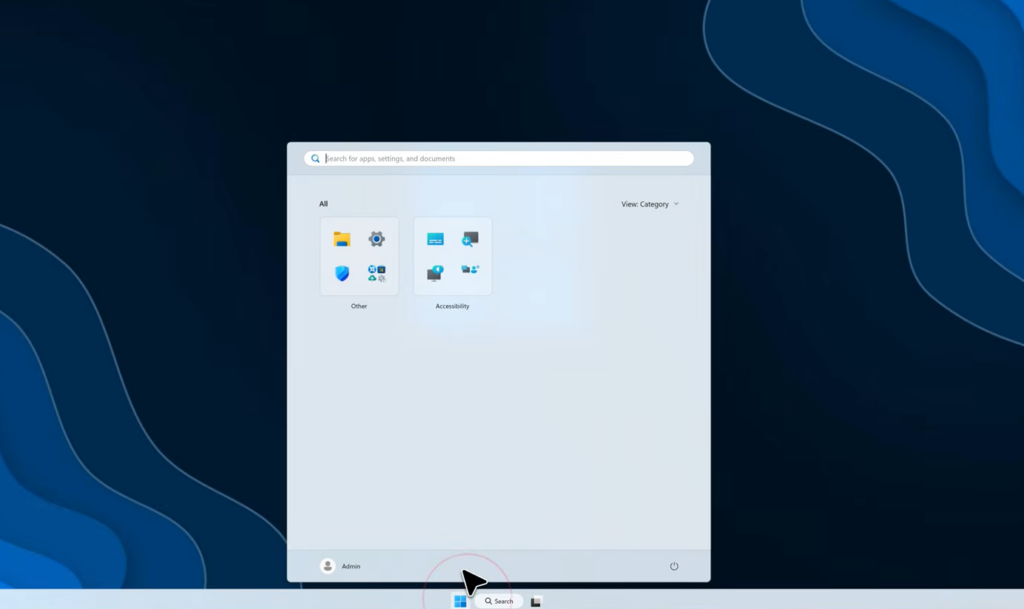
Tiny11 is not a separate operating system from Microsoft. It is the regular Windows 11 image, modified to cut out components most people never use. That is why the installed system takes up far less room than a normal Windows 11 setup.
The build drops a long list of default apps and features, including Clipchamp, the News and Weather widgets, Xbox apps, Get Help, Quick Assist, OneDrive, Copilot, Outlook, Microsoft Teams, and even Microsoft Edge. Anything you later miss can usually be reinstalled from the Microsoft Store. It also lets you skip the online Microsoft account step during setup and create a local account offline, and it uses the compact deployment method to shrink the final footprint on disk.
Tiny11 is a community project, not officially supported by Microsoft. Only download prebuilt images from the developer’s own upload, and back up your files before any clean install.
Tiny11 ISO versions and download sources
The 26H2 ISO sits in its own Internet Archive item. Older builds live in a separate archive that the maintainer (formerly 16yoshesoft, now going by YouxiOS) marks as out of date.
| Build | ISO size | Where to find it |
|---|---|---|
| Tiny11 26H2 | Current release | Internet Archive item tiny11-26h2-by16yoshi |
| Tiny11 25H2 | 4.3 GB | Internet Archive item tiny11versions (flagged out of date) |
| Tiny11 Insider Preview build 27913 | 3.2 GB | Same archive (flagged not recommended) |
If you only want the newest image, go straight to the 26H2 archive page and download the ISO. The 25H2 and 27913 files are kept mainly for reference and testing.
System requirements for Tiny11
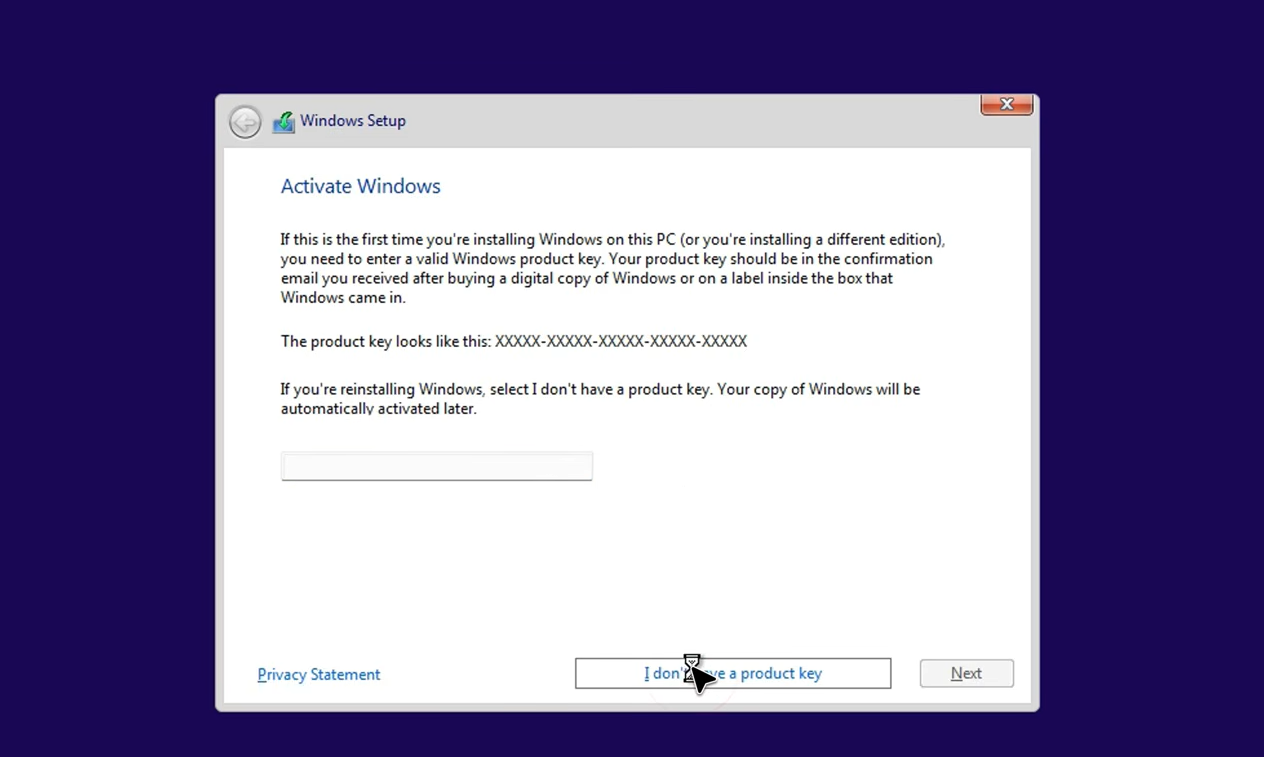
Tiny11 runs on hardware that would fail the standard Windows 11 checks. It does not require TPM 2.0 or Secure Boot to install.
| Requirement | Tiny11 25H2 | Tiny11 build 27913 |
|---|---|---|
| RAM | 2 GB (4 GB for Copilot) | 3 GB |
| Disk space | 15 GB | 10 GB |
| TPM 2.0 / Secure Boot | Not required | Not required |
| Typical RAM in use | About 1.6 GB | About 1.9 GB |
| Typical disk in use | About 7 GB (no page file, with compression) | Similar to Tiny11 core |
Build your own Tiny11 26H2 ISO with Tiny11 Builder
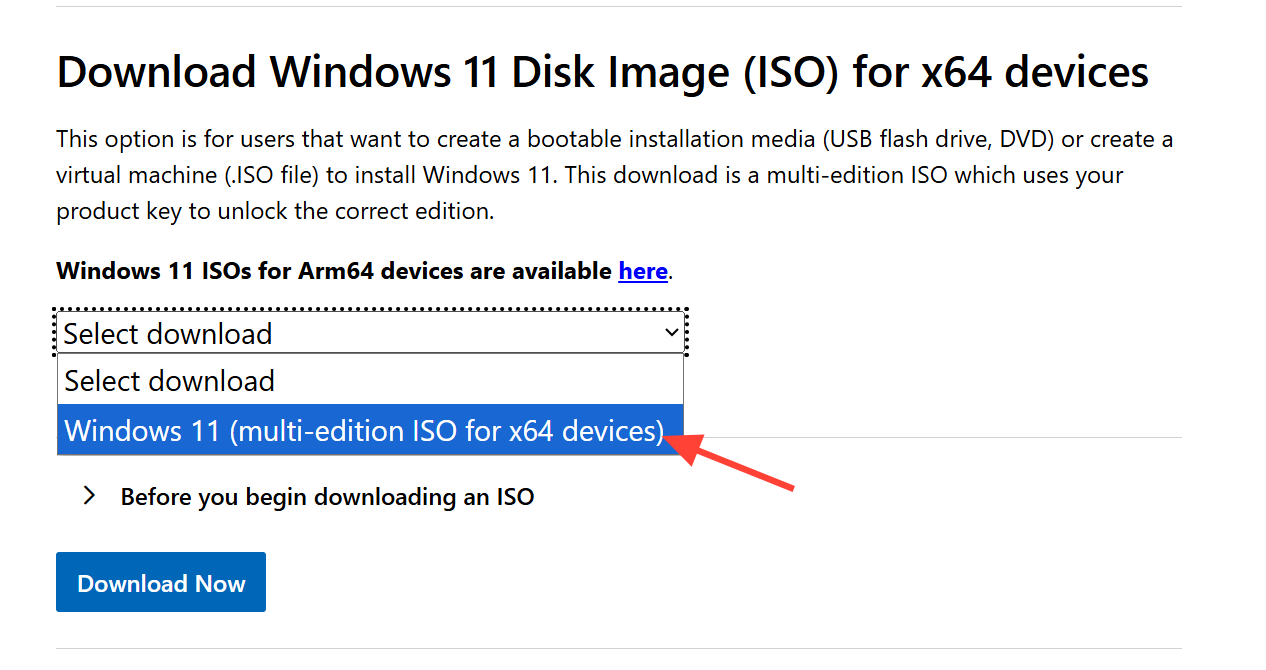
Building the image yourself gives you a clean file made from a genuine Microsoft source. Tiny11 Builder is the open-source script that automates the whole customization, so this method is the most reliable if you are unsure about a downloaded file.
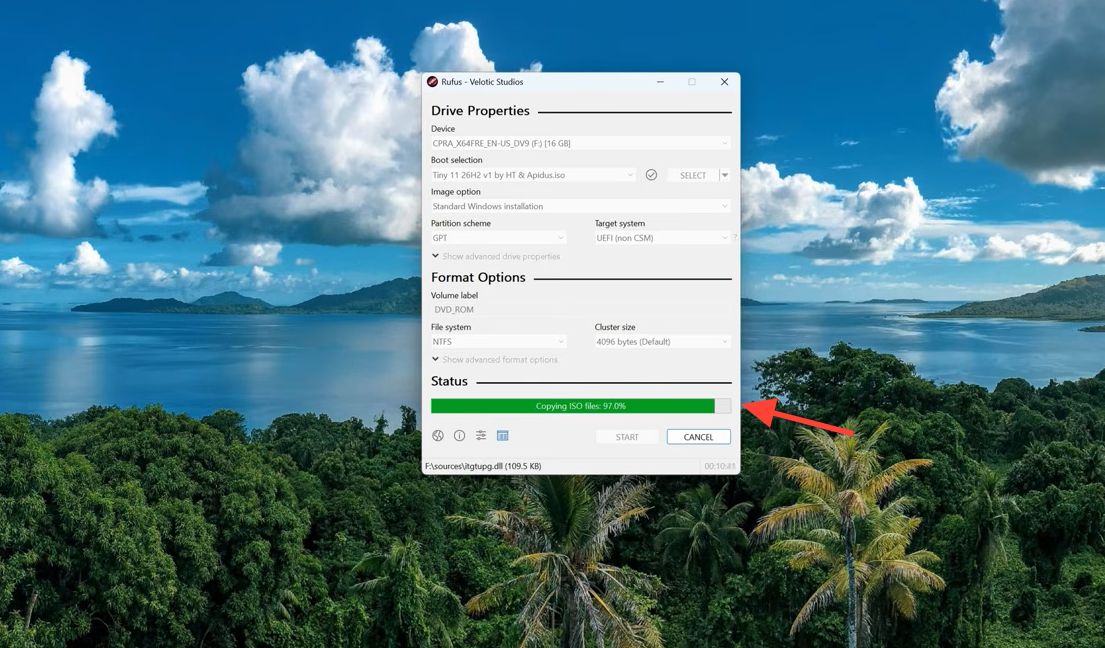
Create a bootable USB and install
An ISO on its own cannot install Windows. You need to write it to a USB drive and boot from it.
You know it worked when the PC boots to the Windows 11 desktop with far fewer preinstalled apps. On Tiny11 25H2, the installed system uses around 7 GB of disk and roughly 1.6 GB of RAM, well below a standard Windows 11 install.
Turn Copilot back on in Tiny11
Because Copilot and Edge are removed, you have to reinstall Edge before Copilot will work. Make sure your PC has at least 4 GB of RAM for this.
winget install edge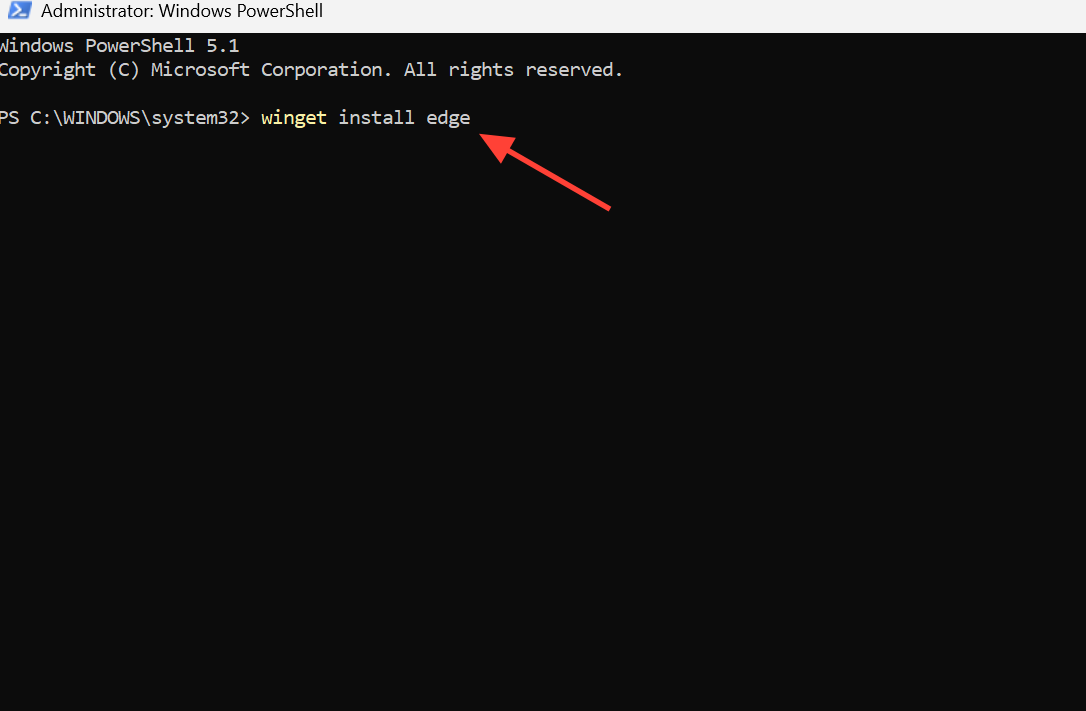
For most people, the fastest route is downloading the prebuilt 26H2 ISO from the Internet Archive and writing it to USB. If you would rather start from a verified Microsoft image, the Tiny11 Builder route takes a little longer but leaves you with a clean file you assembled yourself, ready to install on hardware that standard Windows 11 would reject.