

Windows 11’s Phone Link app previously allowed users to remove connected Android devices through a simple option in the app’s settings. Recent updates have changed this process, leaving many users unable to remove old or inactive devices. This issue creates confusion, especially for those who switch phones often or need to keep their device list organized for security and privacy reasons. Below are several methods to address this limitation, starting with the most reliable approaches and followed by alternative workarounds for persistent cases.
Remove Devices Using Phone Link Settings (If Option Available)
Settings > Devices. If you see a list of connected devices, look for the three dots (⋯) menu next to the device you want to remove.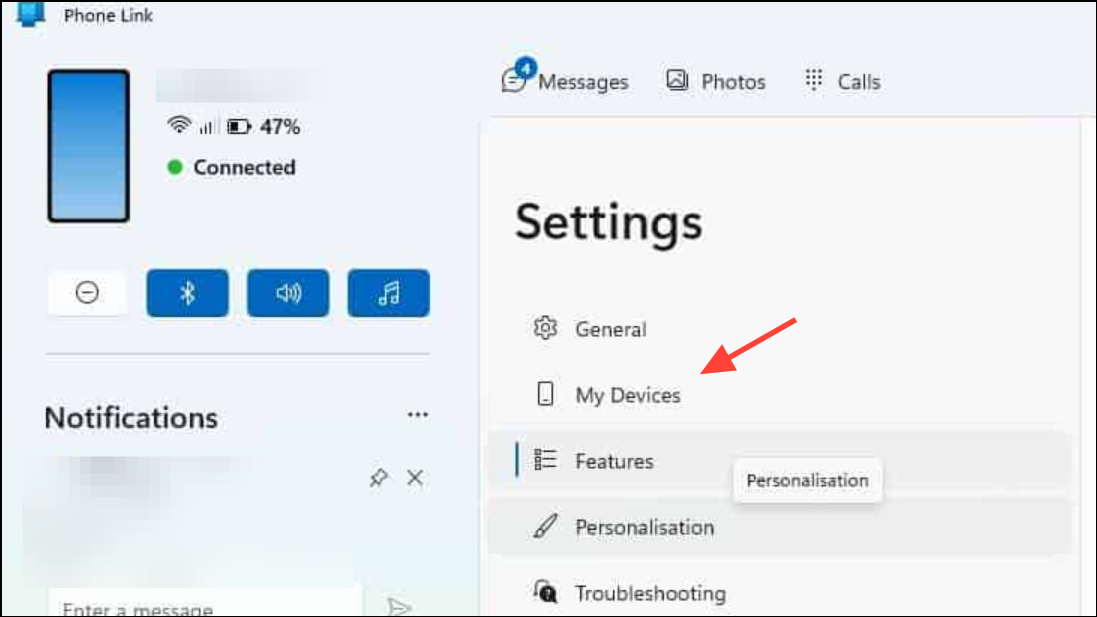
Remove. Confirm the removal in the dialog box that appears. This should immediately remove the device from the list.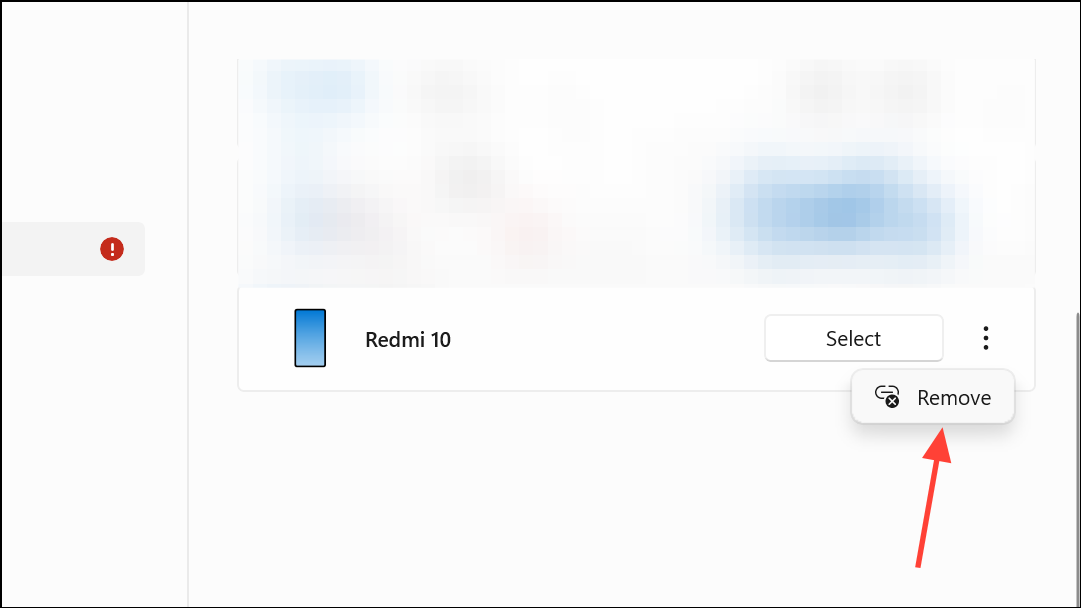
This method only works if your version of Phone Link still displays the removal option. Some users report that this option has disappeared after recent updates, so proceed to the next methods if you do not see the three dots menu.
Sign Out and Relink Your Account to Remove All Devices
Sign out. This action disconnects all linked devices from your Microsoft account in the Phone Link app.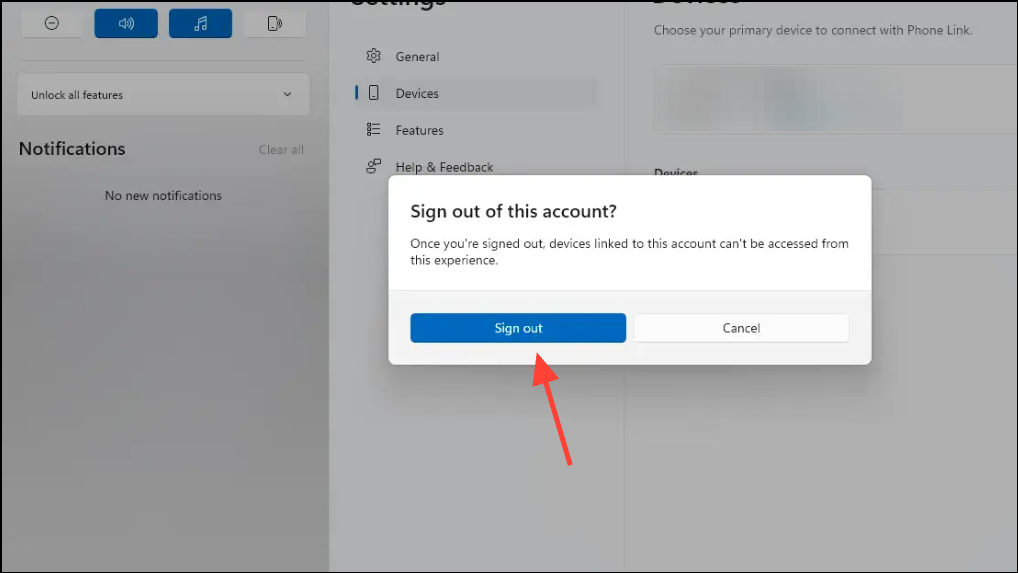
Link to Windows app. Go to settings within the app, select your Microsoft account, and tap Sign out to disconnect your phone from your PC.This method is effective when you have access to both the PC and the Android device. However, if the old device is lost, broken, or already reset, continue with the next approaches.
Remove Device via Microsoft Account Portal
Remove device. Confirm the removal when prompted.If your device does not appear in this list, it may not be registered as a managed device, or the cache has not updated. In such cases, proceed with additional troubleshooting below.
Reset or Repair the Phone Link App
Win + I to open Windows Settings. Go to System > System components or Apps > Installed apps depending on your Windows version.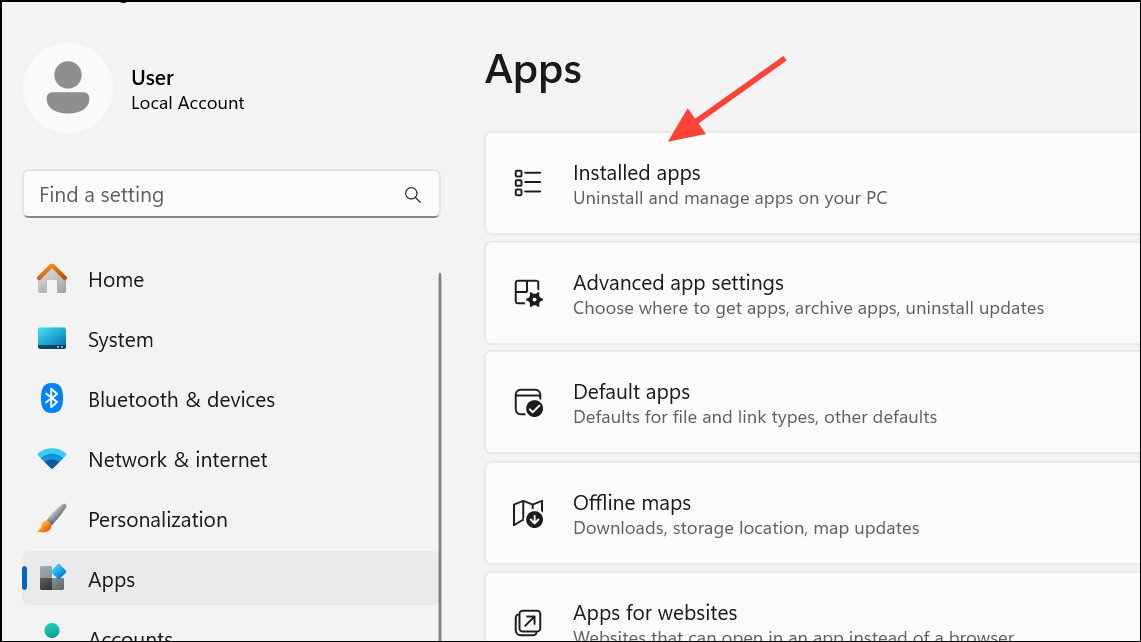
Repair and Reset. Click Repair first to attempt fixing any issues without erasing app data. If the removal problem persists, click Reset to clear app data and settings. Note that resetting will require you to re-link your current phone.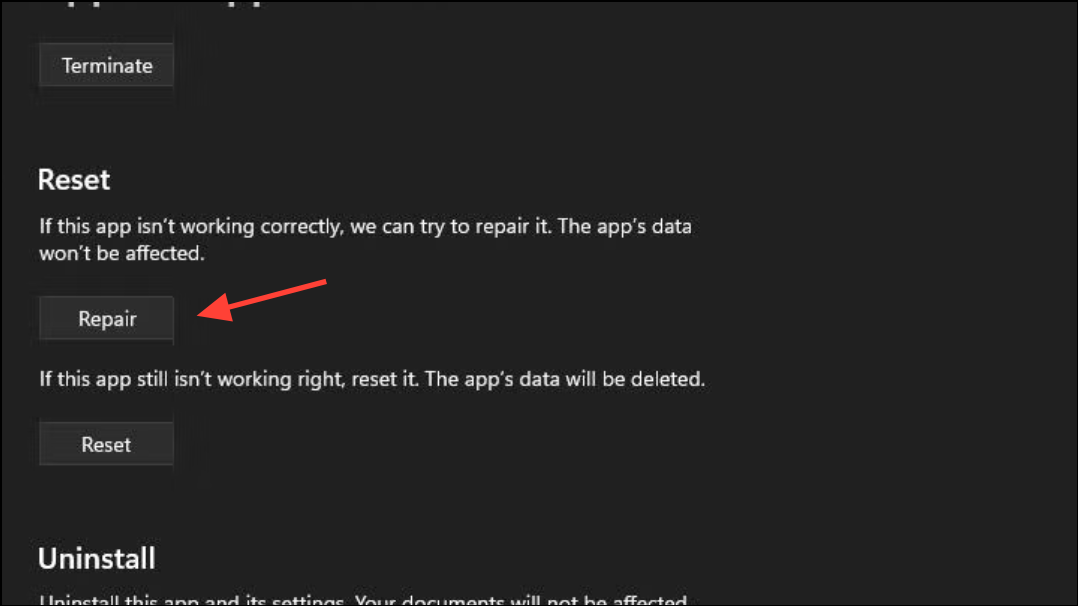
Repairing or resetting often resolves UI glitches or corrupted cache that can hide the device removal option.
Update Phone Link to the Latest Version
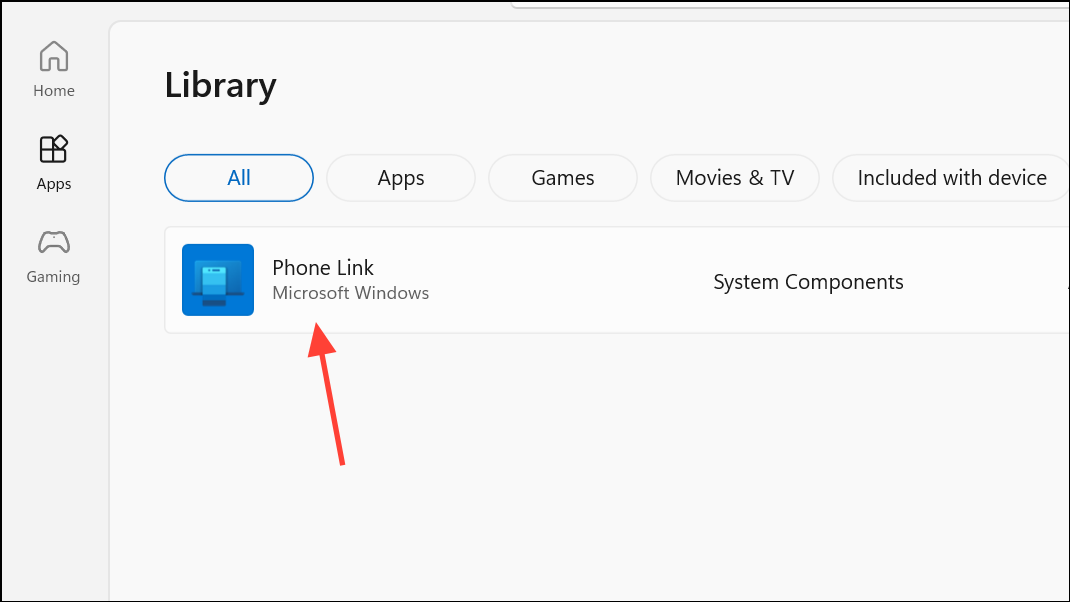
Update next to Phone Link. Once updated, restart the app and check if the Remove option has returned in the Devices section.Running the latest version ensures access to current features and bug fixes that may restore the removal functionality.
Remove Device via Windows Bluetooth & Devices Settings
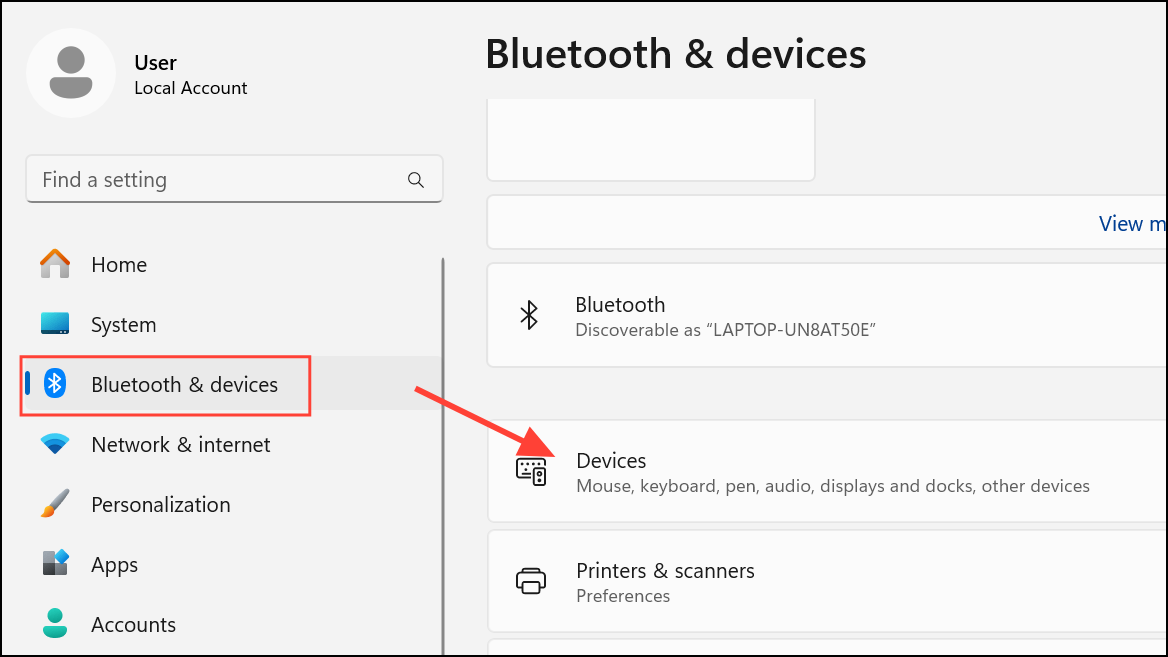
Remove. Confirm the action.This step removes the device’s Bluetooth pairing and some system-level associations, but may not clear the Phone Link app’s internal record. For a full reset, combine this with signing out or resetting the app as described above.
Alternative Workarounds and Community Solutions
Some users report success by temporarily installing an older version of the Phone Link app that still includes the device removal option. This process involves downloading a previous .appxbundle installer for Phone Link (for example, phone-link-1-24022-69-0.appxbundle) from a reputable source, right-clicking the file, and selecting Install. After installation, open Phone Link and check if the Remove option appears. Remove the old device, then update Phone Link to the latest version via Microsoft Store or Windows Update.
In some cases, users have tried uninstalling Phone Link entirely using PowerShell commands such as:
Get-AppxPackage Microsoft.YourPhone -AllUsers | Remove-AppxPackageHowever, Microsoft has restricted the ability to remove Phone Link in recent Windows 11 builds, making this approach less reliable. Uninstalling and reinstalling may not remove device records stored in the cloud.
Additional Tips and Considerations
- If you use a work or school account, device links may be managed by your organization. Contact your IT administrator to remove devices from your managed profile.
- Clearing cloud-synced settings in your Microsoft account can sometimes remove persistent device entries. Log in to your Microsoft account online, scroll to the cloud settings section, and select
Clear stored settings. - For Bluetooth-only connections, removing the device from Windows Bluetooth settings may be sufficient to stop automatic pairing, but will not clean up Phone Link records.
- If you no longer have access to the old device (lost, broken, or factory reset), some residual records may remain in the app until Microsoft updates the removal process.
- Submitting feedback through the Windows Feedback Hub (
Win + F) helps inform Microsoft about the issue and may accelerate a fix in future updates.
Resolving device removal issues in Phone Link requires persistence and sometimes a combination of methods. Keeping both your app and system updated, and periodically reviewing linked devices, helps maintain a tidy and secure device list.



