
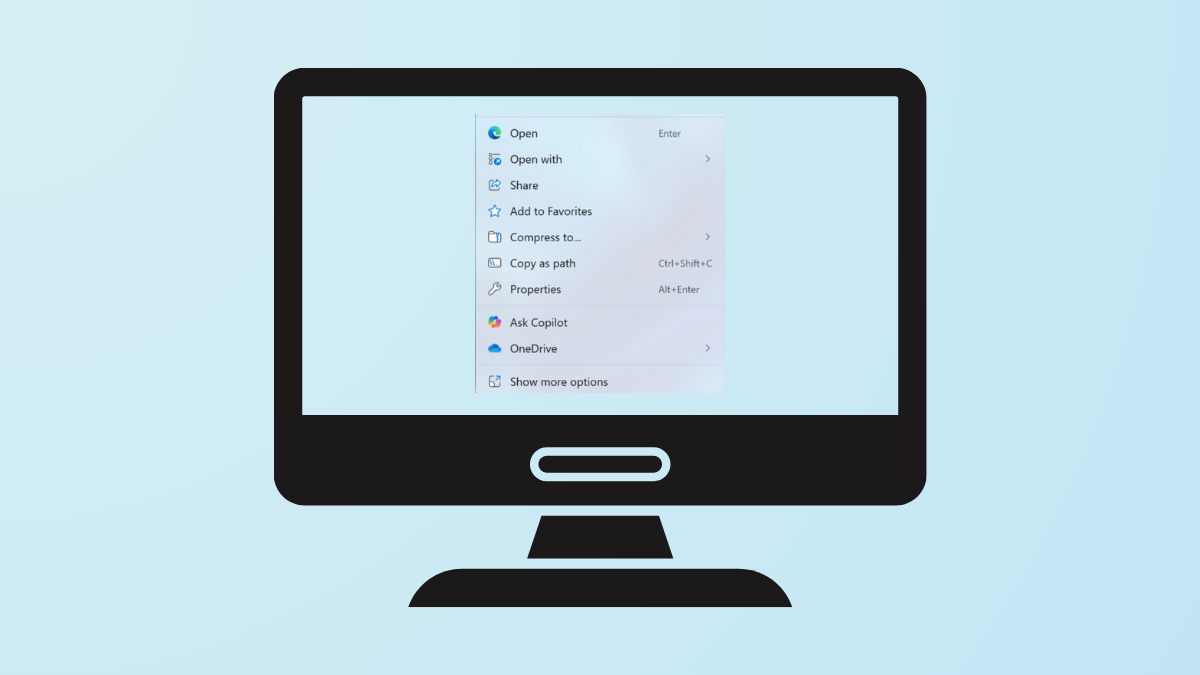
Microsoft’s Copilot app now inserts an ‘Ask Copilot’ entry into the Windows 11 context menu, appearing whenever you right-click on files such as images, PDFs, or text documents. This addition automatically uploads the selected file to Copilot, allowing you to interact with its AI features. However, for users who prefer a cleaner interface or do not use Copilot, this integration can clutter the right-click menu and slow down routine tasks. Removing this menu item restores the context menu to its previous state and prevents accidental uploads to Copilot.
Remove ‘Ask Copilot’ Using the Windows Registry
The most effective way to remove the ‘Ask Copilot’ entry from the context menu is by editing the Windows Registry. This method does not require uninstalling the Copilot app and allows you to revert the change if needed. The process blocks the Copilot shell extension responsible for adding the menu item.
Windows + R to open the Run dialog, type regedit, and press Enter. This opens the Registry Editor. If prompted by User Account Control, choose “Yes” to proceed.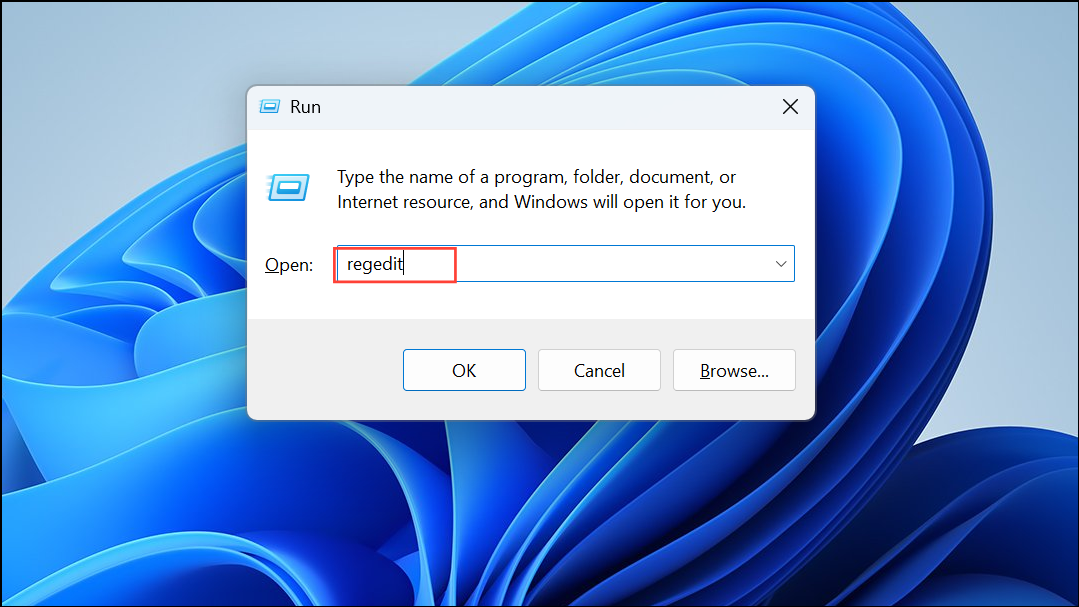
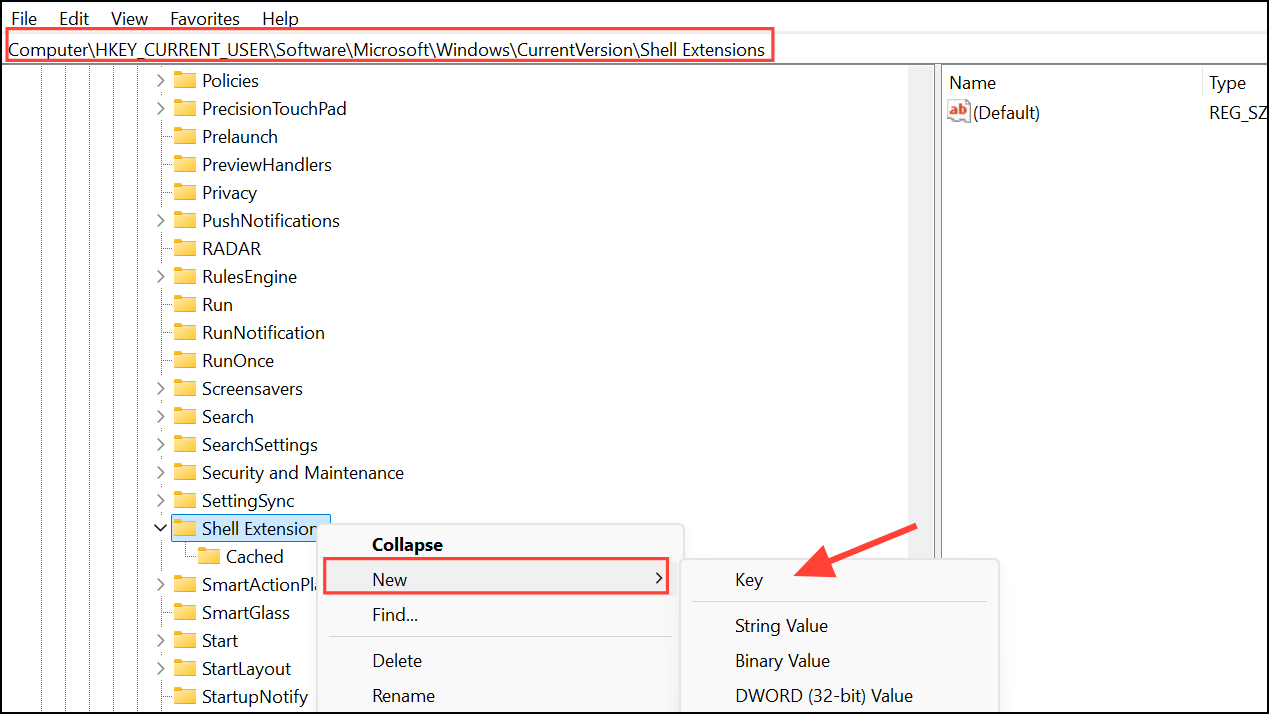
HKEY_CURRENT_USER\Software\Microsoft\Windows\CurrentVersion\Shell Extensions\BlockedIf the Blocked key does not exist, right-click on Shell Extensions, select “New” > “Key”, and name it Blocked.
Blocked key and select “New” > “String Value”. Name the new value:{CB3B0003-8088-4EDE-8769-8B354AB2FF8C}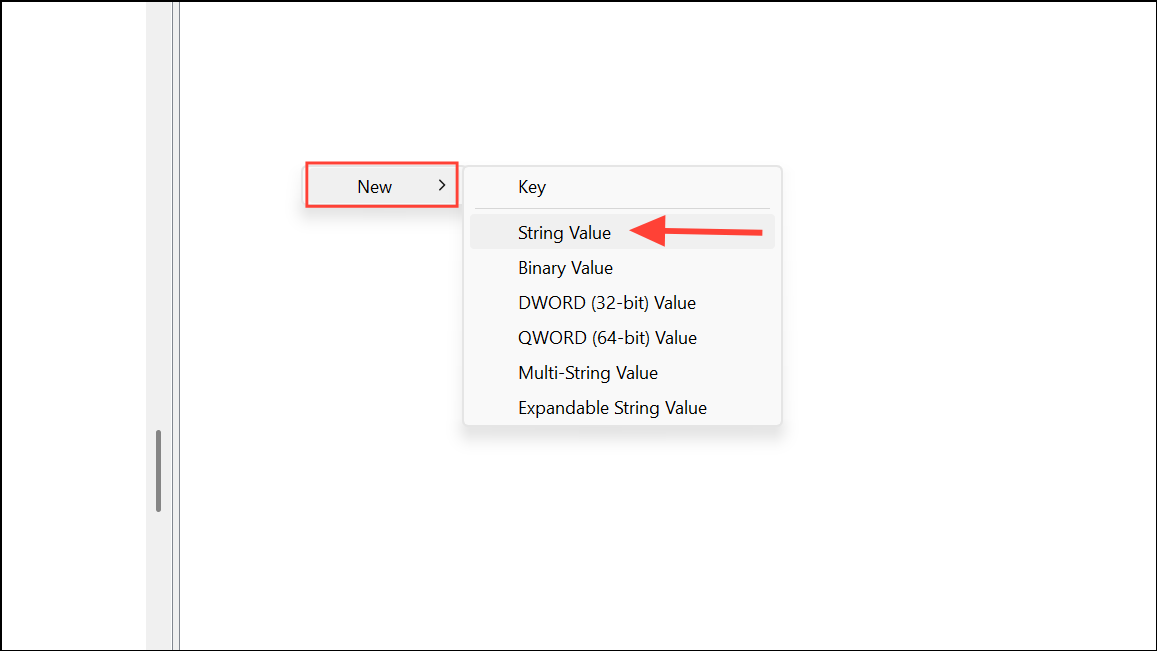
Ask Copilot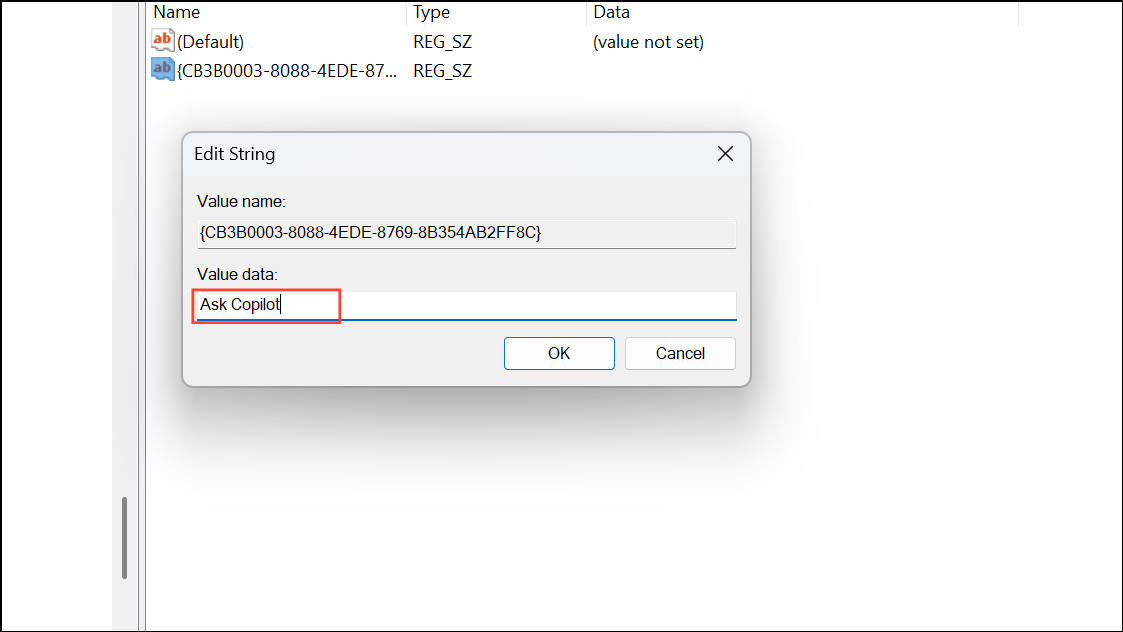
This blocks the Copilot extension from appearing in the context menu for your user account.
Ctrl + Shift + Esc to open Task Manager, locate “Windows Explorer” in the list, right-click it, and select “Restart.” Alternatively, you can reboot your PC.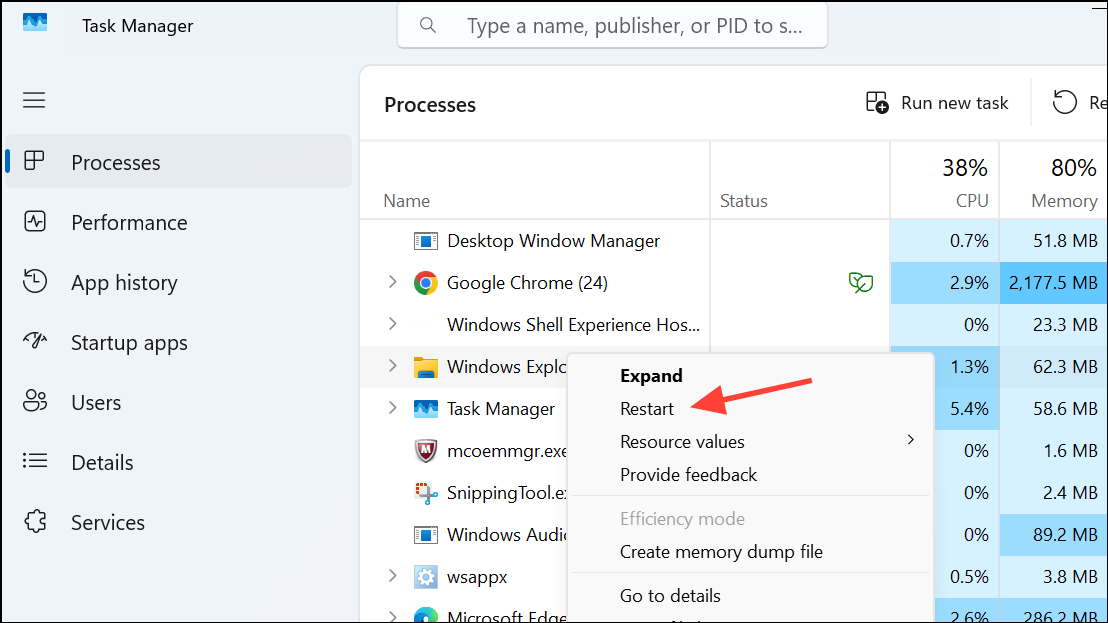
After completing these steps, the ‘Ask Copilot’ option will no longer appear when you right-click files in File Explorer or on the desktop.
Remove ‘Ask Copilot’ for All Users via the Registry
To remove the context menu entry for all users on the system, repeat the Registry process under the HKEY_LOCAL_MACHINE hive. This method requires administrator privileges and is ideal for shared or multi-user computers.
Windows + R, type regedit, and press Enter. If prompted, confirm with “Yes.”HKEY_LOCAL_MACHINE\SOFTWARE\Microsoft\Windows\CurrentVersion\Shell Extensions\BlockedIf the Blocked key is missing, create it as described above.
{CB3B0003-8088-4EDE-8769-8B354AB2FF8C}.This blocks the Copilot context menu entry for all user accounts on the device.
Uninstall the Copilot App
Completely removing the Copilot app from your system also deletes the ‘Ask Copilot’ option from the context menu. This approach is suitable if you have no need for Copilot’s AI features across Windows.
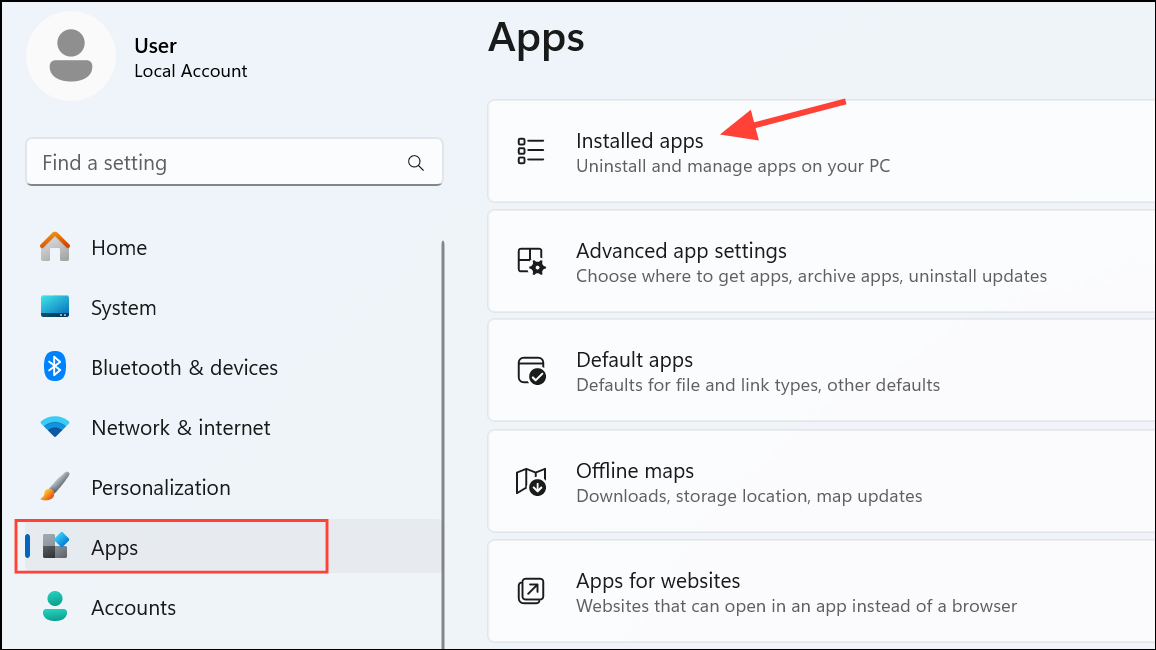
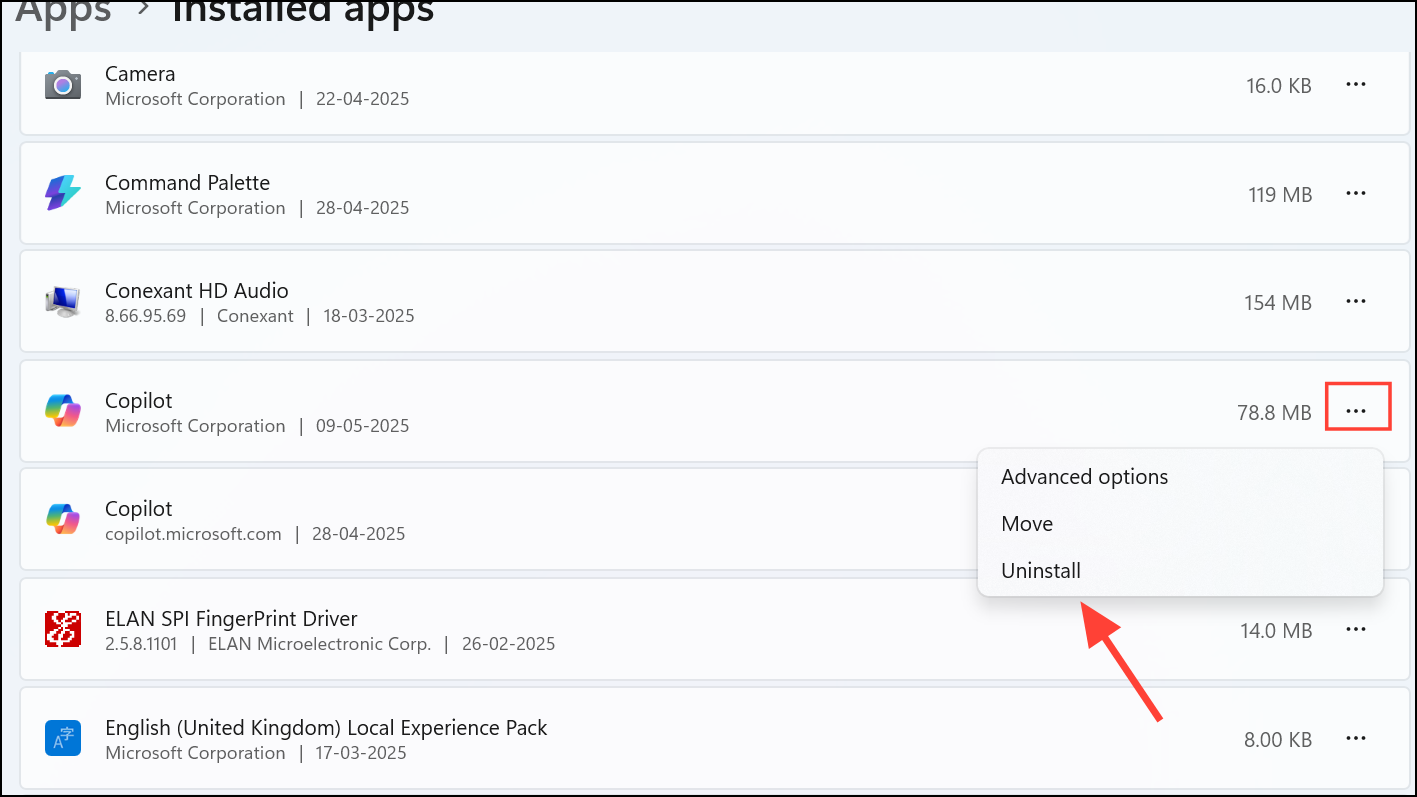
Disable Copilot Using Group Policy (Windows Pro, Enterprise, Education)
On supported editions of Windows, you can disable Copilot system-wide with Group Policy Editor, which also removes related UI elements.
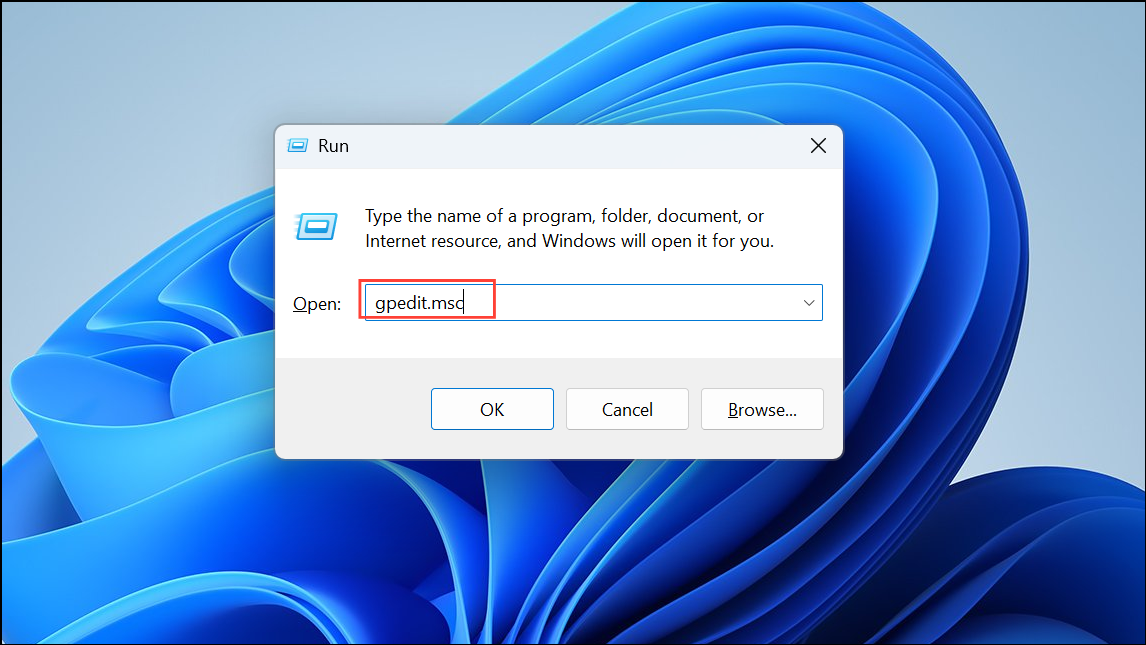
This method disables Copilot features, including the context menu entry, but is not available on Windows Home editions unless you install a third-party policy editor.
Removing the ‘Ask Copilot’ entry streamlines your workflow and restores the context menu’s previous speed and simplicity. For most users, the Registry method is the quickest and most reliable way to achieve this result without uninstalling Copilot entirely.



