
Monitoring software can be secretly installed on PCs by employers, parents, or malicious actors, often without obvious signs. These programs may record keystrokes, capture screenshots, track application use, or transmit data to third parties. Uncovering such software quickly is essential to protect personal information, maintain privacy, and avoid unauthorized surveillance. The following methods provide actionable steps to detect monitoring software, starting with the most reliable approaches.
Scan for Monitoring Software Using Antivirus and Anti-Malware Tools
Comprehensive system scans with reputable antivirus and anti-malware programs are the most effective way to uncover monitoring software. Many keyloggers, spyware, and employee monitoring tools are flagged as malicious or potentially unwanted programs (PUPs) by security software.
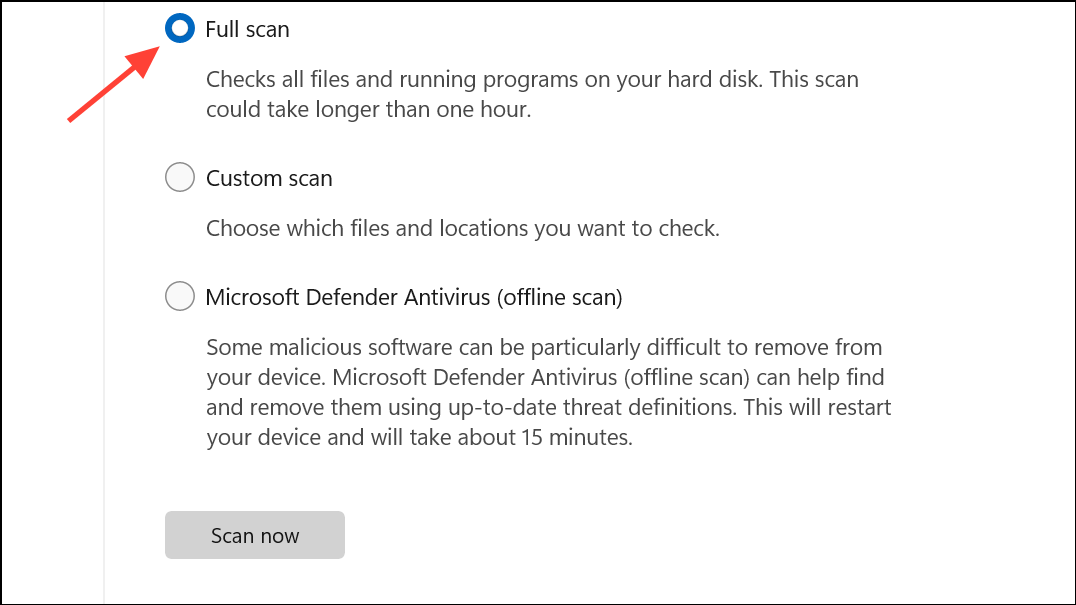
Be aware that sophisticated monitoring software may attempt to evade detection by disabling antivirus functions or adding itself to exclusion lists. Regularly check your antivirus exclusions for unfamiliar entries and remove any you do not recognize.
Check Running Processes and Startup Programs
Monitoring software often runs continuously in the background and may configure itself to launch automatically at startup. Task Manager (Windows) and Activity Monitor (Mac) provide detailed views of active processes and startup items.
Ctrl + Shift + Esc or Ctrl + Alt + Del and select Task Manager. On Mac, open Activity Monitor from Applications > Utilities.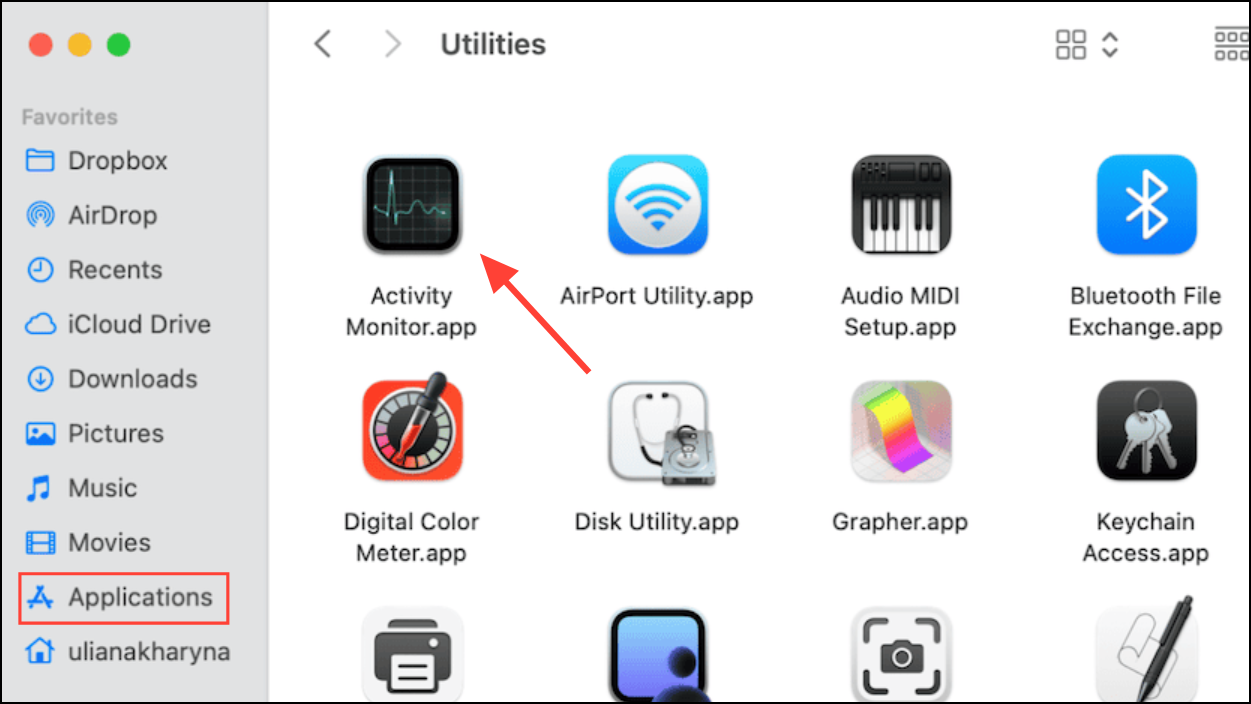
Settings > Apps > Startup or use the Startup tab in Task Manager. On Mac, check System Settings > General > Login Items & Extensions.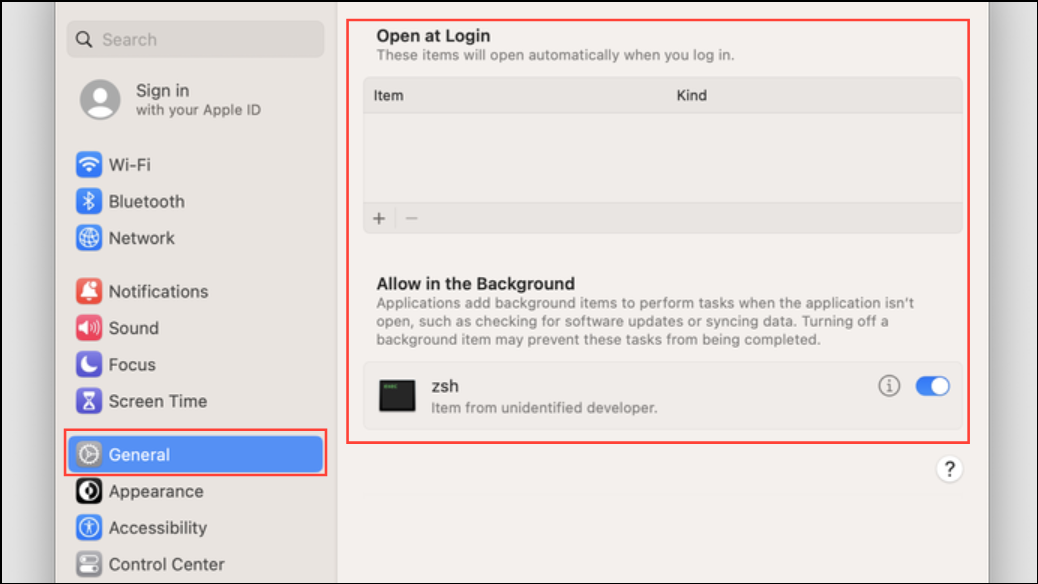
Disabling or removing unknown startup programs can prevent monitoring tools from launching, but be cautious not to disable essential system processes.
Monitor Network Activity for Suspicious Connections
Many monitoring tools transmit collected data to remote servers. Unusual or unexplained network activity may indicate the presence of such software.
resmon in the Start menu, then select the Network tab. On Mac, open Activity Monitor and select the Network tab.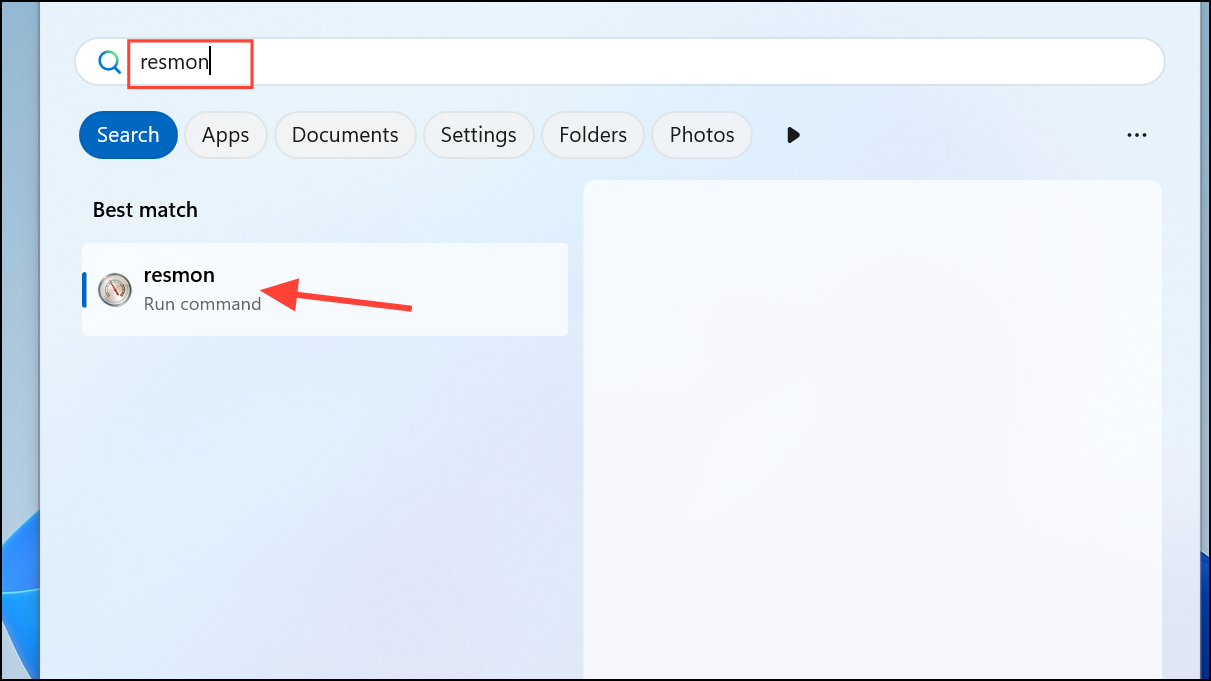
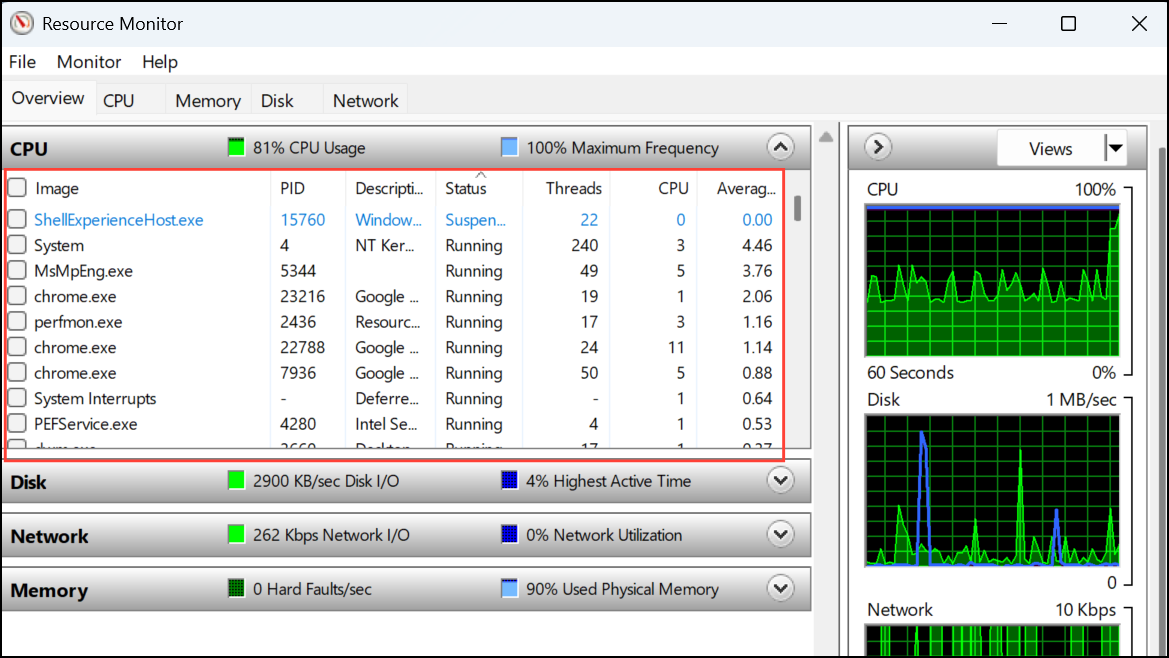
Third-party tools like GlassWire (Windows) or LuLu (Mac) can provide additional insight into network activity and help you block suspicious traffic.
Inspect Installed Programs and Applications
Monitoring software may appear in your list of installed applications, sometimes under generic or misleading names. Regularly reviewing installed programs can help you spot unauthorized software.
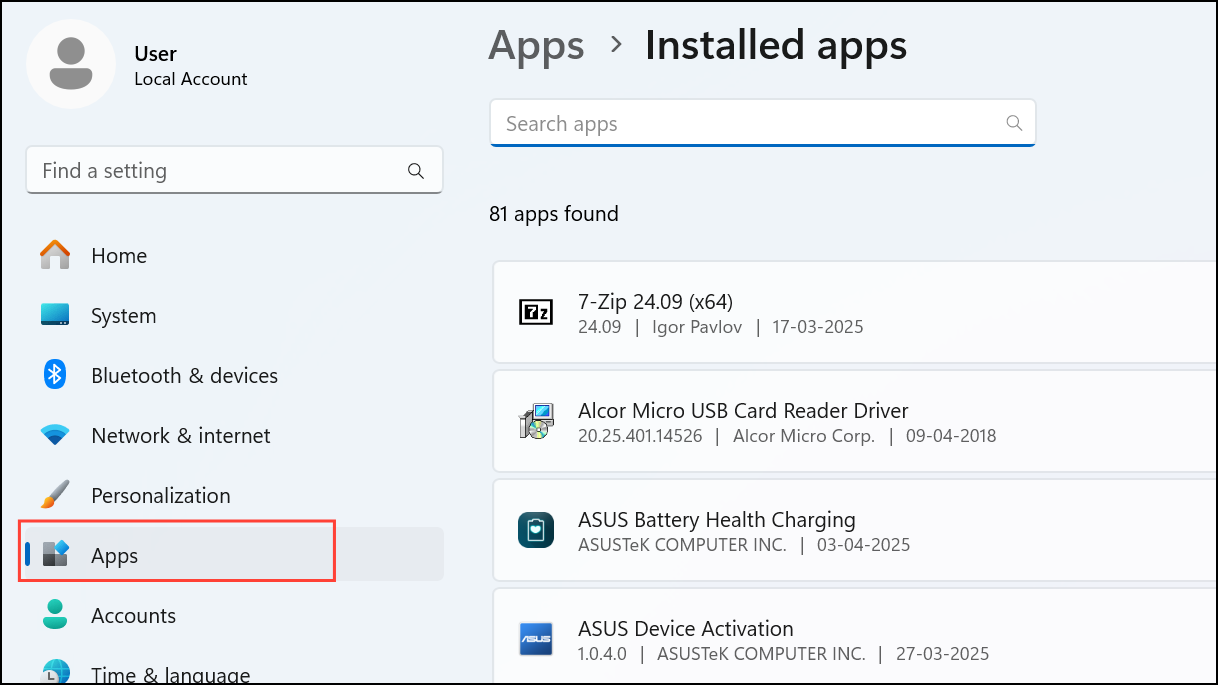
Settings > Apps > Installed Apps or Control Panel > Programs and Features. On Mac, open the Applications folder or check System Settings > General > Storage > Applications.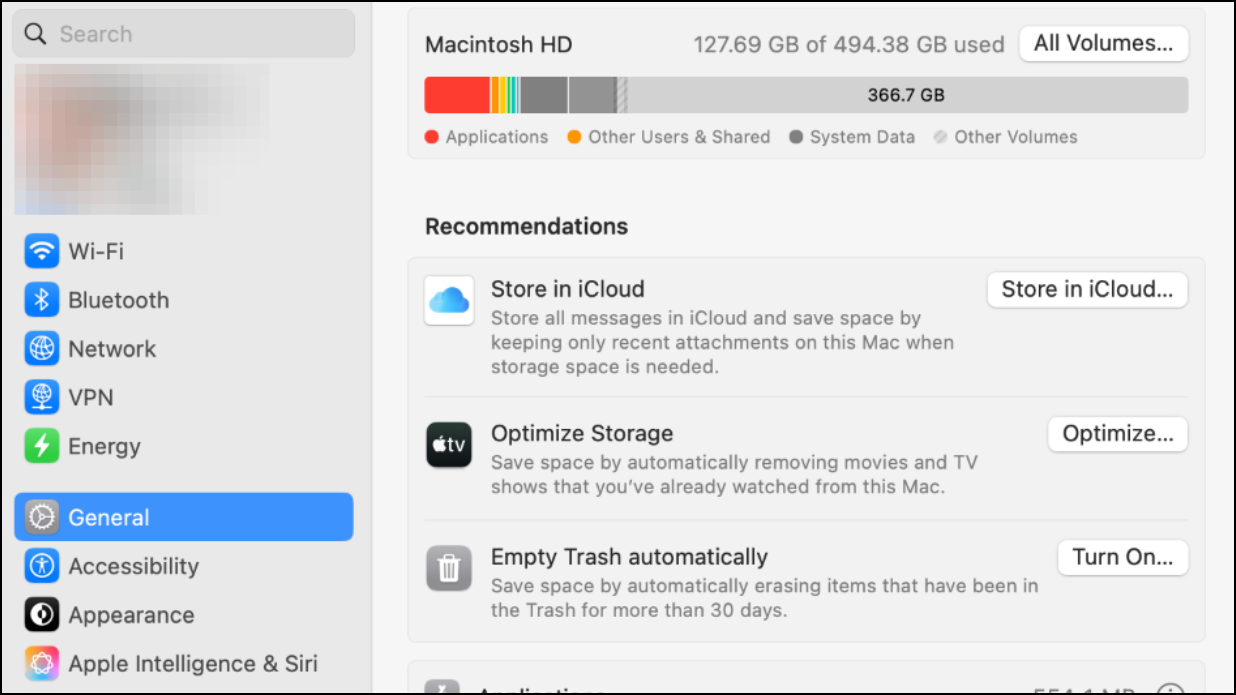
Review Browser Extensions and Add-ons
Browser extensions can serve as monitoring tools, tracking web activity, logging keystrokes, or redirecting traffic. Malicious or unauthorized extensions may compromise your privacy.
chrome://extensions for Chrome, about:addons for Firefox).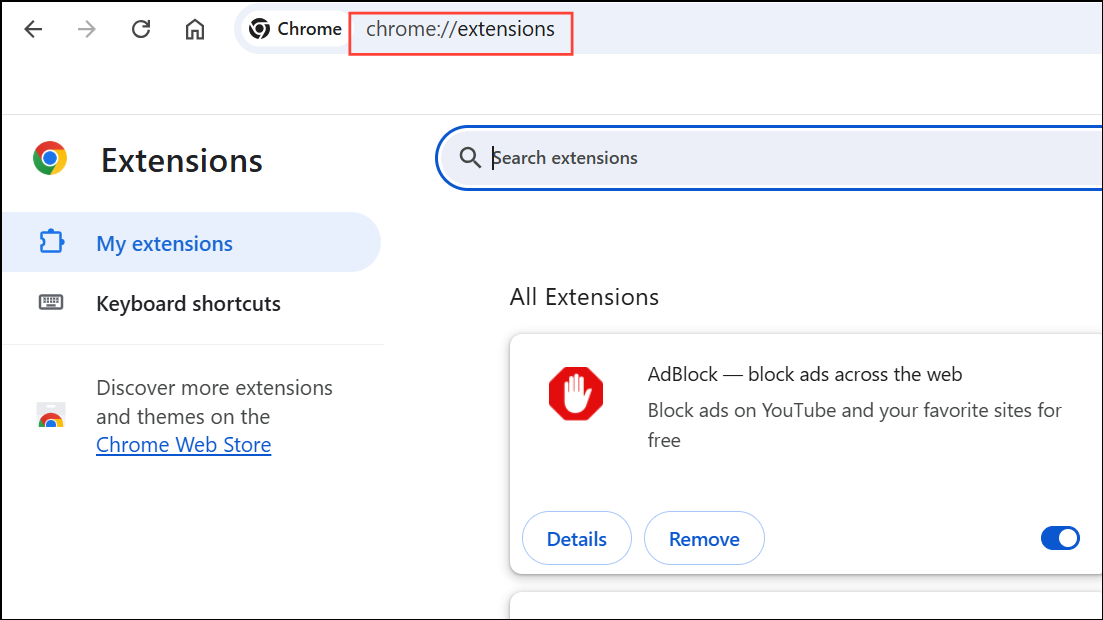
Check Webcam and Microphone Access
Unauthorized access to your webcam or microphone is a serious privacy concern. Monitoring software may activate these devices without your knowledge.
Settings > Privacy & Security > App Permissions and select Camera or Microphone. On Mac, navigate to System Settings > Privacy & Security > Camera/Microphone.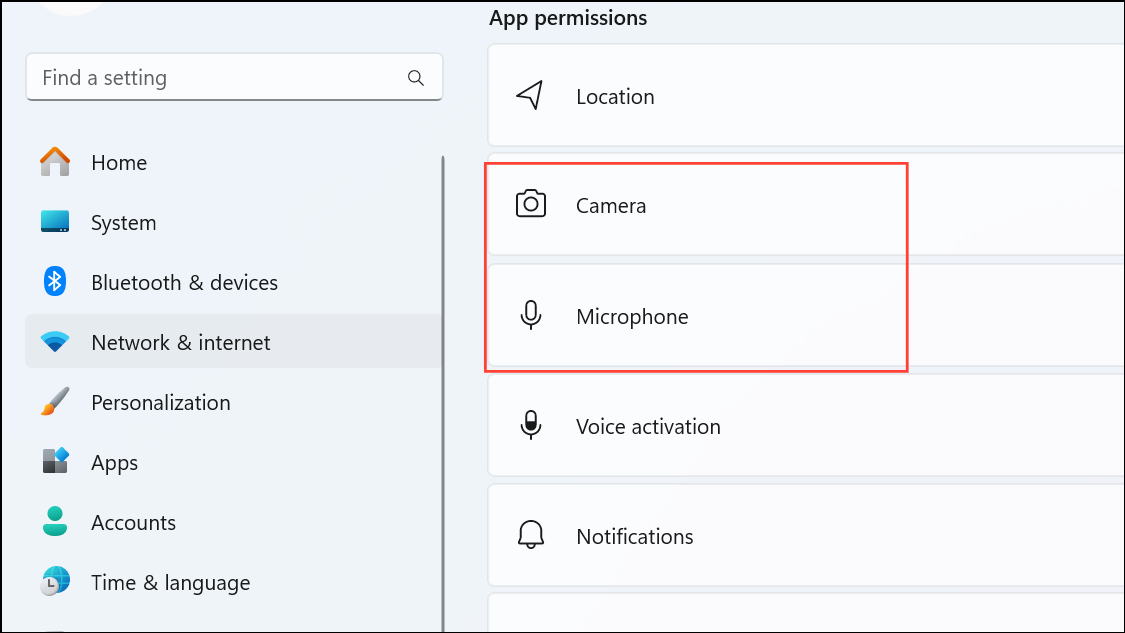
Audit System Logs and Event Viewers for Remote Access
System logs can reveal unauthorized logins or remote access sessions, which may be tied to monitoring activities.
Windows Administrative Tools and navigate to Windows Logs > Security. Look for logon/logoff events outside your normal usage times or from unfamiliar accounts.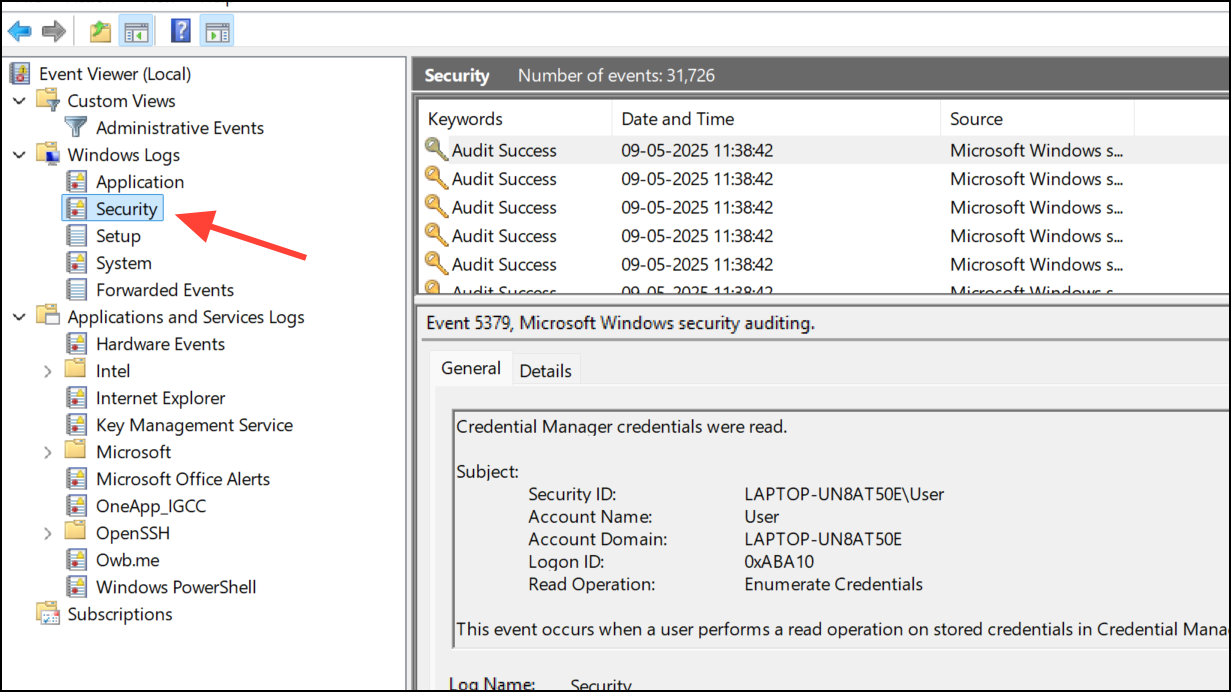
Boot into Safe Mode to Inspect Startup Programs
Some monitoring software hides itself during normal operation but may be visible in Safe Mode, where fewer programs run automatically.
F8 during startup or use Settings > System > Recovery > Advanced Startup. On Mac, hold Shift during boot.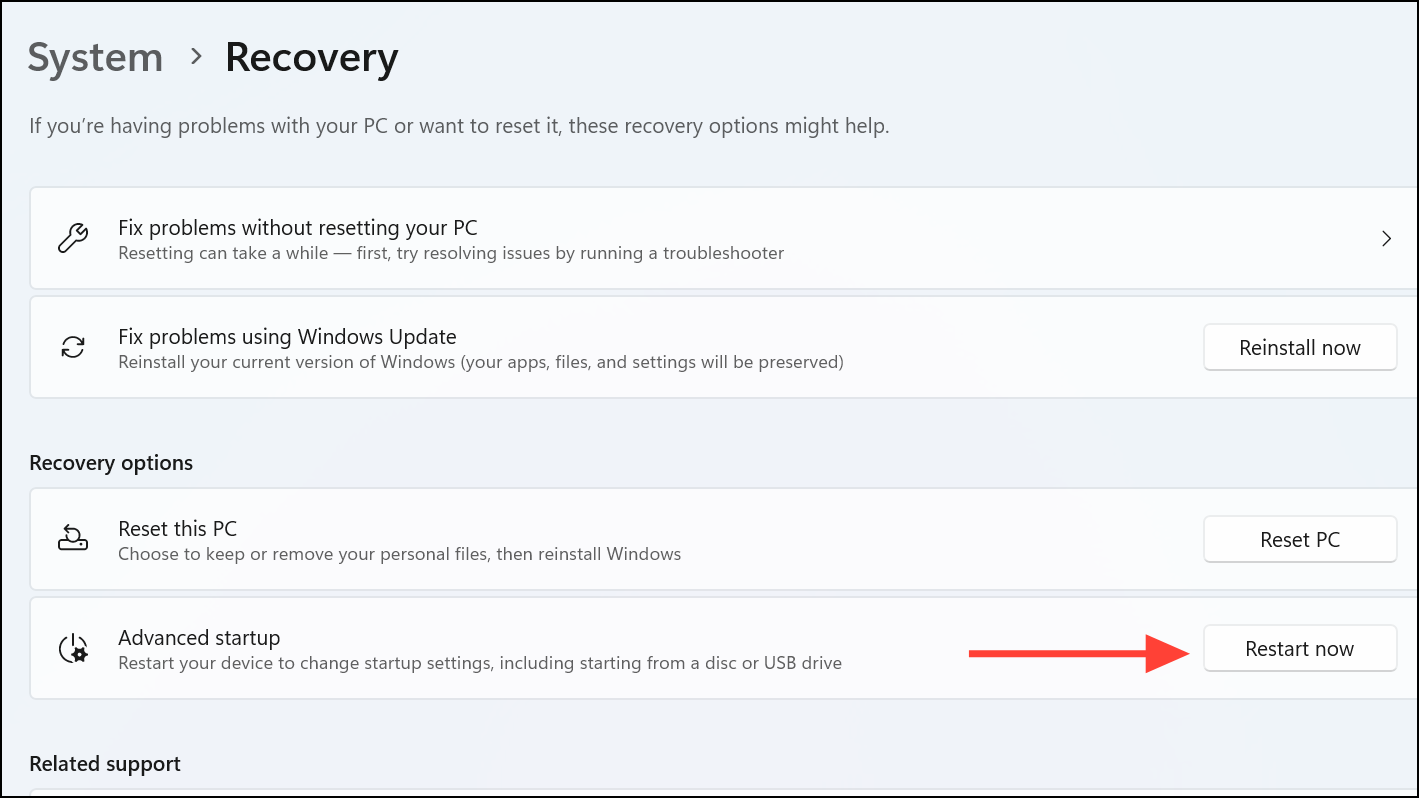
msconfig (Windows) or Login Items (Mac). Unfamiliar entries may indicate hidden monitoring software that fails to conceal itself in this mode.Regularly reviewing these areas and staying vigilant about unfamiliar software or behavior helps protect your PC from unauthorized monitoring. If you remain concerned after following these steps, consider consulting a security professional or, as a last resort, reinstalling your operating system for a guaranteed clean slate.





