Set up reliable, scheduled backups to an external hard drive and safeguard important files from data loss or hardware failure.
Set up reliable, scheduled backups to an external hard drive and safeguard important files from data loss or hardware failure.
by Pallav Pathak
Automatic file backups to an external hard drive prevent data loss from unexpected events such as hardware failure, accidental deletion, or ransomware attacks. Windows and macOS offer built-in tools to create scheduled backups, streamlining the process and reducing manual effort. Third-party backup software can provide additional flexibility and features for specialized needs.
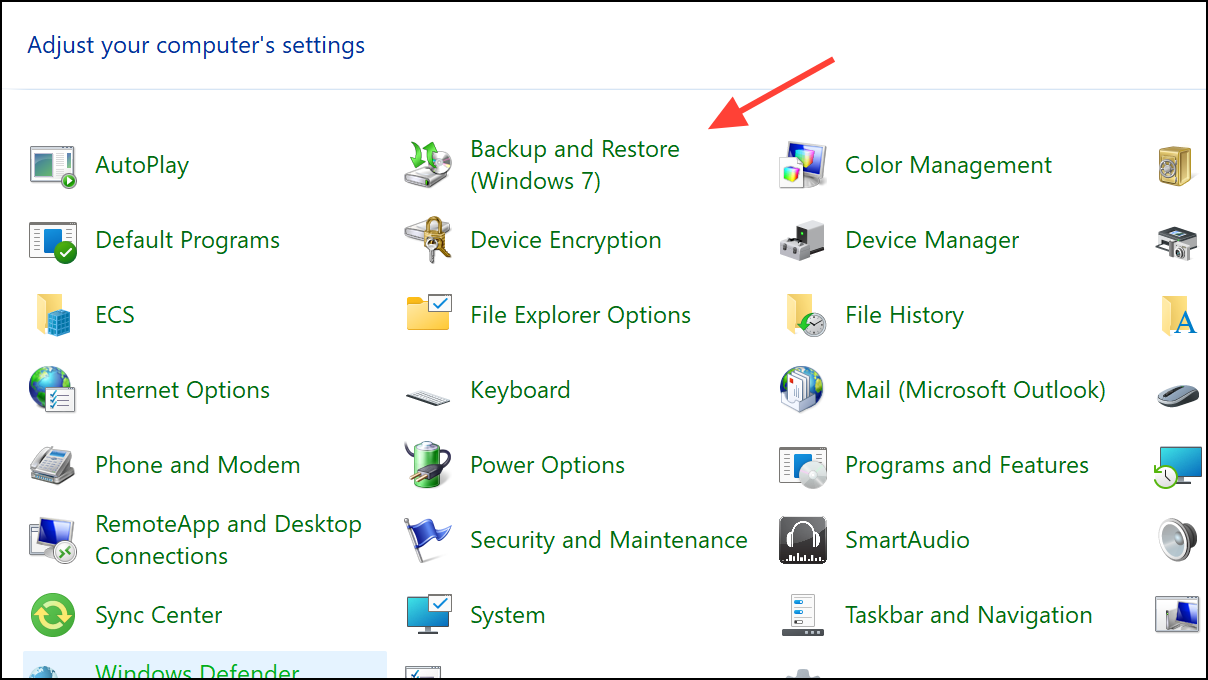
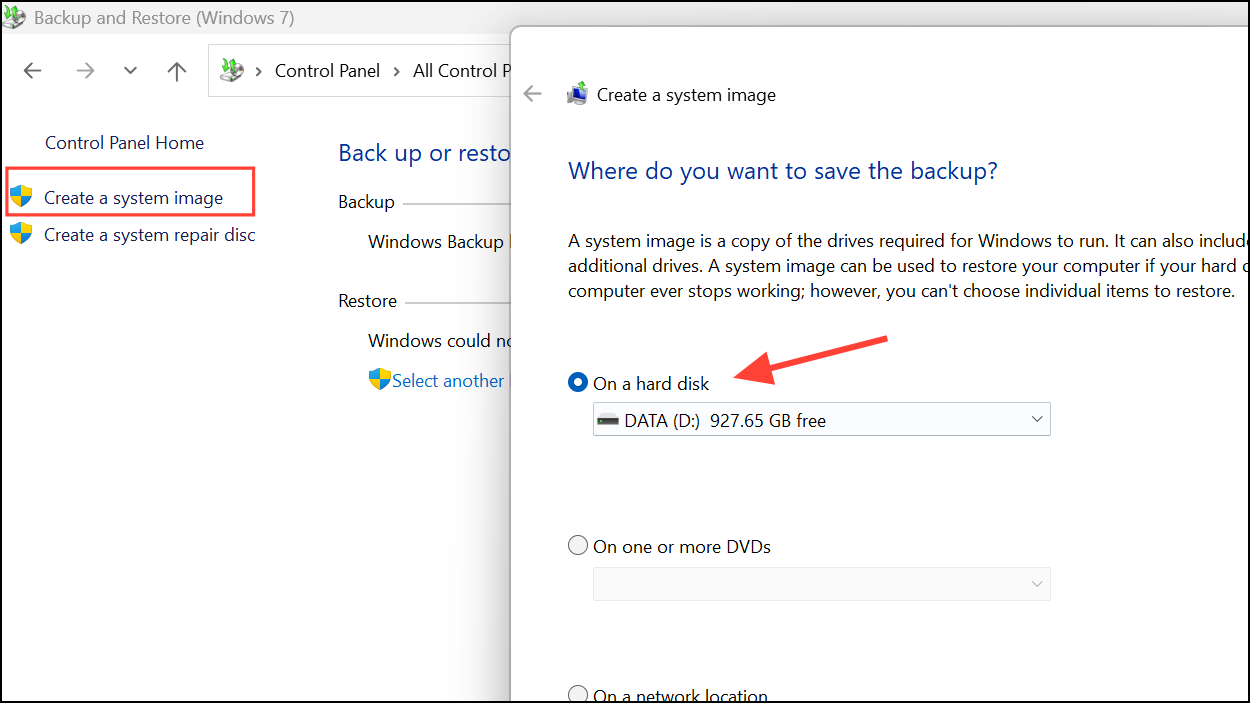
Connect your external hard drive to your computer. Wait until the device is detected and appears in File Explorer. Make sure the drive has enough free space for your backups.
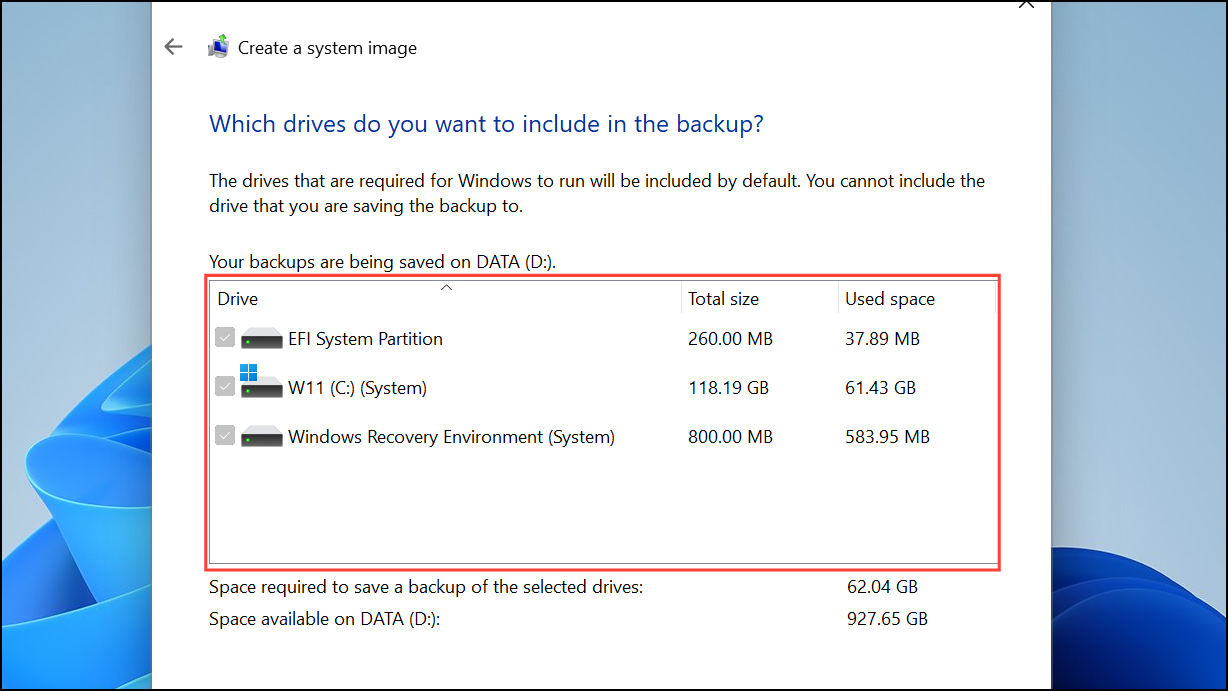
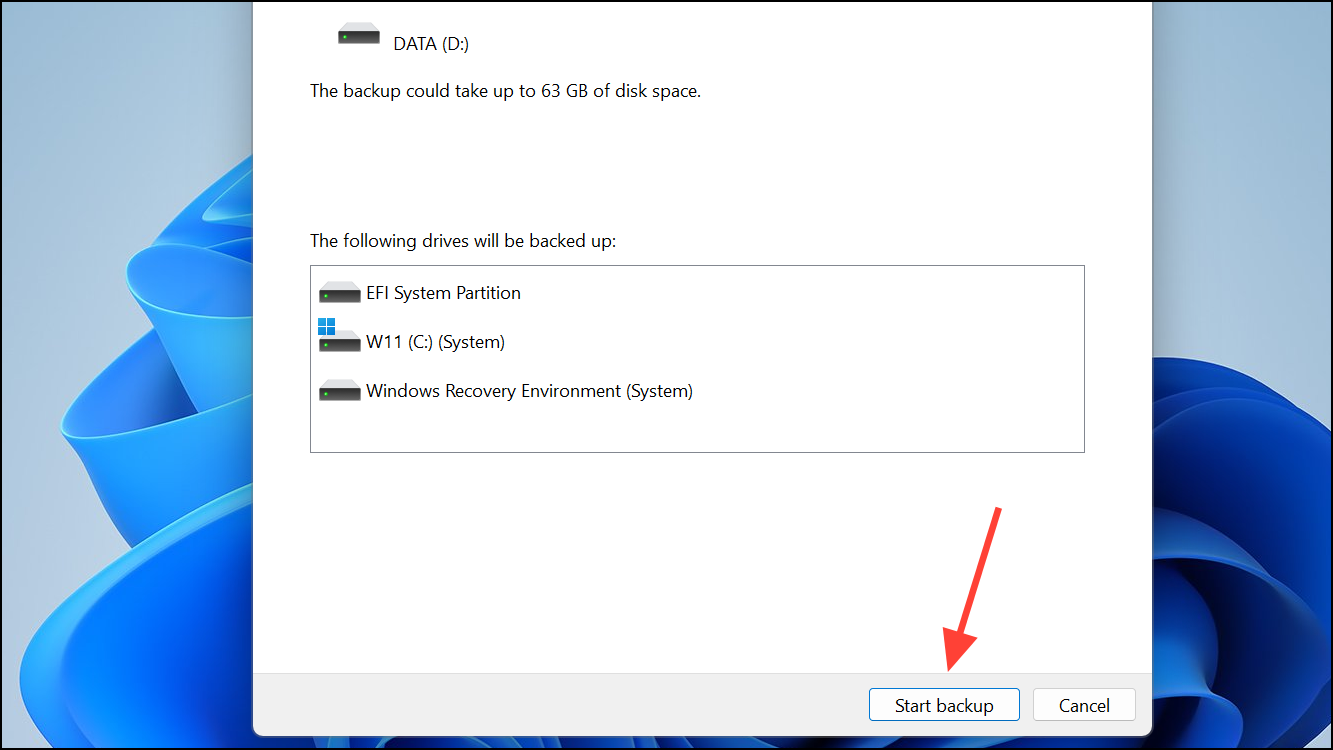
Finally, click the Start backup button at the bottom to begin the backup process. By default, Windows backs up user libraries (Documents, Pictures, etc.), but you can add or remove folders as needed.
You can periodically back up your data to this external drive so it remains updated and has the latest data. This will make things easier in case something goes wrong and you lose the data stored on your Windows machine.
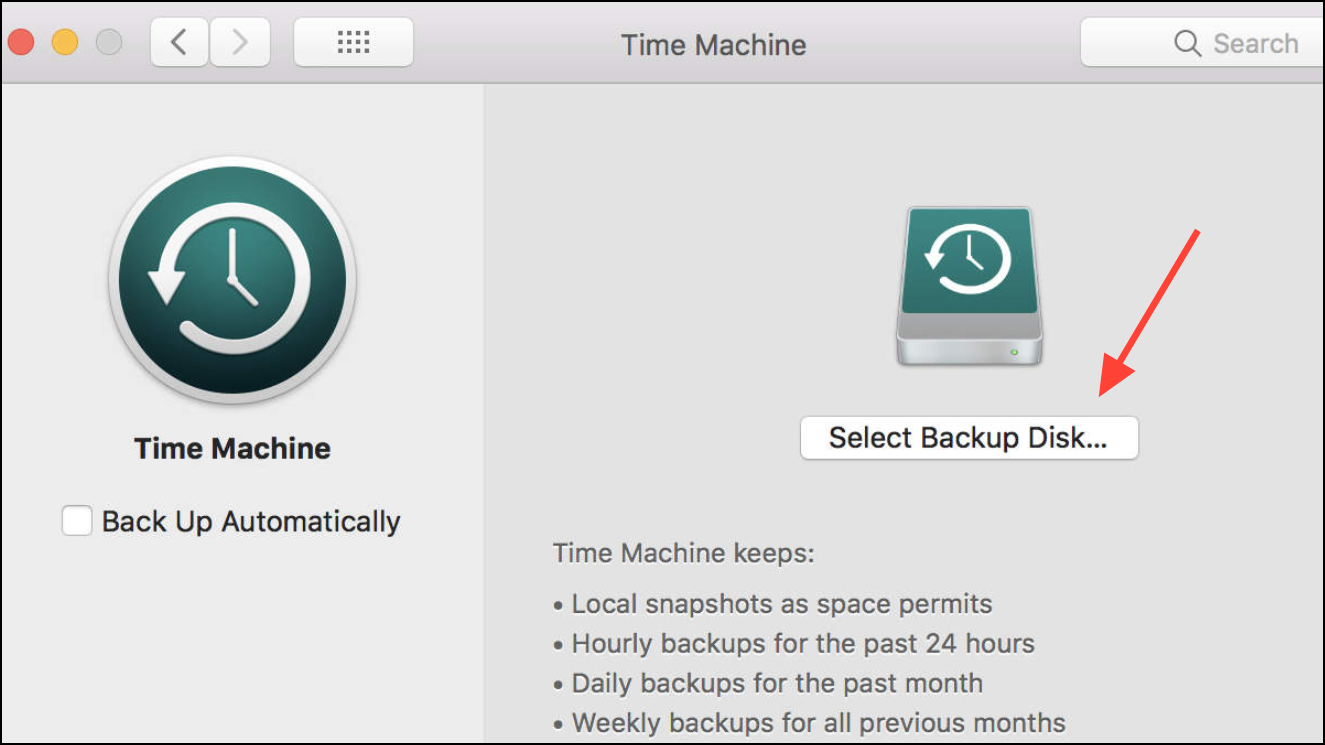
Plug in your external hard drive. If it’s the first time connecting, macOS may prompt you to use the drive with Time Machine. If prompted, click Use as Backup Disk.
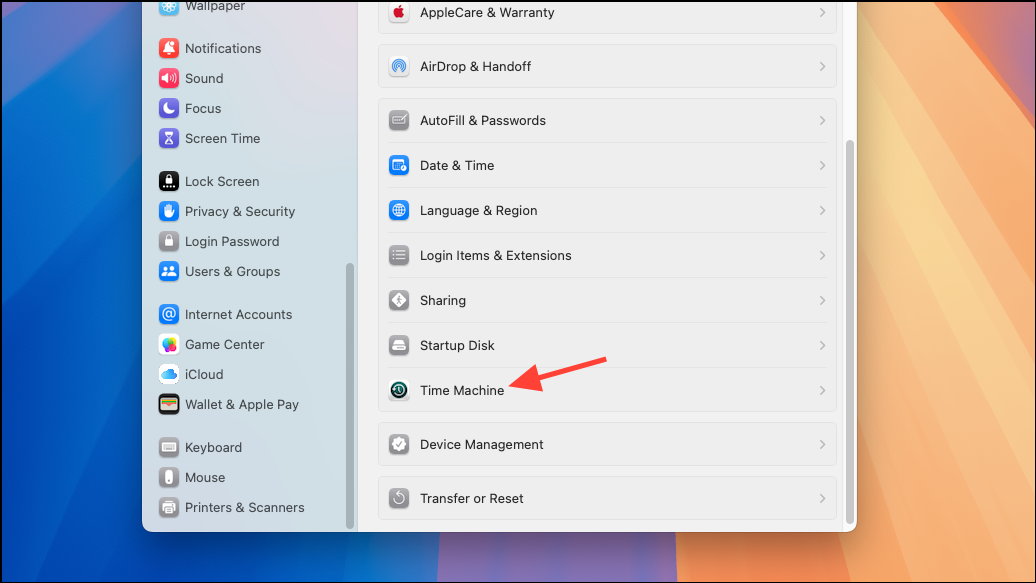
Time Machine automatically performs hourly, daily, and weekly backups. You can exclude specific folders by clicking Options and adding them to the exclusion list.
Time Machine maintains a rolling archive of backups, making it easy to restore files or your entire system. The process is automatic as long as the drive remains connected. If you disconnect it, Time Machine resumes backups when the drive is available again.
Launch the software and select the option to create a new backup plan or job. Choose your source folders and set your external hard drive as the destination.
Configure the backup schedule—daily, weekly, or at custom intervals. Many tools also let you choose between full, incremental, or differential backups, which can save storage space and reduce backup time.
Review additional options such as backup encryption, email notifications, or backup retention policies. Save and activate your backup plan.
Most backup software will run in the background and notify you if backups fail or if the external drive is not connected. Check the software’s documentation for recovery procedures and best practices.
Setting up automatic backups to an external hard drive protects files from accidental loss and system failures. Regularly check your backup status and test file restoration to ensure everything works as expected.