

OneDrive automatically integrates with File Explorer on Windows, placing a shortcut in the sidebar for quick access. For those who do not use OneDrive or prefer a cleaner navigation pane, removing this shortcut can simplify file management and reduce clutter.
Remove OneDrive from File Explorer Sidebar via Registry Editor
Open the Registry Editor by pressing
Windows + R, typing regedit, and pressing Enter. If prompted by User Account Control, click Yes to allow changes.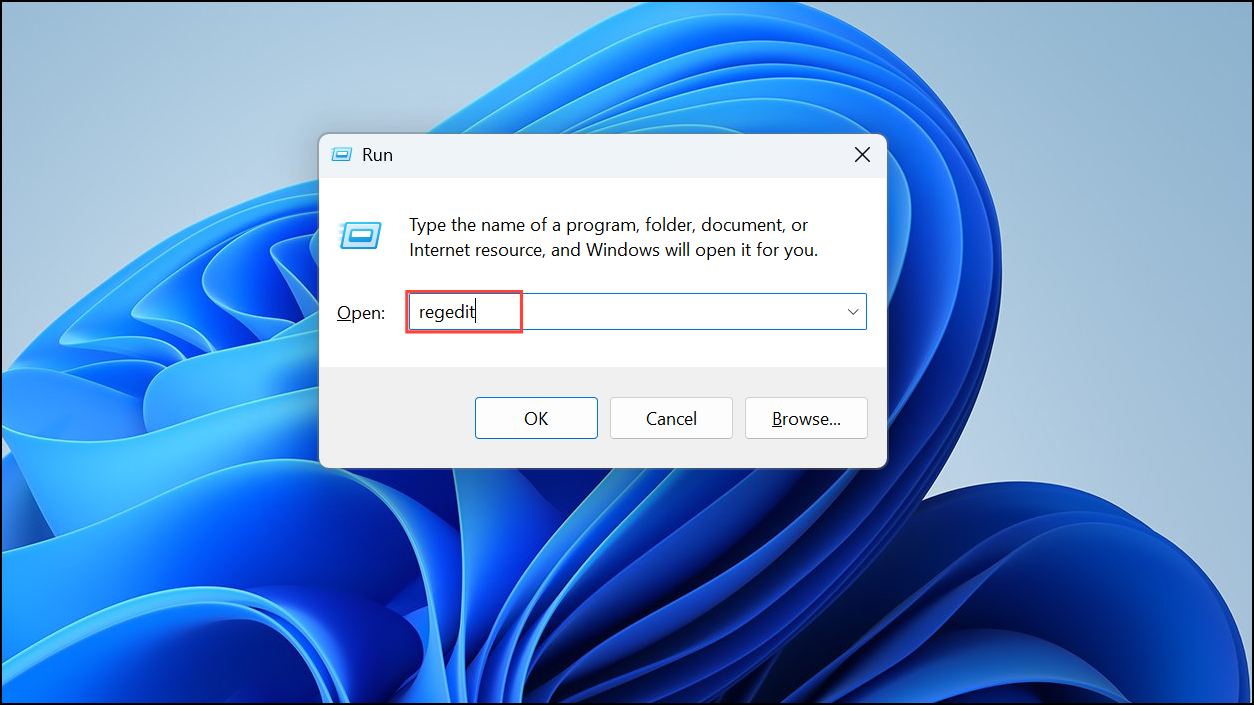
HKEY_CLASSES_ROOT\CLSID\{018D5C66-4533-4307-9B53-224DE2ED1FE6}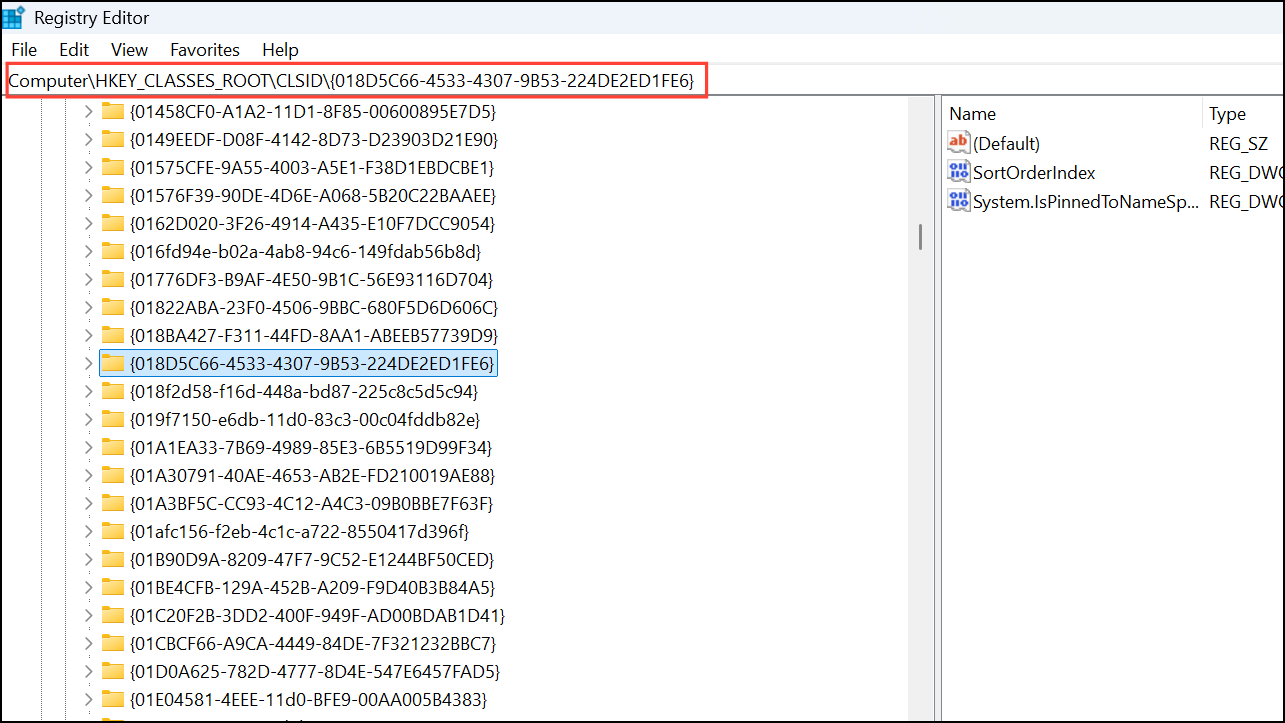
This key controls the OneDrive entry in the sidebar for most Windows versions. If you are on a 64-bit system, also check:
HKEY_CLASSES_ROOT\Wow6432Node\CLSID\{018D5C66-4533-4307-9B53-224DE2ED1FE6}In the right pane, double-click the
System.IsPinnedToNameSpaceTree value. Change its data from 1 to 0 and click OK.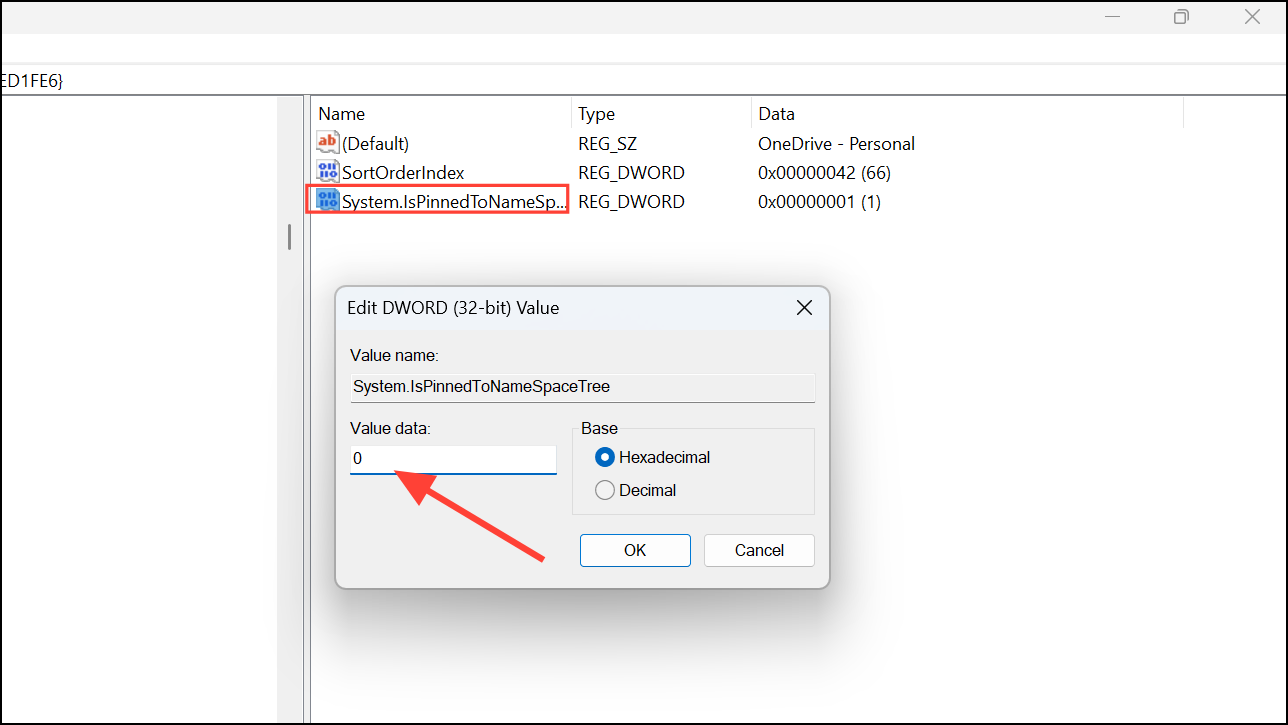
Close the Registry Editor. Log out and log back in, or restart your computer to see the change. The OneDrive shortcut should no longer appear in the File Explorer sidebar.
Caution: Editing the registry can impact system stability if changes are made incorrectly. Consider backing up the registry before making adjustments.
Uninstall OneDrive to Remove Sidebar Entry
Open
Settings by pressing Windows + I and select Apps > Apps & features. On Windows 11, go to Apps and then Installed Apps.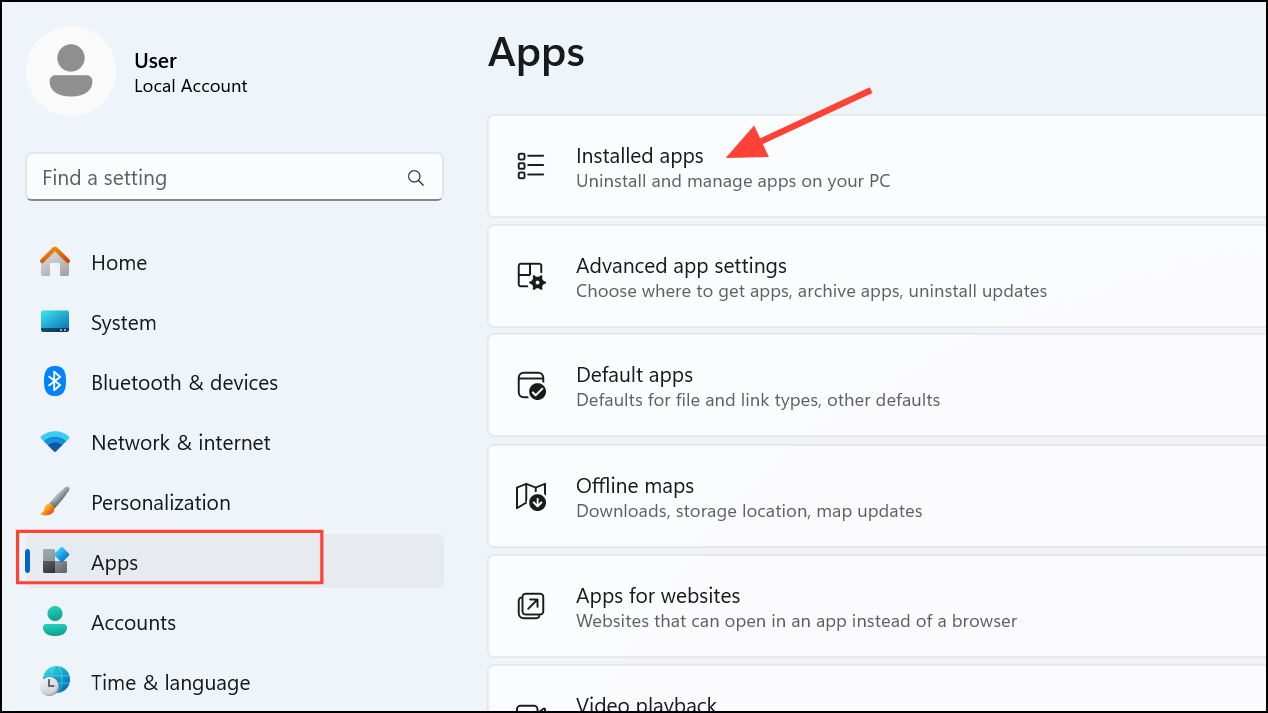
Scroll through the list or use the search box to find
Microsoft OneDrive. Click on it, then select Uninstall and confirm when prompted. On Windows 11, click the three dots on the right and then click on Uninstall.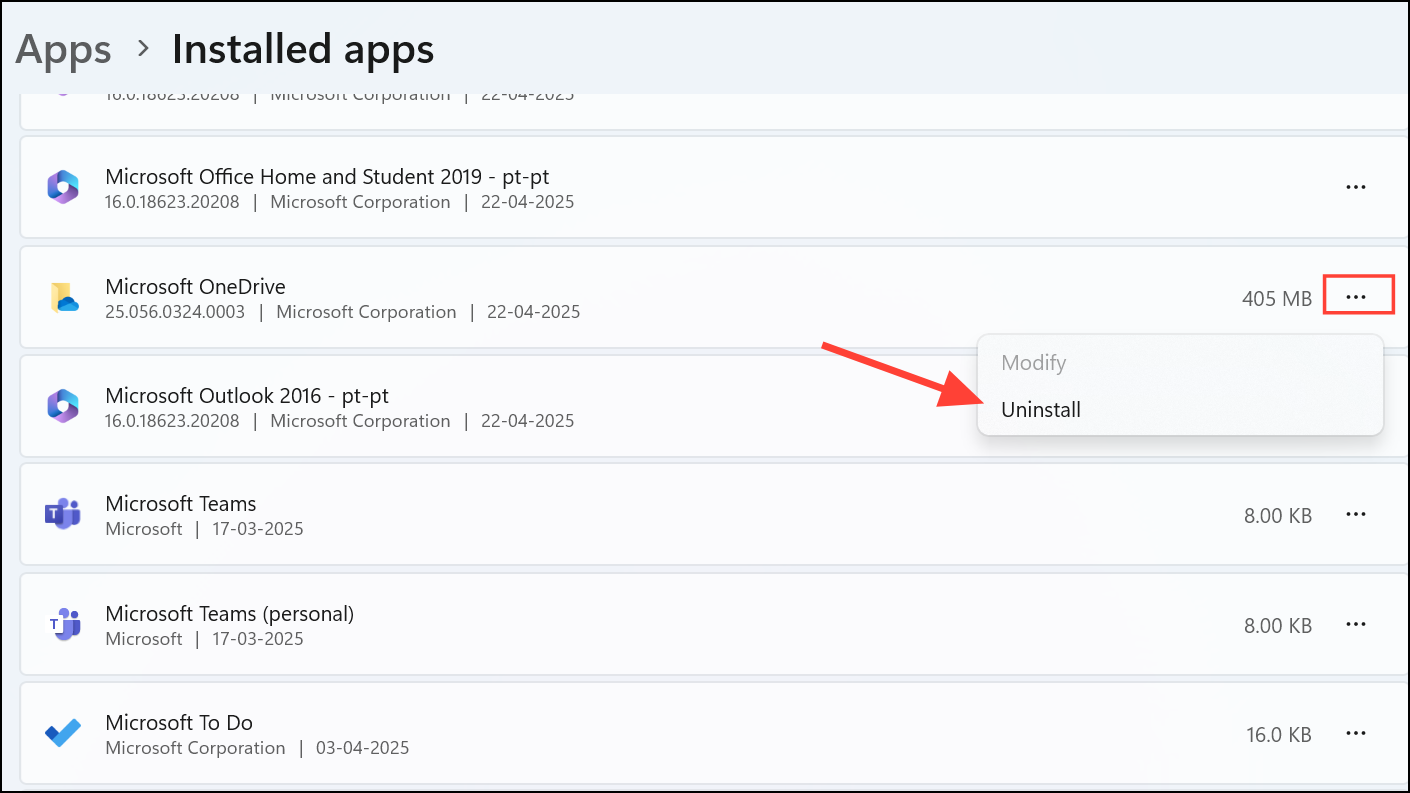
Restart your computer. This process removes OneDrive and its shortcut from the File Explorer sidebar. If you need OneDrive in the future, you can reinstall it from the Microsoft Store or the official website.
Note: Uninstalling OneDrive also stops all file syncing and removes OneDrive-specific features. This method is best for users who do not plan to use OneDrive at all.
Disable OneDrive via Group Policy Editor (Windows Pro and Enterprise)
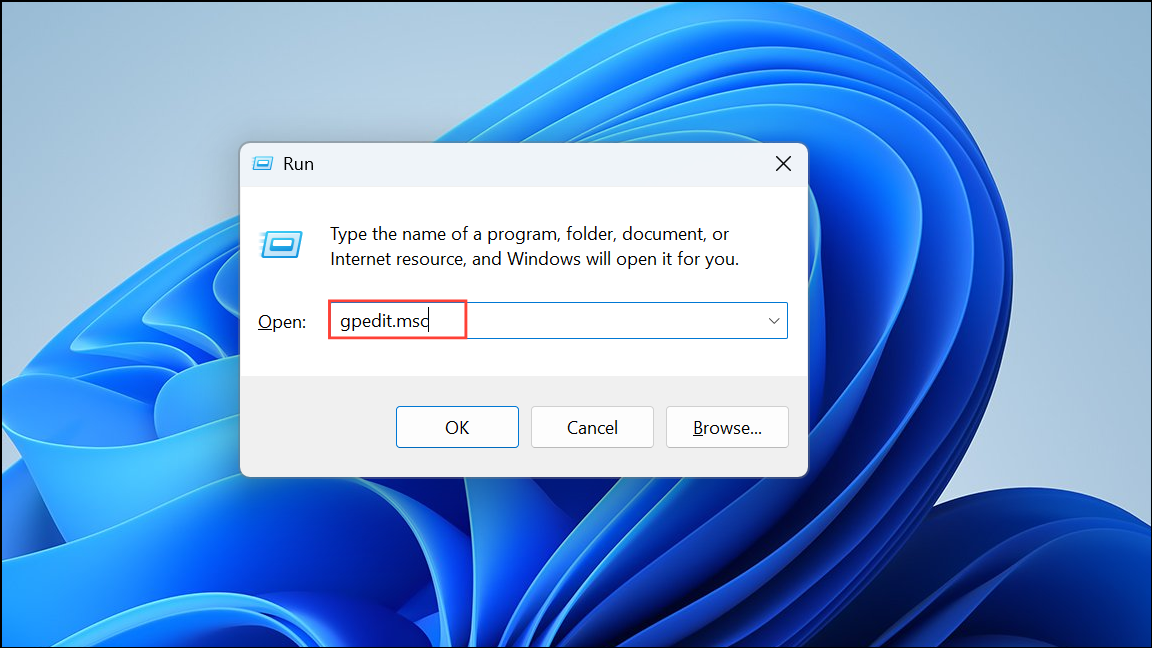
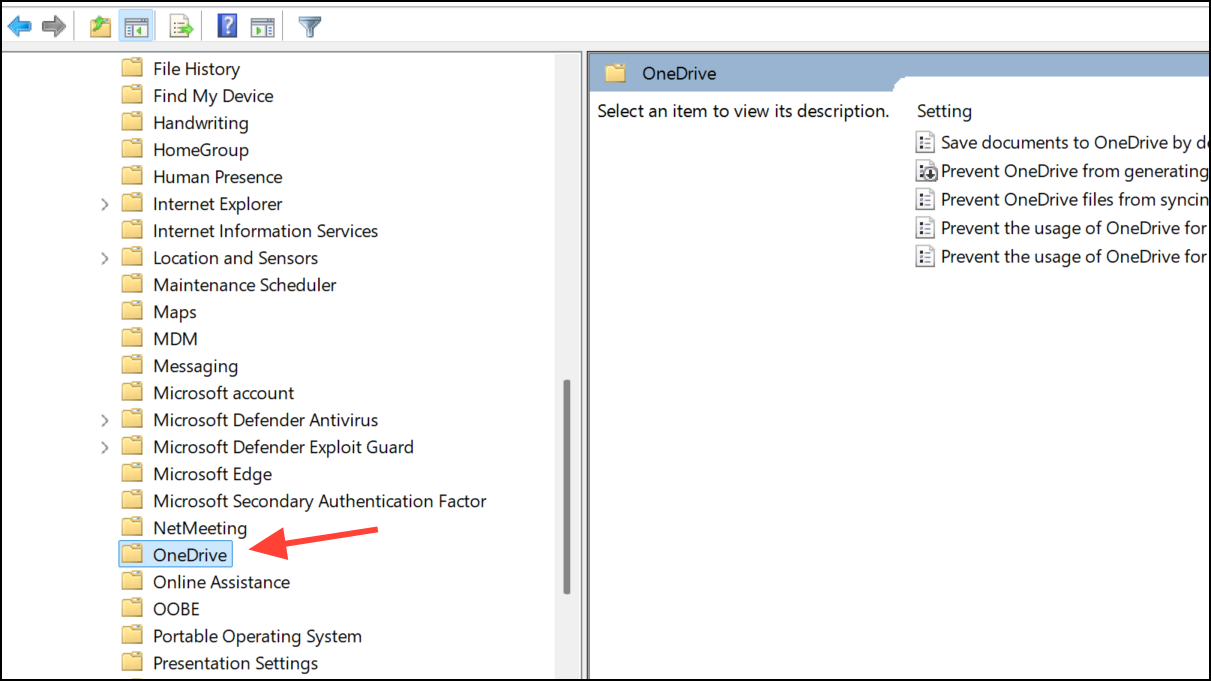
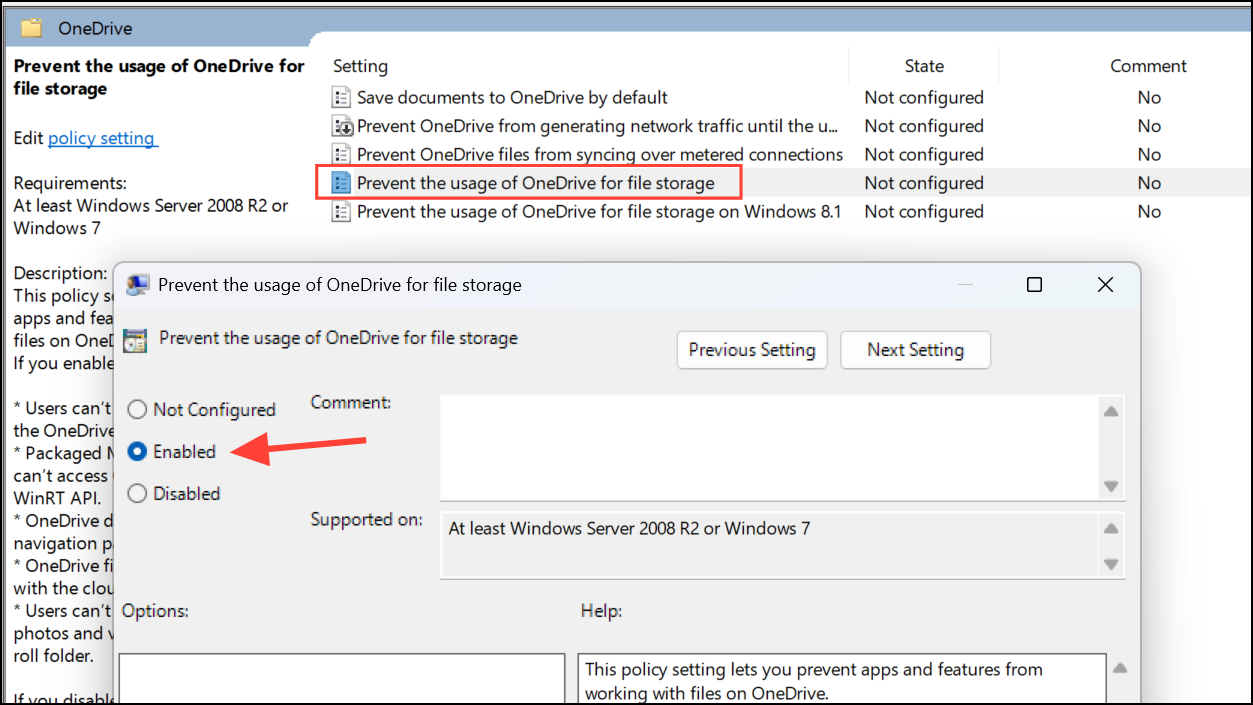
Restart your computer. OneDrive will be disabled, and its icon should disappear from File Explorer. This method is suitable for organizational environments or users with Windows Pro or Enterprise editions.
Removing OneDrive from the File Explorer sidebar can streamline navigation and reduce distractions. Choose the method that matches your needs and system version for the best results.





