
Network drives let you access shared folders and files from other computers or servers directly through your own PC. Mapping a network drive so it shows up in the regular PC Drive section within File Explorer simplifies navigation and makes it easy to work with remote files as if they were stored locally. This process is especially useful for teams sharing resources or for accessing files stored on a home NAS (Network Attached Storage) device.
Mapping a Network Drive Using File Explorer
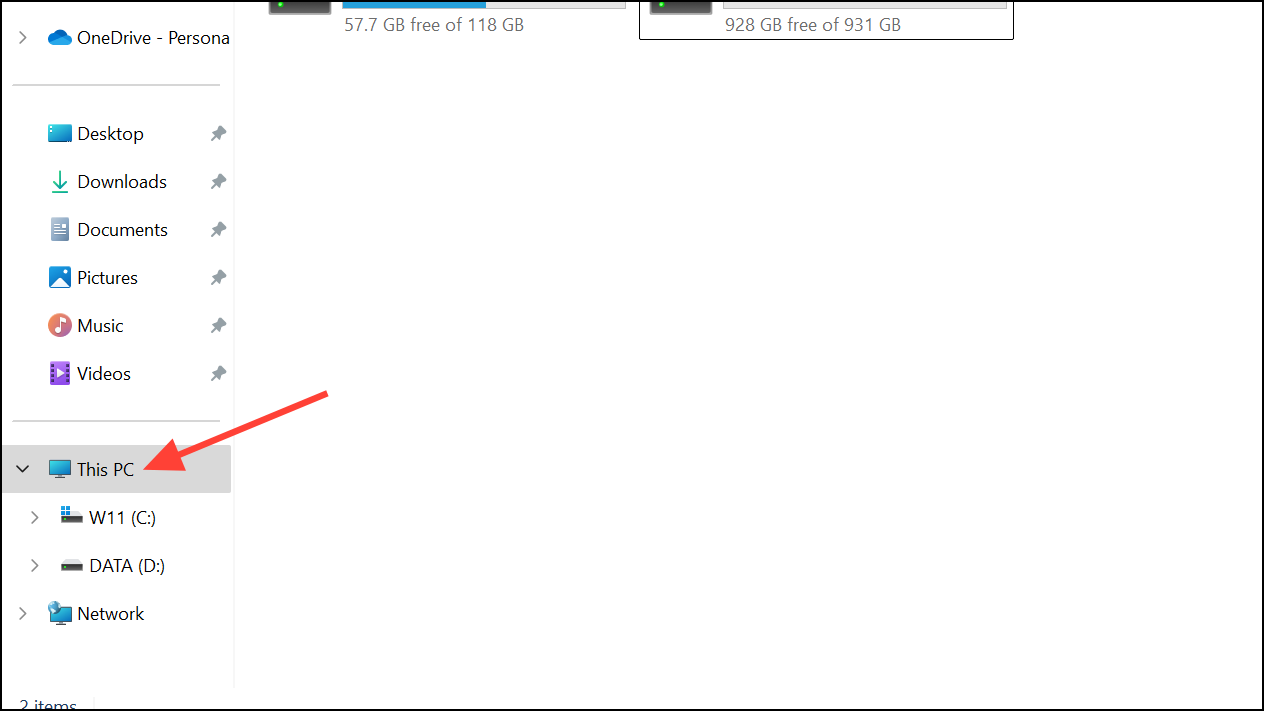
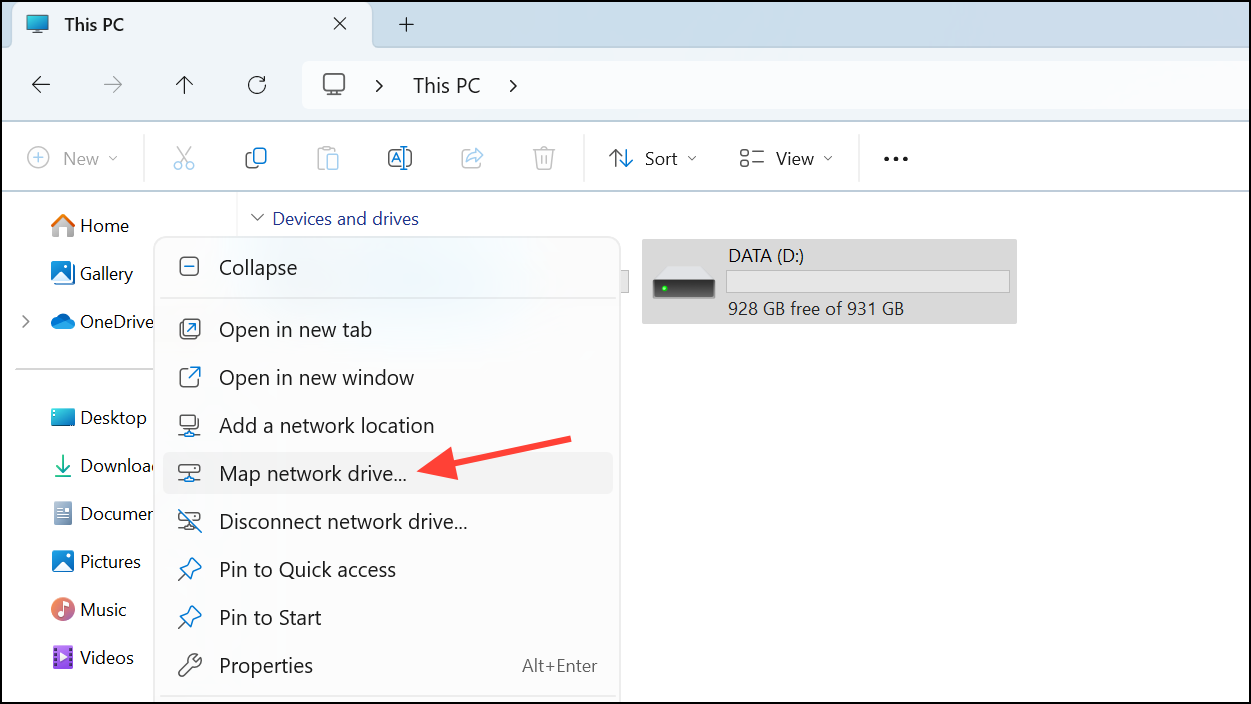
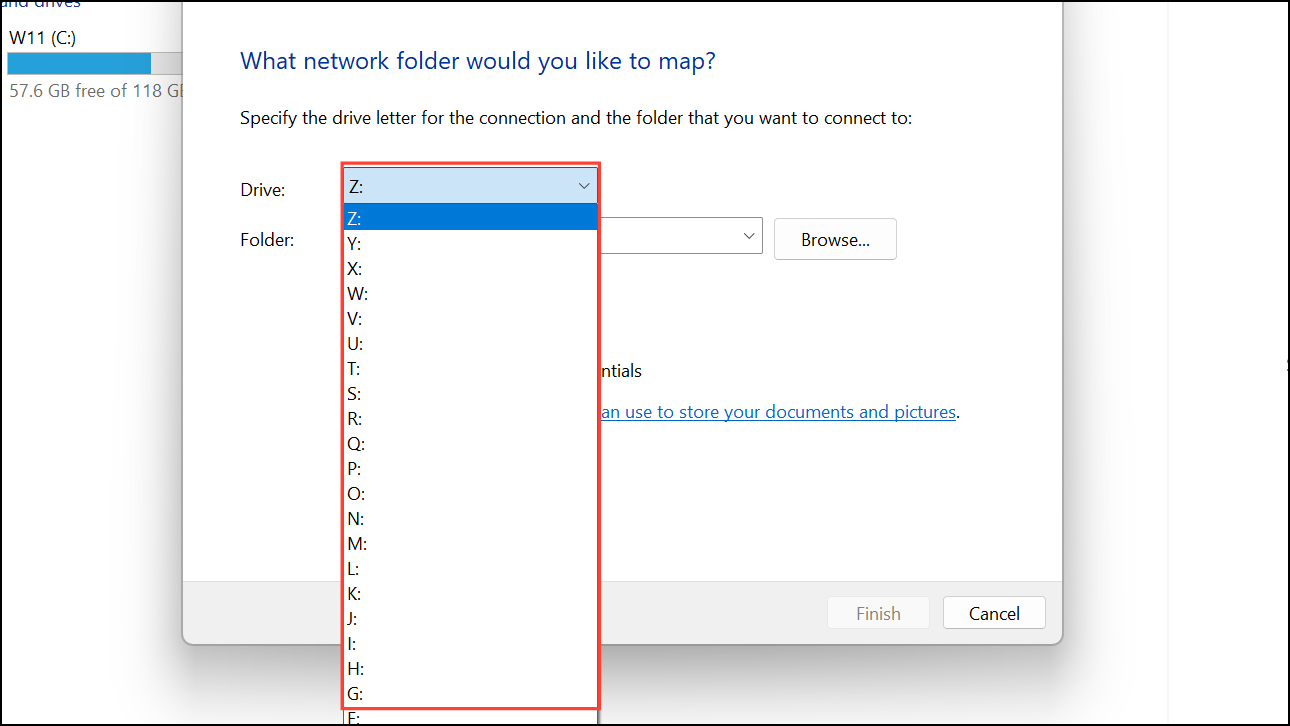
\\ServerName\ShareName. If you’re unsure of the exact path, ask the network administrator or check the sharing settings on the host device.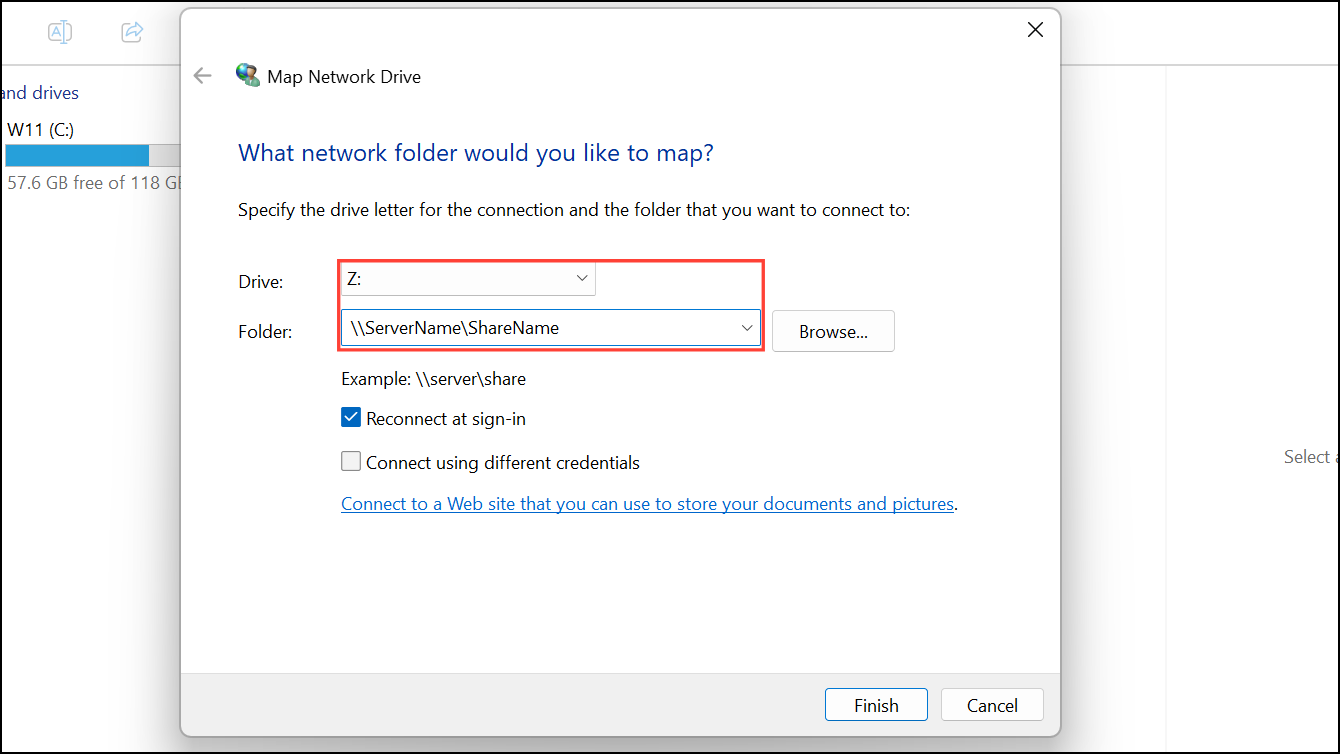
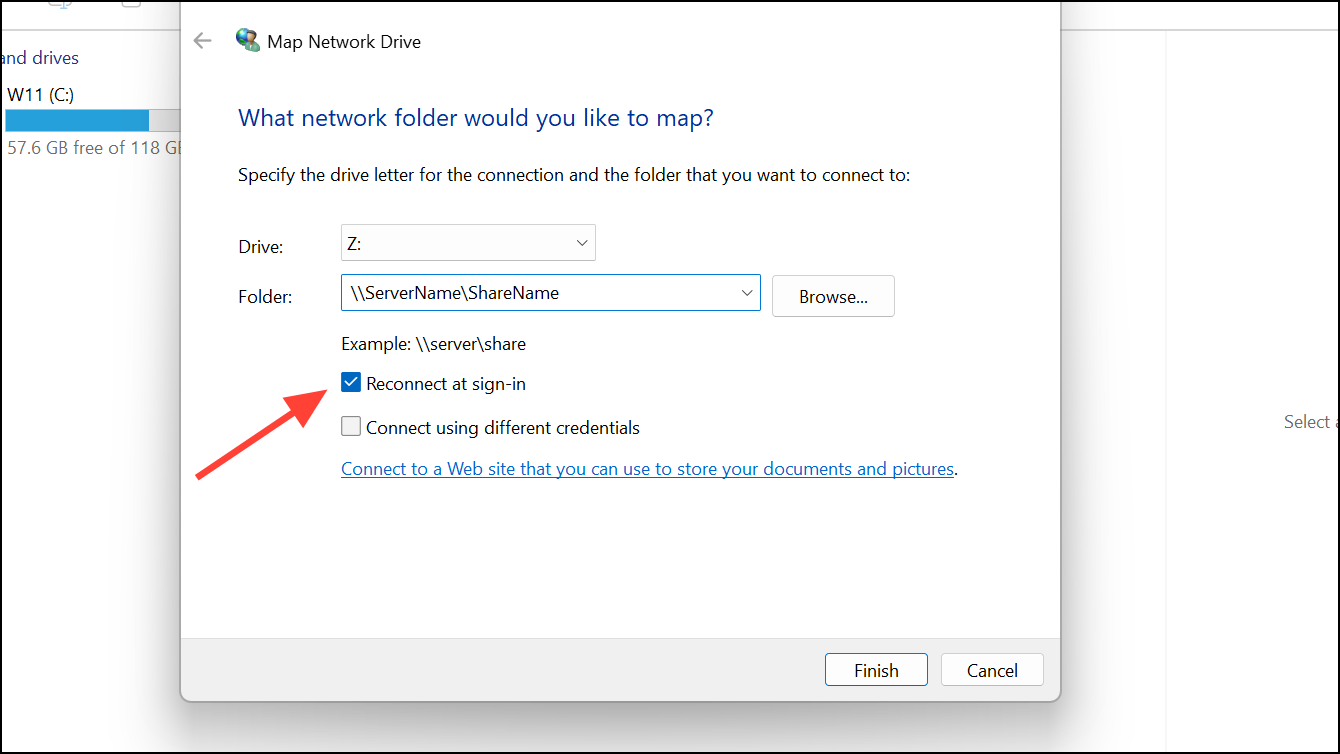
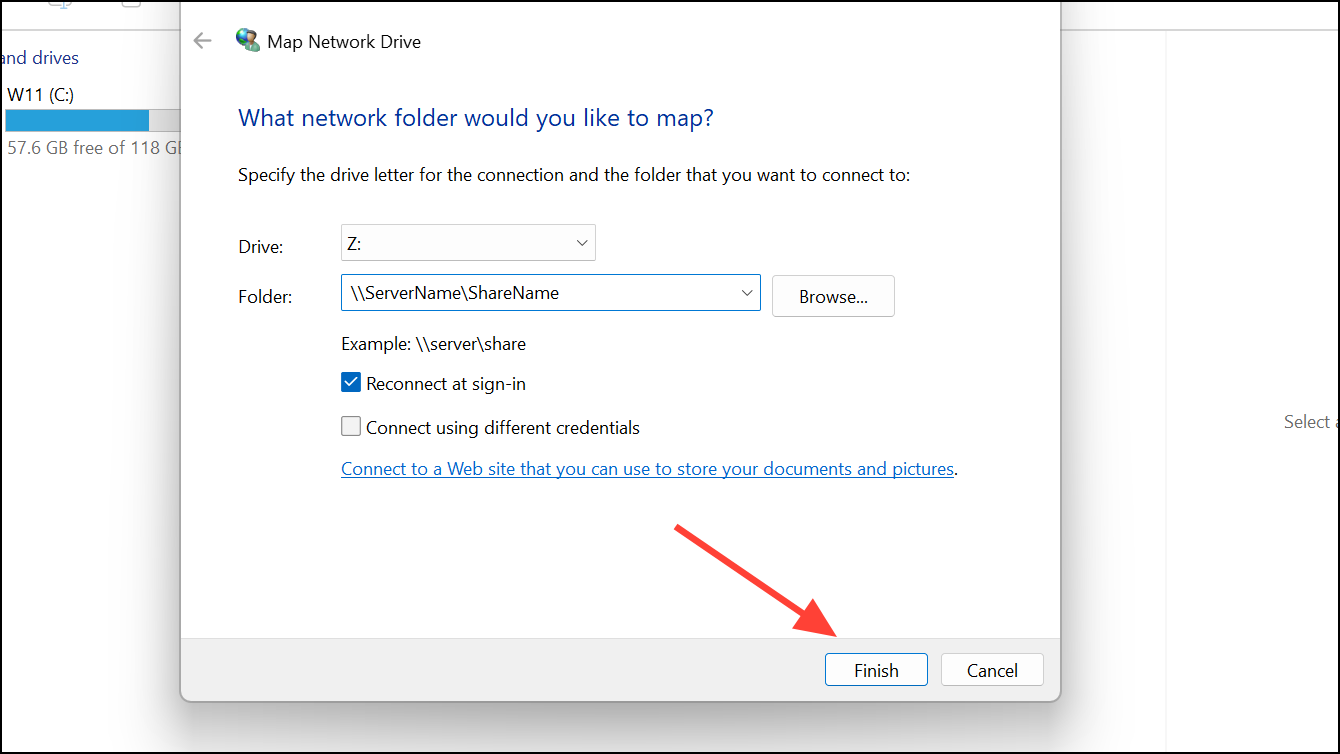
Mapping a Network Drive Using Command Prompt
For advanced users or those who prefer command-line tools, the net use command provides another way to map a network drive.
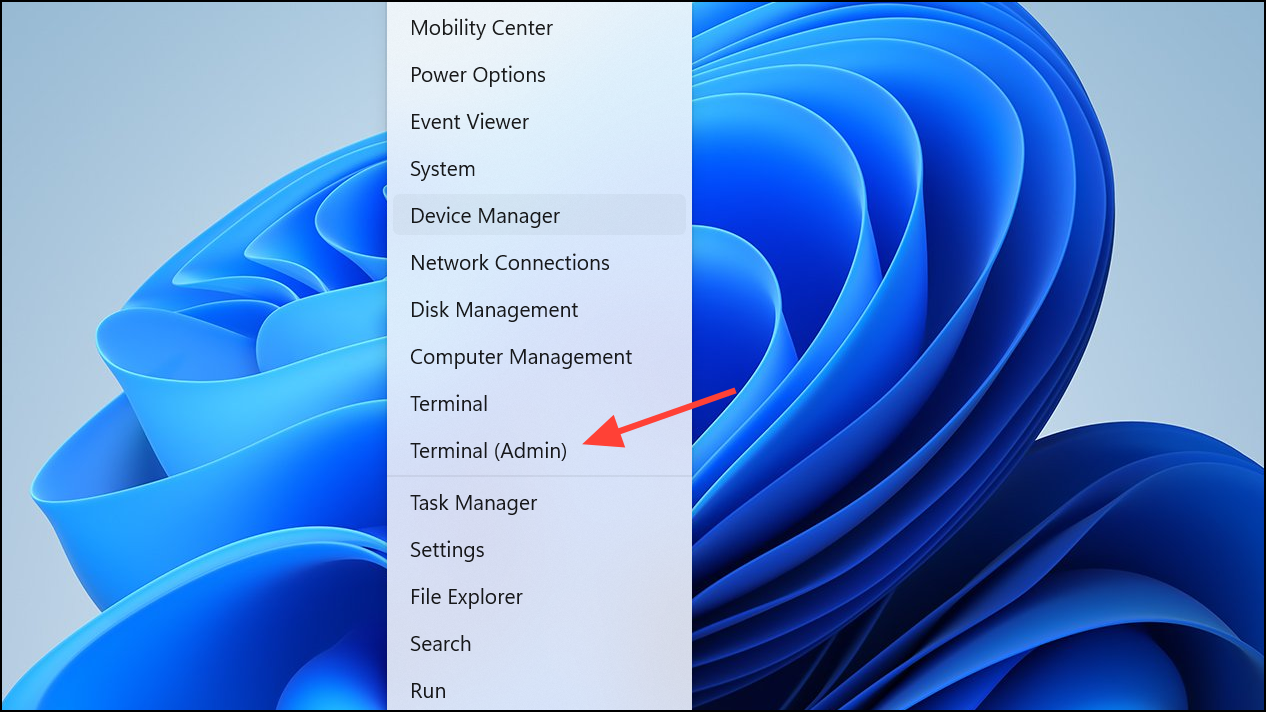
Z: with your preferred drive letter and \\ServerName\ShareName with your network path:net use Z: \\ServerName\ShareName /persistent:yes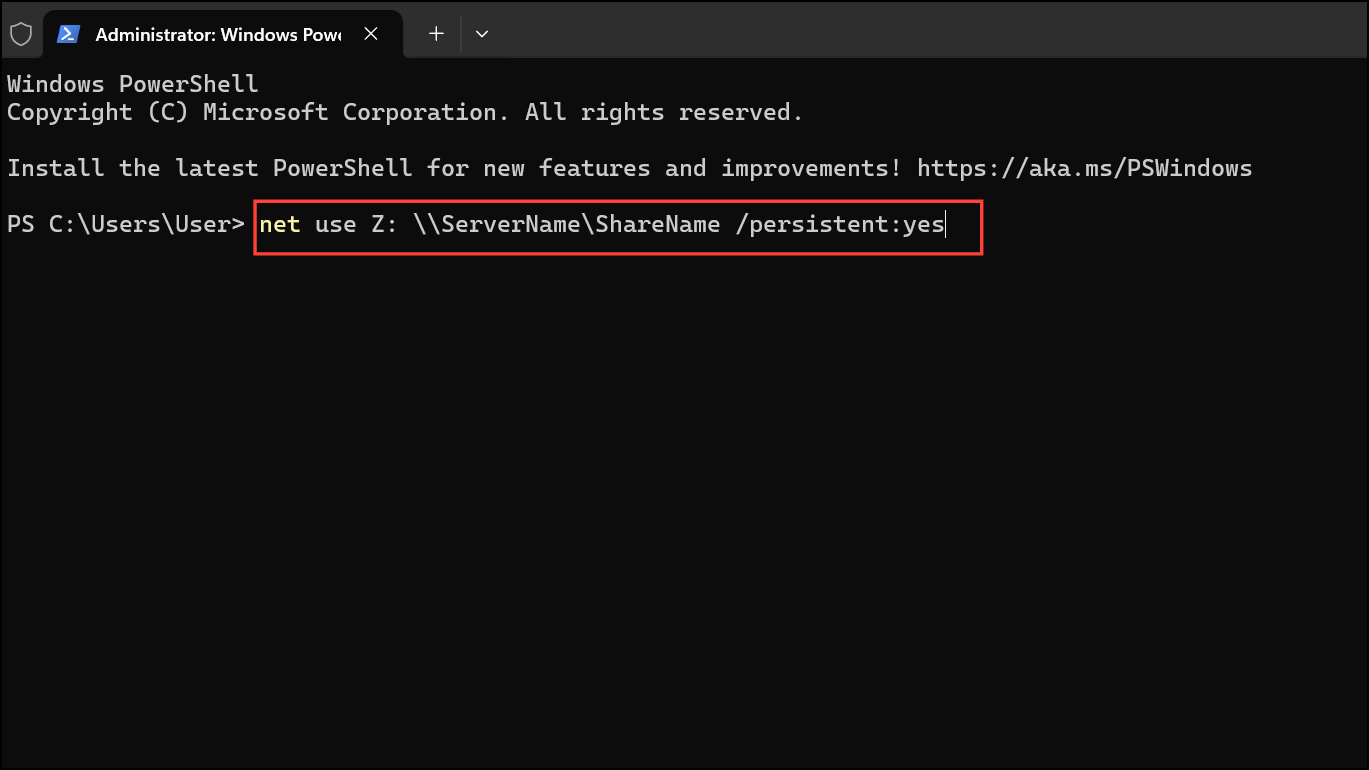
This command maps the network drive and ensures it reconnects at each login. If you need to provide a username and password, add /user:YourUsername at the end of the command.
Troubleshooting Network Drive Mapping
Sometimes, mapped drives may not appear as expected due to network issues, incorrect permissions, or credential problems. To resolve these issues:
- Verify that the target device is powered on and connected to the network.
- Ensure you have the correct permissions to access the shared folder.
- Double-check the network path for typos or errors.
- If prompted for credentials, make sure you enter the correct username and password.
- Restart your PC if the drive does not appear after mapping.
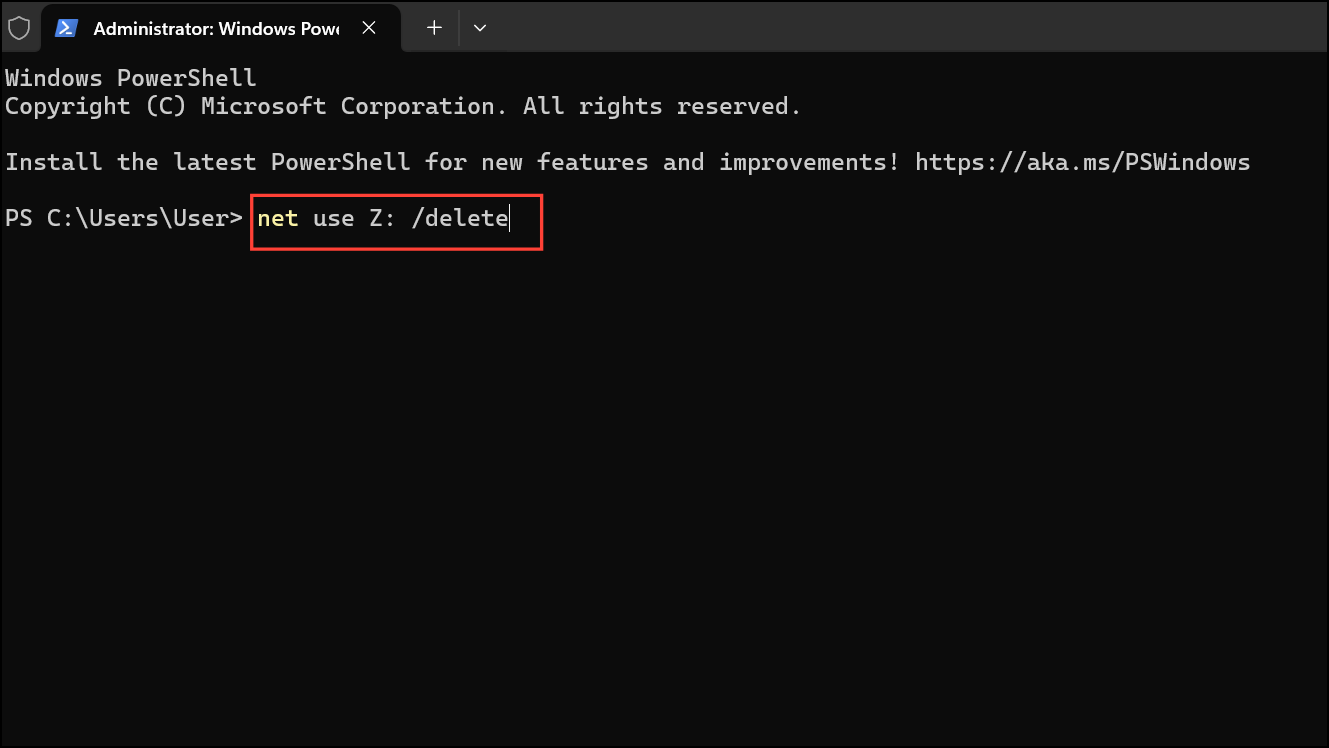
If you need to disconnect a network drive, right-click on its icon in File Explorer and select Disconnect, or use the command net use Z: /delete in Command Prompt, replacing Z: with the appropriate drive letter.
Mapping a network drive keeps your shared resources accessible right from your PC Drive section. Regularly check your network connections and permissions to maintain smooth access to your files.





