

Shell commands that return an incorrect TaskID on Windows 11 can disrupt automated scripts, monitoring, and process management. This issue often surfaces when running commands in environments where process IDs or task IDs are critical for tracking or terminating specific tasks. Addressing this problem ensures scripts interact with the correct processes, reducing the risk of errors or unintended system changes.
Verify Command Syntax and Execution Context
tasklist or Get-Process in PowerShell should return accurate process information. Running these commands from an elevated (administrator) prompt can also affect results.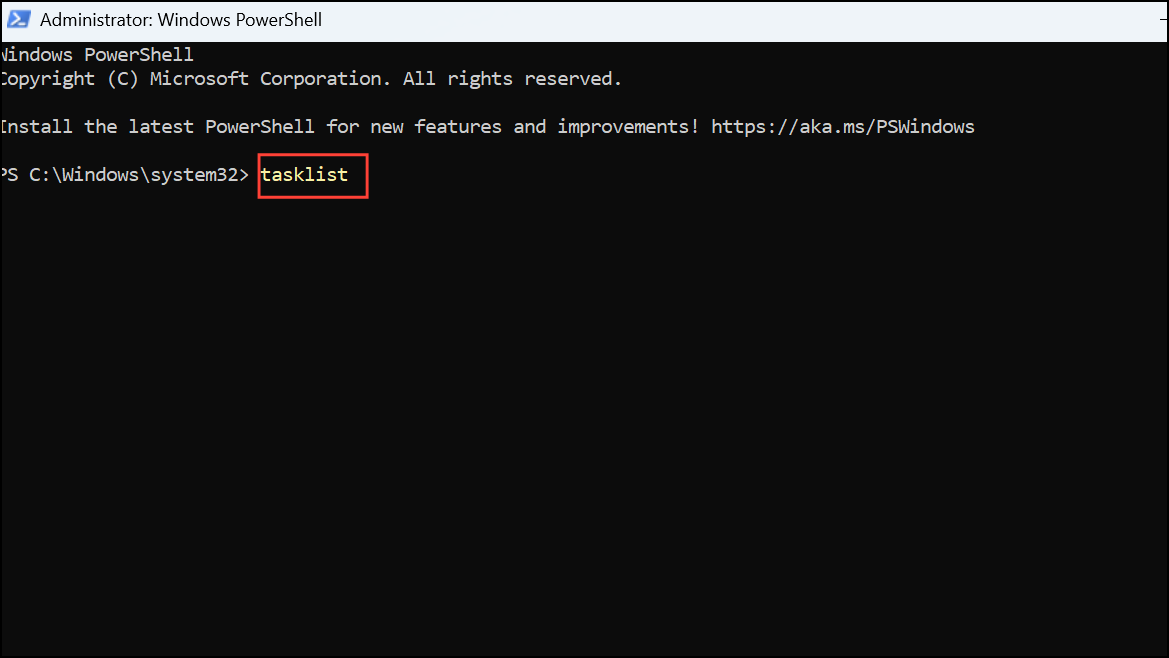
Update Windows and Shell Utilities
Settings > Windows Update and install all available updates. This ensures that bugs affecting process management are addressed.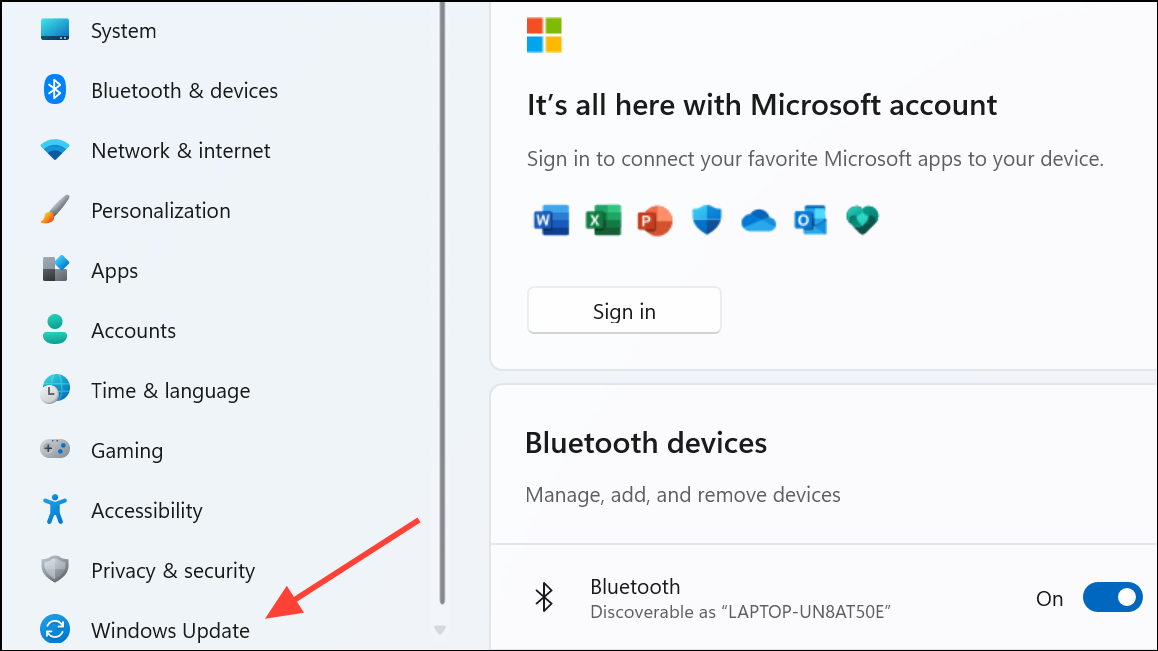
Check for Background Process Duplication
tasklist /v or Get-Process | Format-List * in PowerShell to display detailed information, such as user session, start time, and command line. This helps distinguish between multiple instances and identify the correct TaskID.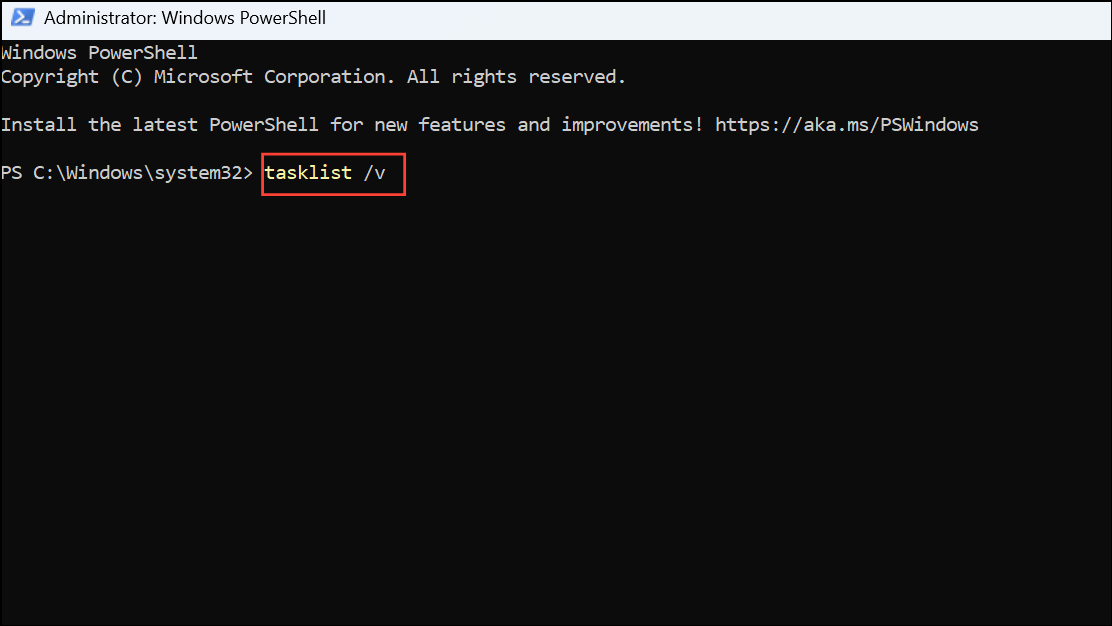
$process = Start-Process -FilePath "yourapp.exe" -PassThru
$process.Id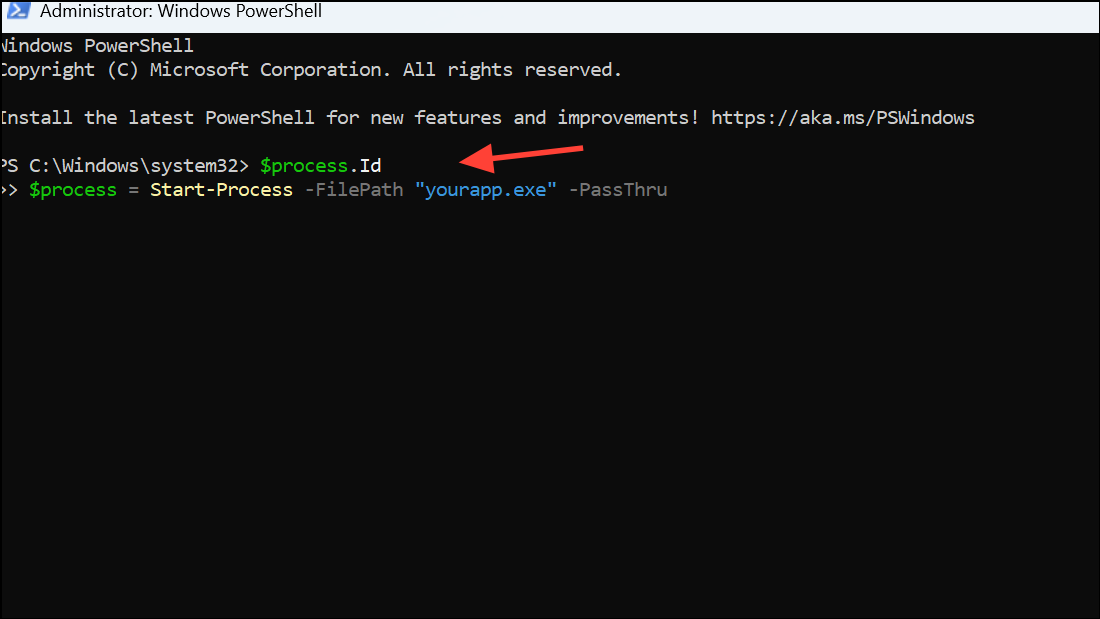
This approach minimizes confusion when multiple instances of the same process exist.
Use Reliable TaskID Retrieval Methods in Scripts
Get-Process -Name "yourapp" | Select-Object Id, ProcessName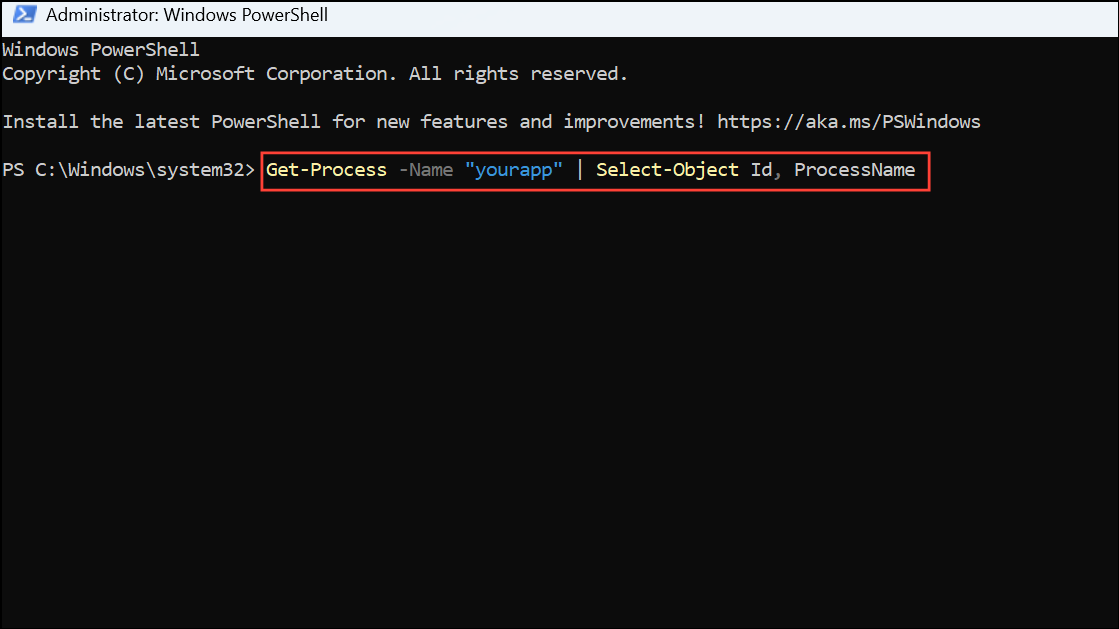
This command returns the TaskID (process ID) alongside the exact process name, reducing the chance of mismatch.
tasklist /FI "WINDOWTITLE eq UniqueTitle" or Get-Process | Where-Object { $_.MainWindowTitle -eq "UniqueTitle" } to filter results.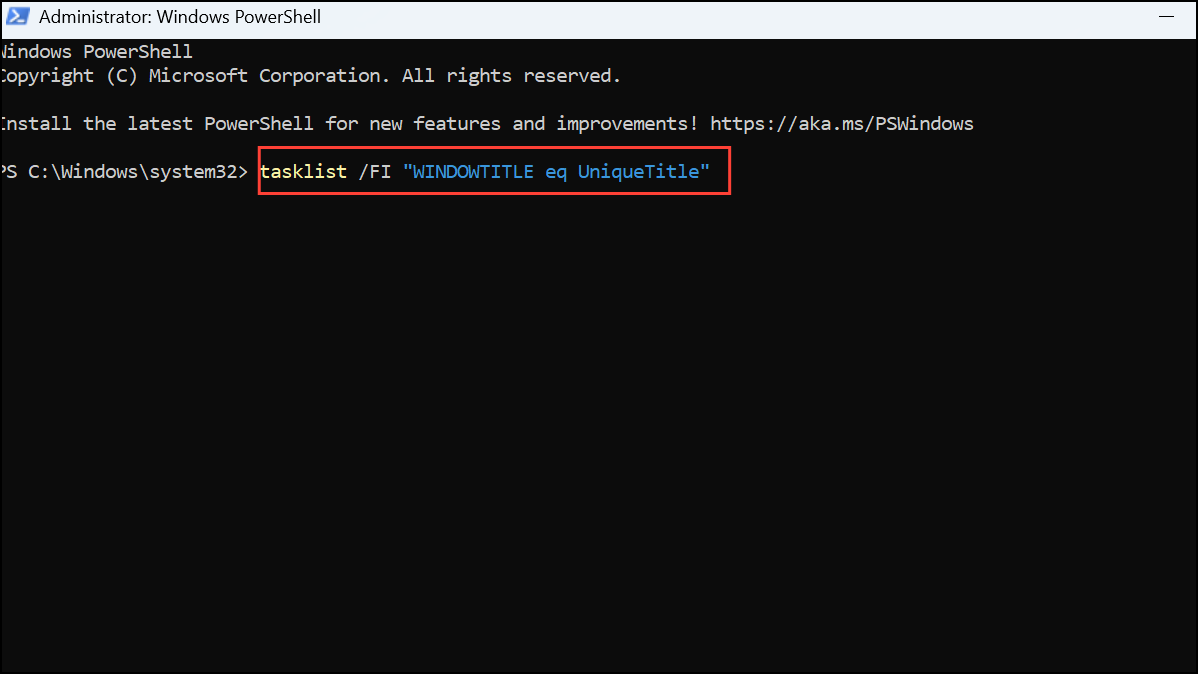
Alternative Approaches and Troubleshooting Tips
- Check for process elevation mismatches. If your script runs as administrator but the target process is not (or vice versa), TaskIDs may not match due to session isolation.
- Review antivirus or endpoint protection logs. Some security software can inject processes or mask TaskIDs for protected applications.
- Restart your system if TaskID inconsistencies persist after making script or environment changes. This clears orphaned or stuck processes that may cause confusion.
Resolving incorrect TaskID reporting in Windows 11 shell commands streamlines process management and scripting reliability. Double-check command usage, keep your system updated, and use precise filters to avoid mismatches in future tasks.



