Follow these clear instructions to uninstall Virtual Camera completely from your Windows 11 PC.
Follow these clear instructions to uninstall Virtual Camera completely from your Windows 11 PC.
by Pallav Pathak
Virtual Camera software, commonly installed alongside video conferencing or streaming applications, sometimes remains on your system even after you no longer need it. Removing it can free up system resources, simplify your device management, and prevent unwanted camera options from cluttering your application settings. The following methods guide you through effectively removing Virtual Camera from Windows 11.
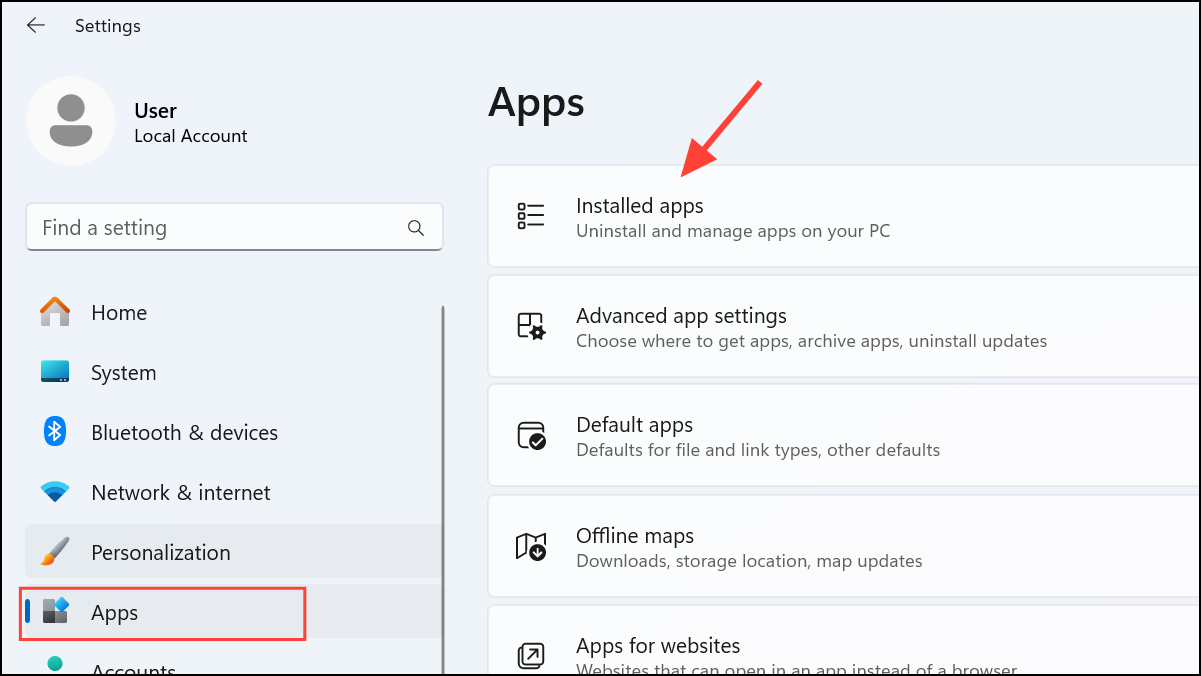
Method 1: Uninstall Virtual Camera via Settings App
Locate the Virtual Camera software from the list. You can use the search bar provided at the top to quickly find it by typing “Virtual Camera” or the exact name of the software.
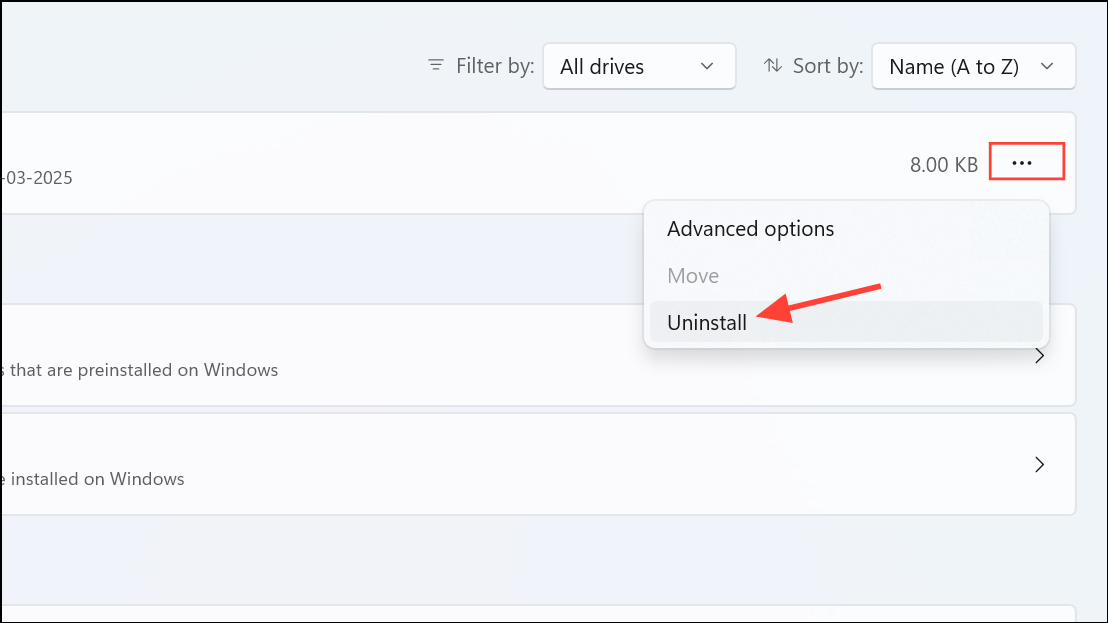
Once you find the Virtual Camera app, click the three-dot menu icon next to it, then select “Uninstall.” Confirm your choice when prompted by clicking “Uninstall” again.
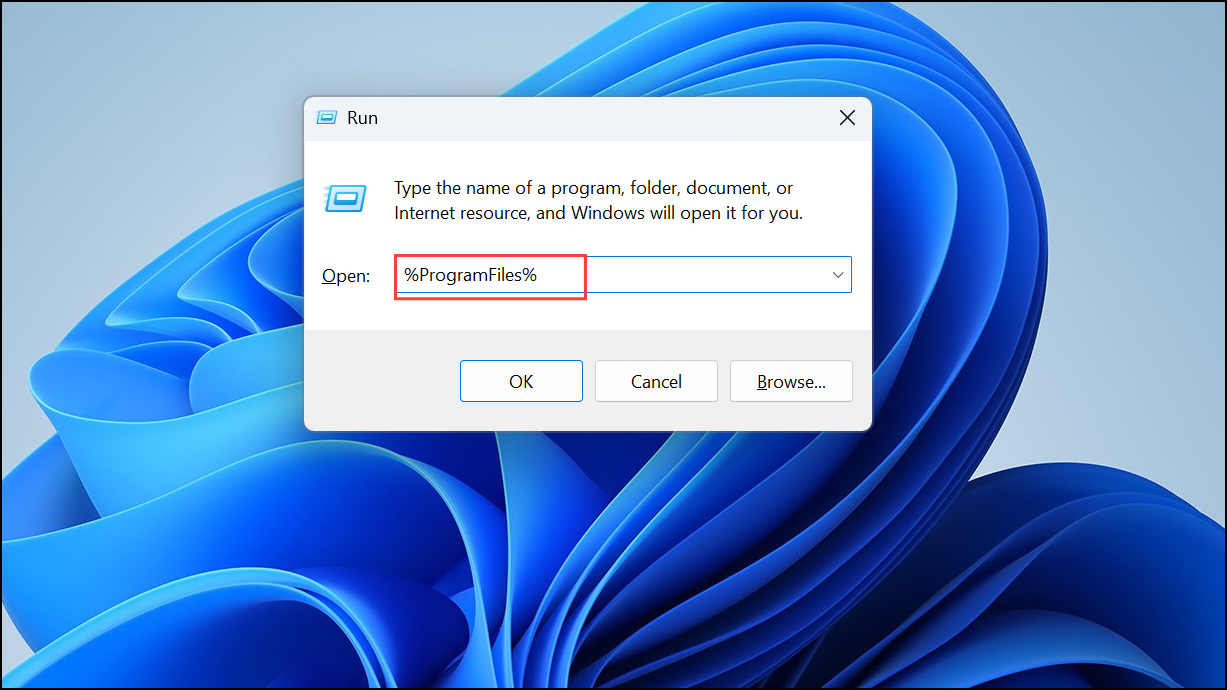
Press Windows key + R to open the Run dialog box, type %ProgramFiles% and press Enter. Look for folders related to the Virtual Camera software and delete them.
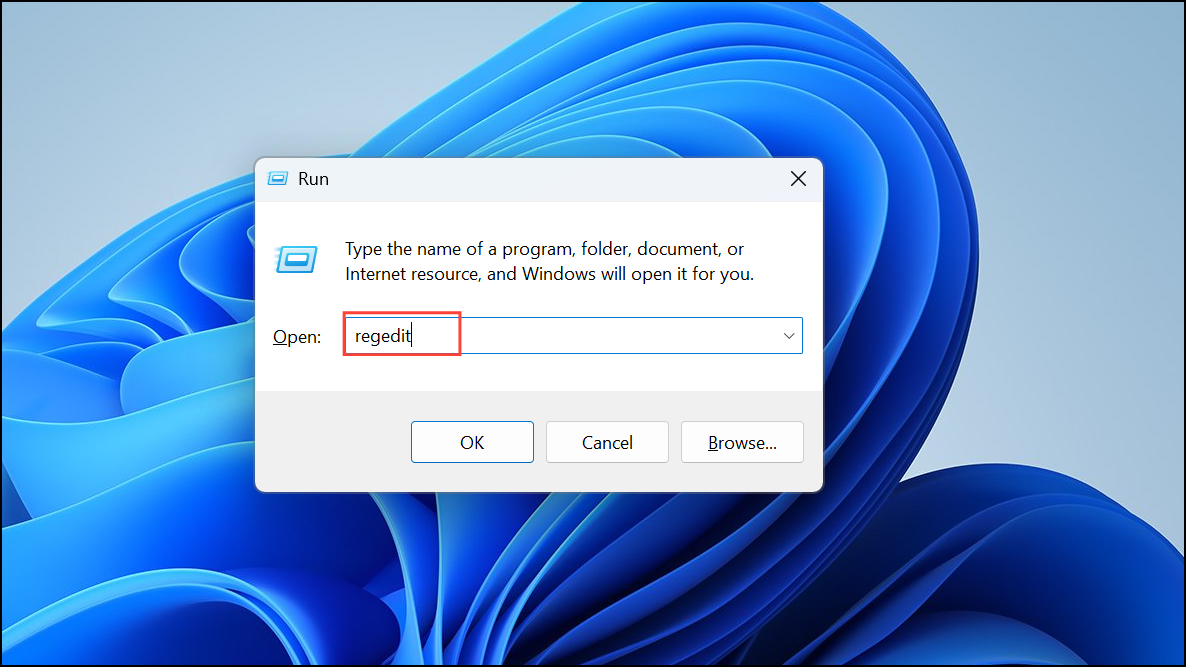
To clean registry entries, press Windows key + R, type regedit, and press Enter to open Registry Editor. Be careful—editing the registry incorrectly can cause system instability.
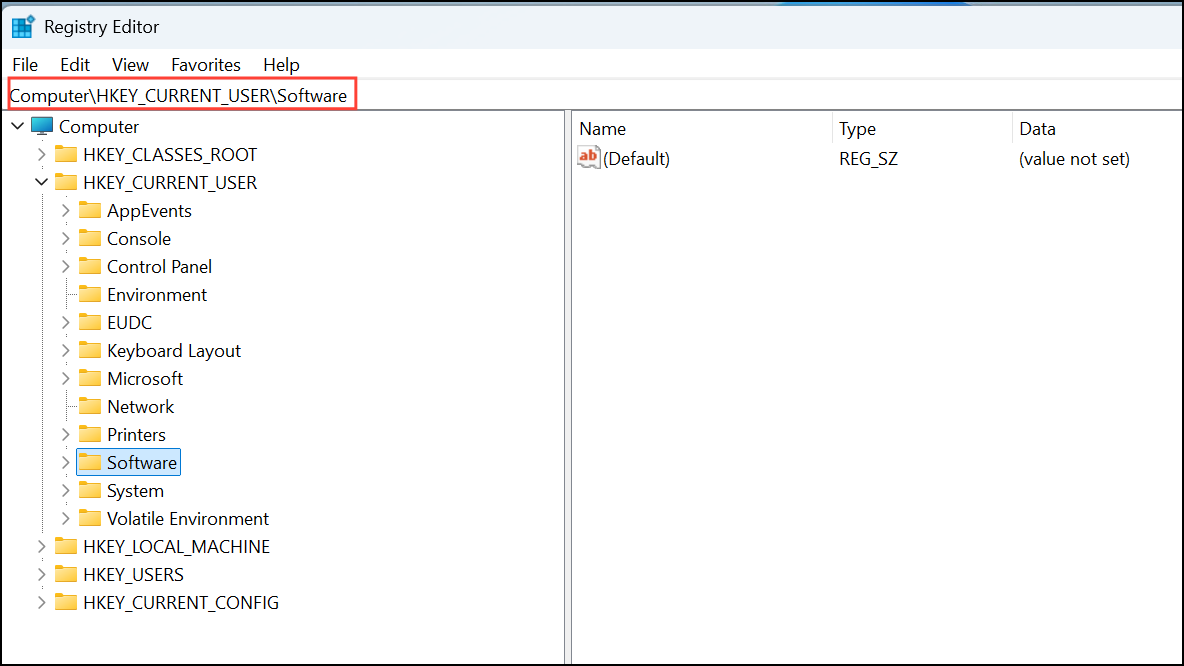
Navigate to HKEY_CURRENT_USER\Software and HKEY_LOCAL_MACHINE\SOFTWARE to look for and remove keys associated with the Virtual Camera software.
Caution: Always back up your registry before making changes. To do so, click “File” in Registry Editor, then “Export,” and save the backup file.
With these straightforward methods, your Windows 11 system will be free from unwanted Virtual Camera software, streamlining your device’s camera options and improving overall system organization.