How to Fix Nvidia Driver 572.83 Causing Black Screen on Windows 11 and Windows 10
Resolve the black screen issue caused by Nvidia driver 572.83 with these straightforward troubleshooting steps
Resolve the black screen issue caused by Nvidia driver 572.83 with these straightforward troubleshooting steps
by Pallav Pathak
Nvidia driver version 572.83 on Windows 11 and Windows 10 systems can sometimes result in a black screen immediately after installation or upon system reboot. This issue prevents users from accessing their desktops, severely limiting usability. Fortunately, there are several effective solutions to quickly restore your display functionality.
Method 1: Roll Back Nvidia Driver to a Previous Version
Boot Windows into Safe Mode. To do this, restart your computer, interrupt the boot process three times by pressing the power button as Windows starts loading, and Windows will automatically enter recovery mode. Navigate to “Troubleshoot” > “Advanced options” > “Startup Settings” > “Restart.” After the reboot, press 4 to enter Safe Mode.
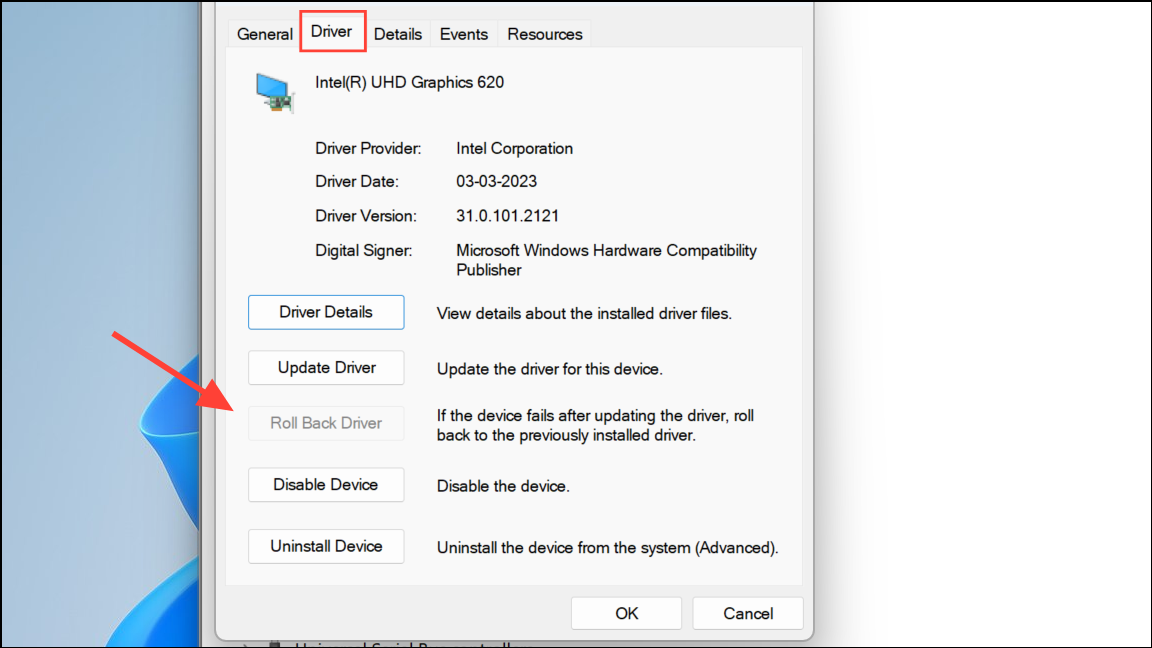
Under the “Driver” tab, click “Roll Back Driver.” Follow the prompts to complete the rollback process. This action reinstalls the previous stable driver version, resolving the black screen issue.
Restart your computer normally to confirm that the issue is resolved. Your display should now function properly without the black screen.
Method 2: Uninstall and Reinstall Nvidia Driver Manually
If rolling back the driver is not possible or doesn’t solve the problem, manually uninstalling and reinstalling an older, stable Nvidia driver can fix the black screen issue.
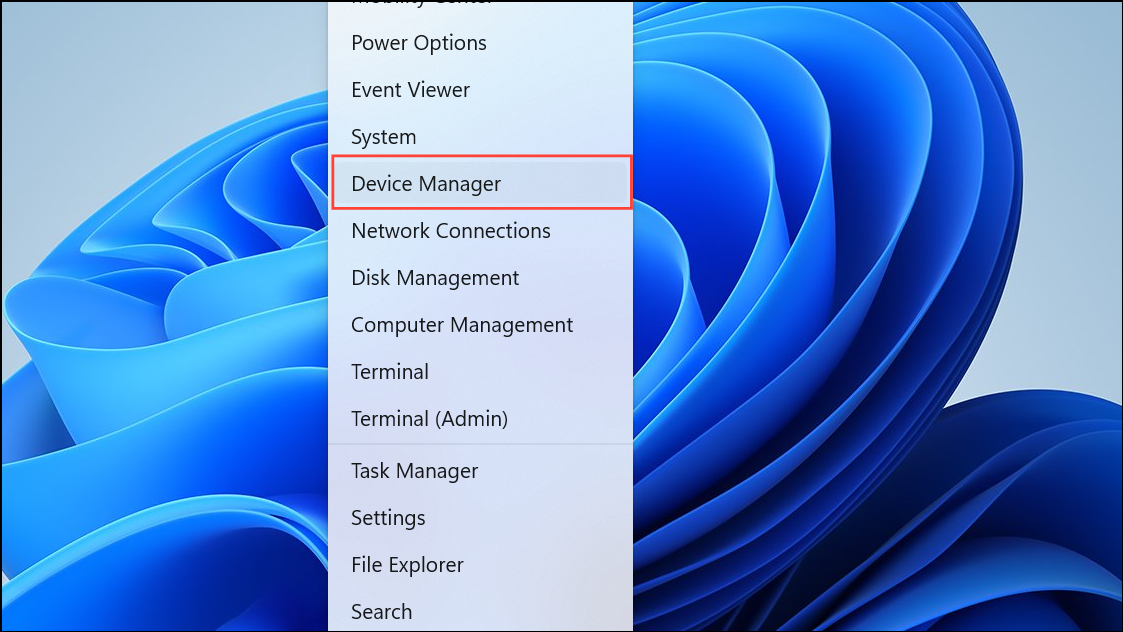
Once in Safe Mode, open Device Manager (right-click Start > Device Manager). Expand “Display adapters,” right-click your Nvidia device, and select “Uninstall device.” Confirm the uninstallation by selecting “Delete the driver software for this device” if prompted.
Visit Nvidia’s official website and download a previous version of the Nvidia graphics driver compatible with your GPU and Windows version. Run the installer and follow the on-screen instructions to complete the installation.
Boot into recovery mode by interrupting the Windows startup sequence three times (as described previously). Navigate to “Troubleshoot” > “Advanced options” > “System Restore.”
After System Restore completes, your computer will reboot. Confirm that the black screen issue is resolved.
After resolving the black screen issue, consider temporarily disabling automatic driver updates to prevent Windows from reinstalling the problematic Nvidia driver. Regularly check Nvidia’s official website for updated drivers that specifically address this issue.