How to Set Up Linux for Gaming with Steam, Proton GE, and GameMode in 2025
A detailed guide to configuring your Linux system for optimal gaming performance using Steam, Proton GE, and GameMode.
A detailed guide to configuring your Linux system for optimal gaming performance using Steam, Proton GE, and GameMode.
by Pallav Pathak
Linux gaming has grown significantly, thanks to tools like Steam, Proton GE, and GameMode. Setting up your Linux system correctly allows you to play a wide range of games smoothly, including many titles originally designed for Windows. This guide will walk you through configuring Steam, installing Proton GE for better compatibility, and using GameMode to optimize your system’s performance during gaming sessions.
Method 1: Setting Up Steam and Proton GE (Recommended)
Begin by installing Steam on your Linux distribution. On Ubuntu-based distributions, open a terminal and run the following command:
sudo apt install steam
Alternatively, you can download Steam directly from the official Steam website if you encounter dependency issues with your distribution’s package manager.
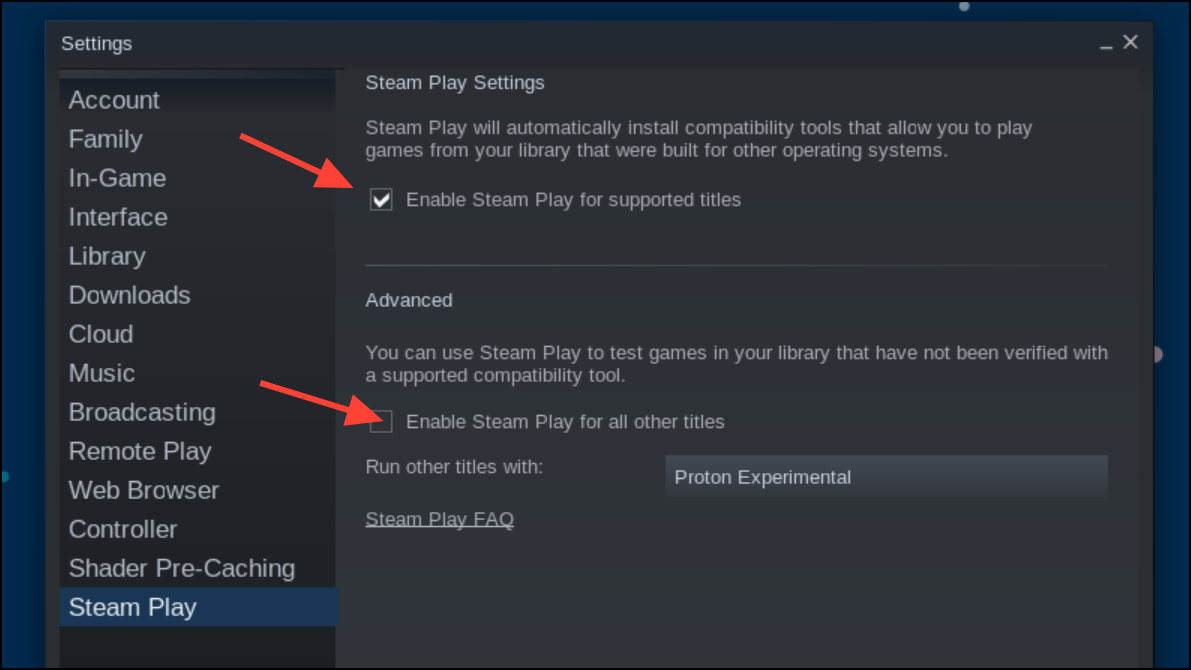
Once Steam is installed, launch it and log in with your Steam account. Next, enable Proton to run Windows games on Linux. Navigate to Steam settings, select the “Steam Play” tab, and check both “Enable Steam Play for supported titles” and “Enable Steam Play for all other titles.” Steam will usually default to Proton Experimental, suitable for most games.
To boost compatibility and performance, install Proton GE (Glorious Eggroll), a custom version of Proton with additional fixes and optimizations. The easiest method is using ProtonUp-Qt, a graphical tool designed for managing Proton versions. Install ProtonUp-Qt by opening your Linux software center (such as Discover or Ubuntu Software) and searching for “ProtonUp-Qt.” Once located, install and launch the application.
In ProtonUp-Qt, click “Add version,” select the latest Proton GE from the provided list, and click “Install.” ProtonUp-Qt automatically places Proton GE in the correct Steam compatibility folder. After installation, restart Steam to recognize this new Proton version.
To use Proton GE for a specific game, find the game in your Steam library, right-click it, select “Properties,” and navigate to the “Compatibility” tab. Check the box labeled “Force the use of a specific Steam Play compatibility tool,” then select the installed Proton GE version from the dropdown menu. Close the properties window and launch the game to confirm compatibility.
Method 2: Manual Installation of Proton GE
If you prefer manual installation, follow these detailed steps:
Extract the downloaded archive. Navigate to your home directory, enable hidden files view (usually Ctrl+H), and locate the Steam compatibility tools directory. This is usually found at ~/.steam/root/compatibilitytools.d/. If the compatibilitytools.d folder doesn’t exist, create it manually.
Move the extracted Proton GE folder into the compatibilitytools.d directory. Restart Steam, and Proton GE will now appear in your compatibility tools list under Steam Play settings.
As described in Method 1, select Proton GE for your desired games via the game’s properties menu in Steam.
Optimizing Gaming Performance with GameMode
GameMode, developed by Feral Interactive, optimizes your system’s resources to prioritize gaming performance. To install GameMode on Ubuntu-based distributions, run the following command in the terminal:
sudo apt install gamemode
Once installed, you can enable GameMode in Steam by right-clicking your game, selecting “Properties,” and adding gamemoderun %command% to the launch options. Lutris users will find GameMode enabled by default in the application preferences under “System Options.”
With these configurations, your Linux system is now well-equipped to handle gaming effectively. Enjoy exploring your expanded game library with improved compatibility and performance!