
The Task Manager in Windows 11 is an essential utility that provides control over running applications and processes. When it stops responding or fails to launch, managing your system effectively becomes challenging. Issues like corrupted system files, outdated drivers, malware infections, or incorrect registry settings commonly cause the Task Manager to malfunction. Fortunately, several practical solutions can quickly restore Task Manager functionality. Follow these detailed methods to get Task Manager back to normal in Windows 11.
Method 1: Restart Windows Explorer
Sometimes, the Task Manager becomes unresponsive due to a temporary glitch in Windows Explorer. Restarting Explorer can resolve minor issues quickly.
Win + R to open the Run dialog, type cmd, and press Ctrl + Shift + Enter to launch Command Prompt as administrator.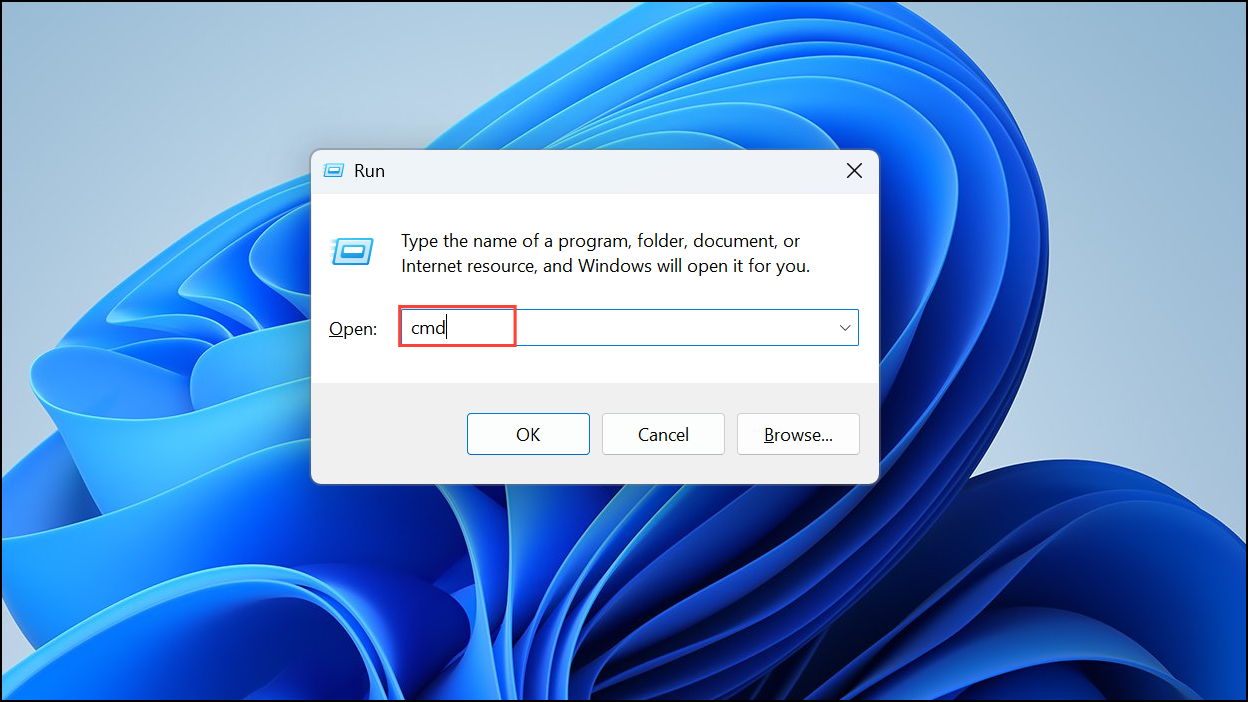
taskkill /f /im explorer.exe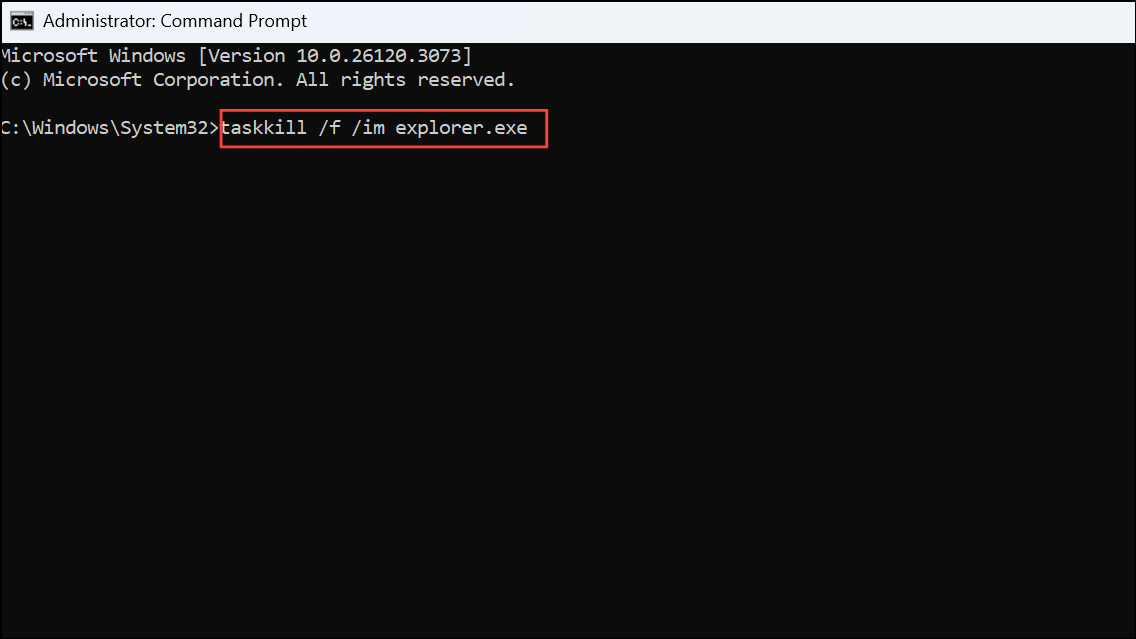
After running these commands, Windows Explorer will restart. Try opening Task Manager again to check if the issue is resolved.
Method 2: Run the SFC and DISM Scans
Corrupted system files often cause Task Manager issues. The System File Checker (SFC) and Deployment Image Servicing and Management (DISM) tools can help repair these files.
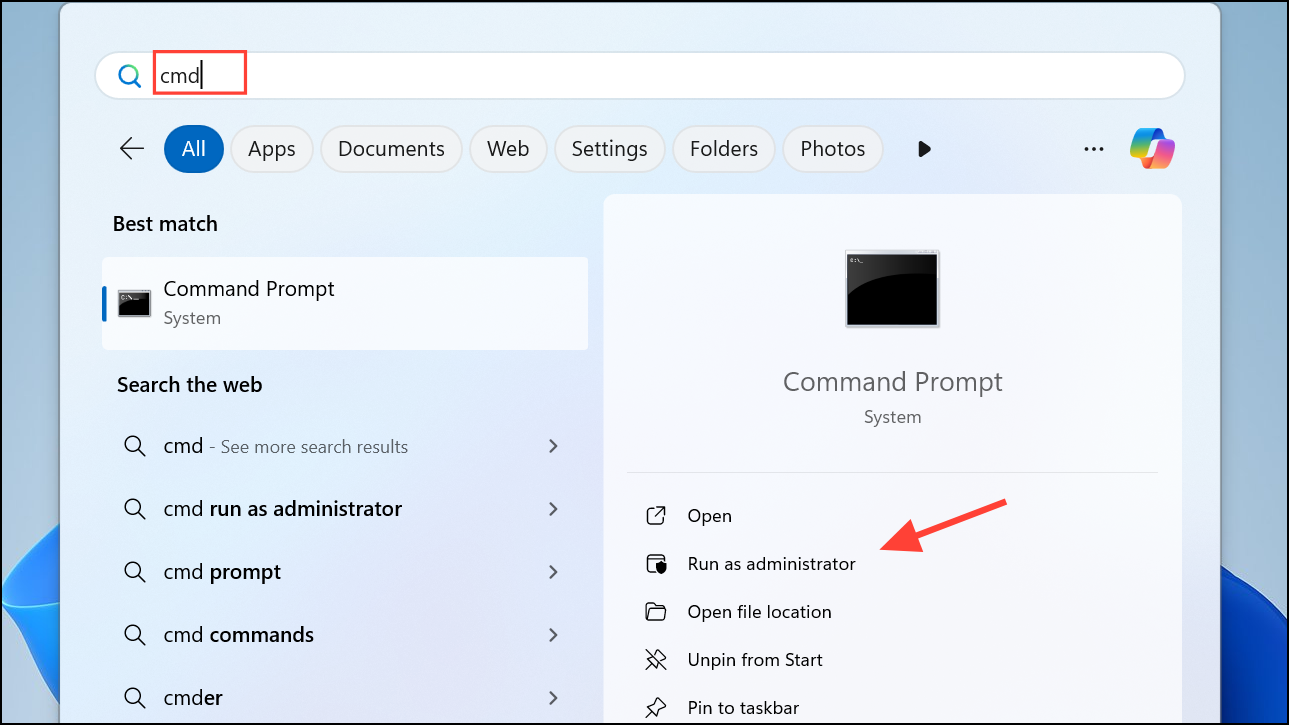
sfc /scannow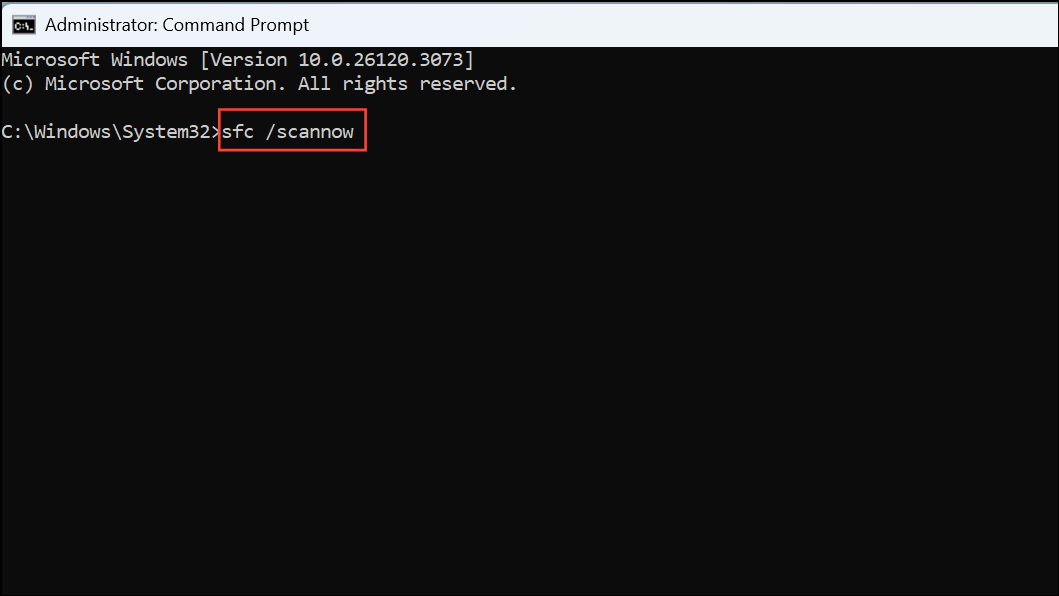
DISM /Online /Cleanup-Image /CheckHealth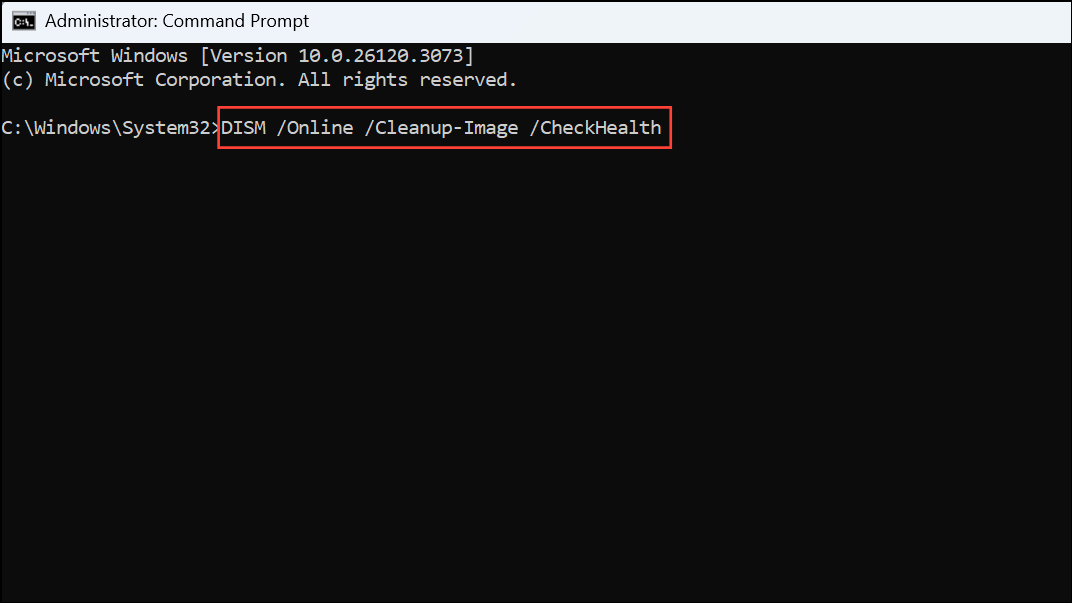
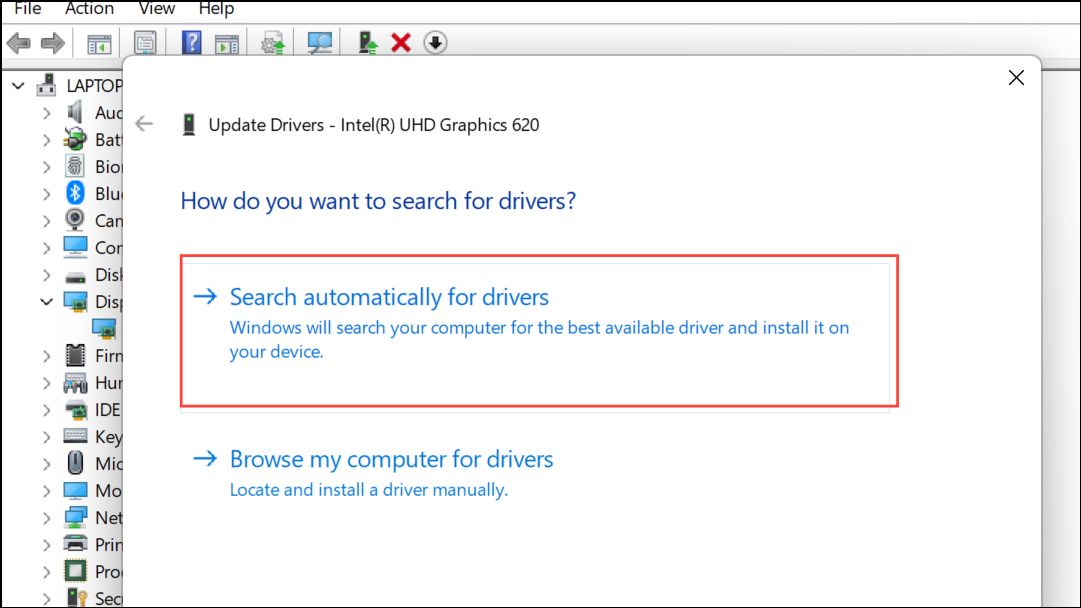
Method 3: Update Graphics Drivers
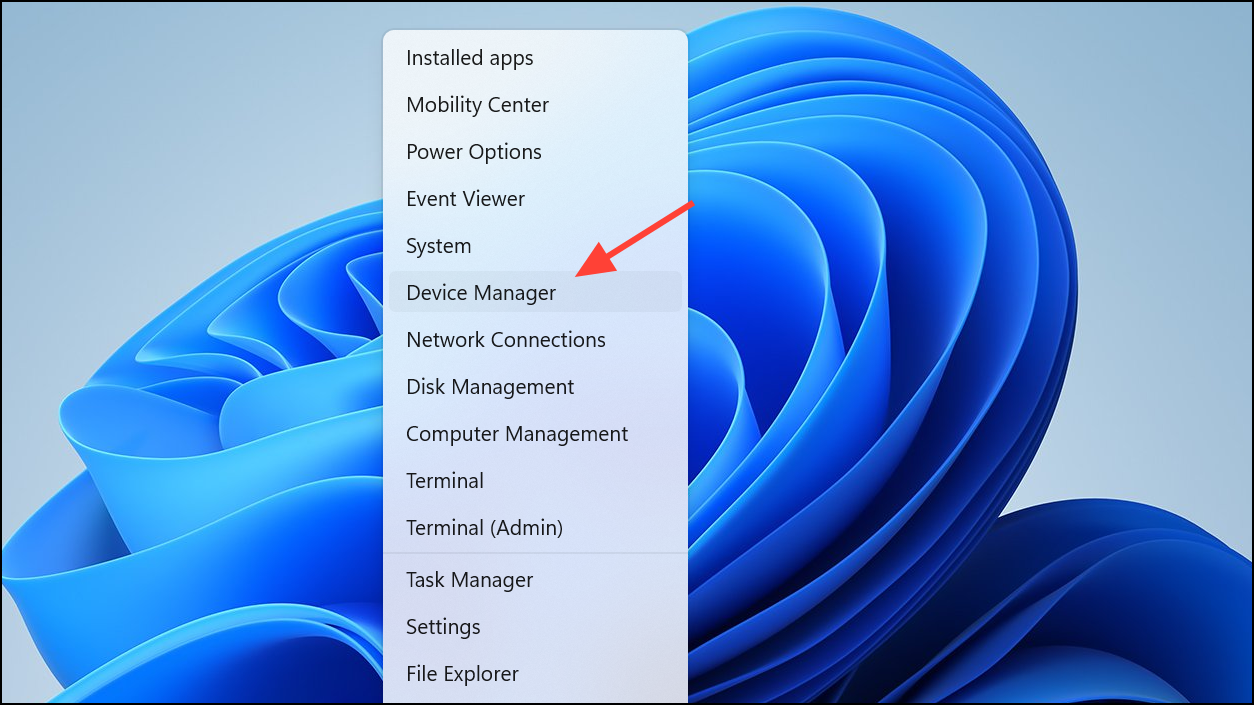
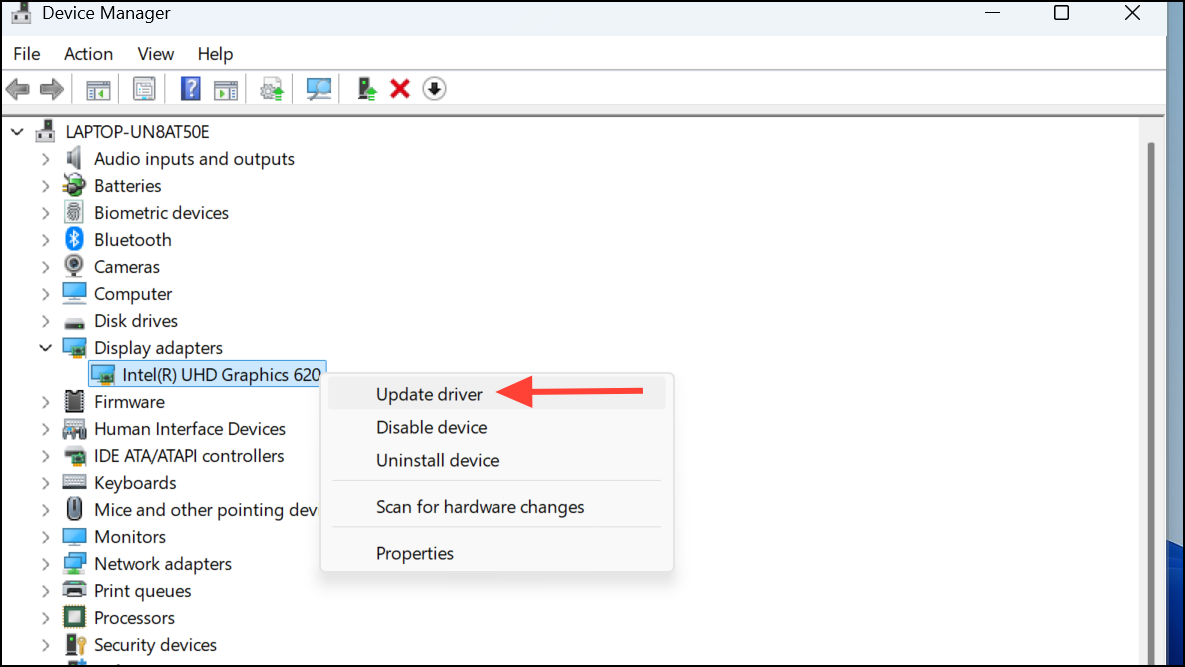
Outdated or faulty graphics drivers can lead to Task Manager freezing or failing to open. Updating these drivers can resolve compatibility issues.
Method 4: Scan for Malware
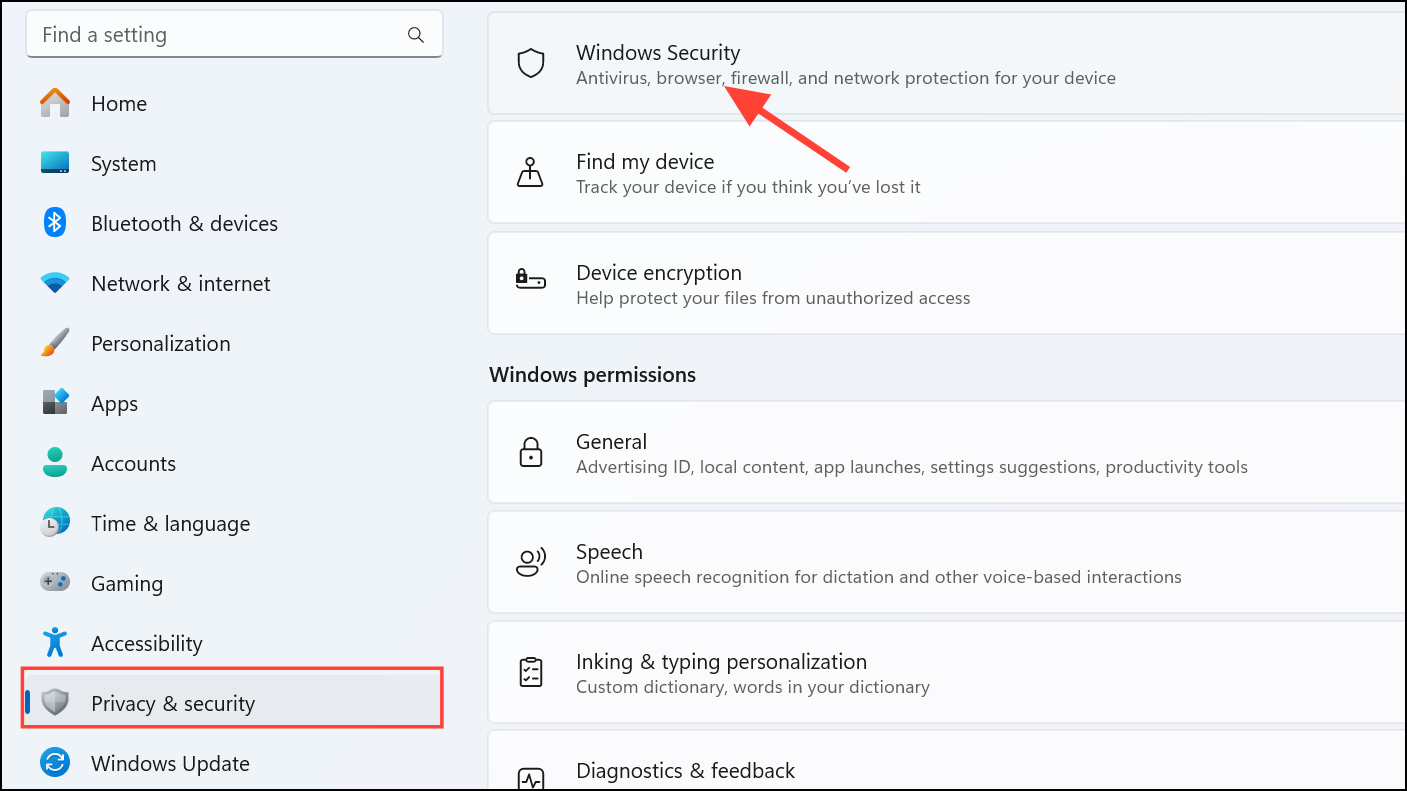
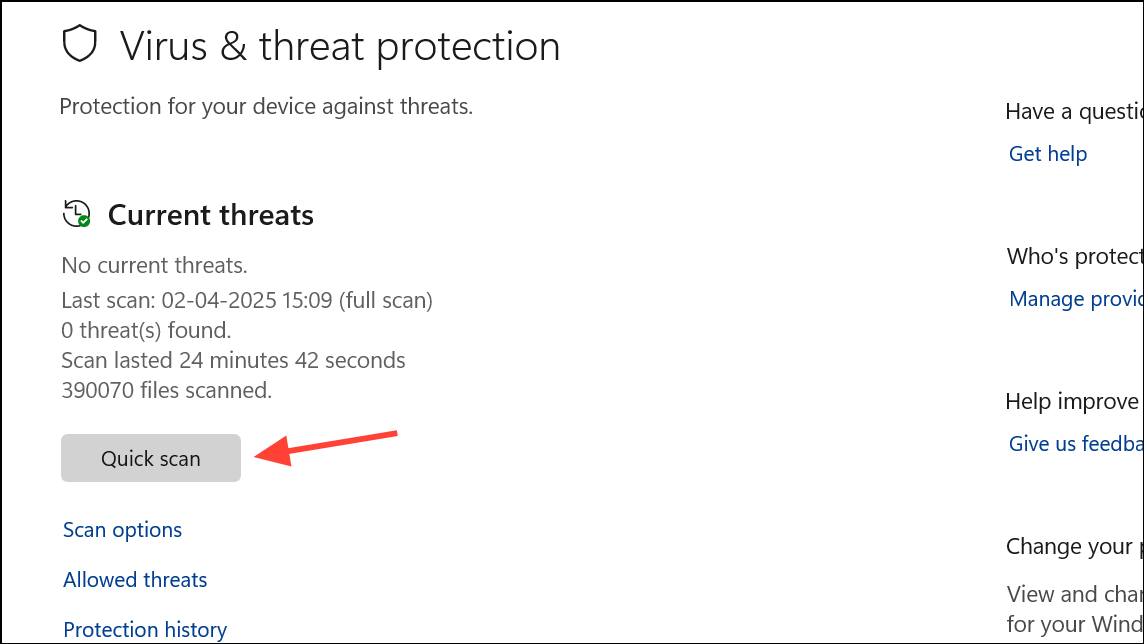
Malware infections can disrupt system utilities, including Task Manager. Use Windows Security to scan and remove threats.
Method 5: Enable Task Manager via Registry Editor
If Task Manager is disabled through registry settings, re-enabling it can resolve the issue.
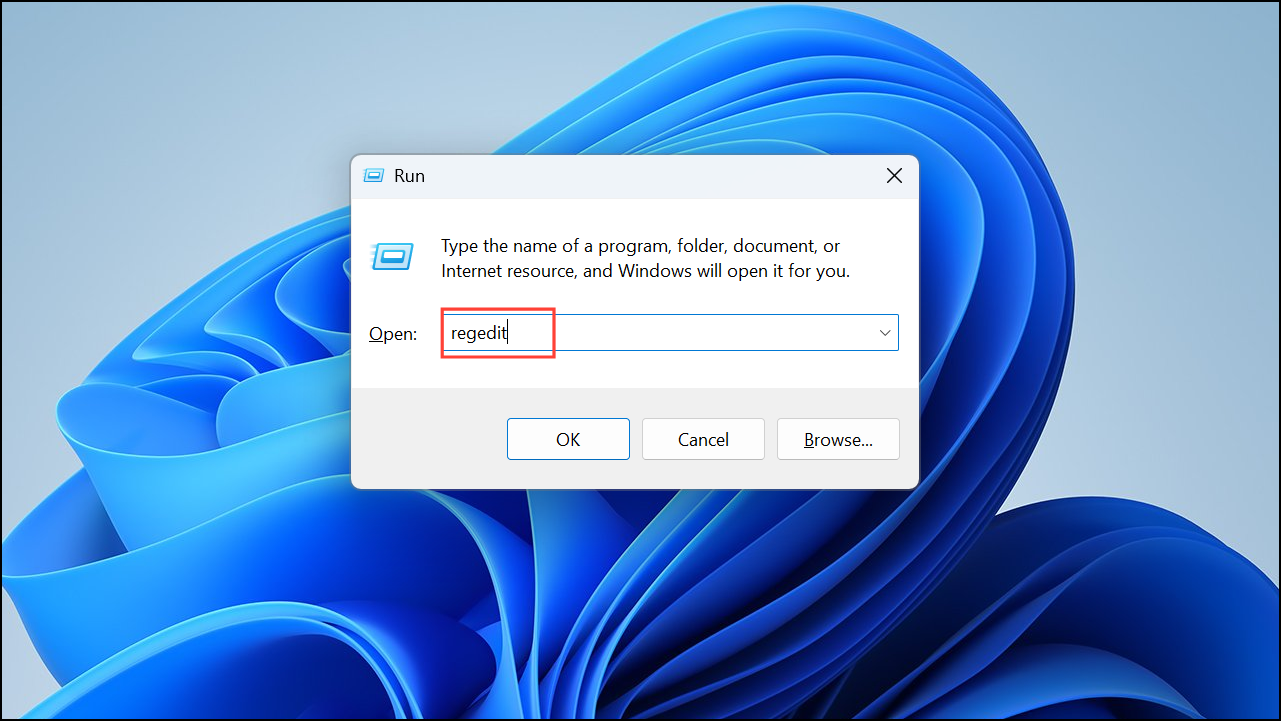
HKEY_CURRENT_USER\Software\Microsoft\Windows\CurrentVersion\Policies\System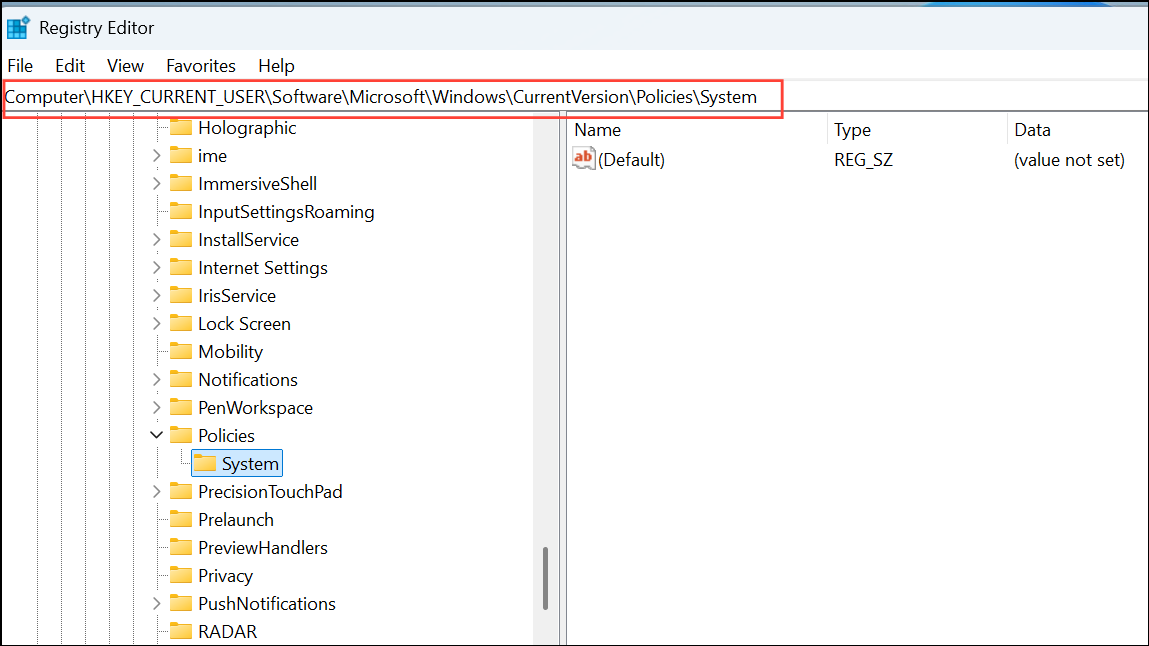
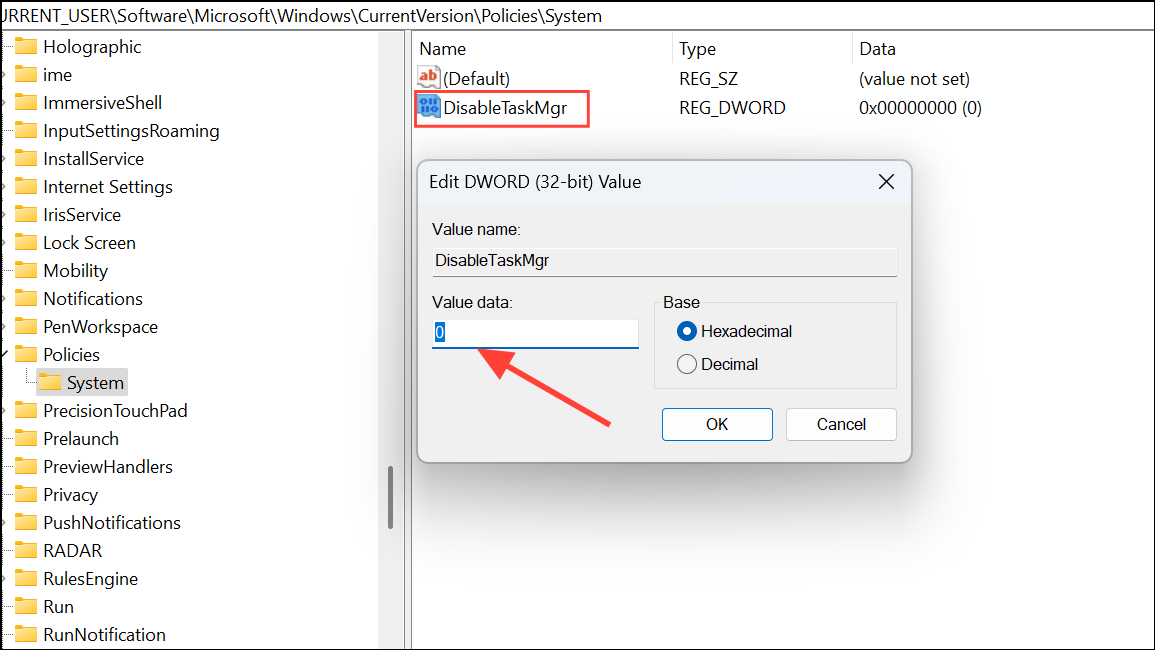
DisableTaskMgr key, double-click it and set its value to 0. If the key doesn’t exist, right-click the right pane, select “New” > “DWORD (32-bit) Value.”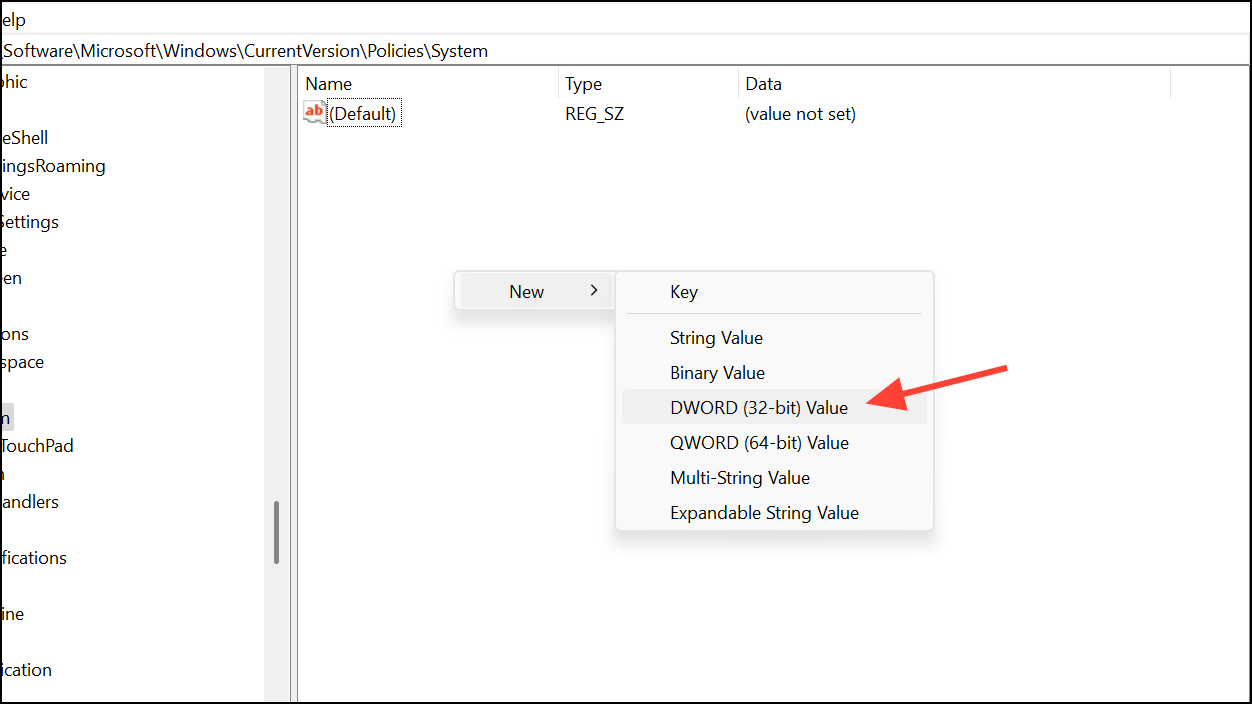
Method 6: Perform a System Restore
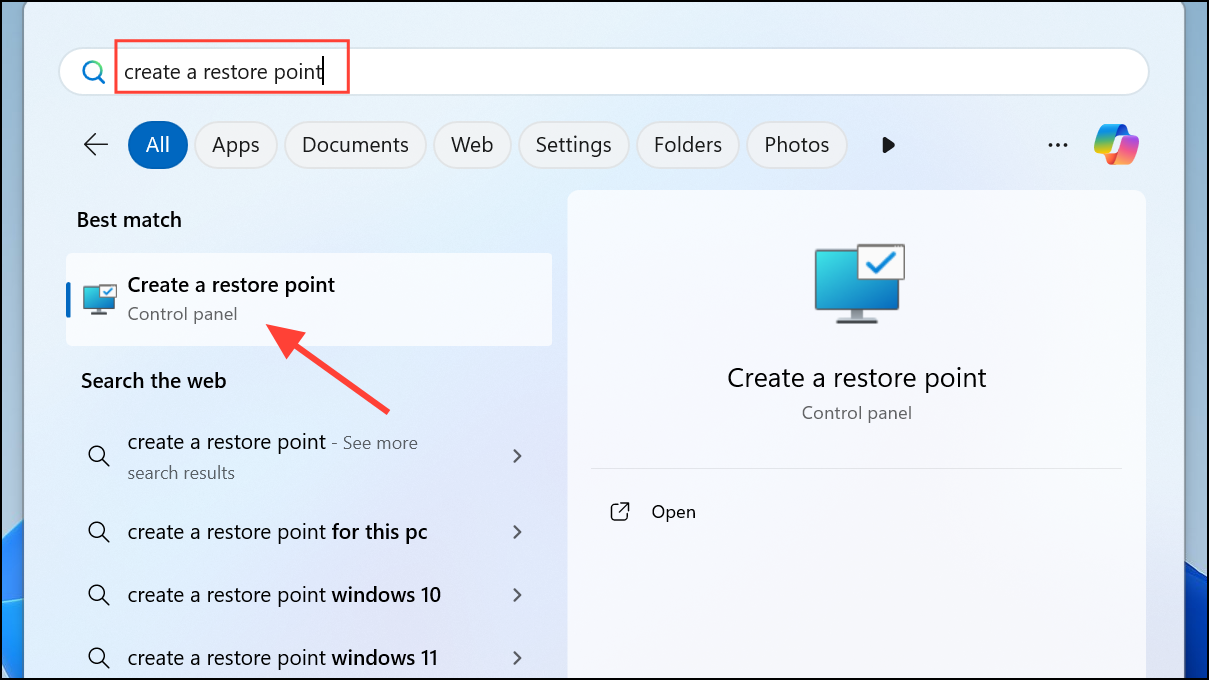
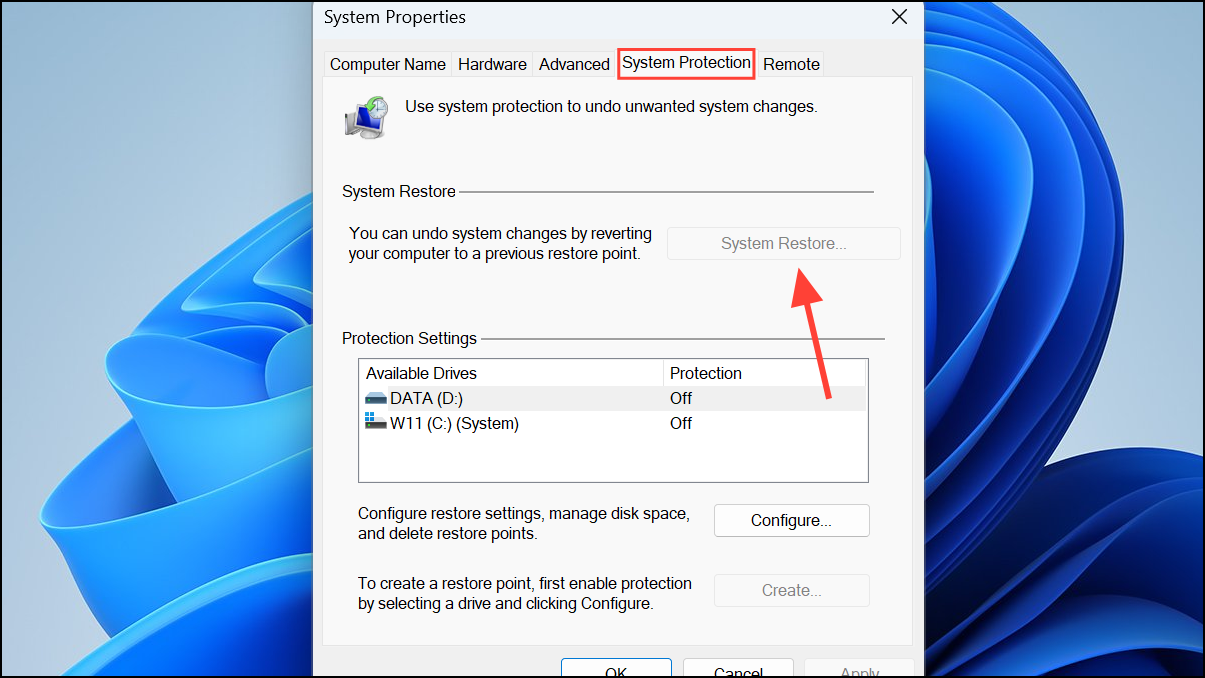
If recent changes caused Task Manager issues, restoring your system to a previous state can fix it, assuming you have set up a restore point earlier.
Method 7: Reset Your Windows PC
If none of the above methods work, resetting your Windows 11 PC is a reliable option. This process reinstalls Windows without removing your personal files.
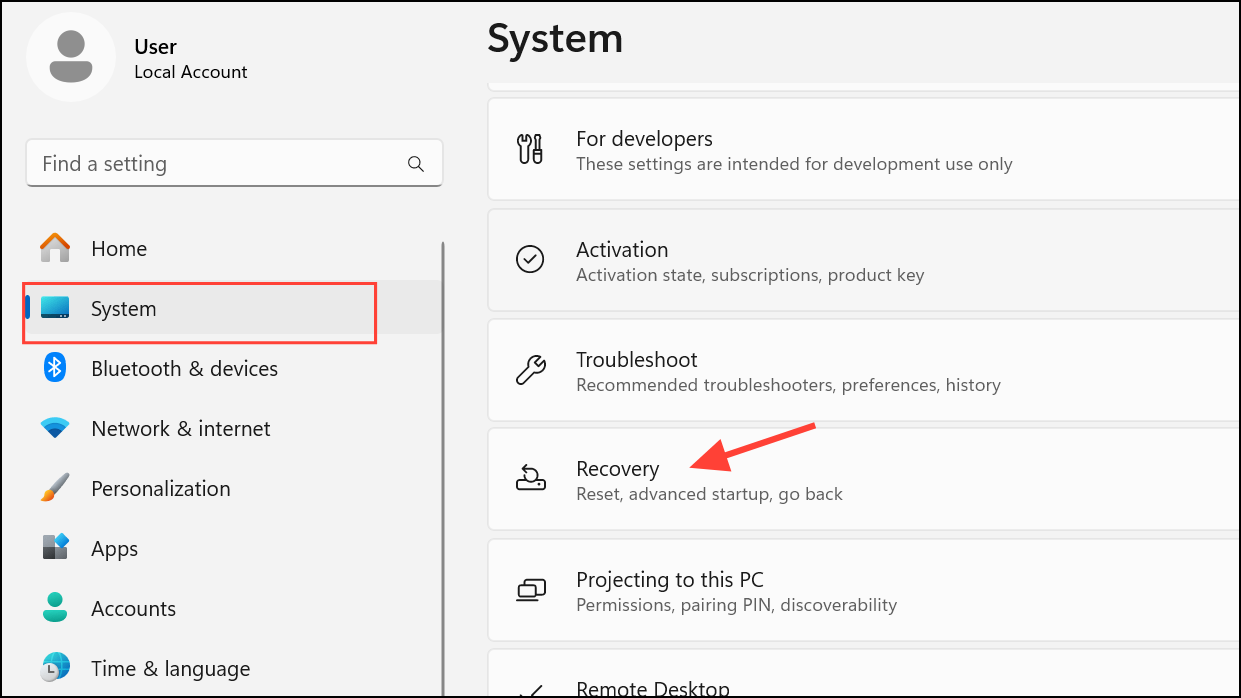
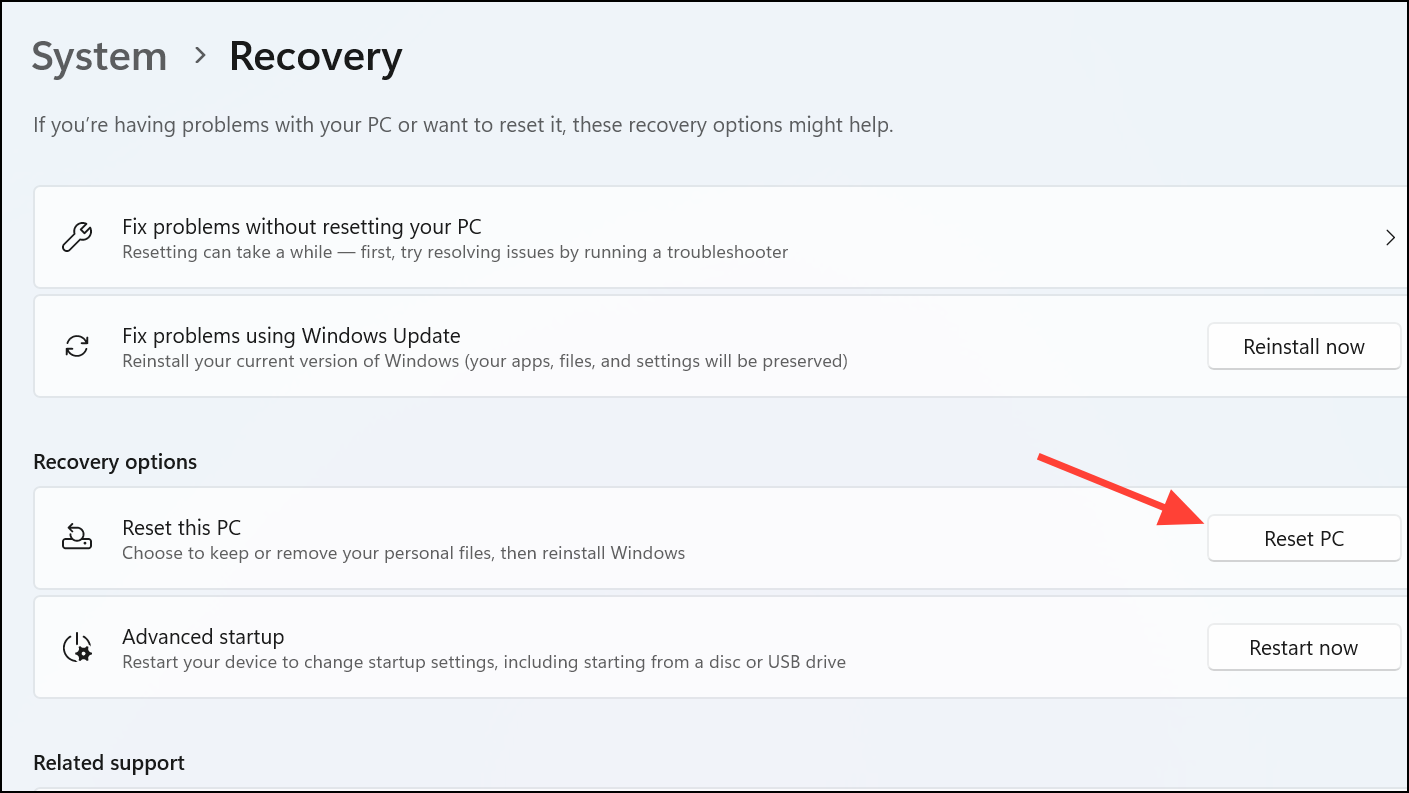
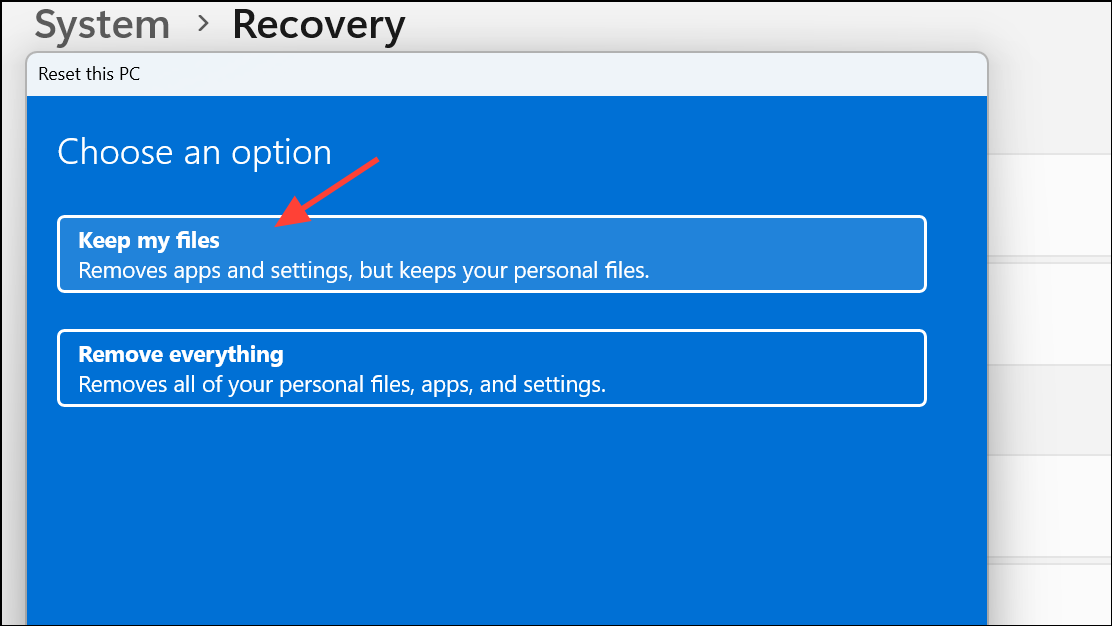
Once the reset completes, Task Manager and other system tools should function normally again.
With these detailed methods, you can effectively resolve Task Manager issues in Windows 11. Always remember to keep your system updated and regularly scan for malware to maintain optimal performance.



