
Error code 0xc0000225 appears when your Windows computer can’t locate the necessary boot files to start up properly. Usually, this happens due to corrupted Boot Configuration Data (BCD), faulty hardware, or system file corruption. Windows displays this error with messages like “Your PC needs to be repaired” or “A required device isn’t connected or can’t be accessed”. Fortunately, you can resolve this issue quickly by following the solutions outlined below.
Method 1: Use Windows Automatic Startup Repair
F12, F2, or Esc during startup.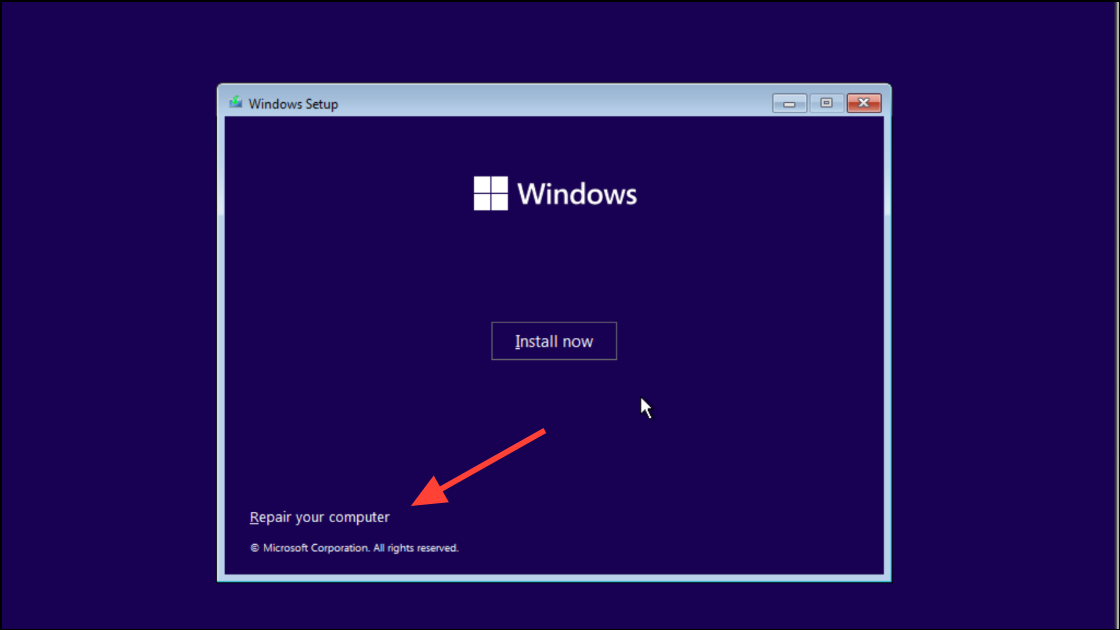
Method 2: Rebuild the Boot Configuration Data (BCD)
If the automatic repair doesn’t solve the issue, manually rebuilding the BCD may help.
bootrec /scanos
bootrec /fixmbr
bootrec /fixboot
bootrec /rebuildbcd
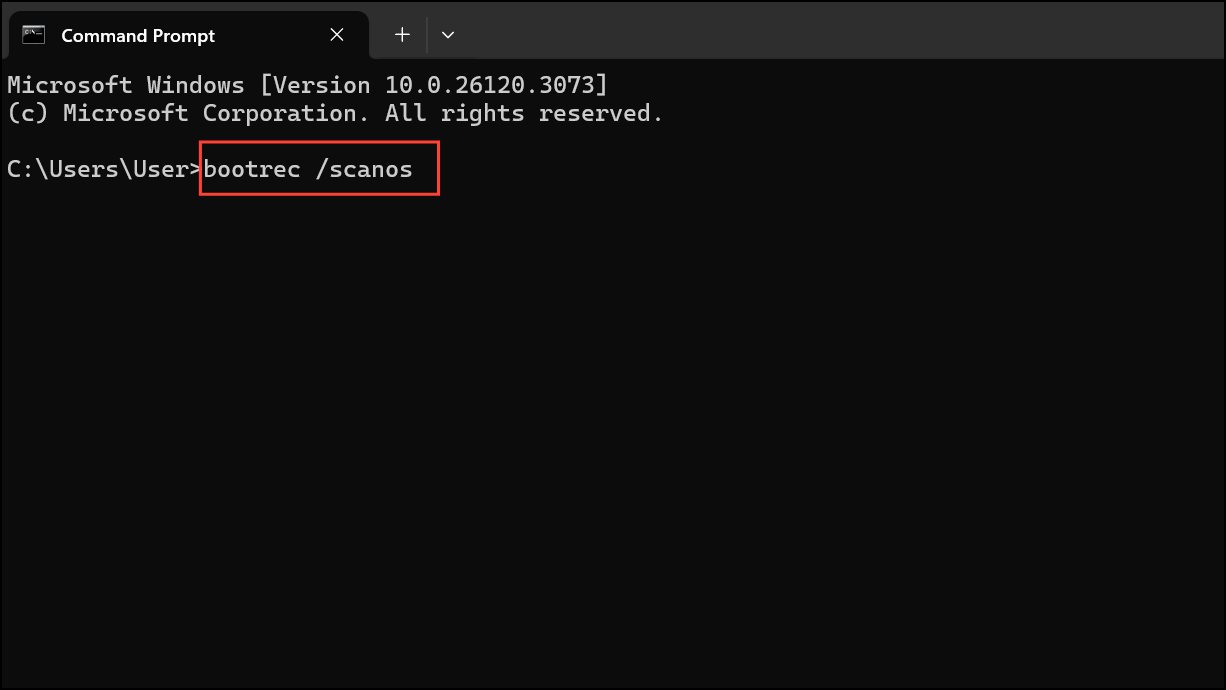
These commands scan for Windows installations, repair the Master Boot Record, fix the boot sector, and rebuild the Boot Configuration Data. After completing these steps, type exit to close the Command Prompt and restart your computer.
Method 3: Perform System File Checker (SFC) and Disk Check
If corrupted system files are causing the boot error, running SFC and Disk Check can fix them.
sfc /scannow
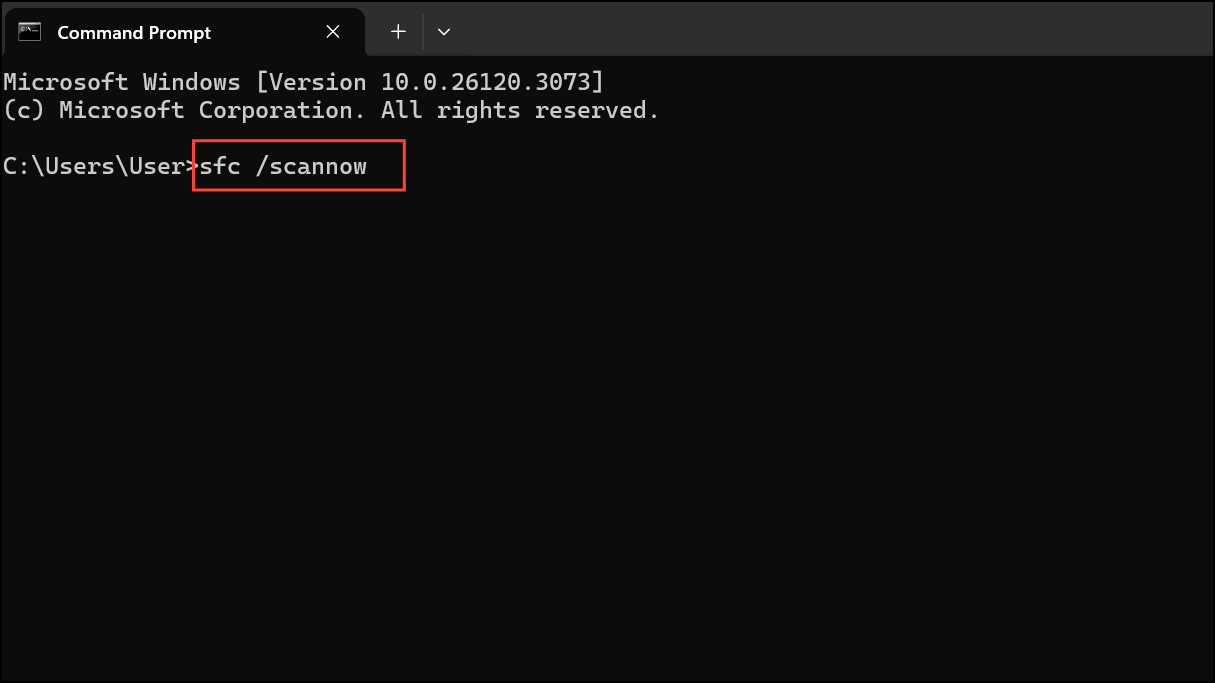
This process may take several minutes. Once completed, run the Disk Check command to repair hard drive errors:
chkdsk c: /r
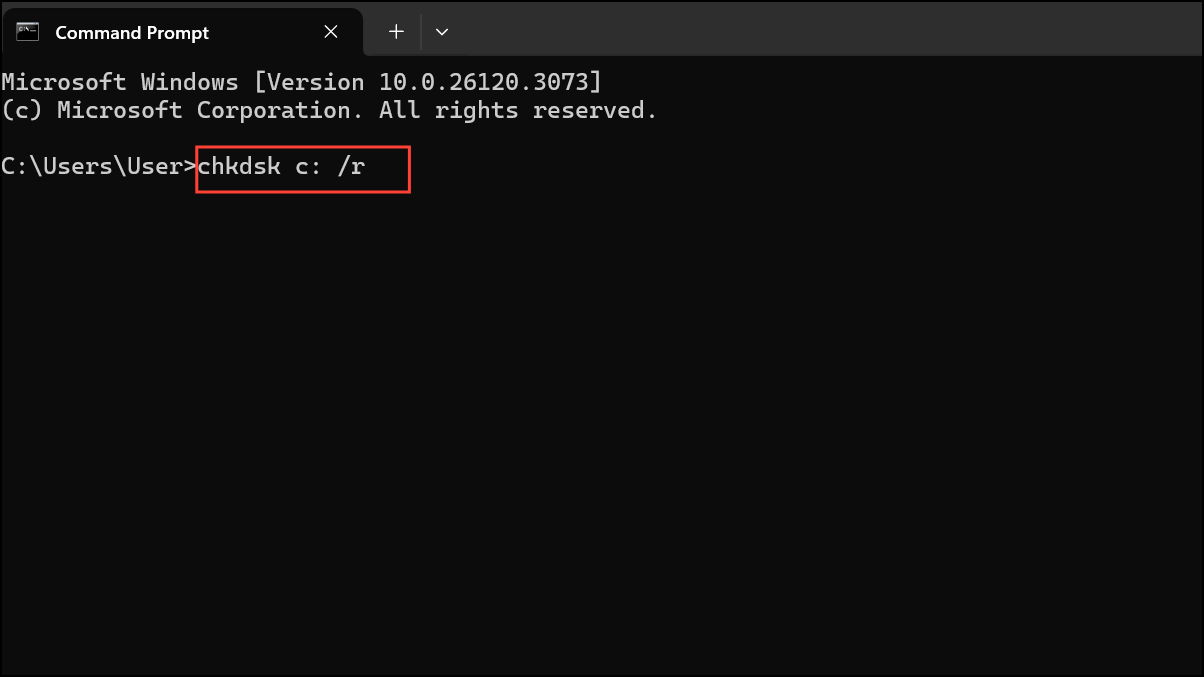
Replace c: with the appropriate drive letter if your system drive is different. After completion, restart your PC normally.
Method 4: Set the Correct Active Partition
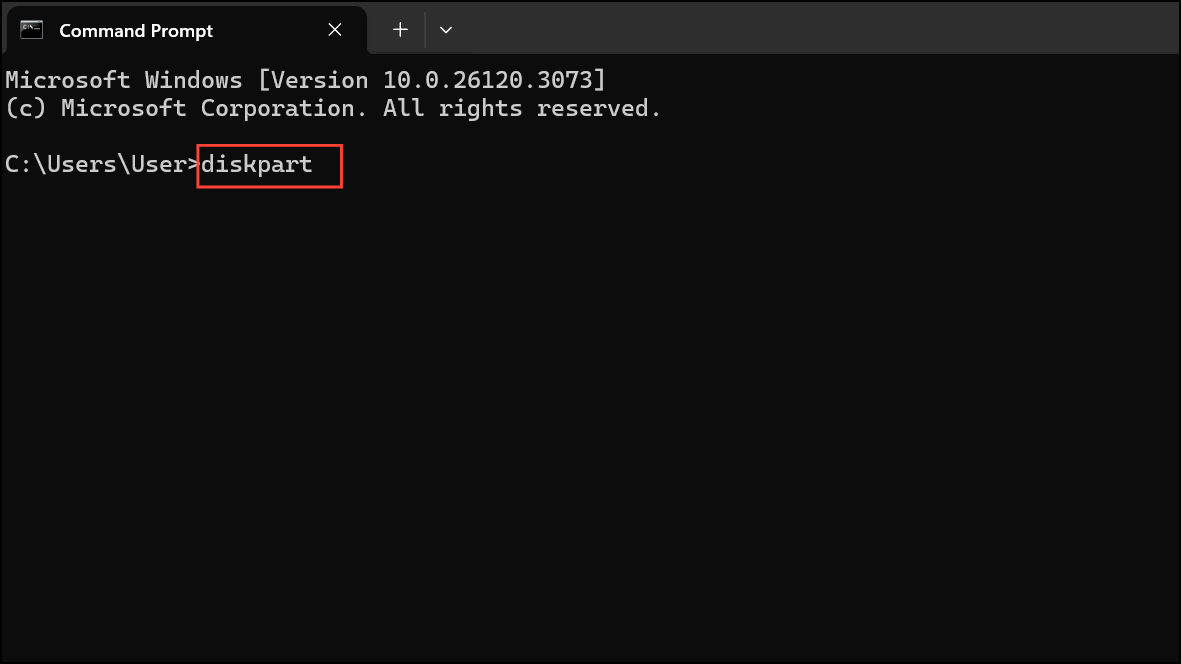
An incorrect active partition can also trigger the 0xc0000225 error. Here’s how to ensure the correct partition is active:
diskpart
list disk
select disk 0
list partition
select partition X
active
exit
Replace X with the partition number that contains your system (usually the primary partition). After setting the partition active, restart your computer.
Method 5: Use System Restore
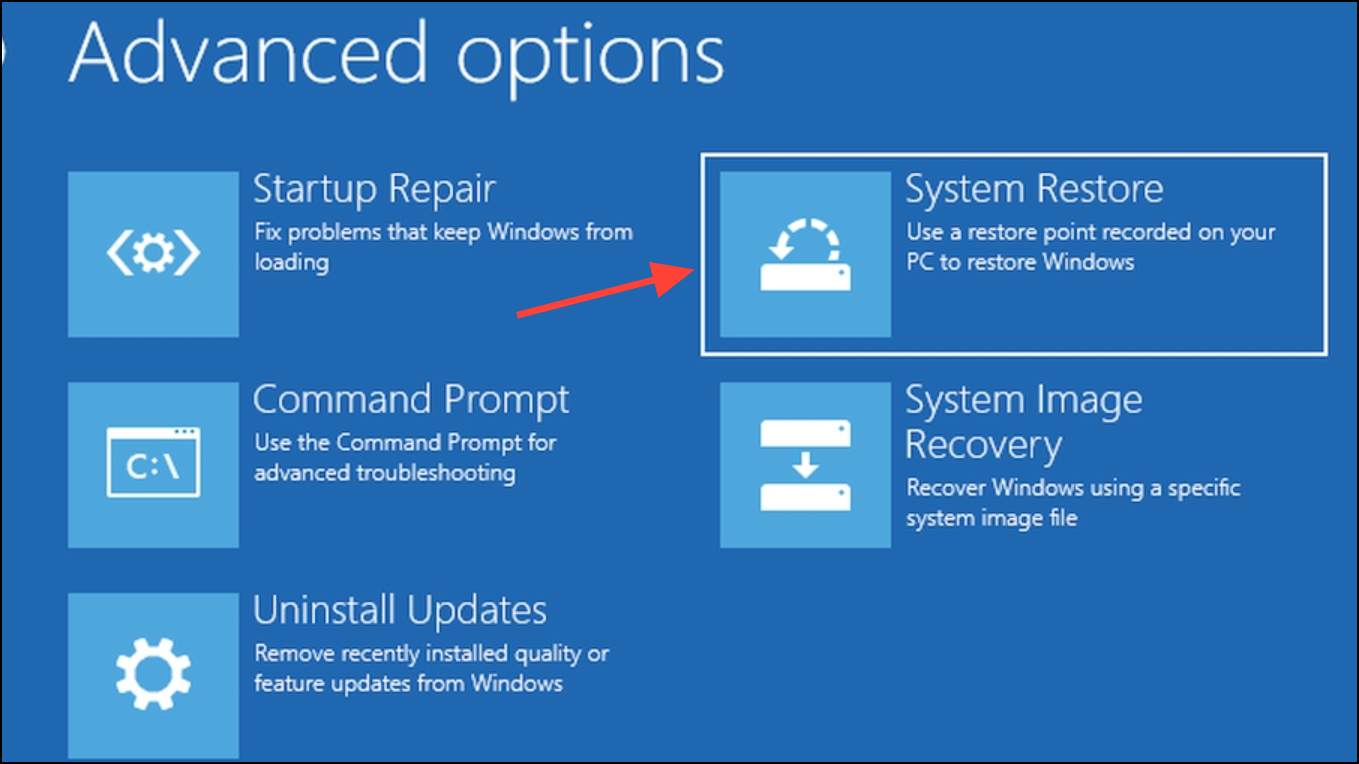
If the error started after recent changes or updates, reverting to an earlier system state using System Restore can resolve the issue. Make sure you have created a restore point earlier before you proceed with this method.
Method 6: Reinstall Windows (Last Resort)
If none of the above methods resolve the issue, reinstalling Windows is your last option. Boot from your installation media, select “Install now”, and follow the prompts to reinstall Windows. Remember, this step will erase your existing data unless you specifically choose to keep files during the process.
By following these methods, you should be able to resolve the 0xc0000225 error and get your Windows system back up and running smoothly. Remember to regularly update your system and back up important data to avoid similar issues in the future.





