How to Fix “Your PIN Is No Longer Available” Error in Windows 11
A step-by-step guide to resolve PIN sign-in issues due to security setting changes in Windows 11
A step-by-step guide to resolve PIN sign-in issues due to security setting changes in Windows 11
by Pallav Pathak
Encountering the “Your PIN is no longer available due to a change in the security settings on this device” error in Windows 11 can be frustrating, especially when you’re unable to sign in to your computer. This issue often arises after system updates, security changes, or corrupted system files. Fortunately, there are several methods to resolve this problem and regain access to your device.
In this guide, we’ll walk you through effective solutions to fix this error. We’ll begin with the simplest methods and progress to more advanced ones. Let’s get started.
Method 1: Sign In Using Your Microsoft Account Password
If you’re unable to sign in with your PIN, you can use your Microsoft account password instead. This method allows you to access your account and reset your PIN.
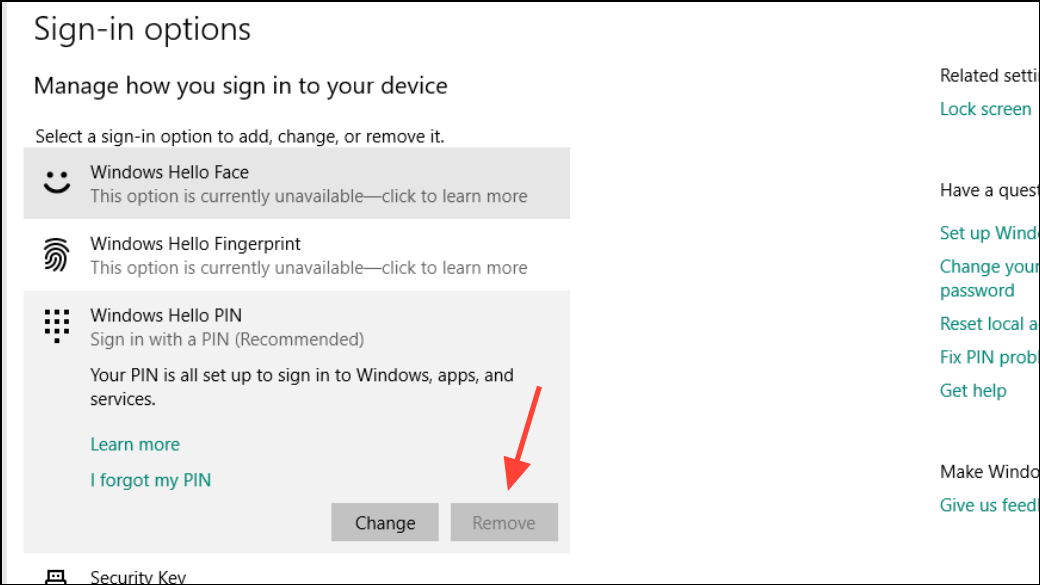
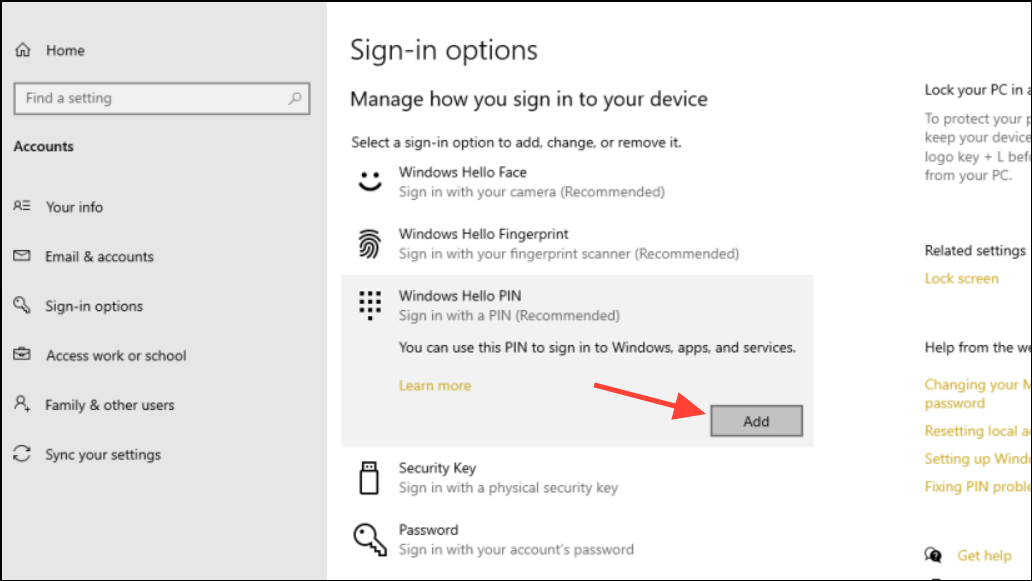
Follow the on-screen instructions to set up a new PIN.
Method 3: Delete the NGC Folder in Safe Mode
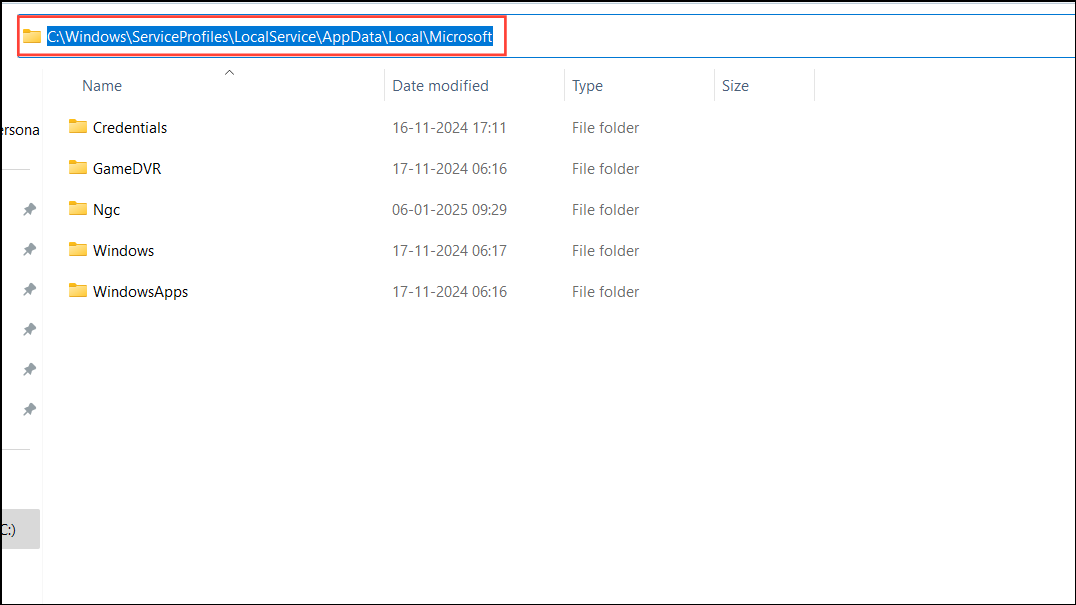
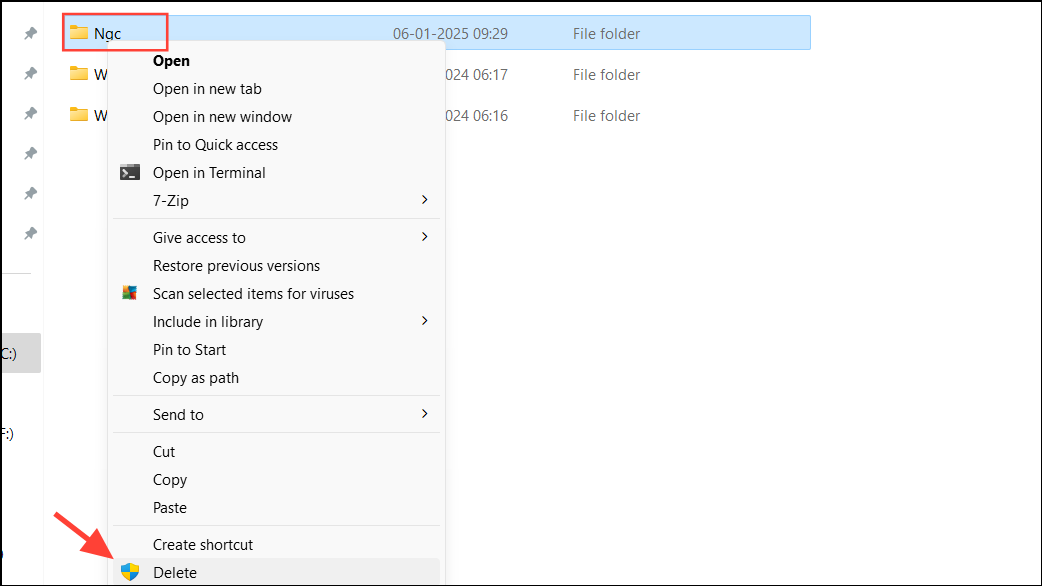
The NGC folder stores your PIN configurations. If it becomes corrupted, you may encounter the PIN error. Deleting this folder forces Windows to recreate it, potentially fixing the issue.
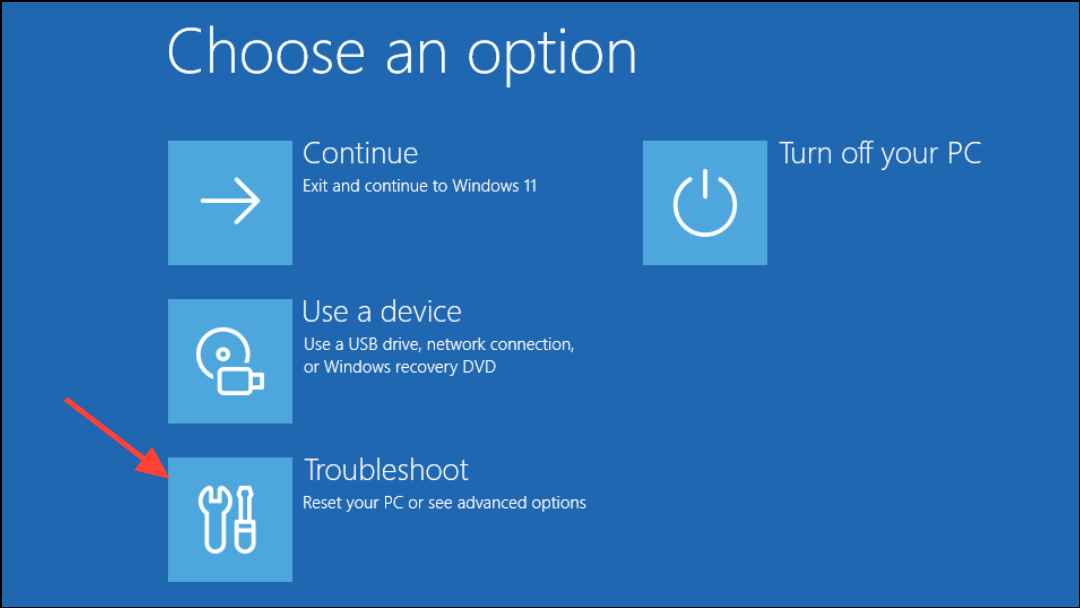
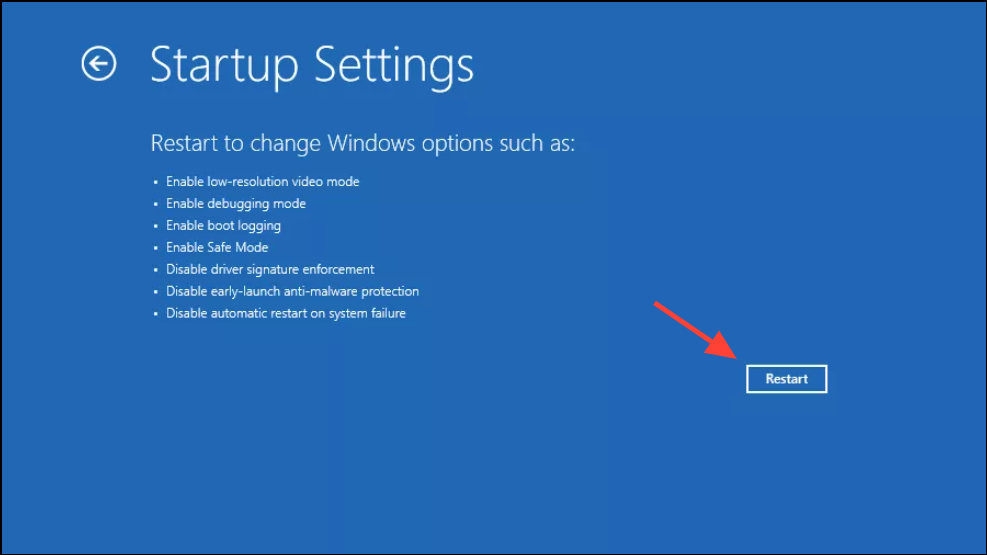
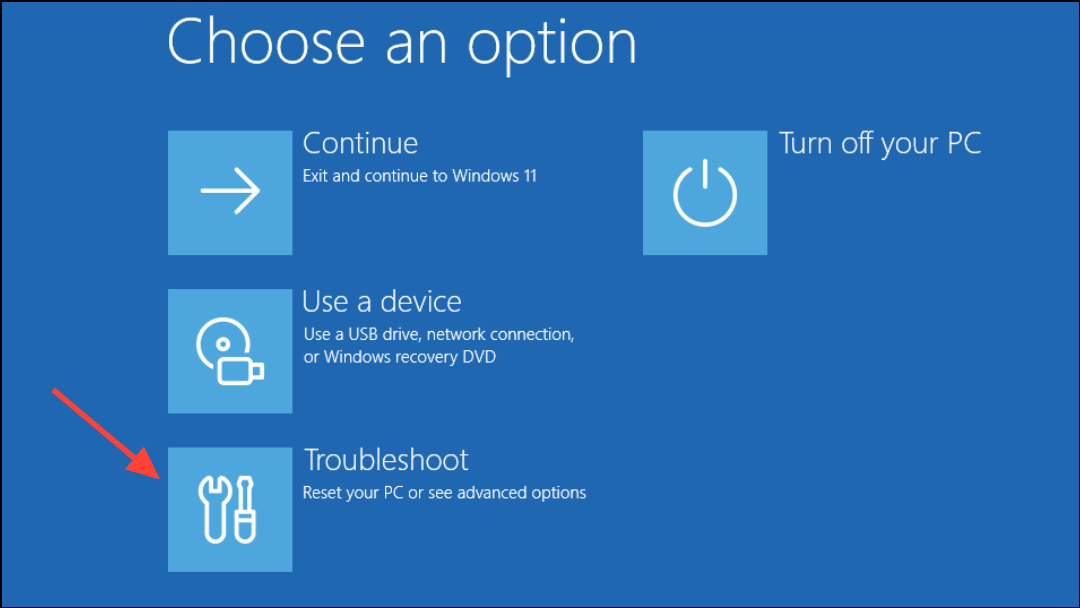
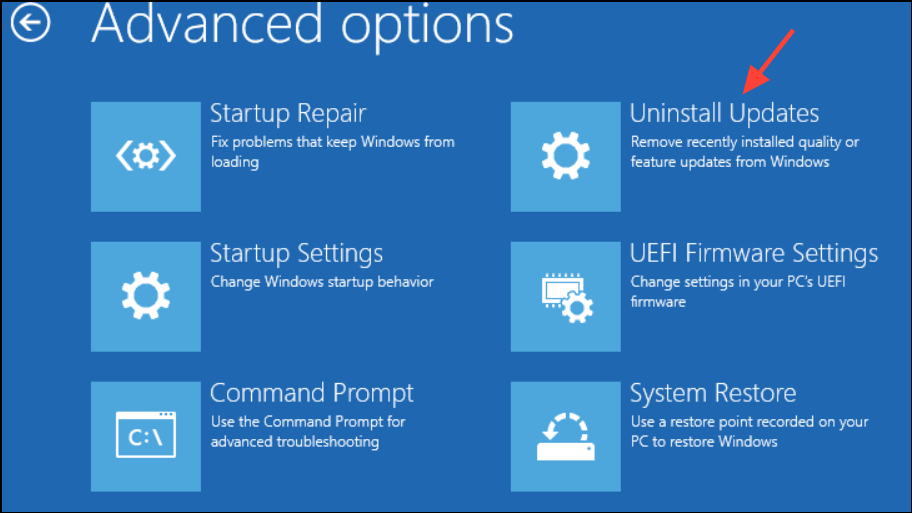
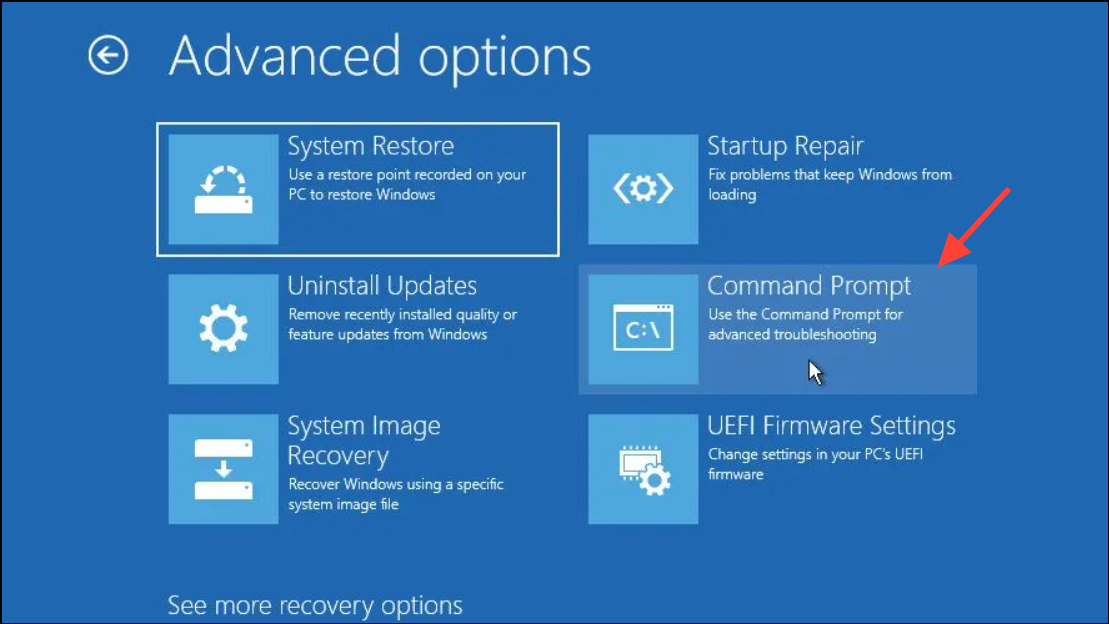
On the sign-in screen, click the Power icon, hold down the Shift key, and select Restart. This will boot your system into the Windows Recovery Environment.
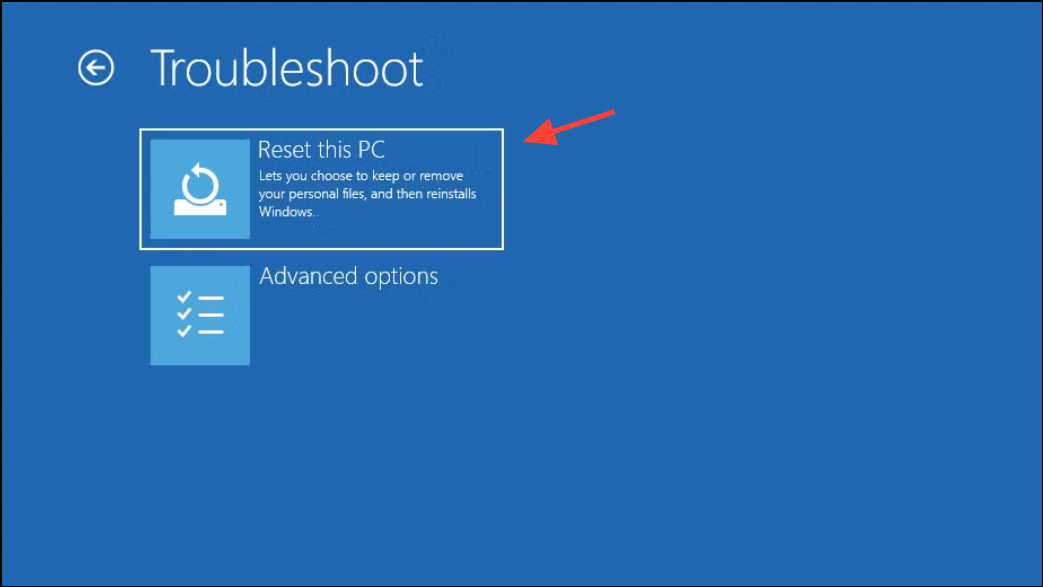
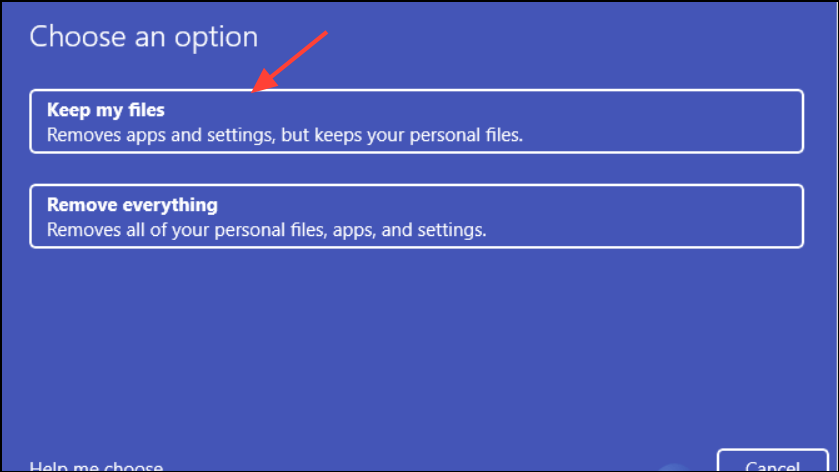
Follow the on-screen instructions to complete the reset process.
Note: While your personal files will be preserved, installed applications and settings will be removed. You’ll need to reinstall applications after the reset.
After the reset, set up your account and create a new PIN.
By following these methods, you should be able to resolve the PIN error and regain access to your Windows 11 device. Always ensure your system is up to date and consider backing up your data regularly to prevent future issues.