How to Use Microsoft Edge Drop to Share Files Between Your Devices
Sending files, and even other information, between your devices is easy with Edge Drop!
Sending files, and even other information, between your devices is easy with Edge Drop!
by Pallav Pathak
Sharing files between devices can often be a hassle, especially when crossing platforms. Microsoft Edge’s Drop feature simplifies this by allowing seamless file transfers across PCs, iPads, iPhones, Android devices, and more, directly through the browser.
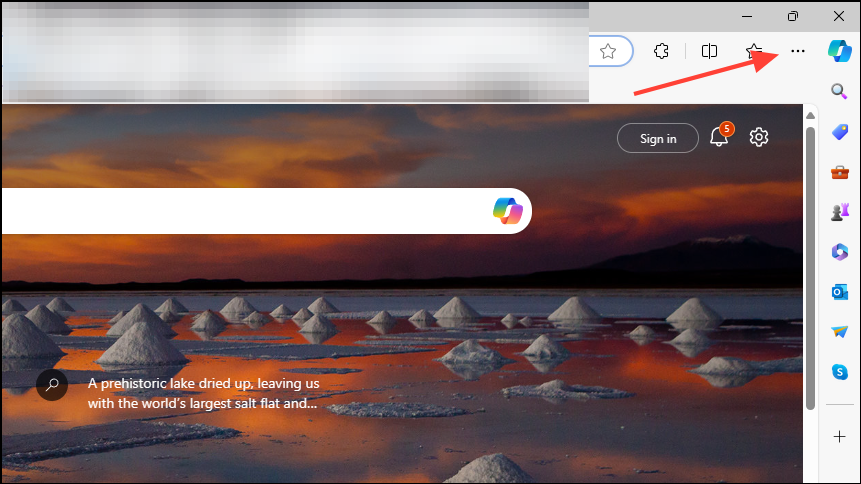
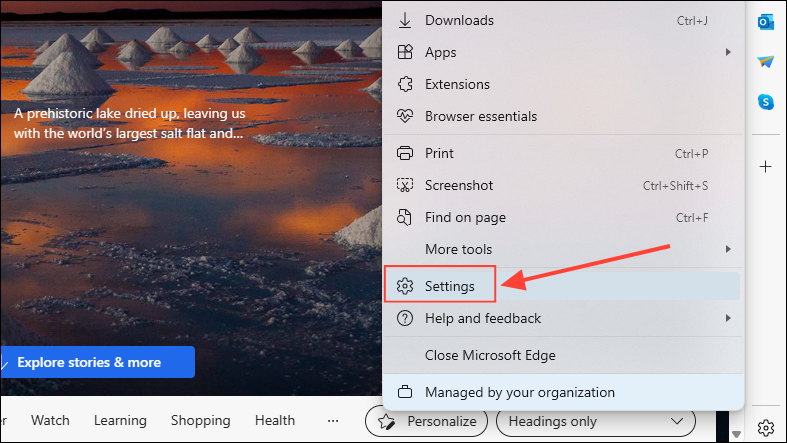
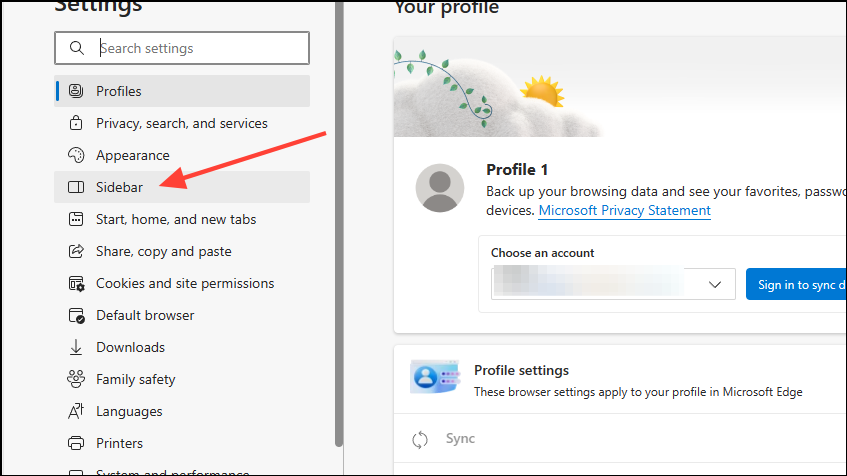
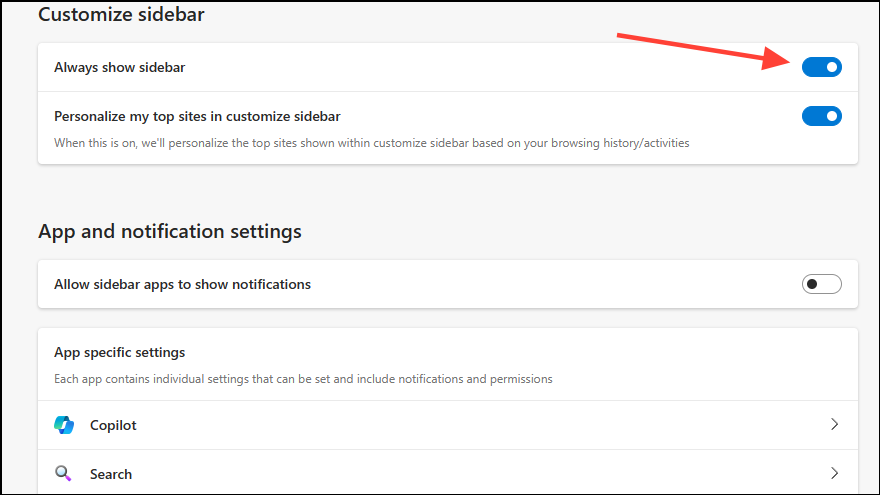
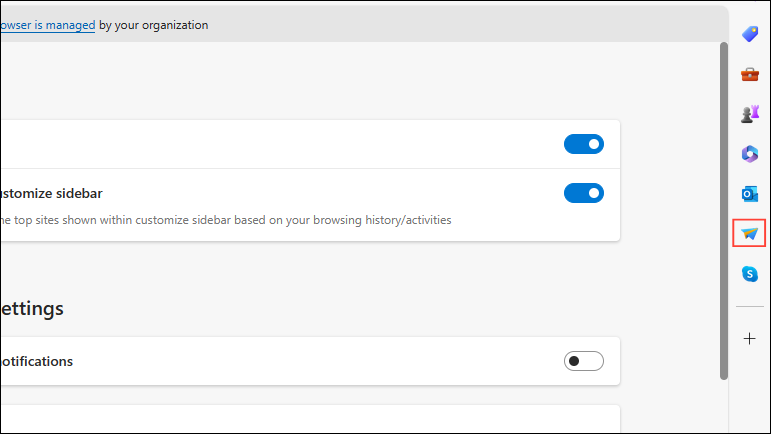
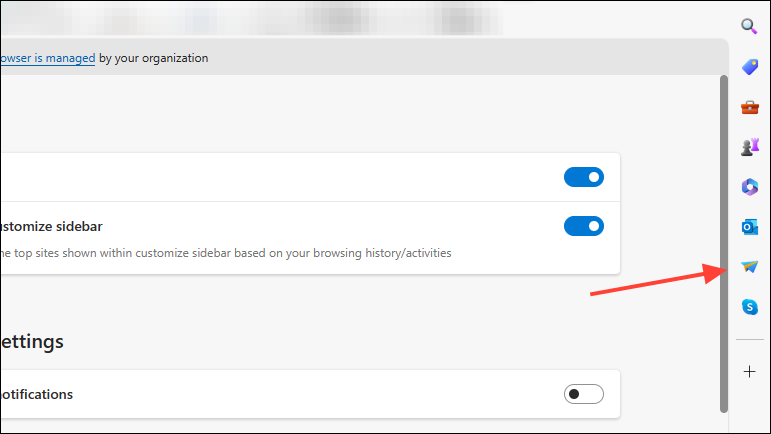
Enable the Edge Sidebar
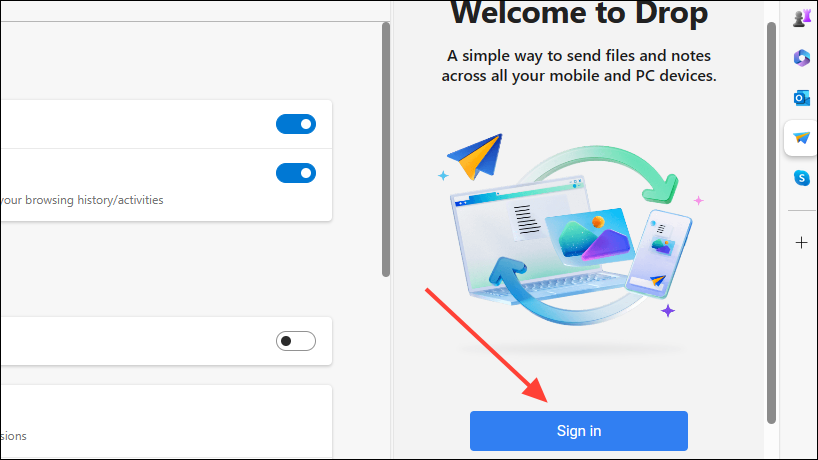
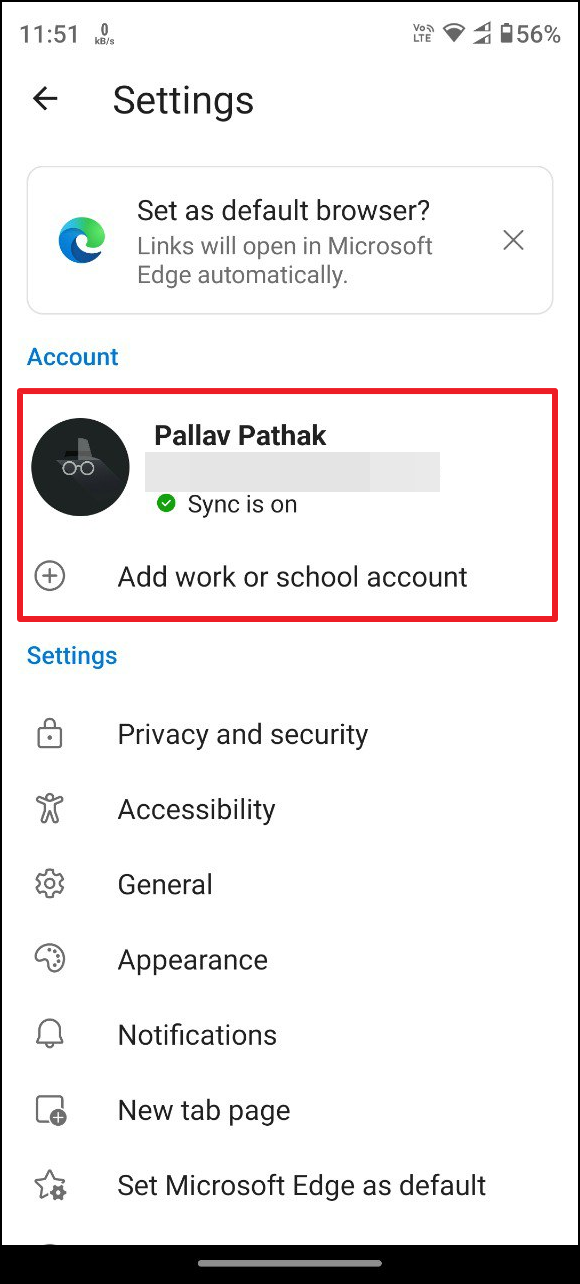
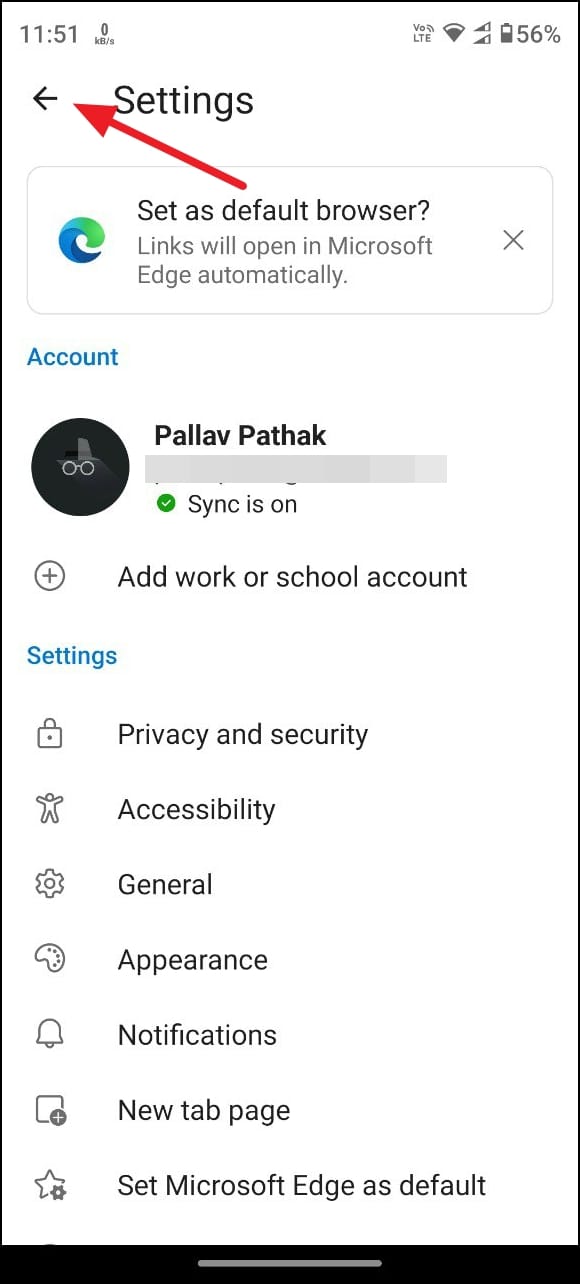
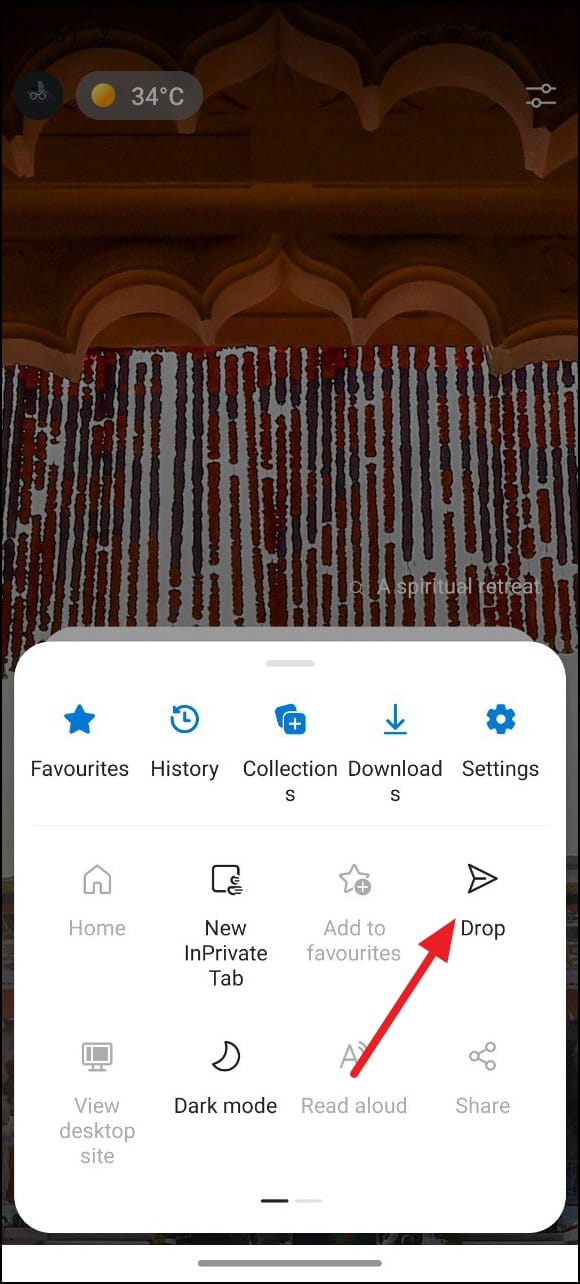
To access the Drop feature, you’ll need to enable the Edge sidebar where it’s located.
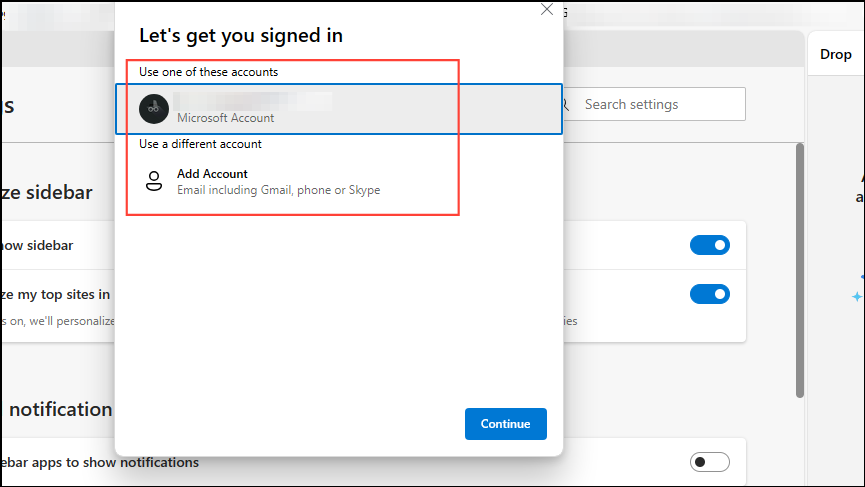
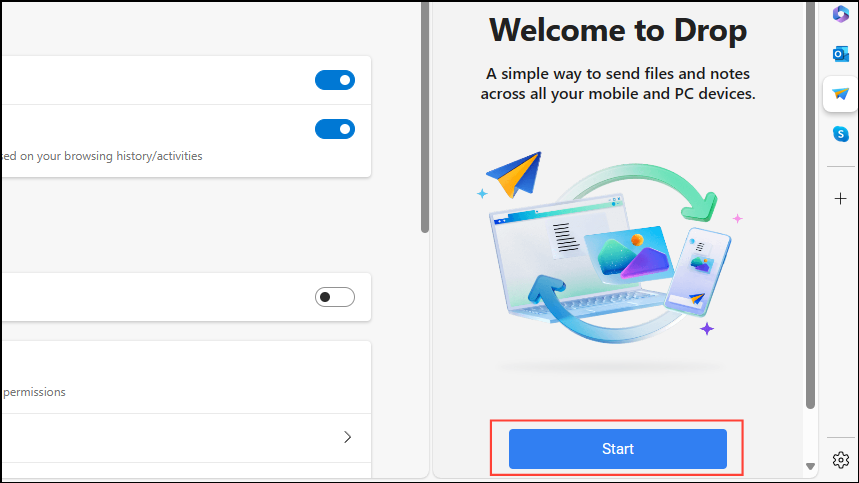
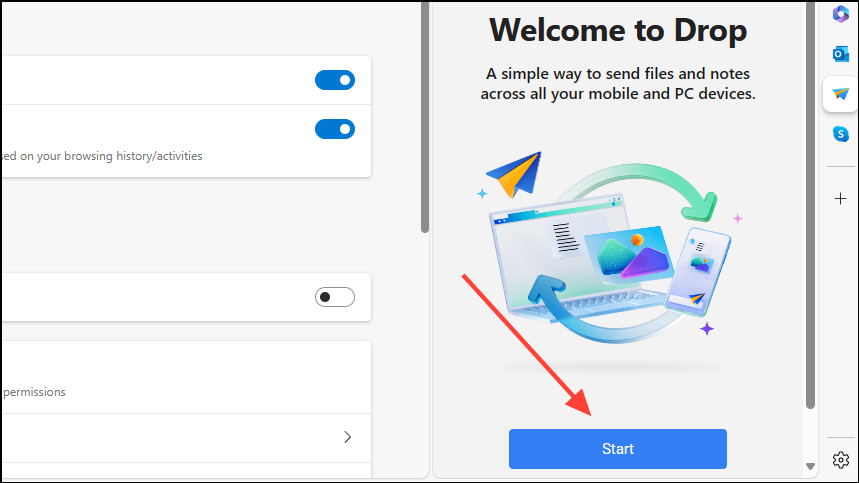
After signing in, Edge will sync your data and display a Start button, indicating you’re ready to begin transferring files.
Transfer Files Using Microsoft Edge Drop
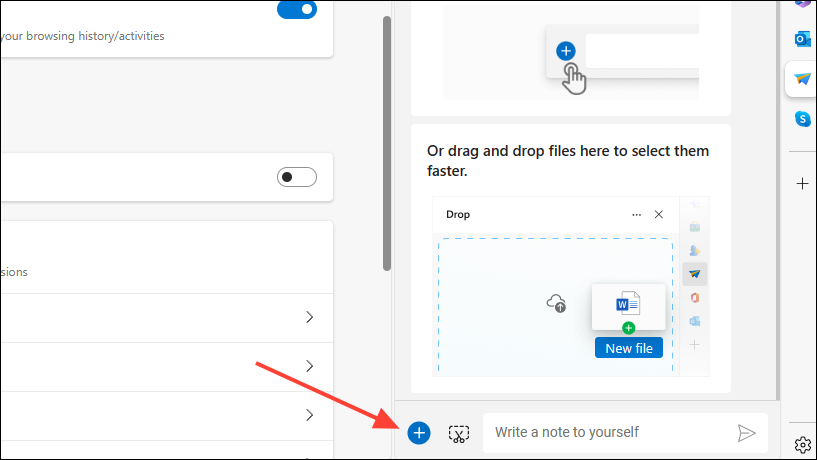
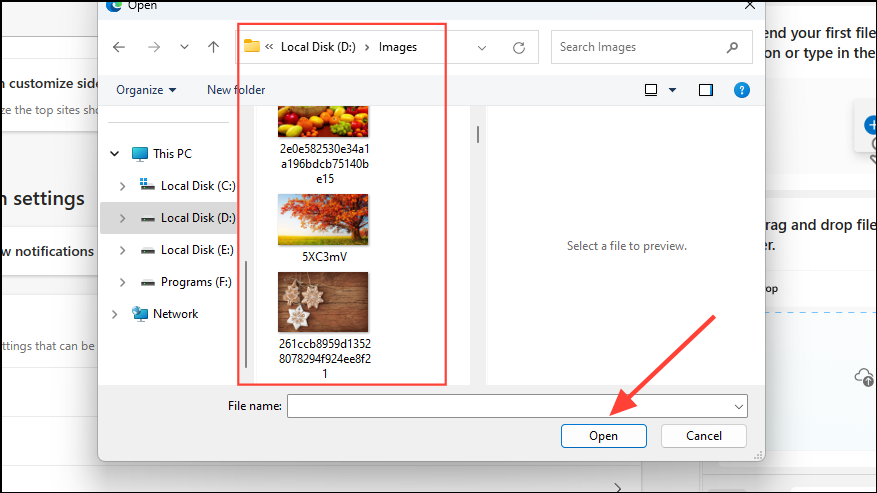
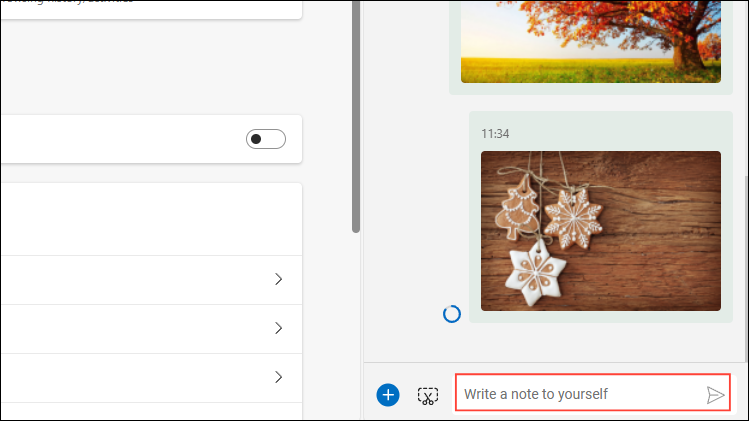
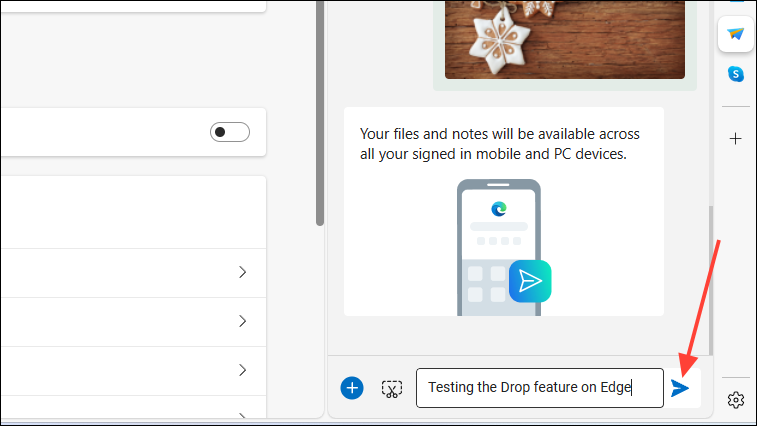
Now that you’re signed in, you can start transferring files using the Drop feature. Any files you send will be accessible on your other devices through Edge.
Note: Files transferred via Drop are uploaded to OneDrive and will count toward your OneDrive storage limit. Ensure you have enough available space to complete the transfer.
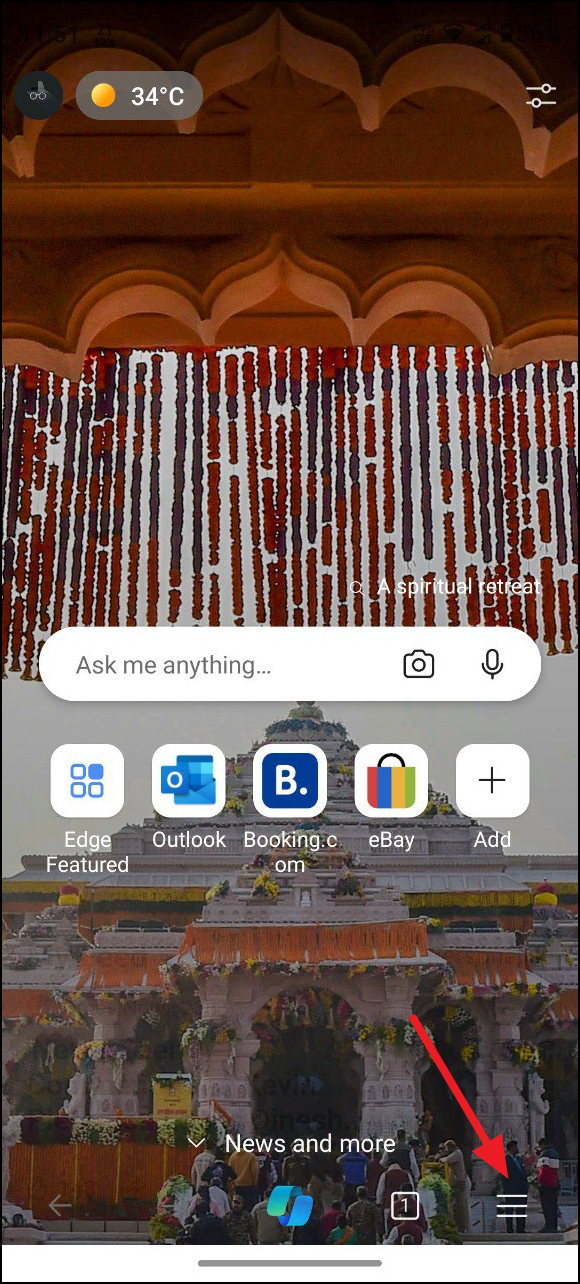
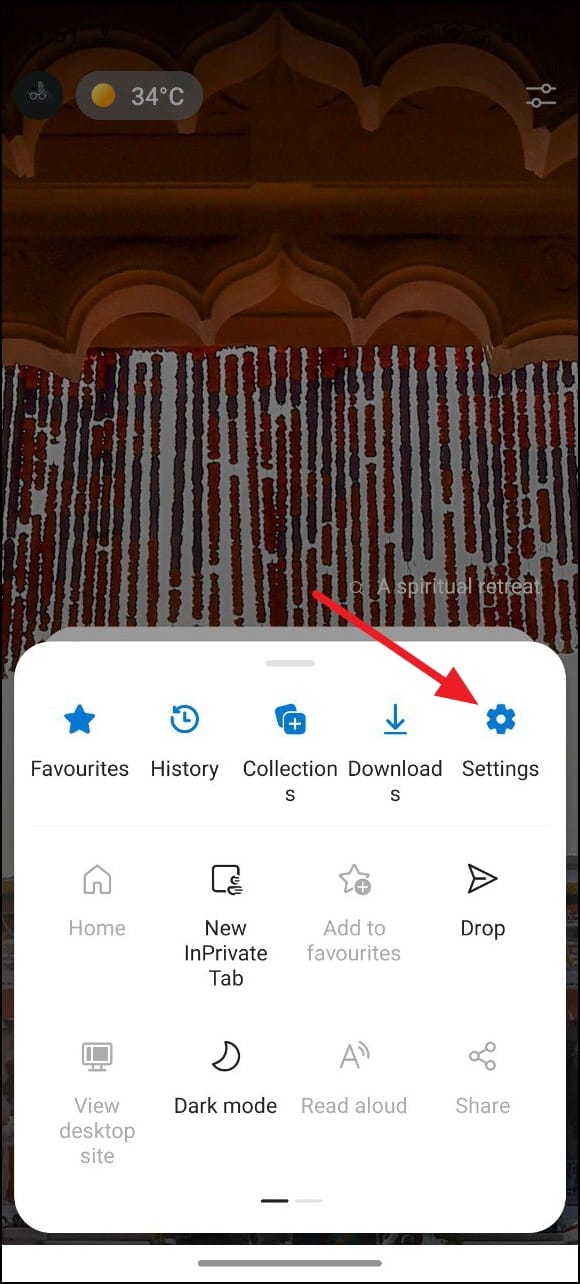
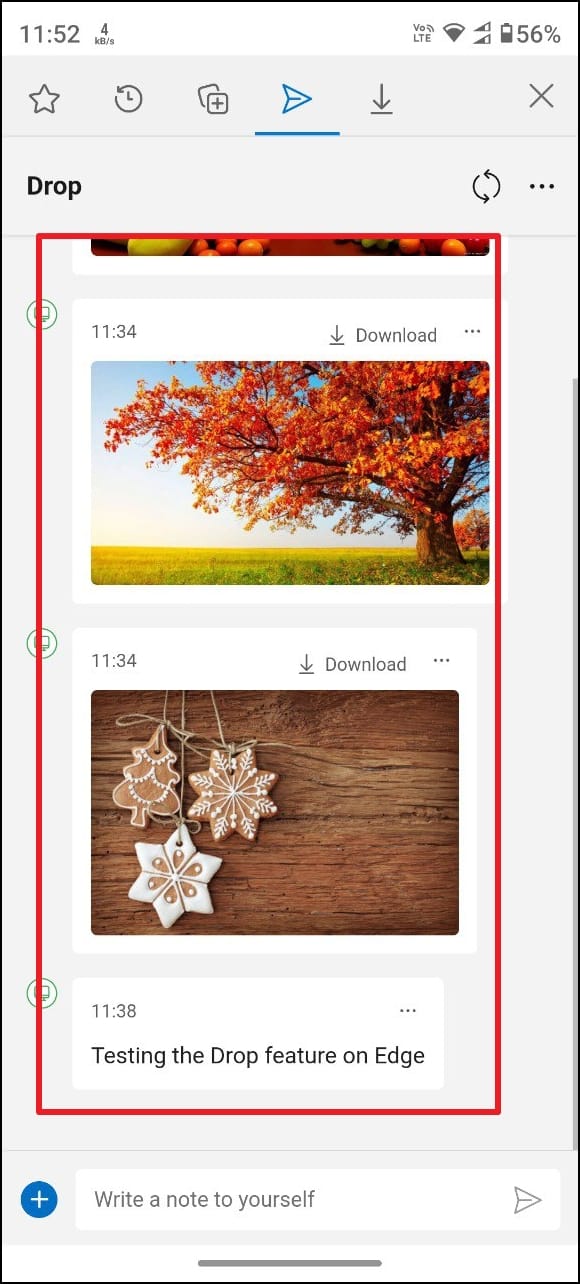
You’ll see the files and messages you’ve sent. Tap on the files to download them to this device.
By following these steps, you can easily transfer files from one device to another using Edge’s Drop feature.
Microsoft Edge’s Drop feature streamlines cross-platform file sharing by integrating directly with your browser and OneDrive. Whether you’re transferring documents, images, or media files, Drop provides a convenient and efficient method without the need for third-party apps. Just remember to monitor your OneDrive storage space to ensure uninterrupted file transfers.